
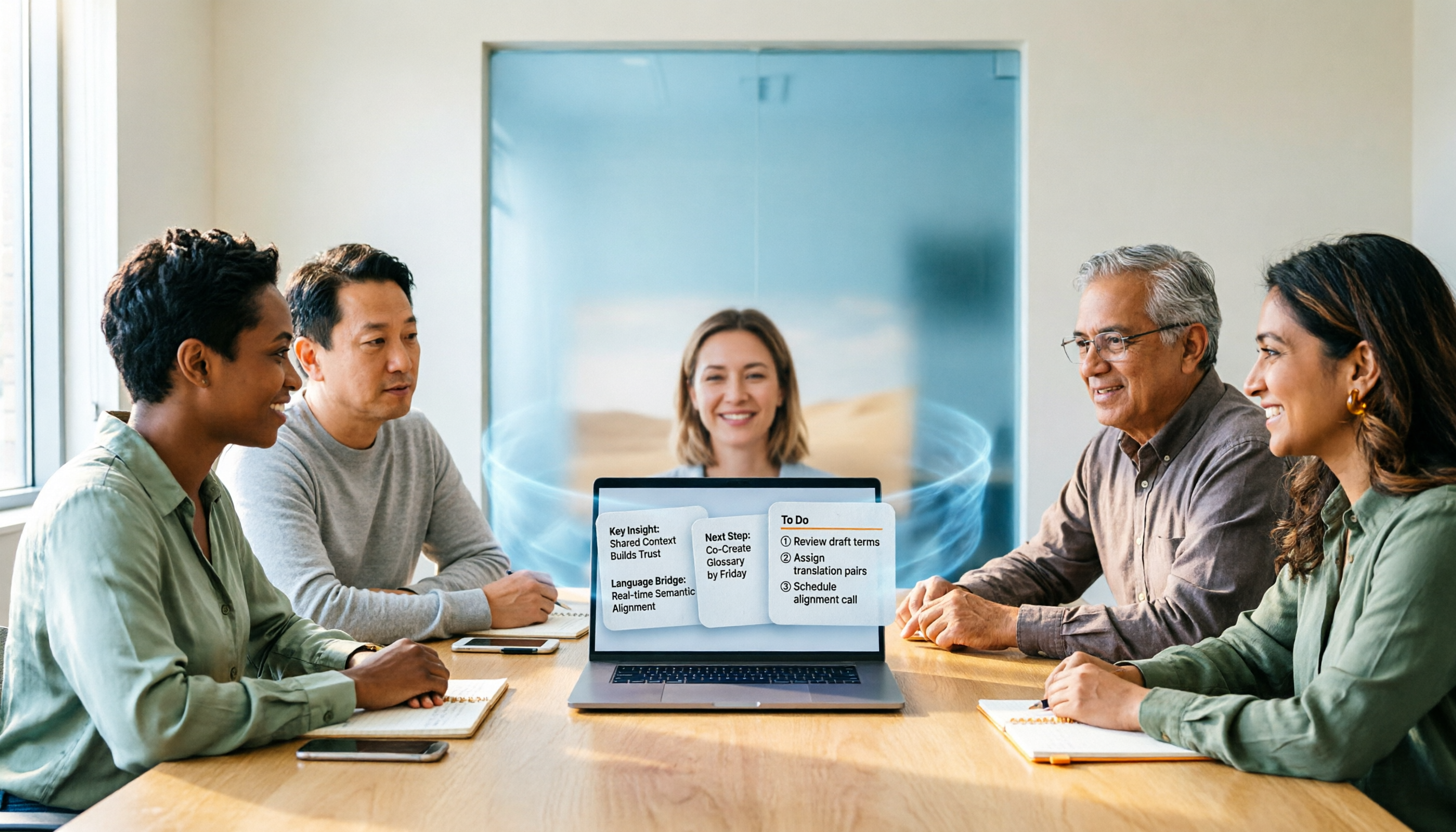
Turn recordings into transcripts and summaries in minutes
Upload audio or video for multilingual transcription, AI notes, and action items
Many people ask me: Can Google Meet actually do live translation?
Yes, and in more than one way.
But after hearing this question for years, I've found that what most people really get stuck on isn't "can it" but "then what."
The usual approach I've seen goes like this: the meeting starts, you turn on translated captions, stare at the line at the bottom of the screen the whole time, the meeting ends, you close the window, and nothing is left.
Captions solve "understanding in the moment." They don't solve "remembering after the meeting," "how do people who missed it catch up," or "how do I look up a decision three months later."
So what I want to discuss in this article isn't whether the feature exists, but: after live translation, what do you use it for?
(Screenshot: A meeting in progress with live translated captions enabled, arrow pointing to the caption area)
What can live translation actually do for you in a meeting?
Scenario 1: Cross-language client meetings
The client speaks English, you speak Chinese, and there's no interpreter. Previously, this kind of meeting relied on someone good at English to take notes, which were filled in afterward.
Now live translation lets both sides see text in their own language, so communication doesn't have to stop and wait for translation.
But the real value is after the meeting. With Tinrec, for example, a transcript and translation are generated while recording, so by the time the meeting ends you already have the complete bilingual content and can directly cross-check to confirm whether commitments were misheard.
Scenario 2: Regular weekly meetings for bilingual teams
Half the team is more comfortable in Chinese, half in English. The old approach was to speak English the whole time, which meant the native Chinese speakers absorbed less.
Now everyone opens their own translation view—same meeting, you see Chinese, they see English, but the discussion stays in the same rhythm.
Scenario 3: Interview and research recordings
The biggest fear in interviews is "understanding 70% in the moment, then listening to the recording and finding you missed the key 30%."
Live translation lets you confirm understanding during the interview, and afterward you can verify with the transcript. This treats translation as a "confirmation tool during the process," not "discovering mistranslations after the meeting."
(Screenshot: Bilingual transcript comparison view, original text on the left, translation on the right)
First, the answer: Where are the limits of Google Meet's live translation?
Google Meet currently has two forms of live translation.
The first is translated captions, which convert speech into text in a language you choose, supporting dozens of languages.
The second is Gemini speech translation. In October 2026, it expanded to 63 languages and added automatic language detection—it can handle multiple languages in the same meeting or speakers switching languages mid-sentence. Participants can decide whether to turn it on and can set "I understand these languages, no need to translate." Google says it does not store voice data or use your voice to train models.
The limits are also clear.
It requires an eligible Workspace plan. Translation can make errors—noun gender, accents, and tone can all go wrong, and the voice style changes when the speaker changes. Google itself warns that live translation has errors and important content should be double-checked.
There's also a more fundamental limit: its translation happens "in the moment."
When the meeting ends, that translation disappears with the window. You either record the whole thing or find someone else to take notes.
(Screenshot: Google Meet language settings menu, arrow pointing to the speech translation option)
This is what I mean by "then what."
What are the core capabilities of Tinrec's live translation?
Translate while recording, with original and translated text side by side
Tinrec's live translation doesn't replace the original with the translation; it lets you freely switch views during recording: view the original, view the translation, or view both side by side.
I think this is more important than translation itself. Translation always has errors, and you need to be able to go back to the original at any time to confirm exactly what was said.
Record online meetings without a bot
Tinrec's desktop version directly captures your computer's system audio, handling Zoom, Google Meet, Microsoft Teams, and Webex meetings played on your computer, without inviting an extra bot to join.
The significance is: there won't be an extra "participant" in the meeting, and you don't need to change meeting settings or notify everyone just to record.
Organize after translation
Once you have the transcript and translation, the real time-consuming part begins.
Tinrec automatically generates summaries, chapters, and action items. The most troublesome part of cross-language meetings is "I understood, but I can't organize it," and this step can be skipped entirely.
Ask follow-up questions about meeting content
After organizing, you can directly ask: "What was the budget cap the client mentioned?" "Who is responsible for next week's proposal?"
Stop organizing recordings by hand
Upload audio or video and automatically get a transcript, summary, and action items
It answers based on the meeting content, so you don't have to go back and flip through dozens of pages of transcript yourself.
Meeting data stays in the team space
The team version centralizes meeting recordings, transcripts, translations, summaries, and action items in one space. New members can directly view past meetings without asking each person for files one by one.
Roles determine who can manage the team, and seats determine who can record, upload, and edit. Active members can still view, play, and read team data even without a seat.
(Screenshot: Tinrec team space list, arrow pointing to bilingual transcript and summary)
Practical use cases
Cross-border client communication
Use bilingual view during the meeting to confirm mutual understanding, and after the meeting use the summary to organize client needs, objections, and commitments. Previously this required re-listening to the recording; now it's data you have as soon as you open it.
Bilingual team weekly meetings
Everyone reads in their preferred language while the discussion proceeds in sync. After the meeting, action items are automatically listed with owners and tasks clear, so no one has to sacrifice meeting time to take notes.
Research interviews
After interview recordings are converted to transcripts and translations, you can repeatedly ask follow-up questions about a single interviewee's content to find recurring keywords. This is much faster than listening to recordings back and forth.
Courses and content production
Organize course or lecture recordings into bilingual transcripts, then further generate reports or notes. Materials can be reused instead of scattered after the talk.
5 things to consider when choosing a live translation meeting tool
1. Translation should be integrated with the transcript
If translation is a separate layer, you'll always be switching between two windows. Tinrec's approach is to put the original, translation, and bilingual views in the same transcript for switching, which greatly reduces verification cost.
2. Can you go back to the original at any time
Translation will always have errors. What you need isn't "perfect translation" but "being able to check back when it's wrong." This is especially critical in important meetings.
3. Will the recording method interfere with the meeting
Some tools require a bot to join the meeting, adding an extra participant and notification. Tinrec's desktop version captures system audio, so no one extra appears in the meeting.
4. Is there help organizing after translation
Translation is only an intermediate product. What you actually deliver is the summary, decisions, and action items. Tinrec generates these directly after transcription and also allows AI Q&A for follow-up details.
5. Where does the data ultimately stay
Personal account data follows the person and scatters when they leave. Tinrec's team version makes meeting data owned by the team, so it can be handed over when members change, and meetings won't be lost when someone leaves.
Frequently asked questions
Can Google Meet do live translation?
Yes. It has two forms: translated captions and Gemini speech translation. Speech translation expanded to 63 languages in October 2026 and supports automatic language detection. But it requires an eligible Workspace plan, and translation only exists during the meeting.
What's the difference between translated captions and speech translation?
Captions convert speech into text in your language; speech translation reads the translation aloud in a voice close to the speaker's. The former is for reading, the latter for listening. Both can have errors in tone, accent, and word choice.
Can Tinrec handle Google Meet meetings?
Yes. Tinrec's desktop version captures computer system audio and can handle Google Meet, Zoom, Microsoft Teams, and Webex meeting audio played on your computer, without a bot joining. This is a recording method and does not imply official partnership with these platforms.
Is live translation accurate enough?
It's better not to judge by "is it enough" but by "can I check when it's wrong." Tinrec keeps the original transcript, so when translation is doubtful you can go back to the original for verification. Actual performance is affected by recording quality, accents, noise, and overlapping speakers.
What's the difference between the team version and the personal version?
Personal version data belongs to the individual account. The team version is a separate team space with additional members, roles, seats, sharing benefits, usage analytics, and audit logs, and meeting data belongs to the team.
Conclusion
Google Meet has already done live translation quite thoroughly.
But it solves the part during the meeting. Organizing, tracking, and retaining before and after the meeting still require a workflow.
My suggestion is this: treat translation as a tool for "confirming understanding," and treat transcripts, summaries, and action items as "assets usable after the meeting." Connect these two things, and cross-language meetings truly save time.
If you have a cross-language meeting every week, you can start with these steps:
- Pick a cross-language meeting next week, change no habits at first, and just observe how much time you spend organizing afterward
- Record once with Tinrec desktop version, and see what the transcript and translation look like after the meeting
- Switch between original, translation, and bilingual views to find the one you use most
- Try using AI Q&A to ask a question that occurred to you after the meeting
- Paste the summary and action items into your existing workflow
- If the team uses it together, create a team space and put this meeting in it
Test step by step, and you'll gradually find the setup that works best for your team.
(Before recording and transcribing, please ensure compliance with local regulations and obtain participant consent when needed.)
References
- Google Meet live translation (2026): how it works, what it costs, and where it stops — Blog | InterMIND
- Google Workspace Updates: Real-time speech translation in Google Meet expands to 63 languages with automatic language detection
- Google Meet Translated Captions: Setup and Fixes
- How Google build real-time language translation for Meet
- Google Meet Speech Translation Launches in Real Time | MultiLingual
Turn every recording into actionable outcomes
Get 60 free transcription minutes when you sign in. No credit card required.
Related Reading
You might also like
Google Meet Mute Permissions & 3 Meeting Tools Tested: Who Makes Post-Meeting Notes Easiest?
Many assume meeting hosts can always mute everyone, but Google Meet mute permissions depend on your account plan, host management settings, and your role in the meeting. This article clarifies the mute scope and limits for hosts and co-hosts, then compares Google Meet built-in transcription, Otter.ai, Notta, and Tinrec for post-meeting notes—helping you handle both 'keeping the meeting quiet' and 'finding the information afterward.'

The Complete Guide to Recording Google Meet in 2026: Free Account Limits and Bot-Free Recording Solutions
Google Meet allows recording, but free accounts, host permissions, and plan restrictions often gray out the record button. This guide covers native recording requirements, file locations, and explains how to use Tinrec desktop for bot-free recording, real-time transcription, AI summaries, and team knowledge retention.

The Complete Guide to Google Meet Recording in 2026: Limitations, Alternatives, and Post-Meeting Organization
Google Meet does support recording, but most people get stuck on admin settings, paid plans, and device limitations. This article addresses three common misconceptions, clarifies the real requirements for built-in recording in Google Meet, explains how to handle meeting notes after recording, and shows how Tinrec fills the post-meeting organization gap with bot-free recording, transcripts, AI summaries, and team spaces.

The Complete Guide to Buying a Google Meet Subscription in 2026: Plan Selection and Meeting Notes Workflow
People searching for 'buy google meet subscription' really need to decide which plan to buy and how to handle post-meeting organization. This article breaks down the choice between Google One and Google Workspace from a mid-level manager's perspective, and explains why meeting notes and action items should be handled by Tinrec.

Google Meet Screen Sharing: The Complete 2026 Guide — From Presenting to Capturing What Matters
Google Meet lets you share your screen, but sharing well and keeping a record of the meeting are two different things. Starting from real meeting scenarios, this guide explains Google Meet's three sharing modes, audio sharing, and common limitations, then shows how Tinrec's desktop app records meeting audio without a bot, filling the gap after sharing ends with transcripts, summaries, action items, and AI Q&A. It also covers team plan seats and pricing.
Google Meet Recording Detection in 2026: The Complete Guide to Bot-Free Recording and Meeting Retention
Google Meet only sends notifications and sounds for its built-in recording feature; external recording tools are generally undetectable. This complete guide breaks down three recording scenarios and explains why, instead of worrying about detection, you should switch to Tinrec desktop for bot-free recording that turns meetings into searchable, queryable, and deliverable transcripts, summaries, and action items.
How to Record Google Meet in 2026: 3 Methods + Bot-Free Backup Tested
Google Meet can record, but not everyone sees the record button. This guide starts with three key questions: does your account have recording permission, whose cloud storage will the file land in, and who will organize it after the meeting. It compares Meet's built-in recording, computer screen recording, and Tinrec's bot-free desktop recording, with 5 steps, troubleshooting, and advanced tips.
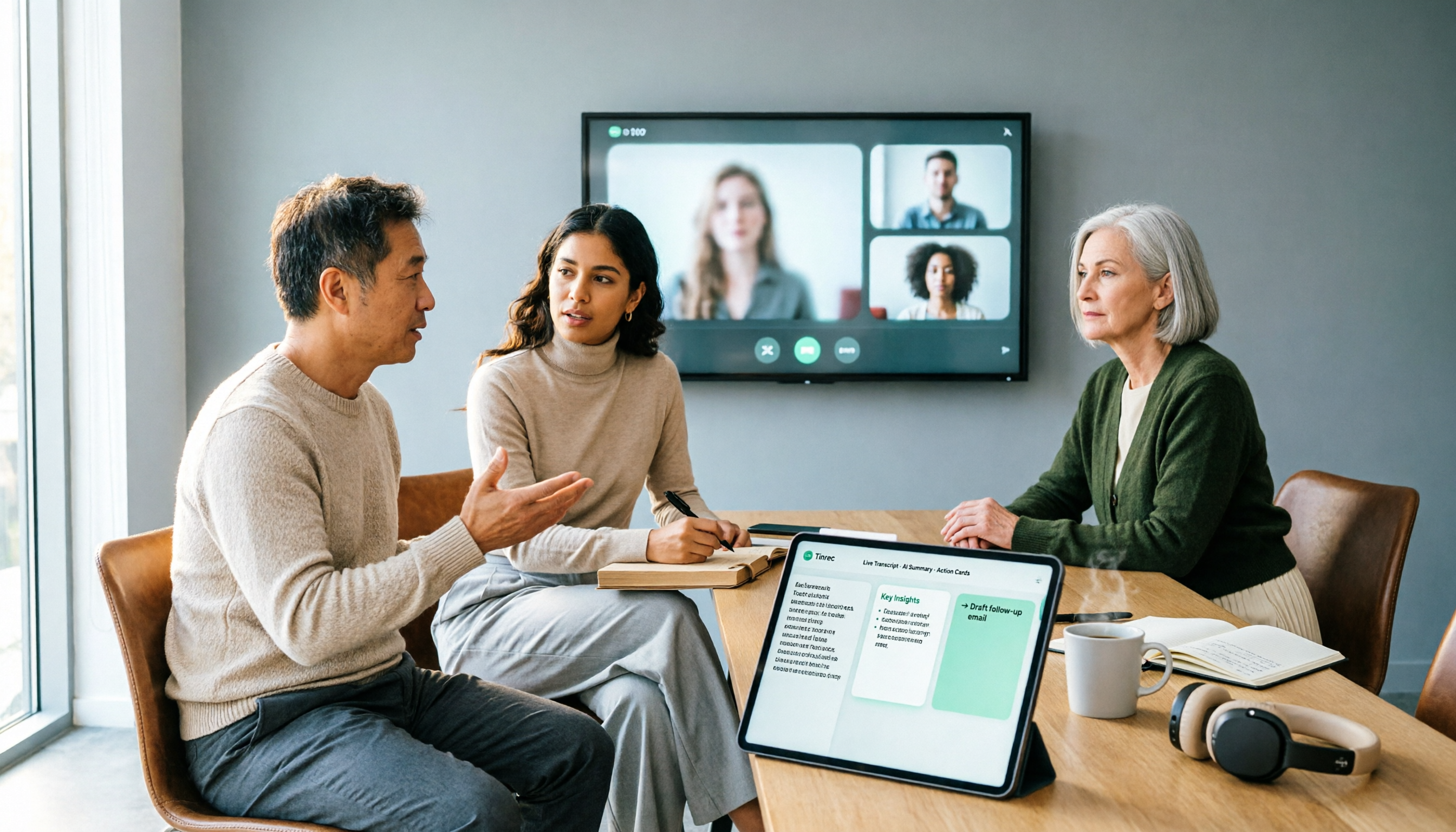
The Complete Guide to Google Meet Meeting Notes in 2026: From Licensing to Transcripts in Practice
Buying a Google Meet license doesn't mean your meetings will automatically be recorded. This article starts with the three most common purchasing pitfalls, first clarifying the difference between Workspace subscriptions and meeting room device licenses, then explaining what's really missing for meeting notes: bot-free recording, live transcripts, AI summaries and action items, and team knowledge retention—demonstrated with Tinrec's actual workflow.
4 Best Google Meet Attendance Extensions for 2026: From Free to Team Plans
A manager who runs over a dozen meetings a week shares hands-on insights: how to choose a Google Meet attendance extension, whether the free version is enough, how data storage makes a difference, and which tool to use for meeting notes and action items after attendance is recorded.