

Turn recordings into transcripts and summaries in minutes
Upload audio or video for multilingual transcription, AI notes, and action items
Starting a Google Meet call is easy—the hard part is the hour after
In 2026, starting a Google Meet call is just a few clicks. But if you're not looking for "how to enter the meeting room" but rather "how to save time on post-meeting organization," there's really only one choice to make: instead of taking notes yourself, decide first how you'll capture the meeting content completely.
Let's clarify the entry points. Open meet.google.com on your computer—you can pick a scheduled meeting from the list or enter a meeting code directly. If you're coming from Google Calendar, find the event and click "Join with Google Meet."
The first time you join via browser, the system will ask for camera and microphone permissions—remember to click Allow. Before joining, check in settings that the right camera and microphone are selected, and test your audio and video to save those first five minutes of "can you hear me?"
One commonly confused point: meeting codes can be used by anyone, but "meeting short names" are currently only available to members of the same Workspace organization. If you're inviting external clients, don't give them the short name.
The real trouble comes after the meeting. A two-hour meeting means transcripts to organize, conclusions to report, and action items to track—Google Meet won't do any of that for you.
So before choosing a tool, answer three questions: Do you need to keep the recording? What will you do with the transcript afterward? Is this for personal use or for the team to review together?
Before Choosing a Google Meet Note-Taking Tool, Understand These 4 Key Points
1. How meeting audio gets into the tool
There are two approaches. One is to send a "meeting bot" that joins the room as a participant; the other is to capture system audio on your own computer, so no unfamiliar account appears in the participant list. For meetings with external clients, the latter is usually less intrusive—the difference isn't just politeness but also how the other party feels when they open the participant list.
2. What comes after the transcript
A transcript is just raw material. What you really need are summaries, chapters, action items, and ideally the ability to ask questions directly about the meeting content. If a tool only gives you a text file, you've just swapped "listening for two hours" with "reading for two hours"—you haven't really saved time.
3. Can it understand Chinese and mixed Chinese-English?
Don't just look at the accuracy rates the vendor advertises. Look at the test conditions—was it a quiet recording studio or a real meeting room with air conditioning hum, keyboard clicks, and three people talking over each other? In practice, as soon as product names or technical terms mix Chinese and English, the differences between tools become immediately obvious.
4. Is the recording kept, and who can see it?
Some tools only keep text and don't store audio files, so you can't verify a specific sentence later. Also, if the team will share access, ask clearly: Who owns the data? Does it remain after a member leaves? How are permissions divided? Asking these questions before purchasing is far cheaper than fixing things afterward.
Tinrec—Our Top Pick After Testing
Tinrec is an AI meeting notes and collaboration tool for individuals and teams, available on web, desktop, and mobile app. It doesn't just convert speech to text—it turns meetings into data you can search, query, continue working with, and export.
Record Google Meet without a meeting bot
The desktop version directly captures your computer's system audio, so it can handle sound played on your computer from Zoom, Google Meet, Microsoft Teams, and Webex. That means when you're in a Meet call, Tinrec records on your own computer, and no extra account appears in the participant list. Note that it requires you to actively start recording—it doesn't automatically join all calendar meetings. We're stating this upfront so you don't have unrealistic expectations.
No need to flip through transcripts page by page after the meeting
After recording, Tinrec automatically generates summaries, chapters, key points, and action items, breaking long meetings into easily browsable sections. Even better is the AI Q&A: you can directly ask "What was the budget cap the client mentioned?" or "Who was responsible for this last time?" and it answers based on meaning rather than dumping a bunch of keywords for you to search yourself. If the other party speaks a foreign language during the meeting, you can enable real-time translation and view it in original, translated, or bilingual mode.
Stop organizing recordings by hand
Upload audio or video and automatically get a transcript, summary, and action items
The team version turns meetings into team data
The team version isn't about multiple people sharing one personal account—it's a separate team space. Create a team, invite members via link, set roles (Owner/Admin/Member), and assign seats. It's important to distinguish: roles determine who can manage the team, while seats determine who can record, upload, edit, and export. Members who are active but don't have a seat can still view, play, and read team data—they just can't upload or edit.
The team plan is currently USD 29.80 per paid seat per month (monthly billing), or USD 199 per seat per year (annual billing), which works out to about USD 16.58 per month. Each paid seat includes 2,000 minutes of shared team import quota per month; under an active plan, real-time recording is currently not deducted by minutes. First-time eligible teams get a 7-day trial, 1 free seat, and 300 minutes of shared import quota. Prices and benefits are subject to change—please refer to the official purchase page before ordering.
A few limitations we should honestly mention
The free version only has a basic quota—good for trying one real meeting, not for daily recording. Transcription quality is affected by audio quality, accents, overlapping speakers, and technical terminology. For important content, we recommend cross-checking with the recording timestamps rather than treating it as 100% accurate. Also, the team version currently focuses on team-level sharing rather than file-level or member-level granular permissions. If you need "different people can see different documents," it's not the right fit.
Who it's for
If you regularly meet on Google Meet or Teams, don't want a bot appearing in front of clients, want to find key points directly through Q&A after the meeting, and need to turn meetings into searchable team data—Tinrec is one of the smoothest workflows available.
Besides Tinrec, What Other Options Are There?
Otter.ai: A mature AI meeting assistant with high acceptance for English business meetings. The free Basic plan offers 300 minutes per month; Pro annual billing works out to about USD 8.49 per user per month. It also has AI Chat and desktop capabilities, but Chinese meetings and bilingual transcripts aren't its strong suit, and its flexibility for turning meeting data into team assets is more limited.
Granola: A bot-free AI meeting notes tool. Basic is free, Business is USD 14 per user per month, and it focuses on combining user handwritten notes with AI. Note that it doesn't save meeting audio files and doesn't support uploading existing recordings. If you need to go back and verify the original audio, or want to organize past interview recordings together, Tinrec is more suitable in that regard.
Notta: A multi-platform transcription and translation option. Free plan offers 120 minutes per month (max 3 minutes per item); Pro annual billing works out to about USD 8.17 per month with 1,800 minutes per month. Multilingual transcription is its strength; in comparison, Tinrec's differences lie in bot-free desktop recording and its team governance capabilities around seats, usage, and auditing.
Pitfall Guide: The 4 Most Common Mistakes in Google Meet Note-Taking
Pitfall 1: Assuming there's always a record button in Meet. Whether you can see recording or transcription options depends on your account plan—personal and enterprise accounts may see different interfaces. Rather than discovering on meeting day that you can't find the button, prepare your recording with a local tool beforehand.
Pitfall 2: Letting a bot join a meeting with external clients. When an unfamiliar account suddenly appears in the participant list, clients usually ask about it. Using system audio capture keeps the list clean and saves you the explanation.
Pitfall 3: Only using the tool as "audio-to-text." That's using only one-third of its value. After recording, directly asking AI "What were the three conclusions from this meeting?" is much faster than flipping through a 30-minute transcript yourself.
Pitfall 4: Not testing the microphone and permissions beforehand. Browser microphone permissions not granted, system audio not enabled, volume too low—these are all discovered after recording, and they can't be fixed then.
One more reminder: recording and transcription involve local regulations. Before recording, inform participants and obtain consent—this is basic courtesy and also protects yourself.
Conclusion: Which One Should You Choose?
Simply put, start with what matters most to you:
- Want bot-free recording on Google Meet and Teams, plus summaries and action items after → Tinrec
- Want to find key points directly through Q&A after recording, without flipping through transcripts → Tinrec (AI Q&A is its most practical feature)
- Need to continue using across phone, computer, and web → Tinrec (available on multiple platforms)
- Team needs to share meeting data and manage seats and usage → Tinrec Team version
- Only record English meetings and have a tight budget → Otter.ai's free quota can get you started
- Need to process large volumes of long audio files at once → File transcription tools like TurboScribe are more suitable
If you regularly hold two or three meetings a week, we suggest running one real meeting with the free quota first to hear how it performs with your accent and meeting room environment, then consider upgrading if it works well. Tools aren't absolutely good or bad—only whether they fit your meeting style.
References
Turn every recording into actionable outcomes
Get 60 free transcription minutes when you sign in. No credit card required.
Related Reading
You might also like

2024 Google Meet Meeting Notes: 3 Solutions Tested — Which Saves the Most Time on Transcripts?
Google Meet added many new features in 2024, but built-in transcription isn't the same as meeting notes. This article breaks down the 3 most common misconceptions when choosing a meeting notes tool and 4 key buying criteria, then hands-on compares Tinrec, Google Meet's built-in transcription, and Otter.ai to see which one truly saves you time on post-meeting organization.

Google Meet Whiteboard vs Tinrec in 2026: 5-Dimension Comparison for Meeting Notes
Does Google Meet have a whiteboard? Yes, but it's only for drawing, not for keeping records. This article starts with an awkward weekly meeting and compares Google Meet's built-in whiteboard with Tinrec across 5 dimensions—meeting notes, post-meeting organization, and team knowledge retention—to help you decide when to use the whiteboard and when to let AI take over.

Best Way to Schedule Google Meet? 2026 Test of 5 Scheduling & Recording Solutions
There are actually 5 ways to pre-create a future Google Meet meeting: Google Calendar scheduling, creating a link from the Meet homepage, inserting a meeting directly in Gmail, reusing a permanent meeting code, and handing off to an AI meeting notes tool afterward. This article breaks down the applicable scenarios and limitations of each approach from a decision-making perspective, and explains how Tinrec fills the gaps in transcripts, summaries, and action items.
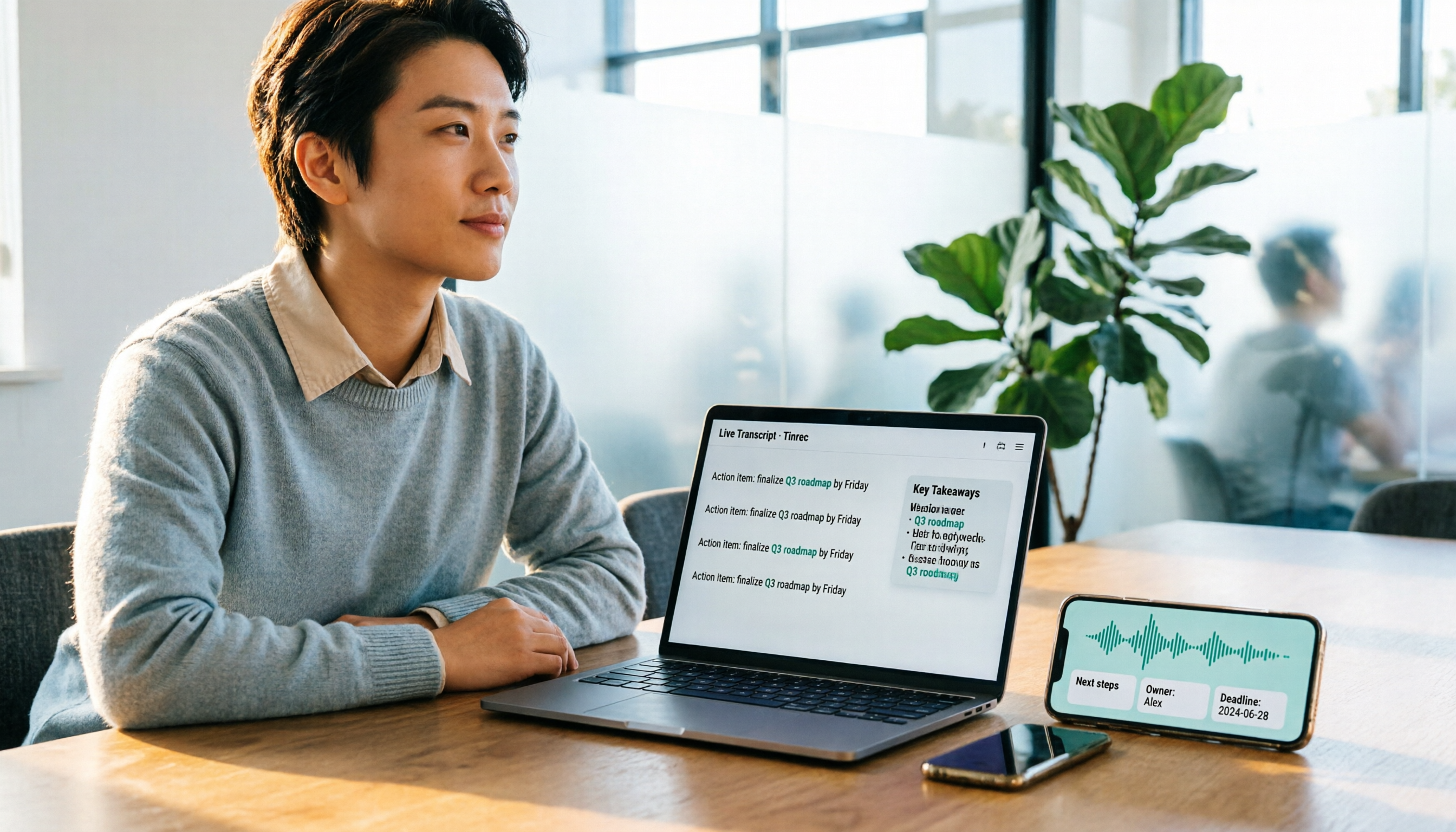
2025 Comparison of 2 Online Meeting Tools: Google Meet APK Download vs. Tinrec Meeting Notes
Many people search for google meet 2025 apk, only to find after installing that meeting content still isn't captured. This article starts from the common misconception that 'downloading an APK equals solving meeting notes' and compares Google Meet and Tinrec in terms of meeting notes, post-meeting organization, cross-platform support, and team collaboration, with APK download safety tips and practical buying advice.

Free Online Meeting Solutions in 2026: Google Meet and 4 Other Apps Compared
Searching for Google Meet 2024 APK usually means your phone can't install it or you want an older version. This article explains the two package names and APK version status for Google Meet on Android, then reviews the free and paid plans of 5 online meeting and meeting notes tools to help you decide which one to download.

4 Google Meet Alternatives for Android TV in 2026: How to Choose Between Video Calls and Meeting Notes
Google ended support for Meet calls on Android TV in early 2025, leaving TV meetings in a bind. This article compares practical approaches—Jami, browser-based calls, casting, and external cameras—and how Tinrec differs in post-meeting organization, helping you decide which combination is easiest.

Google Meet Breakout Rooms in 2026: Yes, It Has the Feature—But 3 Things It Can't Do
Does Google Meet have breakout rooms? Yes, but it can't record or livestream, and chat messages in rooms are deleted after the session. This article covers 5 limitations and 3 common misconceptions, and compares Tinrec, Otter.ai, Granola, and Notta for post-meeting notes and organization, helping you decide how to preserve breakout discussions.
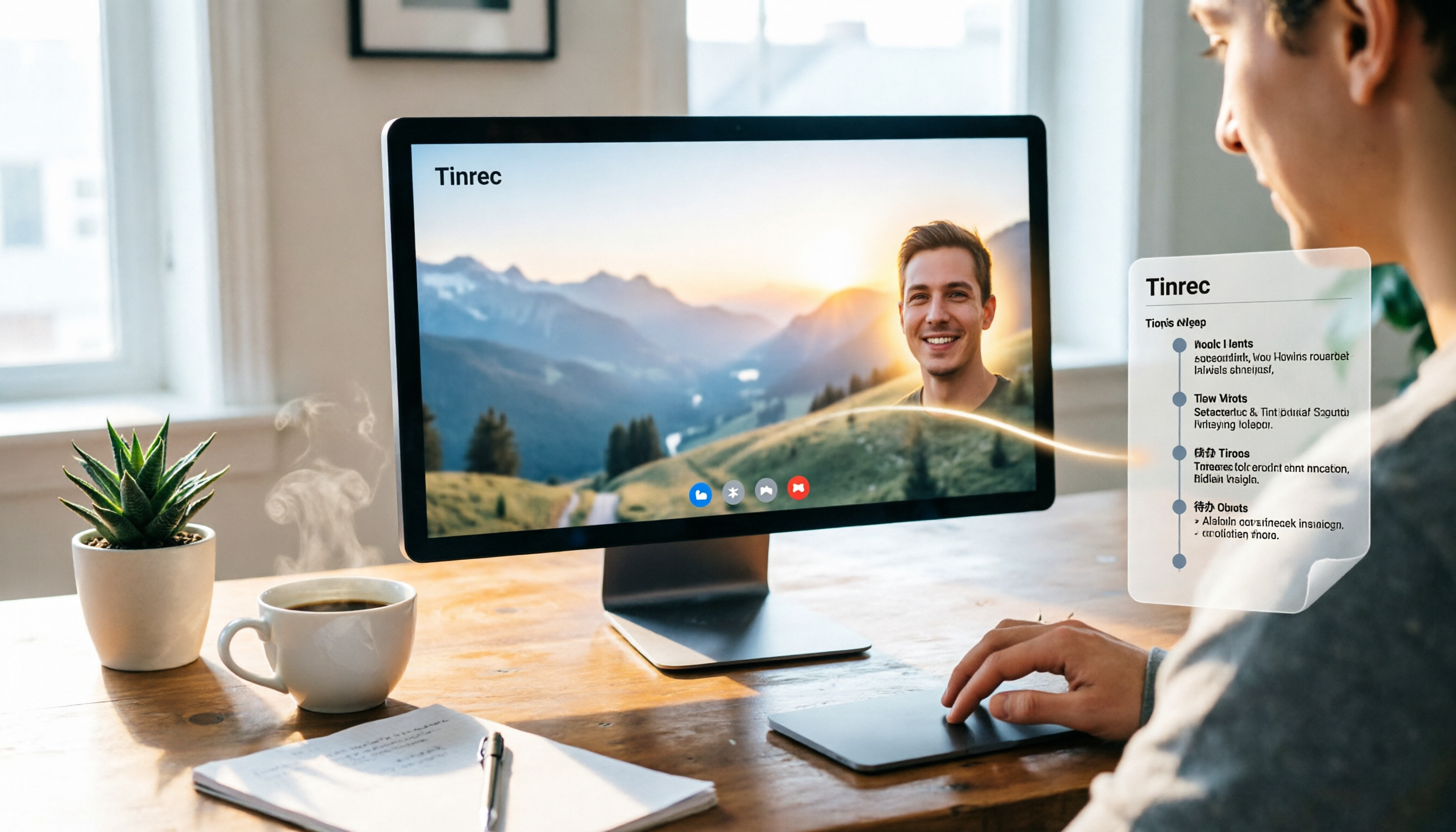
Google Meet Virtual Backgrounds in 2026: Requirements & Setup Guide
Google Meet does have virtual backgrounds and background blur, but availability depends on your account type, device and browser, admin settings, and region. This guide breaks down the 4 requirements, desktop setup steps, and real-world details like mirroring and lighting—plus the part most people overlook: virtual backgrounds won't save your meeting notes. We also compare Tinrec, Otter.ai, Granola, and Notta for Google Meet note-taking.
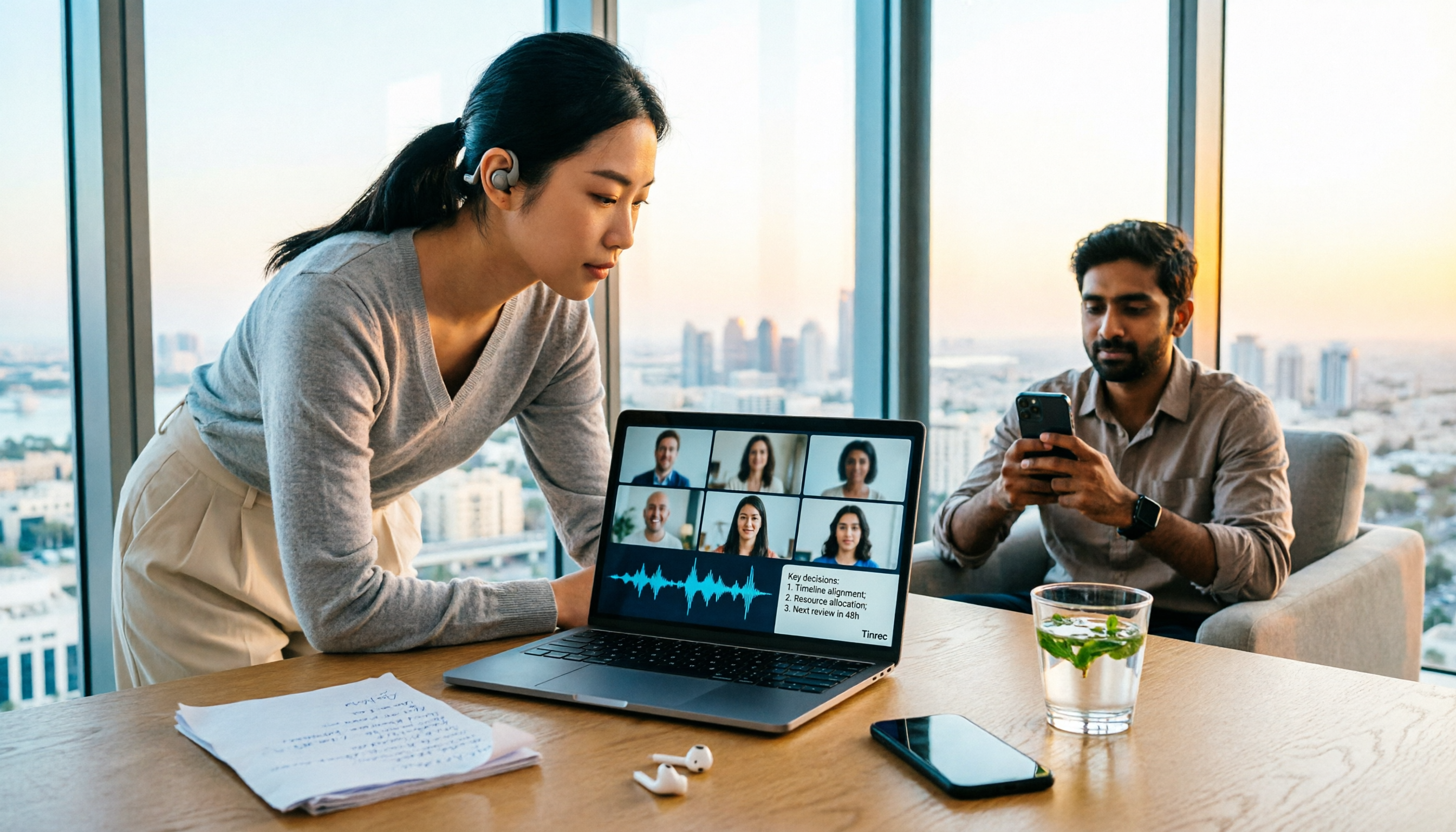
Google Meet in UAE 2026: Can You Use It? Call Restrictions Tested + 3 Backup Solutions
Can you use Google Meet in the UAE? This guide covers the current VoIP call restrictions, conflicting user reports, and how to test it upon arrival. Plus, 3 practical backup solutions, including Tinrec—a no-bot recording and AI meeting summarization tool—so you can keep complete meeting records even when calls are unstable.