

Turn recordings into transcripts and summaries in minutes
Upload audio or video for multilingual transcription, AI notes, and action items
2026 Comparison of 3 Online Audio-to-Text Tools: How to Choose for Chinese Transcripts and Post-Meeting Organization
The meeting just ended, and there's a 47-minute recording sitting on your phone—yet you still have to listen from the beginning to catch the key points. This is probably the post-meeting task office workers dread most. What's more troublesome is that recordings may come from Zoom, Google Meet, Teams, or in-person interviews, scattered across different devices. This article uses Tinrec to demonstrate how to convert online audio into text files, and puts cSubtitle and MyEdit in the same comparison table so you know which tool to use for which scenario.
Bottom line first: if you just need to convert a single file into a transcript or subtitles, an online file transcription tool is enough. But if what you need to handle is "post-meeting follow-up"—summaries, action items, follow-up questions, team sharing—then you need to look beyond just transcription to the entire post-meeting workflow. The following feature and workflow comparison is not a laboratory accuracy test; actual recognition results will be affected by recording quality, noise, accents, overlapping speakers, and technical terminology.
How to Choose an Online Audio-to-Text Tool? Start with 3 Decision Points
- Input source: Do you have a pre-recorded MP3 or WAV file, or do you need to record Zoom, Meet, or Teams? Whether it can handle system audio from online meetings makes a big difference.
- Output and post-meeting organization: Does it only provide a transcript, or can it generate summaries, chapters, action items, and even let you ask follow-up questions about the meeting content?
- Team collaboration and governance: Is data owned by individuals or the team? Can members share and view? Who has seats to upload, edit, and export? If multiple people need to use it, this point is more critical than price.
Before You Start | What You Need to Prepare
- A recording or video file to process, or an online meeting about to begin. Tinrec supports real-time recording, audio and video file transcription, and can also use the desktop version to capture online meeting audio.
- A Tinrec account and plan quota. The free version lets you try basic quota first; file import uses plan quota, so check your usage first.
- A stable internet connection. Real-time transcription and cloud processing both require internet access.
- If recording an online meeting, first confirm you will use the desktop version to capture system audio and that you actively initiate the recording; Tinrec is not a meeting bot that automatically joins all calendar meetings.
- Before recording, a reminder: according to local regulations and company policies, obtain participant consent when necessary.
Step 1 | Record or Import the Content You Want to Convert to Text
The purpose of this step is to obtain a clear audio source so that subsequent transcription has a good foundation.
If it's an in-person meeting or interview, open Tinrec's real-time recording and place your phone as close to the speaker as possible; for multi-person meetings, place it in the center of the table. If it's an online meeting, use the Tinrec desktop version to capture computer system audio without inviting an additional meeting bot. If you already have a recording file, simply upload the audio or video file.
Why pay special attention to the audio source? Because transcription quality depends heavily on recording quality. Rather than spending time after the meeting proofreading unclear segments, it's better to spend 30 extra seconds during recording to confirm microphone placement and ambient noise.
Once done, this content will enter Tinrec and wait to be transcribed.
(Illustrative image: A person sitting in a meeting room, phone placed in the center of the table recording, with real-time transcript text displayed on the screen.)
Step 2 | Let AI Transcribe for You
This step turns sound into searchable, reviewable text.
During real-time recording, Tinrec transcribes while recording, so you can see text settle as the meeting progresses; if uploading a file, the system processes it into a transcript. Chinese meetings, mixed Chinese-English, and multilingual content are all supported; for cross-language meetings, you can also enable real-time translation and view in original, translated, or bilingual mode.
Why transcribe during the meeting? Because real-time text makes it easier to spot missed hearing or overlapping speech, and the cost of remediation afterward is lower.
Once done, you'll get a transcript that you can search for keywords, review segments, and continue proofreading and organizing.
(Illustrative image: Participants looking at a laptop screen, with the meeting in progress on one side and the real-time generated transcript on the other.)
Step 3 | Quickly Proofread the Transcript
This step is not about retyping every word, but about identifying high-risk segments for verification.
First use the search function to find names, company names, numbers, project codes, and technical terms, then confirm by playing back the original recording. If the team frequently uses fixed terminology, you can maintain it in Tinrec's team hotwords so that subsequent recognition better matches your team's language habits.
Why proofread? AI transcription can greatly reduce typing costs, but errors may still occur with accents, noise, multiple people talking over each other, or rare proper nouns. For important decisions and commitments, it's recommended to verify against the original text and recording.
Once done, you'll have a more reliable transcript, so that subsequent summaries and action items are not built on incorrect content.
(Illustrative image: An editor sitting at a desk, listening to recording playback while marking names and numbers on the transcript.)
Step 4 | Let AI Generate Summaries, Chapters, and Action Items
This step turns long meetings into key points that can be quickly scanned.
Tinrec automatically generates AI summaries, chapters, and key points, and extracts action items from discussions; when you need to organize the meeting structure, you can also use mind maps. Rather than reading a 60-minute transcript from beginning to end, it's better to first look at the summary and chapters, then return to segments of interest.
Stop organizing recordings by hand
Upload audio or video and automatically get a transcript, summary, and action items
Why do this? Because what most people really need is "post-meeting action," not a very long text file. Summaries help you grasp the direction, and action items help you connect to work.
Once done, you'll have not only a transcript but also summaries, chapters, and action item lists that can be directly put into meeting minutes.
(Illustrative image: A project manager looking at meeting summaries and action item lists, arranging next week's work on a whiteboard.)
Step 5 | Use AI Q&A for Follow-up Questions, Then Export and Share
This step turns meeting data into material you can continue to use.
You can conduct AI Q&A around a single meeting or multiple meeting materials, for example asking "What were the three concerns the client mentioned this time?" or "What's the difference in decisions between last week and this week?" Tinrec also supports exporting results to common formats and third-party tools such as Notion, Google Docs, OneNote, Dropbox, or further using Agent post-processing to generate reports, tables, and documents.
For team use, save meetings in the team space so members can share and view historical data; administrators can manage who can record, upload, edit, and export through roles and seats, and view usage and audit logs.
Why use Q&A instead of just search? Because search finds segments, while Q&A helps you organize information scattered across different meetings into answers.
Once done, meeting content changes from "a file" to "data that can be queried, delivered, and shared."
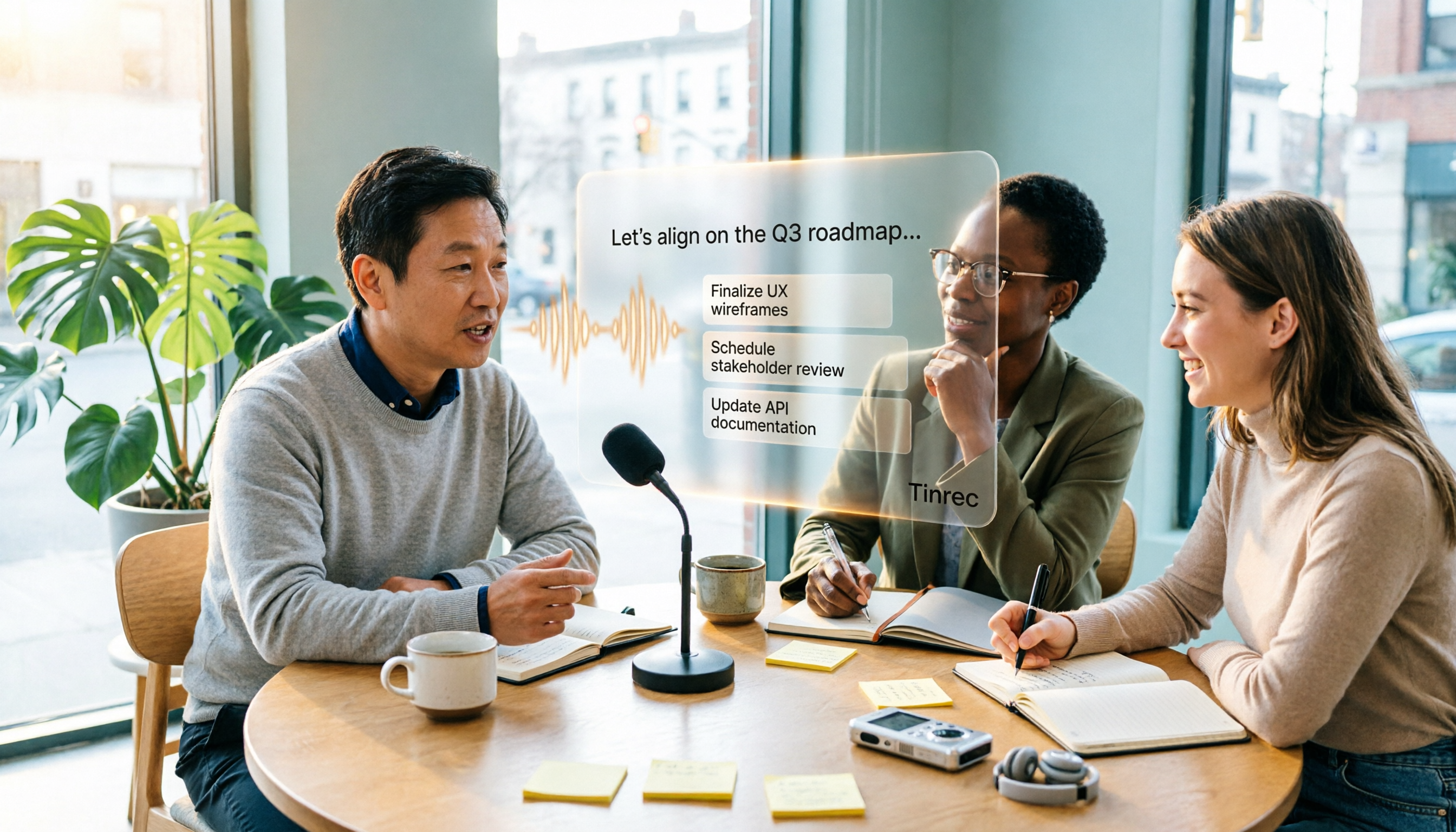
(Illustrative image: A team discussing around a screen, with AI Q&A organized client needs and action items displayed.)
Comparison of 3 Online Audio-to-Text Tools
The following comparison is based on each tool's public pages and this workflow demonstration, focusing on suitable scenarios, not an accuracy ranking; competitor information and prices are subject to official pages.
| Tool | Core positioning | Input and recording | Post-meeting organization | Team collaboration | Who it's for |
|---|---|---|---|---|---|
| Tinrec | AI meeting notes and team collaboration | Real-time recording, desktop version bot-free online meetings, audio and video files, mobile | Transcript, summary, chapters, action items, mind map, AI Q&A, translation, multi-format export, Agent post-processing | Team space, roles, seats, usage analytics, audit logs, audio recycle bin, team hotwords | People with many Chinese meetings who need post-meeting organization and team knowledge retention |
| cSubtitle | Online file-to-text and subtitles | Upload video or recording files, no account required | Text files and Word, with punctuation, paragraphing, and time codes; generate .sub, .vtt subtitle files | Mainly single-file processing, no emphasis on team governance | People who just need to convert files to transcripts or add subtitles |
| MyEdit | Online multilingual transcription | Upload MP3, WAV, FLAC, M4A | Export .txt or .srt, online preview and edit transcripts | Mainly for personal use, no emphasis on team governance | People who need simple transcripts, notes, or subtitles |
FAQs and Troubleshooting
Q: For online meetings using Zoom, Google Meet, Microsoft Teams, Webex, how does Tinrec record? Use the Tinrec desktop version to capture computer system audio without adding a bot to the meeting. You need to actively open Tinrec to initiate recording; it is not a tool that automatically joins all calendar meetings. The advantage is that no bot appears in the participant list.
Q: Is Chinese transcription always accurate? It's not recommended to expect that. Actual results will be affected by recording quality, background noise, accents, overlapping speakers, and technical terminology. Tinrec can maintain common terminology through team hotwords; for important names, numbers, and decisions, it's still recommended to verify against the transcript and recording playback.
Q: Is the free version enough, or should I go straight to the team version? If you only occasionally organize a recording, start with the free version to try basic quota. For short-term intensive meetings or interviews, consider a weekly card; for steady weekly use, the Pro monthly card is more suitable; for long-term data retention, the annual card has a lower monthly equivalent. The team version is a separate team space: the first eligible team trial is 7 days, 1 free seat, 300 minutes of team shared import quota; team monthly payment is USD 29.80 per paid seat per month, annual payment is USD 199 per paid seat per year, with 2,000 minutes of team shared import quota per paid seat per month. Under an active team plan and seats, real-time recording currently does not deduct by minutes; file and web imports use team shared quota. Actual prices and benefits are subject to the official purchase page.
Q: Can team members without seats still see meeting data? Active members can still view, play, and read team data even without a seat; however, resource usage operations such as recording, uploading, editing, importing, and exporting require a seat. The team version uses roles to control governance and seats to control usage; it is currently team-level sharing, not file-level granular permissions.
Q: Can team audio files be recovered after deletion? After audio enters the team recycle bin, it can be restored before permanent cleanup begins; the current recycle bin retention period is 30 days. Action items are not within the scope of the team recycle bin, so pay special attention before deleting.
Advanced Tips | 3 Ways to Double Tinrec's Efficiency
- Build team hotwords: Add product names, client names, abbreviations, and internal terminology to team hotwords so that recognition of specialized vocabulary better matches team usage. This is a very practical step in team collaboration scenarios.
- Enable real-time translation for cross-language meetings: View original, translated, or bilingual content while recording, so you don't need to find someone to translate the entire meeting afterward.
- Use AI Q&A for cross-meeting follow-up questions, then hand off to Agent post-processing: Ask questions across multiple meetings together to quickly organize decision context, then generate reports, tables, or documents. Most pure transcription tools stop at the transcript; Tinrec puts follow-up questions, output, and team data retention in the same workflow.
If You Don't Use Tinrec, There Are These Alternatives
cSubtitle focuses on Chinese, allowing you to upload video or recording files for transcription without an account, and download Word and subtitle files in as fast as a few minutes—suitable for one-time file transcription and subtitling; if you need post-meeting Q&A and team retention, return to Tinrec.
MyEdit supports MP3, WAV, FLAC, M4A, 9 languages, exports .txt or .srt, and allows online preview and editing; suitable for simple transcripts and subtitles. When you need team collaboration and action item tracking, Tinrec is more complete.
Conclusion
This time you've gone through the complete workflow from recording, transcribing, proofreading, generating summaries and action items, to AI Q&A and export. The key is not "which tool transcribes fastest," but whether your post-meeting work requires summaries, action items, follow-up questions, and team sharing. If it's just one-time file-to-text conversion, online tools like cSubtitle or MyEdit are very straightforward; if meeting content needs to become team-searchable, collaborative, and traceable data, Tinrec's team space and post-meeting workflow are more aligned. Next step, you can take a recording of your own and run through the process once with Tinrec's free version to see if the output transcript and summary match your work habits.
References
- Online AI audio, video, recording file automatic transcription - free trial - cSubtitle
- Online speech-to-text AI, free MP3 or recording file to text transcript - MyEdit
- AI speech-to-text fast recording file online transcription, transcript and video subtitles - free trial - cSubtitle
- AI speech-to-text | Free and easy online speech-to-text tool
- Hands-on test of 4 best "speech-to-text" online tools, free instant recording file to transcript
Turn every recording into actionable outcomes
Get 60 free transcription minutes when you sign in. No credit card required.
Related Reading
You might also like

How to Write Sales Meeting Minutes in 2026: 5 Steps + 6 Templates and Tools Tested
Sales meeting minutes aren't just about filling in fields and calling it done. This guide starts with 5 essential fields, then tests and compares 6 templates and AI tool options—including Tinrec's bot-free recording, AI Q&A, and team spaces—to help you pick the one that saves the most time.

2026 Sales Meeting Notes Free Plans Compared: Tinrec vs Granola
The real pain of sales meeting notes isn't recording—it's that no one wants to organize them afterward. This article uses the same sales scenario to compare the free plans of two bot-free meeting note tools, Tinrec and Granola, breaking down Chinese recognition, audio retention, post-meeting outputs, free quotas, and team collaboration. It concludes with a direct recommendation for small sales teams of eight or fewer on which tool to spend time on.

Tinrec vs Granola 2026: 5-Factor Comparison — Which Is Better for Sales Meeting Notes?
Using a real sales meeting scenario, we compare Tinrec and Granola across five dimensions: recording sources, audio retention, Chinese-language experience, post-meeting outputs, and team governance. Includes a comparison table you can drop straight into a report to help you decide which tool fits your sales meeting notes.

2026 Sales Meeting Notes Template: The Complete Guide from Field Design to AI Automation
The real challenge with sales meeting notes isn't the table fields—it's where the data lives after the meeting, who can access it, and whether you can reference the customer's exact words. This guide starts with six essential sections and explains how Tinrec automatically turns visits, weekly meetings, and pricing discussions into searchable, queryable, and transferable team knowledge. It also covers five key purchase considerations and common FAQs.

How to Write Sales Meeting Notes in 2026: 5 Steps with Tinrec from Template to Deal Tracking
Sales meeting notes aren't just a transcript of the conversation. This guide covers client visits, weekly sales meetings, and proposal meetings, providing copy-paste template fields and breaking down 5 steps: record, transcribe, capture decisions, list action items, and build team knowledge. It also tests Tinrec's performance and drawbacks in bot-free recording, AI Q&A, and team spaces.

Tinrec Voice-to-Text AI 2026: No-Bot Recording + AI Summaries & Action Items
Want to turn meeting recordings into usable transcripts fast? Using Tinrec as an example, this guide explains what voice-to-text AI can do, its core capabilities, real-world use cases, and what to consider when choosing a tool. It also compares the free, Pro, and Team plans to help you decide if it's right for you.
2026 Comparison of 4 Free Speech-to-Text Tools: Which Free Tier Is Most Sufficient?
There are many free speech-to-text tools, but the real questions are whether the free quota is sufficient, whether they can understand mixed Chinese-English speech, and how much time you still need to spend organizing the transcript. This article tests four tools—Tinrec, Notta, TurboScribe, and Granola—from four angles: free quota, Chinese recognition, post-meeting organization, and team collaboration, and highlights the most common pitfalls when choosing.

6 Speech-to-Text Apps Tested in 2026: Which One Turns Recordings into Usable Transcripts and Action Items?
Starting from common pitfalls, this comparison covers the positioning, features, pricing, and limitations of 6 speech-to-text apps—Tinrec, Notta, TurboScribe, SoundType AI, Atter, and Yating Transcript—to help you choose the right tool for meetings, interviews, long audio files, and team collaboration.

Tinrec vs Notta 2026: 5-Dimension Comparison — Which Free Speech-to-Text Tool Is Better for Students?
Recording lectures during the semester and reviewing for finals — how do you choose a free speech-to-text AI? Based on real student scenarios, I compare Tinrec and Notta across five dimensions: free quota calculation, single-recording length limits, post-meeting organization, cross-platform support, and Chinese recognition. I also cover use cases for MyEdit and Otter.ai to help you pick the right tool without wasting money.