
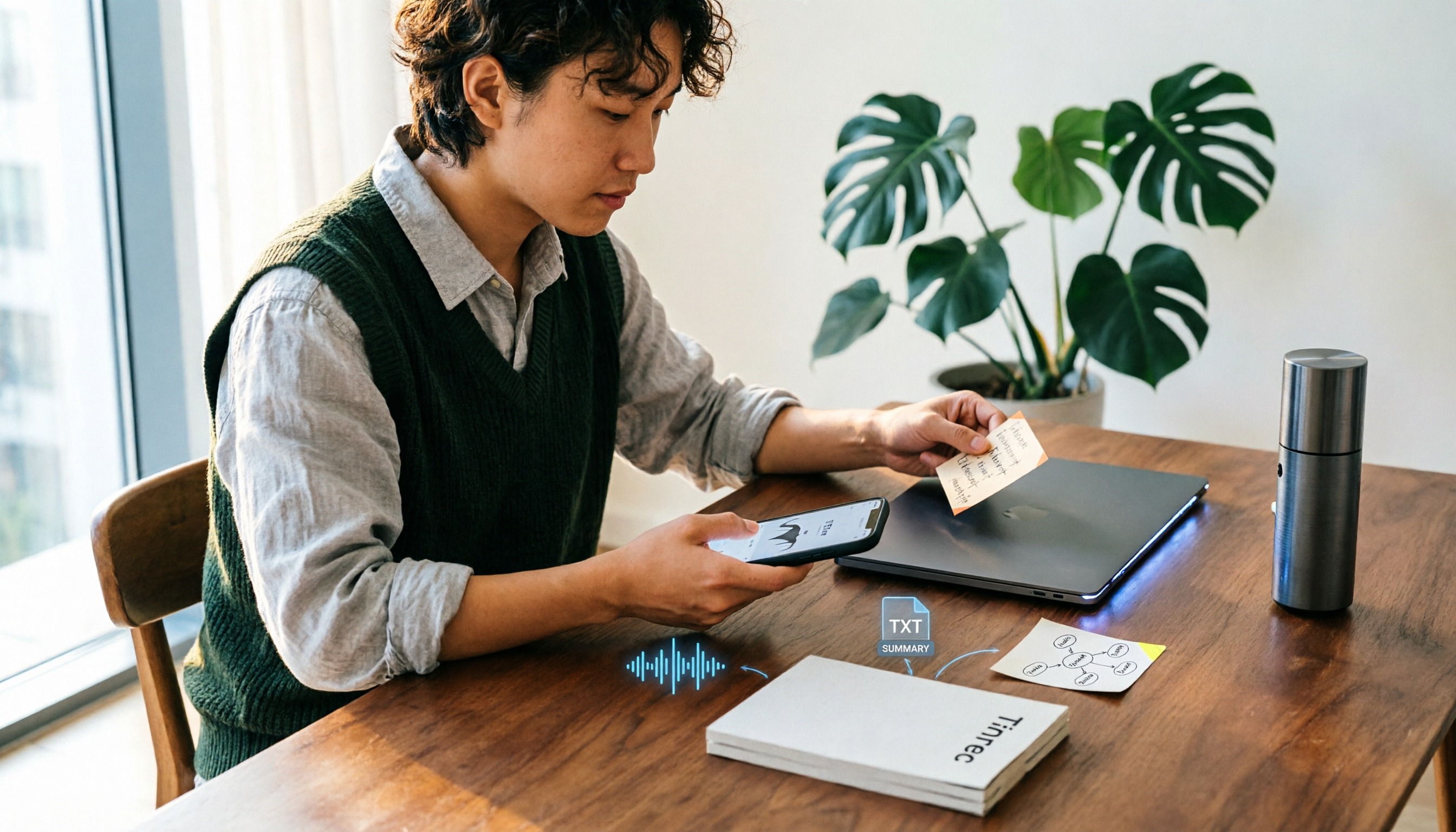
Turn recordings into transcripts and summaries in minutes
Upload audio or video for multilingual transcription, AI notes, and action items
Many people use a PLAUD recorder for the first time, open the app to find their recording, and can't find a "Download" button.
That's because PLAUD files don't automatically save to your phone's gallery or cloud drive—you need to actively "export" or "share" from the recording details page. Miss this, and you'll be searching around the app for a long time.
Another common misconception is about quotas. Many assume downloading recordings eats into the 300 monthly transcription minutes, so they hesitate. Actually, downloading original audio files is usually not limited by transcription quota; what counts against your plan minutes are transcripts and AI summaries.
One more pitfall is format. The Plaud App offers WAV export, but Plaud Web only supports MP3. If you can't find WAV in your browser, it's not your mistake—it simply isn't available there.
A more sensible approach: first decide whether you need the "audio file" or the "text," then choose whether to export from the mobile App, Web, or Desktop. Below, we'll walk through the three methods, covering the process and common snags.
Before You Start | What You Need to Prepare
Check these things before you begin to save back-and-forth.
- Your PLAUD recorder and app are paired and synced. After recording, open the Plaud App and you'll see the recording.
- Check your app version. The official export instructions currently apply to v3.30.x or earlier; if you're on v4.0.x or newer mobile app, menu names and locations differ—refer to that version's instructions.
- Decide what to export. PLAUD can export not just audio but also transcripts, AI summaries, and Mind Maps.
- Plan where the file goes next. Sending to a colleague, archiving on your computer, or importing into Google Docs or Notion? Different destinations call for different formats.
- Check if your plan has enough Minutes. Each recorder includes 300 transcription minutes per month; beyond that, you need to upgrade to continue using full transcription features.
- Legal reminder. Before recording, inform the other party and get consent—basic courtesy and a legal requirement in many regions.
Step 1 | First, Confirm Where the Recording Is
The goal here is to distinguish whether the file is "on the device" or "already synced to the app."
After recording, open the Plaud App and the recording appears on the home screen. You can tap the subtitle text above to jump to the corresponding playback segment—handy for confirming "did this part actually get recorded?" and faster than fast-forwarding from the start.
Why do this first? Because the export entry point is on the "recording details page," not on the recorder itself. If you look for files on the device, you'll never find them.
Once done, you should see the recording's name, duration, and (if transcribed) transcript and summary in the app.
Step 2 | Export from the Mobile App (This Is Where You Get WAV)
This is the main path for most people and the only mobile method that gives you WAV.
Go to the recording's details page, find the share or export function, first choose "what to export"—the audio file itself, transcript text, or note highlights—then pick a format based on use. For editing software or backup, choose WAV; for quickly sharing with a colleague to listen, MP3 or direct sharing works.
The app's share button can send files directly to AirDrop, LINE, Messages, or other installed apps. In practice, this is the easiest: export and drop into a group chat without saving locally first.
Note: if you want the "transcribed text" rather than the audio, remember to select transcript or summary as the export type, not just share audio.
When done, you'll have a playable, shareable audio file or an editable text file.
Step 3 | Export on Your Computer (Faster for Organizing Many Files)
This step suits those who prefer archiving on a computer.
PLAUD offers a desktop app (Plaud Desktop), or you can use Plaud Web directly. After installing and logging into the same account, you can export recordings, transcripts, summaries, and mind maps as files to use outside Plaud.
Key difference: Plaud App can export WAV, Plaud Web only supports MP3. If you can't find WAV on the web version, don't doubt yourself—switch to the App or Desktop.
Why organize on a computer? When handling multiple meetings at once, mouse drag-and-drop, renaming, and folder archiving are much faster, and you're not limited by phone storage.
When done, you'll have a file on your computer for long-term storage, not just a record in the app.
Step 4 | Export Transcripts, Summaries, and Mind Maps Together
The goal here is to turn "already organized content" into deliverable documents.
Stop organizing recordings by hand
Upload audio or video and automatically get a transcript, summary, and action items
When exporting transcripts or summaries from the recording details page, choose a suitable format: PDF for archiving, DOCX for further editing in Word or Google Docs. Mind maps can also be exported, useful for quickly understanding meeting structure.
One practical limitation: Plaud App has no built-in printing. To print, first export as PDF or DOCX, then print via your phone's file viewer or a computer.
As for file size, there's no explicit limit. But very long recordings produce large files; if export gets stuck, the official recommendation is to split into shorter segments and export in batches.
When done, you'll have a file the recipient can open without installing any app.
Step 5 | Connect Back to Your Workflow
This step determines whether the recording actually gets used.
The three most common destinations: upload to cloud storage for long-term keeping, import into Google Docs or Notion to become meeting notes, or import audio into editing software to make transcript videos. PLAUD's export design is meant to let you take content outside Plaud—this part is fairly complete.
If colleagues only need conclusions, not the audio, you can export just the summary or transcript instead of sending the whole audio file—smaller and easier to read.
When done, the recording goes from "a record in the app" to data your team will actually open.
FAQ and Troubleshooting
Q: Why can't I find the WAV option in the app? First check your version. Newer mobile app versions have adjusted export menu names and locations—refer to the corresponding version's instructions. Also, the web version only has MP3; for WAV, go back to the mobile App or Desktop.
Q: Does downloading recordings deduct from the 300 monthly minutes? Usually not. Downloading original audio is not limited by transcription quota; but if you download "transcripts" or "AI summaries," check if your plan has available minutes.
Q: The recording is too long and export fails halfway. What should I do? There's no explicit size limit, but long recordings create large files. Split into shorter segments and export in batches—success rate will be much higher.
Q: Can I print transcripts directly? No, the app has no built-in printing. Export as PDF or DOCX first, then print via computer or phone file viewer.
Q: I only want to give a colleague the transcript, not the audio. Is that possible? Yes. When exporting, select transcript or summary type—they are separate export items.
Q: Can exported files be processed in other tools? Yes, exported PDF, DOCX, etc., can be opened and edited directly in Word or Google Docs; audio files can be imported into common editing or transcription tools.
Advanced Tips | 3 Ways to Make Recording Data More Useful
1. Name files with "date + meeting name" first, don't rely on default names PLAUD exports usually have system-generated names; over time you can't tell which meeting is which. Spend 10 seconds renaming to "2026-03-12_Product Weekly"—future searches rely on this line.
2. Export long meetings in segments while keeping the full transcript Segmenting audio avoids oversized files, but the transcript can still be exported in full. In practice, I keep both: a complete text for archiving and segmented audio for easy time-point reference.
3. To skip hardware and export steps, consider a desktop solution If most of your recordings actually happen in online meetings, the "record then export then upload" flow is redundant. Tools like Tinrec capture computer system audio directly from the desktop version, handling Zoom, Google Meet, Microsoft Teams, and Webex without an extra meeting bot joining. It transcribes in real time while recording, then generates summaries, chapters, and action items afterward, and you can ask AI questions about the meeting content.
If You Don't Have a PLAUD Recorder, Here Are Other Options
PLAUD's value is "recording on the go" itself—physical device, long battery life, phone call recording are hardware advantages. Currently the US official site shows NotePin at USD 159 and Note Pro at USD 189, with membership tiers including Starter (300 minutes/month), Pro (USD 99.99/year, 1,200 minutes/month), and Unlimited (USD 239.99/year). Actual prices and benefits are subject to the official page.
But if you're dealing with online meetings and post-meeting organization, the focus isn't hardware—it's whether the data can enter your workflow. Tinrec takes a different path: no device purchase needed, usable on web, desktop, and mobile. The desktop version captures system audio directly, and after the meeting you can export files or bring them into Notion, Google Docs, etc. The team version offers separate team spaces, member and role management, seat allocation, usage analytics, and audit logs; paid seats include 2,000 minutes of shared team import quota per month, and real-time recording currently isn't deducted by minute under active plans—suitable for scenarios where multiple people share meeting data.
Other tools like Notta and TurboScribe lean toward file transcription and subtitle processing—different purposes. Before choosing, think clearly whether you "often have online meetings" or "often process existing audio files."
Summary
Back to the original question: How do you get PLAUD recordings? The answer is simple—export actively from the recording details page, and for WAV use the App or Desktop; the web version only has MP3.
Remember three things and you won't get stuck: audio downloads usually don't count against transcription quota, only transcripts and summaries count against plan minutes, and long recordings should be exported in segments.
If your recording scenarios are mostly online meetings on workdays, it's worth asking yourself: do I really need to carry an extra device? Try running a meeting with the tools you already have before deciding to buy hardware—usually a less regretful order.
References
Turn every recording into actionable outcomes
Get 60 free transcription minutes when you sign in. No credit card required.
Related Reading
You might also like
2026 AI Recording Tools Comparison: How to Use Plaud & Which Saves the Most Time After Meetings
Learn how to use Plaud recording—from Bluetooth pairing and vibration feedback to plan limits and restrictions—plus a hands-on comparison of Tinrec, Plaud, and Otter.ai for post-meeting organization to help you decide which approach saves the most time.
Plaud Recording Free Plans in 2026: 3 AI Meeting Note Tools Compared
Understand what "Plaud recording" means: recording with Plaud hardware or the Plaud app. Starting from this search question, this article compares the free tiers, pricing, and use cases of Plaud, Otter.ai, Notta, and Tinrec, and explains practical considerations such as getting consent before recording, helping you decide whether to buy hardware or choose a meeting notes workflow.
2026 AI Recording Tools Comparison: How to Use Plaud & Which Saves the Most Time After Meetings
Learn how to use Plaud recording—from Bluetooth pairing and vibration feedback to plan limits and restrictions—plus a hands-on comparison of Tinrec, Plaud, and Otter.ai for post-meeting organization to help you decide which approach saves the most time.
Plaud Recording Free Plans in 2026: 3 AI Meeting Note Tools Compared
Understand what "Plaud recording" means: recording with Plaud hardware or the Plaud app. Starting from this search question, this article compares the free tiers, pricing, and use cases of Plaud, Otter.ai, Notta, and Tinrec, and explains practical considerations such as getting consent before recording, helping you decide whether to buy hardware or choose a meeting notes workflow.
3 Best Audio-to-Text Tools in 2026: Plaud Recording Guide & Meeting Notes Comparison
From how to press the record button on Plaud and how files get into the app, to how transcripts and meeting notes are organized, this article walks through the actual workflow and compares Tinrec, Plaud, and Notta on recording methods, post-meeting organization, quotas, and pricing to help you decide which approach fits you best.

4 Transcription Tools Tested for 2026: Yating Latest News and How to Choose an AI Meeting Recorder
Many people searching for "Yating transcription latest news" are really asking whether it's still worth using. This article first summarizes publicly available updates on Yating, then compares Yating, Notta, Otter.ai, and Tinrec across four key selection criteria, and lists four common pitfalls when choosing a tool.

2026 Recording Tools Compared: How to Record with Plaud and Which Tool Saves the Most Time After Transcription?
First, we explain how to record with Plaud—covering the device button, app trigger, and phone call recording in three scenarios—then compare the post-recording organization workflow. After a hands-on test, you'll see that hardware solves the 'recording' part, while meeting minutes and action items still require another tool. The article also compares Tinrec, Notta, and Otter in terms of differences and pricing.

Plaud vs Tinrec: 2026 AI Recording Tool Comparison — How to Choose Between Plaud's Sync and Tinrec's Post-Meeting Organization
How does Plaud sync recordings? Many assume files upload automatically after recording, but transfer only triggers when the app connects via Bluetooth. This article starts with the sync process and compares Plaud and Tinrec across five dimensions—file import, post-meeting organization, team collaboration, and cost—to help you decide between a portable hardware device and a workflow-integrated meeting notes solution.

3 Ways to Export Plaud Recordings in 2026: Download, Transcribe, or Team Workflow — Which Is Easiest?
How do you export Plaud recordings? This guide breaks down three methods — Plaud App, desktop/Plaud Web, and Plaud MCP — with step-by-step instructions and use cases. It also compares organizing files yourself versus importing into Tinrec to generate transcripts, summaries, and action items, so you can pick the most time-saving approach.