

Turn recordings into transcripts and summaries in minutes
Upload audio or video for multilingual transcription, AI notes, and action items
3 Ways to Export Plaud Recordings in 2026: Download, Transcribe, or Team Workflow — Which Is Easiest?
"How do I get my Plaud recording out?" Before you hunt for the button, answer one question: what do you plan to do with the audio file?
If you just want to back up a recording to your computer, the built-in share function in the Plaud App is enough. But if what you really want is a transcript, meeting highlights, and action items, then "exporting the audio" is only step one — there's still a lot of organizing work ahead.
This article breaks down three export paths step by step, then compares three ways to organize after export, so you can choose the least painful route for your situation.
First, Figure Out Whether You Need the "Audio File" or a "Usable Record"
Plaud recordings are mainly stored in the mobile app, so the most direct way to get files is through the app. Generally, you'll find share or export options on the recording detail page, where you can choose to export the audio file itself, the transcript text, or note highlights.
The problem is that for most people, exporting the audio is where the hassle begins.
- Want to back up one or two recordings: Just share from the app — done in 30 seconds.
- Want transcripts and summaries: The Plaud App can export transcripts and key summaries, but if you want a version you can query and reorganize, you'll need to bring the audio into another tool.
- Need to share with a team: If the audio sits on someone's phone, others can't access it. What you need here is a team workspace, not a file.
Think through this layer first, or you'll end up exporting a bunch of MP3s and still having to listen to them all over again.
4 Key Points to Check Before Exporting Plaud Recordings
1. App version affects button location. Plaud's official support docs split the export process into two sets of instructions: v3.30.x or earlier, and v4.0.x and above. If you can't find the button following an old tutorial, check your app version first and match the correct operation page.
2. You can only export one file at a time. The official docs explicitly state that batch export is not currently supported. For a few files, no big deal. But if you've accumulated three months' worth — forty or fifty recordings — clicking one by one will make you question your life choices.
3. Export content isn't just audio. Recordings, transcripts, AI summaries, and mind maps can all be exported, and each content type supports multiple formats. Whether you're archiving, opening in Word or Google Docs, or dropping into editing software, the format you choose differs.
4. For long recordings, consider splitting. There's no official file size limit, but very long recordings produce larger files. If export gets stuck, try processing in shorter segments.
Tinrec: The Truly Time-Saving Way to Organize After Export
If your goal isn't "keep an audio file" but "turn this meeting into usable data," consider importing your Plaud-exported audio directly into Tinrec.
Tinrec is an AI meeting notes and collaboration tool for individuals and teams, available on iOS, Android, and web. Its value isn't in recording — it's in what happens after recording.
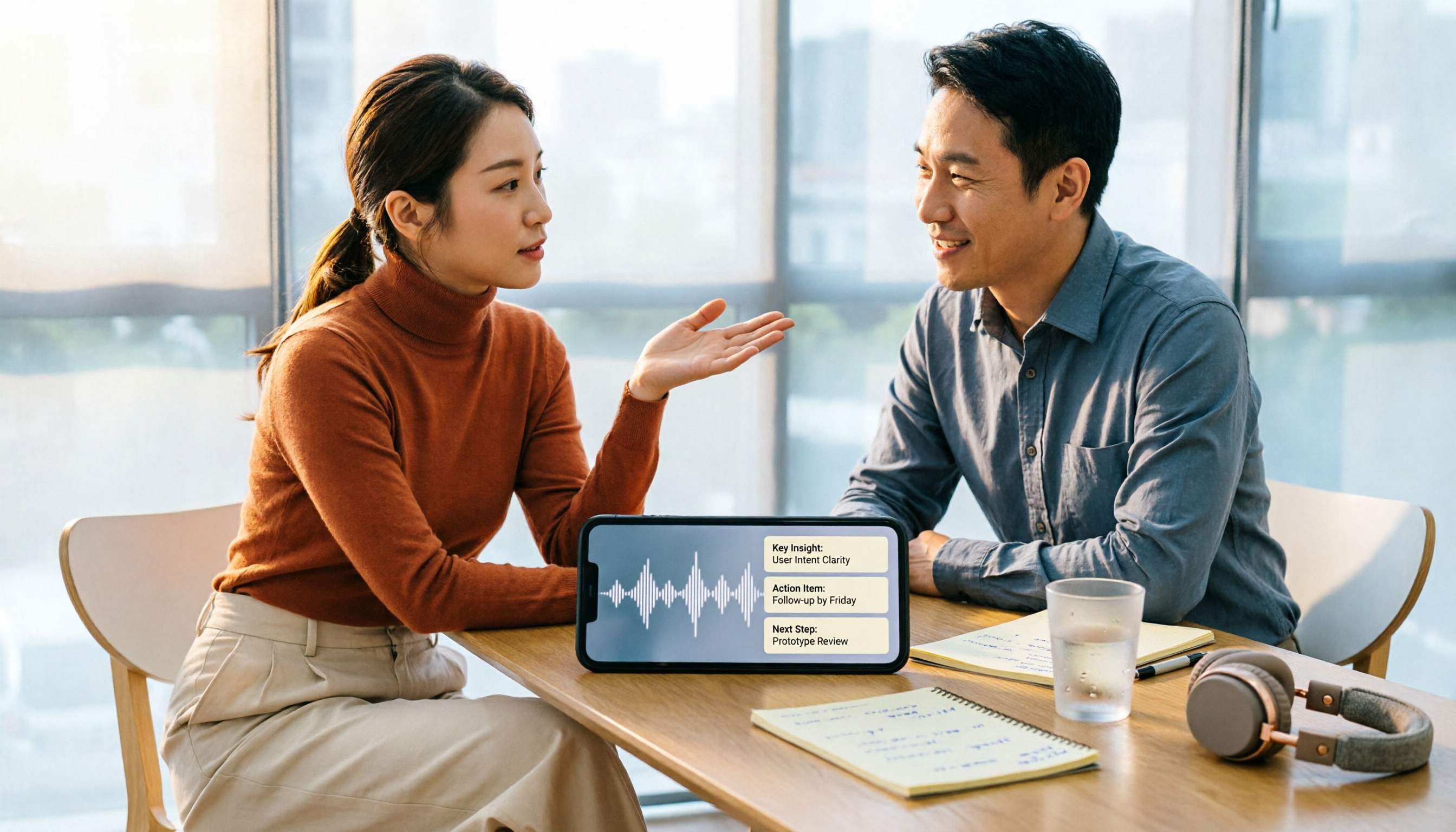
In practice, you upload the Plaud-exported audio to Tinrec, and the system processes it like a native recording — generating a transcript, AI summary, and chapters, and extracting action items from the discussion. After a client interview, you don't need to re-listen to 40 minutes of audio; just skim the chapters and jump to the key points.
Even better is the ability to ask follow-up questions after import. Tinrec supports AI Q&A around meeting content — you can directly ask "What budget range did the client mention?" or "Who was assigned what in this meeting?" and it searches the content for answers instead of dumping a list of keyword search results on you. For people who only have audio and no notes, the difference is striking.
Organized content can also be exported to Notion, Google Docs, OneNote, Dropbox, and other tools for continued use, or processed via Agent post-processing to generate reports, tables, and meeting minutes. If you're a team, Tinrec's team plan offers a separate team workspace where meeting data belongs to the team, with management of member roles, seats, usage analytics, and audit logs — when a member leaves, the data doesn't disappear with them.
Stop organizing recordings by hand
Upload audio or video and automatically get a transcript, summary, and action items
Limitations to note: The free plan provides basic quota to try recording, importing, summaries, and transcription; regular use requires an upgrade. The team plan is a paid seat model (USD 29.80 per paid seat per month, or USD 199 per paid seat per year, each seat includes 2,000 minutes of shared team import quota per month; actual prices are subject to the checkout page on the official website). Also, Tinrec does not recommend promising a fixed accuracy rate — recording quality, background noise, accents, and multiple people talking over each other all affect results. For important content, cross-check against transcript timestamps and audio playback.
Who it's for: People who already have Plaud recordings but have to re-listen every time they organize; those who need to turn audio into transcripts, action items, and team data; and those who don't want to buy another device and want to handle online meetings on their computer (Tinrec's desktop version captures system audio directly, no meeting bot required).
How to Export Plaud Recordings: 3 Official Paths Step by Step
The following steps are based on Plaud's official support docs and app interface; actual button names may vary slightly by version.
Path 1: Mobile App Export (most intuitive, good for small amounts)
- Open the Plaud App and find the recording you want to process.
- Go to the recording detail page and tap the share or export icon.
- Choose the content type to export: the audio file itself, transcript, summary, or mind map.
- Select a format, then complete the export via AirDrop, LINE, Messages, or saving to the Files app.
The fastest use of this path is to send the transcript directly to a colleague right after a meeting, without saving to your computer first and forwarding.
Path 2: Desktop App / Plaud Web / Plaud Desktop (good for organizing on a computer)
If you prefer organizing on a large screen, install the Plaud App on your computer, or log in to Plaud Web or Plaud Desktop, then export the recordings and transcripts you need from the desktop.
The advantage is files land directly on your computer, skipping the "phone to computer" step. The downside is it still only handles one file at a time.
Path 3: Plaud MCP (good for large historical archives)
Official docs mention that if you need to download many files, you can connect Plaud MCP to an MCP-compatible AI assistant and ask it to help retrieve recordings, transcripts, and summaries.
This path isn't designed for general users, but if you're migrating a whole year of meeting recordings for archiving, it's far more practical than manually clicking 50 times.
Pitfall Guide: 4 Most Common Mistakes When Exporting Plaud Recordings
Pitfall 1: Assuming you can select all and export at once. Currently you can't — one file at a time. If your recording count has reached dozens, plan a batch approach first (MCP or direct import into an organizing tool) instead of clicking manually like a fool.
Pitfall 2: Following old tutorials and not finding the button. Export paths differ between v3.30.x and v4.0.x and above, and the official docs are split into two. If you can't find the share icon, check your version first — don't assume the feature is gone.
Pitfall 3: Exporting only audio and forgetting the transcript is the point. Many people export audio and leave it there, then end up re-listening when they actually need it. If your goal is writing meeting notes or capturing action items, export the transcript and summary together, or import directly into a tool like Tinrec.
Pitfall 4: Files scattered everywhere, no one on the team can find them. Colleague A's audio is on their phone, colleague B's transcript is in a LINE group, decisions are in someone's notebook — this is the reality for most teams. For long-term retention, a team workspace is far more reliable than folders.
Conclusion: Which Path Should You Choose?
To sum up in one sentence: exporting Plaud recordings isn't hard — the hard part is what to do after export.
- Just want to back up one or two recordings → Use the Plaud App share function, fastest.
- Need to migrate a whole batch of historical recordings → Use Plaud MCP and let an AI assistant handle batch processing.
- Want transcripts, summaries, action items, and follow-up questions → Import audio into Tinrec and save the re-listening and typing time.
- Need cross-device use (record on phone, organize on computer) → Tinrec supports iOS, Android, and web; the desktop version can also record online meetings without a meeting bot.
- Team needs to share meeting data → Tinrec's team plan manages permissions by role and seat, data belongs to the team, and handover is possible when members change.
- Just love portable recording hardware → AI recording devices like Plaud still have value in portability and long battery life; the two can actually be used together.
We suggest trying the free plan first: drop one Plaud audio file into Tinrec and see what it feels like to "get a summary and action items without re-listening," then decide whether to use it long-term. After all, the best way to know if a tool works for you is to try it yourself.
References
- 2026 Plaud Recording Download Guide: 6 Export Methods and Tinrec Alternative Complete Tutorial - Tinrec Blog
- Plaud User Guide | Complete Tutorial and Operation Guide
- Export Recordings, Transcripts, and Summaries – Plaud
- Audio Import – Plaud
- Plaud Tutorial: From Note Pro Recording and Template Selection to Ask Plaud Follow-ups — How to Make Meeting Notes Easier | TheAI Academy
Turn every recording into actionable outcomes
Get 60 free transcription minutes when you sign in. No credit card required.
Related Reading
You might also like
2026 AI Recording Tools Comparison: How to Use Plaud & Which Saves the Most Time After Meetings
Learn how to use Plaud recording—from Bluetooth pairing and vibration feedback to plan limits and restrictions—plus a hands-on comparison of Tinrec, Plaud, and Otter.ai for post-meeting organization to help you decide which approach saves the most time.

Plaud Recording Free Plans in 2026: 3 AI Meeting Note Tools Compared
Understand what "Plaud recording" means: recording with Plaud hardware or the Plaud app. Starting from this search question, this article compares the free tiers, pricing, and use cases of Plaud, Otter.ai, Notta, and Tinrec, and explains practical considerations such as getting consent before recording, helping you decide whether to buy hardware or choose a meeting notes workflow.
2026 AI Recording Tools Comparison: How to Use Plaud & Which Saves the Most Time After Meetings
Learn how to use Plaud recording—from Bluetooth pairing and vibration feedback to plan limits and restrictions—plus a hands-on comparison of Tinrec, Plaud, and Otter.ai for post-meeting organization to help you decide which approach saves the most time.
Plaud Recording Free Plans in 2026: 3 AI Meeting Note Tools Compared
Understand what "Plaud recording" means: recording with Plaud hardware or the Plaud app. Starting from this search question, this article compares the free tiers, pricing, and use cases of Plaud, Otter.ai, Notta, and Tinrec, and explains practical considerations such as getting consent before recording, helping you decide whether to buy hardware or choose a meeting notes workflow.

3 Best Audio-to-Text Tools in 2026: Plaud Recording Guide & Meeting Notes Comparison
From how to press the record button on Plaud and how files get into the app, to how transcripts and meeting notes are organized, this article walks through the actual workflow and compares Tinrec, Plaud, and Notta on recording methods, post-meeting organization, quotas, and pricing to help you decide which approach fits you best.

2026 Comparison of 3 Plaud Recording Export Methods: App, Web, or Desktop — Which Is Fastest?
PLAUD recordings don't automatically save to your phone's gallery or cloud drive—you have to export them yourself. This guide breaks down the differences, format limitations, and common pitfalls of three export methods (mobile App, Plaud Web, Plaud Desktop), explains how to export transcripts, summaries, and mind maps, and offers alternatives if you don't want to carry extra hardware.

4 Transcription Tools Tested for 2026: Yating Latest News and How to Choose an AI Meeting Recorder
Many people searching for "Yating transcription latest news" are really asking whether it's still worth using. This article first summarizes publicly available updates on Yating, then compares Yating, Notta, Otter.ai, and Tinrec across four key selection criteria, and lists four common pitfalls when choosing a tool.

2026 Recording Tools Compared: How to Record with Plaud and Which Tool Saves the Most Time After Transcription?
First, we explain how to record with Plaud—covering the device button, app trigger, and phone call recording in three scenarios—then compare the post-recording organization workflow. After a hands-on test, you'll see that hardware solves the 'recording' part, while meeting minutes and action items still require another tool. The article also compares Tinrec, Notta, and Otter in terms of differences and pricing.

Plaud vs Tinrec: 2026 AI Recording Tool Comparison — How to Choose Between Plaud's Sync and Tinrec's Post-Meeting Organization
How does Plaud sync recordings? Many assume files upload automatically after recording, but transfer only triggers when the app connects via Bluetooth. This article starts with the sync process and compares Plaud and Tinrec across five dimensions—file import, post-meeting organization, team collaboration, and cost—to help you decide between a portable hardware device and a workflow-integrated meeting notes solution.