

Turn recordings into transcripts and summaries in minutes
Upload audio or video for multilingual transcription, AI notes, and action items
After recording, what you really need to decide is: keep the file on the device, or turn it into usable data immediately
Ask yourself: after recording a meeting, how soon can you actually use that recording?
If you have a Plaud device, the answer is usually 'you have to wait a bit longer.'
Recordings are stored locally on the device. You need to connect to the mobile app to transfer them to your account, and only then can you transcribe, summarize, and export. This step isn't difficult, but it's the most likely bottleneck in the entire workflow.
So the angle of this article is not 'is Plaud good or not,' but rather: how many steps does your recording go through from device to usable data?
This question determines which tool is right for you.
How to transfer Plaud recordings? Understand these 3 paths first
Plaud's file transfer logic is simple: recordings are stored locally on the device, and after connecting to the Plaud App via Bluetooth, they are automatically transferred to your account.
The difference lies in 'which path is used for transfer.'
Path 1: Standard Bluetooth automatic transfer
This is the most basic method and requires no extra operation.
Open the Plaud App and connect your device; recordings on the device will be automatically transferred to your account via Bluetooth.
Plaud Note, Note Pro, and NotePin S all follow the same logic.
Here's a fact many people only discover after the fact: after the recording is transferred to the App, it is deleted from the device.
It's not a backup; it's a move. So after transfer, you look for the file in the App, not on the device.
Path 2: Fast transfer (switch to Wi-Fi)
For large recordings, the App will prompt fast transfer, switching the connection from Bluetooth to Wi-Fi to speed up upload.
There are two conditions: the phone's Wi-Fi must be on, and the phone and device must be on the same Wi-Fi network.
If it fails, the troubleshooting order is: bring the device closer to the phone, confirm Wi-Fi and Bluetooth are both on, then tap the 'Fast Transfer' prompt again to retry.
If the problem persists, standard Bluetooth transfer still works—this is important; don't assume that a failed fast transfer means the file can't be retrieved.
(During operation, you will see: the fast transfer prompt that appears after the App connects to the device, and the location of the retry button)
Path 3: Auto-transfer (iOS only, and Note Pro only)
This is an optional feature exclusive to Plaud Note Pro.
Once enabled, as long as the device is near your phone, recordings will transfer in the background without you needing to open the App.
But note the scope: currently only the iOS version of Note Pro offers this option. The documentation for Plaud Note and NotePin S does not include it.
If Auto-transfer is not enabled, recordings will transfer the next time you open the App and connect the device.
After transferring to the App, the other half of the work begins
Many people think 'uploading' is the end.
In fact, transfer only moves the file into the App; the real work comes after: transcription, summarization, export.
The Plaud App can send recording files or transcripts via the share button to AirDrop, LINE, Messages, or other installed apps.
There's also a path often confused with this called 'Audio Import'—that's for bringing audio files from outside the Plaud ecosystem into the App, which is different from transferring device recordings. Older versions (v3.30.x or earlier) use 'Audio Import,' while mobile apps v4.0.x and above use 'Import File.'
Tinrec (秒聽錄音) — My top pick after testing: it eliminates the 'transfer' step
Having covered Plaud's transfer paths, I want to explain why I later moved my main workflow to Tinrec.
Tinrec (秒聽錄音) is an AI meeting notes and collaboration tool for individuals and teams, available on iOS, Android, and web.
Its most direct difference is: you don't need to buy a device first, so there's no 'how to get the recording out' problem.
Scenario 1: Online meetings without inviting a bot
When I handle meetings on Zoom, Google Meet, Microsoft Teams, or Webex, I use the Tinrec desktop version.
It directly captures the computer's system audio, without needing an extra bot to join the meeting as a participant.
The significance is not just convenience. When a 'recording bot' appears in a meeting, attendees' behavior changes, and some things won't be said.
Moreover, the file stays in the same account from start to finish—no Bluetooth, no Wi-Fi switching, no 'deleted from device after transfer.'
Scenario 2: After the meeting, you get usable results, not just a transcript
Most people's expectations for transcription tools stop at 'turning voice into text.'
But the real time sink is after the text is generated.
Tinrec automatically generates summaries, chapters, key points, and action items, and can produce mind maps to help you understand the meeting structure.
If I just want a quick review, I look at the chapters first; if I need to deliver, I use Agent post-processing to generate reports, tables, or documents.
Scenario 3: AI Q&A—this is where the difference is greatest
After recording a meeting, you can ask questions directly about the content, without having to scroll through a 30-minute transcript to find a sentence.
The same question can also be asked across multiple meetings, which is especially useful for those who need to trace decision processes.
Scenario 4: Teams want to turn meetings into assets, not just records
This is what I think is the most underrated part of Tinrec.
The team version provides independent team spaces, not 'multiple people sharing one personal account.' Meeting data belongs to the team, and members can view, play, and read historical data.
Stop organizing recordings by hand
Upload audio or video and automatically get a transcript, summary, and action items
What administrators can do includes: create and switch between multiple team spaces, invite members via join links, set roles as owner/admin/regular member, assign or revoke seats, view team usage trends and member rankings, manage team hotwords, query and export audit logs, and use the audio recycle bin.
Here's a concept that must be clarified: roles and seats are not the same thing.
Roles determine who can manage the team, members, and settings; seats determine whether a member can record, upload, edit, import/export. A member who is active but has no seat can still view, play, and read team data, but cannot perform resource-usage operations.
When a member leaves or is removed, team resources are not taken away but need to be handed over to other active members.
Current team version pricing: first eligible team trial is 7 days, 1 free seat, 300 minutes of team shared import quota; team monthly USD 29.80 per paid seat per month; annual USD 199 per paid seat per year, equivalent to about USD 16.58 per month. Each paid seat provides 2,000 minutes of team shared import quota per month.
Under an active team plan and active seats, real-time recording currently does not deduct minutes; file and web imports consume team shared import minutes.
Where honesty is required
Tinrec does not promise a fixed accuracy rate. Actual results are affected by recording quality, noise, accents, overlapping speech, and technical terminology—this is the same for any tool.
For important content, I still go back and check the transcript timestamps against the recording.
Additionally, the personal version has a free version, weekly card, Pro monthly card, and annual card. The choice logic is not about comparing prices but about your usage rhythm: occasional organizing of a recording uses the free version, short-term intensive meetings use the weekly card, stable weekly use chooses Pro, and long-term data retention chooses the annual card.
Who is it for
If you need to handle Chinese or mixed Chinese-English meetings, don't want to carry an extra device, want to get summaries and action items directly after the meeting, or even need team sharing of meeting data—Tinrec is currently the closest choice for this workflow.
Besides Tinrec, what other options are there?
PLAUD Note / NotePin S
The value of hardware recording lies in 'portability' and 'standalone device.' Long battery life, phone call recording, and recording without turning on a computer—these are things software cannot do. Current official prices are USD 159 for NotePin and USD 189 for Note Pro, with membership plans including Starter (300 minutes per month), Pro (USD 99.99/year, 1,200 minutes per month), and Unlimited (USD 239.99/year).
But its data flow has an extra layer: device → App → transcription → export. And after transferring to the App, the recording is deleted from the device. Tinrec requires no extra hardware, handles online meetings directly on the desktop version, and offers team spaces and seat governance that Plaud currently lacks.
Otter.ai
A mature choice for English meetings. Basic free version offers 300 minutes per month; Pro annual billing is about USD 8.49 per user per month, including 1,200 minutes of in-app recording and 10 file imports per month. If 90% of your meetings are in English, it's a good deal. But it's more designed for English business meetings; Chinese meeting experience is not its strong suit, and it lacks Tinrec's combination of bot-free desktop recording with team spaces and seat governance.
Notta
Multi-platform transcription, file import, translation, and team plans are all available, with the highest overlap with Tinrec. Free version offers 120 minutes per month, up to 3 minutes per single item; Pro annual billing is about USD 8.17 per month, 1,800 minutes per month; Business annual billing is about USD 16.67 per seat per month. Its strength is the breadth of transcription itself, while Tinrec's differences lie in bot-free online meeting recording, AI Q&A, and post-meeting Agent post-processing.
Pitfall guide: 4 most common mistakes when handling recording files
Pitfall 1: Thinking 'uploaded' equals 'usable.'
Plaud recordings are deleted from the device after being transferred to the App. If you don't immediately proceed with transcription and organization, you'll have to retrieve them from the App later. The moment transfer is complete is when the work begins.
Pitfall 2: Retrying fast transfer endlessly when it fails.
First confirm three things: phone and device are on the same Wi-Fi, device is close to the phone, and both Wi-Fi and Bluetooth are on. If it still doesn't work, fall back to standard Bluetooth; it always works.
Pitfall 3: Assuming Auto-transfer is available to everyone.
This is an optional feature exclusive to Note Pro on iOS. You won't find it in settings on Note or NotePin S.
Pitfall 4: Using the tool only as 'speech to text.'
If you only use transcription, you're using only a small part of the tool. The valuable part of a meeting is 'what you do with it afterward'—summaries, action items, follow-up questions, exporting to reports. Think about the output first, then choose the tool; reversing the order leads to buying the wrong thing.
Conclusion: Which one should you choose?
In one sentence: first determine where your file bottleneck is, then decide whether to add another layer of hardware.
- Already have a Plaud device and just want to get the file out → open the App and connect; Bluetooth auto-transfers; for large recordings use fast transfer; Note Pro iOS users can enable Auto-transfer for background sync.
- Need to handle online meetings without carrying an extra device → Tinrec desktop version bot-free recording.
- Need Chinese or mixed Chinese-English meetings with summaries, chapters, action items, and Q&A → Tinrec.
- Meetings are mainly in English → Otter.ai is a reasonable choice.
- Team needs to share meeting data, manage seats and usage, and needs operation logs → Tinrec team version.
- One-time batch transcription of many long files → This is not Tinrec's strong suit; use a dedicated file transcription tool.
Quick start checklist
- Plaud users: first confirm the App is installed and Bluetooth and Wi-Fi are on.
- Connect the device and let standard Bluetooth auto-transfer finish first.
- For large recordings, tap fast transfer; if it fails, fall back to Bluetooth and don't get stuck on the same step.
- For those who want to skip this entire process: use Tinrec desktop version for online meetings; files stay in the account from start to finish.
- After the meeting, check the summary and chapters first, then use AI Q&A to follow up on details.
- For team use, create a space, invite members, assign seats, then start recording.
Tools will change, but the principle of 'making data flow' won't. First find the step where you get stuck most often; the rest is just a multiple-choice question.
Test step by step, and you'll gradually master this method.
References
Turn every recording into actionable outcomes
Get 60 free transcription minutes when you sign in. No credit card required.
Related Reading
You might also like

2026 AI Voice Recorder Comparison: PLAUD vs Tinrec for Meeting Notes
What is PLAUD? We clear up common misconceptions about hardware recording and compare Tinrec, a software-based AI meeting notes tool, to see why it may be better suited for most professionals and teams when it comes to online meeting processing, post-meeting organization, and team collaboration.

Tinrec vs PLAUD 2026: 5-Dimension Comparison — Which Is Easier for Audio Export and Post-Meeting Organization?
Exporting audio files is often underestimated: formats, channels, and quotas each have their nuances. This article starts from real student scenarios, compares Tinrec and PLAUD across 5 dimensions, and outlines 3 export methods and limitations for Plaud recordings, helping you find the most hassle-free post-meeting workflow.

4 Best Transcription Tools to Try in 2026: Yating vs. Chinese Meeting Tools
Tired of re-listening to meeting recordings? This guide compares Yating, Notta, Otter.ai, and Tinrec on Chinese/Taiwanese recognition, bot-free recording, post-meeting summaries and action items, and team data management—so you can pick the tool that actually saves time in 2026.

5 Free Cantonese Translation Tools Tested and Compared in 2026: How to Choose Based on No-Login Access, Free Quotas, and Meeting Transcription
Looking for a reliable Cantonese translation tool? This article reviews 5 Cantonese translation services you can start using for free, covering everything from no-login web-based two-way translation and mobile apps for pronunciation practice to Tinrec, which can turn an entire Cantonese meeting into a transcript and action items. It also includes a comparison table of free tiers, usage limits, and best-fit scenarios to help you choose the right tool for your needs.

2026 Cantonese Speech-to-Text Comparison: Why Tinrec Beats Subanana for Mixed Chinese-English Meetings
2026 comparison of Cantonese speech-to-text tools, focusing on mixed Chinese-English, spoken-to-written conversion, post-meeting summaries, and team collaboration. This article uses meeting notes workflow as the main thread to explain how Tinrec saves time for professionals and teams through bot-free recording, AI summaries, action item extraction, and AI Q&A, with buying advice for free and team plans.

2026 Comparison of 3 Real-Time Speech-to-Text Apps: Which Free Version Is Enough?
How to choose a real-time speech-to-text app in 2026? This article starts with common misconceptions and compares three approaches: iPhone Notes, Otter.ai, and Tinrec. It covers free version limitations, Chinese meeting transcription, AI summaries, action items, team collaboration, and key purchasing considerations.

2026 Comparison of 5 Real-Time Recording Translation Apps: From Meeting Notes to Cross-Language Communication
Starting from common misconceptions, this comparison examines the differences between Tinrec, Vurbo.ai, Otter.ai, Notta, and Google Translate in real-time translation, transcription, post-meeting organization, and team collaboration, helping you choose the right tool for meetings, learning, and travel scenarios.
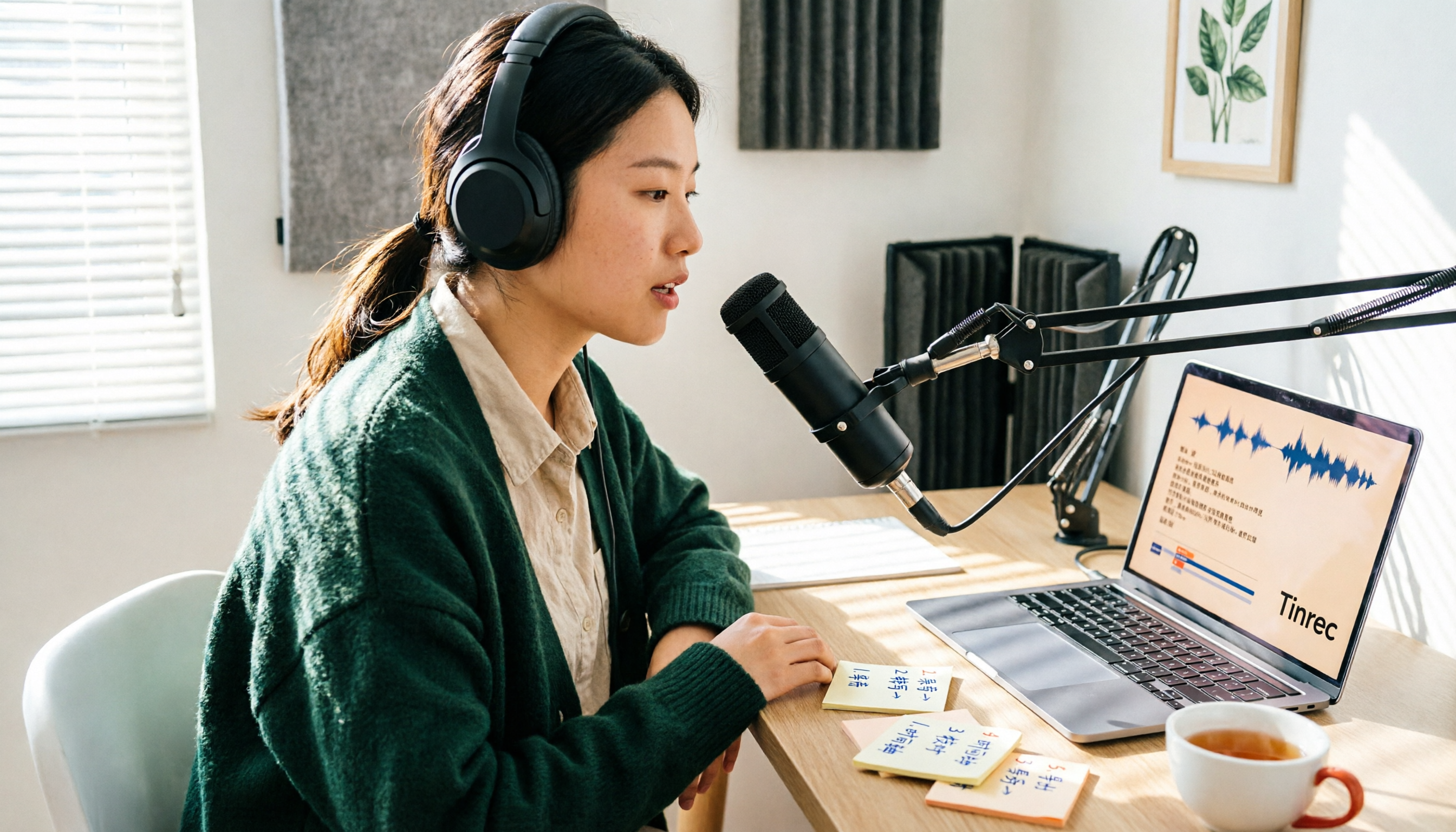
How to Get Free Cantonese Subtitles in 2026: 5 Steps from Recording to Transcript
There are many free Cantonese subtitle tools, but "free" means very different things: some only let you preview, some charge for downloads, and some give you just 5 minutes per month. This guide walks you through 5 steps—defining your needs, testing, checking limits, and choosing the right tool—and compares the free plans of Tinrec, Subanana, CantoSub AI, and Hey! Subtitles so you can choose wisely and avoid wasting money.

2026 Cantonese Subtitle Tools Compared: Which Converts Spoken to Written Best?
A practical comparison of 4 Cantonese subtitle tools in 2026: spoken vs. written output, mixed Chinese-English recognition, free quotas and download limits, plus meeting notes and team knowledge retention. Includes a comparison table and recommendations by use case.