
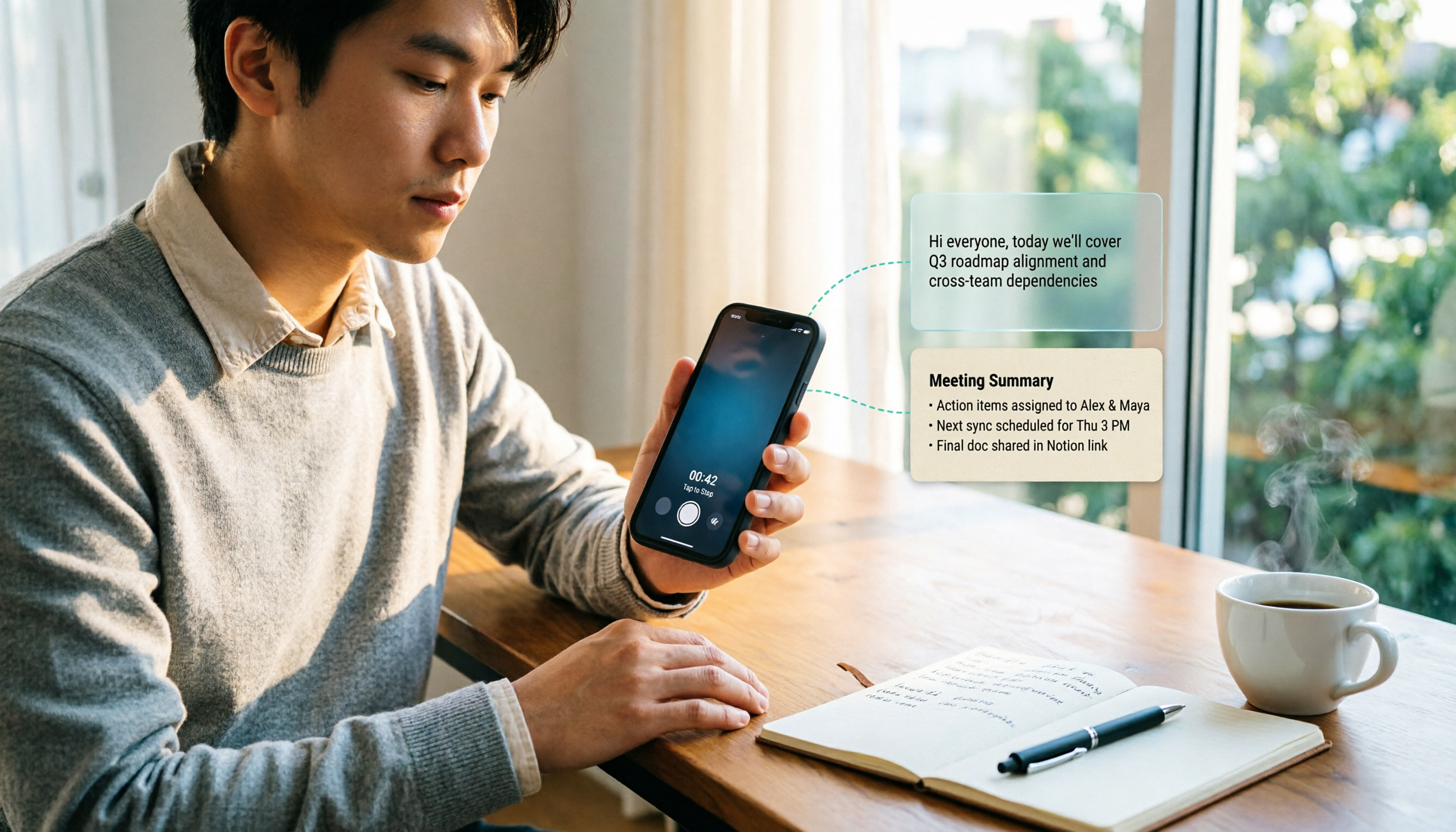
Turn recordings into transcripts and summaries in minutes
Upload audio or video for multilingual transcription, AI notes, and action items
"Is it worth installing a screen recording app just for a 3-minute demo?" That's the first question most iPhone users ask. The second question is actually more important: what do you plan to do with the video after recording—send it directly to a colleague, or turn it into text, meeting notes, or searchable data for later?
Bottom line: iPhone 17's screen recording doesn't require any extra app—it's built into Control Center. What really takes time is the setup before recording and how you organize things afterward. Below, we'll walk through the steps, common limitations, and your options for "what to do after recording" all in one place.
Before You Record, Ask Yourself These 3 Questions
The most common frustration with screen recording isn't missing the button—it's discovering after recording that the video is unusable.
- Who is this video for? A demo for a client and a 30-minute meeting recording for your own review have completely different requirements for length and quality.
- Do you need to capture your own voice? If you're narrating while demonstrating, you must enable the microphone first; otherwise, you'll end up with video but no explanation.
- Will you need to convert the recording to text? If the video will later become a transcript or meeting notes, pay attention to audio quality and segment length during recording—don't wait until afterward to worry about not being able to hear clearly.
Think through these three questions first, and every step afterward will go much smoother.
How to Screen Record on iPhone 17: 3 Steps in Control Center
iPhone's screen recording feature is built into Control Center. The first time you use it, you'll need to add it.
Step 1: Add "Screen Recording" to Control Center
Open "Settings" → "Control Center" → "Customize Controls," find "Screen Recording" in the "More Controls" list, and tap the "+" to add it. On some iOS versions, you can also press and hold the background in Control Center, tap "Add Control," or long-press and drag to rearrange buttons.
Step 2: Long-press the Screen Recording button to enable the microphone
Swipe down from the top-right corner to open Control Center, long-press the "Screen Recording" button, and tap the "Microphone" icon in the pop-up menu. When the icon turns red, the microphone is on, and you can record your narration or ambient sound.
Step 3: Start recording, then stop
Tap the Screen Recording button to start. To stop, tap the "Screen Recording" button at the top of the screen and then tap "Stop," or reopen Control Center and tap the red recording button. The recorded video will be saved to the "Photos" app and can be found in your "Library."
Note that some apps may not support audio or video recording; also, you can't screen record and use Screen Mirroring at the same time. Before recording someone else's meeting or call, make sure you have their consent and comply with local laws.
3 Key Things to Understand Before Recording
1. Calculate storage space and length first
Screen recording creates a real video file—the longer you record and the higher the quality, the more space it takes. Before recording a long meeting or tutorial, check your available storage and back up or delete old videos if necessary.
2. Audio capture determines usability
The built-in screen recording primarily captures sound from the microphone (your voice and ambient noise). Whether in-app sound effects are included depends on whether that app supports it. If you plan to transcribe the recording, background noise and multiple people talking at once will directly affect recognition accuracy—try to stay close to the speaker when recording.
3. What will you do with the recording afterward?
If you just need to demonstrate a process, the built-in screen recording is enough. But if the video is a meeting, an interview, or a class, the real time sink is "watching it" and "summarizing key points"—and screen recording alone can't solve that.
Tinrec — Turn Videos into Searchable Data After Recording
Let's be clear about what Tinrec is: Tinrec is not a screen recording tool. It handles the part after recording. Tinrec is an AI meeting notes and collaboration tool for individuals and teams, available on iOS, Android, and web. It can convert audio and video files into transcripts and further organize them into summaries, chapters, and action items.
Here's how the workflow connects: You record a meeting or class video on your iPhone 17, import the file into Tinrec, and it generates a transcript, automatically creating a summary and chapters—turning 40 minutes of content into a few key points you can quickly scan. "Who's responsible for what and when it's due" from the meeting can be extracted into action items, so you don't have to listen to the recording again.
Stop organizing recordings by hand
Upload audio or video and automatically get a transcript, summary, and action items
The difference is in the follow-up questions after recording. Tinrec supports AI Q&A about the meeting content—you can directly ask "What was the budget cap mentioned in the last meeting?" and it will answer based on the content, rather than giving you a bunch of keyword search results. For those who need to look up information later, this is much faster than manually Ctrl+F through a transcript. It also supports real-time translation and bilingual viewing, multi-format export (e.g., to Notion or Google Docs for further use), and Agent post-processing to generate reports, tables, and documents.
Limitations should be clear too. Tinrec's transcription accuracy can be affected by recording quality, noise, accents, overlapping speakers, and technical jargon—don't treat it as a guarantee of "zero errors." For important information, always cross-check with the transcript timestamps and original audio. The personal plan offers basic quotas to try recording, importing, summaries, and transcription; file and web imports consume quota, and when it runs out, you'll need to choose a plan based on your needs.
For team collaboration, the Team plan is suitable. If your screen recordings are meant to be shared across a department, the Team plan provides a separate team workspace where meeting data belongs to the team, and you can manage members, roles, and seats. Currently, the first eligible team trial is 7 days with 1 free seat and 300 minutes of shared team import quota. Paid seats include 2,000 minutes of shared team import quota per month, at USD 29.80 per paid seat per month (monthly billing) or USD 199 per paid seat per year (annual billing, about USD 16.58 per month). Plan details and prices are subject to change; refer to the official purchase page for the latest information.
Who it's for: People who frequently need to turn meeting, interview, or class videos into text and key points, or those who want their team to collectively build a knowledge base from meeting data.
Besides Tinrec, What Other Options Are There?
Granola: Another bot-free AI meeting notes tool, focused on "handwritten notes + AI enhancement." However, note that it doesn't support uploading pre-recorded audio or video files, nor does it save meeting audio—so if your material is a video file recorded on iPhone, this path won't work.
TurboScribe: A cost-effective file transcription tool, strong in long documents and batch uploads (free version: 3 files per day, 30 minutes per file; Unlimited annual plan: USD 120). It's great for processing large volumes of long files at once, but lacks Tinrec's meeting action item organization, AI Q&A, and team workspace knowledge base.
Otter.ai: A mature choice for English business meetings, with a free plan of 300 minutes per month. It doesn't have Tinrec's Chinese meeting context packaging and team hotword management. If your content is primarily English meetings, it's still a reasonable option; if your meetings are in Chinese or mixed Chinese-English, we recommend trying Tinrec's recognition performance first before deciding.
Pitfall Guide: 4 Most Common iPhone Screen Recording Mistakes
Pitfall 1: Starting to record without enabling the microphone. You only realize after recording that there's video but no sound, and you have to redo it. Make it a habit to "long-press the button and confirm the microphone icon turns red" before starting.
Pitfall 2: Assuming all apps can be recorded. Some apps don't support audio or video recording, and platforms with copyrighted content may show a black screen. Do a 10-second test recording before the real thing.
Pitfall 3: Not clearing storage space first. Running out of space mid-recording and having it interrupted is the worst. Check available capacity before a long meeting.
Pitfall 4: Recording and forgetting about it. You record 40 minutes, but no one has time to watch it a second time—that's the most common waste. After recording, import the file into a transcription tool and let the transcript and summary replace your re-watching.
Summary: Which Option Fits Your Situation?
- Just want to quickly record a demo → Use iPhone 17's built-in screen recording; 3 steps and you're ready, no app needed.
- Need to turn the recording into a transcript and meeting notes → Tinrec: import the video to generate a transcript, summary, chapters, and action items.
- Want to ask follow-up questions about key points after recording → Tinrec: use AI Q&A to look up meeting details without manually scanning the full text.
- Need the same workflow on phone, computer, and web → Tinrec works across iOS, Android, and web, so your material isn't tied to one device.
- Department needs to share meeting materials and manage members → Tinrec Team plan: store data in a team workspace and manage seats and usage.
- Just need to batch process a large number of long files → TurboScribe's long-file and batch capabilities are more suitable—this is one of the few exceptions in this article.
If your need is "record and then organize," we suggest starting with Tinrec's free plan: import a recorded meeting video, see if the transcript and summary meet your expectations, and then decide whether to upgrade. After all, the real time sink is never the moment you press the record button.
References
- iPhone 17 Screen Recording Guide: From Basics to Microphone Settings, One Article Is Enough
- Record the screen on iPhone, iPad, or iPod touch - Official Apple Support (China)
- Record the screen on iPhone - Official Apple Support (China)
- How to set up screen recording shortcut on iPhone 17 _ iPhone 17 Screen Recording Shortcut Setup Method __ Finance Headlines __ Sina Finance
- Where is the screen recording feature on iPhone 17 - Pacific IT Encyclopedia - Product Quotes
Turn every recording into actionable outcomes
Get 60 free transcription minutes when you sign in. No credit card required.
Related Reading
You might also like

iPhone Native Capture vs Tinrec in 2026: A 4-Dimension Comparison for Recording and Organizing LINE Calls
LINE calls don't have built-in recording, but iPhone users can use iOS 26's Native Capture to record calls, then import the audio into Tinrec for transcription, summaries, and action items. This article compares the two across four dimensions—recording method, audio source, file storage, and post-call organization—and provides step-by-step instructions, common mistakes, and recommendations.
3 iPhone Screen Recording Audio Solutions Compared for 2026: Built-in, Third-Party Apps, and AI Post-Processing
iPhone screen recording can capture audio, but you need to distinguish between system audio and microphone input—call audio from the other party usually can't be recorded. This article compares built-in screen recording, third-party apps, and Tinrec's post-meeting organization to help you avoid common mistakes that lead to silent recordings.

Is Recording Meetings Illegal in 2026? 5 Steps to Assess and Protect Yourself
Recording a meeting is not necessarily illegal, and recording for self-protection does not guarantee you are safe. This article breaks down the practical assessment under Article 315-1 of the Criminal Code, the Communication Security and Surveillance Act, and Article 12 of the Labor Standards Act in 5 steps, and compiles free audio-to-text tools to help you assess risks, preserve evidence, and organize transcripts.

5 Best AI Transcription Tools in 2026: Chinese Meetings, Team Collaboration, and Free Tiers Explained
Meetings end, recordings pile up, and minutes are due tomorrow—this article doesn't copy official feature lists. It cross-checks the official plans, quotas, and limitations of five AI transcription tools: Tinrec, Yating Transcription, Vocol.ai, Notta, and Granola, and honestly tells you which numbers to trust and which claims to discount. Finally, it offers selection advice based on three needs: Chinese meetings, team collaboration, and free quotas.

3 Fast iPhone Recording Methods for 2026: One-Tap Setup and Use Case Comparison
Compare three built-in iPhone quick recording methods: Action Button, Back Tap, and Shortcuts. Includes setup steps, supported models, free usage, and limitations to help you start recording fast in meetings, interviews, or unexpected situations without hunting for an app.

Fast iPhone Recording in 2026 vs Tinrec: 3-Dimension Comparison — Which Saves More Post-Meeting Time?
A rundown of 3 free ways to quickly start recording on iPhone — Action Button, Back Tap shortcut, and Home Screen shortcut — plus a comparison of the free tier and team plan limits of the post-meeting tool Tinrec, to help busy managers never miss a recording during meetings and spend less time organizing afterward.
How to Record Clean Audio in 2026: 3-Stage Mic Check + Tinrec Meeting Notes
Instead of worrying about noise reduction after recording, reduce noise upfront by checking your environment, microphone placement, gain, and wired connection. This guide walks you through a 3-stage check for clean vocals and explains how Tinrec turns meeting recordings into transcripts, summaries, and action items.
5 iPhone Call Recording Solutions Compared in 2026: From Built-in to AI-Powered Organization
Starting with iOS 18.1, iPhone finally has built-in call recording, but the other party gets notified, and LINE calls can't be recorded. This article compares 5 call recording and post-call organization solutions, and tests the complete workflow of using Tinrec to convert recordings into transcripts, summaries, and to-dos, helping you choose the right approach.

The Complete Guide to Cantonese Audio Transcription in 2026: Choosing Tools from Verbatim Transcripts to Meeting Minutes
Cantonese audio transcription isn't just about accuracy—it also needs to handle colloquial speech, mixed Chinese-English, and post-meeting organization. Based on real-world use cases, this article outlines 4 key selection criteria, introduces Tinrec's bot-free meeting notes, AI summaries, and team collaboration, and compares the suitable scenarios for Otter.ai, Notta, and Granola.