

Turn recordings into transcripts and summaries in minutes
Upload audio or video for multilingual transcription, AI notes, and action items
2026 Real-Time Transcription AI Buying Guide: 3 Tools Tested and Recommendations
Recently, while organizing a two-hour interview recording, I opened a transcription tool and realized most people only ask "is it accurate?" but overlook three things: can you view the transcript while recording, does it automatically summarize key points, and can the team reuse this content later.
So I spent two weeks testing 3 real-time transcription AI tools, feeding them the same meeting recording with mixed Chinese and English, and comparing their transcription speed, Chinese recognition, post-meeting summaries, and team collaboration capabilities.
This article is not a spec sheet but a "how-to-use" methodology. Using Tinrec (MiaoTing Recording) as an example, I'll walk you through the complete process from recording to export, and at the end compare the suitable scenarios for the other two tools. If you're looking for a tool that can truly reduce post-meeting organization time, this article can help you avoid some detours.
Before You Start | What You Need to Prepare
- A smartphone or computer (Tinrec supports iOS, Android, and web version; the desktop version can also directly record online meeting audio)
- Download the Tinrec App or open the web version (free registration allows use of basic quota)
- A recording you want to convert to text (meetings, classes, interviews are all fine; if you don't have one, you can first record a self-talk test with your phone)
- A stable internet connection (real-time transcription requires internet; to process existing files, upload them for cloud transcription)
Once you're ready, let's start directly.
Step 1 | Record the Content You Want to Transcribe
The purpose of this step is to obtain a clear recording file—this is the foundation for all subsequent steps.
Open Tinrec and click the record button on the main screen to start recording. For online meetings, instead of having a meeting bot join, you can open the Tinrec desktop version and let it directly capture the computer's system sound; this way, participants won't see an extra bot, and you don't need to notify everyone that "an AI is coming in to listen."
When recording, make sure the microphone is close to the speaker. For one-on-one interviews, place the phone between the two people; for multi-person meetings, place it in the center of the table. Why emphasize this? Because AI transcription accuracy depends on audio quality; even the best engine can't save a blurry recording. Rather than spending time proofreading later, spend 30 extra seconds confirming the position before recording.
After finishing, you'll see this recording on the Tinrec main screen with its duration displayed. If used by a team, this recording can be saved directly in the team space instead of staying on someone's phone.
Step 2 | Let AI Transcribe for You
After recording ends, Tinrec will automatically start transcription. For real-time recording, you can see the transcript appear line by line while recording; if uploading an existing file, the system will process it in the background and notify you when done.
No settings are needed for this step, but here's a small tip: if your meetings often have mixed Chinese and English or technical terms, you can first enable "Team Hotwords" (a team version feature) in settings and add product names and internal abbreviations. This way, AI is less likely to mishear "OKR" as "Oh K R."
After transcription is complete, you'll get a transcript with timestamps. Click any sentence to replay the corresponding recording segment—this is very useful for subsequent proofreading.
Step 3 | Quickly Proofread the Transcript
Most people skip this step, but I recommend spending at least five minutes scanning through. AI transcription cannot be 100% perfect, especially when multiple people speak over each other, accents are heavy, or background noise is loud.
Tinrec's transcript interface separates speakers, and you can directly click on questionable sentences, listen to the original recording once, and then modify the text. Rather than re-listening from beginning to end, just listen to segments AI marks as uncertain, or decision points you remember as important.
The purpose of proofreading is not to pursue a perfect transcript but to ensure "key information" is correct: names, numbers, dates, commitments. If these are wrong, subsequent summaries and to-dos will also be wrong.
Step 4 | Let AI Generate Meeting Minutes for You
Once the transcript is proofread to a certain extent, you can let AI take over the organization. Tinrec automatically generates summaries, chapters, and to-dos, turning lengthy conversations into a few scannable key points.
My most commonly used small workflow: first look at the AI summary to confirm the key points it captured match my understanding; then look at chapters to quickly jump to a discussion segment; finally look at to-dos and fill in owners and deadlines. If the summary misses a key point you remember, you can directly ask in the AI Q&A box: "What was the conclusion about the budget in this meeting?" It will find relevant paragraphs based on semantics and attach timestamps.
The value of this step is: you don't need to re-listen to a two-hour meeting, nor do you need to highlight key points from ten thousand words yourself. AI compresses information for you; you are only responsible for judgment and decision-making.
Step 5 | Export and Share
The organized meeting minutes ultimately need to return to your workflow. Tinrec supports export to documents, PDF, or plain text, and can also export directly to tools like Notion, Google Docs, OneNote, etc.
Stop organizing recordings by hand
Upload audio or video and automatically get a transcript, summary, and action items
If used by a team, it's more recommended to keep the meeting directly in the team space. This way, new members can search historical meetings, participants can catch up asynchronously, and managers can understand team usage through usage analysis and audit logs. Meeting data no longer scatters across everyone's computers but becomes a reusable team asset.
Before exporting, remember to check the sharing scope. The team version currently focuses on team-level sharing, where all active members can view data; if you need to restrict the visibility of specific files, there is currently no file-level permission setting, which is something to note when purchasing.
Common Questions and Troubleshooting
Q: There are many typos in the transcribed text. What should I do?
Usually, the recording environment is too noisy or the distance is too far. When recording with Tinrec, try to keep the microphone close to the speaker; if uploading an existing file, you can select the corresponding environment mode (e.g., high-noise environment) after import. Most tools use default mode for all recordings, while Tinrec offers more adjustment options in this regard.
Q: Does real-time transcription require an internet connection at all times?
Yes, real-time transcription requires internet. If you need to use it in an environment without internet, you can first use the recording function to save the audio, then upload it for transcription when you return to a place with internet. Tinrec's recording itself does not require internet.
Q: What is the difference between the team version and the personal version?
The personal version's data is managed by the individual account; the team version provides an independent team space where meeting data belongs to the team, and adds capabilities such as members, roles, seats, sharing rights, usage analysis, audit logs, and recycle bin. Members without seats can still view, play, and read team data but cannot upload, edit, or export. Simply put: roles manage governance, seats manage usage.
Q: Is Tinrec's free version sufficient?
The free version provides a basic quota, enough for you to try a meeting or an interview first. If you have stable needs every week, then consider Pro or the team version. The team version offers a 7-day trial for first-time eligible users (1 free seat, 300 minutes shared import quota); paid seats provide 2,000 minutes shared import quota per month, and real-time recording is currently not deducted by minutes under an active plan. Actual prices and benefits are subject to the official purchase page.
Q: Can it handle Zoom, Google Meet, Teams meetings?
Yes. The Tinrec desktop version directly captures computer system sound without requiring a meeting bot to join. You just need to open the Tinrec desktop version and start recording before the meeting. However, this is not "automatically joining all calendar meetings"; you need to actively initiate recording. Also, Tinrec has no official partnership with these platforms; it purely processes through system sound capture.
Advanced Tips | 3 Methods to Double Tinrec's Efficiency
1. Use AI Q&A to Find Key Points Directly, Not Ctrl+F
The traditional approach is to use keyword search to slowly find things after getting the transcript. Tinrec's AI Q&A allows you to directly ask: "What were the interviewee's concerns about pricing?" It will understand based on semantics, find relevant paragraphs, and attach timestamps. This feature is especially useful when handling long interviews or multiple meetings because you're asking about "meaning," not "literal text."
2. Enable Real-Time Translation and Bilingual View
If there is foreign language content in the meeting, rather than finding a translation tool afterward, enable Tinrec's real-time translation during recording. You can choose to see only the original text, only the translation, or bilingual side-by-side. For international meetings, this reduces the time spent cross-referencing afterward. Most transcription tools place translation after export, while Tinrec moves it to the moment of recording.
3. Build Team Hotwords to Help AI Understand Your Industry Terminology
The team version can maintain a set of hotwords, adding product names, project codes, and industry abbreviations. The benefit is that these words are less likely to be misheard during transcription, and subsequent search and Q&A are more accurate. This feature is particularly noticeable in professional fields such as healthcare, legal, and technology because general models may not recognize your internal language.
If You Don't Use Tinrec, There Are These Alternatives
Otter.ai: A mature English meeting assistant that supports Zoom, Meet, Teams, with complete summaries and AI Chat. Suitable for organizations primarily holding English business meetings and whose teams are already accustomed to English interfaces. The Chinese meeting experience is relatively not its strong suit.
Notta: Good multilingual transcription capabilities, supports meeting notes, document import, and translation, and team plans also have role permissions and usage reports. Suitable for teams that need to handle multiple languages and don't mind using meeting bots.
But if your meetings are primarily in Chinese, you want desktop bot-free recording, and you value post-meeting AI Q&A and team data accumulation, Tinrec's integration in these aspects will better meet your needs.
Conclusion
After going through these five steps, you should now know: the value of real-time transcription AI is not just "turning sound into text," but turning meeting content into work data that can be searched, summarized, queried, and exported.
Tinrec's role in this process is to connect recording, transcription, proofreading, minutes, and export together, and in team scenarios, precipitate meetings into shared assets. It's not perfect—for example, there is currently no file-level granular permission, and real-time transcription requires internet—but in Chinese meetings and bot-free recording, it provides a very practical choice.
Next, you can first use Tinrec's free version and try it with a recording of your own meeting. Start with the minimal process of "recording → transcription → AI summary" and feel the time it saves you. Test gradually, and you can slowly develop a meeting organization method that suits your team.
References
- No time limit! 3 free AI transcription tools, highly recommended! AI voice notes generate meeting records, presentations, mind maps | 104 Job Bank
- [AI Voice Notes] 5 highly recommended AI transcription tools! Help you generate transcripts and meeting record highlights, free vs subscription, pros and cons comparison | 104 Job Bank
- Meeting Ink - 2026 AI Meeting Minutes Tool Test | 7 speech-to-text and summary speed comparisons | Meeting Ink - AI Meeting Minutes Assistant Automatic Transcription Transcript Summary Meeting Minutes
- 2026 3 Real-Time Transcription Tools Test Comparison: Whose AI Organization Ability Is Strongest? - MiaoTing Recording Blog
- 2026 Transcription Service Review Summary: Complete Evaluation and Recommendation Guide for 10 Major Transcription Tools
Turn every recording into actionable outcomes
Get 60 free transcription minutes when you sign in. No credit card required.
Related Reading
You might also like

2026 Comparison of 2 Live Transcription Tools: Real Cost Testing and Post-Meeting Efficiency
Starting from the common misconception that 'live recording is free,' this article compares Tinrec and Yating Transcription in terms of cost structure, free quota, live transcription, AI summary Q&A, team collaboration, and platform support, helping Taiwanese workplace readers decide whether to buy hours or choose a team plan.

5 Live Transcription Tools Compared (2026): Which AI Summaries and Follow-up Questions Actually Save Time?
Live transcription is just the starting point—post-meeting summaries, follow-up questions, and data retention determine whether you'll need to work overtime. This article compares Tinrec, Otter.ai, Notta, TurboScribe, and Granola across transcription, AI organization, team collaboration, and pricing, based on feature comparisons and official plan data, and includes reproducible test conditions and FAQs.

2026 Real-Time Transcription Comparison: How Much Does It Cost and Is the Free Version Enough?
Why is it so hard to compare real-time transcription costs? Because human transcription, AI audio upload, and subscription tools use three different pricing models. This article breaks down the pricing and free-tier limits of five common services in 2026, with hands-on comparisons of Tinrec, Yating Transcription, Otter.ai, Notta, and more. We also highlight four common cost pitfalls to help you decide which option is truly worth it.

2026 Live Transcription Translation Tools Compared: Which Handles Chinese Meetings with Bilingual View Best?
The hardest part of cross-language meetings isn't understanding—it's not having time to take notes and having to re-listen afterward. This article starts from the decision point of whether translation should happen during recording or after the meeting, and compares the live transcription translation workflows of Tinrec, Yating Transcription, Google Translate, and Transcribe. It covers 4 key purchasing factors, 3 common pitfalls, and includes step-by-step instructions you can follow.
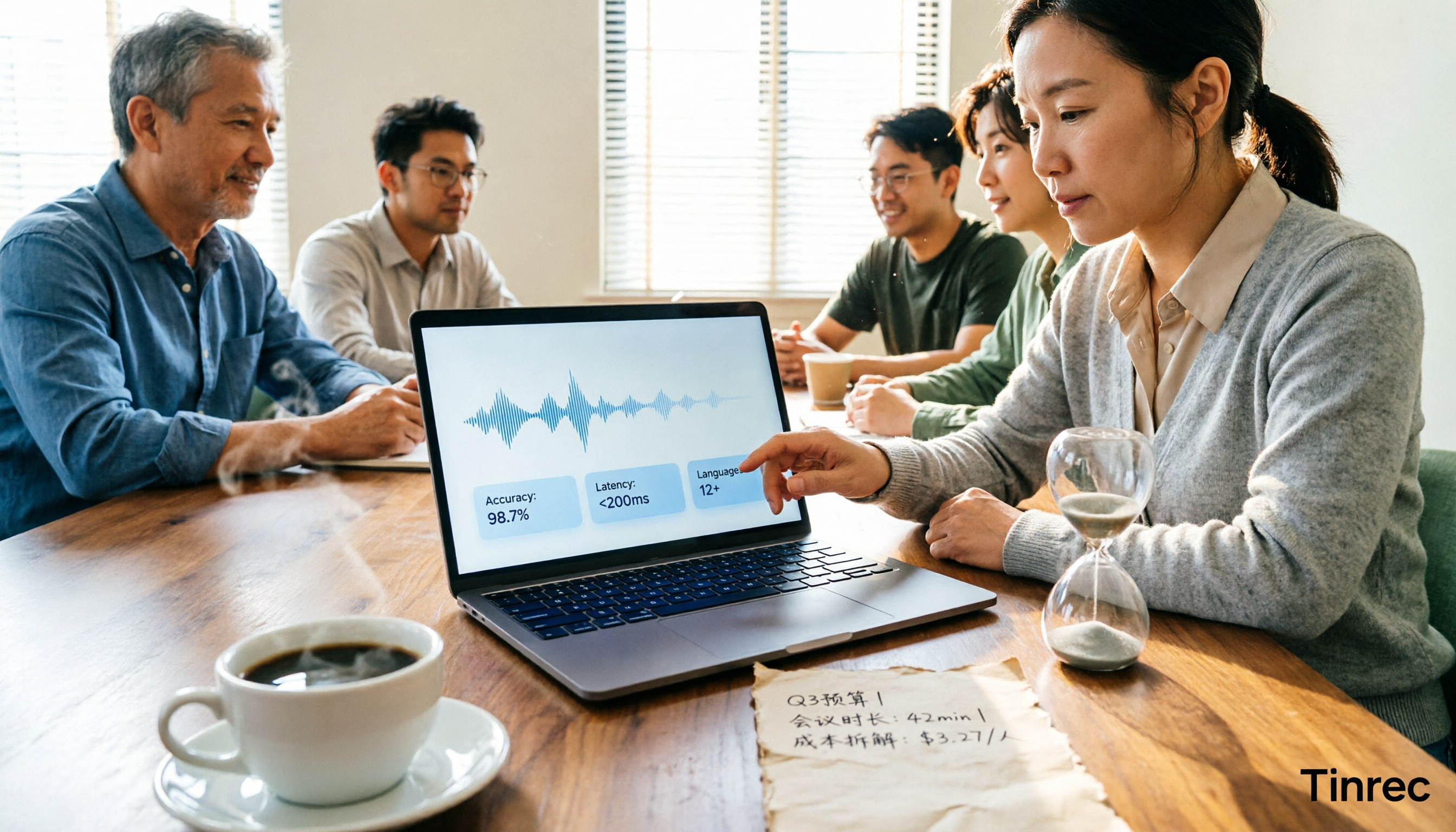
2026 Real-Time Transcription Cost Comparison: Free Tiers and Per-Hour Pricing Explained
Real-time transcription costs vary widely: human transcription starts at NT$900 per hour, while AI tools offer free tiers. This article breaks down pricing units, free tier definitions, post-meeting organization costs, and team seats, comparing Tinrec, Yating Transcription, Otter.ai, and TurboScribe to help you calculate the truly cost-effective choice.

Tinrec Real-Time Transcription Review (2026): Live Transcription + AI Summaries & Action Items
A mid-level manager with a 10-person team tested AI real-time transcription tools, focusing on meeting recording, live transcription, post-meeting summaries, and action items. This review explains how to use Tinrec, how it differs from Otter.ai, whether the free version is sufficient, and when to upgrade to the team plan.

3 Real-Time Transcription Tools Tested: Which One Turns Meetings into Searchable Records?
The meeting ends, but the real work begins. We tested Tinrec, Otter.ai, Notta, and Granola—comparing recording methods, live transcription, AI summaries, Q&A, team collaboration, and pricing—to help you decide which tool truly saves post-meeting cleanup time.
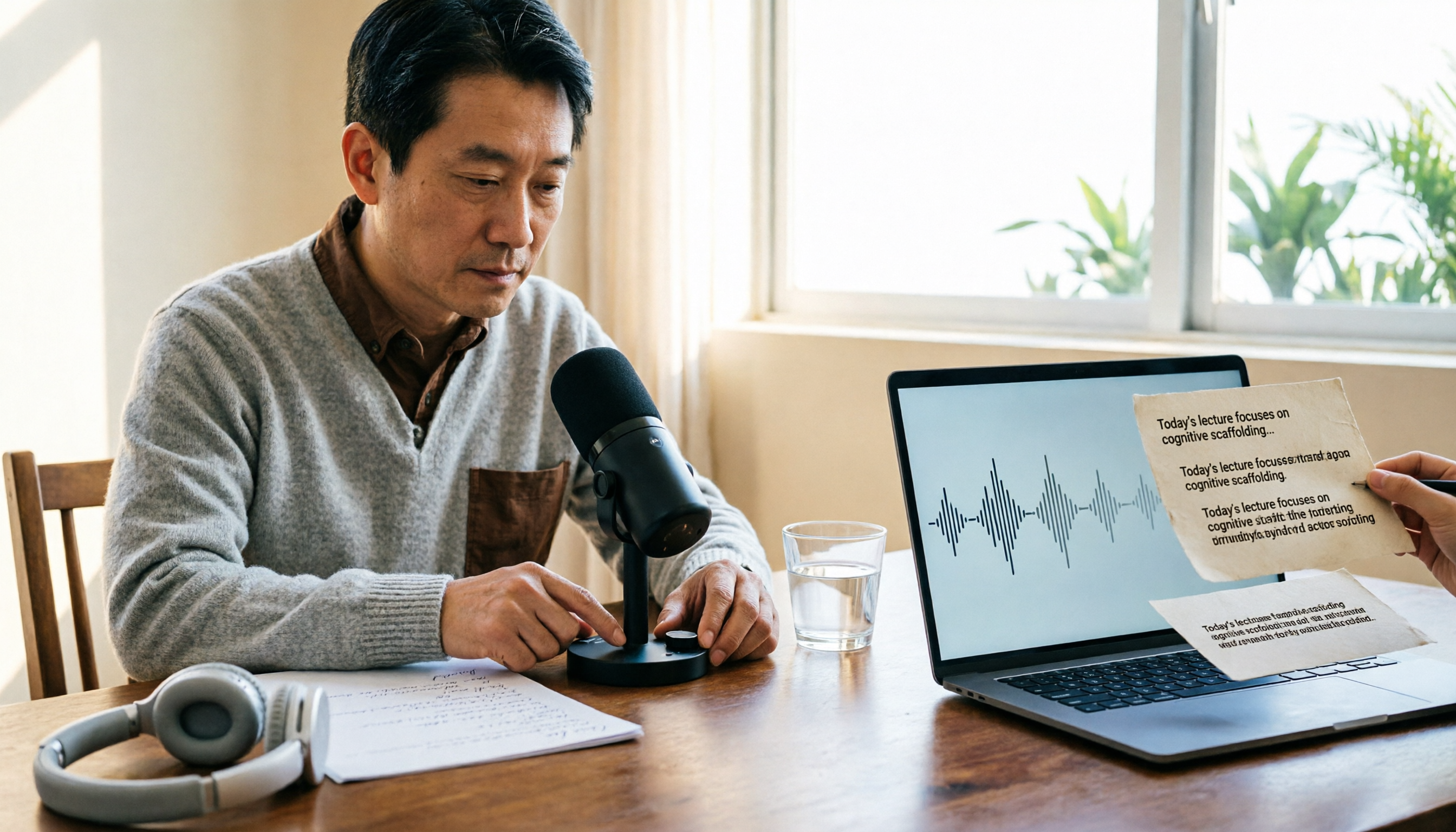
2026 Comparison of 4 Live Transcription Tools: Which Saves the Most Time for Lecture Recordings?
Turning lecture recordings into deliverable transcripts requires more than just speech-to-text. This article first demonstrates basic and descriptive transcript writing styles, then compares Tinrec, Notta, Otter.ai, and Granola using the same criteria, covering key purchasing factors, common misconceptions, and scenario-based recommendations.

The Complete Guide to Live Transcription in 2026: Top Dcard Tools and a 5-Step Workflow
Dcard has plenty of discussions about live transcription, with supporters of iPhone Notes, Yating Transcription, and OpenAI Whisper each making their case. This complete guide first helps you decide whether you need a 'transcript' or 'meeting minutes,' then uses Tinrec as an example to walk through five steps: recording, transcribing, proofreading, generating minutes, and exporting or sharing. It also covers free quotas, platform limitations, and differences between team versions.