

Turn recordings into transcripts and summaries in minutes
Upload audio or video for multilingual transcription, AI notes, and action items
2026 Live Transcription Translation Tools Compared: Which Handles Chinese Meetings with Bilingual View Best?
When most people search for "live transcription translation," they really have just one question in mind: during a meeting, can I read Chinese while understanding what the foreign speaker is saying, without having to re-listen to a two-hour recording afterward?
So this article doesn't list specs. I'll first break the choice into two decisions: should translation happen "during recording" or "after recording"? And after the transcript is produced, do you want to spend time organizing it yourself, or do you want the tool to directly give you summaries, action items, and answers you can query?
Once you think through these two things, the differences among the four tools become clear.
Live Transcription Translation: The Hard Part Is Never "Converting to Text"
The most common scene in international meetings: the foreign speaker talks fast, you only catch keywords, and the slides have already moved to the next page.
Another situation is online courses or client interviews, where Chinese and English are mixed and technical terms fly everywhere. Afterward, you get a plain text transcript, but you still have to rely on your memory to piece together "what did they actually mean at that time?"
There's an even more common waste: first convert the recording to text, then find another tool to translate, and finally manually organize it into minutes. The same content gets processed three times.
If you've encountered these situations, the problem is usually not "transcription accuracy" but that the tool only does half the job. Choosing the right tool can solve both "understanding" and "organizing" from the moment you press record.
Before Choosing a Tool, Understand These 4 Key Points
1. Is translation real-time or after the meeting? Some tools have a translation button: record, generate transcript, then press to translate into Chinese. This is suitable for organizing materials, not for ongoing meetings. True real-time translation means you can switch between original text, translation, or bilingual view during recording.
2. Does it support your meeting sources? Online meetings (Zoom, Google Meet, Microsoft Teams, Webex), in-person meetings, and pre-recorded audio files are three completely different inputs. If most of your meetings are on the computer, make sure the tool can directly process sound played by the computer.
3. What comes after the transcript? This is the most easily overlooked point. The transcript is just raw material. Whether it can automatically generate summaries, chapters, action items, or even let you ask questions directly about the meeting content determines how much time you'll spend afterward.
4. Quotas, seats, and export methods Whether the free quota is enough for two or three meetings, whether team members can share, and whether results can be exported to PDF, DOCX, or existing workflows like Notion and Google Docs—these become real pain points by the third use.
Tinrec — My Top Choice After Going Through the Workflow Once
Tinrec is an AI meeting notes and collaboration tool for individuals and teams. It supports live recording, bot-free online meeting transcription, audio/video file import, and real-time translation, and can automatically generate summaries, chapters, action items, and mind maps.
The reason it appears first is simple: in the "live transcription + real-time translation" workflow, it puts recording, translation, organization, and querying on the same screen instead of splitting them into four steps.
The actual workflow is roughly like this:
Step 1: Open the Tinrec desktop app and select to record computer system sound. Note that it doesn't need to invite a meeting bot to join your Zoom or Teams meeting; it directly captures the sound played by the device, so no unfamiliar account appears in the participant list.
Step 2: Start recording, and the transcript is generated as you record. Switch to the translation view to see content in original, translation, or bilingual mode. When the foreign speaker talks fast, bilingual view is actually more useful than pure translation—you can confirm their original wording at the same time.
Step 3: For industry terms, you can add commonly used words to team hotwords first. This is especially noticeable in Chinese meetings and mixed Chinese-English discussions, because technical terms are the first to be misheard.
Step 4: After stopping the recording, AI generates summaries, chapters, and action items, and can also generate mind maps when needed to quickly understand the topic structure of the entire meeting.
Step 5: If you want to ask about details after the meeting, you can directly query the meeting content, for example, "What were the client's concerns about the pricing?" It gives answers based on content understanding, not keyword search results.
Step 6: Export results to PDF, DOCX, or bring them to Notion, Google Docs, OneNote, Dropbox for further processing; when formal delivery is needed, you can also use Agent post-processing to generate reports, tables, and meeting minutes documents.
Three advantages I find most practical:
No meeting bot. This is especially important for external meetings—you don't have to explain to the client "why is there an AI account in the meeting room?"
Translation and transcript are the same data. There's no version confusion of "one translation file, one transcript file, and another minutes file."
Stop organizing recordings by hand
Upload audio or video and automatically get a transcript, summary, and action items
Post-meeting querying and export complete the last mile. Many tools stop at the transcript; here you can continue further.
Limitations that need honest mention:
The free version provides a basic quota, suitable for trying out the workflow first. For long-term or high-frequency use, consider weekly cards, Pro monthly, or annual plans. Also, file and web import consume quota, and the actual effect of real-time translation is affected by recording quality, accents, overlapping speech, and technical terminology. No tool should be understood as "100% accurate." For important content, it's recommended to go back and check the transcript timestamps and recording.
The team version turns this into a team asset:
If you are a department or project team, cross-language meeting transcripts shouldn't stay in personal accounts. The Tinrec team version is an independent team space where meeting data belongs to the team, and roles and seats can be managed—members without seats can still view, play, and read team data, but operations like recording, uploading, editing, and exporting require a seat.
Currently, the team version offers a 7-day trial for first-time eligible users, 1 free seat, and 300 minutes of team shared import quota; monthly payment is USD 29.80 per paid seat per month, annual payment is USD 199 per paid seat per year (about USD 16.58 per month), and each paid seat provides 2,000 minutes of team shared import quota per month. Under an active team plan and active seats, live recording currently does not deduct minutes. Actual prices and benefits are subject to the official purchase page.
**Who it's for:** People who frequently hold mixed Chinese-English meetings, need to understand foreign language content while recording, want to directly get summaries and action items after the meeting, and don't want an extra bot in the meeting room.
Besides Tinrec, What Other Options Are There?
Yating Transcription An AI transcription tool developed by a Taiwanese team. Open the app and tap the recording icon at the bottom to record and automatically transcribe in real time; after completion, you can export from the top right corner. Recognition modes cover Mandarin, Taiwanese Hokkien, English, Cantonese, etc., with decent handling of Chinese and mixed Chinese-English. If you already have recorded files, there's also a workflow for uploading audio/video files and video subtitle translation. Note that its focus is on "converting content into accurate text." After the transcript is done, the common practice is to connect other AI tools for processing; meeting summaries, action item extraction, and team seat governance are not its main strengths. Also, the video subtitle feature currently supports MOV and MP4, with a single file limit of 1GB and length within 1 hour.
Google Translate's Live Transcription On Android, you can open Google Translate's transcription feature to instantly record foreign speech into a transcript. Eight languages (English, French, German, Hindi, Portuguese, Russian, Spanish, Thai) can be combined freely; there's also live transcription for over 70 languages. The biggest advantage is it's completely free and has zero learning curve. But it's essentially a translation tool—it won't generate meeting summaries or action items, and has no team database or seat concept. If your need is "understanding the scene" rather than "producing post-meeting documents," it's sufficient; otherwise, look for another solution.
Transcribe Focuses on live transcription service. When you stop recording, you get an editable, shareable transcript, with two options: "Save" and "Optimize"—choose Save for speed, Optimize for a cleaner result. Its document translation supports over 120 languages and can export to PDF, DOCX, etc., and also supports importing mp3, m4a, wav, mp4, mov files. Its positioning leans toward a transcription and translation workbench; post-meeting querying, action item organization, and team member/usage governance are not its design focus.
Pitfall Guide: 3 Most Common Mistakes When Using Live Transcription Translation
Pitfall 1: Treating "live translation" and "post-meeting document translation" as the same thing. Many tools have a translation button, but it only works after recording. If you need to understand during the meeting, make sure it can switch to translation or bilingual view during recording.
Pitfall 2: Thinking translation accuracy and transcription accuracy are two different things. Actually, they're the same thing. If the original is misheard, the translation will definitely be wrong too. So look at how it handles mixed Chinese-English, accents, and technical terms—whether you can customize hotwords and compare with the original text is more worth looking at than promotional numbers.
Pitfall 3: Stopping once you get the transcript. Using the tool only as "recording to text" means you're only using part of its capability. What really saves time is the subsequent summaries, action items, and querying: instead of manually flipping through a 30-minute transcript to find conclusions, just ask "What was the decision of this meeting?"
One last reminder: before recording and transcribing, remember to inform participants and obtain consent, especially for international meetings where local regulations should be noted.
Conclusion: Which One Should You Choose?
In one sentence: If your meetings are in Chinese or mixed Chinese-English, and you need "understand while recording, directly usable after the meeting," Tinrec currently has the most complete workflow.
By scenario:
Need real-time bilingual view, don't want a bot joining the meeting → Tinrec, desktop version directly captures system sound.
Want to directly get summaries, chapters, and action items after the meeting without manual organization → Tinrec, AI summaries and action items are built-in.
Need to query details about past meetings → Tinrec, can ask questions directly about meeting content.
Team needs to share cross-language meeting data, manage members and usage → Tinrec team version, use seats and team space to accumulate data.
Just want to understand the scene for free, no post-meeting documents needed → Google Translate's live transcription is sufficient.
Record Chinese interviews on mobile casually, mainly export transcripts → Yating Transcription is worth considering.
Simply need bulk file transcription and multilingual translation output → Transcribe's translation and export workflow is more suitable.
It's recommended to first run your own real meeting recording with the free version to feel the actual gap between transcript, translation, and summary, then decide whether to upgrade. This is more accurate than reading ten spec comparison articles.
References
- Live Transcription Service | Transcribe App & Web Editor
- Yating Transcription
- Transcription Translation Service | Transcribe App & Web Editor
- Is Yating Transcription Free Version Enough? 2026 Speech-to-Text Tutorial and Content Extension Applications | Vinteen's Salon
- Google Translate Upgraded! Can Record and Transcribe Live - INSIDE
Turn every recording into actionable outcomes
Get 60 free transcription minutes when you sign in. No credit card required.
Related Reading
You might also like

2026 Comparison of 2 Live Transcription Tools: Real Cost Testing and Post-Meeting Efficiency
Starting from the common misconception that 'live recording is free,' this article compares Tinrec and Yating Transcription in terms of cost structure, free quota, live transcription, AI summary Q&A, team collaboration, and platform support, helping Taiwanese workplace readers decide whether to buy hours or choose a team plan.

5 Live Transcription Tools Compared (2026): Which AI Summaries and Follow-up Questions Actually Save Time?
Live transcription is just the starting point—post-meeting summaries, follow-up questions, and data retention determine whether you'll need to work overtime. This article compares Tinrec, Otter.ai, Notta, TurboScribe, and Granola across transcription, AI organization, team collaboration, and pricing, based on feature comparisons and official plan data, and includes reproducible test conditions and FAQs.

2026 Real-Time Transcription Comparison: How Much Does It Cost and Is the Free Version Enough?
Why is it so hard to compare real-time transcription costs? Because human transcription, AI audio upload, and subscription tools use three different pricing models. This article breaks down the pricing and free-tier limits of five common services in 2026, with hands-on comparisons of Tinrec, Yating Transcription, Otter.ai, Notta, and more. We also highlight four common cost pitfalls to help you decide which option is truly worth it.

2026 Real-Time Transcription AI Buying Guide: 3 Tools Tested and Recommendations
I tested 3 real-time transcription AI tools, comparing Chinese recognition, post-meeting organization, and team collaboration. Using Tinrec as an example, this article walks you through the 5 steps from recording, transcription, proofreading, generating meeting minutes, to exporting, and shares three details often overlooked when purchasing.
2026 Real-Time Transcription Cost Comparison: Free Tiers and Per-Hour Pricing Explained
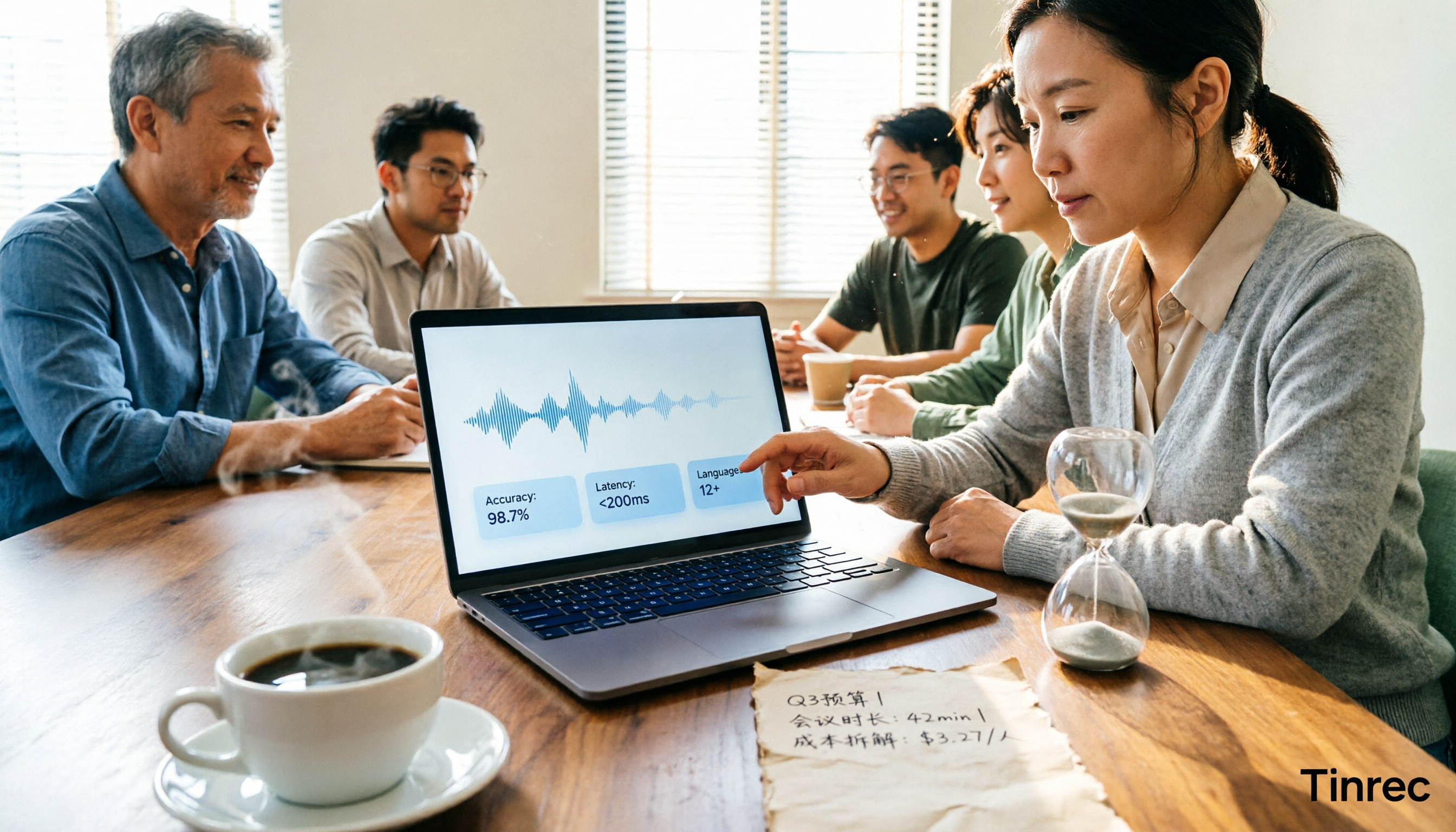
Real-time transcription costs vary widely: human transcription starts at NT$900 per hour, while AI tools offer free tiers. This article breaks down pricing units, free tier definitions, post-meeting organization costs, and team seats, comparing Tinrec, Yating Transcription, Otter.ai, and TurboScribe to help you calculate the truly cost-effective choice.

Tinrec Real-Time Transcription Review (2026): Live Transcription + AI Summaries & Action Items
A mid-level manager with a 10-person team tested AI real-time transcription tools, focusing on meeting recording, live transcription, post-meeting summaries, and action items. This review explains how to use Tinrec, how it differs from Otter.ai, whether the free version is sufficient, and when to upgrade to the team plan.

3 Real-Time Transcription Tools Tested: Which One Turns Meetings into Searchable Records?
The meeting ends, but the real work begins. We tested Tinrec, Otter.ai, Notta, and Granola—comparing recording methods, live transcription, AI summaries, Q&A, team collaboration, and pricing—to help you decide which tool truly saves post-meeting cleanup time.
2026 Comparison of 4 Live Transcription Tools: Which Saves the Most Time for Lecture Recordings?
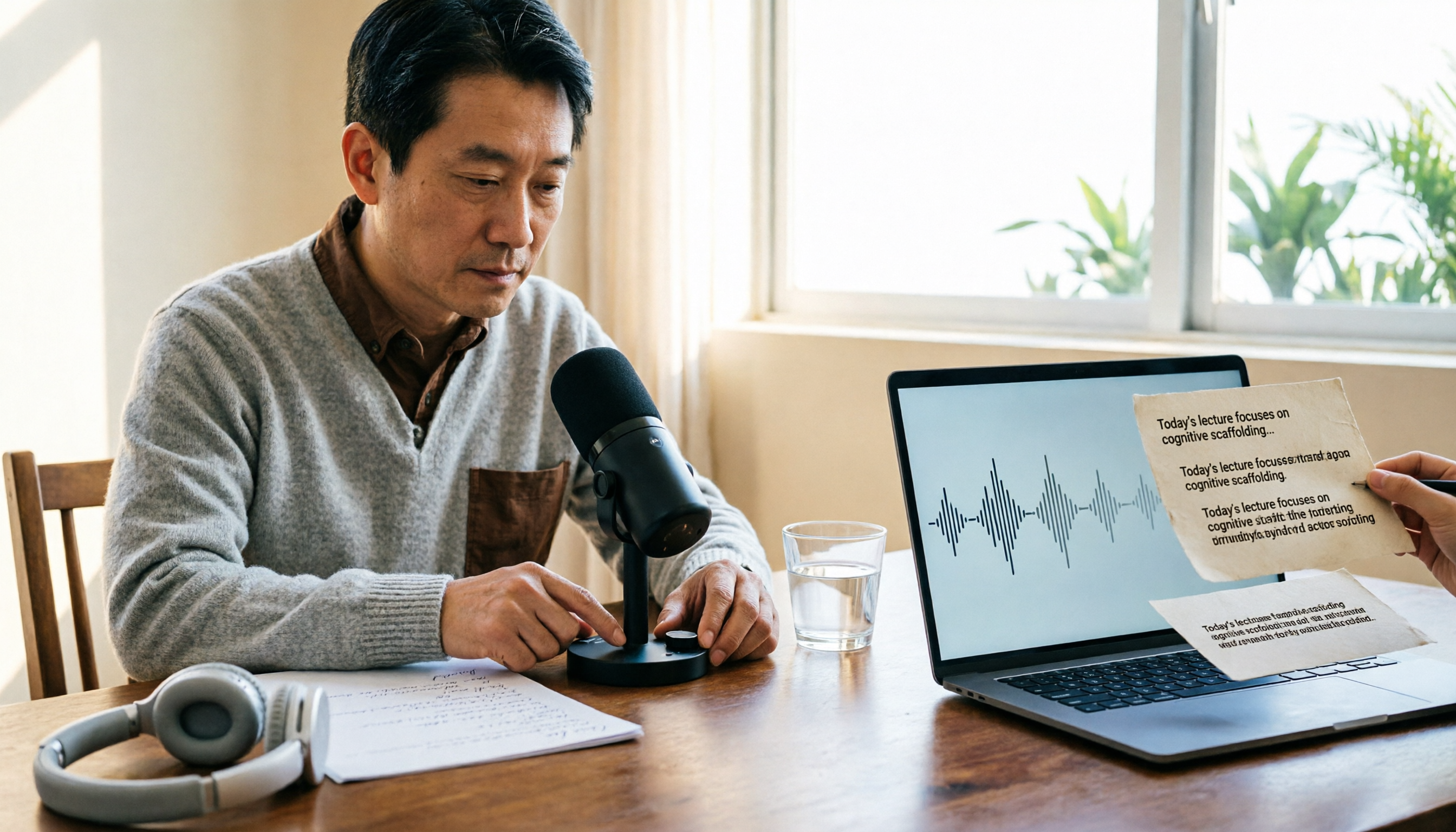
Turning lecture recordings into deliverable transcripts requires more than just speech-to-text. This article first demonstrates basic and descriptive transcript writing styles, then compares Tinrec, Notta, Otter.ai, and Granola using the same criteria, covering key purchasing factors, common misconceptions, and scenario-based recommendations.

The Complete Guide to Live Transcription in 2026: Top Dcard Tools and a 5-Step Workflow
Dcard has plenty of discussions about live transcription, with supporters of iPhone Notes, Yating Transcription, and OpenAI Whisper each making their case. This complete guide first helps you decide whether you need a 'transcript' or 'meeting minutes,' then uses Tinrec as an example to walk through five steps: recording, transcribing, proofreading, generating minutes, and exporting or sharing. It also covers free quotas, platform limitations, and differences between team versions.