
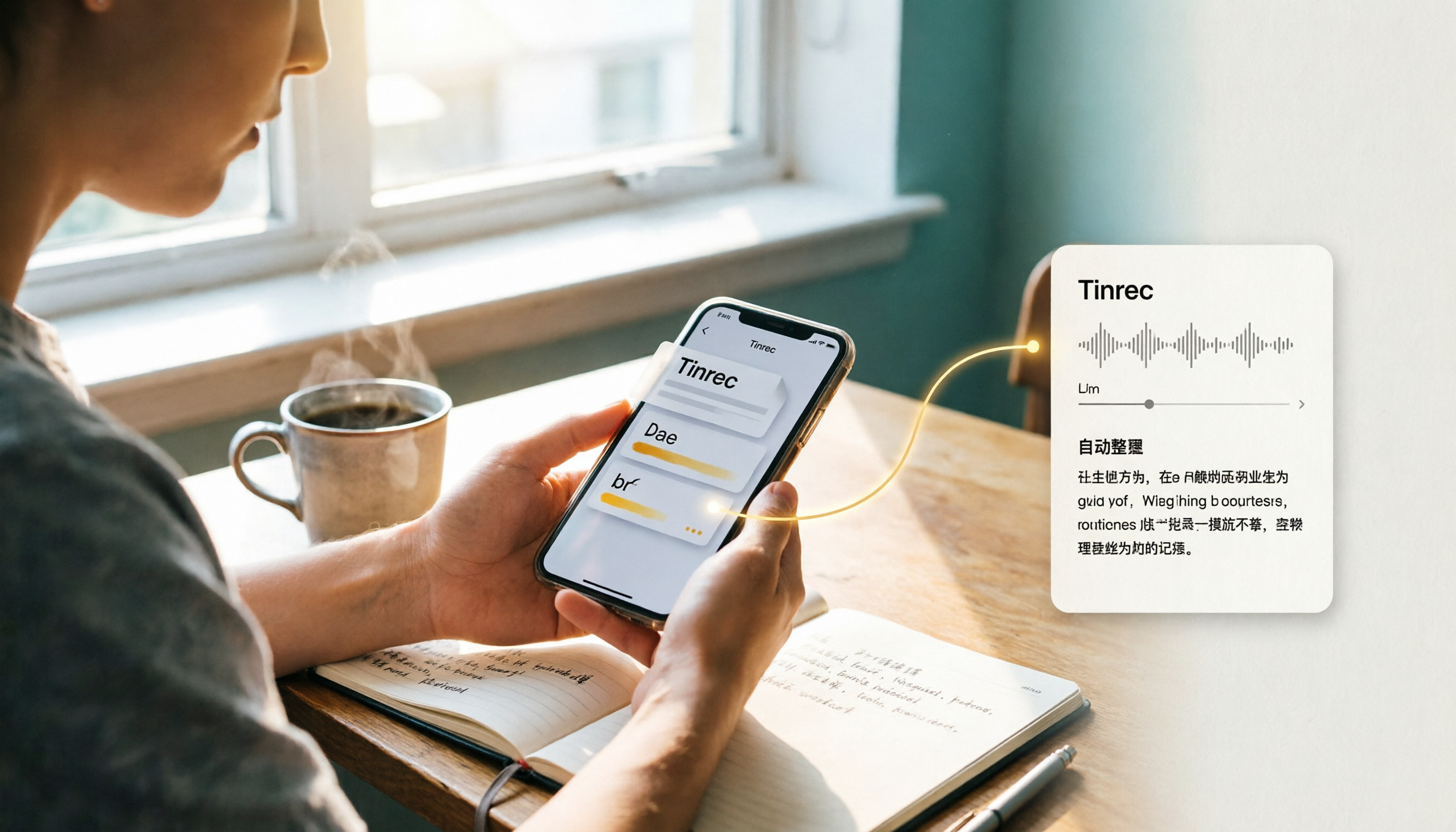
Turn recordings into transcripts and summaries in minutes
Upload audio or video for multilingual transcription, AI notes, and action items
How to Change Fonts in iPhone Notes (2026): 5-Step Guide
Before you start, ask yourself: when you open Notes and can't find a font menu, what are you really trying to solve?
If your answer is "I want to make key points stand out," the 5 steps below are all you need.
But if your answer is "This meeting note is too long and I don't have time to organize it," changing fonts won't help—you need a different workflow.
These two issues often get mixed up. Let's first clarify what Notes can do, then discuss how to handle the second situation.
Understand First: iPhone Notes Font Limitations
Bottom line: Notes has no font menu, and you can't switch from PingFang to Kaiti or Heiti. This is Apple's design choice, not a user error.
Here's what you can adjust in iPhone Notes:
- Paragraph styles: Title, Heading, Body, Monostyled.
- Character styles: Bold, Italic, Underline, Strikethrough.
- Lists and tables: Bulleted, numbered, checklist, table.
- Text color and highlight: Added in iOS 18, can be changed directly on iPhone.
Note that font size is not on this list. You can't enlarge just one paragraph—only the overall display size of the app or system.
5 Steps to Change Fonts: From Bold to Text Color
Step 1: Select text and open the format menu
Long-press the text you want to adjust and drag to select.
Then tap the "Aa" icon on the left side of the toolbar above the keyboard to open the format panel. To change the entire note, you can skip selection and tap "Aa" directly.
Step 2: Apply paragraph styles
At the top of the format panel, you'll see options like "Title," "Heading," "Body," and "Monostyled."
Generally, use "Title" for the note's opening, "Heading" for sections, "Body" for main text, and "Monostyled" for code or numbers that need alignment. These four styles are the source of font variation in Notes.
Step 3: Add bold, italic, underline, strikethrough
The middle row of B, I, U, S are character styles.
My habit: bold for conclusions, italic for supplementary notes or quotes, underline rarely (looks cramped on mobile), strikethrough for canceled items.
Step 4: Change text color and highlight in iOS 18 and later
This is one of the most useful updates in recent years. Previously, changing colors required a Mac; now you can do it on your phone.
Select text, tap "Aa," choose a color from the color icon, and the text changes color; tap the highlight icon next to it to add a highlighter effect.
To revert to the original black, select the text, tap "Aa," and set the color back to default or remove the highlight.
Step 5: Adjust display text size
Notes doesn't allow custom font sizes, but you can adjust the display size.
Add "Text Size" to Control Center: go to Settings > Control Center and add it. Then in Notes, pull down to open Control Center and drag the slider to enlarge or reduce text for just the Notes app.
To change globally, go to Settings > Display & Brightness and adjust text size.
Tinrec: When Your Real Pain Point Is Content Organization
After the 5 steps above, formatting issues are mostly solved. But if your bottleneck is "a 60-minute meeting recording—how long will it take to organize the transcript," you need a different tool, not fonts.
Tinrec is an AI meeting notes and collaboration tool for individuals and teams. It doesn't handle fonts; it handles what's behind the text: turning audio into searchable, summarizable, queryable data.
Here's how it works in practice:
During a meeting, use the desktop version to capture computer system audio directly—works with Zoom, Google Meet, Microsoft Teams, Webex, no need to invite a meeting bot. It generates transcripts in real time, and for cross-language meetings, you can switch between original, translation, or bilingual view.
Stop organizing recordings by hand
Upload audio or video and automatically get a transcript, summary, and action items
After the meeting, AI automatically generates summaries, chapters, and action items. Long meetings are broken into easy-to-browse sections, so you can quickly see who's responsible for what and what's next—much faster than scrolling through the transcript.
Even better is post-meeting Q&A. You can ask "Who mentioned the budget last meeting?" or "What were the client's concerns about the timeline?" and it answers based on content, not just keywords. This is where I find the biggest difference from ordinary transcription tools.
Finally, output. Transcripts, summaries, and action items can be exported to Notion, Google Docs, OneNote, Dropbox, etc., for further processing, and can also generate reports, tables, and meeting documents. The team version adds team spaces, role and seat management, usage analytics, audit logs, and audio recycle bin—suitable for departments or project teams that need to accumulate meeting data.
A few honest caveats: Tinrec doesn't promise a fixed accuracy rate; actual performance depends on recording quality, ambient noise, accents, overlapping speech, and technical terms. For important content, verify against the transcript and recording. Also, the free version has limited quota; heavy users need to pay. The personal version offers weekly, Pro monthly, and Pro annual plans. Team version pricing is USD 29.80 per paid seat per month, or USD 199 per paid seat per year (about USD 16.58/month), with each paid seat providing 2,000 minutes of shared team import quota per month. Actual prices and benefits are subject to the official purchase page.
If you have two or three meetings every week and want summaries and action items right after recording, the time saved by such tools far exceeds the time you spend tweaking fonts.
If You Still Want More Font Freedom: Other Options
Notion: A productivity tool that combines notes, databases, and documents. It offers three font choices, adjustable size and color, and much more layout flexibility than Notes. It's positioned as a structured knowledge base, suitable for text-heavy content. However, if your material is meeting recordings, you'll need to transcribe them yourself before pasting.
Evernote: A veteran note-taking service focused on text notes, web clipping, and multi-device sync—handy for quick saves. It's also not designed for "turning a meeting recording into minutes"; the recording-related workflow requires additional integration.
Apple Notes itself is worth keeping on your list. If you just need quick notes, highlights, and color tags, the built-in app requires no download and syncs smoothly across devices—no need to switch.
Pitfall Guide: 3 Common Stumbling Blocks When Changing Notes Fonts
Pitfall 1: Thinking iOS 18 lets you change fonts. The update adds "text color" and "highlight," not a font library. Changing the font itself is still not possible in Notes.
Pitfall 2: Wanting to enlarge just one paragraph. Notes has no local font size setting; you can only adjust the display size of the entire app or system. To create size differences, you practically have to rely on Title/Heading/Body styles for hierarchy.
Pitfall 3: Spending time on formatting while not solving content overload. I feel this strongly. The real cost of notes is usually not "how it looks" but "can I find it and use it after writing." If you have to re-listen to recordings to catch key points after every meeting, invest in an organization workflow, not fonts.
Conclusion: Which Tool Fits Your Needs?
To sum up: iPhone Notes can change styles, bold/italic, and colors, but not fonts or font size. Accept this boundary first, and your choice becomes clear.
- Just want to make key points stand out and mark quickly → built-in Notes with iOS 18 text colors is enough.
- Need long-form layout and a structured knowledge base → tools like Notion are more suitable.
- Meeting, interview, or lecture recordings to transcripts, summaries, and action items → AI meeting notes tools like Tinrec are the right level.
- Team wants to turn every meeting into searchable data → Tinrec's team version with spaces, seats, and usage management is more reasonable than sharing one account.
If you find yourself manually organizing transcripts every time, start with the free version, test it with one or two meetings, and consider upgrading if it fits. Tools are meant to save time—don't let them become another thing you have to spend time researching.
References
- How to Change Fonts in iPhone Notes (2026): 5-Step Guide - Tinrec Blog
- iPhone Notes Font Color Change Tutorial: iOS 18 New Feature to Change Text Color for Highlights! - Tech Girlz
- How to Change Font Color and Size in iPhone Notes? Here's How - Tech Girlz
- r/ios on Reddit: Changing the font size in Notes
- How to Change Fonts in iPhone Notes? System Limitations and Efficient Audio-to-Text Alternatives - Tinrec Blog
Turn every recording into actionable outcomes
Get 60 free transcription minutes when you sign in. No credit card required.
Related Reading
You might also like

What Is Speech to Text in 2026? Feature Comparison from Transcripts to Meeting Summaries
Speech to Text is more than just turning audio into text. This article explains STT principles in plain language, the 4 key factors for choosing a tool, Tinrec's meeting notes and team collaboration workflow, and compares alternatives like Granola, TurboScribe, and PLAUD to help you go from transcripts to searchable, actionable meeting data.

6 Best Audio Transcription Tools for 2026: Encryption, Deletion Policies, and Team Permissions Explained
Before you search "is Transcribe safe," understand what happens to an audio recording from upload to deletion. This guide uses four security questions to compare six transcription tools on encryption, file retention, team permissions, and pricing—so you can pick the one that fits your workflow.

Best Transcription Tools of 2026: We Tested 4, and This One Is the Most Effortless for Chinese Meetings
What does "verbatim transcript" mean? This article first breaks down the three most common misconceptions and the true definition of a transcript, then compares four tools—Tinrec, Notta, Otter.ai, and Granola—from four angles: Chinese recognition, post-meeting organization, meeting recording methods, and team data ownership. It also summarizes four key pitfalls to avoid when purchasing.
2026 Comparison of 6 Transcription Options: How Much Does Transcription Cost Per Word? Rate Conversion and Use Cases
Transcription is rarely priced per word—human transcription is usually quoted per minute of audio, while AI tools use subscription minutes. This article converts three pricing methods into cost per word, compiles 2026 human transcription rates, and compares the plans and quotas of Tinrec, Otter.ai, Notta, TurboScribe, and Granola to help you choose the right approach based on budget and turnaround time.

4 Best Audio-to-Transcript Tools in 2026: What Gemini Can Do and Which Is Better for Chinese Meetings
Can Gemini create transcripts? Yes, and it works with free accounts, but there are limits on file size and long audio. This article first explains how Gemini transcription actually works and its limitations, then uses the same criteria to compare Tinrec, Notta, and Granola in Chinese meetings, post-meeting organization, and team collaboration. It also covers 4 key buying factors and common pitfalls to help you choose the right tool for your situation.

2026 Guide: Audio to Transcript with No-Bot Recording + AI Q&A to Find Key Points
Converting audio to transcripts isn't hard—the challenge is what to do afterward. Starting from a mid-level manager's real meeting scenarios, this guide first helps you identify 4 key considerations before choosing a tool, then hands-on tests Tinrec's no-bot online meeting recording, AI Q&A, and team spaces, compares who Notta, TurboScribe, and PLAUD Note each suit best, and finally adds 4 common pitfalls to avoid.

Where Are iPhone Voice Memos Stored in 2026? 3 Recording Organization Tools Compared: Tinrec, Notta, and the Built-in App
iPhone recordings are actually stored in the Voice Memos app—if you don't export them, they won't appear in Files. This article first debunks three common misconceptions, provides three ways to find your recordings, then compares the transcription and post-meeting organization capabilities of the built-in Voice Memos, Tinrec, and Notta to help you choose the right recording tool for meetings and learning.

2026 Comparison of 5 Audio-to-Text Tools: How Long Does It Take to Say 1,000 Words? Tinrec vs. Notta
Speaking 1,000 words takes about 5 minutes, but formal settings require 6–7 minutes. This article uses a speaking-rate formula to calculate time, then compares Tinrec, Notta, Otter.ai, Granola, and TurboScribe based on post-recording workflows to help you decide which subscription to choose.

2026 AI Assistant Comparison: How to Summon Gemini vs. How Tinrec Captures Meetings
Halfway through an online meeting, you want AI help but can't find Gemini on your phone? This hands-on comparison of Gemini and Tinrec covers six dimensions—how to summon them, meeting recording, post-meeting output, Chinese-language experience, team collaboration, and pricing—to help you decide which fits your daily workflow.