

Turn recordings into transcripts and summaries in minutes
Upload audio or video for multilingual transcription, AI notes, and action items
Where Is the Recording Feature? First Ask Yourself: Do You Want to "Record It" or "Use It"?
Last month I got cornered by my boss in the elevator. He asked, "What was the conclusion of that cross-department meeting last time?" I clearly had the recording on my phone, but I scrolled for three minutes and still couldn't give a clear answer. Because I recorded it, but I didn't organize it.
This is probably the second problem most people encounter after searching for "where is the recording feature": the first problem is not finding the record button, and the second problem is finding it, finishing the recording, and then... nothing.
So before you scroll down, make a judgment call:
- If you just occasionally want to record a sentence, note a phone number, or capture an idea, then you need to know "where the entrance is." Reading the second section below is enough.
- If you're like me, with a dozen meetings a week, and your purpose for recording is "not having to spend two hours organizing after the meeting," then you need to know "what happens after recording." That's what this article is really about.
Before Finding the Recording Feature, Understand These 4 Key Points
1. Location: The Record Button Is Not in the Same Place on Different Devices
On iPhone, the recording feature is not a standalone button; it's an app called "Voice Memos." Many people can't find it because it's tucked away in the "Utilities" folder, not on the first page of the home screen.
Windows is the same. Windows 10 calls it "Voice Recorder," and Windows 11 renamed it to "Sound Recorder." The name changed, so many people think the feature is gone.
2. What You Get After Recording: The Most Overlooked Dimension
Built-in recording tools on platforms produce just an audio file. If you want a transcript, summary, or action items, you have to spend time processing it yourself. If your purpose for recording is "deliverables after the meeting," then "what you get after recording" is ten times more important than "where the record button is."
3. Can It Continue Across Platforms?
Recording on your phone today and organizing on your computer tomorrow is normal. If your recording files can only stay on a single device, it's hard for them to become data. This is also something I always check when choosing tools.
4. Can the Team Use It?
Personal recordings belong to individuals—that's fine. But if this needs to scale to a team—meeting notes need to be shared, handed over, and you need to know who used how much quota—then a "recording app" can't solve it. You need a team workspace with members, seats, and usage management.
Summary of Recording Feature Locations on Various Devices: 3 Channels You Can Always Find
iPhone: Voice Memos
According to Apple's official support documentation, the "Voice Memos" app is located in the "Utilities" folder. If you've been scrolling through your home screen and can't find it, here are three faster ways:
- Spotlight Search: Swipe down from the center of the home screen, type "Voice Memos," and open it directly from the search results.
- Siri Voice Command: Just say "Hey Siri, open Voice Memos," and the system will open the recording interface for you.
- Add to Control Center: If you need one-tap access, add the recording feature to Control Center, and you can press it by swiping down from the top right corner.
Two other useful details: an orange dot appears at the top of the screen during recording, indicating the microphone is in use; on supported models, you can also check the status via the Dynamic Island and tap it to return to the app.
Android: Phone App and Built-in Recorder
Call recording on Android depends on the device and carrier—not every phone has it. Using Google's official "Phone" app documentation as an example, when supported, you can choose "Always record" (for unknown numbers or specific contacts) or record a single call. Recordings can be played back and trimmed, and you can set a retention period for automatic deletion.
For general recording, most Android phones have a built-in recorder app. The name and location vary by brand. The fastest way is to search for "recording" directly in the app drawer or settings.
Windows: Just Search for "Recording"
Windows 10/11 has a built-in Voice Recorder (renamed "Sound Recorder" in Win 11). You can find it by searching in the Start menu. It records microphone audio and saves it as .m4a in the Documents folder by default. If you want to record gameplay or screen activity, you can use Xbox Game Bar (Win+G).
⚠️ One reminder: call recording is legally restricted in some regions. Before recording, confirm local regulations, and if necessary, inform the other party and obtain consent.
Tinrec — After Finding the Record Button, the Part That Actually Saves Time
To put it plainly, the methods above solve "recording." What I really care about later is "after recording." My current approach: use Tinrec on my phone to record in-person meetings, and use Tinrec on my desktop to record online meetings. All recordings go into the same place.
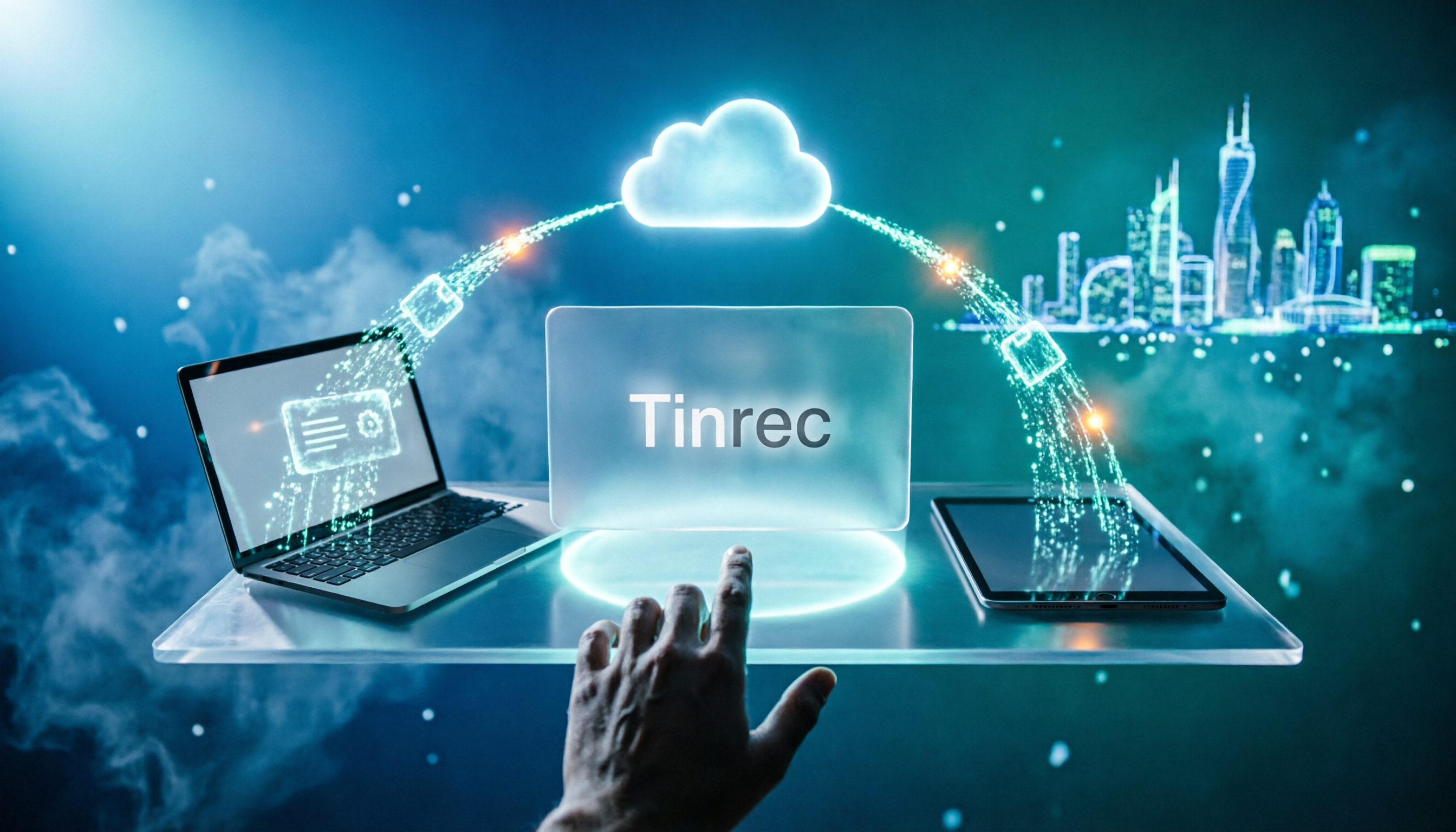
Tinrec is an AI meeting notes and collaboration tool for individuals and teams, available on iOS, Android, and web. Its positioning is not a "recording app," but rather turning meetings into searchable, collaborative, and actionable data.
Stop organizing recordings by hand
Upload audio or video and automatically get a transcript, summary, and action items
First scenario: No need to invite a bot to online meetings. The Tinrec desktop version directly captures computer system audio, handling meetings on Zoom, Google Meet, Microsoft Teams, Webex, etc., without needing an extra bot account to join as a participant. This is very practical for cross-department meetings—you don't want an extra "XXX Bot has joined the meeting" notification in front of clients.
Second scenario: While recording, the transcript is being generated. It transcribes as it records, so by the time the meeting ends, the transcript is already there. It also automatically generates summaries, chapters, key points, and action items. My first action after a meeting now is to check whether the action items it captured are correct, rather than re-listening to the recording. For cross-language meetings, you can use real-time translation and switch between original, translated, or bilingual views.
Third scenario: You can ask it directly after recording. This is what I find most different. Last week I needed to confirm who mentioned the budget, so I asked a question directly about that meeting segment, and it gave an answer based on the content instead of dumping a bunch of keywords for me to search myself. As historical meetings accumulate, this feature becomes more valuable.
Fourth scenario: Output goes directly back into your workflow. Transcripts and minutes can be exported to Notion, Google Docs, OneNote, Dropbox, and other tools, and can further generate reports, tables, and documents without manual copy-pasting.
For the team version, it's for departments that need governance: independent team workspaces, invite members via links, three roles (Owner/Admin/Member), seat allocation and revocation, team-shared import quota, usage trends and member rankings, team hotwords, audit logs, and audio recycle bin. One commonly confused point: roles manage governance permissions, while seats manage "whether you can record and upload/edit." Members without seats can still view, play, and read team data.
I'll also be clear about limitations: The free version provides a basic quota for you to try; heavy users need to pay. The team version currently offers first-time eligible users 7 days, 1 free seat, and 300 minutes of team-shared import quota. After that, monthly billing is USD 29.80 per paid seat per month, and annual billing is USD 199 per paid seat per year (about USD 16.58 per month), with each paid seat including 2,000 minutes of team-shared import quota per month. Under an active team plan and active seat, real-time recording is currently not deducted by minutes. Actual prices and benefits are subject to the official purchase page. Also, transcription accuracy can be affected by recording quality, noise, accents, and overlapping speakers. I still go back and verify important content against the original text.
Besides Built-in Recording, What Other Options Are There?
Built-in recording on phone/computer (Voice Memos, Phone app, Windows Sound Recorder): Completely free, no installation, works out of the box—that's its biggest advantage. But its output is just an audio file—no transcript, no summary, no action items, and no centralized cross-device management. If you only record occasionally, that's enough; if you need to submit meeting minutes every week, this is where it falls short.
Otter.ai: A mature AI meeting assistant covering real-time transcription, speaker identification, AI Chat, and team management for Zoom, Teams, and Google Meet. Its official pricing page shows Basic is free with 300 minutes per month, and Pro annual billing is about USD 8.49 per user per month, including 1,200 minutes of in-app recording and 10 file imports per month. If your meeting scenarios are mainly in English and you're used to the meeting assistant workflow, it's a reasonable choice. But if you need real-time translation and bilingual transcripts for Chinese meetings, or team governance-level management like seats, usage, and auditing, Tinrec's design is closer to these needs.
Pitfall Guide: The 4 Most Common Mistakes When Finding the Recording Feature
Pitfall 1: Thinking iPhone doesn't have a recording feature. It's just not on the home screen; it's tucked away in the "Utilities" folder. Search once with Spotlight, and you'll remember it from then on.
Pitfall 2: Thinking every Android phone can record calls. It can't. Google's official documentation clearly states that only specific devices and carriers support it, and automatic recording and deletion features also have applicable scopes in some markets. Confirm before buying a phone, don't wait until you need it to find out it doesn't work.
Pitfall 3: Ignoring legal and consent issues around recording. Call recording involves local regulations. Confirm before recording, and clearly inform the other party when necessary. This isn't a formality—it's a place where things can really go wrong.
Pitfall 4: Only recording without organizing, turning recordings into a file graveyard. My old folder had hundreds of IMG_1234.m4a files, and I never opened a single one again. The value of recording isn't in the file itself; it's whether you can find "what that meeting decided" in three seconds. That's why I later switched my recording tool to a solution that automatically generates transcripts, summaries, and action items—not for fun, but for my own time.
Conclusion: Which One Should You Actually Use?
- Just occasionally recording a sentence or an idea → The built-in phone recorder is enough. On iPhone, find "Voice Memos"; on Android, search "recording"; on Windows, search "recording."
- Need call recording → First confirm whether your device and carrier support it, and check the legal aspects.
- Have regular meetings every week and need to submit minutes afterward → You need a tool that "automatically organizes after recording." Tinrec's transcript + summary + action items are designed for this scenario.
- Don't want an extra bot account in online meetings → Tinrec desktop uses system audio capture and doesn't invite a bot.
- Want to directly ask "who mentioned the budget" after recording → Tinrec's AI Q&A is aimed at this need, so you don't have to Ctrl+F through a 30-minute transcript yourself.
- Want the whole team to share meeting data and manage seats and usage → Look at Tinrec's team version; this is a level that ordinary recording apps can't cover.
My advice is simple: First use your phone's built-in recorder to record a meeting you really care about, then throw that audio file into Tinrec's free version and run it once. You'll clearly see the difference and know whether you actually need to upgrade.
References
- Where is the iPhone recording feature? Complete guide to voice and call recording settings | Daily Solutions
- Record call content using the Phone app - Phone app Help
- Record audio in Voice Memos on iPhone - Apple Support (Taiwan)
- Where is the phone's recording feature? - Superman Marketing
- Complete Windows computer recording tutorial (2026) | Built-in features, software, and advanced solutions
Turn every recording into actionable outcomes
Get 60 free transcription minutes when you sign in. No credit card required.
Related Reading
You might also like

5 Ways to Record Audio on a Computer in 2026: Key Differences When You Only Want Sound, Not Video
Want to record only audio on your computer, not video? This guide compares 5 Windows recording methods in 2026—from the built-in Voice Recorder, Stereo Mix, and Xbox Game Bar to OBS and Tinrec. We explain what each can capture, output formats, free limitations, and step-by-step paths, plus selection advice and 4 common pitfalls to avoid.

4 Windows Recording Methods Tested and Compared in 2026: Is Built-in Enough, and Which Can Record System Audio?
Windows 10 and 11 both have built-in recording features, but the real issue for most people isn't whether they exist—it's whether they can capture the audio they need. This article compares four methods: Voice Recorder, Xbox Game Bar, OBS Studio, and Tinrec. It explains the differences between microphone and system audio, why the other party's voice in online meetings often isn't captured, and which method suits which scenario.
4 Ways to Download iPhone Notes in 2026: Which Is Easiest for Cross-Device Sync and Export?
The built-in iPhone Notes app doesn't need to be downloaded—the real challenge is getting the text and attachments onto a computer or other platform. This guide covers four methods: iCloud web version, using iCloud on Windows, sharing or copying a single note, and downloading attachments. It compares compatible devices, capabilities, and limitations, plus answers common questions to help you choose the easiest path.

Is Transcribe Safe in 2026? 5 Key Factors to Consider
Before searching whether Transcribe is safe, don't just look at SSL. This article uses five key questions to break down data flow, access, AI training, deletion, and compliance, and compares the applicable boundaries of Transcribe App, Tinrec, Otter.ai, and Notta.

Gemini Free vs Paid in 2026: 3 Key Limits and How Tinrec Handles Meeting Notes
Gemini offers a free tier but with usage limits. This article answers whether Gemini is free, outlines paid and student plans, then compares Tinrec for meeting notes—covering bot-free recording, post-meeting organization, and team collaboration—to help you decide if the free tier is enough.

2026 Comparison of 3 Speech-to-Text Tools: Is Yating Transcription Really Free?
Yating Transcription's live recording is currently free to use, but uploading existing audio files is limited to a trial quota; once used up, you need to purchase hours. This article breaks down its free scope and the inconsistent trial quotas reported by various sources, and compares Tinrec, Otter.ai, and Notta in meeting notes, post-meeting summaries, and team collaboration to help you decide if the free version is enough and where to spend your money.

How Much Does a Transcript Cost in 2026? Price per Word + Money-Saving Tips
How much does a transcript cost per word? In Taiwan, transcription services almost never charge by the word—they charge by audio length. This article covers 2026 rates, per-word equivalents, and 4 factors that affect quotes. It also compares Tinrec, Notta, TurboScribe, and Granola, showing how to cut both cost and time with AI-generated drafts plus human proofreading.

2026 Comparison of 4 Audio Transcription Tools: The Real Limits of ChatGPT Transcription
Can ChatGPT transcribe audio files? Yes, but it's limited by paid plans, a 25MB file cap, and format restrictions. Based on real scenarios like students recording lectures and group discussions, this article tests and compares four tools—ChatGPT, Tinrec, Otter.ai, and Notta—and summarizes key buying factors, pitfalls to avoid, and recommendations for students in different majors.
How Long Does It Take to Speak 1,000 Words in 2026? Speech Rate Formula and Recording Organization Tool Comparison
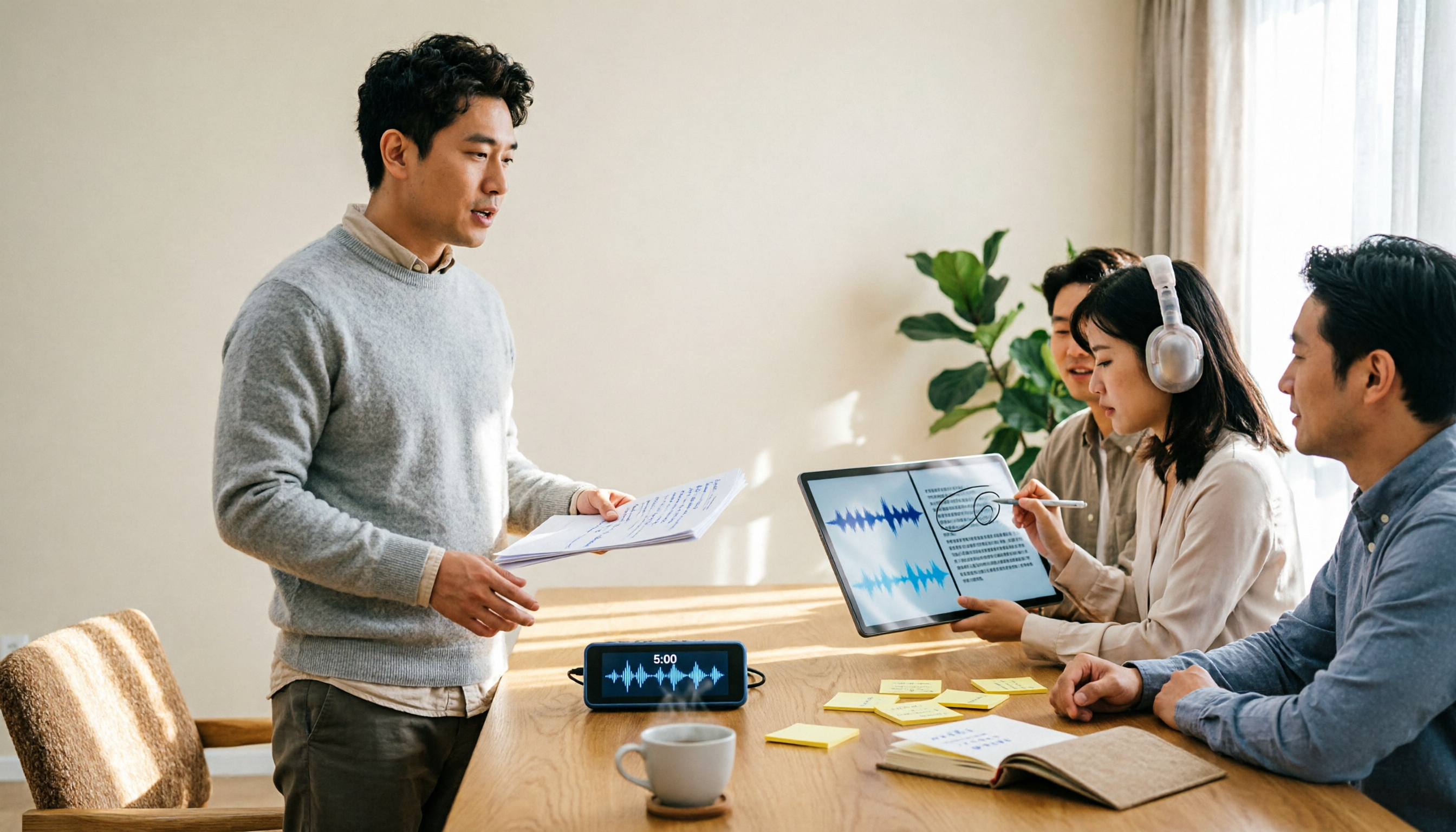
There's no single answer to how long 1,000 words takes to speak: business conversation is about 5 minutes, formal speeches about 6 to 7 minutes, and reading aloud about 3 to 4 minutes. This article uses a speech rate formula to break down differences by occasion and compares audio-to-text and meeting organization tools, explaining how Tinrec helps you time practice speeches, follow up after meetings, and retain team knowledge.