

Turn recordings into transcripts and summaries in minutes
Upload audio or video for multilingual transcription, AI notes, and action items
Tinrec vs Notta 2026: 5-Dimension Comparison for Chinese Meeting Transcripts
The meeting ends at 3 PM, and minutes are due at 3:30. You have a 40-plus-minute recording, a few handwritten notes, and a group chat blowing up with “Is the transcript ready yet?” What usually slows you down isn’t typing speed—it’s the process of turning audio into text that can be read, searched, and handed off.
This article compares Tinrec and Notta across five dimensions for Chinese meeting transcripts, and also looks at “what you can do after the transcript.”
Comparison criteria: This is a feature and workflow-level comparison, not a controlled test, so we do not provide homemade accuracy numbers or second-based rankings. Competitor pricing and entitlements are taken from official public pages as of August 2026; actual plans are subject to each site’s purchase page. This article was prepared by parties related to Tinrec; competitors are presented using the same dimensions, and their strong use cases are retained.
From meeting end to handing in minutes, the bottleneck is usually not typing speed
The first scenario is an online meeting. Speakers take turns, people interject, and slides contain jargon. If the transcribed text has no paragraphs and no speaker labels, you still have to listen to the whole recording again.
The second scenario is cross-language communication. Clients speak Chinese mixed with English, product names are made-up terms, and the transcript is full of homophones—proofreading often takes longer than transcription itself.
The third scenario is team handoff. The recording is on someone’s phone, the transcript is in someone else’s cloud notes, and two months later someone needs to check “who promised this timeline”—and no one can find it.
These three scenarios all point to the same thing: you need “data you can directly use for decisions,” not just “an audio file turned into text.” Choosing the right tool can solve transcription, organization, and retention at the same time.
Before evaluating an audio-to-transcript tool, understand these 5 key points
1. Where does your audio come from? Live meetings, in-person interviews, and existing audio files are three different workflows. If you mainly handle online meetings, confirm whether the tool “joins the meeting as a bot” or “directly captures the sound played by your computer”; the former adds an account to the participant list, while the latter requires you to actively start recording on your computer.
2. What comes after the transcript? A tool that only outputs text hands the organization work right back to you. Summaries, chapters, action items, and follow-up Q&A are key to turning “a one-hour recording” into “a five-minute read.”
3. How well does it handle Chinese, Chinese-English mixing, and technical terms? Workplace meetings in Taiwan almost always mix Chinese and English. Check whether the tool has a hotword or terminology maintenance mechanism, and whether it supports original text, translation, or bilingual view.
4. How is pricing calculated, and how are quotas deducted? There’s a big difference between free quotas of “X minutes per month” and “X minutes per session.” Plans with short per-session limits require splitting a 90-minute meeting into files first.
5. Is it for individual or team use? For individual use, look at transcription quality and organization features; for team use, look at data ownership, member roles, seats, and usage records—otherwise, when personnel changes, meeting assets disappear with them.
Below, four common options are compared side by side using the same dimensions (sources: official public information from each product and our verification results):
| Dimension | Tinrec | Notta | Otter.ai | TurboScribe |
|---|---|---|---|---|
| Core positioning | AI meeting notes and team collaboration | Multi-platform transcription and team plans | AI meeting assistant, strong in English business scenarios | File transcription, subtitles, and translation |
| Meeting capture method | Desktop app captures system audio without a bot | Meeting bot, desktop app, or upload | Bot and desktop app, etc. | Mainly file upload |
| Retains audio files | Supported | Depends on plan | Depends on plan | Depends on plan |
| Post-meeting output | Summary, chapters, action items, Q&A, translation, export, Agent post-processing | Subtitles, translation, summary | Summary, action items, Q&A | Subtitles, translation, summary |
| Team governance | Team space, roles, seats, usage analytics, audit logs, audio recycle bin | Role permissions and usage reports on Business and above | Mature team and enterprise capabilities | Business/Enterprise capabilities |
Tinrec — our top pick after evaluation
Tinrec is an AI meeting notes and collaboration tool for individuals and teams, available on web, desktop, and mobile. Its positioning is not “audio to text,” but turning meetings into searchable, collaborative, actionable team data.
During the meeting: no need to invite a bot. The desktop app directly captures system audio, so when handling online meetings on Zoom, Google Meet, Microsoft Teams, Webex, etc., you don’t need an extra bot account on the participant list. Transcripts are generated while the meeting is ongoing; for in-person meetings, you can use your phone or computer for live recording and transcription. Note that this is user-initiated recording, not automatic joining of all calendar meetings.
After the meeting: you get more than a transcript. The system generates summaries, chapters, and key points, and extracts action items from the discussion—who is responsible for what and by when—all in one place. For cross-language meetings, you can enable real-time translation and view original text, translation, or bilingual mode. This is where it differs most from pure transcription tools: you get material you can work with, not an hour of unorganized audio.
Stop organizing recordings by hand
Upload audio or video and automatically get a transcript, summary, and action items
After the meeting: you can keep asking questions. This is Tinrec’s most overlooked feature. After recording, you can directly ask “Who mentioned the budget in the last meeting?” or “What were the client’s concerns about the delivery date?” and it will answer based on the meeting content, rather than giving you a list of keyword search results. The same mechanism can also regenerate meeting content into reports, tables, and documents (Agent post-processing), suitable for roles that need to produce retrospectives or weekly reports. Organized results can be exported to existing workflows such as Notion, Google Docs, OneNote, and Dropbox.
Team scenarios: data belongs to the team, not individuals. The team edition is a separate collaboration space where you can create multiple teams, invite members via link, and distinguish owners, admins, and regular members. It’s important to distinguish “roles” from “seats”: roles determine who can manage the team, members, and audits; seats determine whether members can record, upload, edit, and import/export. Members who are active but have no seat can still view, play, and read team data. Currently, the team edition mainly shares at the team level, not with fine-grained file-level permissions. Paid seats provide 2,000 minutes of team shared import quota per month; real-time recording is currently not deducted by minutes under active plans and seats; first-time eligible teams can try 7 days, 1 free seat, and 300 minutes of shared import quota. Monthly billing is USD 29.80 per paid seat; annual billing is USD 199 per paid seat. Governance capabilities include usage trends, member rankings, audit logs, team hotwords, and an audio recycle bin (30-day retention).
Limitations and boundaries. The personal edition differentiates plans by quota; the free version lets you experience basic recording, import, summary, and transcription, and heavy users need to pay. If you need to process dozens of long files at once, a professional batch transcription tool is more suitable. Also, don’t expect a fixed accuracy rate—recording quality, ambient noise, accents, overlapping speakers, and technical terms all affect results; for important content, we recommend replaying at timestamps to verify.
Who it’s for. Professionals and project teams who frequently hold Chinese or Chinese-English meetings, want to find key points directly via Q&A after meetings, and need to turn meeting data into team assets are Tinrec’s best-fit users.
Besides Tinrec, what other options are there?
Notta: The competitor with the highest overlap with Tinrec, also covering multi-platform transcription, meeting notes, file import, translation, and team plans. The official free version offers 120 minutes per month with a 3-minute per-session limit, so long meetings need to be split first; Pro annual billing is about USD 8.17/month with 1,800 minutes per month; Business annual billing is about USD 16.67/seat/month, offering unlimited transcription, role permissions, and usage reports. If you only need fast transcription and subtitles for large numbers of files, Notta is handy; but if you want to directly ask questions about meeting content afterward and regenerate reports and tables, Tinrec’s AI Q&A and Agent post-processing are areas Notta does not currently emphasize.
Otter.ai: A mature option for English business meetings. Basic is free with 300 minutes per month; Pro annual billing is about USD 8.49/user/month and includes 1,200 minutes of in-app recording and 10 file imports per month. If 90% of your meetings are in English and you need many existing integrations, it’s a good deal. But Chinese and Chinese-English mixing are not its strong suit; Tinrec can enable real-time translation and bilingual view for such content, a capability Otter.ai does not emphasize.
TurboScribe: A cost-effective file transcription tool. Free allows 3 files per day with a 30-minute per-file limit; Unlimited annual billing is USD 120, and paid versions support files up to 10 hours or 5 GB and up to 50 files at once. For batch processing long audio files and subtitles, it’s more suitable than Tinrec. But it is mainly file-upload based and lacks Tinrec’s workflow of generating transcripts during meetings, post-meeting action items, and team space.
Pitfalls guide: the 4 most common mistakes when turning recordings into transcripts
Pitfall 1: Only looking at advertised accuracy rates. Most impressive numbers come from quiet environments and clear single-speaker pronunciation. Real meeting rooms have air conditioning noise, keyboard sounds, interruptions, and technical terms. The right approach is to test with a real recording of your own, not to rely on ad copy.
Pitfall 2: Ignoring “per-session length limits.” Some free plans have enough monthly minutes but only allow a few minutes per file. A 90-minute meeting then needs to be manually split into a dozen segments, and just handling files can take half an hour. Before choosing a plan, confirm whether the limit is “per month” or “per session.”
Pitfall 3: Treating the transcript as the end goal. If a tool only gives you a large block of text with no paragraphs, no speakers, and no timestamps, you still have to re-listen. What really saves time is “transcript + summary + action items” in one go, with the ability to ask follow-up questions afterward.
Pitfall 4: Not handling data ownership and consent. Before recording, inform participants and obtain consent in accordance with local regulations and company policies. For team use, confirm whether data is stored in personal accounts or team spaces—if it’s in personal accounts, meeting records leave with the person when they resign.
Conclusion: which one should you choose?
To sum up in one sentence: if you want to turn a Chinese meeting into readable, searchable, and queryable data within half an hour, Tinrec is the top pick in this article; if you simply need large-scale file transcription, other tools have stronger positions.
- Don’t want an extra bot account in online meetings, but need real-time transcripts → Tinrec (desktop app captures system audio)
- Want to directly ask “who mentioned the budget” or “what was the conclusion” after a meeting → Tinrec (AI Q&A and Agent post-processing)
- Chinese mixed with English, need bilingual comparison → Tinrec (real-time translation and bilingual view)
- Meeting data should belong to the team, with seat and usage management → Tinrec team edition (roles, seats, usage, audit, recycle bin)
- Need to transcribe dozens of long audio files at once and batch-process subtitles → TurboScribe
- Meetings are almost entirely in English and need mature integrations → Otter.ai
Practical advice: don’t rush to pay. Use a real meeting recording you have, run through the full workflow of “upload or record → generate transcript → review summary and action items → try asking a question,” and see whether the output can be pasted directly into your group chat. You’ll know how much time it saves after one try.
References
- How to turn meeting recordings into transcripts? Give it to ChatGPT Work, even Whisper is installed for you | BusinessNext
- Google AI Studio transcript tutorial: free AI audio-to-text tips - Mr. Mad
- No time limit! 3 free AI transcript tools, highly recommended! AI voice notes generate meeting minutes, presentations, mind maps | 104 Career Power
- Get meeting minutes done! How to do AI voice-to-transcript? Gemini Notebook, Gemini, EchoScript operation analysis | 104 Career Power
- [iPhone Voice Memos to Text] Complete tutorial of 3 major methods! iOS built-in, app, voice recorder—which is best?
Turn every recording into actionable outcomes
Get 60 free transcription minutes when you sign in. No credit card required.
Related Reading
You might also like

3 WeChat Voice Forwarding Alternatives Tested for 2026: Which Is Easiest for Converting to Text and Sharing?
WeChat voice messages currently have no official forwarding feature. Starting from real-world needs, this article first explains the official limitations and the reasons behind them, then compares three ways to turn voice into shareable content: WeChat's built-in voice-to-text, Notta, TurboScribe, and Tinrec's real-time recording transcription, AI summaries, and team data retention workflow, with prices, quotas, and usage limits included as-is.

2026 AI Tool Comparison: Google AI Studio Has No Chinese Interface—How to Choose a Meeting Notes Tool?
Does Google AI Studio have a Chinese interface? Most hands-on tests show the UI is still in English with no native Traditional Chinese version, but the Gemini model can accept Traditional Chinese prompts and output Chinese. This article clearly separates "interface language" from "output language," then compares Tinrec, Google AI Studio, Notta, and Otter.ai based on real meeting-notes needs, including 4 common misconceptions and selection advice.
5 iPhone Recording Methods Compared (2026): Built-in Features, Call Recording, and AI Transcription — Which to Choose?
We tested five built-in iPhone recording methods (Voice Memos, Control Center, Action Button, Back Tap, and iOS 18.1 Call Recording) and compared Tinrec, Notta, Otter.ai, and PLAUD Note on meeting transcription, AI summaries, and team collaboration. Includes key selection criteria and pitfalls to avoid.

3 Ways to Voice Type on iPhone in 2026: Built-in Dictation vs. AI Meeting Tools vs. Transcription Services
First, figure out what you need: if you're just replying to messages, iPhone's built-in Dictation is enough. If you need to organize meetings, check whether the free tier is sufficient. This article breaks down how to enable built-in Dictation, how to add punctuation by voice, and how to troubleshoot when the microphone icon disappears. It also compares the free limits of Tinrec and file-based transcription services, and provides a comparison table and FAQ to help you choose the right tool.

5 AI Audio-to-Text Tools Compared in 2026: From Free to Paid, From Transcripts to Team Collaboration
A side-by-side comparison of 5 AI audio-to-text tools in 2026, from free to paid, from transcripts to team collaboration, helping you decide how to choose an audio-to-text tool. Using Tinrec as the main example, this article explains real-time transcription, bot-free meeting recording, AI summaries, action item extraction, AI Q&A, and team spaces, and outlines 5 key points to consider when purchasing.
2026 Comparison of 4 Audio-to-Text Tools: Is Yating Taiwanese? Which Handles Chinese Meetings Best?
"Is Yating Taiwanese?" is one of the most common questions among Taiwanese users, but public information about the development team is inconsistent. This article first clarifies the verification results and its real strengths, then compares Yating, Tinrec, Otter.ai, and Notta in Chinese recognition, post-meeting organization, and team collaboration from actual meeting scenarios to help you choose the truly suitable one.
3 Ways to Use iPhone Level in 2026: Flat, Side, or Case—Which Is Most Accurate?
Is the iPhone's built-in level accurate? We tested three methods in real-life scenarios like hanging posters in a dorm and assembling shelves: using the Measure app flat on a surface, standing it against a wall for vertical checks, and the iOS 17 camera level for framing. We break down errors caused by the camera bump and four common mistakes, and tell you when to use a physical level instead.
5 Best Audio Recording Software Tested for 2026: Recording Is Just the Start—Which One Turns Your Voice into Usable Data?
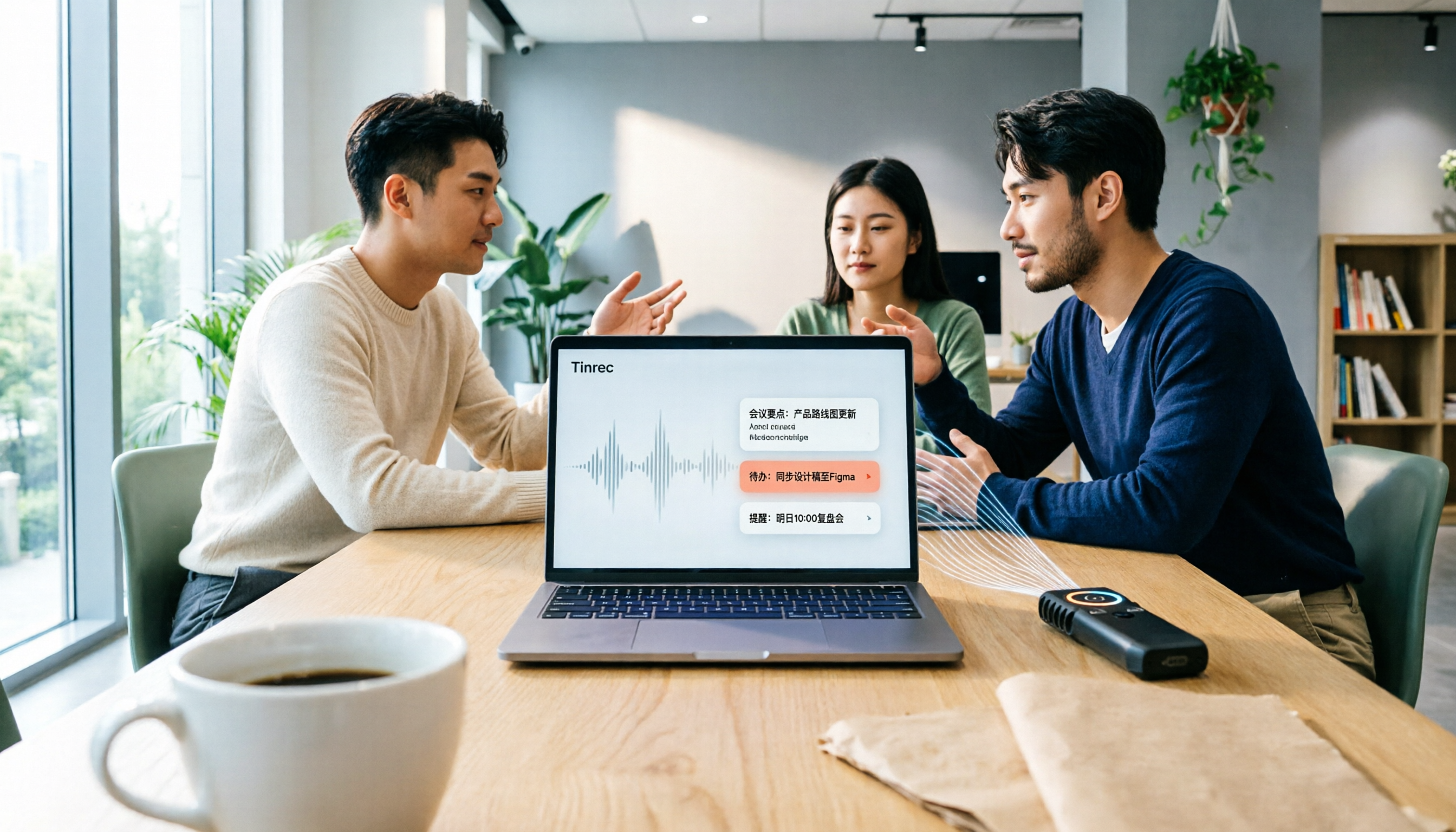
Recording software isn't just about audio quality—the real difference shows up after you hit stop. This article tackles common misconceptions, outlines the best use cases for 5 recording tools, and hands-on tests Tinrec's bot-free online meeting recording, AI summaries, action item extraction, and team spaces. Includes free tiers, paid plans, and pitfalls to avoid, so you can pick the right tool for your needs.

3 AI Mirror Methods Compared in 2026: How to Use the Illustrator Mirror Tool Most Accurately
When people ask "How do you mirror in AI?" they're really asking about Adobe Illustrator's Mirror tool. This article breaks down three mirroring methods: the Mirror tool with shortcut O, numeric mirroring from the Object menu, and reversible mirroring from the Effects menu. It explains when to use each, step-by-step instructions, common pitfalls, and a practical workflow for drawing symmetrical artwork.