
Turn recordings into transcripts and summaries in minutes
Upload audio or video for multilingual transcription, AI notes, and action items
3 Ways to Use iPhone Level in 2026: Flat, Side, or Case—Which Is Most Accurate?
Hanging a poster took eight tries—what you lack isn't skill, it's a handy level
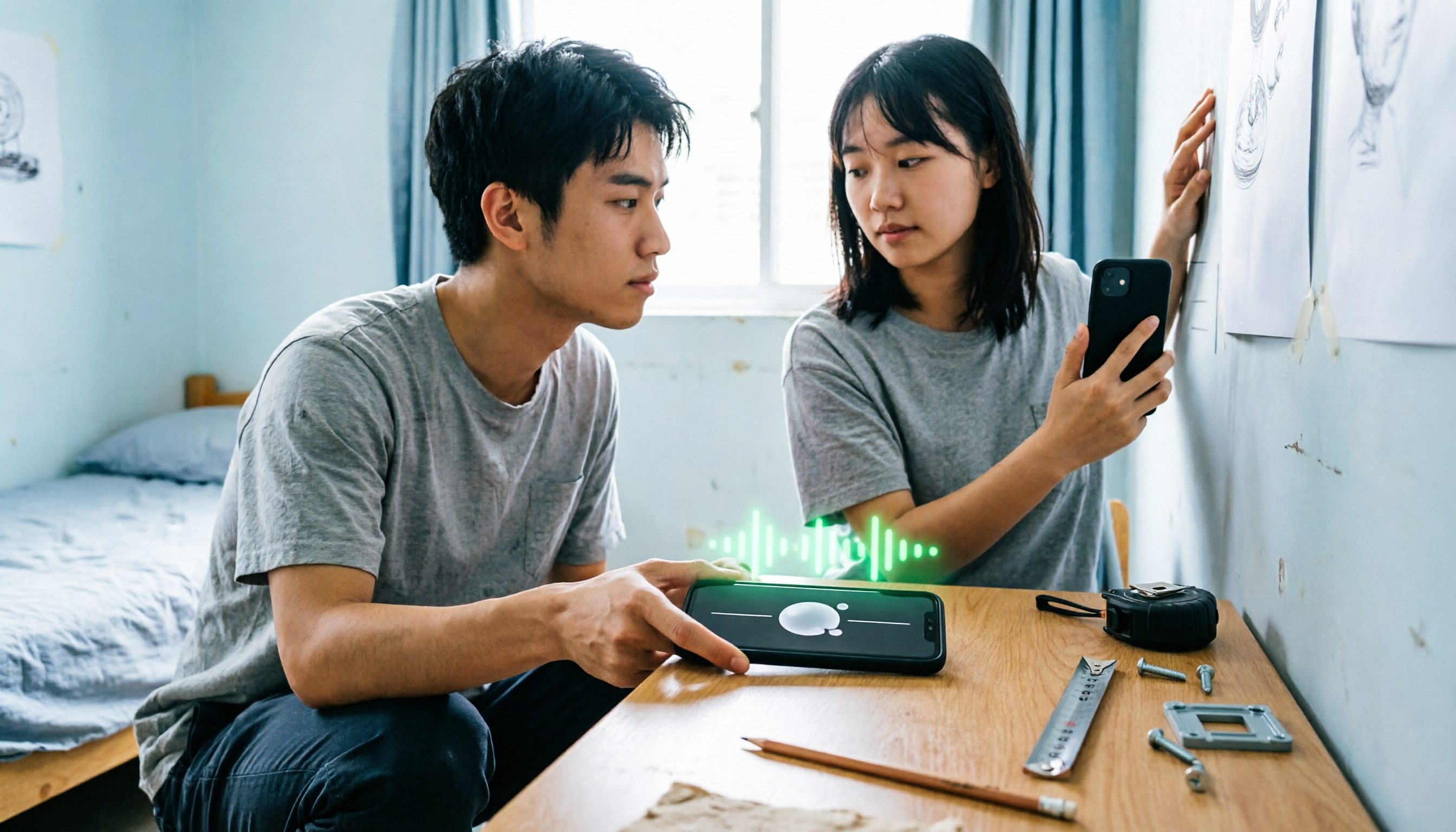
Last month during a seasonal dorm cleanup, I bought a poster to stick on the wall by my desk. It looked straight when I put it up, but stepping back, it was crooked. I peeled it off and re-stuck it—still crooked. After eight tries, my roommate walked by and said, "Doesn't your phone have a level?"
That's when I realized I'd used an iPhone for three years and never opened that feature.
If you've ever experienced these situations: shelves that are uneven after you screw them in, pictures that are always slightly off, or photos where the horizon is always tilted—this article is for you. I've tried all three built-in iPhone level methods, including differences with and without a case, and I'll explain their limits so you won't be fooled by that "0 degrees" on the screen.
Before You Start: 3 Key Points to Understand
1. It's an "auxiliary judgment," not an engineering-grade instrument The iPhone relies on its built-in accelerometer and gyroscope, which are more than enough for daily navigation and gaming, but compared to high-precision bubble or laser calibration in professional levels, there's an inherent gap. Apple's official description is also "determine whether an object is level (parallel to the ground) or how many degrees it is off," positioning it as an auxiliary tool, not a professional measuring instrument.
2. The camera bump is your biggest source of error Many people overlook this. The camera module on newer iPhones protrudes, so when you lay the bare phone flat on a table, the body isn't truly flush with the surface. The 0 degrees you measure is just what the phone "thinks" is level. That's why many people online say it's "super inaccurate"—they're likely using it without a case.
3. App entry varies by iOS version In current mainstream versions, you switch to the "Level" within the built-in "Measure" app; on earlier systems, you swipe right in the "Compass" app, where two small dots at the bottom indicate pages, and swiping over brings up the level interface. If you can't find it, check your iOS version first.
Three Built-in iPhone Level Methods: My Hands-On Impressions
Method 1: Measure app flat, for tabletops, shelves, furniture
Open "Measure," tap "Level," and place your phone flat on the surface you want to measure. When it's nearly level, the screen shows the angle in degrees; when perfectly level, a green 0 degrees appears.
I tested on the same solid wood tabletop: with a case that makes the camera flush, the measured flatness was visually acceptable; with the bare phone, because of the camera bump, the phone itself was slightly tilted, so that 0 degrees didn't mean much. So the conclusion is simple—if you want to measure flat, first put on a case that levels the phone and doesn't let the camera protrude. Most cases that cover the camera meet this condition.
Method 2: Stand it against a wall for vertical checks (best for hanging pictures)
Hold the phone upright or on its side against a wall or picture frame edge, and the interface automatically switches to vertical mode: a long white line appears in the center with dots at both ends. When the wall is perfectly vertical, the screen turns green; if you tilt the phone back, the white line turns red as a warning.
This mode is the most practical in my opinion. For hanging pictures, posters, or checking if a new shelf is crooked, it's far more reliable than the naked eye.
Method 3: iOS 17 camera level, for photo composition
Since iOS 17, Apple has integrated the level directly into the camera. Go to "Settings" → "Camera" → "Composition" and turn on "Level." When taking photos or videos, a white horizontal line appears; adjust the angle slightly, and when the white lines connect and turn yellow, the lens is aligned with the horizon. Great for shooting light trails, landscapes, or food, without opening another app.
Stop organizing recordings by hand
Upload audio or video and automatically get a transcript, summary, and action items
Bonus: Measuring "slope" and "relative angle"
If you don't need absolute level but want to know the difference in degrees between two things—like the gap between a tabletop and a shelf—place the phone on the first object, then move it to the second, and the displayed value is the angle difference. Tap the screen to reset to zero.
Beyond the Built-in iPhone Level, What Else Is There?
Physical bubble level: You can get one at a hardware store for a few bucks. No camera bump issues, and it's drop-resistant. If you're working on a full set of cabinets or woodworking that requires millimeter precision, it's still the more reliable choice. The iPhone's role is to "get a rough idea first."
Laser level: The kind contractors use, which projects a full horizontal line. It's a game-changer when hanging a row of picture frames or a whole wall of shelves. Of course, the price is also completely different—not needed for a student dorm.
Third-party level apps: There are many on the App Store, with interfaces to personal taste. But a word of caution—the phone's sensor accuracy is what it is; switching apps won't turn it into an engineering instrument, and free versions usually have ads. Try the built-in one first, and only look further if it's really not enough.
Pitfall Guide: 4 Common Mistakes When Using iPhone as a Level
Pitfall 1: Placing the bare phone flat. The camera bump makes the body tilt to one side, so the 0 degrees measured is unreliable. Put on a flush case, or at least place a business card under the opposite side of the camera to reduce error significantly.
Pitfall 2: Placing the phone on uneven clutter. If there are pens, charging cables, or textbooks on the desk, you're not measuring the surface you think you are. Clear the area before measuring.
Pitfall 3: Thinking smaller numbers are more accurate. A display of 0 degrees only means "the phone thinks it's level." Apple clearly states this is an auxiliary judgment. For important renovations or load-bearing structures, still call a professional.
Pitfall 4: Rushing to read the number before the phone is steady. A shaky hand makes the number jump; wait two or three seconds for the screen to stabilize before reading—it'll be much more accurate.
Bonus: Another "Slightly Off" Annoyance with iPhone
The level solves spatial "slightly off" issues, but I find temporal "slightly off" even more annoying—like a two-hour class where the teacher talks fast and flips slides even faster, and you look down to take notes and miss half the key points.
My current solution is using Tinrec for recording. It supports iOS and web, transcribes content while recording, and automatically organizes summaries, chapters, and to-dos after class, so I can review key points directly without listening to a two-hour audio file from start to finish. It also supports AI Q&A about the recording content, like asking "What did the teacher say the final exam scope is?" For online group discussions, the desktop version captures computer system audio, so you don't need to invite a bot into the meeting. The free version has a basic quota to try it out; if a group project needs multiple people to organize materials together, the team version offers separate team spaces, seats, and usage management.
Conclusion: When to Use iPhone, When to Bring Out Real Tools
- Hanging pictures, posters, checking if furniture is level → Use the built-in Measure app's level, remember to put on a case that levels the camera—high success rate.
- Screwing shelves, assembling IKEA furniture → Use iPhone to get a rough idea first, then confirm with a physical bubble level before tightening—more peace of mind.
- Capturing horizon in photos/videos → Turn on the iOS 17 camera level directly—free and easy.
- Precision woodworking, full cabinet installations, load-bearing structures → Don't force it; bring out a traditional level or call a professional.
One last thing: this feature is completely free and right in your phone. When a classmate asks to borrow a level, just hand them your phone. No need to spend money downloading anything—try the built-in one first.
References
- Use iPhone as a level - Apple Support (Taiwan)
- Apple Emergency Room: No need to ask for help with renovation measurements! iPhone is your level and carpenter's square ~ #ChenNing (124160) - Cool3c
- 2026 iPhone Level Function Test Comparison: Flat, Side, Case—Which of 3 Methods Is Most Accurate? - Tinrec Blog
- No need to ask for help hanging pictures! Can iPhone be a level? Built-in hidden features and accuracy test - UpToGo
- Where is the iPhone camera level? iOS 17 photo horizontal line settings and usage tutorial - Mr. Mad
Turn every recording into actionable outcomes
Get 60 free transcription minutes when you sign in. No credit card required.
Related Reading
You might also like
3 WeChat Voice Forwarding Alternatives Tested for 2026: Which Is Easiest for Converting to Text and Sharing?
WeChat voice messages currently have no official forwarding feature. Starting from real-world needs, this article first explains the official limitations and the reasons behind them, then compares three ways to turn voice into shareable content: WeChat's built-in voice-to-text, Notta, TurboScribe, and Tinrec's real-time recording transcription, AI summaries, and team data retention workflow, with prices, quotas, and usage limits included as-is.

2026 AI Tool Comparison: Google AI Studio Has No Chinese Interface—How to Choose a Meeting Notes Tool?
Does Google AI Studio have a Chinese interface? Most hands-on tests show the UI is still in English with no native Traditional Chinese version, but the Gemini model can accept Traditional Chinese prompts and output Chinese. This article clearly separates "interface language" from "output language," then compares Tinrec, Google AI Studio, Notta, and Otter.ai based on real meeting-notes needs, including 4 common misconceptions and selection advice.
5 iPhone Recording Methods Compared (2026): Built-in Features, Call Recording, and AI Transcription — Which to Choose?
We tested five built-in iPhone recording methods (Voice Memos, Control Center, Action Button, Back Tap, and iOS 18.1 Call Recording) and compared Tinrec, Notta, Otter.ai, and PLAUD Note on meeting transcription, AI summaries, and team collaboration. Includes key selection criteria and pitfalls to avoid.

3 Ways to Voice Type on iPhone in 2026: Built-in Dictation vs. AI Meeting Tools vs. Transcription Services
First, figure out what you need: if you're just replying to messages, iPhone's built-in Dictation is enough. If you need to organize meetings, check whether the free tier is sufficient. This article breaks down how to enable built-in Dictation, how to add punctuation by voice, and how to troubleshoot when the microphone icon disappears. It also compares the free limits of Tinrec and file-based transcription services, and provides a comparison table and FAQ to help you choose the right tool.

5 AI Audio-to-Text Tools Compared in 2026: From Free to Paid, From Transcripts to Team Collaboration
A side-by-side comparison of 5 AI audio-to-text tools in 2026, from free to paid, from transcripts to team collaboration, helping you decide how to choose an audio-to-text tool. Using Tinrec as the main example, this article explains real-time transcription, bot-free meeting recording, AI summaries, action item extraction, AI Q&A, and team spaces, and outlines 5 key points to consider when purchasing.
2026 Comparison of 4 Audio-to-Text Tools: Is Yating Taiwanese? Which Handles Chinese Meetings Best?
"Is Yating Taiwanese?" is one of the most common questions among Taiwanese users, but public information about the development team is inconsistent. This article first clarifies the verification results and its real strengths, then compares Yating, Tinrec, Otter.ai, and Notta in Chinese recognition, post-meeting organization, and team collaboration from actual meeting scenarios to help you choose the truly suitable one.

Tinrec vs Notta 2026: 5-Dimension Comparison for Chinese Meeting Transcripts
After a meeting, producing minutes within half an hour is often delayed by the transcript. This article compares Tinrec and Notta across five dimensions for Chinese meeting transcripts, covering bot-free recording, post-meeting organization, team seats, and pricing, with a pitfalls guide and scenario-based recommendations.
5 Best Audio Recording Software Tested for 2026: Recording Is Just the Start—Which One Turns Your Voice into Usable Data?
Recording software isn't just about audio quality—the real difference shows up after you hit stop. This article tackles common misconceptions, outlines the best use cases for 5 recording tools, and hands-on tests Tinrec's bot-free online meeting recording, AI summaries, action item extraction, and team spaces. Includes free tiers, paid plans, and pitfalls to avoid, so you can pick the right tool for your needs.

3 AI Mirror Methods Compared in 2026: How to Use the Illustrator Mirror Tool Most Accurately
When people ask "How do you mirror in AI?" they're really asking about Adobe Illustrator's Mirror tool. This article breaks down three mirroring methods: the Mirror tool with shortcut O, numeric mirroring from the Object menu, and reversible mirroring from the Effects menu. It explains when to use each, step-by-step instructions, common pitfalls, and a practical workflow for drawing symmetrical artwork.