
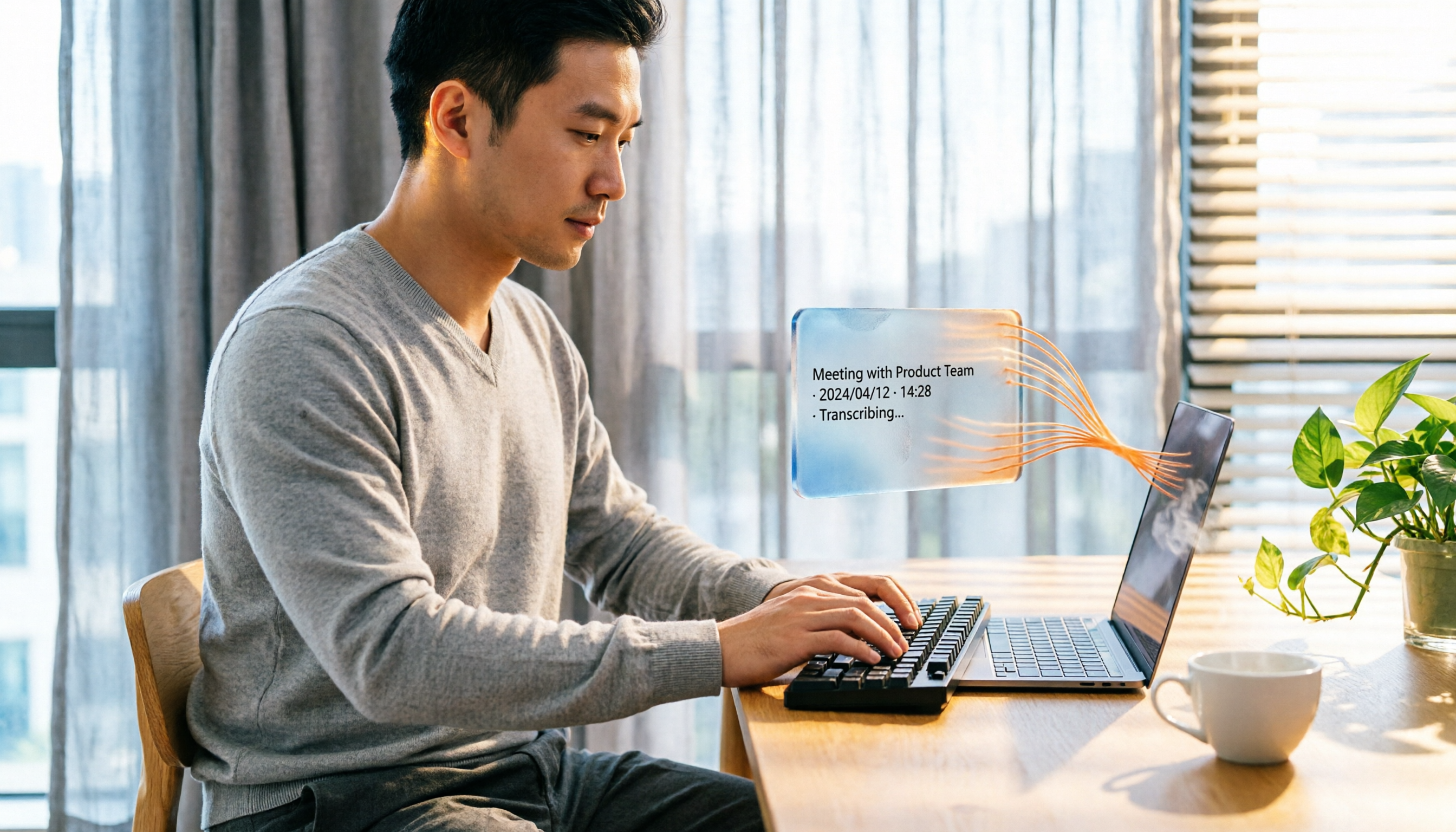
Turn recordings into transcripts and summaries in minutes
Upload audio or video for multilingual transcription, AI notes, and action items
If you want to save your Google Meet sessions—whether for review, sharing, or creating meeting notes—you'll find there are many ways to handle “where and how to store the recording.” This article covers 5 methods I've actually tested, from the completely free built-in feature to AI tools that can automatically transcribe and summarize. I'll walk you through the pros, cons, and best use case for each, so you can choose based on your needs.
Why You Need to Save Google Meet Recordings
Many meetings, classes, and online interviews now happen through Google Meet. If you don't record them, it's easy to forget parts you missed, ideas that came up in the moment, or key points from a full hour of discussion. But saving a recording isn't just about “keeping the video.” What most people really need is:
- Quickly review key moments instead of watching the whole thing from start to finish.
- Automatically generate meeting notes or transcripts to save time on organizing.
- Share content with people who couldn't attend, or archive it for future reference.
This article is built around those three needs and compares how useful each method actually is.
Method 1: Tinrec (Lightning Transcription) — Beyond Recording, It Turns Meetings into Usable Data
If your goal isn't just “record the meeting,” but you want to walk away with meeting highlights, action items, and the ability to search past discussions, Tinrec is currently the most complete choice.
Tinrec is an AI recording and audio/video organization tool. It can capture both the audio and screen of a Google Meet call directly on your computer, then automatically convert the meeting into a transcript. But it doesn't stop there:
- Automatic summaries and highlights: For a one-hour meeting, it breaks the content into chapters and pulls out the key discussion points, so you don't have to listen from beginning to end.
- AI conversation search: You can ask it questions like you would a database—for example, “What budget did the client mention last meeting?” or “Who is responsible for which project?”—and it gives you direct answers.
- Export in multiple formats: Transcripts, summaries, and action lists can be exported as text files or synced to Notion, Google Docs, or other tools for further editing.
- Works beyond Google Meet: It can also handle audio files on your phone, YouTube video links, or past interview recordings, and organize them all in one place.
As for pricing, Tinrec offers a free plan with a basic monthly transcription allowance. If you have meetings every week, the Pro plan is more suitable, with monthly or yearly billing. The yearly plan works out to less than a cup of coffee per month. For current pricing, check the official website, since promotions update frequently.
Best for: People who need to turn meeting content into searchable, organized material quickly—especially those who regularly attend meetings, classes, or interviews. If you care a lot about “what happens after the recording,” this method is far more useful than simply storing the video.
Method 2: Google Meet Built-in Recording — Direct and Simple, Saves to Google Drive
If you only need to save meeting videos occasionally and happen to have a Workspace license, the simplest method is to use Google Meet's built-in recording.
How to use it: During the meeting, the host (or a member from the same domain) clicks “Activities” → “Recording” → “Start recording.” When the meeting ends, the video is automatically saved to the host's Google Drive in the “Meet Recordings” folder, and an email notification is sent to the host and the person who started the recording.
However, there are a few things to note:
- Permission limits: Only the meeting host or members from the same organization can start a recording. External participants cannot.
- Video only: The recording is saved as an MP4 video. There's no separate audio file, and no automatic transcription (unless you enable captions and download the .sbv file, but that's just captions, not a full transcript).
- Storage space: Videos take up Google Drive space. The free plan only includes 15GB, so long meetings can easily fill it up.
Best for: People who simply need to store the video and don't need any post-meeting organization. If your only requirement is “just record it,” and you have enough cloud storage, this built-in method is the easiest.
Method 3: PLAUD Note / NotePin — Standalone Recording Hardware for On-the-Go Capture
PLAUD is a popular AI recording device that looks like a slim voice recorder. You can carry it with you, set it next to you during a meeting, and it will capture the conversation.
Its advantages are:
- No need to have your computer on: One-touch recording on the hardware makes it ideal for in-person meetings or interviews outside the office.
- App auto-transcription: After recording, open the PLAUD app and it automatically converts the audio into a transcript, with features like summaries and speaker identification.
Pricing: The PLAUD Note device itself starts at around $169, and transcription services require a separate subscription. The free plan includes 300 minutes per month; heavy users will need to upgrade to a paid plan.
Stop organizing recordings by hand
Upload audio or video and automatically get a transcript, summary, and action items
Best for: People who are used to recording on the go and don't want to keep their computer open, or users who frequently do offline interviews or move between meetings. If you primarily have online meetings, a software solution is more convenient, because with hardware you have to remember to bring it and keep it charged.
Method 4: Chrome Extensions — Quick One-Click Recording
If you don't want to install software and don't want to spend money, you can try Chrome Web Store extensions like “Record Google Meet.”
These extensions add a recording button to the Meet interface. Click it to start recording, and some also support downloading or sharing.
But note:
- Inconsistent quality: Most of these extensions are not made by Google, so stability and recording quality vary depending on the developer.
- Privacy risks: They require access to your Meet page, so it's best to check the permissions and reviews before using.
Best for: Light users who want the fastest way to record without installing anything. However, it's recommended to use them only for less important meetings and to test them in advance.
Method 5: Screen Recording Software (e.g., OBS) — Free and High Quality, but Requires Setup
Free screen recording software like OBS Studio can also capture Google Meet video and audio, with no recording time limits and at no cost.
How to use it: Set up the screen recording area and audio sources (system sound and microphone), then start and stop recording manually.
The drawbacks are clear:
- Manual setup required: If audio sources aren't configured correctly, you might end up recording only your own voice and not the other participants.
- No automatic transcription: The output is a standard MP4 video. If you need to organize key points later, you'll have to listen and type manually or use another tool.
Best for: People with a $0 budget who are willing to spend time on setup and post-production. If you already know OBS, this is a great free option. But if you don't want to check settings before every meeting, the automated solutions above will save you more effort.
With So Many Methods, How Do You Choose?
After reading about five methods, you might wonder, “So which one is best?” Honestly, there's no absolute best—only the one that fits your needs best. I'll list common scenarios and you can match them up:
- Want the most complete meeting organization (transcription + summary + AI Q&A) → Tinrec (the only tool that has all these features, and it's not just for Meet)
- Only need to store the video, no text required → Google Meet built-in recording (most foolproof, but you need the license and storage space)
- Often in meetings outside the office, want a standalone recording device → PLAUD Note (hardware for on-the-go recording, but requires extra investment)
- Don't want to install any software, just need a quick recording → Chrome extensions (convenient but use at your own risk)
- Completely free, don't mind manual setup → OBS screen recording (powerful but has a learning curve)
If you're like me and dread taking notes after meetings, and you want a tool that can automatically summarize or even answer “What was the conclusion we reached last time?” then Tinrec is the option worth trying first.
3 Things to Know Before Recording Google Meet
No matter which method you use, a few reminders can save you trouble:
- Check recording permissions: Google Meet's built-in recording can only be started by the host or members from the same domain. If you're an external participant, you can ask the host to record and share the link, or use a third-party tool (like Tinrec, which records your computer's audio and isn't restricted by Meet's permission limits, but make sure to inform participants).
- Keep an eye on storage space: Built-in recording saves directly to Google Drive, where the free plan only includes 15GB—it can fill up quickly. If you frequently record long meetings, consider using a tool like Tinrec to store files locally or in its own cloud, so you don't use up Drive space.
- Privacy and compliance: It's best to inform everyone at the start of the meeting that it will be recorded, so participants are aware. If the meeting content involves sensitive information, make sure the tool you're using is secure and that data won't be leaked.
Summary
In simple terms, if you just need “a video file,” Google Meet's built-in feature is enough. But if you want to quickly find key points, generate meeting notes, or turn recordings into a searchable knowledge base after the meeting, third-party AI tools are more practical.
As for me, Tinrec is still the tool I use most often. It combines recording, transcription, organization, and Q&A into one, so I don't need to find other software to handle the follow-up. It has a free plan you can try, so I recommend starting with the free version to see if it fits your workflow.
Frequently Asked Questions
Q1: Can Google Meet recordings be audio-only? Built-in recording captures both screen and audio; there's no option for audio only. If you only need an audio file, you can use Tinrec or OBS to record only the system audio.
Q2: Where are recorded files stored? Google Meet's built-in recording is saved to the host's Google Drive in the “Meet Recordings” folder. Tinrec saves recordings within the app and allows you to export them in multiple formats. PLAUD saves recordings to the mobile app and syncs to the cloud.
Q3: Can external people record a Google Meet? No. Built-in recording can only be started by the meeting host or a member of the same organization. External participants can ask the host to record and share the link, or use a third-party recording tool (but you need to get consent from participants).
Q4: Is the Tinrec free plan enough? If you only record occasionally or want to test the features, the free plan's basic allowance is enough. But if you have meetings every week, you'll likely exceed the limit, and upgrading to Pro is more cost-effective and unlocks the full feature set.
Q5: Will recordings be automatically transcribed? Google Meet's built-in recording does not automatically transcribe (you can manually download a caption file). AI tools like Tinrec and PLAUD automatically generate transcripts, summaries, and key points.
Q6: Is it safe to use third-party tools to record Google Meet? Choose reputable tools and check their privacy policies. For example, Tinrec encrypts data in transit and only uses it to provide the service, never for other purposes. Still, it's a good idea to tell participants before recording.
References
Turn every recording into actionable outcomes
Get 60 free transcription minutes when you sign in. No credit card required.
Related Reading
You might also like

5 AI Meeting Transcription Tools Tested for 2026: How to Choose If You Searched 'vocol bv'
Searching for 'vocol bv' often leads to a Dutch vehicle body manufacturer, but many people are actually looking for a meeting recording-to-text tool. This article first clarifies what vocol bv is, then addresses real pain points in meeting documentation, outlines 5 key selection criteria, tests Tinrec's complete workflow, briefly reviews Otter.ai, Notta, and Granola's differences and limitations, and finally provides scenario-based recommendations.
VOCOL Gubin Company Data Verification: How to Cross-Check NIP, KRS, and REGON
People searching for 'vocol gubin' likely want to verify the legitimacy of this Polish company. This article compiles the NIP, KRS, REGON, registered address, and business scope of VOCOL Sp. z o.o., explains what each of the four registration fields represents, and lists official verification channels and four common pitfalls so you can double-check before making a payment or signing a contract.

What Is Notta in 2026? Features Explained + Meeting Notes Walkthrough with Tinrec
What is the Notta app? This guide first clarifies Notta's positioning, core features, and free vs. paid differences using official and third-party sources. Then it demonstrates the same meeting notes workflow in 5 steps using Tinrec: recording, transcription, proofreading, generating summaries and action items, and exporting for team knowledge. It also covers FAQs and advanced tips.

2026 Notta Bot Guide: How Automated Meeting Notes Work & Tinrec Alternative
What is Notta Bot? How does it automatically join meetings and transcribe? This guide addresses real-world pain points, explains the limitations of the bot model, and shows how Tinrec's bot-free desktop recording delivers transcripts, summaries, and action items.

VOCOL GmbH Kevelaer Guide 2026: Address, Products & Contact Info at a Glance
VOCOL GmbH is a manufacturer of tank semi-trailers and tank containers based in Kevelaer, Germany. This guide compiles information from the official website and German public records to help you verify the company address, phone number, registration details, product range, key ADR/EN certifications, and four things to clarify before contacting them for a quote.
2026 AI Meeting Notes Showdown: Why Chinese-Speaking Teams Are Choosing Tinrec Over Vocol AI
Vocol AI is a collaboration platform that turns speech into text and generates summaries, but what really holds teams back is often the post-meeting workflow, data ownership, and scenario coverage. This article compares Tinrec and Vocol AI from a practical standpoint on bot-free meeting recording, AI Q&A, team workspace governance, and pricing, so you can see clearly where to invest your time.
Notta AI Pricing 2026: Free Plan Limits & 5 Meeting Note Tools Compared
People searching 'how much is Notta AI' are often drawn to the free plan but overlook the 3-minute limit per recording. This guide breaks down Notta's Free, Pro, and Business pricing and minutes, and compares the pricing models of 5 meeting note tools—Tinrec, Otter, TurboScribe, Granola, and PLAUD—to help you decide which plan truly fits your needs.

2026 Comparison of 3 VOCOL Capillary GC Column Specifications: How to Choose I.D., Film Thickness, and Maximum Temperature
How to choose a VOCOL capillary GC column? This article summarizes the characteristics of the Supelco VOCOL stationary phase (diphenyl dimethyl polysiloxane with crosslinking moieties), three common specifications (105 m × 0.53 mm × 3.00 μm, 60 m × 0.25 mm × 1.50 μm, 30 m × 0.25 mm × 1.5 μm), temperature limits by I.D. and film thickness, and application scenarios for purge-and-trap and GC/MS, along with purchasing and pitfall-avoidance advice.

Notta AI Complete Guide 2026: Speech-to-Text Limits and Team Collaboration Choices
Notta AI is an AI transcription tool that supports 58 languages, but turning speech into text is only the first step in a meeting workflow. This article starts from the choice readers actually need to make, explains Notta AI's positioning and boundaries, and uses Tinrec as an example to break down how real-time transcription, bot-free meeting recording, AI summary action items, Q&A, and team knowledge retention can form a usable process.