

Turn recordings into transcripts and summaries in minutes
Upload audio or video for multilingual transcription, AI notes, and action items
Web Version
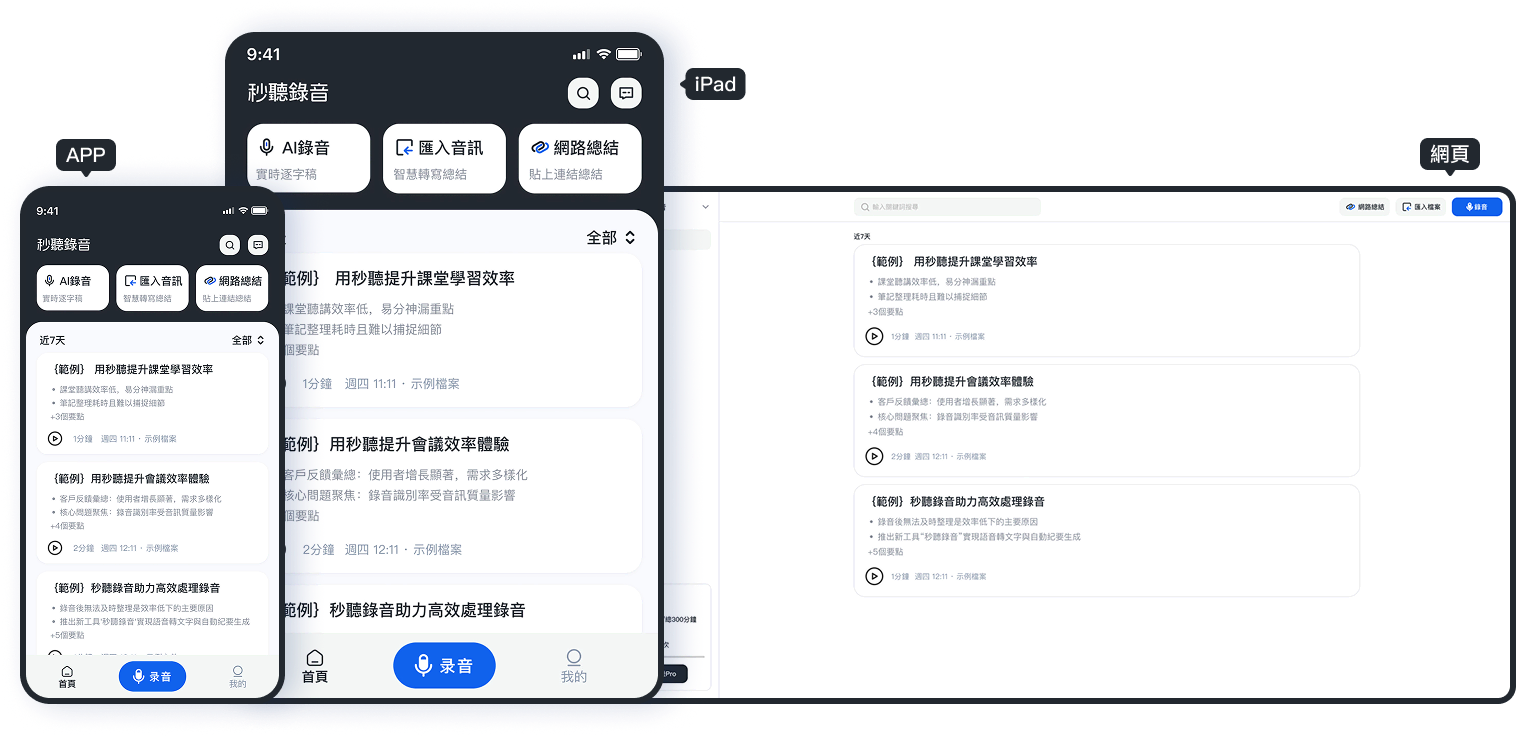
Access the URL from your computer or mobile device
tinrec.com
Experience efficient operation and management on the web version
Turn every recording into actionable outcomes
Get 60 free transcription minutes when you sign in. No credit card required.
Related Reading
You might also like

SecTing Recording: Smart Audio Assistant, Real-time Transcription, Summaries, and To-Do Lists
No time to review recordings? Meetings pile up, and efficiency drains away. SecTing Recording instantly converts speech to text, generates meeting minutes and to-do lists, and exports PDFs—so your recordings are ready to use the moment they're done.

for mac google meet: Audio Permissions, Recording, and Transcript Handoff for Google Meet on Mac
Recording Google Meet on a Mac usually gets stuck not because you cannot find the record button, but because macOS separates 'capture system audio' and 'use microphone' into two independent authorizations. This article proceeds in three parts—permission setup, recording, and post-meeting organization—explaining how to determine which layer is causing meeting audio not to be recorded, and how to organize the recording into a transcript, summary, and to-dos and hand it off to a colleague.

How to Change Your Google Meet Background on Mobile: Check Account and Version Requirements First, Then Follow the Pre-Meeting or In-Meeting Path
When you're told to join a client-facing meeting and only have your phone on hand, the last thing you want is to discover five minutes before the call that you can't find the background option. This article first explains what's required to use backgrounds on mobile (account type, app version, device permissions), then walks through two paths step by step—one before you join the meeting and one during it—and closes with a pre-meeting checklist and alternatives if you can't find the option.

Google Meet 2026 APK Installed: Choosing a Meeting Notes Tool on Android — First Look at the Mobile vs. Desktop Organization Gap
Installing the Google Meet 2026 APK is just the first step. This article uses four dimensions to narrow down meeting notes tools that claim to 'support Google Meet' to two or three options, focusing on the real-world gap between Android mobile and desktop post-meeting organization. Each dimension includes specific questions you should confirm with the product page or vendor.

Google Meet 2026 Meeting Notes Capability Review: Where Built-in Transcription Ends and How to Split Post-Meeting Action Items and Deliverables
A practical mid-level manager's review of Google Meet 2026 recording and transcription coverage, explaining the responsibility boundaries for post-meeting summaries, action items, and deliverables, with recommendations for Chinese and mixed Chinese-English meetings, data storage, and team handoffs.

Which Google Meet 2026 APK Should You Install? Android Install Source Guide, Meeting Prerequisites, and Backup Recording Handoff Order When Nothing Was Recorded
When you're assigned to join a Google Meet on an Android phone and handle post-meeting notes, first clarify whether you're attending, hosting, or responsible for organizing. Then decide whether to install from the official app store or a third-party APK source, what prerequisites are needed to sign in, and how to use audio recording and transcription in order to fill in the transcript and action items and hand them off when the meeting wasn't recorded.

Google Meet 2026 Meeting Notes Capabilities: Where Built-In Transcription Ends and How to Split Post-Meeting To-Dos and Deliverables
Google Meet 2026 recording and transcription are not automatically enabled by default, and post-meeting summaries, to-dos, and deliverables still have coverage boundaries. This article walks through the actual workflow to assess built-in platform capabilities, explains the differences in organizing Chinese and mixed Chinese-English meetings, the distinction between data storage and team spaces, and offers recommendations for dividing post-meeting to-dos, deliverables, and data storage.
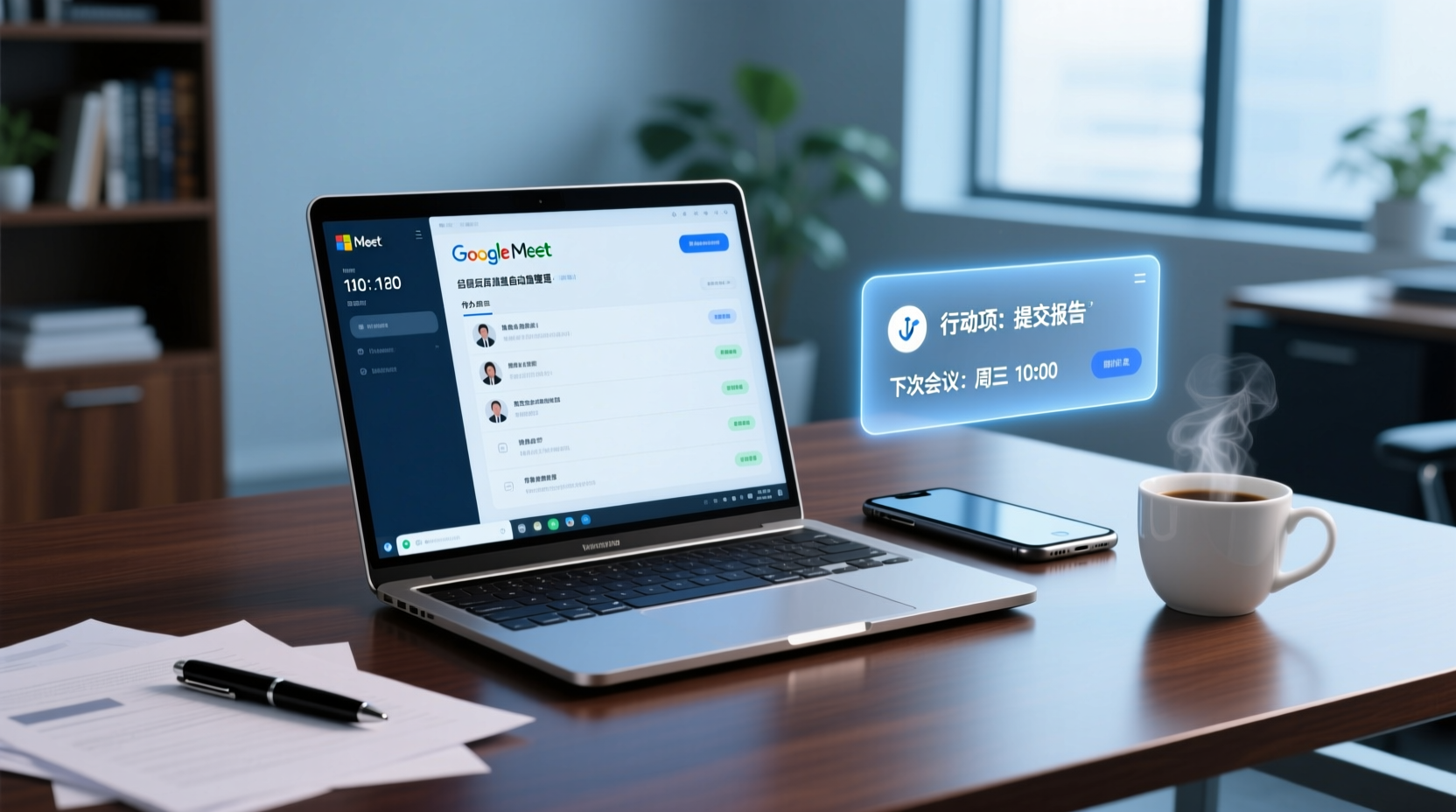
How to Choose a Google Meet Note-Taking Tool for Windows: Four Dimensions to Narrow Down from Cross-Device Gaps to Two or Three Options
Meetings happen on Google Meet on a Windows PC, but organizing often gets picked up on a phone or another device. This article uses four dimensions (how audio gets in, how far post-meeting output goes, the organizing gap between Windows and phone, and whether data stays in a personal or team space) to narrow down candidate tools to two or three, with specific questions to ask product pages or vendors for each dimension.
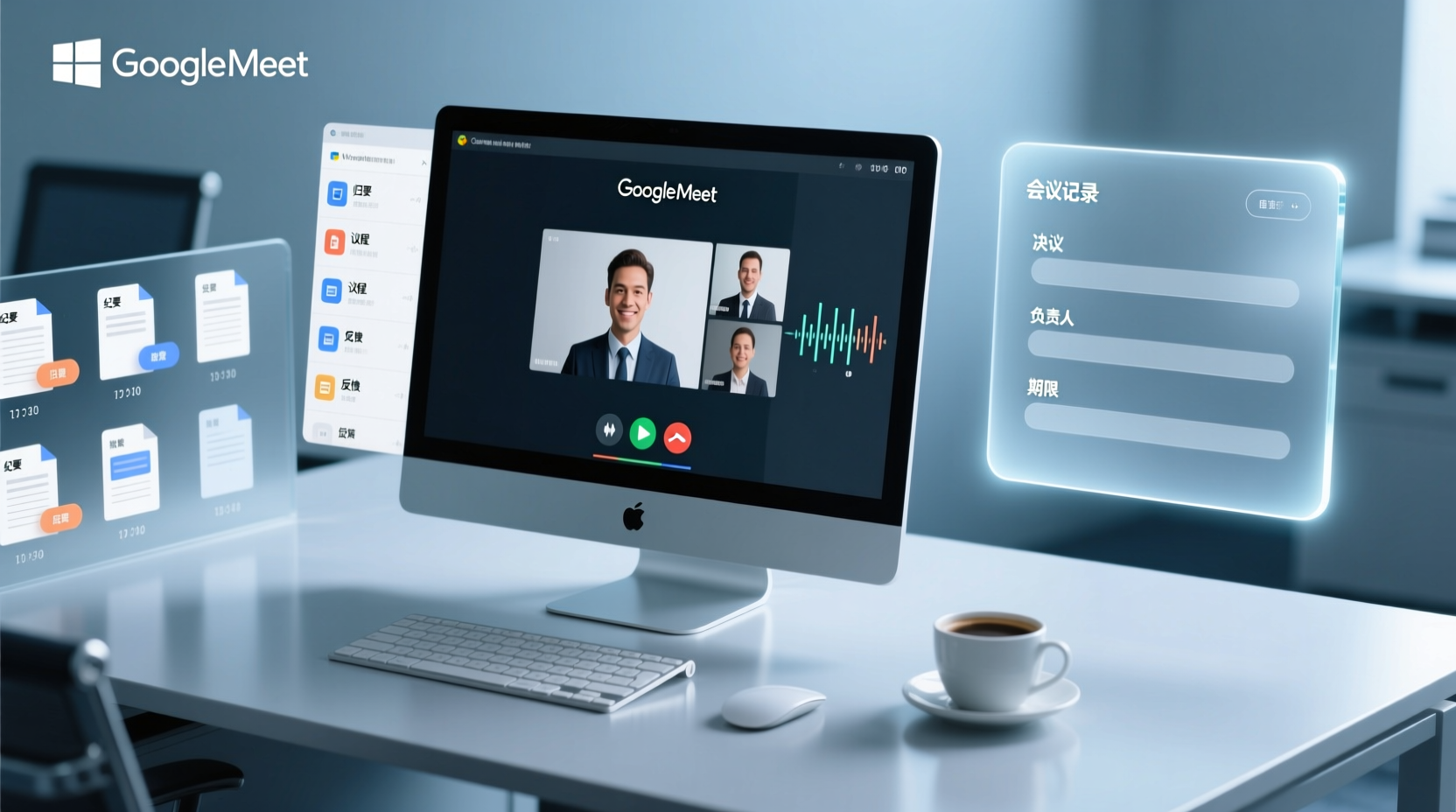
How to Choose a Google Meet Meeting Notes Tool for PC: Narrow a Dozen Options to Two or Three with Four Dimensions, and What to Confirm with Vendors for Each
After a Google Meet call on a Windows PC, what you actually need to deliver is decisions, owners, deadlines, and an archivable record. This article uses four dimensions to help you narrow a dozen tools that claim Google Meet support down to two or three, with specific questions to confirm on product pages or with vendors for each dimension.