

Turn recordings into transcripts and summaries in minutes
Upload audio or video for multilingual transcription, AI notes, and action items
Imagine you're preparing a discovery presentation for an important new client. Your goal is to address all the questions from the initial Google Meet meeting. But when you review your notes, you realize you missed some key insights—frustrating and stressful.
Now imagine a different scenario: you recorded the meeting and can replay the audio anytime, confidently grasping every key point.
Recording meetings helps you stay organized and focused on what truly matters for follow-up. The good news is you don't need to be tech-savvy to find the record button—and there are also ways to unlock the full potential of Google Workspace.
This article covers all the tips for recording Google Meet video meetings, from using Google's built-in tools to integrating MiaoTalk (Second Listening) to enhance meeting efficiency.
Can you record Google Meet meetings?
You can record Google Meet meetings if the following conditions are met. Please confirm before the meeting:
- Check your Google Workspace account: You must have a Google Workspace account. Personal Google accounts cannot use this feature. If your organization has subscribed to Google Workspace, the admin needs to enable meeting recording in your account.
- Subscribe to an eligible plan: You need a Business, Education, or Enterprise plan. Google One users with more than 2TB of storage, or users with the "Teaching and Learning Upgrade," can also record meetings.
- Be the meeting host: Only the host, organizer, or participants from the same organization with permission can start recording. If you join as a guest, you need the host's consent to record.
- Sufficient Google Drive storage: Google Meet recordings are automatically saved to your Google Drive. Ensure you have enough space; otherwise, the system will delete the recording.
- Notify participants: When recording starts, all participants will be notified. Out of respect, it is recommended to inform them in advance and obtain consent. If you use third-party or built-in screen recording software, no automatic notification will be sent, so you must proactively confirm.
Remember, obtaining consent is a necessary step to maintain respect and transparency.
Four major benefits of recording Google Meet
Beyond deepening engagement and improving tracking, recording meetings offers the following advantages:
Stop organizing recordings by hand
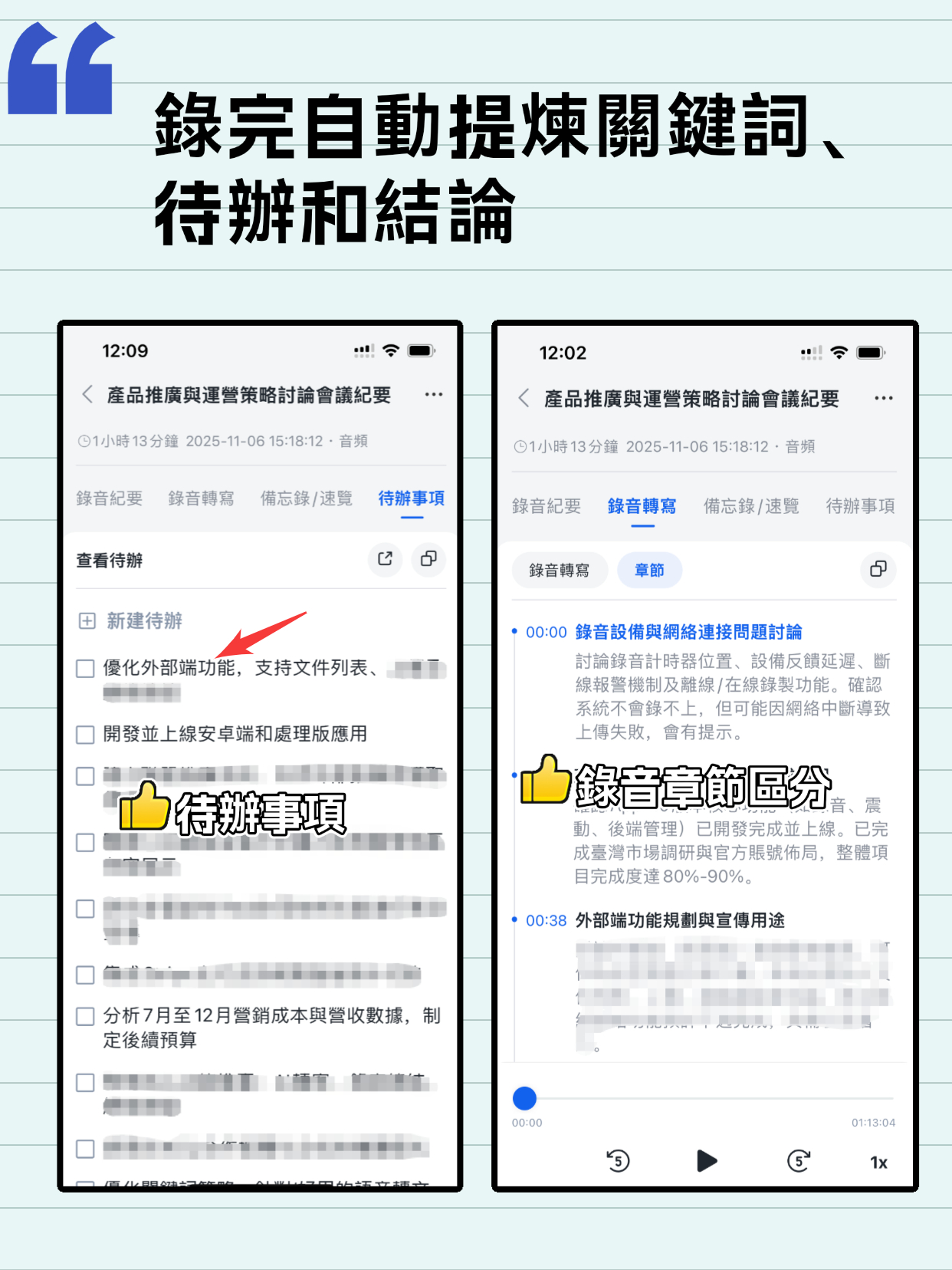
Upload audio or video and automatically get a transcript, summary, and action items
- Documentation and reference: A team's strength depends on its accumulated knowledge. Recordings fully preserve important presentations and discussions. Whether it's a development meeting, brainstorming session, or all-hands meeting, you can review them anytime, ensuring meeting outcomes are not forgotten.
- Information sharing: With remote teams, time zone differences, and busy schedules, not every member can attend every meeting. Recording allows absentees to catch up at their own convenience, ensuring everyone stays informed.
- New employee support: New members can quickly grasp past decisions and discussions by watching recordings or reading transcripts and summaries, accelerating their integration into the team.
- Improved focus: Manually jotting down key points, questions, and action items can hamper participation quality. With recording and automatic transcription tools, all participants can concentrate on the conversation, fostering more interactive and productive exchanges.
How to record Google Meet meetings
Once you've confirmed the conditions above, you can start recording:
- Open Google Meet: Launch Google Meet on your computer via the website or app. Note: only the desktop version supports the built-in recording feature; Android and iPhone users need to use the device's built-in screen recording (Android quick settings or iPhone Control Center) or third-party software.
- Join or start a meeting: Click "Join" or "Start." If you are the host, click "Start recording" and confirm "Start" in the pop-up window.
- Notify participants: After recording starts, everyone will receive a notification. It is recommended to verbally inform them and obtain consent in advance. The recording includes speakers, shared screen, and chat messages (captions are not included in the final video).
- Stop recording: Click the activities icon and select "Stop recording." Recording also ends automatically when all participants leave the meeting.
- Retrieve the recording: The video is automatically saved to the host's Google Drive in the "Meet Recordings" folder. The organizer will also receive an email with a link to the MP4 file. To share, adjust permissions so participants can download it.
Please note: the admin must enable recording and Google Drive access for your account for this feature to work. These settings can be cumbersome, especially when waiting for admin assistance.
Fortunately, there is a better way to record and transcribe Google Meet meetings—such as using MiaoTalk (Second Listening).
How to record and transcribe Google Meet meetings with MiaoTalk (Second Listening)
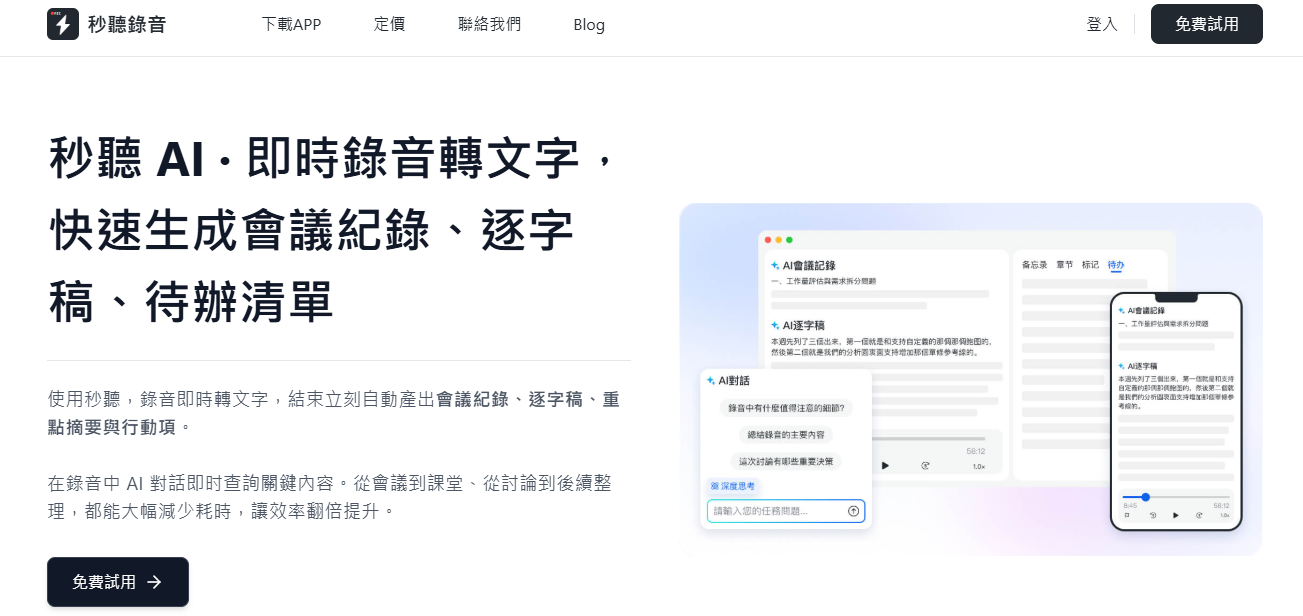
MiaoTalk automatically joins your Google Meet meetings and transcribes them in real time. Using MiaoTalk, you not only get a verbatim transcript but also an automatically generated AI summary, action items, and the ability to ask questions about meeting details via the MiaoTalk Assistant.
Here's how it works:
- Connect your calendar (Google or Microsoft) to your MiaoTalk account.
- Once connected, calendar events will sync to MiaoTalk.
- If an upcoming meeting includes a link to Zoom, Google Meet, or Microsoft Teams, MiaoTalk will automatically join as a participant at the scheduled time.
- The system analyzes and transcribes the meeting in real time, and automatically generates a summary of topics.
It supports multilingual transcription, including Chinese, English, Japanese, Cantonese, and Taiwanese Hokkien, meeting diverse language needs.
Unlock the full potential of your Google Meet meetings
While Google Meet recording lets you replay discussions, it cannot replace detailed transcripts and AI-powered insights.
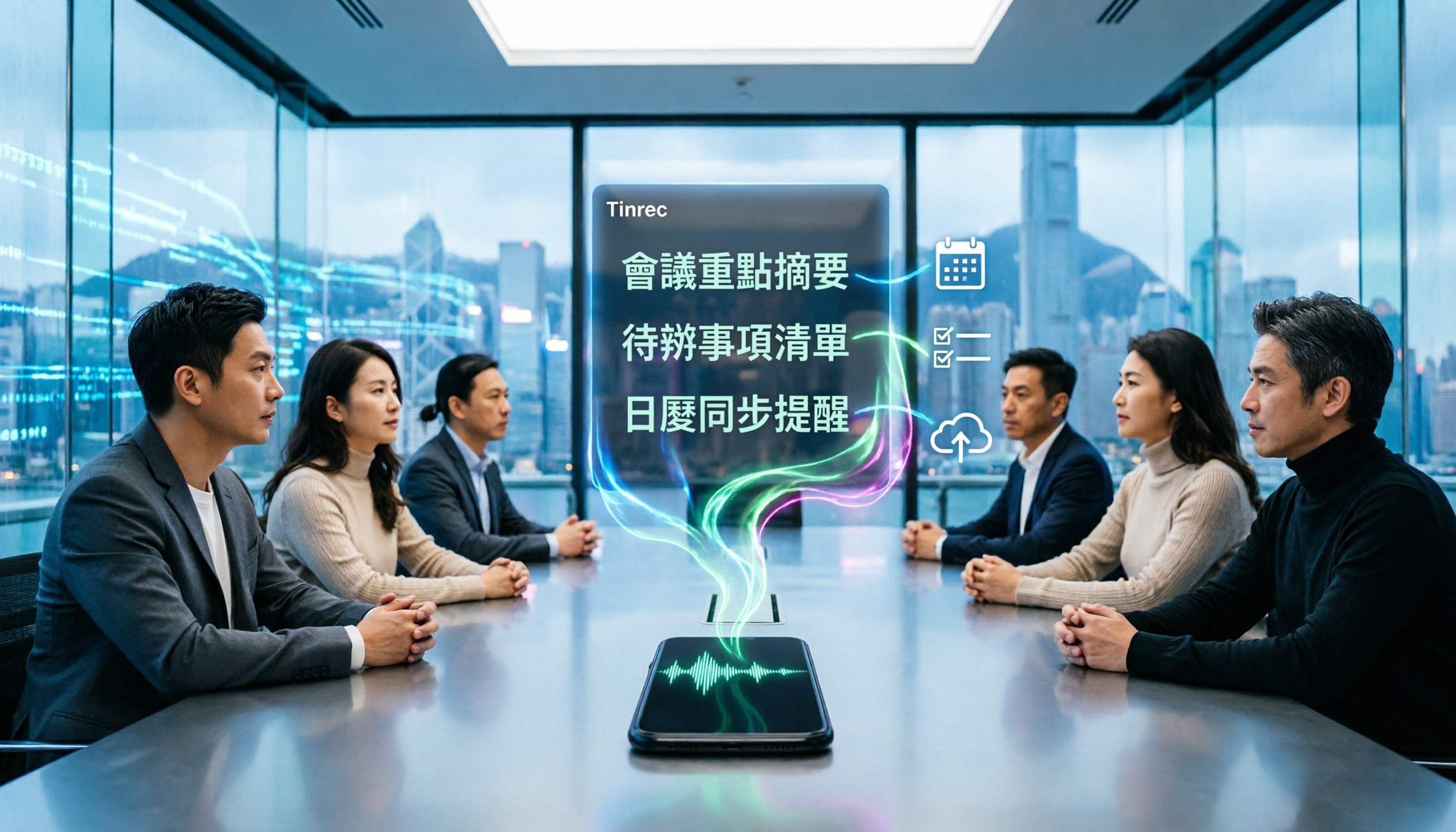
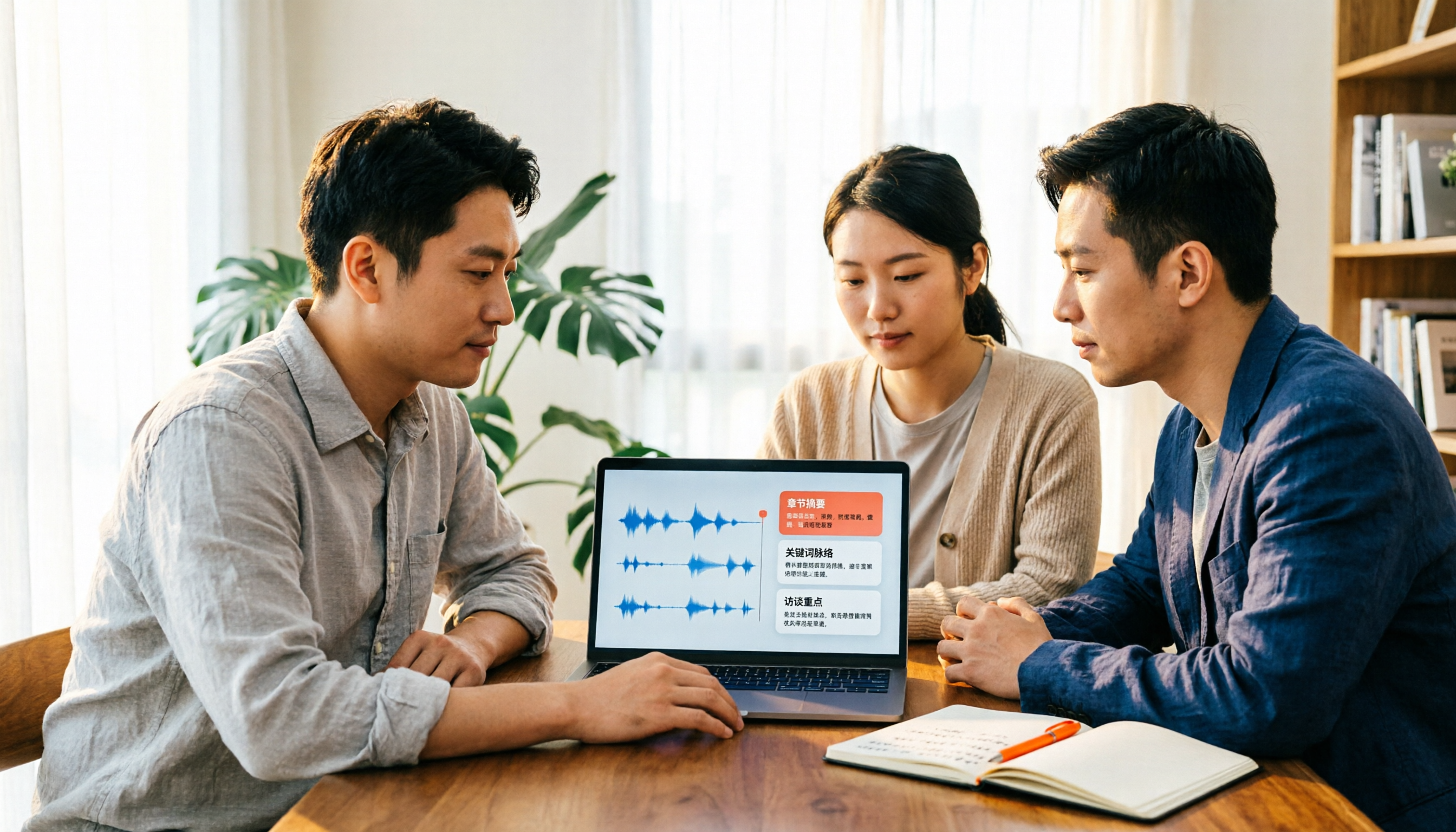
With the MiaoTalk AI Meeting Assistant, you can automatically transcribe all your Google Meet meetings in real time. And that's just the start—MiaoTalk also analyzes the content to produce summaries, action items, and follow-up emails, making every meeting efficient and seamless.
Try MiaoTalk Now
300 minutes of transcription per month
Up to 30 minutes per meeting
Upload up to 3 audio or video files
Enterprise Trial
Industry-leading transcription technology
Advanced AI conversation features
Custom integrations and workflows
Turn every recording into actionable outcomes
Get 60 free transcription minutes when you sign in. No credit card required.
Related Reading
You might also like
4 Best iPhone Cantonese Transcription Tools in 2026: Is Apple's Built-in Transcript Enough?
Apple's Voice Memos on iOS 18.4 and later can transcribe Cantonese recordings, but a raw transcript isn't the same as meeting-ready notes. This comparison breaks down four iPhone-compatible options—Tinrec, Apple Voice Memos, Notta, and PLAUD Note—covering Cantonese recognition accuracy, post-meeting organization, cross-platform export, and free-tier limits. We also flag the four most common mistakes buyers make, so you can tell when the built-in tool is enough and when you need something more.
2026 Video Summarizer Comparison: Is Tinrec Better for Chinese Long Videos Than Monica and NoteGPT?
Before choosing a video summarizer, clarify whether you're summarizing public videos or your own meeting and interview recordings. This article compares Tinrec, Monica, NoteGPT, and others across five dimensions: source material, output depth, Chinese language performance, audio retention, and team governance. It also covers Tinrec's core features, practical use cases, team pricing, and FAQs to help you decide if the free version is enough.

Tinrec vs Notta 2026: 5-Dimension Comparison of AI Meeting Summary Generators — Which Is Better for Chinese-Language Scenarios?
Compare Tinrec and Notta across five dimensions, and see how Otter.ai and Granola differ. This article explains how to choose a meeting summary generator—meeting capture method, Chinese recognition experience, post-meeting output, team collaboration governance, and pricing—to help you decide which tool truly saves time on post-meeting organization.

2026 Comparison of 4 Meeting Speaker Organization Tools: Can Transcripts Be Traced Back to Speakers and Topics?
After a meeting, you have dozens of pages of transcripts but can't trace who said what or which topic was finalized? Starting from the real pain points of 'meeting speaker organization,' this article outlines 4 key points for choosing a tool and compares Tinrec, Otter.ai, Notta, and Granola in terms of transcript review and positioning, post-meeting output, and team collaboration. It also includes a pitfalls guide and selection advice.
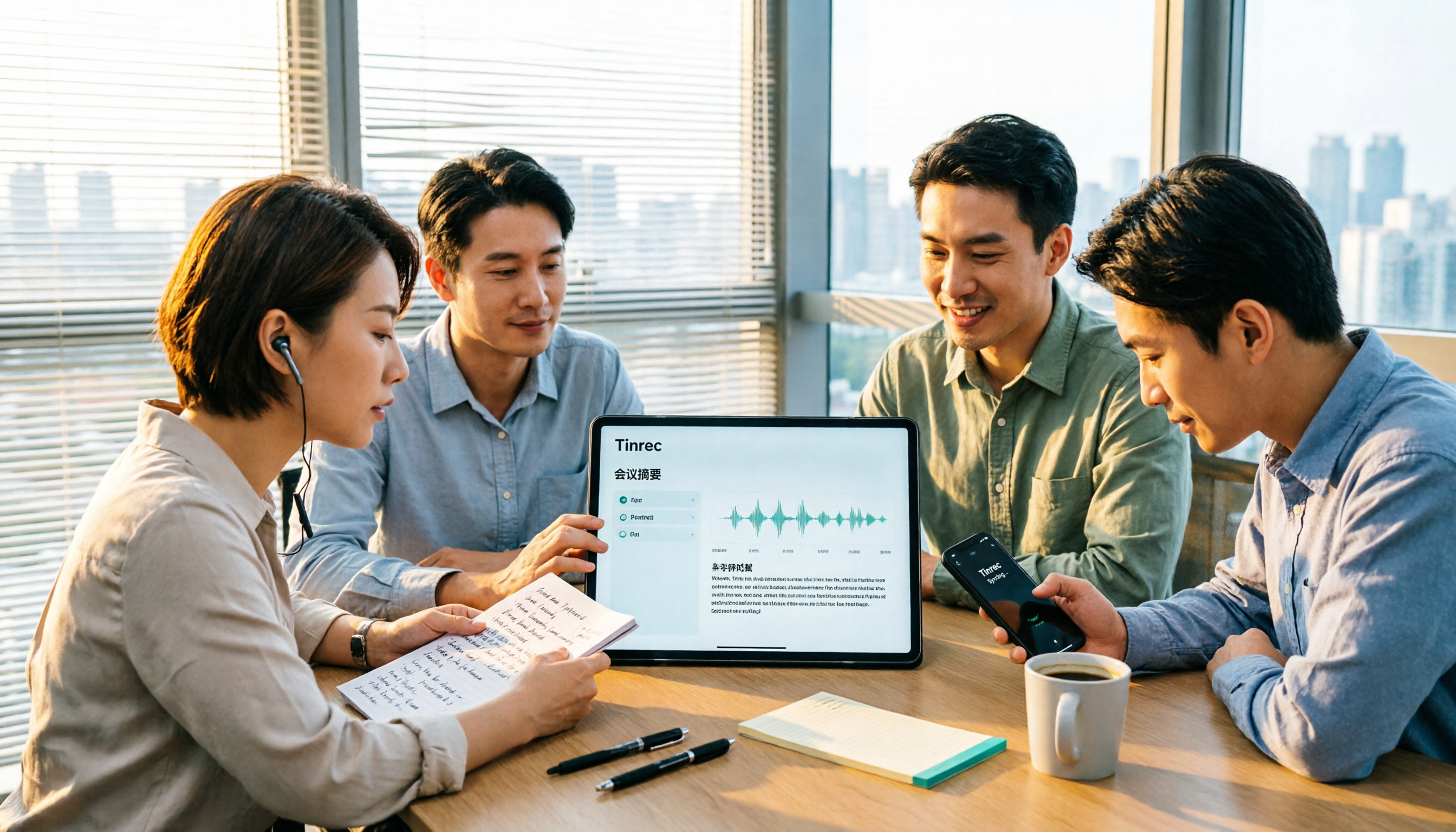
Tinrec vs Otter.ai: Which AI Meeting Recorder Is Better for Chinese Meetings in 2026?
After a meeting, you're left with a recording and messy notes. This article compares Tinrec and Otter.ai across five dimensions—Chinese and mixed-language transcription, bot-free meeting recording, post-meeting summaries and action items, team roles and seat management, and free tiers and pricing—to help you decide which tool fits your workflow.

2026 Audio Summarizer Guide: Auto Summaries + AI Q&A to Find Key Points
How do you choose an audio summarizer? This guide covers common pitfalls and key factors like summary quality, AI Q&A, and cross-platform export. We recommend Tinrec, which supports bot-free online meeting recording, automatic summaries, action item extraction, and team spaces. Also includes alternatives like Granola and PLAUD, plus tips to avoid mistakes.

5 Best AI Transcription Tools in 2026: Which One Saves the Most Time?
We tested 5 recording-to-transcript tools, comparing Chinese recognition, post-meeting organization, AI Q&A, and team collaboration. See how Tinrec stacks up against Otter.ai, Notta, and TurboScribe, plus key buying tips and pitfalls to avoid.
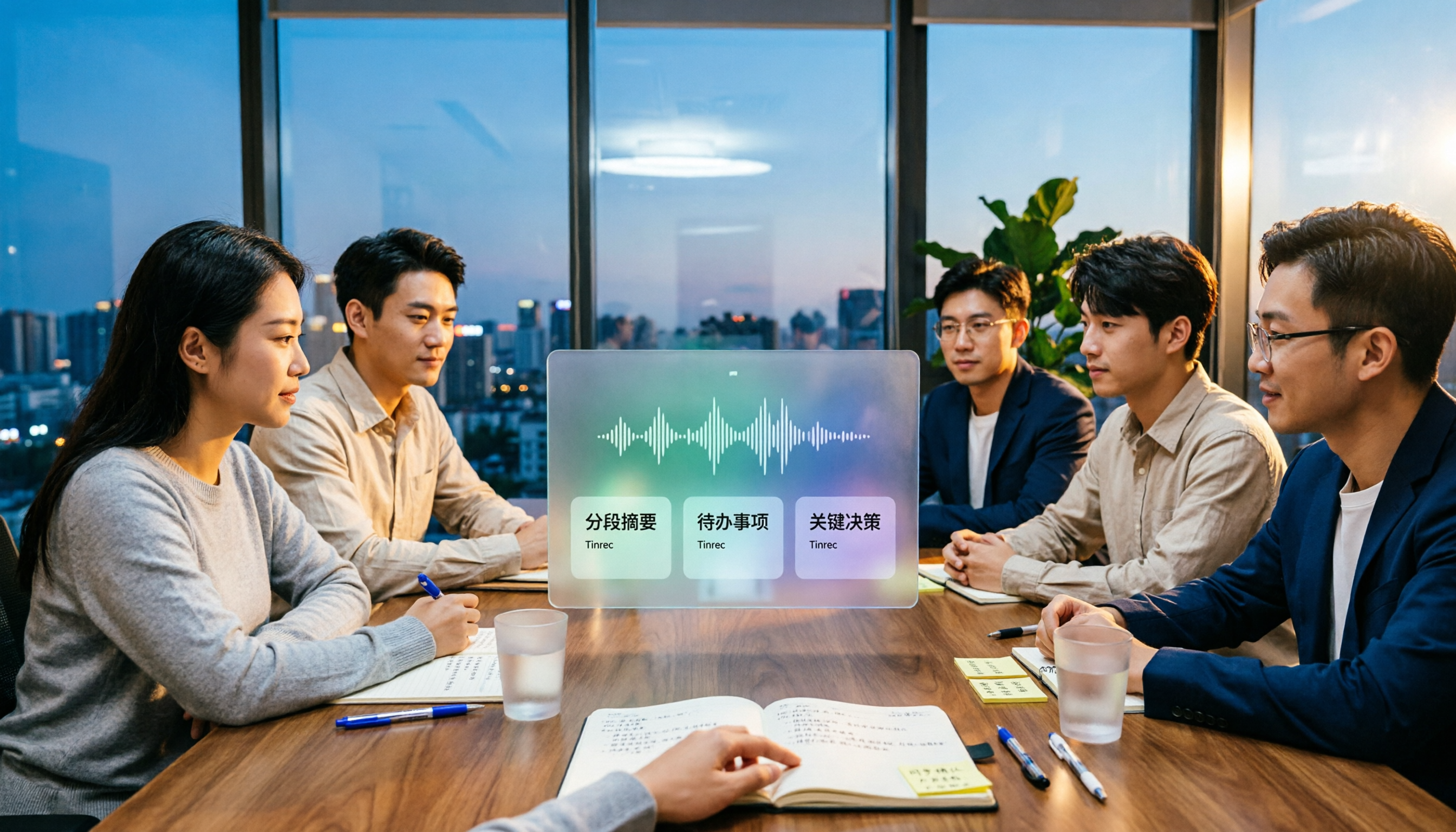
Tinrec vs Otter.ai: Which AI Meeting Summary Tool Is Better for Chinese-Speaking Teams in 2026?
Many people think a transcript means the meeting notes are done, but the real time sink is post-meeting organization. This hands-on comparison of Tinrec and Otter.ai—two tools that automatically generate meeting summaries from recordings—evaluates them across six dimensions: Chinese-language meeting experience, recording method, post-meeting outputs, audio retention, team governance, and pricing/quotas, helping Chinese-speaking teams decide which tool better fits their workflow.

4 Best Meeting Transcription Tools in 2026: Free Tiers, Chinese Accuracy, and Post-Meeting Efficiency Compared
Tired of spending hours writing meeting minutes? This article compares Tinrec, Notta, Granola, and PLAUD Note across four key areas: how they record online meetings, Chinese and mixed-language transcription accuracy, post-transcription summarization and AI Q&A, and team data ownership. It also includes a pitfalls guide and selection advice.