

Turn recordings into transcripts and summaries in minutes
Upload audio or video for multilingual transcription, AI notes, and action items
Why Convert Video to Text?
Whether you need clear notes from a client meeting or want to extract key quotes for a blog or social media post, transcripts allow you to easily review and reuse video content without rewatching. Plus, transcripts boost YouTube SEO — search engines can scan and index text, improving your video's ranking in search results.
No matter your use case, converting video to text doesn't have to be time-consuming or expensive. With the right tools and a bit of know-how, you can turn any video into text in less time than it takes to replay it. This article covers how to quickly and easily convert video to text for various file formats.
4 Methods to Convert Video to Text (Free & Paid Options)
Choosing the best method depends on your budget, time, and tolerance for rewinding. Here are four options worth considering:
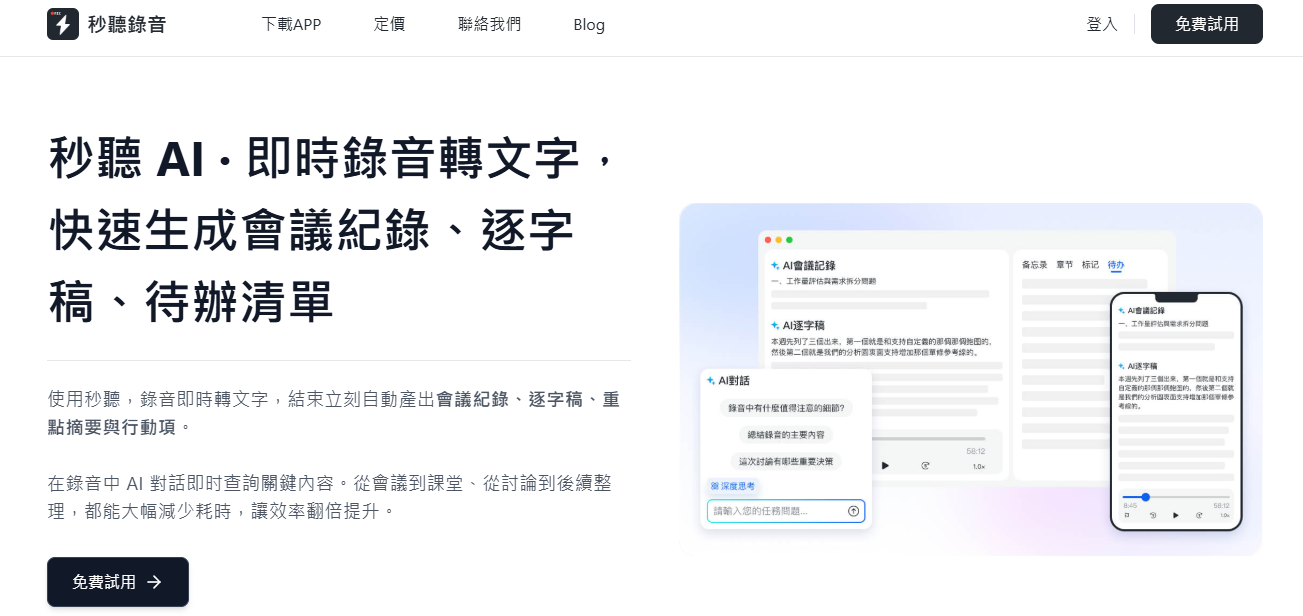
- 1. TinRec
TinRec instantly converts video files into clean, searchable text. (Bonus: TinRec also handles audio files like MP4!)
As an AI-powered video-to-text tool, TinRec uses speech recognition to automatically generate transcripts. Just upload a video, and it produces an accurate transcript with timestamps and speaker identification, making it easy to skim conversations or organize content later.
Even better, TinRec can transcribe in real time while recording. For example, if you use TinRec during a Zoom meeting, it converts the conversation to text on the fly, giving you a complete written record as soon as the meeting ends.
Best of all, you can use TinRec for free to convert video to text. The Basic plan offers 300 free minutes per month, perfect for light users. Need more? Upgrade to the Pro plan for just a few hundred NT dollars per month, or customize an enterprise plan.
- 2. Professional Transcription Services
Trained transcriptionists deliver extremely high accuracy and well-formatted transcripts, even with accents, technical terms, or background noise that AI may struggle with.
Downside: higher cost and typically longer turnaround times.
- 3. Automated Transcription + Professional Editing
This approach combines automated tools like TinRec with human polish. First, convert video to text using an automated tool, then hire a freelancer to fix typos, mishearings, or formatting issues. This is usually faster and cheaper than fully manual transcription while still producing high-quality transcripts.
- 4. DIY Manual Transcription
If you're up for a challenge, manual transcription is the most traditional method. Put on headphones, open a text file, and type as you listen. This is time-consuming, especially with poor audio quality — you'll need to pause, rewind, and replay to catch every word. But you have full control over the final result, and it's completely free.
How to Convert Video to Text Using TinRec
TinRec is the easiest way to transcribe videos (like meetings, lectures, interviews, or podcasts). Here's how:
Stop organizing recordings by hand
Upload audio or video and automatically get a transcript, summary, and action items
- Create an Account
Go to the website and sign up for free (or upgrade to unlock more features). It only takes seconds.
- Upload Your Video
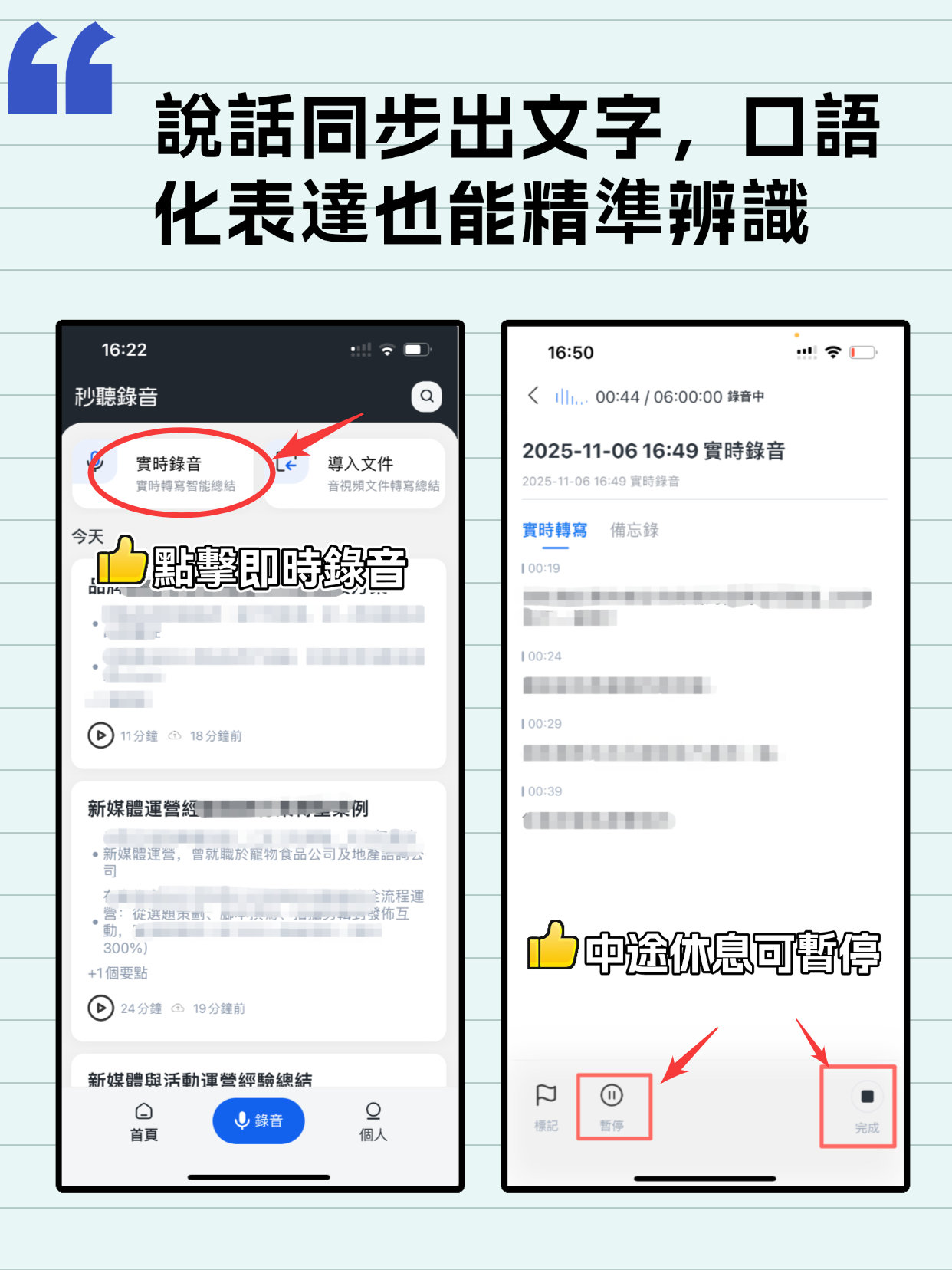
Log in and click "Import" to upload your video file. TinRec supports multiple formats — no compatibility worries, just drag and drop.
If you don't have the video file, you can also play the video from another browser or device while TinRec listens and transcribes via speaker audio. This works great for YouTube videos or other streamable content.
- Start Automatic Transcription
After uploading, TinRec automatically begins transcribing. Since it processes in real time, the video needs to play through once to capture everything. You don't need to watch; TinRec runs in the background, letting you multitask.
- Save the Transcript
Once the video ends, TinRec provides a full transcript for you to review, edit, and save. Download as .txt or .docx for sharing or further editing. You can also export as SRT to add subtitles or captions to your video.
How to Choose the Best Video-to-Text Tool: 6 Key Factors
Manual transcription is tedious and inefficient — constant pausing and rewinding makes it hard to capture every detail. Video-to-text tools automate the process, saving time and improving accuracy. Here are six factors to consider when choosing a tool:
- 1. Automatic Transcription
Good tools use AI to transcribe quickly and accurately, eliminating the need to type every word and saving significant time. Even if AI isn't 100% perfect, it provides a solid draft that's easy to edit.
- 2. Real-Time Transcription
Tools like TinRec offer real-time transcription, perfect for webinars or meetings. You get an immediate transcript, improving accessibility without any delay.
- 3. Support for Pre-recorded File Uploads
An ideal tool should allow you to upload pre-recorded videos, giving you flexibility to process missed meetings or archived content.
- 4. Custom Vocabulary Support
If you frequently use industry-specific terms (legal, medical, tech), custom vocabulary is crucial. You can add specific terms or abbreviations to improve transcription accuracy.
- 5. Two-Factor Authentication (2FA)
For confidential or sensitive videos, choose a tool that prioritizes security. TinRec offers two-factor authentication, requiring a password and a one-time code (e.g., sent via SMS), ensuring only authorized users access your media and transcripts.
- 6. Speaker Identification
In multi-person conversations, transcripts can get confusing. Speaker identification distinguishes different speakers and labels them, greatly improving readability.
Two Other Ways to Convert Video to Text
If you prefer using existing tools instead of dedicated transcription software, here are two alternatives:
- 1. Google Docs
Use Google Docs' built-in voice typing. Open a new document, enable voice typing, play the video, and it will transcribe the audio. This method is quick and free but may require proofreading afterwards.
- 2. Microsoft 365 Online
Word for the web offers two useful features:
Dictate: Similar to Google Docs, play the video and it transcribes.
Transcribe: Upload an audio file for automatic transcription. Since it only supports audio, you'll need to extract the audio track from the video first.Both methods, like Google Docs, require subsequent polishing.
Easily Convert Video to Text with TinRec
Say goodbye to time-consuming and expensive manual transcription. With TinRec, you can convert your audio and video content into text with just a few clicks. TinRec's smart AI automatically produces high-accuracy transcripts for both pre-recorded and live video, saving you hours of manual work.
Try TinRec Now!
300 free minutes per month
Up to 30 minutes per session
Support for 3 audio or video file uploads
Enterprise Plans
Top-notch transcription technology
Advanced AI assistant features
Custom integrations and workflows
Turn every recording into actionable outcomes
Get 60 free transcription minutes when you sign in. No credit card required.
Related Reading
You might also like
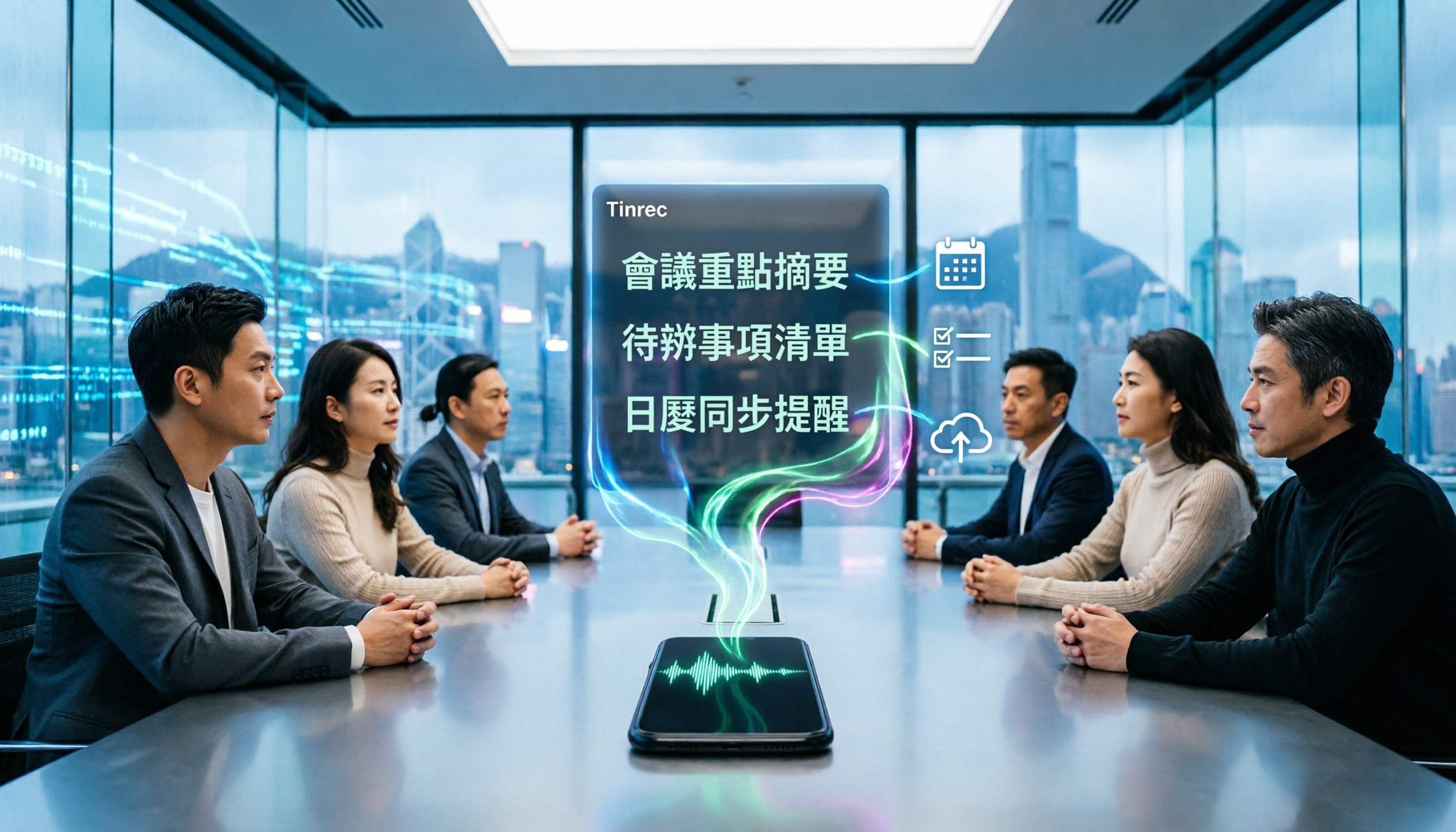
4 Best iPhone Cantonese Transcription Tools in 2026: Is Apple's Built-in Transcript Enough?
Apple's Voice Memos on iOS 18.4 and later can transcribe Cantonese recordings, but a raw transcript isn't the same as meeting-ready notes. This comparison breaks down four iPhone-compatible options—Tinrec, Apple Voice Memos, Notta, and PLAUD Note—covering Cantonese recognition accuracy, post-meeting organization, cross-platform export, and free-tier limits. We also flag the four most common mistakes buyers make, so you can tell when the built-in tool is enough and when you need something more.
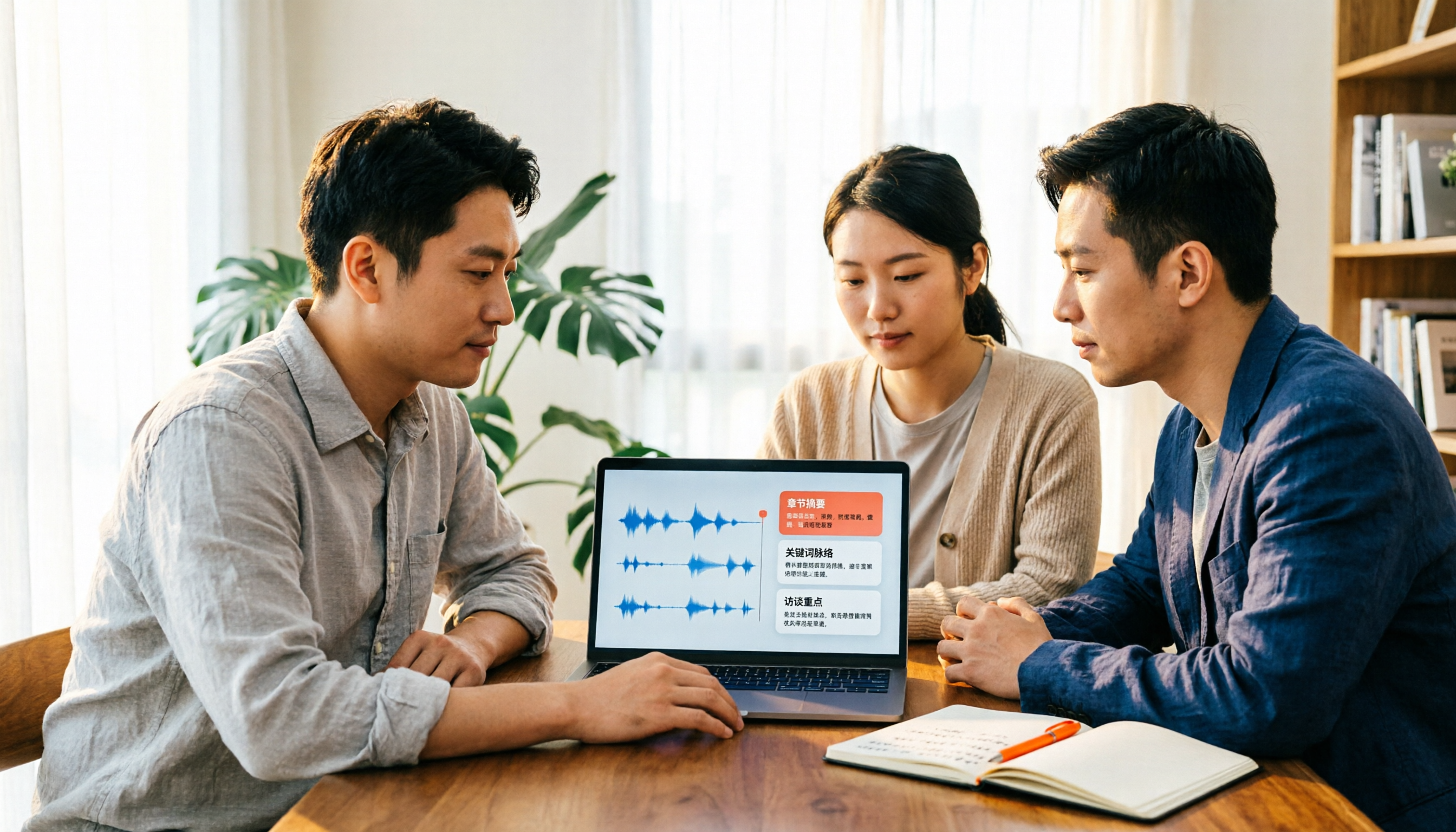
2026 Video Summarizer Comparison: Is Tinrec Better for Chinese Long Videos Than Monica and NoteGPT?
Before choosing a video summarizer, clarify whether you're summarizing public videos or your own meeting and interview recordings. This article compares Tinrec, Monica, NoteGPT, and others across five dimensions: source material, output depth, Chinese language performance, audio retention, and team governance. It also covers Tinrec's core features, practical use cases, team pricing, and FAQs to help you decide if the free version is enough.

Tinrec vs Notta 2026: 5-Dimension Comparison of AI Meeting Summary Generators — Which Is Better for Chinese-Language Scenarios?
Compare Tinrec and Notta across five dimensions, and see how Otter.ai and Granola differ. This article explains how to choose a meeting summary generator—meeting capture method, Chinese recognition experience, post-meeting output, team collaboration governance, and pricing—to help you decide which tool truly saves time on post-meeting organization.

2026 Comparison of 4 Meeting Speaker Organization Tools: Can Transcripts Be Traced Back to Speakers and Topics?
After a meeting, you have dozens of pages of transcripts but can't trace who said what or which topic was finalized? Starting from the real pain points of 'meeting speaker organization,' this article outlines 4 key points for choosing a tool and compares Tinrec, Otter.ai, Notta, and Granola in terms of transcript review and positioning, post-meeting output, and team collaboration. It also includes a pitfalls guide and selection advice.
Tinrec vs Otter.ai: Which AI Meeting Recorder Is Better for Chinese Meetings in 2026?
After a meeting, you're left with a recording and messy notes. This article compares Tinrec and Otter.ai across five dimensions—Chinese and mixed-language transcription, bot-free meeting recording, post-meeting summaries and action items, team roles and seat management, and free tiers and pricing—to help you decide which tool fits your workflow.

2026 Audio Summarizer Guide: Auto Summaries + AI Q&A to Find Key Points
How do you choose an audio summarizer? This guide covers common pitfalls and key factors like summary quality, AI Q&A, and cross-platform export. We recommend Tinrec, which supports bot-free online meeting recording, automatic summaries, action item extraction, and team spaces. Also includes alternatives like Granola and PLAUD, plus tips to avoid mistakes.

5 Best AI Transcription Tools in 2026: Which One Saves the Most Time?
We tested 5 recording-to-transcript tools, comparing Chinese recognition, post-meeting organization, AI Q&A, and team collaboration. See how Tinrec stacks up against Otter.ai, Notta, and TurboScribe, plus key buying tips and pitfalls to avoid.

Tinrec vs Otter.ai: Which AI Meeting Summary Tool Is Better for Chinese-Speaking Teams in 2026?
Many people think a transcript means the meeting notes are done, but the real time sink is post-meeting organization. This hands-on comparison of Tinrec and Otter.ai—two tools that automatically generate meeting summaries from recordings—evaluates them across six dimensions: Chinese-language meeting experience, recording method, post-meeting outputs, audio retention, team governance, and pricing/quotas, helping Chinese-speaking teams decide which tool better fits their workflow.

4 Best Meeting Transcription Tools in 2026: Free Tiers, Chinese Accuracy, and Post-Meeting Efficiency Compared
Tired of spending hours writing meeting minutes? This article compares Tinrec, Notta, Granola, and PLAUD Note across four key areas: how they record online meetings, Chinese and mixed-language transcription accuracy, post-transcription summarization and AI Q&A, and team data ownership. It also includes a pitfalls guide and selection advice.