

Turn recordings into transcripts and summaries in minutes
Upload audio or video for multilingual transcription, AI notes, and action items
Bottom Line First: Google Meet Is Good Enough, but the Real Challenge Comes After the Meeting
I manage a small team of 8 people and host at least 5 Google Meet sessions every week.
Honestly, Meet's meeting features are hard to fault—easy link sharing, browser-based access, and stable video.
The real problem is: after the meeting, where's the transcript? Who captures the key points? Who follows up on action items?
Google Meet's built-in transcription requires a paid Workspace plan, and its Chinese transcription summarization is mediocre at best.
So this guide isn't just about how to use Meet—I'll also show you how to record Meet sessions, convert them to text, and organize them into team knowledge.
Using my tested methods, you won't need to spend two afternoons trying different tools.
How Google Meet Works: Get the Basics First
Google Meet is Google's video conferencing service, formerly known as Google Hangouts.
Its biggest advantage is that you don't need to install anything—just open your browser and you're ready.
It supports Windows, macOS, Chrome OS, and Linux, with mobile apps available too.
For network requirements, Google recommends at least 3.2 Mbps download and 1.8 Mbps upload, which is sufficient for most home or office connections in the US.
All you need is a Google account to start a meeting—no extra registration required.
Creating a Meeting: 3 Ways, Done in 30 Seconds
Method 1: Schedule Directly from Google Calendar
This is my go-to method.
In Google Calendar, click "Create" → "Event," add participants, and the system automatically attaches a Google Meet link.
The benefit is that meeting time, agenda, attachments, and RSVPs are all in one place.
Method 2: Start an Instant Meeting from the Meet Homepage
Go to meet.google.com and click "New meeting."
You can choose "Get a meeting link to share," "Start an instant meeting," or "Schedule in Google Calendar."
When you need to discuss something urgently, this is the fastest option.
Method 3: Join Directly from Google Docs, Sheets, or Slides
This is really convenient.
If you're discussing something in a document, you can start a Meet directly from the document interface without switching tabs.
For small teams, the saved switching time adds up significantly.
Joining a Meeting: Link, Code, or Phone
Click the link you received, and your browser will open it directly.
You can also enter a meeting code or dial in via phone number.
If you have a business or education account, your admin can control Meet settings—note that some features may be disabled.
Screen Sharing and Basic Features: What You'll Use During a Meeting
- Share your entire screen, a specific window, or a single tab
- Turn your camera and microphone on or off
- Live captions (primarily English; Chinese availability depends on your account plan)
- Raise hand, chat, and polls (some features require a paid Workspace plan)
- Meeting recording (requires a paid Workspace plan)
The free version includes basic audio/video and screen sharing.
However, if you want to "record meetings" or "transcribe transcripts," the free version doesn't offer these capabilities.
The Most Critical Step: How to Record and Transcribe Google Meet Sessions
This is where many people get stuck.
Google Meet's built-in recording requires a paid Workspace plan, and even then, you'll need to figure out how to transcribe the video yourself.
I tested several solutions and ultimately settled on the Tinrec desktop app.
The reasons are simple:
- No need to invite a meeting bot into Meet—this is crucial. Clients or external partners might feel uncomfortable seeing a bot join.
- It directly captures your computer's system audio, so whatever you say in Meet is recorded.
- After recording, it automatically generates a transcript, summary, chapters, and action items.
Here's the workflow:
Stop organizing recordings by hand
Upload audio or video and automatically get a transcript, summary, and action items
Open Tinrec desktop → Start recording → Return to Google Meet and have your meeting normally → Stop recording when the meeting ends → Automatic transcription.
No Meet plugins to install, no meeting settings to change.
After Recording: From Transcript to Team Knowledge
This is where Tinrec differs most from typical recording apps.
Most tools give you an audio file and a transcript, and that's it.
Tinrec goes further by organizing:
- AI Summary: Get the key points of a 1-hour meeting in 30 seconds
- Chapters & Highlights: Long meetings are automatically split into sections
- Action Items: Extract "who does what" from the discussion
- Mind Map: Visualize the meeting structure at a glance
- AI Q&A: Ask questions like "What are the client's concerns about pricing?"
For small team managers, this saves real time.
Previously, I spent 20 minutes after each meeting writing minutes; now it takes 3 minutes.
Team Collaboration: Stop Keeping Meeting Data on Personal Devices
This is something I've only recently started prioritizing.
In the past, our team's transcripts and minutes were scattered across personal computers, cloud drives, and Slack channels.
Finding what was discussed in a previous client meeting was like searching for a needle in a haystack.
Tinrec's team plan centralizes meeting data in one space:
- All members can view team meeting data
- Admins can allocate seats and monitor usage
- When a member leaves, data handover doesn't disappear
For an 8-person team, this is much lighter than enterprise-grade systems, but far better than having nothing.
How to Best Combine Google Meet and Tinrec: My Actual Workflow
- Schedule meetings in Google Calendar, automatically attaching the Meet link
- Open Tinrec desktop before the meeting starts and hit record
- Use Meet normally—no need to worry about recording
- Stop recording when the meeting ends; Tinrec automatically transcribes and organizes
- Quickly review the summary and action items, then post action items to the team channel
- Meeting data stays in the team space for future search and follow-up
The entire process has no extra steps and doesn't disrupt the meeting flow.
Free vs. Paid Plans: How to Choose?
Google Meet itself:
- Free plan: 1-on-1 meetings last up to 24 hours; meetings with 3+ participants are limited to 60 minutes (check the latest official announcements for current limits)
- Google Workspace paid plans: Longer meetings, recording, attendance reports, and other advanced features
Tinrec:
- Free plan lets you try basic recording, import, summary, and transcription
- Occasional use: The free plan is sufficient
- Weekly meetings: A Pro monthly or annual plan is more cost-effective
- Team use: Go straight to the team plan, which includes 2,000 minutes of shared import quota per seat per month
I don't recommend forcing the free plan just to save money.
Meeting data is a team asset; spending a little to get this right is far cheaper than spending time searching for information later.
Honestly, Google Meet's Drawbacks Should Be Mentioned Too
- Built-in transcription and recording require a paid plan; the free version doesn't have them
- Chinese transcription quality is mediocre, especially for meetings mixing Chinese and English
- After the meeting, you still need to figure out data organization
- The free version has time limits for meetings with 3+ participants, so long meetings can be cut off
These aren't Meet's faults—it's designed to handle just the "meeting" part.
Post-meeting transcription, organization, and action item tracking are a separate task.
Summary: Use Google Meet for Meetings, Tinrec for Wrap-Up
If you're only asking "How do I use Google Meet?"—the answer is simple: open your browser, share the link, and start the meeting.
But if you're asking "How do I make Google Meet meetings truly productive?"—the focus isn't on Meet itself, but on what happens after the meeting.
My recommendation:
- Use Google Meet for meetings—it's stable, requires no installation, and everyone's familiar with it
- Use Tinrec desktop for recording and transcription—no bots needed, automatic organization
- Store team data in Tinrec's team space—shared by members, and it doesn't disappear when someone leaves
I recommend downloading Tinrec's free version and testing it with a real Meet session.
It costs nothing, and you can first check if the transcript and summary quality meet your expectations.
If you like it, upgrade; if not, delete it. It's that simple.
References
- Google Meet: Online Web and Video Conferencing Calls | Google Workspace
- How to Use Google Meet: A Comprehensive Guide for Beginners | HP® Official Site
- How Google Meet Works - A Comprehensive Guide | Meeting Reminders
- Learn about the Google Meet app - Google Meet Help
- How to Use Google Meet: Essential Tips and Features
Turn every recording into actionable outcomes
Get 60 free transcription minutes when you sign in. No credit card required.
Related Reading
You might also like

4 Audio-to-Text Tools Tested: Which Saves More Time on Chinese Meeting Notes and Post-Meeting Cleanup in 2026?
Audio-to-text tools shouldn't just turn speech into text—they should quickly produce usable meeting notes. Based on real workflows, this article explains how Tinrec handles Chinese meetings, bot-free online meeting recording, AI Q&A, team spaces, and buying considerations, helping you decide if the free version is enough and whether the team version is worth evaluating.

How to Choose a Cantonese Speech-to-Text App in 2026: 5-Step Hands-On Comparison
This article compares Tinrec and Subanana across 5 dimensions—input sources, Cantonese colloquial handling, post-meeting organization, team collaboration, and export/integration—to help you decide between a pure Cantonese transcript tool and a meeting workflow solution.

Tinrec vs Notta 2026: 5-Dimension Comparison — Which Is More Reliable for Chinese Meeting Transcription?
Starting from common misconceptions about audio-to-text accuracy, this comparison evaluates Tinrec and Notta across five dimensions and explains the suitable scenarios for Otter.ai and PLAUD Note, helping you choose the right tool for Chinese meetings and team collaboration.

5 Best Chinese-English Real-Time Translation Tools in 2026: Free vs Paid Comparison
A comparison of 5 Chinese-English real-time translation tools in 2026, from free text translation and meeting voice translation to AI meeting note tools that generate transcripts and action items, helping you choose based on your use case.

How to Transcribe Korean Audio to Text in 2026: A Complete 5-Step Guide
Korean audio transcription is more than just converting speech into words. This guide walks you through 5 steps to turn Korean meeting, interview, and course recordings into transcripts, summaries, and action items, and covers the key factors to consider when choosing a tool—language support, audio file retention, export options, and team permissions—using Tinrec as a practical workflow example.

2026 English Speech-to-Text Tools Tested: Which One Turns Transcripts Into Usable Data?
How do you choose an English speech-to-text tool? Starting from common pitfalls, this hands-on comparison tests Tinrec, Otter.ai, Notta, and TurboScribe, covering five key buying factors: audio sources, post-meeting organization, mixed Chinese-English speech, free quotas, and team data ownership, plus a pitfalls guide and scenario-based recommendations.

4 Phone Recording-to-Text Solutions Tested for 2026: Which Offers the Most Free Minutes and Best Post-Meeting Organization?
Starting from the three most common mistakes students make, this hands-on comparison tests four phone recording-to-text solutions and explains how Tinrec turns classroom and group meeting recordings into searchable, queryable, exportable transcripts and action items. It also covers free quotas, pricing, and what students should consider when choosing a tool.
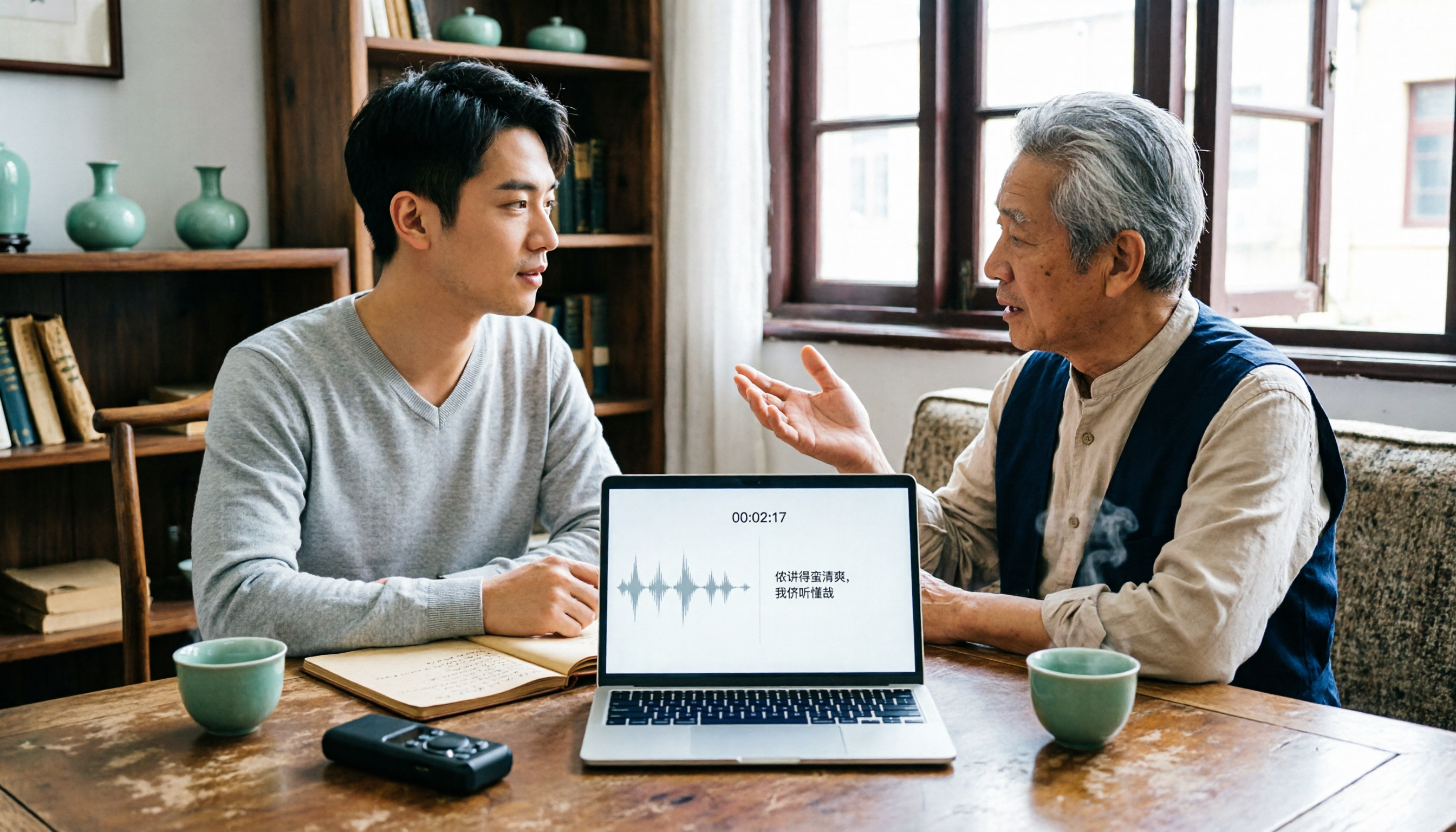
2026 Tested: 3 Shanghainese Speech-to-Text Tools Compared — The Least Painful Way to Process Dialect Interviews
There's no one-size-fits-all answer for transcribing Shanghainese. Instead of hunting for a tool that "supports dialects," change your workflow. This article covers four key points — assessing your recording's language mix, checking timestamps, post-meeting follow-up questions, and preserving team data — and tests Tinrec, Notta, Granola, and Otter.ai on mixed-language interviews, plus the 4 most common buying mistakes.

5 Best Korean Speech-to-Text Tools in 2026: Free vs Paid Comparison
After a one-hour Korean meeting, do you spend three hours organizing the transcript? This article compares five Korean speech-to-text tools: Tinrec, Musely, UniScribe, TurboScribe, and Notta. It breaks down honorific level handling, post-meeting summaries and action items, input sources, team collaboration, and free tier limits, with a guide to avoid pitfalls and scenario-based recommendations to help you find the one that truly saves time.