

Turn recordings into transcripts and summaries in minutes
Upload audio or video for multilingual transcription, AI notes, and action items
What Is Google Meet: Its Positioning from Video Calls to Meeting Collaboration
If you host several online meetings every week, what really gives you a headache is usually not "how to hold the meeting," but "how to follow up after it ends." The positioning of Google Meet starts precisely from this gap.
According to Google Workspace's official page, Google Meet is a service for secure online web conferencing and video calls, and is part of Google Workspace; Google's documentation also describes it as "a single app for video calls and meetings across all devices." In other words, its essence is a video conferencing service: it brings people in different locations into the same meeting room so they can see, hear, share screens, and exchange text.
Two things need to be separated here:
- The call itself: capabilities during the meeting such as connection, audio and video, screen sharing, chat, and captions.
- After the call: who decided what, who is responsible for which item, and when it is due.
Google Meet handles the former. The latter does not complete automatically just because the meeting went smoothly. For people who need to report conclusions to their team or superiors, this distinction matters more than any feature list.
What Meeting Types It Supports: One-on-One, Group, and External Meetings
Google Meet is not used in only one way. According to Google's official documentation and the App Store product description, it is designed to support interactions with friends, family, colleagues, and classmates, covering everything from personal calls to work meetings. In practice, there are roughly three common types:
| Meeting Type | Typical Scenario | What Needs to Be Captured Afterward |
|---|---|---|
| One-on-one call | Client calls, interviews, ad-hoc alignment | Commitments, next steps, timelines |
| Group meeting | Weekly meetings, project meetings, cross-department coordination | Decisions, assignments, owners, deadlines |
| External meeting | Customer interviews, vendor negotiations, external partnerships | Requirements, objections, external commitments, follow-up materials |
What all three types have in common is: the smoother the meeting goes, the more there is to fill in afterward. The deeper a one-on-one conversation goes, the more commitments there are; the more heated a group discussion becomes, the more easily decisions and assignments get scattered throughout the conversation; external meetings involve outside expectations, and missing one item may require re-confirmation.
Google Meet provides the venue for these meetings, not a secretary to remember conclusions for you.
The Real Breakpoints After the Call: Decisions, Owners, and Deliverables
The moment the meeting ends and the window closes, most managers face the same situation: the discussion just now was clear, but when it is time to write the meeting notes, they realize several key points were not fully captured.
There are usually three specific breakpoints:
1. Decisions were not locked down. Two or three options may have appeared during the discussion, but which one was finally adopted and under what conditions often remains only in the participants' memories.
2. Owners were not named. "Let's handle this later" is the most common phrase, but when "later" is and who is responsible for "handling" it are usually not written down on the spot.
3. Deliverables were not defined. Whether what needs to be delivered is meeting notes, a report, a spreadsheet, or a proposal, different formats and audiences create very different post-meeting workloads.
None of these three things fall within Google Meet's capabilities. It was not designed to do this, and it should not be expected to be a tool with a complete meeting-notes workflow built in. Understanding this boundary prevents discovering only after the meeting that all you have is a recording or a few lines of notes.
From Call to Transcript: Turning Voice into Searchable Text
To fill in this post-meeting gap, the first step is to turn the meeting audio into text that can be searched and quoted.
Take Tinrec as an example: its desktop version handles online meetings by capturing the computer's system audio, without needing to invite a meeting bot to join. This is especially practical for meetings like Google Meet: no unfamiliar account appears in the participant list, and clients do not find it intrusive during external meetings.
Stop organizing recordings by hand
Upload audio or video and automatically get a transcript, summary, and action items
In practice, this step solves the "re-listening" problem. In the past, to confirm who said something and at what point, you could only drag the progress bar and listen repeatedly; with a transcript, the meeting content becomes searchable text, and typing a keyword locates the corresponding section.
It should be noted that recording and transcription involve participants' rights, so in practice you should first confirm meeting policies and obtain participants' consent, especially for external meetings and situations involving sensitive content.
From Transcript to Meeting Notes, Action Items, and Reporting Materials
With a transcript, the second stage is turning text into something that can be delivered. This stage usually includes three outputs:
- Meeting notes: condensing the transcript into a summary and sections so people who did not attend can quickly grasp the discussion flow.
- Action items: extracting action items from the discussion and mapping them to owners and timelines.
- Reporting materials: depending on the audience, these may be reports, spreadsheets, or documents used to report conclusions to the team or superiors.
Tinrec's role in this stage is to extract summaries, sections, key points, and action items from the transcript, and to support continued follow-up questions around the meeting content. Furthermore, the AI assistant (Agent) can, based on meeting notes and context, help further process action items into action plans, follow-up materials, reports, spreadsheets, or documents.
The boundary should be made clear here: the AI assistant handles the stage of "organizing known content into usable materials," not making decisions for you. For important commitments, external sends, and key decisions, it is still recommended that a person confirm before sending.
Team Edition: Making Meeting Conclusions Shared and Continuously Followed Up
So far, everything discussed above is about "how you as an individual finish the post-meeting work." But if you are a mid-level manager or project owner, the real problem is often not whether you have organized things well, but whether the team has a shared version to continue from.
The common breakpoint looks like this: after the meeting, the meeting notes are saved on your computer, the action items are in your notes, and two weeks later someone asks "what happened with that thing last time," and you have to dig through your own files to find it. The more people involved, the more scattered the versions become.
Tinrec Team Edition provides an independent team collaboration space, rather than multiple people sharing one personal account. Two specific parts illustrate how it connects to this workflow:
Part one: Put meeting materials into the team space instead of leaving them on personal devices.
After a meeting, transcripts, summaries, and action items can be stored together in the team space, and team members can view and reuse historical meeting materials. For project owners, this solves the problem of "data following the individual"; new project members can also look back at previous discussion context without relying on verbal summaries every time.
Part two: Let the AI assistant advance action items and produce deliverable post-meeting materials.
A common situation in project meetings is: the discussion is complete, but action items remain at the "one sentence" stage. Based on meeting notes and context, the AI assistant can help process these action items into action plans, follow-up materials, or report spreadsheets, so owners receive content they can act on directly, rather than fragments they have to reinterpret themselves.
It should be noted that the Team Edition currently focuses on team-level sharing, governing and managing usage eligibility through roles and seats: active members can view, play, and read team materials, and only after obtaining a seat can they perform operations such as recording, uploading, editing, and exporting. This is not the same as fine-grained permissions that set independent access scopes for each file, and the two should not be conflated in external explanations.
If your team relies on Google Meet for weekly meetings and coordination meetings every week, rather than having each person organize their own version, it is better to centralize meeting materials and action items in the same space so conclusions can truly be tracked. Specific team plans and seat arrangements can be further understood according to team size and usage scenarios.
Usage Boundaries: Account Plans, Permissions, and Human Confirmation
Finally, let's clarify a few easily misunderstood points to avoid incorrect expectations during adoption:
- Some features depend on account plans and administrator settings. Google Meet capabilities such as recording and transcription are not available to all accounts; the differences between free personal accounts and Workspace plans are significant, and whether they are enabled at the organizational level may also be decided by administrators.
- Google Meet is not a complete meeting-notes workflow. It provides the venue for the meeting and some recording capabilities, but turning content into reportable, assignable, and trackable data still requires another process.
- Recording and transcription require consent. Different regions have different legal requirements for recording, so in practice you should first confirm policies and inform participants.
- AI output requires human confirmation. Summaries, action items, and post-meeting materials can greatly reduce organization time, but important commitments, external sends, and key decisions should still be reviewed by a person before use.
Putting these points up front helps ensure that meeting notes and follow-up do not become another pit that needs cleaning up.
References
Turn every recording into actionable outcomes
Get 60 free transcription minutes when you sign in. No credit card required.
Related Reading
You might also like

5 Free Local Speech-to-Text Solutions for 2026: A Complete Guide
Looking for a truly offline, free speech-to-text solution? This guide covers local tools like Handy, WhisperDesktop, browser-based Whisper, and Python SpeechRecognition, and explains who Tinrec—a post-meeting organization tool—is for, helping you choose based on privacy, hardware, and meeting needs.

2026 Speech-to-Text Showdown: Tinrec vs. Google Cloud Speech-to-Text
Should you build your own speech-to-text integration with an open API, or buy a ready-made tool? We compare Tinrec and Google Cloud Speech-to-Text across six dimensions—setup effort, Chinese meeting support, online meeting capture, post-meeting organization, team governance, and pricing—to help you decide which fits your team.

2026 AI Meeting Notes Tools Compared: Tinrec vs Otter.ai — Which Is Right for Chinese-Speaking Teams?
How should you take meeting notes? Instead of transcribing every word, capture decisions, owners, and deadlines. This article first breaks down 3 common inefficient practices, then compares two AI meeting notes tools, Tinrec and Otter.ai, across Chinese-language meeting experience, bot-free recording, post-meeting AI Q&A, team data governance, and real-time translation to help Chinese-speaking teams choose the more suitable option.

4 Real-Time Meeting Transcription Tools Tested for 2026: Which Handles Chinese Meetings and Post-Meeting Cleanup Best?
"Real-time meeting notes" actually covers two needs: seeing a live transcript during the meeting, and getting a summary and action items as soon as the meeting ends. This article compares Tinrec, Otter.ai, Notta, and Granola on selection criteria, hands-on experience, and pitfalls to avoid—focusing on Chinese meetings, recording without a meeting bot, and building a team knowledge base—so you can pick the one that truly saves time.
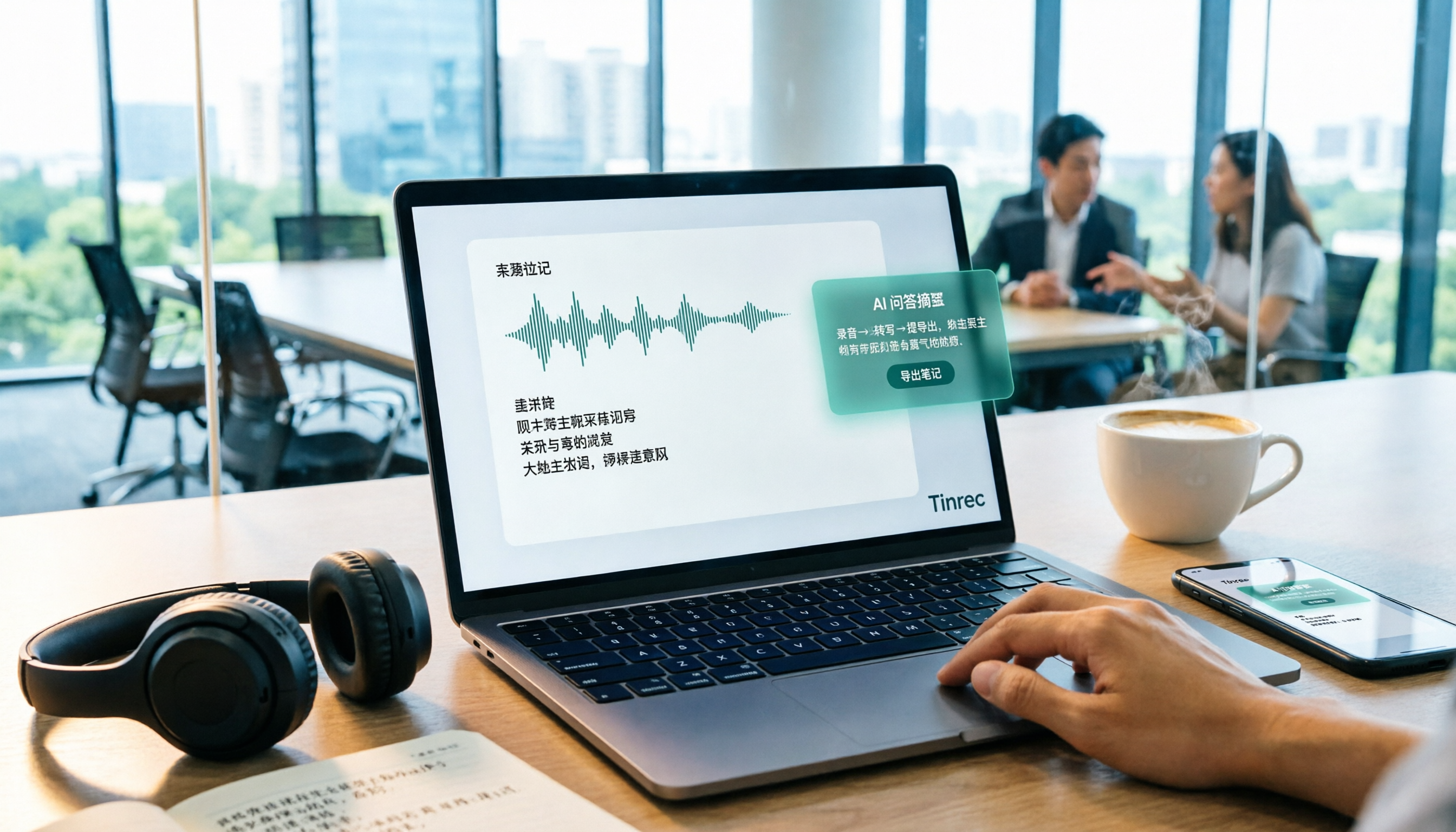
Best Audio-to-Text Tools in 2026: 5 Tested for Chinese Courses and Meeting Notes — This One Wins
From class recordings and meeting minutes to interview transcripts, this guide breaks down the complete audio-to-text workflow in five steps: how to record, what to check first after transcription, how to use AI Q&A to extract key points, and how to export results into usable notes. Using Tinrec as a hands-on example, it includes copyable prompt templates and buying tips.

4 Best Speech-to-Text Tools in 2026: Chinese Recognition, Free Tiers, and Post-Meeting Organization Compared
Many people confuse speech-to-text with text-to-speech and don't realize phone dictation can't process existing recordings. This article breaks down 4 key purchasing factors and compares Tinrec, Notta, Otter.ai, and PLAUD NotePin on positioning, quotas, and post-meeting organization, plus 3 common pitfalls to help you choose the right tool within budget.
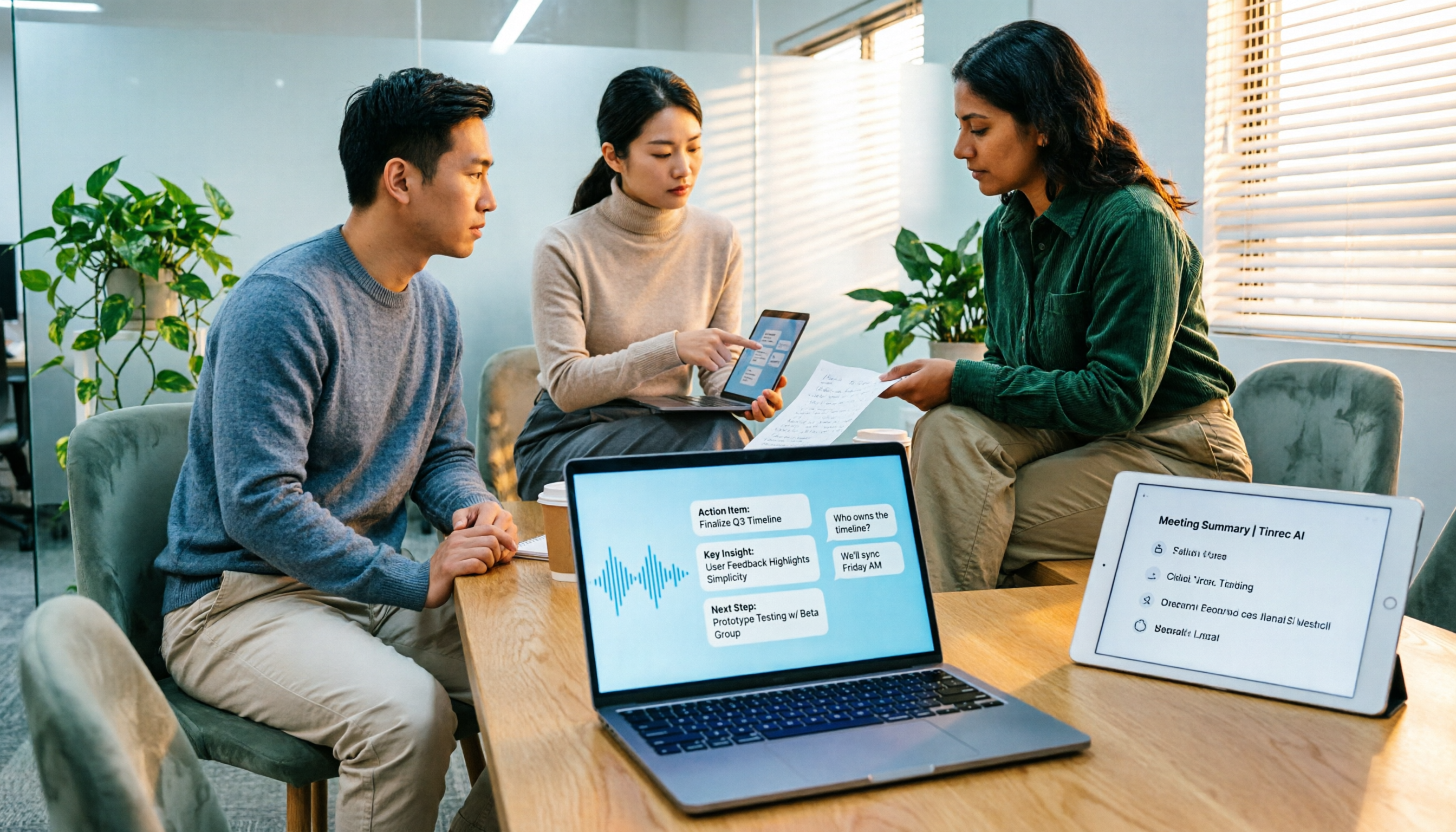
3 Speech-to-Text SDK Paths Compared for 2026: 3 Pitfalls to Avoid Before Building Your Own API Integration
A speech-to-text SDK is not a one-size-fits-all solution. Starting from common pitfalls, this article breaks down the applicable boundaries of Google Cloud Speech-to-Text, Azure Speech SDK, and Otter.ai, then explains how Tinrec fills the post-meeting organization gap with desktop bot-free recording, AI Q&A, and team spaces when you don't want to maintain your own service.

How to Use WeChat Voice-to-Text in 2026: 3-Step Guide + Practical Solutions for Long Meeting Transcripts
How do you use WeChat voice-to-text? This guide starts with hands-on steps: long-press a voice message to convert it to text, use voice input and say "over over" to send automatically, and understand its real limits in long meetings and interviews. It then explains four decision points—length, output, history search, and team sharing—to help you decide when to switch to an AI meeting notes tool like Tinrec, with hands-on tips and pitfalls to avoid.

How to Use Online Speech-to-Text in 2026: 5 Steps to Choose the Right Tool and Build a Transcription Workflow
There are many online speech-to-text tools, but the real reason you can't choose is usually not that the tools aren't good enough—it's that you haven't thought through where the text will go after it's produced. This article uses three key questions to help you set direction, then helps you pick the right one from five options: Tinrec, Dictation.io, Google Docs, MyEdit, and Notta. Finally, it gives you a 5-step workflow you can follow directly.