
Turn recordings into transcripts and summaries in minutes
Upload audio or video for multilingual transcription, AI notes, and action items
Renaming iPhone Voice Memos Is Easy, but Many People Look in the Wrong Place
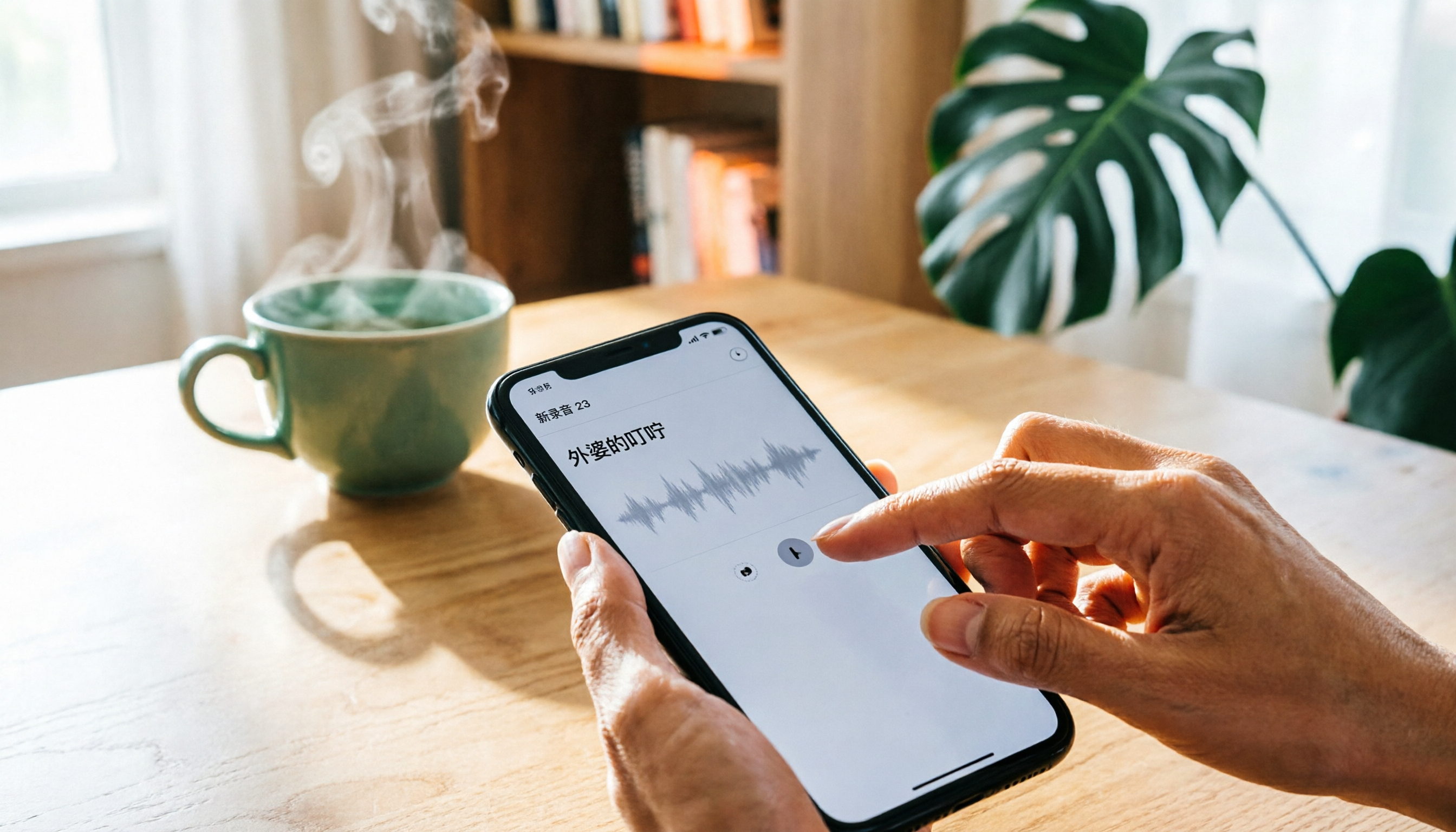
Many users think they need to go into the Files app to rename iPhone recordings, only to search endlessly without success. In fact, you can rename recordings right in the Voice Memos app—just tap the recording's name, and it takes less than 30 seconds.
The following steps use the built-in Voice Memos app on iPhone; the process is nearly identical on iPad and iPod touch.
Why Are Default Recording Names So Odd?
By default, iPhone recordings aren't named "Recording 1" or "Recording 2"—they're named after your location. For example, if you record a meeting in downtown San Francisco, the recording might automatically be called "San Francisco." If you record at home, it might use your neighborhood's name.
This happens because Location Services is enabled in Settings, and Voice Memos automatically detects your location to name recordings.
Here's the problem: If you often record in the same area, multiple recordings will share the same name, making them hard to find. So knowing how to rename recordings is a basic skill for managing your audio files.
3 Steps to Rename iPhone Voice Memos
Step 1: Open the Voice Memos App
Find the Voice Memos icon on your home screen and tap it to see the list of all recordings.
Step 2: Tap the Recording You Want to Rename
The recording will expand to show the playback screen and the recording name. At this point, tap the recording name directly.
Step 3: Enter a New Name
The name becomes editable. Use the keyboard to delete the old name and type in the new one. After typing, tap "Done" on the keyboard or tap anywhere else on the screen, and the new name takes effect immediately.
That's all there is to it. No need to go into Settings or the Files app—just tap the name right on the recording to change it.
Don't Want Automatic Location-Based Naming? Turn Off This Setting
If you find it annoying that every recording is named after your location, you can turn off this feature.
Here's how:
- Open the Settings app on your iPhone.
- Scroll down and tap "Voice Memos."
- Find the "Location-Based Naming" option.
- Toggle it off.
Once disabled, new recordings will use a generic default name like "New Recording" or "New Memo" instead of automatically using your location. After that, you can manually rename them to something recognizable, such as "Client Meeting March 5" or "Weekly Sync Key Points."
Note: This setting only affects future recordings. Existing recordings won't be renamed automatically—you'll need to handle them manually one by one.
Stop organizing recordings by hand
Upload audio or video and automatically get a transcript, summary, and action items
3 Practical Habits for Organizing Your Recordings
Renaming is just the first step. To find recordings faster, consider adopting these habits:
1. Rename Immediately After Recording
Right after a meeting or interview, rename the recording to something meaningful. Don't wait a week—by then, you'll have forgotten what the recording is about.
2. Use a Consistent Naming Format
For example, "Date_Subject_Type": "20260305_ClientMeeting_Recording." A consistent format helps you quickly identify content, especially when you have many recordings.
3. Regularly Delete Unwanted Recordings
iPhone recordings take up storage space. Spend a few minutes each month deleting recordings you no longer need, or back them up to the cloud first, to keep your list clean.
After Renaming, What Else Can You Do?
Renaming is just the beginning of managing your recordings. If you've recorded meetings, interviews, or lectures, you'll often need to process the content afterward.
For example, with Tinrec, you can upload your iPhone recordings to this type of AI meeting tool, which automatically generates transcripts, summaries, and action items. This saves you from having to listen back and type everything manually—saving you a lot of time.
However, when using any recording or transcription tool, remember to comply with local laws and obtain consent from participants when necessary.
Frequently Asked Questions
Q: Will renaming affect the recording content?
No. Renaming only changes the display name; the audio file itself remains unchanged.
Q: Can I change the recording date?
Voice Memos doesn't allow you to directly change the recording date. The date is automatically recorded based on when the recording was made.
Q: Can I recover deleted recordings?
Yes. Voice Memos has a "Recently Deleted" folder where deleted recordings are kept for a period of time, and you can restore them from there.
Q: Is there a length limit for recording names?
Generally, there's no strict limit, but it's best not to make names too long, as they may not display fully in the list, affecting readability.
Summary
Renaming iPhone voice memos is a simple 3-step process: tap the recording, tap the name, and enter a new name. The real headache is the default location-based naming, which causes many recordings to share the same name.
After turning off "Location-Based Naming" and adopting the habit of renaming immediately after recording, you won't have to hunt around for your recordings. If you also need to organize meeting notes after recording, consider using AI tools like Tinrec to transcribe and summarize, saving you time on manual work.
References
- Search and rename recordings in Voice Memos on iPhone - Apple Support (Taiwan)
- Search and rename recordings in Voice Memos on iPod touch - Apple Support (Taiwan)
- iPhone Voice Memos: How to Change Location-Based Naming - IN Gazette
- How to Rename Recordings on iPhone - Baidu Experience
- Search and rename recordings in Voice Memos on iPad - Apple Support (Taiwan)
Turn every recording into actionable outcomes
Get 60 free transcription minutes when you sign in. No credit card required.
Related Reading
You might also like

4 Transcription Tools Compared (2026): Free Tiers, AI Summaries, and Post-Meeting Organization
Transcription isn't the problem—organizing is. Based on real meeting scenarios, this article compares four transcription tools' free tiers, meeting capture methods, AI summaries, and post-meeting outputs, and explains which tool fits which use case.

2026 Comparison of 4 Meeting Minutes Word Solutions: Manual Templates vs. AI Auto-Generation—Which Is Faster?
Most people searching for "meeting minutes Word" download a template first, but still end up scrambling to fill in details afterward. This article starts with common pitfalls and compares the meeting minutes workflows of manual Word templates, Tinrec, Otter.ai, Notta, and Granola. It also covers essential fields for Word meeting minutes, a guide to avoiding mistakes, and selection advice.

5 Audio-to-Text Transcription Tools Tested for 2026: Which Free Version Is Good Enough?
How do you choose an audio-to-text transcription tool? This guide breaks down core capabilities like real-time transcription, AI summaries, action item extraction, export, and team collaboration based on real-world use cases. It includes hands-on testing with Tinrec, plus a look at free quotas, team plan pricing, and buying considerations to help you decide which option truly fits your needs.

Tinrec vs Yating Transcription 2026: 5-Dimension Comparison — Which Is More Practical for Team Meeting Transcripts?
There are many transcript generation tools, but what really affects your daily下班 time is 'what you can do after recording.' This article compares Tinrec and Yating Transcription from the perspective of a mid-level manager, across 5 dimensions: input sources, post-meeting organization, Chinese recognition, cross-platform, and team knowledge retention. It also covers suitable scenarios for cSubtitle and inFin, plus 4 key pitfalls to avoid when choosing a tool.

5 AI Meeting Transcription Tools Tested for 2026: Free Tiers, Chinese Recognition, and Post-Meeting Organization Compared
Meeting transcription isn't just about uploading a recording. This article addresses two common misconceptions, compares five approaches to meeting transcription, and uses Tinrec (Miao Ting Lu Yin) as a hands-on example to break down the complete workflow: real-time transcription, bot-free recording, summary chapters, AI Q&A, export, and team knowledge retention. Includes details on free and paid quotas.

2026 Comparison of 4 Speech-to-Text Tools: Free Tiers and Post-Meeting Organization—Which Is Enough?
Many people think speech-to-text just means dropping an audio file into a tool and waiting for the text. What really slows things down is post-meeting organization, finding key points, and tracking action items. This article compares Tinrec, Notta, Otter.ai, and Granola using real meeting scenarios—from free tiers, Chinese transcription, bot-free recording, AI Q&A, to team data retention—to help you decide which one best fits your workflow.

2026 Comparison of 3 AI Transcription Tools: Free Tiers, Chinese Recognition, and Post-Meeting Organization—Which One Really Saves Time?
Most people misunderstand AI transcription—they think it's just about turning voice into text. This article addresses three common misconceptions, explaining that transcripts are only raw material; the real time savings come from post-transcription summaries, action items, Q&A, and team knowledge retention. Using Tinrec as an example, it walks you through features, use cases, purchasing considerations, and FAQs.

5 Meeting Minutes Software Compared: Which One Actually Saves Time with Chinese Recognition and Post-Meeting Organization?
After a meeting, you're left with just two lines of notes while two hours of discussion stay locked in the recording? This article starts from real meeting scenarios, breaks down the 4 key dimensions for choosing meeting minutes software, and compares Tinrec, Otter.ai, Notta, Granola, and TurboScribe on Chinese recognition, meeting capture methods, post-meeting outputs, and team authorization differences. It also includes a pitfalls guide and selection advice.

2026 Guide: Turn AI Transcripts into Meeting Minutes & Action Items in One Go
Meeting transcripts are often long and messy, taking more time to organize than the meeting itself. This guide, from a mid-level manager's real work scenario, breaks down four key steps for transcript organization, tests Tinrec's bot-free recording and AI Q&A workflow, and honestly compares Notta, Otter.ai, and Granola's applicable boundaries, with three common mistakes and selection advice.