
Turn recordings into transcripts and summaries in minutes
Upload audio or video for multilingual transcription, AI notes, and action items
Before You Download a Recording App, You Might Not Have Fully Used the Built-in Features
Many people's first instinct is to search for "recording" on the App Store and then hesitate between a bunch of free and paid apps.
But honestly, the built-in Voice Memos on iPhone can handle most basic needs. What you really need to figure out is what you plan to do after recording—whether it's just for personal protection, class notes, meeting summaries, or converting to text transcripts.
Different use cases call for completely different tools. This article will help you decide based on real-world scenarios, rather than throwing a bunch of spec sheets at you to figure out on your own.
Before Choosing an iPhone Recording Method, Consider These 3 Things
Do You Need "Quick Start" or "Post-Processing"?
If you just need to quickly record a conversation, evidence, or an idea, the built-in Voice Memos is sufficient—no extra installation needed.
But if you need to turn the recording into a transcript, meeting notes, or to-do items, a plain audio file will cost you more time later. In that case, consider using a tool with AI transcription capabilities.
Is the Recording Environment Quiet or a Real Meeting Room?
Many tools claim high transcription accuracy, but their test conditions are often quiet recording studios. Real meetings have air conditioning noise, keyboard sounds, and people talking over each other, which can degrade performance.
When choosing a tool, it's best to test the free version with your own real recordings, rather than relying solely on official numbers.
Do You Need to Continue Processing on Devices Other Than iPhone?
You might record on your iPhone today, but tomorrow you may need to edit, transcribe, or share the file with colleagues on your computer. If the tool only supports iPhone, your workflow could get stuck.
Voice Memos: Built-in on iPhone, Best for Quick Personal Protection Recordings
Voice Memos is the built-in recording tool on iPhone, located in the "Utilities" folder, and requires no download.
Open the app, hit the red record button to start, and tap it again to stop. Recordings are saved as "New Recording" or by location name; tap the name to rename it.
Notably, you can enable silent mode during recording to turn off the start and stop sounds. This detail is handy in situations where you need to record discreetly.
On supported models, an ongoing recording appears on the Dynamic Island at the top of the screen; tap it to quickly return to Voice Memos without switching between apps.
Best for: Those who need occasional recordings, personal protection evidence, quick idea capture, and don't need transcription.
Limitations: You only get an audio file; converting it to text or key points requires manual effort.
Back Tap Quick Recording: No Need to Unlock and Find the App in Critical Moments
If you often find yourself in situations where you "can't open the recording app in time," you can bind the recording function to the Back Tap on your iPhone.
The setup is straightforward. First, open the "Shortcuts" app, tap the "+" in the top right, search for "Voice Memos" in the search bar, select "Create Recording," and hit Done. Then go to "Settings" > "Accessibility" > "Touch" > "Back Tap," choose "Double Tap" or "Triple Tap," scroll down to the shortcuts section, and find the newly created "Create Recording" to assign it.
After that, just double-tap or triple-tap the back of your phone to start recording. Note that you still need to unlock the screen first.
Best for: Those who need to start recording quickly and don't want to fumble in critical moments.
Limitations: Back Tap can occasionally trigger accidentally, and it takes some time to get used to.
GarageBand: Pre-installed, but More Geared Toward Music Recording
GarageBand is a free music creation tool pre-installed on Apple devices, and it can also be used to record voice, guitar, or other live audio.
Stop organizing recordings by hand
Upload audio or video and automatically get a transcript, summary, and action items
Open GarageBand, create a new project, allow microphone access, swipe left or right to find the "Audio Recorder," and start recording. After recording, you can play back, edit, and save the audio file.
However, if you just want to record a conversation or meeting, GarageBand's workflow is more cumbersome than Voice Memos. It's better suited for those with music recording or simple post-production needs.
Best for: Those who want to record instruments, do simple audio editing, or are already familiar with GarageBand.
Limitations: The steps for recording regular conversations or meetings are excessive and not intuitive.
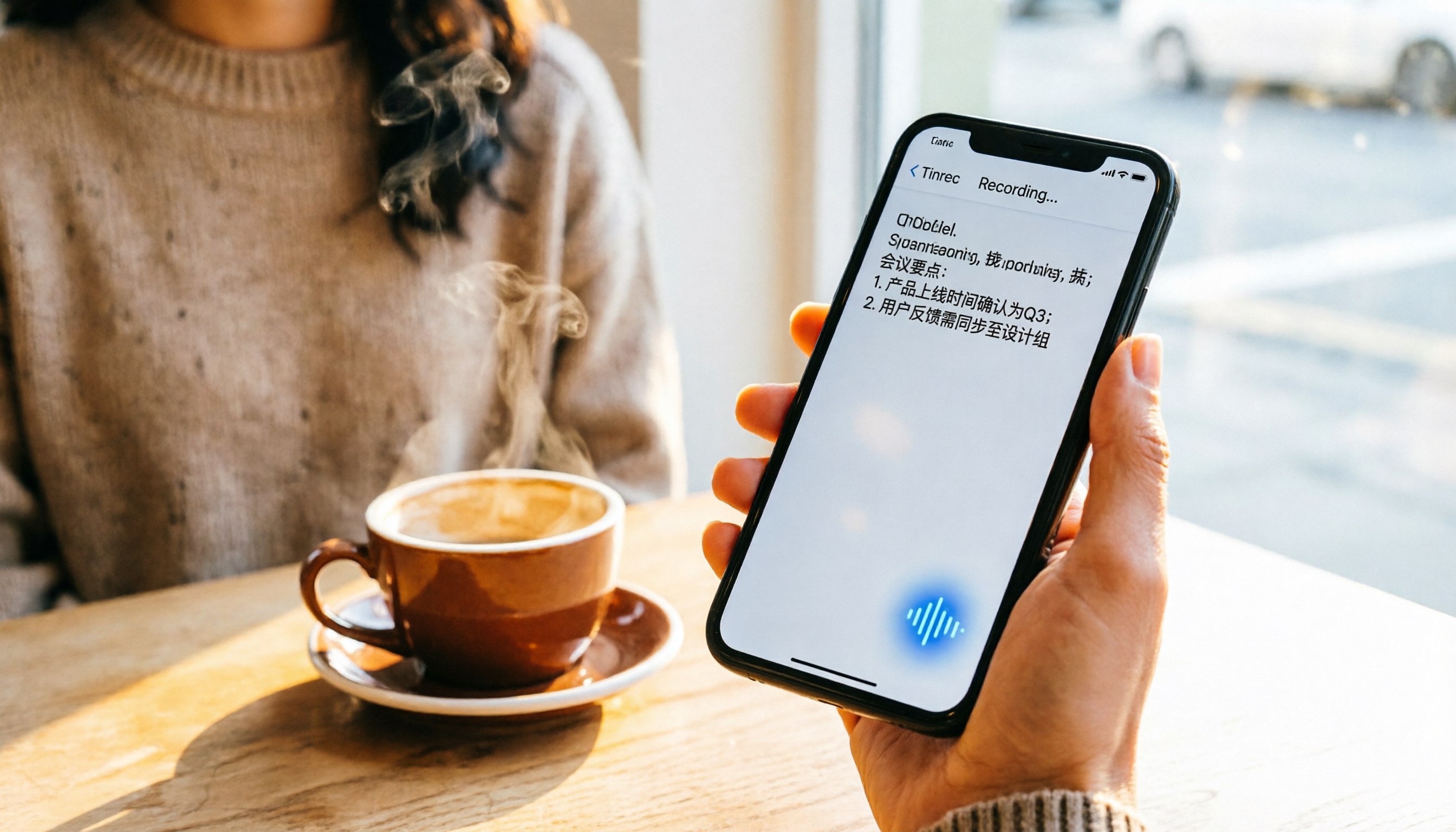
Tinrec: Record and Get Text and To-Dos Ready Immediately
If your goal is meeting minutes, interview notes, or client communication, Tinrec is a more complete choice than a simple recording app.
Tinrec is an AI meeting notes and collaboration tool that supports iOS, Android, and web versions. It doesn't just transcribe audio; it also automatically generates summaries, chapters, key points, and action items.
The use case is practical: open Tinrec before a meeting, and it transcribes in real time. After the meeting, the AI has already organized who is responsible for what and the deadlines. You don't need to spend two hours replaying the recording and manually typing up the transcript.
Even better is the AI Q&A feature. You can ask Tinrec directly, "Who mentioned the budget in the last meeting?" It provides answers based on semantic understanding, not just keyword search results. This is extremely useful for those who frequently need to look up past meetings.
Tinrec also supports uploading existing audio or video files for transcription, so you can import old iPhone Voice Memos recordings for organization.
Best for: Professionals and teams who have frequent meetings, need transcripts and to-dos, and want to quickly find meeting highlights using AI.
Limitations: The free version has usage limits; heavy users need to pay. We recommend trying the free version with your own real recordings before deciding to upgrade.
Are There Other Options Besides These?
Otter.ai
It's mature for English meetings, and the free tier offers a generous 300 minutes per month. If you primarily record English content, Otter.ai is worth considering. However, it doesn't support Cantonese, and its Chinese language support isn't as tailored to Taiwanese users as Tinrec.
Notta
It offers comprehensive multi-device transcription and translation features, similar to Tinrec's positioning. However, Notta's integration depth in areas like bot-free online meeting recording, AI Q&A, and team knowledge management isn't as complete as Tinrec's.
PLAUD Note
If you prefer standalone recording hardware, PLAUD is a representative portable recording device. But it requires purchasing additional hardware, whereas Tinrec doesn't require carrying an extra device—you can use it directly on your phone and computer.
Pitfall Guide: 3 Common Mistakes in iPhone Recording
1. Only Looking at the Tool Name, Not Thinking About "What Happens After Recording"
Many people download a recording app just to "record," but the real time sink is post-processing. If you have to manually replay and transcribe every meeting, no tool can help you, no matter how simple it is.
2. Ignoring Cross-Platform Needs
You record on your iPhone today and organize on your computer tomorrow. If the tool doesn't support cross-platform sync, it'll be a pain. Before choosing a tool, confirm whether you'll only use it on your phone.
3. Confusing Recording Apps with AI Organization Tools
Recording apps are for "storing audio," while AI organization tools are for "turning it into usable data." If your need is meeting minutes and action item tracking, directly choose a tool with AI transcription and summarization features—it'll save you a ton of time compared to recording first and processing later.
Summary: Which One Should You Choose?
Simply put, first determine whether your core need is "quick recording" or "post-recording organization."
- For occasional personal protection or quick recording → Use the built-in Voice Memos, and pair it with Back Tap for convenience.
- For recording instruments or simple audio editing → GarageBand.
- For meeting minutes, interview notes, or needing transcripts and to-dos → Tinrec, starting with the free version.
- For recording only English meetings with zero budget → Otter.ai's free version.
We recommend starting with the built-in Voice Memos for basic recording needs. If you find yourself manually organizing recordings every week, that's when it's time to consider upgrading to an AI organization tool like Tinrec.
References
Turn every recording into actionable outcomes
Get 60 free transcription minutes when you sign in. No credit card required.
Related Reading
You might also like

Tinrec vs Otter.ai: Real-Time Translation Software Comparison for Chinese Meetings (2026)
Based on a student's hands-on experience, this comparison evaluates Tinrec and Otter.ai across five dimensions: real-time translation, Chinese-English mixed speech recognition, free tier limits, post-meeting organization, and recording sources. It verifies pricing and restrictions for each plan and explains which real-time translation software better suits classroom, group project, and international meeting scenarios for Taiwanese university students.

2026 Comparison of 5 Speech-to-Text Tools: Is the Free Version Enough, and Which Handles Chinese Meetings Better?
Speech-to-text isn't just about turning audio into words. This article addresses three common misconceptions, breaks down the real differences between speech-to-text tools, and uses Tinrec to demonstrate a complete workflow from recording, transcription, summarization, to-dos, to team knowledge retention. It also includes 5 purchasing checkpoints and FAQs.

2026 Comparison of 4 Free Transcription Tools: Which One Has the Best Free Quota and Post-Meeting Organization?
Based on real scenarios of meetings, classes, and interviews, this article compares the free transcription capabilities of Tinrec, Google AI Studio, Good Tape, and oTranscribe, and summarizes free quotas, Chinese recognition, post-meeting summaries, and export limitations to help you decide which one to try first.
Free Transcription in 2026: Tinrec's 3-Step Audio-to-Text with AI Summary & Action Items
Turn class, meeting, and interview recordings into searchable transcripts even on a tight budget. This guide covers 4 key factors for choosing a free transcription tool, tests Tinrec's audio-to-text, AI Q&A, and action item extraction workflow, and honestly compares the free limits and use cases of Google AI Studio, Yating Transcription, and MyEdit.

2026 Comparison of 4 Transcript Generation Tools: Which Free Version Works Best for Chinese Meetings?
2026 comparison of 4 transcript generation tools, analyzing Tinrec, Notta, TurboScribe, and Otter.ai from input sources, post-meeting organization, Chinese terminology, team data ownership, and free quotas, and providing a buying guide to avoid pitfalls.

4 Transcription Tools Compared (2026): Free Tiers, AI Summaries, and Post-Meeting Organization
Transcription isn't the problem—organizing is. Based on real meeting scenarios, this article compares four transcription tools' free tiers, meeting capture methods, AI summaries, and post-meeting outputs, and explains which tool fits which use case.

2026 Comparison of 4 Meeting Minutes Word Solutions: Manual Templates vs. AI Auto-Generation—Which Is Faster?
Most people searching for "meeting minutes Word" download a template first, but still end up scrambling to fill in details afterward. This article starts with common pitfalls and compares the meeting minutes workflows of manual Word templates, Tinrec, Otter.ai, Notta, and Granola. It also covers essential fields for Word meeting minutes, a guide to avoiding mistakes, and selection advice.

5 Audio-to-Text Transcription Tools Tested for 2026: Which Free Version Is Good Enough?
How do you choose an audio-to-text transcription tool? This guide breaks down core capabilities like real-time transcription, AI summaries, action item extraction, export, and team collaboration based on real-world use cases. It includes hands-on testing with Tinrec, plus a look at free quotas, team plan pricing, and buying considerations to help you decide which option truly fits your needs.

Tinrec vs Yating Transcription 2026: 5-Dimension Comparison — Which Is More Practical for Team Meeting Transcripts?
There are many transcript generation tools, but what really affects your daily下班 time is 'what you can do after recording.' This article compares Tinrec and Yating Transcription from the perspective of a mid-level manager, across 5 dimensions: input sources, post-meeting organization, Chinese recognition, cross-platform, and team knowledge retention. It also covers suitable scenarios for cSubtitle and inFin, plus 4 key pitfalls to avoid when choosing a tool.