

Turn recordings into transcripts and summaries in minutes
Upload audio or video for multilingual transcription, AI notes, and action items
Google Meet vs Zoom | Quick Overview
Many people see Google Meet and Zoom for the first time and ask, "Aren't these the same thing?"
At the highest level, they do the same job: getting a group of people into a video call quickly. But once you actually use them, the positioning, free-tier limits, and workflow logic differ significantly.
Google Meet feels more like an extension of Google Workspace, ideal for teams already using Gmail, Google Calendar, and Google Drive. Zoom, on the other hand, is a full platform built around meetings, offering deeper features but with more complexity.
This article breaks down the free-tier limits, meeting experience, collaboration features, and ideal use cases to help you decide which one fits your needs.
Dimension 1 | Free Plan: Which One Has Fewer Restrictions?
Google Meet's free plan is quite generous for individual users. The free tier allows you to host group video calls for up to 60 minutes per session, while one-on-one meetings can last up to 24 hours.
Zoom's free plan also supports up to 100 participants, but group meetings are capped at 40 minutes. Once the time is up, the meeting ends automatically and you need to restart.
If your use case involves long team discussions, online classes, or client interviews, Google Meet's 60-minute limit gives you more breathing room. But for quick check-ins or daily stand-ups, Zoom's 40 minutes is usually sufficient.
→ In this dimension, Google Meet has the advantage in free meeting duration.
Dimension 2 | Interface: Simple and Easy vs Feature-Rich
Google Meet's interface leans toward minimalism. Once you're in a meeting, the main controls are all at the bottom, keeping the screen clean. For people who don't use video conferencing often, the learning curve is lower.
Zoom has more buttons and options, including breakout rooms, whiteboard, remote control, and polling. The upside is flexibility, but first-time users might find the interface a bit cluttered.
Honestly, if you just need to have a meeting, share your screen, and talk on camera, Google Meet's simplicity is a plus. If you need to host large events or run complex interactions, Zoom's feature set is more practical.
→ In this dimension, Google Meet is better for general users due to ease of use; Zoom suits hosts who need advanced controls.
Dimension 3 | In-Meeting Collaboration: Which One Works Better for Teams?
Google Meet's strength lies in its integration with Google Workspace. During a meeting, you can open Google Docs, Sheets, and Slides directly, and everyone sees changes in real time without switching apps.
Zoom goes further with collaboration features, offering collaborative notes, documents, and a whiteboard. Multiple members can work on the same whiteboard or document, making it great for brainstorming, teaching, and co-creating content.
One thing to note: Google Meet's in-meeting chat is group-only, with no private messaging. Zoom, however, allows one-on-one private messages during a meeting, which is handy in large meetings or when you need to coordinate discreetly.
→ In this dimension, if you value the Google Docs ecosystem, Google Meet is smoother; if you need whiteboards and private chat, Zoom is more complete.
Dimension 4 | Post-Meeting Organization: Transcripts, Summaries, and Next Steps
Google Meet's built-in captions and some transcription features are more complete in paid plans, but they're mainly focused on the live meeting. After the meeting, if you need to organize key points, action items, or generate reports, you'll typically need additional tools.
Zoom also offers recording and transcription, but the focus is mostly on the meeting itself and playback.
Stop organizing recordings by hand
Upload audio or video and automatically get a transcript, summary, and action items
If you care a lot about "post-meeting documentation," consider pairing with an AI meeting assistant like Tinrec. Tinrec's desktop app can capture your computer's system audio directly, so you don't need to add a bot to Google Meet or Zoom. It provides real-time transcription and generates summaries, chapters, and action items after the meeting, and you can even ask follow-up questions about the content.
For anyone with multiple meetings a week who needs to look back at decisions or track action items, this is more practical than relying solely on built-in platform features.
→ In this dimension, both Google Meet and Zoom have basic built-in organization features, but deeper post-meeting organization still requires additional tools.
Dimension 5 | Ideal Users: Who Should Choose Which?
Google Meet is better for teams already deeply using Google Workspace. Calendar scheduling, meeting links, and document collaboration all live in the same ecosystem, making workflows seamless.
Zoom is better for organizations that need large meetings, webinars, breakout rooms, and deep customization. Its meeting controls are extensive, making it friendlier for professional hosts.
If you're an individual user who occasionally video calls with friends, family, or clients, Google Meet's free plan is already very good. If you run online courses, large events, or need lots of interactive features, Zoom is the more complete choice.
→ In this dimension, there's no absolute winner; it depends on your primary use case.
What Are Their Unique Strengths?
Google Meet's Strengths
- Deep integration with Google Calendar, Gmail, and Drive makes scheduling and joining meetings intuitive.
- Free group meetings last up to 60 minutes, 20 minutes longer than Zoom's free tier.
- Simple interface, ideal for those who don't use video tools often.
- Edit Google Docs, Sheets, and Slides directly during a meeting, perfect for document-driven teams.
Zoom's Strengths
- Comprehensive meeting controls, including whiteboard, breakout rooms, polling, and remote control.
- Supports one-on-one private chat during meetings, making coordination easier in large sessions.
- Ideal for webinars, large courses, and events that need deep customization.
Summary: Which One Should You Choose?
- If you already use Google Workspace and need a quick, simple meeting experience → Google Meet is a great fit.
- If you need longer group meetings on the free plan → Google Meet's 60-minute limit gives you more leeway.
- If you value advanced interactions like whiteboards, breakout rooms, and private chat → Zoom is more complete.
- If you host large online events or courses → Zoom's features and customization options better meet your needs.
- If you want automatic transcripts, summaries, and action items after meetings without manual work → consider pairing with an AI meeting assistant like Tinrec to fill the gap in post-meeting organization for both platforms.
In one sentence: Google Meet and Zoom aren't the same tool, but they solve the same type of problem. For everyday meetings, Google Meet's simplicity and free duration are plenty; for advanced interactions and large events, Zoom's depth is more complete.
FAQ
Are Google Meet and Zoom the same?
No. Both are video conferencing tools, but Google Meet leans toward Google Workspace integration with a simpler interface, while Zoom is meeting-centric, offering more advanced interactive and customization features.
How long can a Google Meet free meeting last?
Group video calls last up to 60 minutes per session, and one-on-one meetings can last up to 24 hours.
How long can a Zoom free meeting last?
The free plan supports up to 100 participants, but group meetings are limited to 40 minutes, after which the meeting ends automatically.
Do I need a meeting bot for transcription?
Not necessarily. Tools like Tinrec can capture your computer's system audio directly via a desktop app, so you don't need to add a bot to Google Meet or Zoom for real-time transcription and post-meeting organization.
Which one is better for team use?
If your team already uses Google Workspace, Google Meet offers a better integrated experience; if you need whiteboards, breakout rooms, private chat, and large-event features, Zoom is more complete.
Can I automatically generate summaries and action items after a meeting?
Built-in features in Google Meet and Zoom are limited. For deeper summaries, action item extraction, and post-meeting Q&A, you can use an AI meeting assistant like Tinrec.
References
Turn every recording into actionable outcomes
Get 60 free transcription minutes when you sign in. No credit card required.
Related Reading
You might also like
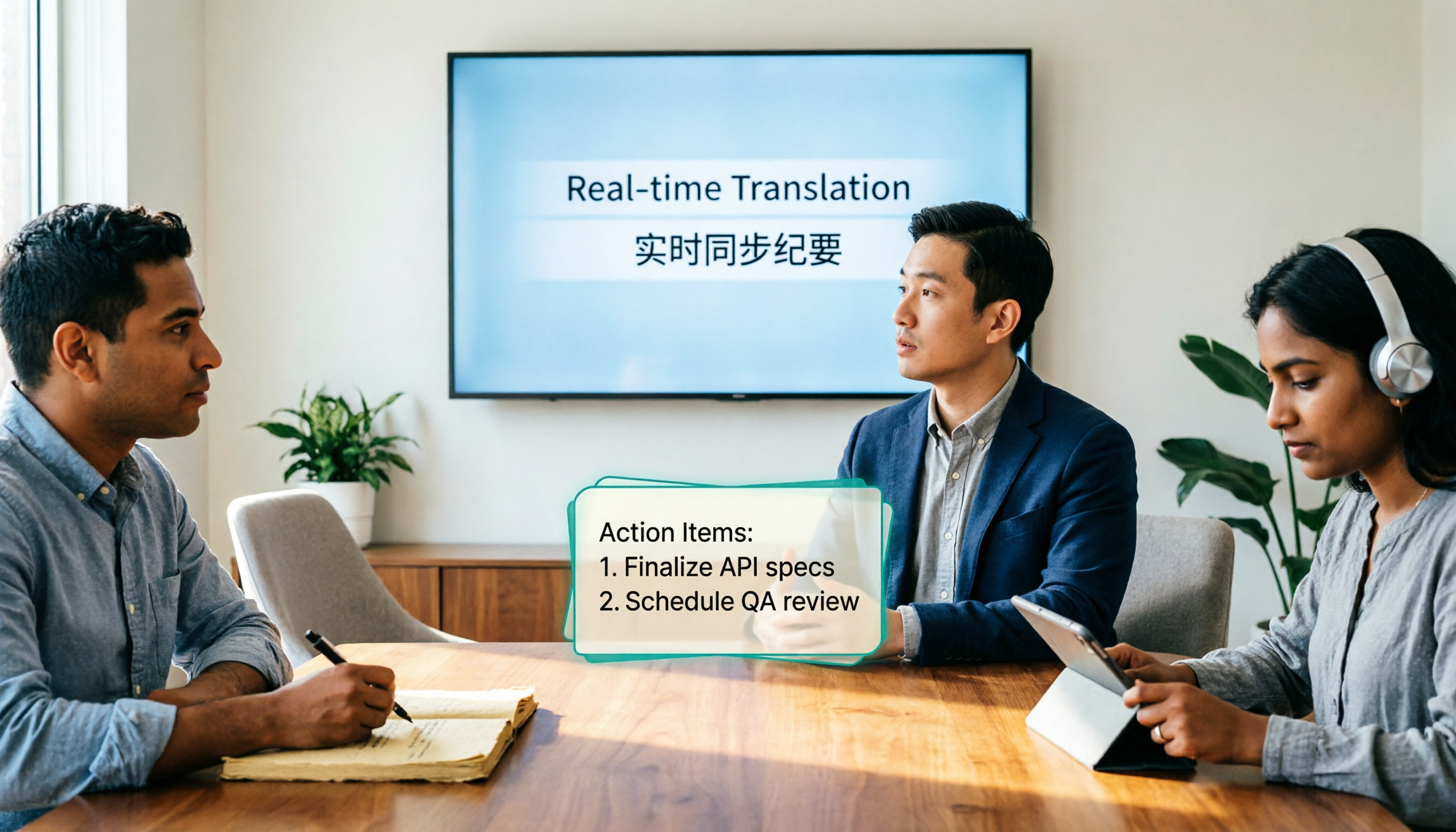
4 Real-Time Translation Tools Tested for 2026: Which One Leaves You With Usable Meeting Notes?
Real-time translation tools solve the problem of understanding in the moment, but the real cost comes after the meeting. This article compares Tinrec, Transync AI, Vurbo.ai, and Notta on real-time translation, bilingual transcripts, post-meeting AI Q&A, and team management, and provides 4 key purchasing criteria, 3 common pitfalls to avoid, and scenario-based recommendations to help you explain clearly why you chose a particular tool.

Best Real-Time Translation Tools in 2026: 4 Tested, Top Free Pick for Meetings
How to choose a free real-time translation tool? This article covers three needs: web reading, ad-hoc interpretation, and cross-language meetings. We tested Tinrec, Google Translate, Immersive Translate, and Transync AI, summarizing free quotas, limitations, and use cases, and explain how Tinrec turns meeting recordings into transcripts, summaries, action items, and team data.

Tinrec vs Notta 2026: Real-Time Translation AI 5-Dimension Comparison, Which Is Better for Chinese Meetings?
Real-time translation AI isn't just about the number of languages—it's also about meeting capture methods, bilingual subtitles, post-meeting organization, AI Q&A, and team data ownership. This article compares Tinrec and Notta across 5 dimensions and explains which Chinese meeting scenarios each suits.

4 Free Simultaneous Interpretation Tools Tested: Which Offers Enough Free Minutes and Post-Meeting Value?
How to choose a free simultaneous interpretation tool? This article reviews four free-trial real-time translation tools—Tinrec, JotMe, Transgull, and Felo Translate—comparing them across five aspects: free quota calculation, translation presentation, recording and transcript retention, post-meeting organization, and team collaboration. It also includes a pitfalls guide and buying advice to help you find the one that truly saves time.

2026 Comparison of 3 Meeting Transcription Tools: Tinrec Turns Transcripts into Action Items
Turning meeting recordings into transcripts isn't hard—the hard part is post-meeting organization. Starting from meeting transcription needs, this article compares Tinrec, Notta, Good Tape, and Yating Transcript, covering transcription, online meeting recording, summary and to-dos, AI Q&A, and team collaboration to help you find the right meeting notes tool.

2026 Online Simultaneous Interpretation Guide: Tinrec Real-Time Translation + Bilingual Transcripts as an Alternative to Traditional Translation Apps
Online simultaneous interpretation is not just about real-time translation—it also depends on whether post-meeting materials are usable. This article addresses common misconceptions and explains how Tinrec uses desktop bot-free recording, real-time transcription, and bilingual translation, combined with summaries, action items, AI Q&A, and team spaces, to turn cross-language meetings into searchable, collaborative records.

How to Use Real-Time Voice Translation in 2026: 5 Steps from Recording to Bilingual Transcript
In cross-language meetings, front-desk reception, and international calls, real-time voice translation needs to solve more than just "understanding in the moment"—it also needs to leave you with usable records afterward. This article breaks down real-time voice translation tools using 5 key selection criteria, compares Tinrec, Transync AI, Vurbo.ai, and JotMe in hands-on testing, and summarizes 4 common pitfalls to help you choose the one that truly works for you.

How to Generate Transcripts with Tinrec in 2026: Bot-Free Recording + AI Summaries and Action Items
Transcript generation isn't just about feeding an audio file into a tool. This guide tackles four common pitfalls and compares Tinrec with Yating Transcription across meeting capture, Chinese recognition, post-meeting organization, AI Q&A, export, and team governance to help you decide which workflow truly saves time.

2026 Comparison of 3 Transcription Tools: Which One Actually Turns Meeting Recordings into Usable Data?
The real difference between transcription tools isn't speed—it's whether the output is ready to use. Starting from the question 'Do you want text or results?', this article outlines 4 key buying criteria, compares Tinrec, Notta, Otter.ai, and Granola on meeting recording, transcript organization, AI Q&A, export, and team collaboration, and includes a pitfalls guide and scenario-based recommendations.