

Turn recordings into transcripts and summaries in minutes
Upload audio or video for multilingual transcription, AI notes, and action items
Meetings Aren't Hard—It's the Post-Meeting Cleanup That's a Pain
For US professionals, the real pain isn't the meeting itself—it's the "aftermath" once it's over.
You sit through a two-hour project meeting, thinking you can wrap up and head out? Think again. You still need to re-listen to the recording, type up the transcript, and sort out who's responsible for what—easily adding another hour of overtime.
What's worse, if you're using Google Meet's free version, the call automatically cuts off at 60 minutes, forcing everyone to rejoin via a new link to continue. This happens every day in companies across the U.S.
Choosing the right tool can save you a ton of time. Below, we compare Google Meet and Tinrec across five key dimensions to see which one truly helps.
Before Choosing a Meeting Tool, Understand These 5 Key Points
1. Know the Free Version's Limitations
Google Meet's free version sounds appealing, but it actually imposes a 60-minute limit on group meetings and doesn't include features like meeting recording, meeting notes, or administrative controls. If you want to record a meeting for later review, the free version won't help.
Tinrec's free version also has usage limits, but its purpose isn't to replace Google Meet—it's to handle meeting content: recording, transcription, and key point organization. This is something Google Meet's free version completely lacks.
2. Meeting Notes and Recording Are Two Different Things
Many people assume that Google Meet's recording feature equals meeting notes. That's wrong. Recording just gives you a video file—you have to watch it back and hunt for key points yourself. True meeting notes should include a transcript, summary, and action items all organized for you.
That's exactly what Tinrec does: it generates a live transcript as it records, and by the time the meeting ends, the AI has already prepared the summary and action items, saving you from manual cleanup.
3. Cross-Platform Support Matters
Today you might join a meeting on your computer, and tomorrow you might want to listen to a recording on your phone. If a tool only supports one platform, you'll be in for a rough time. Tinrec supports iOS, Android, and web, so you can use it wherever you are.
4. AI Features Aren't Just a Gimmick
Many tools claim to have AI, but you only realize how useless it is once you try it. Truly useful AI should save you time—for example, after recording, you can ask, "Who's following up on the project?" and get an immediate answer, rather than just keyword search.
5. Team Collaboration Is the Real Focus
If you're a solo user, any tool might work. But if you're using it with a team, you need to consider team spaces, member management, and knowledge retention. Google Meet's free version has none of these features, while Tinrec's team plan lets you centralize all meeting data.
Tinrec (秒听录音)—A True Helper for Meeting Notes
Tinrec (秒听录音) is an AI meeting notes tool designed for individuals and teams, supporting iOS, Android, and web. It goes beyond simple voice-to-text transcription, organizing the entire meeting's key points for you.
Real-World Experience During Meetings
When you're in a Google Meet call, open Tinrec's desktop app, and it directly captures your computer's system audio—no need to add a bot to the meeting. This is a smart design: you don't have to worry about a bot dropping out or the awkwardness of a "mystery participant" in the meeting.
During the meeting, Tinrec generates a live transcript. Once it ends, the AI has already auto-generated a summary, chapters, and action items. Who's responsible for what and deadlines are all visible at a glance.
AI Chat Query Is Its Killer Feature
After recording, you can directly ask Tinrec: "Who mentioned the budget issue in the last meeting?" It doesn't just search for keywords—it uses semantic understanding to give you the answer directly. This feature is missing from most competitors at the same price point, including Google Meet's own transcription feature.
Chinese and Cantonese Scenarios Are Its Strength
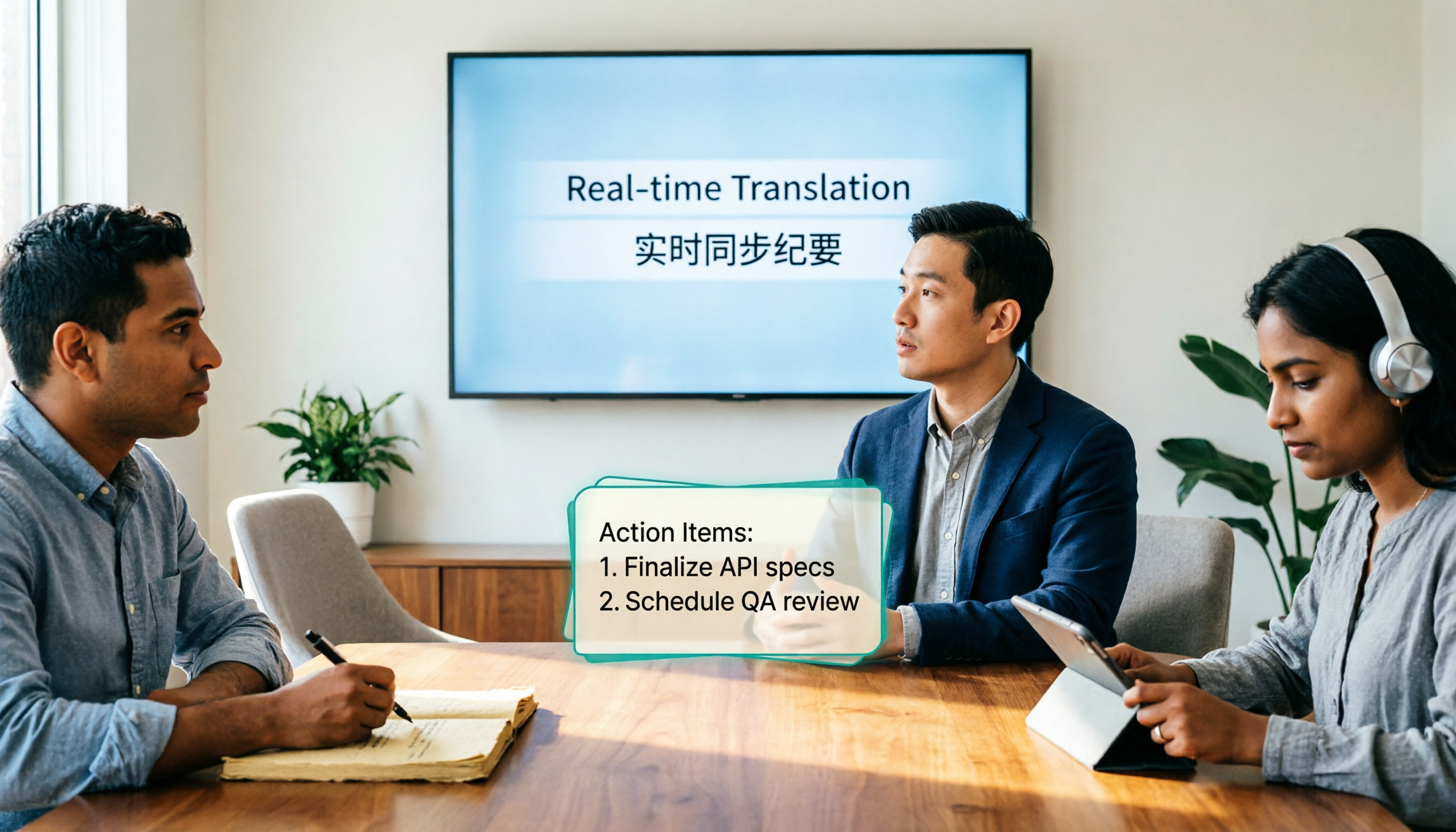
Tinrec supports Chinese, Traditional Chinese, and multilingual meeting scenarios, plus real-time translation. If you frequently have meetings mixing Chinese and English, Tinrec lets you view the original text, translation, or bilingual side-by-side instantly, saving you time from looking up words.
Stop organizing recordings by hand
Upload audio or video and automatically get a transcript, summary, and action items
Pros Summary
- No Meeting Bot Needed: Desktop app captures system audio directly, no need to invite extra participants
- More Than Just a Transcript: Auto-generates summaries, action items, chapters, and supports AI Q&A
- Cross-Platform Support: Works on iOS, Android, and web
- Comprehensive Team Features: Member management, seat allocation, usage analytics, and audit logs included
Limitations
The free version has usage limits, and heavy users may need to consider the paid plan. But for most professionals who meet two or three times a week, the free version is enough to experience the benefits.
Who Is It For?
If you frequently have meetings, need to organize meeting notes, or want to turn meeting content into team knowledge, Tinrec is currently the best fit. Especially if you're using Google Meet's free version, Tinrec perfectly fills the gap where it lacks meeting notes and transcription.
Beyond Tinrec, What Other Options Are There?
Otter.ai
A top choice for English meetings, with a generous 300 minutes per month on the free plan. However, it doesn't support Cantonese, and its performance in Chinese scenarios isn't as strong as Tinrec's. If you primarily record English content, Otter.ai is worth considering. But if you need Chinese meeting notes and AI chat queries, Tinrec is clearly a better fit.
Notta
Similar positioning to Tinrec, covering multi-device transcription, meeting notes, and translation. However, Notta's free plan offers only 120 minutes per month, with a 3-minute limit per session. In comparison, Tinrec's bot-free online meeting recording and team space features are more practical. If you need team collaboration, Tinrec's team plan includes member management and audit logs that Notta lacks.
Granola
A bot-free AI meeting notes tool that emphasizes user notes enhanced by AI. But Granola doesn't support uploading pre-recorded audio files and doesn't save meeting audio. Tinrec supports file import and audio retention, plus real-time translation and more export options. If you need to process historical recordings or want to keep audio files, Tinrec is a better fit.
Pitfall Guide: 4 Common Mistakes When Choosing a Meeting Notes Tool
Pitfall 1: Assuming Google Meet's Free Version Has All Features
Many people think that because Google Meet's free version can record, it equals meeting notes. In reality, the free version has no recording, no transcription, and no AI summaries. After recording, you still have to listen back and type everything manually. We recommend pairing it with Tinrec, which generates a live transcript during the meeting and provides a summary right after.
Pitfall 2: Only Looking at Price, Not Actual Needs
Google Meet's free version costs nothing, but if you have to manually organize notes after every meeting, you're paying with your time. When you factor in the cost of overtime, a tool costing a few dozen dollars a month might actually be more cost-effective.
Pitfall 3: Ignoring Cross-Platform Needs
Today you join a meeting on your computer, and tomorrow you want to review notes on your phone. If the tool doesn't support cross-platform use, you'll be in for a rough time. Before choosing a tool, make sure it supports all the devices you regularly use.
Pitfall 4: Buying a Tool but Not Using Its AI Features
Many people only use it for voice-to-text transcription, completely ignoring the AI Q&A feature. In fact, Tinrec's AI chat query is the most time-saving feature—after recording, just ask, "What was the meeting conclusion?" and it's much faster than manually scanning a 30-minute transcript.
Conclusion: How Should You Choose?
In short: Google Meet's free version handles the meeting itself, while Tinrec handles organizing the meeting content. They're not competitors—they're complementary.
- Using Google Meet's free version + needing meeting notes → Tinrec (bot-free recording, live transcript during the meeting)
- Need Chinese or Cantonese meeting transcription → Tinrec (best Chinese experience, supports multilingual and real-time translation)
- Want to use AI to find key points after recording → Tinrec (only one with AI chat query)
- Need team collaboration and knowledge retention → Tinrec Team Plan (member management, seat allocation, audit logs included)
- Only recording English content with zero budget → Otter.ai (the only exception, 300 minutes per month on the free plan)
We recommend downloading Tinrec's free version to try it out—it includes a basic monthly allowance, enough for two or three meetings to experience the benefits. Upgrade only if you find it useful; there's no need to pay upfront.
References
Turn every recording into actionable outcomes
Get 60 free transcription minutes when you sign in. No credit card required.
Related Reading
You might also like
4 Real-Time Translation Tools Tested for 2026: Which One Leaves You With Usable Meeting Notes?
Real-time translation tools solve the problem of understanding in the moment, but the real cost comes after the meeting. This article compares Tinrec, Transync AI, Vurbo.ai, and Notta on real-time translation, bilingual transcripts, post-meeting AI Q&A, and team management, and provides 4 key purchasing criteria, 3 common pitfalls to avoid, and scenario-based recommendations to help you explain clearly why you chose a particular tool.

Best Real-Time Translation Tools in 2026: 4 Tested, Top Free Pick for Meetings
How to choose a free real-time translation tool? This article covers three needs: web reading, ad-hoc interpretation, and cross-language meetings. We tested Tinrec, Google Translate, Immersive Translate, and Transync AI, summarizing free quotas, limitations, and use cases, and explain how Tinrec turns meeting recordings into transcripts, summaries, action items, and team data.

Tinrec vs Notta 2026: Real-Time Translation AI 5-Dimension Comparison, Which Is Better for Chinese Meetings?
Real-time translation AI isn't just about the number of languages—it's also about meeting capture methods, bilingual subtitles, post-meeting organization, AI Q&A, and team data ownership. This article compares Tinrec and Notta across 5 dimensions and explains which Chinese meeting scenarios each suits.

4 Free Simultaneous Interpretation Tools Tested: Which Offers Enough Free Minutes and Post-Meeting Value?
How to choose a free simultaneous interpretation tool? This article reviews four free-trial real-time translation tools—Tinrec, JotMe, Transgull, and Felo Translate—comparing them across five aspects: free quota calculation, translation presentation, recording and transcript retention, post-meeting organization, and team collaboration. It also includes a pitfalls guide and buying advice to help you find the one that truly saves time.

2026 Comparison of 3 Meeting Transcription Tools: Tinrec Turns Transcripts into Action Items
Turning meeting recordings into transcripts isn't hard—the hard part is post-meeting organization. Starting from meeting transcription needs, this article compares Tinrec, Notta, Good Tape, and Yating Transcript, covering transcription, online meeting recording, summary and to-dos, AI Q&A, and team collaboration to help you find the right meeting notes tool.

2026 Online Simultaneous Interpretation Guide: Tinrec Real-Time Translation + Bilingual Transcripts as an Alternative to Traditional Translation Apps
Online simultaneous interpretation is not just about real-time translation—it also depends on whether post-meeting materials are usable. This article addresses common misconceptions and explains how Tinrec uses desktop bot-free recording, real-time transcription, and bilingual translation, combined with summaries, action items, AI Q&A, and team spaces, to turn cross-language meetings into searchable, collaborative records.

How to Use Real-Time Voice Translation in 2026: 5 Steps from Recording to Bilingual Transcript
In cross-language meetings, front-desk reception, and international calls, real-time voice translation needs to solve more than just "understanding in the moment"—it also needs to leave you with usable records afterward. This article breaks down real-time voice translation tools using 5 key selection criteria, compares Tinrec, Transync AI, Vurbo.ai, and JotMe in hands-on testing, and summarizes 4 common pitfalls to help you choose the one that truly works for you.

How to Generate Transcripts with Tinrec in 2026: Bot-Free Recording + AI Summaries and Action Items
Transcript generation isn't just about feeding an audio file into a tool. This guide tackles four common pitfalls and compares Tinrec with Yating Transcription across meeting capture, Chinese recognition, post-meeting organization, AI Q&A, export, and team governance to help you decide which workflow truly saves time.

2026 Comparison of 3 Transcription Tools: Which One Actually Turns Meeting Recordings into Usable Data?
The real difference between transcription tools isn't speed—it's whether the output is ready to use. Starting from the question 'Do you want text or results?', this article outlines 4 key buying criteria, compares Tinrec, Notta, Otter.ai, and Granola on meeting recording, transcript organization, AI Q&A, export, and team collaboration, and includes a pitfalls guide and scenario-based recommendations.