

Turn recordings into transcripts and summaries in minutes
Upload audio or video for multilingual transcription, AI notes, and action items
Does Google Meet Have a Time Limit?
Yes. Google Meet's meeting time limit depends on your account type and the number of participants.
For most people using a free Google account, the key rule to remember is: 60 minutes for group meetings, 24 hours for one-on-one calls.
If you only occasionally have quick check-ins with colleagues, 60 minutes is usually more than enough. But if you frequently host project meetings, online classes, or client presentations, this limit can interrupt the conversation right when it gets going.
How Do Time Limits Differ Between Free and Paid Plans?
Free Accounts
The rules for free Google accounts are straightforward:
- 1-on-1 meetings: up to 24 hours
- Group meetings with 3 or more participants: up to 60 minutes
The 60-minute countdown starts the moment a third person joins the meeting. When time is up, the meeting automatically ends, and everyone is kicked out.
Google Workspace Paid Plans
If you're on a Google Workspace plan like Business Starter, Business Standard, Business Plus, or Enterprise, the group meeting limit is significantly extended:
- Group meetings: up to 24 hours
- Participants: up to 500, depending on the plan
In short, paid plans raise the group meeting limit to the same level as one-on-one calls.
Mobile Meetings
Some sources mention that Google has stated mobile and one-on-one meetings have no time limit. However, checking Google's pricing page reveals that all meetings technically cap out at 24 hours.
Most users don't need to worry about this difference, since 24-hour meetings are rare anyway.
What Happens When the Free 60 Minutes Are Up?
When the countdown ends, Google Meet ends the meeting immediately. A prompt appears on screen, and all participants are disconnected.
The tricky part is that the meeting doesn't automatically save anything. If someone is sharing their screen and another person is taking notes mid-discussion, all that ongoing activity gets cut off.
The good news is that the same meeting link can be reused. Everyone can click the link again to start a new 60-minute session.
But rejoining takes time. By the time everyone filters back in, reopens the shared screen, and picks up where they left off, several minutes have already passed. The flow of the discussion also gets disrupted.
3 Ways to Extend Meetings Without Upgrading
If you're not ready to upgrade to Workspace, here are a few approaches you can try.
1. Schedule a Mid-Meeting Break
If your meeting is expected to exceed 60 minutes, proactively pause around the 50-minute mark and tell everyone, "Let's take a 3-minute break, and we'll restart the meeting."
Then, the host ends the meeting, and everyone clicks the same link to rejoin. This way, you control the interruption instead of being abruptly cut off by the system.
Stop organizing recordings by hand
Upload audio or video and automatically get a transcript, summary, and action items
2. Leverage One-on-One Calls
If the discussion only involves two people, you don't need to worry about the 60-minute limit at all. One-on-one calls can last up to 24 hours, making them ideal for long interviews, collaborative work, or deep discussions.
3. Record the Meeting Content Separately
Google Meet's native transcription feature isn't available on all free accounts. If you need to host long meetings on the free plan, it's a good idea to have a separate recording tool ready.
Personally, I prefer to record audio and transcribe text simultaneously during meetings. Tools like Tinrec can capture your computer's system audio directly via the desktop app, without adding a bot to the meeting, and generate real-time transcripts, summaries, and action items. That way, even if the 60-minute limit cuts the meeting short, all the earlier discussion is already saved, and you can pick up right where you left off when you restart.
How Strict Is Google Meet's Limit Compared to Other Video Tools?
It's not particularly strict.
Here's a rough breakdown of common free video conferencing plans:
- Google Meet free: 60 minutes for group meetings
- Microsoft Teams free: 60 minutes for group meetings
- Zoom free: 40 minutes for group meetings
Google Meet and Teams are on the same level, offering 20 minutes more than Zoom's free plan.
If you only have one or two slightly longer meetings per week, the 60-minute limit can usually be managed with the methods mentioned above. But if your work requires frequent long meetings, upgrading to Workspace or using a meeting recording tool will save you more hassle in the long run.
Frequently Asked Questions
Is Google Meet free really limited to 60 minutes?
Only group meetings with 3 or more participants are limited to 60 minutes. One-on-one meetings can last up to 24 hours.
Can I rejoin immediately after the 60 minutes are up?
Yes. Rejoining with the same meeting link gives you a fresh 60-minute session.
Does upgrading to Google Workspace remove the time limit entirely?
Group meetings are extended from 60 minutes to 24 hours, but there's still a technical cap of 24 hours.
If a free meeting is interrupted, is the previous content saved?
No, it's not automatically saved. Google Meet's native transcription feature has limitations on free accounts, so if the meeting content is important, it's recommended to use a separate recording-to-text tool.
Does the Google Meet mobile app have a time limit?
In typical usage, the mobile app follows the same rules as the desktop version: 60 minutes for group meetings, 24 hours for one-on-one calls.
Is there any way to completely bypass the free plan's time limit?
The most direct way is to upgrade to a Google Workspace plan. If you're not ready to upgrade, you can reduce the impact by taking mid-meeting breaks and restarting, switching to one-on-one calls, or using external recording tools.
References
Turn every recording into actionable outcomes
Get 60 free transcription minutes when you sign in. No credit card required.
Related Reading
You might also like
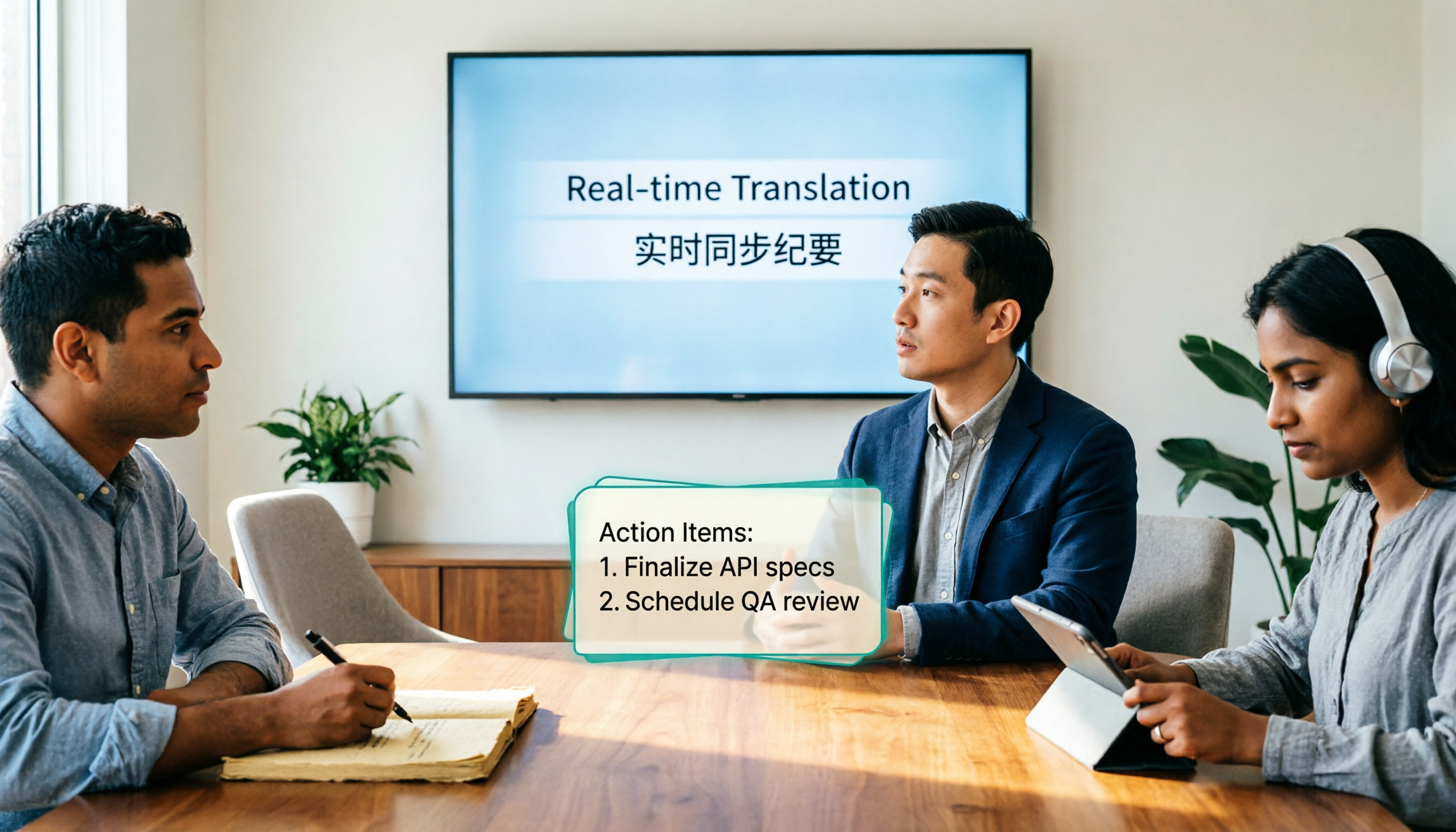
4 Real-Time Translation Tools Tested for 2026: Which One Leaves You With Usable Meeting Notes?
Real-time translation tools solve the problem of understanding in the moment, but the real cost comes after the meeting. This article compares Tinrec, Transync AI, Vurbo.ai, and Notta on real-time translation, bilingual transcripts, post-meeting AI Q&A, and team management, and provides 4 key purchasing criteria, 3 common pitfalls to avoid, and scenario-based recommendations to help you explain clearly why you chose a particular tool.

Best Real-Time Translation Tools in 2026: 4 Tested, Top Free Pick for Meetings
How to choose a free real-time translation tool? This article covers three needs: web reading, ad-hoc interpretation, and cross-language meetings. We tested Tinrec, Google Translate, Immersive Translate, and Transync AI, summarizing free quotas, limitations, and use cases, and explain how Tinrec turns meeting recordings into transcripts, summaries, action items, and team data.

Tinrec vs Notta 2026: Real-Time Translation AI 5-Dimension Comparison, Which Is Better for Chinese Meetings?
Real-time translation AI isn't just about the number of languages—it's also about meeting capture methods, bilingual subtitles, post-meeting organization, AI Q&A, and team data ownership. This article compares Tinrec and Notta across 5 dimensions and explains which Chinese meeting scenarios each suits.

4 Free Simultaneous Interpretation Tools Tested: Which Offers Enough Free Minutes and Post-Meeting Value?
How to choose a free simultaneous interpretation tool? This article reviews four free-trial real-time translation tools—Tinrec, JotMe, Transgull, and Felo Translate—comparing them across five aspects: free quota calculation, translation presentation, recording and transcript retention, post-meeting organization, and team collaboration. It also includes a pitfalls guide and buying advice to help you find the one that truly saves time.

2026 Comparison of 3 Meeting Transcription Tools: Tinrec Turns Transcripts into Action Items
Turning meeting recordings into transcripts isn't hard—the hard part is post-meeting organization. Starting from meeting transcription needs, this article compares Tinrec, Notta, Good Tape, and Yating Transcript, covering transcription, online meeting recording, summary and to-dos, AI Q&A, and team collaboration to help you find the right meeting notes tool.

2026 Online Simultaneous Interpretation Guide: Tinrec Real-Time Translation + Bilingual Transcripts as an Alternative to Traditional Translation Apps
Online simultaneous interpretation is not just about real-time translation—it also depends on whether post-meeting materials are usable. This article addresses common misconceptions and explains how Tinrec uses desktop bot-free recording, real-time transcription, and bilingual translation, combined with summaries, action items, AI Q&A, and team spaces, to turn cross-language meetings into searchable, collaborative records.

How to Use Real-Time Voice Translation in 2026: 5 Steps from Recording to Bilingual Transcript
In cross-language meetings, front-desk reception, and international calls, real-time voice translation needs to solve more than just "understanding in the moment"—it also needs to leave you with usable records afterward. This article breaks down real-time voice translation tools using 5 key selection criteria, compares Tinrec, Transync AI, Vurbo.ai, and JotMe in hands-on testing, and summarizes 4 common pitfalls to help you choose the one that truly works for you.

How to Generate Transcripts with Tinrec in 2026: Bot-Free Recording + AI Summaries and Action Items
Transcript generation isn't just about feeding an audio file into a tool. This guide tackles four common pitfalls and compares Tinrec with Yating Transcription across meeting capture, Chinese recognition, post-meeting organization, AI Q&A, export, and team governance to help you decide which workflow truly saves time.

2026 Comparison of 3 Transcription Tools: Which One Actually Turns Meeting Recordings into Usable Data?
The real difference between transcription tools isn't speed—it's whether the output is ready to use. Starting from the question 'Do you want text or results?', this article outlines 4 key buying criteria, compares Tinrec, Notta, Otter.ai, and Granola on meeting recording, transcript organization, AI Q&A, export, and team collaboration, and includes a pitfalls guide and scenario-based recommendations.