
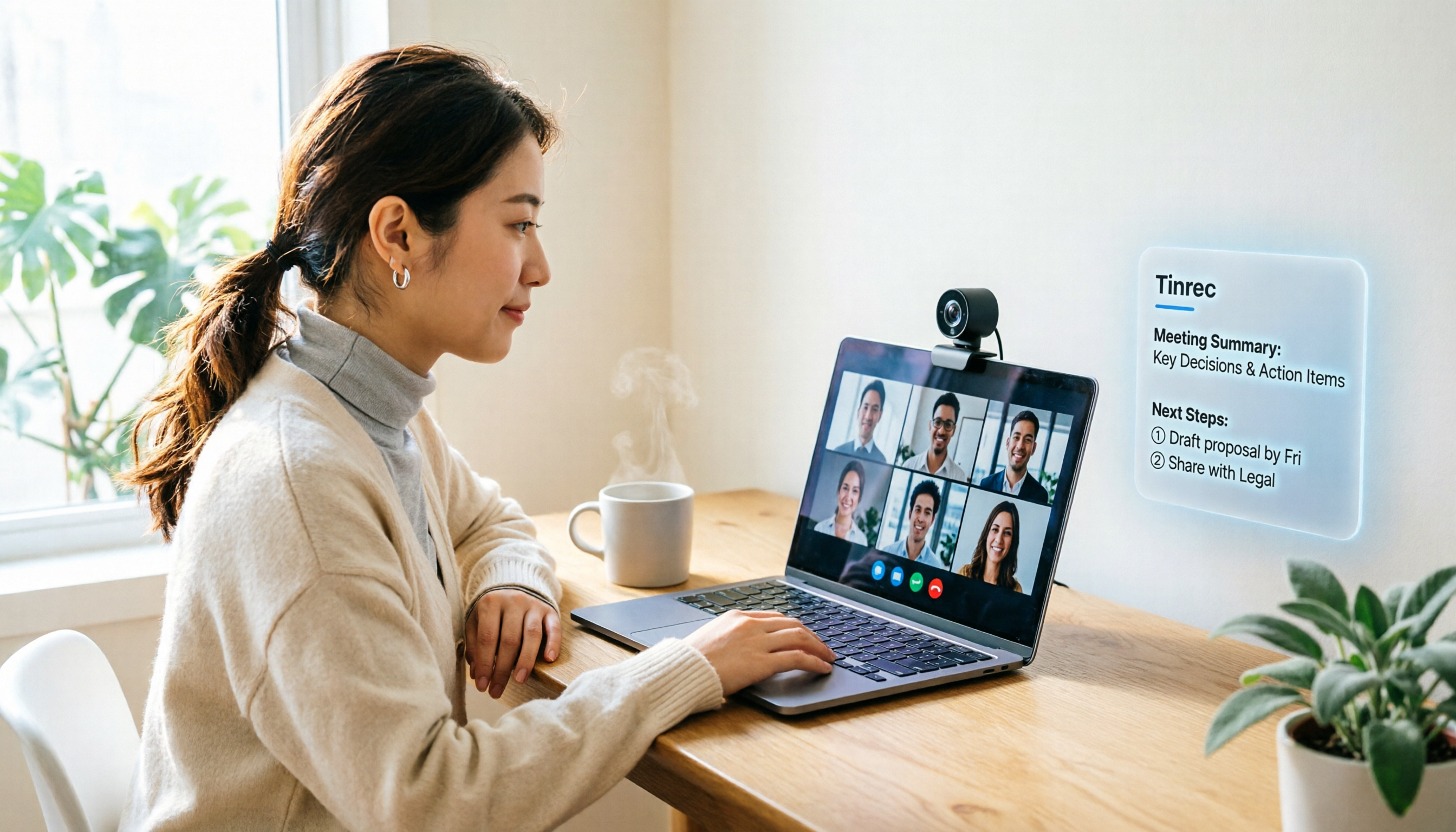
Turn recordings into transcripts and summaries in minutes
Upload audio or video for multilingual transcription, AI notes, and action items
Have you ever counted: every week, you spend at least 5 hours in Google Meet meetings, plus another 2 hours rewatching recordings, jotting down notes, or summarizing conclusions—leaving less time for actual work.
Many people assume that upgrading to a higher-resolution camera solves everything. But in reality, video conferencing issues often go beyond image quality; even with a clear picture, meeting content still isn't properly captured.
So, this article won't just throw a bunch of spec sheets at you. I'll start from the perspective of a typical office worker, first discussing how to choose a Google Meet camera, then explaining how Tinrec complements meeting notes and post-meeting organization, ensuring your meetings are not only clear to see but also easy to remember and find.
What Can a Google Meet Camera Do for You?
Scenario 1: Look More Professional When Working from Home
Many people use their laptop's built-in camera for meetings, which often results in dim, low-angle shots where others only see your chin and the ceiling. Switching to an external camera that clips onto your monitor offers the most immediate benefit of a more natural eye-level angle and steadier video.
Scenario 2: Get Everyone in the Frame in Small Meeting Rooms
If 3 or 4 people are gathered around a single laptop in a meeting room, the built-in camera usually isn't wide enough, cutting off people on the sides. Choosing a model with a wider field of view lets more people fit in the frame, reducing the need to huddle around the lens.
Scenario 3: Quickly Find Key Discussion Points After the Meeting
Even with a crystal-clear picture, if no meeting record is kept, you'll still have to rewatch recordings or rely on memory to fill in the gaps afterward. With Tinrec, for example, you can record Google Meet's system audio directly from your desktop—no need to invite a bot to the meeting—while generating real-time transcripts, summaries, and action items, ensuring that content beyond the video is fully captured.
What Are the Core Capabilities of a Google Meet Camera?
1. Plug-and-Play Without Extra Drivers
Most external cameras connect via USB, and Google Meet can detect them right away. When shopping, prioritize models that don't require additional drivers to avoid setup hassles before meetings.
2. Microphone and Noise Cancellation
In video conferences, audio often matters more than video quality. If the built-in microphone doesn't capture sound well, others will hear muffled audio or even echoes. Some models emphasize noise cancellation, which is useful in slightly noisy environments.
3. Resolution and Low-Light Performance
1080p is already the baseline for video conferencing. Rather than chasing 4K, it's more practical to check whether the camera renders natural skin tones and clear images under typical indoor lighting. Often, noise from insufficient light affects the viewing experience more than resolution.
4. Compatibility with Meeting Tools
Google Meet generally has excellent compatibility with USB cameras, but it's still wise to choose models that support the UVC standard. This way, you can continue using the camera if you switch to Zoom, Microsoft Teams, or Webex in the future.
5. Continuity in Handling Meeting Content
The camera only handles video, but what truly matters in a meeting are the conclusions and action items. Tinrec's value lies in this: you can not only record Google Meet's audio but also use AI summaries, chapters, and action item extraction to turn content beyond the video into actionable data.
Practical Use Cases
Use Case 1: Individual Remote Work
You can mount a compact external camera on top of your monitor for a more eye-level angle. During the meeting, use the Tinrec desktop app to record Google Meet's system audio. As soon as the meeting ends, transcripts and summaries are already generated—no need to rely on memory for meeting notes.
Stop organizing recordings by hand
Upload audio or video and automatically get a transcript, summary, and action items
Use Case 2: Small Team Meeting Rooms
If the meeting room has both in-person and remote participants, besides using a wide-angle camera to capture everyone, you can also run Tinrec on the meeting room computer. Both remote audio and in-person discussions will be recorded, and afterward, you can extract each person's key points from the transcript.
Use Case 3: Client Interviews or Requirement Discussions
These meetings are where you can least afford to miss details mentioned by the client. You can conduct the interview via Google Meet while recording and transcribing with Tinrec. Later, simply search for keywords like "budget" or "timeline" to quickly find the relevant discussion segments.
5 Things to Watch When Buying a Google Meet Camera
1. Assess Your Meeting Type Before Deciding on High-End Models
If you're only doing individual video calls, an entry-level to mid-range USB camera is usually sufficient. Large meeting rooms may require PTZ or models with stronger zoom capabilities. Don't overspend on specs you won't use.
2. Check Your Computer's USB Interface and Power Supply
Some high-end cameras require more power and may be unstable when connected via a USB hub. Before purchasing, confirm whether your computer or meeting room host can supply power directly to avoid sudden video drops during meetings.
3. Audio Quality Deserves More Attention Than Video Quality
A slightly dim image can be fixed with ambient light, but poor microphone pickup directly hampers communication. If your budget is limited, prioritize models with stable built-in mics or consider pairing with an external microphone.
4. Determine If You Really Need a Built-In Speaker
Some video conferencing devices integrate speakers, but if you already have external audio equipment, this feature may go unused. Focusing your budget on video and audio quality is usually more practical.
5. Don't Forget Meeting Content Organization Tools
The camera solves the "clear picture" part, but the value of a meeting lies in whether the content is preserved. Tinrec can record Google Meet's system audio, generate real-time transcripts and summaries, and let you continue organizing key points with AI Q&A or export features afterward. This way, you don't need to scramble to take notes during the meeting.
Frequently Asked Questions
What If Google Meet Can't Find My Camera?
First, try unplugging and reconnecting the USB cable, and check if your browser has granted Google Meet permission to use the camera. If it's still not detected, go to your operating system's privacy settings to ensure camera access isn't disabled.
Do External Cameras Require Driver Installation?
Most USB cameras that comply with the UVC standard don't need additional drivers; they work as soon as you connect them to Google Meet. Before buying, check if the product is labeled as driver-free or plug-and-play.
Can I Use My Phone as a Google Meet Camera?
Yes, but a phone's lens angle and stability usually aren't as good as a dedicated external camera. If it's a one-off situation, a phone can work as a stopgap; for long-term remote work, a dedicated camera is more reliable.
Can Tinrec Record Google Meet Meetings?
Yes. The Tinrec desktop app can capture your computer's system audio directly, so you don't need to invite a bot to your Google Meet. Once you manually start recording, it generates transcripts, summaries, and action items in real time.
What Should I Keep in Mind When Using Meeting Recording Tools?
Before recording or transcribing, comply with local laws and obtain consent from participants when necessary. Tinrec's transcripts and summaries are meant to assist with organization; for critical decisions, always refer back to the original recording and transcript.
Conclusion
When choosing a Google Meet camera, what really matters isn't chasing the highest resolution, but ensuring it consistently makes you look clear and sound natural.
But here's the bigger takeaway: a clear picture is only a small part of the meeting. If meeting content isn't recorded and organized, you'll still spend time after the meeting rewatching and rewriting notes.
If you have regular Google Meet meetings every week, consider using Tinrec as your post-meeting organization tool. Recording, transcription, summaries, and action items are all handled in one go, turning every meeting into searchable, trackable data.
References
Turn every recording into actionable outcomes
Get 60 free transcription minutes when you sign in. No credit card required.
Related Reading
You might also like
4 Real-Time Translation Tools Tested for 2026: Which One Leaves You With Usable Meeting Notes?
Real-time translation tools solve the problem of understanding in the moment, but the real cost comes after the meeting. This article compares Tinrec, Transync AI, Vurbo.ai, and Notta on real-time translation, bilingual transcripts, post-meeting AI Q&A, and team management, and provides 4 key purchasing criteria, 3 common pitfalls to avoid, and scenario-based recommendations to help you explain clearly why you chose a particular tool.

Best Real-Time Translation Tools in 2026: 4 Tested, Top Free Pick for Meetings
How to choose a free real-time translation tool? This article covers three needs: web reading, ad-hoc interpretation, and cross-language meetings. We tested Tinrec, Google Translate, Immersive Translate, and Transync AI, summarizing free quotas, limitations, and use cases, and explain how Tinrec turns meeting recordings into transcripts, summaries, action items, and team data.
Tinrec vs Notta 2026: Real-Time Translation AI 5-Dimension Comparison, Which Is Better for Chinese Meetings?
Real-time translation AI isn't just about the number of languages—it's also about meeting capture methods, bilingual subtitles, post-meeting organization, AI Q&A, and team data ownership. This article compares Tinrec and Notta across 5 dimensions and explains which Chinese meeting scenarios each suits.

4 Free Simultaneous Interpretation Tools Tested: Which Offers Enough Free Minutes and Post-Meeting Value?
How to choose a free simultaneous interpretation tool? This article reviews four free-trial real-time translation tools—Tinrec, JotMe, Transgull, and Felo Translate—comparing them across five aspects: free quota calculation, translation presentation, recording and transcript retention, post-meeting organization, and team collaboration. It also includes a pitfalls guide and buying advice to help you find the one that truly saves time.

2026 Comparison of 3 Meeting Transcription Tools: Tinrec Turns Transcripts into Action Items
Turning meeting recordings into transcripts isn't hard—the hard part is post-meeting organization. Starting from meeting transcription needs, this article compares Tinrec, Notta, Good Tape, and Yating Transcript, covering transcription, online meeting recording, summary and to-dos, AI Q&A, and team collaboration to help you find the right meeting notes tool.

2026 Online Simultaneous Interpretation Guide: Tinrec Real-Time Translation + Bilingual Transcripts as an Alternative to Traditional Translation Apps
Online simultaneous interpretation is not just about real-time translation—it also depends on whether post-meeting materials are usable. This article addresses common misconceptions and explains how Tinrec uses desktop bot-free recording, real-time transcription, and bilingual translation, combined with summaries, action items, AI Q&A, and team spaces, to turn cross-language meetings into searchable, collaborative records.

How to Use Real-Time Voice Translation in 2026: 5 Steps from Recording to Bilingual Transcript
In cross-language meetings, front-desk reception, and international calls, real-time voice translation needs to solve more than just "understanding in the moment"—it also needs to leave you with usable records afterward. This article breaks down real-time voice translation tools using 5 key selection criteria, compares Tinrec, Transync AI, Vurbo.ai, and JotMe in hands-on testing, and summarizes 4 common pitfalls to help you choose the one that truly works for you.

How to Generate Transcripts with Tinrec in 2026: Bot-Free Recording + AI Summaries and Action Items
Transcript generation isn't just about feeding an audio file into a tool. This guide tackles four common pitfalls and compares Tinrec with Yating Transcription across meeting capture, Chinese recognition, post-meeting organization, AI Q&A, export, and team governance to help you decide which workflow truly saves time.
2026 Comparison of 3 Transcription Tools: Which One Actually Turns Meeting Recordings into Usable Data?
The real difference between transcription tools isn't speed—it's whether the output is ready to use. Starting from the question 'Do you want text or results?', this article outlines 4 key buying criteria, compares Tinrec, Notta, Otter.ai, and Granola on meeting recording, transcript organization, AI Q&A, export, and team collaboration, and includes a pitfalls guide and scenario-based recommendations.