
Turn recordings into transcripts and summaries in minutes
Upload audio or video for multilingual transcription, AI notes, and action items
First, Get This Straight: You're Not Buying a "Meet Subscription"—You're Buying a "Meet Hardware License"
Many people searching for "buy google meet license" actually get stuck on a key decision: whether they need a Google Meet hardware license for conference room devices or a Google Workspace plan itself.
The two are very different.
If you're already a Google Workspace admin and your conference rooms already have Google Meet hardware devices, what you need to add is a "Meet hardware license"—each device requires one license to activate.
On the other hand, if you just want to use Google Meet on your computer or phone for meetings, you don't need a hardware license; just make sure your Workspace subscription plan covers it.
This article focuses on the former: how to purchase and manage Google Meet hardware licenses for your conference room devices.
Before Buying Google Meet Hardware Licenses, Verify These 3 Things
1. Do You Have Admin Permissions?
The purchase process must be completed in the Google Admin console.
If you're not logged in with an admin account, you won't even see the "Billing" menu. Specifically, you need Billing Management permissions.
I usually recommend having a Workspace super admin confirm your role permissions first; otherwise, you'll get stuck halfway through the steps.
2. Who Did You Buy Your Google Workspace From?
This is the most critical decision point in this entire article.
If your Workspace subscription was purchased directly from Google and you need no more than 10 hardware licenses, you can place the order directly from the Admin console.
However, if any of the following applies, the official documentation explicitly recommends buying through a reseller instead:
- You need more than 10 Meet hardware licenses
- Your Google Workspace subscription was originally purchased through a reseller
- You want to use the auto-renewal feature
3. Each Device Requires One License
Google Meet hardware licenses are counted on a "per-device" basis.
If one conference room has one Google Meet device, you need one license; three conference rooms mean three licenses. This has nothing to do with the number of users—it's purely based on device count.
Steps to Buy Meet Hardware Licenses Directly in the Admin Console
The following steps apply if you purchased Workspace directly from Google and need no more than 10 licenses.
- Log in to the Google Admin console with your admin account.
- Go to "Menu" > "Billing" > "Get products or upgrades."
- Click "Devices and browsers."
- Find the "Google Meet hardware" section and click "Get started."
- Follow the on-screen instructions to select the number of licenses and complete the purchase.
The process isn't complicated; the key is having billing management permissions set up beforehand.
After the purchase is complete, the system will send a notification email informing you of the number of device licenses added. Don't rush to set up the devices—wait until you receive this email before proceeding.
Need More Than 10 Licenses? Buy Through a Reseller Instead
If you're a small or medium-sized business planning to equip a dozen or more conference rooms at once, ordering through a reseller is more practical.
Resellers can handle:
- Purchases of more than 10 licenses
- Auto-renewal setup
- Integration with your existing Workspace subscription on a single invoice
Additionally, Google allows you to purchase hardware devices and licenses from different resellers.
For example, you can buy Meet hardware devices from Reseller A and licenses from Reseller B. Later, if you want to consolidate management, you can transfer the licenses to the reseller that handles your Workspace subscription.
Stop organizing recordings by hand
Upload audio or video and automatically get a transcript, summary, and action items
License Transfers and Renewal Management
Licenses Can Be Transferred to Another Reseller
If you originally bought licenses from one reseller and later want to consolidate management under the reseller handling your Workspace, the official process allows you to transfer the licenses over.
This is convenient for businesses—you don't have to be locked into a single vendor.
Renewal Dates Are Unified
All Meet hardware licenses will have their renewal dates aligned to the same day.
If you plan to add conference room devices gradually, you can buy a few extra licenses in advance. When new devices need to be registered later, you won't have to go through the procurement process again.
Licenses Can Be Transferred When Hardware Fails
If a conference room device fails or needs replacement, the license can be transferred directly from the old device to the new one—no need to purchase a new license.
This saves a lot of hassle for IT management, especially for companies managing multiple conference rooms at once.
Beyond Buying Licenses Directly: What Other Options Are There?
Reseller Bundled Packages
Some resellers bundle Meet hardware devices and licenses into a single package.
This is suitable for businesses that don't want to handle separate procurement and prefer a single point of contact. Before purchasing, ask the reseller to confirm whether the licenses will automatically align with your Workspace subscription cycle.
Try Before You Decide
If you don't have Google Workspace yet, the official documentation says you can apply for a free trial, experience it, and then decide whether to purchase Meet hardware and licenses.
However, note that a Workspace trial does not mean you get hardware licenses for free. When you officially use conference room devices, you still need to purchase and assign the corresponding licenses.
Pitfall Guide: The 4 Most Common Mistakes When Buying Meet Hardware Licenses
Pitfall 1: Confusing "Meet Access" with "Hardware Licenses"
A Google Workspace subscription lets users use Google Meet on their devices, but conference room–specific Meet hardware devices require separate hardware licenses.
The two are counted separately. Don't assume that buying Workspace automatically includes licenses for conference room devices.
Pitfall 2: Rushing to Order Without Checking Reseller Eligibility First
If you need more than 10 licenses, the Admin console may not allow you to complete the purchase. First, confirm the source of your Workspace subscription, then decide whether to buy directly from Google or through a reseller to avoid getting stuck.
Pitfall 3: Ignoring the Cash Flow Impact of Unified License Renewal Dates
All licenses will align to the same renewal date. If you add licenses mid-year, the cost of new licenses will be prorated to fit the existing cycle.
This doesn't mean you're at a disadvantage, but your finance team should be aware of this when budgeting.
Pitfall 4: Buying New Licenses When Replacing Devices
When hardware fails or is upgraded, licenses can be transferred—no need to buy new ones.
First, check the license status of the old device before deciding whether to make a new purchase. This can save you an unnecessary expense.
Summary: How Should You Actually Buy?
Here's the simplest way to decide:
- Bought Workspace directly from Google and need no more than 10 licenses → Buy directly from the Admin console
- Need more than 10 licenses → Go through a reseller
- Workspace is already on a reseller plan → Buy hardware licenses from the same or a different reseller
- Want auto-renewal and unified invoice management → Go through a reseller
- Device count is uncertain but you'll expand soon → Buy a few extra licenses in advance
After the purchase is complete, wait for the system notification email to confirm the license count, then assign the licenses to each device in the Admin console.
If this is your first purchase, I recommend evaluating your conference room expansion plans for the next year before deciding whether to buy all at once or in batches. Licenses can be transferred, and renewal dates are unified—these flexibilities let you balance budget and expansion.
References
- Buy Meet hardware licenses | Meet Hardware | Google Workspace Help
- How to buy Google Meet Hardware license for devices? - Google Meet Community
- Buy Google Meet Hardware Annual License - Cloudfresh
- Buy Meet hardware licenses - Google Workspace Admin Help
- Buy Google Meet hardware | Meet Hardware | Google Workspace Help
Turn every recording into actionable outcomes
Get 60 free transcription minutes when you sign in. No credit card required.
Related Reading
You might also like

5 Best Google Meet AI Meeting Recorders Tested in 2026: No Bots Needed for Automatic Summaries
Is Google Meet's built-in note-taking feature enough? This article tests five AI meeting recorders—Tinrec, Otter.ai, Fireflies.ai, Granola, and Notta—covering bot-free recording, Chinese transcription, summary to-dos, and team spaces to help you find the best fit.

Google Meet Premium Buying Guide 2026: Free, Google One, and Workspace Plans Compared
Thinking about buying Google Meet Premium but don't know where to start? This guide breaks down the pricing, feature limits, and ideal users for Google Meet's free version, Google One Premium, and Workspace plans, plus smarter ways to save and organize meeting content.
Can Google Meet Be Used in China in 2026? 5-Step Guide and Alternatives
Google Meet is essentially blocked across mainland China, but works normally in Hong Kong, Macau, and Taiwan. This article provides a 5-step guide to determine your location and the best way to access Google Meet, along with practical alternatives like Zoom, Microsoft Teams, and Tinrec, so you're prepared before business travel to China.

2026 Google Meet Headset Guide: 5 Wireless Headsets with Clear Mics
With over a dozen Google Meet calls a week, the biggest fear isn't the meeting itself—it's the other person not being able to hear you clearly. This article, based on a mid-level manager's hands-on testing, rounds up the best wireless headsets for Google Meet in 2026, covering noise cancellation, battery life, comfort, and budget, to help you find the one that stops the endless 'Could you repeat that?'
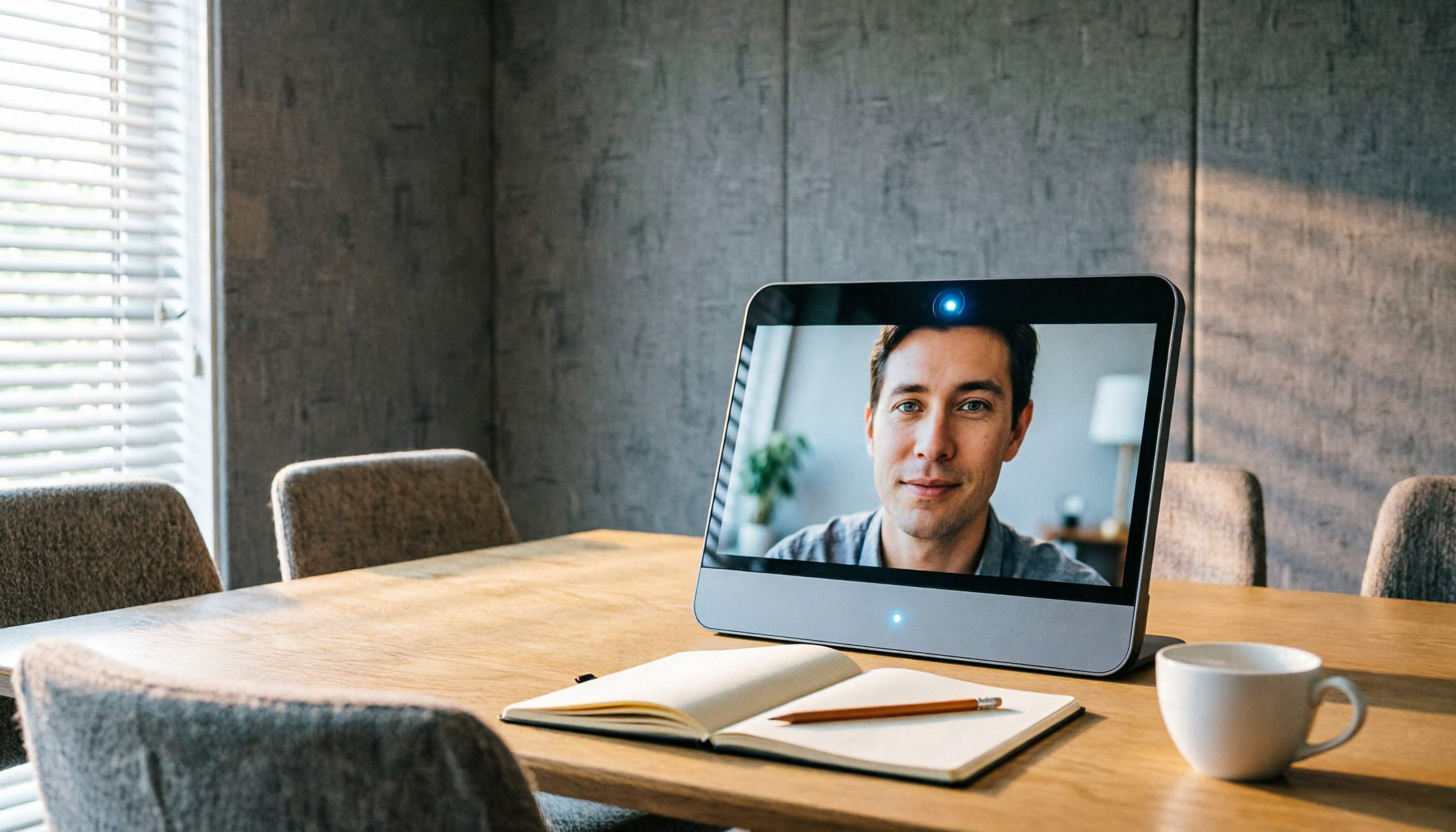
Which Google Meet Hardware Is Best? 2026 Hands-On Review of 4 Options—This One Is Most Reliable for Small to Medium Meeting Rooms
Thinking about buying Google Meet hardware but not sure where to start? This article draws on real purchasing and deployment experience to help you understand the differences between Series One, Logitech, ASUS, and other key options, plus how to handle licensing, displays, and peripherals.

5 Best Google Meet Recorders Compared in 2026: From Transcripts to Team Collaboration
Choosing the right Google Meet recorder can be tricky. This article walks through real workflows, comparing built-in recording, Tactiq, Jumpshare, tl;dv, and Tinrec to help you turn meetings into actionable data.
Before Buying a Google Meet Account in 2026: A Hands-On Comparison of 3 Legitimate Options
Thinking about buying a Google Meet account but unsure which plan to choose? This article breaks down the differences between the free version, Google Workspace, and third-party upgrade services, and highlights potential pitfalls to help you find the best fit for your meeting needs.

Google Meet Screen Recording Detection in 2026: Will External Recording Be Notified, and How to Legally Record Meetings
Can Google Meet detect if you're recording with OBS, your phone's built-in recorder, or third-party tools? This guide addresses student and meeting-recording needs, explaining official recording notifications, the real limitations of external recording, and compliance and privacy considerations when using Tinrec to record online meetings without a bot.

Google Meet Plans in 2026: 3 Key Questions to Choose the Right Workspace Subscription
Thinking about upgrading Google Meet but not sure where to start? This guide skips the spec sheets and uses a simple decision framework to help you find the right Google Workspace plan based on meeting duration, participant count, and collaboration needs.