
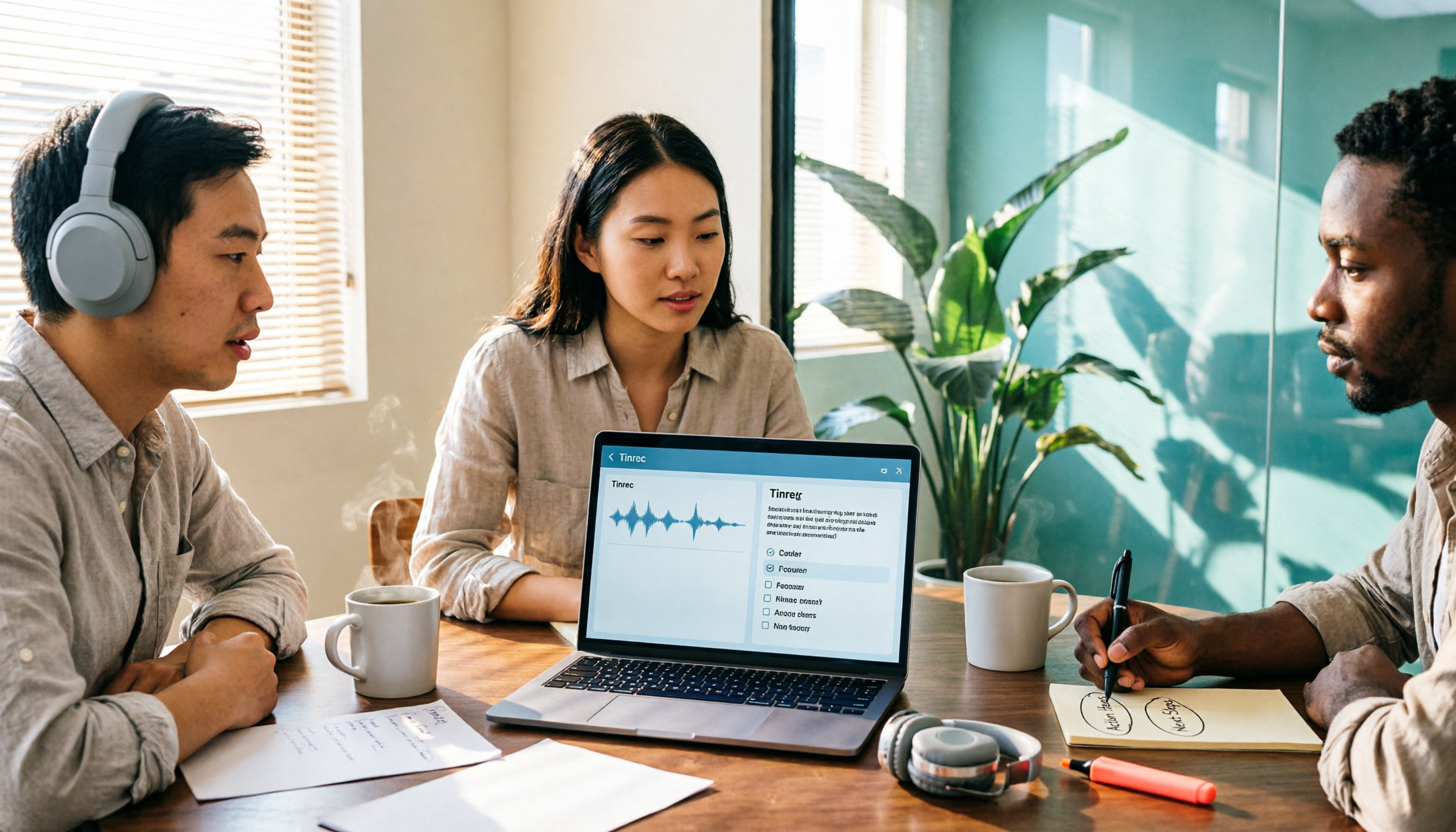
Turn recordings into transcripts and summaries in minutes
Upload audio or video for multilingual transcription, AI notes, and action items
Many people use Teams for the first time and assume that pressing record will automatically generate a transcript.
In reality, Teams transcription and recording are two separate toggles, and both are off by default. What's more, they're controlled by organization-level policy settings—even if you want to turn them on, you can't unless your admin has enabled them.
This article uses Tinrec as an example to walk you through the correct way to use Teams built-in transcription, then take it further with transcripts, summaries, and action items. I'll also clearly explain what Teams built-in can't do, so you can decide which approach fits your needs.
Before You Start | What You'll Need
- A Teams meeting (online or in-person)
- First, confirm your organization has transcription policies enabled. If not, you won't even see the built-in transcription button
- If using Tinrec: download the desktop version (Windows / macOS). It captures system audio to process Teams meetings—no bot needs to join the meeting
- A stable internet connection
- Get participant consent before recording and be aware of local regulations
Step 1 | First, Understand How to Enable Teams Built-in Transcription
The goal of this step is to confirm whether Teams built-in features are available to you.
During a meeting, the organizer can turn on transcription from the meeting controls. Once enabled, the system creates a live written record of what's said during the meeting. After the meeting, participants can view the transcript with timestamps and speaker attribution.
Note that live captions and transcription are different. Captions only appear during the meeting and Teams does not save them; transcription creates a file that's stored with the meeting recording in OneDrive and SharePoint.
Another common pitfall: transcription is a per-organizer + per-user policy setting. The organizer must have it enabled, and the person who starts recording or transcription must also have it enabled. Call transcription is off by default and must be turned on by an admin in the Teams admin center.
(Illustration: In a Teams meeting screen, the organizer is enabling transcription from the meeting controls)
Step 2 | Record the Teams Meeting with Tinrec Desktop
The goal of this step is to get a complete, saveable audio recording of the meeting.
Teams built-in transcription has an inherent limitation: it's tied to the Teams ecosystem, and the material stays in OneDrive and SharePoint. If you also use Zoom, Google Meet, and Webex, your transcripts end up scattered across platforms.
Tinrec Desktop captures your computer's system audio directly. You open Teams on your computer, start a meeting, open Tinrec and hit record—it captures the meeting audio. No meeting bot needs to be invited, and no unfamiliar account appears on the participant list.
Audio capture is straightforward: just set your computer volume to a normal, clearly audible level. Since it captures system output, it's not affected by microphone distance.
(Illustration: A computer screen with both a Teams meeting and Tinrec Desktop open, with a transcript being generated in real time)
Step 3 | Let AI Turn the Recording into a Transcript
The goal of this step is to turn audio into searchable, quotable text.
After recording, Tinrec automatically transcribes. The transcript preserves the original spoken content, supports search and review, and can be cross-checked against recording timestamps.
Meetings with mixed Chinese and English are common in Taiwanese workplaces. Tinrec supports multilingual meeting transcription, and during recording you can view the original text, translation, or bilingual content. Teams' live translation transcription, on the other hand, translates the text record into a language the user is familiar with after the organizer authorizes it.
Keep in mind that any AI transcription accuracy is affected by recording quality, background noise, accents, and overlapping speakers. For important content, it's best to cross-check against transcript timestamps and the recording.
(Illustration: A transcript displayed on screen with speaker names and timestamps clearly arranged)
Step 4 | Generate Summaries, Chapters, and Action Items
The goal of this step is to turn the transcript into something you can grasp without rereading the whole thing.
Tinrec automatically generates AI summaries and chapters, breaking long meetings into easy-to-browse sections and extracting action items from the discussion. You can also continue asking AI follow-up questions about the meeting content, such as "What were the client's concerns about pricing?"
Stop organizing recordings by hand
Upload audio or video and automatically get a transcript, summary, and action items
This is also the biggest difference between Teams built-in transcription and Tinrec: Teams' core function is turning meetings into text, while Tinrec handles what comes after the text—summaries, chapters, action items, Q&A, and reports.
(Illustration: A meeting summary page showing chapter headings, bullet points, and an action item list)
Step 5 | Export and Retain
The goal of this step is to make sure meeting records actually get used.
Teams text records are stored with meeting recordings in OneDrive and SharePoint. Tinrec supports multi-format export, so you can take results to Notion, Google Docs, OneNote, Dropbox, and other tools for further processing, and also generate reports, tables, and meeting minutes.
For team use, Tinrec Team Edition provides an independent team space—meeting data belongs to the team, new members can view historical data, and data isn't taken away when members leave. Admins can manage roles, seats, usage, and audit logs. Paid seats provide 2,000 minutes of team shared import quota per person per month, and real-time recording under an active team plan is currently not deducted by the minute. The first eligible team trial is 7 days, 1 free seat, and 300 minutes of team shared import quota.
(Illustration: A team space with meeting materials arranged, with member and usage information displayed alongside)
Common Questions and Troubleshooting
Q: Why can't I find "Start transcription" in my Teams meeting? Two things to check. First, whether the organization-level calling or meeting policy has transcription enabled—this is off by default and must be turned on by an admin. Second, transcription is a separate setting for the organizer and the user, and both must be enabled.
Q: Does Teams save live captions? No. Captions only appear during the meeting and Teams does not save them. What remains is the text record generated by transcription.
Q: What's the difference between Teams built-in transcription and Tinrec? Teams built-in transcription is tied to Teams and is suitable for pure Teams environments. Tinrec Desktop captures system audio and can process meeting audio played on a computer from Zoom, Google Meet, Teams, Webex, and other platforms. It doesn't require a meeting bot to join, and it can also handle summaries, action items, Q&A, and cross-platform export.
Q: What if the transcript has errors? It's usually because the environment is too noisy or multiple people are speaking at once. Moving to a quieter space and asking people not to overlap when speaking makes the biggest difference. For important content, cross-check with the recording playback.
Q: What's the difference between Team Edition and Personal Edition? Personal Edition data belongs to the individual account. Team Edition is an independent collaboration space where meeting data belongs to the team, with additional management capabilities such as members, roles, seats, shared benefits, usage analytics, audit logs, and recycle bin.
Q: Can members without a seat view data? They can view, play, and read, but cannot record, upload, edit, or export. To use resources, they need a seat.
Advanced Tips | 3 Ways to Make Tinrec More Efficient
Tip 1: Use team hotwords to correct technical terms. Product codes, proper nouns, and client names are the most likely to be transcribed incorrectly. Tinrec Team Edition lets you maintain team hotwords and add commonly used technical terms, which noticeably improves recognition. Most transcription tools lack team-level vocabulary settings.
Tip 2: Use AI Q&A instead of re-listening to the whole meeting. When you're late or pulled into a project at the last minute, you don't need to listen from the beginning—just ask AI "What was decided in this meeting?" or "Who's responsible for which item?" It's much faster than scrubbing the timeline.
Tip 3: Use Agent post-processing to generate post-meeting documents. After a meeting, you often still need to write weekly reports, client records, or handover documents. Tinrec can generate reports, tables, and documents based on the meeting, saving you from rewriting everything.
If You Don't Use Tinrec, Here Are Other Options
Teams built-in transcription: If your meetings are almost all in Teams and your organization has policies enabled, using the built-in feature is the easiest option—transcripts are stored with recordings in OneDrive and SharePoint.
Otter.ai and Notta: Both are mature transcription and meeting notes tools with a strong focus on English business meetings, and both offer team plans. Choose based on your primary meeting language and platform.
Conclusion
Teams built-in transcription isn't hard to use—provided your organization policies are enabled, the organizer remembers to turn it on, and your meetings all stay within Teams.
Once meetings are spread across Teams, Zoom, and Meet, or you need summaries, action items, and a shared team database, you'll need an extra layer of tools. Tinrec Desktop can directly capture system audio to record Teams meetings, with transcripts, summaries, action items, Q&A, and export all in one workflow.
Next step: try it with one of your own Teams meetings. Start with the free version to experience recording, import, and summaries, then decide whether to move up to Team Edition.
References
- Admin - Manage Teams meeting transcription and captions - Microsoft Teams | Microsoft Learn
- Start, stop, and download live transcripts in Microsoft Teams meetings | Microsoft Support
- Enable Teams meeting transcription and Copilot meeting notes and summary features
- Teams meeting transcription and recording tutorial: Easily create meeting notes with AI | AI Transcription Service — Mr. Transcription
- Set up call recording, transcription, and captions in Teams - Microsoft Teams | Microsoft Learn
Turn every recording into actionable outcomes
Get 60 free transcription minutes when you sign in. No credit card required.
Related Reading
You might also like

2026 Teams Meeting Transcription Tools Buying Guide: 4 Tested Picks and Recommendations
Teams built-in transcription can generate transcripts, but real-time translation and smart summaries require additional paid licenses. This article explains how to start Teams transcription and its limitations, and compares Tinrec, Otter.ai, and Notta to help you choose the best meeting transcription solution.
4 YouTube Transcript Tools Tested and Compared in 2026: Which Free Tier Gives You the Most?
A comparison of four free YouTube transcript tools covering free usage limits, support for videos without captions, timestamps, and export formats. It also explains how Tinrec fits in after transcription with summaries, AI Q&A, and team collaboration, helping you decide which tool to use.
Tinrec Meeting Notes 2026: Auto Summaries + Action Items, a Notion Template Alternative
Notion meeting note templates are great for manual organization, but typing while listening and filling in action items afterward can be time-consuming. This article features Tinrec voice recording, comparing bot-free recording, real-time transcription, AI summaries, action item extraction, AI Q&A, Notion export, and team spaces. It also covers free and team pricing to help you decide if you should add an automated meeting notes workflow.

Which YouTube Transcript Tool Is Best? 2026 Hands-On Test of 4 Options—This Free, No-Login One Is the Easiest
How do you choose a free YouTube transcript tool? This article starts with common misconceptions, then hands-on tests and compares 4 transcript tools. It explains the difference between grabbing captions and AI speech-to-text, the traps of free quotas, and outlines the best use cases for Tinrec, youtube-transcript.ai, Notta, and TurboScribe.

2026 Teams Meeting Notes Tools Buyer's Guide: 4 Tested Picks and Selection Tips
Tired of messy Teams meeting transcripts? We tested 4 tools and organized a guide covering capture methods, post-meeting organization, audio retention, and free tiers so you can choose with confidence.

2026 Teams Meeting Transcription Comparison: 3 Tools Tested for Ready-to-Use Transcripts
Teams built-in transcription only gives you a transcript; organizing, searching, and tracking action items are still on you. This article starts from real meeting scenarios, outlines 4 key buying factors, and compares Teams built-in transcription, Otter.ai, Notta, and Tinrec to show which one truly helps you wrap up meeting notes.

6 Zoom Meeting Transcription Tools Tested and Compared for 2026: How to Choose for Chinese Meetings and Free Plans
A practical guide to common misconceptions and methods for getting Zoom meeting transcripts, with hands-on comparisons of six options (Tinrec, Zoom built-in, Otter.ai, Fireflies.ai, Notta, Granola) covering positioning, pricing, and ideal users, plus notes on recording permissions, participant consent, free quotas, and team seats.

2026 Teams Meeting Transcription: Auto Transcribe + AI Summary Guide
Teams built-in transcription only gives you a raw transcript, summaries require an add-on license, and transcripts expire after 120 days by default. This article addresses common misconceptions, breaks down 4 key factors for choosing a Teams meeting transcription tool, shares hands-on experience with Tinrec, and covers alternatives and pitfalls to help you build a truly workable meeting notes workflow.

6 Best Audio Transcription Tools Tested for 2026: Which Free Version Is Enough?
Meeting's over, but the recording has been sitting on your phone for days? This guide shares hands-on experience with 6 audio transcription tools—Tinrec, Otter.ai, Notta, TurboScribe, Granola, and PLAUD—covering their positioning, key features, free and paid pricing, and ideal use cases. Find out whether a free plan is enough, whether you need a meeting bot, and what you can do with transcripts afterward.