

Turn recordings into transcripts and summaries in minutes
Upload audio or video for multilingual transcription, AI notes, and action items
Halfway through an online meeting, your boss suddenly says, "Make a note of this." You're listening and typing at the same time, and by the end you realize you missed half the key points.
More often, three days later, you need to confirm who said they'd change the specs, and you have to rewatch the entire recording.
If you've been searching for "Google Meet download," the first issue is that you haven't even installed the meeting tool yet. This article will first explain downloading and installation, then discuss what really takes time after installation—meeting notes.
Why You Need More Than Just a Download Link
Many people think that once they download the app, they're done. But in reality, you'll likely encounter these situations.
First, devices aren't unified. You set up your phone, but when you need to use a computer for a meeting, you find you have to log in again.
Second, you discover after the meeting that there are no notes. The discussion was lively and conclusions were reached, but no one wrote them down. When it's time to execute, all you have is "I think it was something like..."
Third, note-taking methods are too cumbersome. Some people type by hand, others rely on rewatching recordings—both are time-consuming.
Choosing the right combination of tools can solve all three problems at once.
Google Meet Download and Installation: 4 Devices Explained
Android phones and tablets: Download the Google Meet app from Google Play. Once installed, you can create or join scheduled meetings, instant meetings, and even make calls to Google Workspace or personal accounts.
iPhone and iPad: Download the Google Meet app from the App Store.
Computer (Windows/macOS): No separate installer is needed; just go to meet.google.com. If you want to launch it from your desktop like a regular application, you can install Google Meet as a Chrome Progressive Web App (PWA).
No installation at all: Just open meet.google.com in your browser and log in.
One more note: Some advanced Google Meet features, such as AI notes, live voice translation, meeting recording, and noise cancellation, are part of paid plans and may not be available on free accounts.
Installation itself takes only a few minutes. What really makes a difference is what happens after the meeting.
Meeting Notes Are the Main Battlefield: Tinrec (秒聽錄音) Hands-On
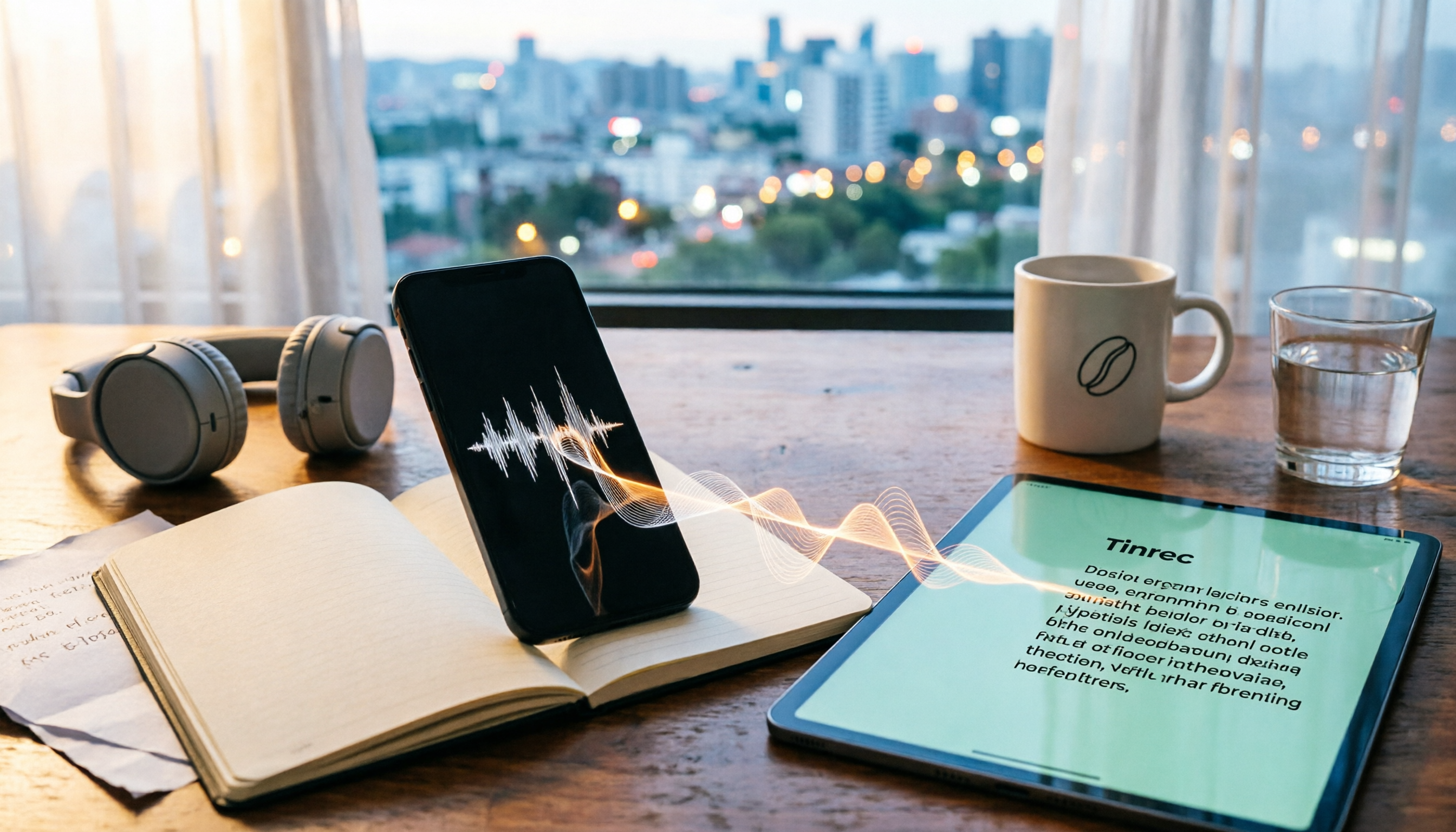
Tinrec (秒聽錄音) is an AI meeting recording and collaboration tool for individuals and teams, available on web, desktop, and mobile. The desktop version can directly capture your computer's system audio.
It solves exactly the problem of "Google Meet ends, but notes start from scratch."
In practice, you open Google Meet on your computer and simultaneously open Tinrec desktop. It captures system audio directly, and the transcript appears as you record. Here's a key difference: you don't need to invite a meeting bot, so no unfamiliar account appears on the participant list. This also works for Zoom, Microsoft Teams, and Webex desktop meetings.
After the meeting, Tinrec automatically generates summaries and chapters, and extracts action items from the discussion. Who's responsible for what and what's next—no need to dig through the transcript yourself.
Even better is AI Q&A. After recording, you can directly ask it "What was the conclusion of this meeting?" or "What was the budget cap the client mentioned?" It answers based on the meeting content, rather than giving you a bunch of keyword search results. Few transcription tools in the same price range currently include this feature.
For cross-language meetings, Tinrec supports real-time translation, allowing you to view in original, translated, or bilingual mode—especially useful for mixed Chinese-English meetings.
Other notable features: It supports uploading existing audio and video files to transcribe, exporting to Notion, Google Docs, OneNote, Dropbox, and other tools for further processing, and using Agent to generate reports, tables, and meeting minutes.
Stop organizing recordings by hand
Upload audio or video and automatically get a transcript, summary, and action items
Three main advantages:
No extra hardware or meeting bot needed; the desktop version handles computer audio for online meetings. Meeting data stays in one place, searchable, queryable, and exportable. The experience for Chinese and mixed Chinese-English meetings is also more tailored to Taiwan usage scenarios than most tools focused on English business meetings.
For team use, Tinrec's team plan offers independent team spaces, allowing you to create multiple spaces, invite members via link, and distinguish between owners, admins, and regular members. Roles determine governance permissions, while seats determine whether you can record, upload, edit, and export. Paid seats include 2,000 minutes of shared team import quota per month, and admins can view usage trends, member rankings, and audit logs. Team monthly billing is USD 29.80 per paid seat per month, annual billing is USD 199 per paid seat per year (about USD 16.58 per month). First-time eligible teams can try 7 days, 1 free seat, and 300 minutes of shared import quota. Prices and promotions are subject to the official purchase page.
Things to note:
The free version offers basic quota, allowing you to experience recording, import, summaries, and transcription, but heavy users will need to upgrade (weekly pass, Pro monthly, and Pro annual are available). Also, Tinrec requires you to manually start recording; it's not a bot that automatically joins all calendar meetings. Transcription accuracy can also be affected by recording quality, ambient noise, accents, and overlapping speakers. For important content, it's recommended to cross-check with the recording and timestamps.
Who it's for: People who frequently have online meetings, want summaries and action items immediately after, or need to switch between phone and computer.
Besides Tinrec, What Other Meeting Notes Options Are There?
Otter.ai: A mature English AI meeting assistant. Free version offers 300 minutes per month; Pro annual billing is about USD 8.49 per user per month, including 1,200 minutes of recording and 10 file imports per month. Its strength is English business meetings. If almost all your recordings are in English, it's a great value. But Chinese and mixed Chinese-English meetings are not its strong suit; Tinrec is more tailored to Chinese users' needs in this regard.
Granola: A bot-free AI meeting note tool. Basic is free, Business is USD 14 per user per month, emphasizing combining your own notes with AI. Note that it does not retain meeting audio and does not support uploading pre-recorded files—Tinrec retains both, so you have material for later listening or additional organization.
Notta: A multilingual transcription tool. Free version offers 120 minutes per month, max 3 minutes per session; Pro annual billing is about USD 8.17 per month; Business plan provides role permissions and usage reports. The difference is that Tinrec brings meeting recordings, transcripts, and follow-up action items together into team spaces, and provides data management capabilities like an audio recycle bin.
Pitfall Guide: 3 Most Common Mistakes When Downloading Meeting Tools
Pitfall 1: Thinking that installing the app means you have notes. The app only lets you have meetings. Notes require a separate process or tool; otherwise, you'll still start from scratch after the meeting, which is the biggest disappointment for many after installing.
Pitfall 2: Ignoring that meeting bots appear on the participant list. Some tools join meetings as an extra participant. Clients may not appreciate seeing an unfamiliar account on the list. If this matters to you, choosing a desktop system audio capture method is more natural.
Pitfall 3: Forgetting that recording requires consent. Recording and transcription involve local regulations and participant rights, especially for international meetings. Obtain consent before recording when necessary.
Conclusion: How Should You Choose?
Only use Google Meet on your phone occasionally → Just download the app from the App Store or Google Play.
Have meetings on computer, don't want an extra bot → Tinrec desktop version.
Want to use AI to directly ask for meeting conclusions and action items after recording → Tinrec.
English-only meetings, zero budget → Otter.ai free version.
Team needs to share meeting data, manage members and seats → Tinrec team plan.
We suggest starting with Tinrec's free version, recording one of your regular online meetings, and seeing how accurately it captures summaries and action items. If it works for you, consider upgrading—no need to pay upfront.
References
Turn every recording into actionable outcomes
Get 60 free transcription minutes when you sign in. No credit card required.
Related Reading
You might also like

3 LINE Call Recording Methods Tested for 2026: How to Record on iPhone and Android, and How to Organize Recordings
LINE does not have a built-in call recording button, but iPhone users on iOS 26 can use the built-in "Local Capture," while Android users can use screen recording or Cube ACR, or use speakerphone with an external recording device. This article covers 3 tested methods, common mistakes, and legal reminders, and explains how to use Tinrec to turn call recordings into transcripts, summaries, to-dos, and searchable team data.
5 LINE Call Recording Methods Tested and Compared in 2026: How to Turn Recordings into Transcripts
LINE doesn't have a built-in call recording feature, but the real challenge isn't capturing the call—it's ending up with only your own voice or an audio file no one wants to listen to twice. This article reviews 5 common LINE call recording methods, tests the pitfalls of each, and explains how to use Tinrec to turn audio files into searchable, queryable transcripts and meeting notes. It also highlights legal considerations before recording.

2026 Comparison of 3 iPhone Recording Organization Tools: Which Saves the Most Time Converting .m4a Audio to Transcripts?
iPhone's built-in Voice Memos saves recordings in .m4a format by default, but converting the file only solves playback issues, not organization. This article first explains what file iPhone recordings are, then tests and compares recording organization tools like Tinrec, Otter.ai, Notta, and PLAUD to help you understand key buying factors and avoid common pitfalls.

How to Use Google Meet on TV in 2026: Chromecast Casting & Meeting Notes
How do you use Google Meet on TV? This guide clears up common misconceptions, explains why Android TV doesn't support meeting mode, how to cast with Chromecast and Google TV Streamer, and how to use Tinrec desktop to record Google Meet without a bot—generating transcripts, summaries, and action items.

Google Meet On-the-Go vs Tinrec: Which Is Better for Mobile Meetings in 2026?
Google Meet On-the-Go lets you join meetings while walking or commuting, but it only solves live participation—post-meeting organization still needs a separate solution. This article compares Google Meet On-the-Go and Tinrec for mobile meeting scenarios, focusing on post-meeting processing, cross-platform export, and team collaboration to help you decide which approach to use.

4 Ways to Record LINE Calls in 2026: Which One Actually Captures Both Sides?
LINE doesn't have a built-in call recording feature, but you can still capture calls using iOS 26 local capture, built-in Android recording, speakerphone with an external recorder, or third-party apps. This article tests 4 methods and explains how to use Tinrec to turn recordings into transcripts, summaries, and action items so your calls become searchable and useful.

4 Recording Archive Tools Tested: How to Save LINE Voice Messages Long-Term in 2026
LINE voice messages don't have a built-in download button, and saving them to your phone doesn't mean they're permanently stored. This article starts with common archiving mistakes, outlines 4 key points for choosing a recording archive tool, compares Tinrec, Otter.ai, Granola, and Notta, and includes a pitfalls guide and selection advice.

5 LINE Call Recording Methods Tested and Compared in 2026: iPhone, Android, or PC — Which Is Easiest?
Can you record LINE calls? This article covers 2026 methods including iPhone native capture, Android built-in call recording, screen recording, PC recording, and AI organization tools, and tests how Tinrec turns LINE call recordings into transcripts, summaries, and to-dos.

4 LINE Call Recording Methods Tested for 2026: Which Actually Works on iPhone, Android, or PC?
LINE still doesn't offer built-in call recording, so in 2026 you'll need to combine methods to save important calls. This hands-on guide covers current options for iPhone, Android, and PC, and compares the most time-consuming part—organizing recordings—including how Tinrec, Notta, Otter.ai, and PLAUD Note differ, so you can find a workflow that actually works.