

Turn recordings into transcripts and summaries in minutes
Upload audio or video for multilingual transcription, AI notes, and action items
2026 Free Google Speech-to-Text Options: 5 Desktop Tools Compared
When it comes to typing transcripts on a computer, most people think of Google first.
But before you start using it, you should answer one question: Is the sound you want to transcribe "what you are saying into the microphone right now," or "an audio file already recorded on your computer"?
These two things take completely different paths in Google's ecosystem. If you go the wrong way, you'll spend an entire afternoon looking for a button that doesn't exist.
Why does "Google speech-to-text" always get stuck on a computer?
The three most common reader situations I receive are almost all related to the same misunderstanding.
First: A meeting recording is saved on the computer, and you want to put it into Google Docs to automatically turn it into text. But when you open voice typing, you find it only listens to the microphone and doesn't accept files at all.
Second: You need a record of an online meeting, so you turn on Google Docs voice typing, only to discover after the meeting that it only recorded your own speech, and the sound from the speakers wasn't captured at all.
Third: You want to add subtitles to a video, so you look up methods using pyTranscriber or a virtual audio cable, go through the setup, and still aren't sure if you installed it correctly.
None of this means Google is bad; it's just that these tools were designed for different scenarios.
Before choosing a tool, figuring out which type of need you have is far more important than comparing specs.
Before choosing a desktop speech-to-text tool, understand these 4 key points
1. Real-time dictation or organizing existing recordings?
Real-time dictation is "you speak, it types for you"; organizing existing recordings is "I have an mp3 and want to turn it into text." Google Docs' built-in voice typing belongs to the former; if you have a bunch of recorded files, it really can't help.
2. Does the sound come from the microphone or from the computer?
Online meeting sound comes out of the computer speakers. What you actually need is a tool that can capture "system audio," not another microphone pointed at the speakers. Few people think of this at first, but it's the key to success.
3. What happens after transcription?
Getting just a transcript and getting a meeting record you can use directly are two different things. Whether someone helps you organize summaries, extract action items, and let you find key points later through Q&A makes the difference.
4. How are free quotas calculated?
Some tools are free but only for real-time speaking; some give minutes per month; others don't deduct minutes for real-time recording but only charge for file imports. When looking at plans, don't just look at the word "free"—look at how the quota is deducted.
Tinrec — The one I use most on my computer
Tinrec is an AI meeting notes and collaboration tool for individuals and teams, available on desktop, web, and mobile. It doesn't just convert sound to text; it organizes meeting recordings into searchable, queryable, and further processable material.
Recording online meetings without a bot is my most-used feature.
The desktop version directly captures the computer's system audio, handling meeting sound played on platforms like Zoom, Google Meet, Microsoft Teams, and Webex, without inviting an extra bot into the meeting room. I used to open a separate recording program, only to record my own speech while the computer's audio wasn't captured at all—this tool solves that pain point directly.
Transcripts appear while recording, with real-time translation.
During meetings, transcripts are generated synchronously; for cross-language meetings, you can switch between original text, translation, or bilingual view. No need to listen to the recording again after the meeting to find key points.
Transcription is not the end, but the starting point.
It automatically generates summaries, chapters, key points, and action items, and you can ask questions directly about the meeting, such as "Who mentioned the budget in the last meeting?". This Q&A gives answers based on semantic understanding, not keyword search results. Among tools at the same price point, this feature is not common.
In addition, it supports uploading audio and video files for transcription, Agent post-processing to generate reports and tables, and exporting results to Notion, Google Docs, OneNote, Dropbox, and other tools for further use.
Three advantages I've summarized:
First, no extra hardware needed; open it on your computer and record, works for both online and offline.
Stop organizing recordings by hand
Upload audio or video and automatically get a transcript, summary, and action items
Second, the post-transcription organization is complete: summaries, action items, Q&A, and export all in one place, saving you the one or two hours after a meeting.
Third, there's a team version. Team spaces can centrally store meeting data, manage roles, seats, usage, and audit logs, so data doesn't disappear when members leave.
Limitations should also be clear:
The free version provides a basic quota, suitable for trying out; if you have regular meetings every week, you'll need to consider a weekly card or Pro. Also, file imports consume quota, and real-time recording and file processing are calculated differently, so check before use.
One more thing: transcription accuracy is affected by recording quality, ambient noise, accents, multiple people talking over each other, and technical terms. For important content, it's recommended to cross-check with transcript timestamps and recording playback.
Pricing:
The personal version has a free version, weekly card, Pro monthly, and Pro annual; choose based on your usage frequency. The team version offers a 7-day trial for first-time eligible users, 1 free seat, and 300 minutes of shared team import quota; team monthly payment is USD 29.80 per paid seat per month, annual payment is USD 199 per paid seat per year, equivalent to about USD 16.58 per month, with each paid seat providing 2,000 minutes of shared team import quota per month. Real-time recording is currently not deducted by minutes under valid plans and seats. Actual prices and promotions are subject to the official purchase page.
Who it's for:
People who need Chinese meeting notes, want to handle online meetings played on a computer, hope to use AI to find key points directly after recording, or want to turn meeting materials into team assets.
Besides Tinrec, there are 4 other options on a computer
Google Docs Voice Typing
Completely free, no installation; open a document in Chrome, click "Tools" → "Voice typing" to start. But it only does real-time dictation and cannot process already-recorded files. If you have a bunch of audio files, Tinrec can upload them directly and produce summaries and action items—something it cannot do.
Google Cloud Speech-to-Text
Google's cloud speech recognition API supports multiple languages and dialects, offers models tuned for scenarios like telephony, and includes profanity filtering, suitable for integrating speech recognition into your own system. But it's developer-oriented and requires integration and setup; the average office worker wants something that works right out of the box, and Tinrec is clearly easier in this regard.
pyTranscriber
A free open-source tool that can transcribe audio files into transcripts and subtitles, suitable for one-time subtitle needs. However, it has no summaries, action items, AI Q&A, or team collaboration; you still have to organize everything yourself after transcription.
Otter.ai
A mature English meeting assistant; its free version offers 300 minutes per month, which is quite generous, and Pro annual billing is about USD 8.49 per user per month. If your meetings are mainly in English, it's a good deal. But its main focus is English business meetings; for Chinese and mixed Chinese-English organization needs, Tinrec's experience is closer to the usage context in Taiwan.
Pitfall guide: The 4 most common mistakes in desktop speech-to-text
Pitfall 1: Thinking Google Docs voice typing can transcribe audio files.
It only takes microphone input. To process existing files, you need a different type of tool.
Pitfall 2: Using a microphone to record online meetings from speakers.
Distance and echo naturally degrade recognition. The correct approach is to let the tool capture system audio directly, not to re-record sound.
Pitfall 3: Only looking at free minutes, not how quotas are deducted.
Some plans calculate real-time recording and file import differently; confirm your usage pattern first to avoid running out of quota halfway through.
Pitfall 4: Stopping after getting a transcript.
Treating a transcription tool as a pure typewriter means using only one-third of its capabilities. After recording, directly ask it "What was the conclusion of this meeting?"—much faster than manually flipping through a 30-minute transcript.
Conclusion: Which one should you choose?
Need Chinese meeting notes and want to handle online meetings played on a computer → Tinrec; the desktop version captures system audio without inviting a bot.
Want to use AI to find key points and generate action items directly after recording → Tinrec; summaries, chapters, and Q&A are its core.
Need to continue using across phone, computer, and web → Tinrec; multi-platform support.
Team needs centralized management of meeting data and member permissions → Tinrec team version, with roles, seats, usage, and audit.
Just temporarily turn a recording into text, and for free → pyTranscriber can handle emergencies.
Zero budget, all-English meeting content → Otter.ai's free quota is very usable; this is one of the few scenarios in this article where it is recommended over Tinrec.
If you're looking for a desktop solution that "opens and records, records and uses," I suggest starting with Tinrec's free version. Run it on a real meeting recording you have on hand first, see if the summary and action items are what you want, and then decide whether to upgrade—no need to pay from the start.
References
- Speech-to-Text: AI speech input and transcription | Google Cloud
- Using Google Speech-to-Text - Fukyu Shison
- Google Live Transcribe: Super accurate Chinese speech-to-text with automatic punctuation
- Google Transcript Tutorial! Turn videos and audio files into text right in your browser
- 2026 comparison of 4 speech-to-text tools: Is Google really enough for typing transcripts on a computer? - Tinrec Blog
Turn every recording into actionable outcomes
Get 60 free transcription minutes when you sign in. No credit card required.
Related Reading
You might also like

WhatsApp Voice to Text vs Tinrec in 2026: A 5-Dimension Comparison — Which Turns Voice into Reusable Data?
WhatsApp's built-in voice-to-text solves the 'can't listen right now' problem, but can the transcribed text be searched, turned into to-dos, or become team knowledge? This article compares WhatsApp's built-in feature with Tinrec across five practical dimensions, plus a buying guide to avoid pitfalls and a ready-to-follow starter checklist.

2026 Free Speech-to-Text AI Apps: 5 Options Compared
A roundup of free plans for 5 speech-to-text AI apps in 2026, with a 5-step walkthrough using Tinrec from recording to transcript, proofreading, meeting summary generation, and export, plus a free tier comparison, FAQs, and advanced tips.

5 Best Speech-to-Text AI Tools in 2026: Free Tiers and Chinese Recognition Compared
How to choose a speech-to-text AI tool? This article addresses common misconceptions, outlines 5 key selection criteria, and demonstrates Tinrec's real-time transcription, bot-free meeting recording, AI summaries, action item extraction, and team collaboration to help you understand the differences between free and paid plans.

2026 iPhone Voice-to-Text Comparison: Built-in Transcription, Recording Hardware, and Tinrec — Which Saves the Most Time?
How to turn iPhone voice memos into text files? This article compares the workflows of iOS built-in Voice Memos transcription, PLAUD recording hardware, and Tinrec, explains the Chinese transcription limitations on iPhone 12 and iOS 18.4, .m4a export, and post-meeting organization, and offers buying and pitfall-avoidance advice.

Best Client Visit Record Tools in 2026: 6 Tested, Tinrec Saves the Most Time on Post-Meeting Notes
Still catching up on client visit notes back at the office? This article works backward from "can a colleague pick up the table and follow up directly?" to define the four essential field groups a client visit record should have, then compares 6 approaches and tools—including Tinrec, Granola, Notta, Otter.ai, TurboScribe, and Excel templates—with free and paid pricing to help you decide between spreadsheets, recordings, or AI meeting tools.
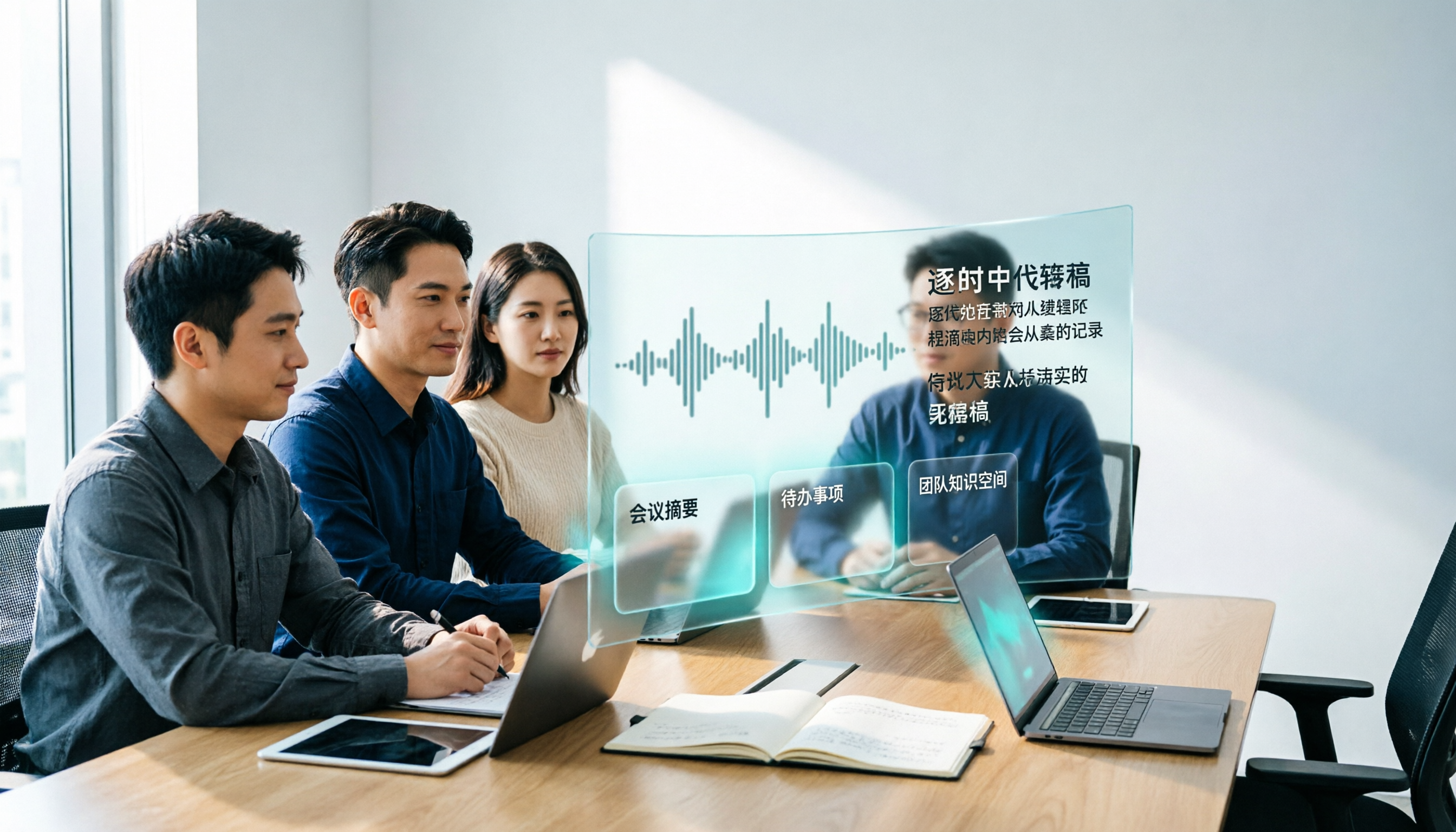
3 Recommended AI Speech-to-Text Chinese Solutions for 2026: From Free Trials to Team Collaboration
Still manually transcribing meeting recordings? This article starts from real-world scenarios to break down how AI speech-to-text is used in Chinese meetings, its core capabilities, and 5 key points for selection. It uses Tinrec (Miao Ting Lu Yin) to demonstrate the complete workflow from verbatim transcripts, AI summaries, and action item extraction to team workspace retention, with a comparison table of three plans: Free, Pro, and Team, helping you decide which one to choose at a glance.
4 Free Speech-to-Text AI Tools Tested in 2026: Which Free Tier Is Most Generous?
Most people looking for free speech-to-text AI discover that free tiers use three different models: per-recording limits, daily credits, and total trial minutes. This article breaks down how the free plans of Tinrec, Notta, TurboScribe, and Otter.ai work, whether they can handle a full meeting, and if the output is usable right away.
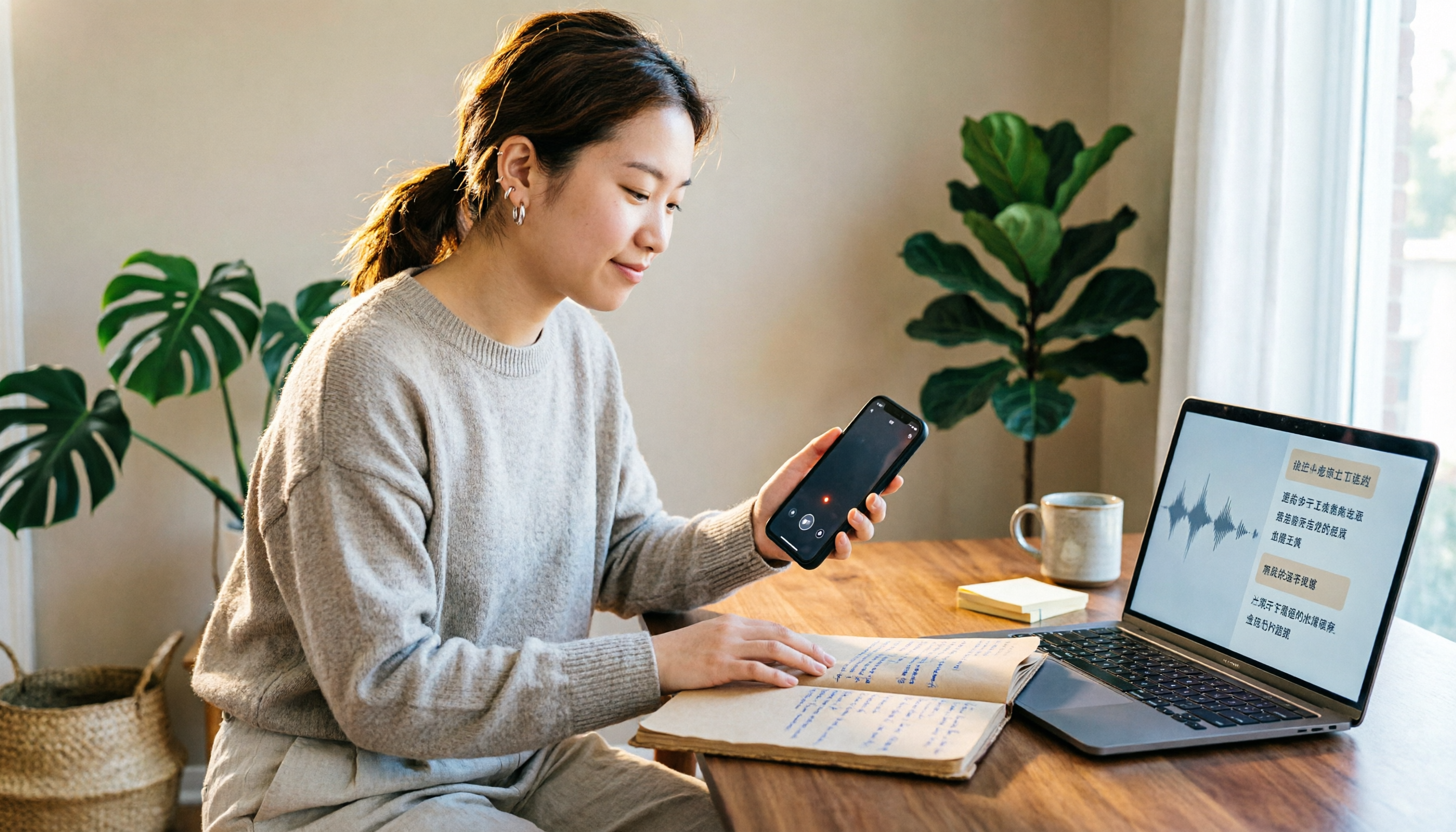
5 Free iPhone Speech-to-Text Solutions in 2026: A Complete Comparison
You don't have to pay to transcribe iPhone recordings. This guide covers 5 free options: iOS 18 built-in Voice Memos, Tinrec, Notta, Otter.ai, and PLAUD recording hardware. We compare free quotas, Chinese recognition accuracy, and post-recording usability, plus provide buying tips and pitfalls to avoid.

5 Speech-to-Text Tools Tested and Compared in 2026: Which Saves the Most Time on Chinese Recognition and Post-Meeting Organization?
Many people think speech-to-text in Chinese just means dropping in a recording and waiting for a transcript, but when it comes to real work, the bottleneck is post-meeting organization. This article starts with common misconceptions, breaks down what capabilities truly matter for Chinese speech-to-text, its use cases, and key purchasing considerations, and uses Tinrec's workflow to demonstrate a complete process from recording, transcription, summarization, to-dos, to team knowledge retention.