
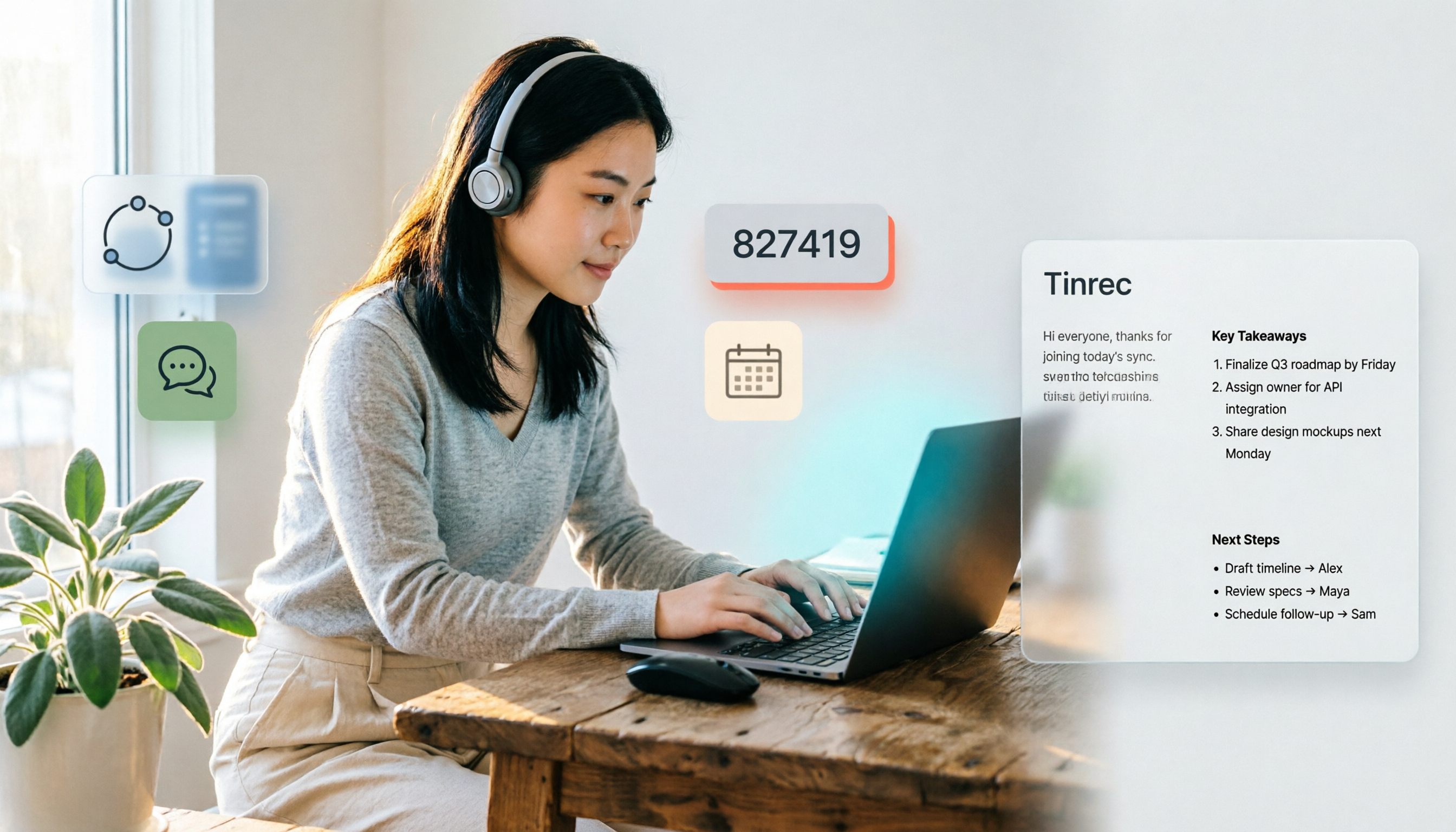
Turn recordings into transcripts and summaries in minutes
Upload audio or video for multilingual transcription, AI notes, and action items
4 Ways to Join a Teams Meeting in 2026: Meeting ID, Link, or Calendar — Which Is Most Reliable?
Why Joining a Teams Meeting Still Gets Stuck — You Don't Need More Buttons, You Need the Right Entry Point
You get pulled into a meeting last minute, and all they send is "the meeting ID is in the invite" — but you can't find the input box. You try to use a meeting ID with a personal account, and the system says you can only join with an invite link. Your company calendar doesn't have a "Join with ID" option because your mailbox isn't Exchange Online.
These snags aren't because you don't know Teams — it's because you picked the wrong entry point. Below, I break down the methods I've tested so you can choose based on your situation.
Before Joining a Teams Meeting, Understand These 3 Key Points
1. Is your account work/school or personal? With a personal Teams account, you can only join meetings using an invite link. Work or school accounts have more complete calendar and meeting ID join options.
2. Not everyone has "Join with ID" in their calendar. The "Join with ID" option in Teams calendar requires an Exchange Online mailbox. If you don't have one, you won't see that button.
3. Will you enter the meeting or the lobby? Depending on meeting settings, you might join immediately or wait in the lobby until someone in the meeting admits you. The lobby helps add security when meeting with external participants.
Tested: 4 Ways to Join a Teams Meeting
Method 1: Click the meeting invite link directly (most recommended) In Outlook, Chat, or wherever you received the invite, click the meeting link, then select "Join now." If the browser asks whether to open Teams, choose "Open." This is the least likely method to get stuck.
Method 2: Enter the meeting ID Every Teams meeting has a unique meeting ID. Go to any web or in-product Teams entry point, enter the meeting ID where requested, and you can join. Note that personal accounts can only use invite links and cannot join with just a meeting ID.
Method 3: Join from Teams calendar In Teams, select Calendar, find your meeting, and click "Join" when it's time. If you don't have an Exchange Online mailbox, the "Join with ID" option may not appear in your calendar.
Method 4: Join from a Chat invite or mobile If someone sends a meeting invite in Chat, select the link and click "Join now." You can also join on mobile — long-press the link or tap the meeting directly in the Teams app calendar. You can also join on a second device or use view-only attendee mode.
Tinrec — After Joining, Don't Let the Content Stay Only in the Conversation
Joining a Teams meeting is just the first step. The real hassle is afterward: who said what, whose action items are these, where was the last decision. Tinrec is an AI meeting notes and collaboration tool for individuals and teams, supporting live recording, audio/video file transcription, and bot-free desktop recording of online meetings.
Its desktop version captures your computer's system audio directly, so you don't need to invite a meeting bot to process audio from Zoom, Google Meet, Microsoft Teams, Webex, and more playing on your computer. Open Tinrec during the meeting to record and transcribe in real time; when it ends, it automatically generates summaries, chapters, key points, and action items. Even better is AI Q&A: you can ask "Who's responsible for the budget from this meeting?" and it answers based on the meeting content, not just keyword search results.
Stop organizing recordings by hand
Upload audio or video and automatically get a transcript, summary, and action items
Tinrec also supports multi-format export, so you can take results to Notion, Google Docs, OneNote, Dropbox, and other tools for further work. The team plan offers an independent team space where meeting data belongs to the team, plus management capabilities like members, roles, seats, usage analytics, audit logs, and an audio recycle bin. Currently, the team plan's first eligible trial is 7 days, 1 free seat, and 300 minutes of team shared import quota; team monthly is USD 29.80 per paid seat per month, annual is USD 199 per paid seat per year, paid seats provide 2,000 minutes of team shared import quota per month, and live recording is currently not deducted by minutes under an active plan and seat.
Limitations to be clear about: the free version has a basic quota, and heavy use requires payment; accuracy can be affected by recording quality, noise, accents, overlapping speakers, and technical terms — for important content, it's best to double-check the transcript and recording. If you have Teams meetings every week and don't want to manually organize afterward, Tinrec is well worth trying.
Besides Tinrec, What Other Meeting Note Options Are There?
Otter.ai: A mature English AI meeting assistant with a free plan of 300 minutes per month, suitable for English business meetings. But Chinese meeting experience and team data retention aren't its focus; Tinrec can emphasize Chinese, real-time translation, and bot-free desktop recording.
Granola: A bot-free AI meeting note tool that emphasizes handwritten notes plus AI enhancement. It doesn't retain meeting audio or support uploading pre-recorded files; Tinrec supports retaining recordings and file import, giving you more flexibility to re-listen or supplement notes later.
Notta: A multi-platform transcription and translation tool with a free plan of 120 minutes per month and a maximum of 3 minutes per session. It's good for file transcription; Tinrec focuses more on post-meeting summaries, Q&A, action items, and team spaces.
Pitfall Guide: 3 Most Common Mistakes When Joining Teams Meetings
Pitfall 1: Only looking for the meeting ID and ignoring link permissions. If you use a personal Teams account, the meeting ID isn't a universal solution. Ask the other person to send the invite link directly — it's fastest and least error-prone.
Pitfall 2: Using a personal account and expecting full enterprise features. Teams personal accounts may not be able to use certain meeting features. For company meetings, try to join with a work or school account.
Pitfall 3: Joining the meeting but not leaving a searchable record. Relying only on manual notes makes it easy to miss action items afterward. Instead of re-listening to an hour of recording, use a tool like Tinrec to organize the transcript, summary, and action items all at once.
Summary: Which Method Should You Actually Use to Join?
Have an invite link → Click the link directly and select "Join now." Only have a meeting ID and use a company account → Enter the meeting ID from a Teams entry point or calendar, but the calendar option may require an Exchange Online mailbox. Use a personal account → You can only join using a meeting invite link. Mobile or second device → Open the link in the Teams app, or join from the calendar. Need to organize the meeting after joining → Tinrec (bot-free desktop recording, Chinese transcript, AI Q&A, action items, and team space).
I suggest starting with whatever invite method you have on hand, then after the meeting, download the Tinrec free version to try it. Whether the quota is enough and whether organizing goes smoothly — trying it yourself is the most accurate way to know.
References
Turn every recording into actionable outcomes
Get 60 free transcription minutes when you sign in. No credit card required.
Related Reading
You might also like

3 Teams Meeting Recording Tools Tested for 2026: Which Is Least Disruptive?
Need to record a Teams meeting? Should you use the built-in feature, a meeting bot, or bot-free desktop recording? This article compares the three approaches in terms of operation, file ownership, and post-meeting organization efficiency, and tests Tinrec's bot-free recording and AI meeting organization workflow to help you choose the one that least disturbs participants.

4 iPhone Recording Methods Compared in 2026: Built-in, Shortcuts, Call Recording, and Tinrec — Which Should You Choose?
A practical comparison of four common iPhone recording methods in 2026: Voice Memos, one-tap Shortcuts recording, iOS call recording, and Tinrec. Learn how each works, their limitations, compliance reminders, and which one fits your needs.

2026 Teams Meeting Retention Showdown: 3 Solutions Compared for Recordings, Transcripts, and Data Storage
Does recording a Teams meeting guarantee it's saved? This article breaks down common misconceptions about Teams retention policies, call holds, and where meeting recordings and transcripts are stored. It compares Tinrec, Otter.ai, Notta, and Granola on meeting record retention to help you find the right approach.

2026 Comparison of 3 Teams Meeting Recording Tools: Which Bot-Free Recorder Is Easiest?
Halfway through a Teams meeting, you're asked to keep a record—but there's no record button? This article covers 3 ways to record Teams meetings, including the permission requirements for Teams built-in recording, Tinrec desktop's bot-free system audio capture, and use cases for Otter.ai and Granola. It also includes recording retention periods and 4 common pitfalls to avoid.

3 LINE Call Recording Methods Tested for 2026: How to Record on iPhone and Android, and How to Organize Recordings
LINE does not have a built-in call recording button, but iPhone users on iOS 26 can use the built-in "Local Capture," while Android users can use screen recording or Cube ACR, or use speakerphone with an external recording device. This article covers 3 tested methods, common mistakes, and legal reminders, and explains how to use Tinrec to turn call recordings into transcripts, summaries, to-dos, and searchable team data.

5 LINE Call Recording Methods Tested and Compared in 2026: How to Turn Recordings into Transcripts
LINE doesn't have a built-in call recording feature, but the real challenge isn't capturing the call—it's ending up with only your own voice or an audio file no one wants to listen to twice. This article reviews 5 common LINE call recording methods, tests the pitfalls of each, and explains how to use Tinrec to turn audio files into searchable, queryable transcripts and meeting notes. It also highlights legal considerations before recording.

2026 Comparison of 3 iPhone Recording Organization Tools: Which Saves the Most Time Converting .m4a Audio to Transcripts?
iPhone's built-in Voice Memos saves recordings in .m4a format by default, but converting the file only solves playback issues, not organization. This article first explains what file iPhone recordings are, then tests and compares recording organization tools like Tinrec, Otter.ai, Notta, and PLAUD to help you understand key buying factors and avoid common pitfalls.

Google Meet Recording Tools Compared: 4 Options for Automatic Transcripts in 2026
We start with how to download and install Google Meet on Android, iOS, desktop, and web, then compare Tinrec, Otter.ai, Granola, and Notta on post-meeting transcripts, summaries, action items, and team collaboration to help you find the most time-saving meeting notes setup.

How to Use Google Meet on TV in 2026: Chromecast Casting & Meeting Notes
How do you use Google Meet on TV? This guide clears up common misconceptions, explains why Android TV doesn't support meeting mode, how to cast with Chromecast and Google TV Streamer, and how to use Tinrec desktop to record Google Meet without a bot—generating transcripts, summaries, and action items.