

Turn recordings into transcripts and summaries in minutes
Upload audio or video for multilingual transcription, AI notes, and action items
You clicked "Share" in a Teams meeting—now what?
It's 10 a.m. on a Wednesday, your client is already waiting online, your presentation is in full-screen mode, and you can't find the "Share" button.
You finally share your screen, but the next slide gets stuck. After the meeting, your boss asks, "What was that decision we made?" and all you remember is talking for half an hour.
This article solves two problems: first, it teaches you the correct way to share your screen in Teams, and then it discusses how to capture the meeting content after sharing.
How to Share Your Screen in a Teams Meeting: Steps and Common Issues
Step 1: In the meeting controls, select "Share" or "Share content."
Step 2: Choose the sharing type. You'll typically see "Screen" and "Window" options. Sharing your entire screen is convenient, but it also exposes desktop notifications and private chat windows. Sharing a single window is safer, but if you switch away from that window, you'll need to share again.
If you're presenting a slideshow, it's best to start the slideshow first, then select that slideshow window from the "Window" category. Teams also supports PowerPoint Live, which lets you share slides directly.
Step 3: If you need to play a video or music, remember to turn on "Include computer audio." If you only share the screen without this toggle, the other participants won't hear the computer's sound.
Step 4: To stop sharing, move your cursor to the top of the shared screen to bring up the presenter toolbar, then select "Stop sharing." The toolbar will automatically hide—this is normal.
Three Most Common Issues
- Teams on the web: Use Google Chrome or the latest version of Microsoft Edge. Linux is not currently supported.
- Can't share screen on macOS: This is usually a permissions issue. Go to "System Settings → Privacy & Security → Screen Recording" and make sure the toggle for Teams is turned on.
- Window gets smaller after sharing: This is normal. The microphone, camera, and raise hand controls are all in the smaller meeting window.
Also, if you just want to show someone your screen in a chat, you don't need to start a video call. You can share your screen in the chat, and once the other person accepts, they can see it.
After Sharing Your Screen, the Real Trouble Begins
Sharing your screen isn't hard; the hard part is what comes after.
In the meeting, someone mentioned the budget, someone claimed a task, and someone overturned a previous decision in the thirtieth minute. When the meeting ends, all of this relies on memory and a scribbled handwritten note.
Next week, when you need to find out "who said they were going to change the specs," you have to scroll through the chat history page by page.
If you've experienced these situations, the problem isn't screen sharing—it's that you lack a process to capture the meeting content.
Before Choosing a Meeting Note Tool, Understand These 4 Key Points
1. Whether to let a bot join the meeting. A meeting bot appears in the participant list as an attendee, and some clients may be uncomfortable with that. Bot-free desktop recording is another option, but you have to remember to start it yourself.
2. Performance with Chinese and mixed Chinese-English. Meetings in Taiwan are rarely pure Chinese or pure English; mixing Chinese and English with technical terms is the norm. When choosing a tool, the ability to customize terminology is an easily overlooked point.
3. What you can do after transcription. A tool that only provides a transcript leaves all the organizing work to you. The ability to automatically generate summaries, chapters, action items, and even let you ask questions directly about the meeting content makes a big difference.
4. Who owns the data and how quotas are calculated. Data from a personal account follows the person, so if they leave, the data goes with them. For team use, check whether the data belongs to the team and whether there is member and seat management.
Tinrec (秒聽錄音) — Our Top Pick After Testing
Tinrec (秒聽錄音) is an AI meeting note and collaboration tool for individuals and teams, available on desktop, web, and mobile. Its core purpose is to turn meeting recordings into searchable, collaborative, and reusable data.
Its biggest difference is the recording method: the desktop version directly captures the computer's system audio, handling meetings played on the computer like Zoom, Google Meet, Microsoft Teams, and Webex without needing a meeting bot in the room. For those who frequently meet with external clients, this is very practical.
Stop organizing recordings by hand
Upload audio or video and automatically get a transcript, summary, and action items
What truly sets it apart is the post-transcription processing. After the meeting, you get a transcript, AI summary, chapters, and action items. When you need to confirm details, you can ask questions directly about the meeting content instead of searching back and forth in the transcript with keywords. During recording, you can also switch between original text, translation, or bilingual view, which helps avoid missing key points in cross-language meetings.
Output flexibility is also good. The organized content can be exported to Notion, Google Docs, OneNote, Dropbox, and other tools for further processing, or you can ask it to generate reports, tables, or meeting minutes. It's a seamless flow from "recording" to "delivering."
Our hands-on experience: it solves not the transcription problem, but "the two hours after the meeting." You don't need to format the transcript yourself or manually extract action items; most of the time, you open it and see the organized results.
Note that actual transcription quality can still be affected by recording quality, background noise, accents, and multiple people talking over each other. For important decisions, it's advisable to double-check the transcript timestamps or recording. Also, Tinrec should currently be understood as "user-initiated desktop recording," not automatically joining all meetings on your calendar.
The free version offers a basic quota to try it out. The team version is a separate collaboration space where meeting data belongs to the team, including member, role, and seat management, shared import benefits, usage analytics, audit logs, and an audio recycle bin. Currently, the team monthly plan is USD 29.80 per paid seat per month, and the annual plan is USD 199 per paid seat per year (about USD 16.58 per month). Each paid seat provides 2,000 minutes of team shared import quota per month. Eligible teams can try it for 7 days with 1 free seat and 300 minutes of shared import quota. Actual prices and benefits are subject to the official purchase page.
If you have meetings to record every week, need Chinese and mixed Chinese-English transcription, want to use AI to find key points directly after recording, or want to turn meeting data into a shared team asset, Tinrec is currently the most suitable choice.
Besides Tinrec, What Other Options Are There?
Otter.ai: A mature choice for English business meetings. The Basic free version offers 300 minutes per month, and the Pro annual plan is about USD 8.49 per user per month. Chinese meetings are not its strong suit, and it usually participates as a meeting bot, making it less suitable for client meetings where you don't want a bot to appear.
Notta: Has a high overlap with Tinrec, also supporting multiple platforms and file import. The free version offers 120 minutes per month, with a maximum of 3 minutes per single item. The Pro annual plan is about USD 8.17 per month. It lacks Tinrec's bot-free desktop recording and team seat governance, making it suitable for those who mainly batch transcribe files.
Granola: Also takes a bot-free approach, focusing on "your notes + AI enhancement." Basic is free, and Business is USD 14 per user per month. Note that it does not support uploading pre-recorded audio files and does not retain meeting audio. If you need to keep recordings, import historical files, or have a team database, Tinrec is more complete in these areas.
Pitfall Guide: The 3 Most Common Mistakes When Choosing a Meeting Note Tool
Pitfall 1: Only looking at the official claimed accuracy. Numbers measured in a quiet recording studio are different from real meetings with air conditioning noise, keyboard sounds, and multiple people talking over each other. It's best to test with one of your own meetings, not just rely on ads.
Pitfall 2: Forgetting to confirm recording consent. Recording involves legal and consent issues, especially for international meetings. No matter how good the tool is, you must get consent from participants before recording.
Pitfall 3: Buying it but only using it as a voice recorder. If you only use the transcription feature, you're missing out on more than half of its value. Tools like Tinrec let you ask questions directly about meeting content, automatically extract action items, and export to existing workflows—these are the real time-savers.
Conclusion: Which One Should You Choose?
- Need Chinese and mixed Chinese-English transcription → Tinrec
- Don't want a meeting bot in the participant list → Tinrec (desktop version captures system audio)
- Want to use AI to ask key points and extract action items directly after recording → Tinrec
- Need to keep meeting data for the team and manage members and usage → Tinrec Team version
- Mainly record English meetings and have a limited budget → Otter.ai free version is the most cost-effective exception
We suggest trying Tinrec's free version for two or three meetings to experience the difference of getting summaries and action items right after the meeting, then decide whether to upgrade.
FAQ: Does sharing your screen in Teams require payment? No, screen sharing is a built-in Teams feature.
FAQ: The other person can't hear the video sound when I share my screen? Check whether "Include computer audio" is turned on when sharing.
FAQ: Can I share my screen and record the meeting at the same time? Yes, Teams itself can record, and you can also use a desktop tool to capture system audio for transcription. The two do not conflict.
References
- Show your screen during a meeting - Microsoft Support
- Present content in a Microsoft Teams meeting - Microsoft Support
- Share your screen in Microsoft Teams Free - Microsoft Support
- Q1: How to share screen for PPT? A1: Option 1 - Window sharing: Before presenting, play the presentation file (F5), then click [Share content] > [Window] and select the presentation window.
- Share your screen in a Teams chat - Microsoft Support
Turn every recording into actionable outcomes
Get 60 free transcription minutes when you sign in. No credit card required.
Related Reading
You might also like

2026 Google Meet Note-Taking Tools Compared: Tinrec Leads for Chinese Transcription
Google Meet can't be purchased separately; business use requires a Google Workspace subscription. This article breaks down the differences between Google Meet free and paid versions, and compares Tinrec, Otter.ai, and Notta to help you find the best post-meeting solution for Chinese meetings.

Google Meet 2026 Update Review: Built-in Notes vs. Tinrec — Which Saves More Time?
We break down Google Meet's 2026 updates and compare its built-in meeting notes with Tinrec's AI recorder across recording methods, Chinese transcription, post-meeting organization, export, and team collaboration to help you decide which fits your meeting workflow.

Tinrec vs Notta 2026: 5-Dimension Comparison for Chinese Meeting Notes
Searching for Tenrec App brings up unrelated results. The real comparison is between meeting transcription tools. This article uses Tinrec as an example to walk through 5 steps from recording to meeting minutes, and compares Tinrec and Notta across 5 dimensions to help you decide which is better for your Chinese meeting scenarios.

2026 Comparison of 4 Google Meet Meeting Note Solutions: How Tinrec Turns Transcripts into Actionable Data
Google has never separately disclosed Google Meet revenue; 2024 figures are hidden within Workspace subscriptions and cloud business. This article compiles verifiable revenue context and compares the practical differences among four types of meeting note solutions, explaining how Tinrec uses bot-free desktop recording to turn meeting content from Google Meet, Teams, and Zoom into searchable, actionable team data.

Google Meet Transcription vs. Tinrec: Which Meeting Notes Tool Wins in 2026?
Google Meet's plans are tied to Google Workspace, with separate pricing and bundles in India. But built-in transcription only handles a single meeting—post-meeting organization, cross-platform consolidation, and team knowledge retention remain gaps. From a mid-level manager's practical perspective, this article explains how Tinrec fills these gaps with bot-free recording, AI Q&A, action item extraction, and team spaces.
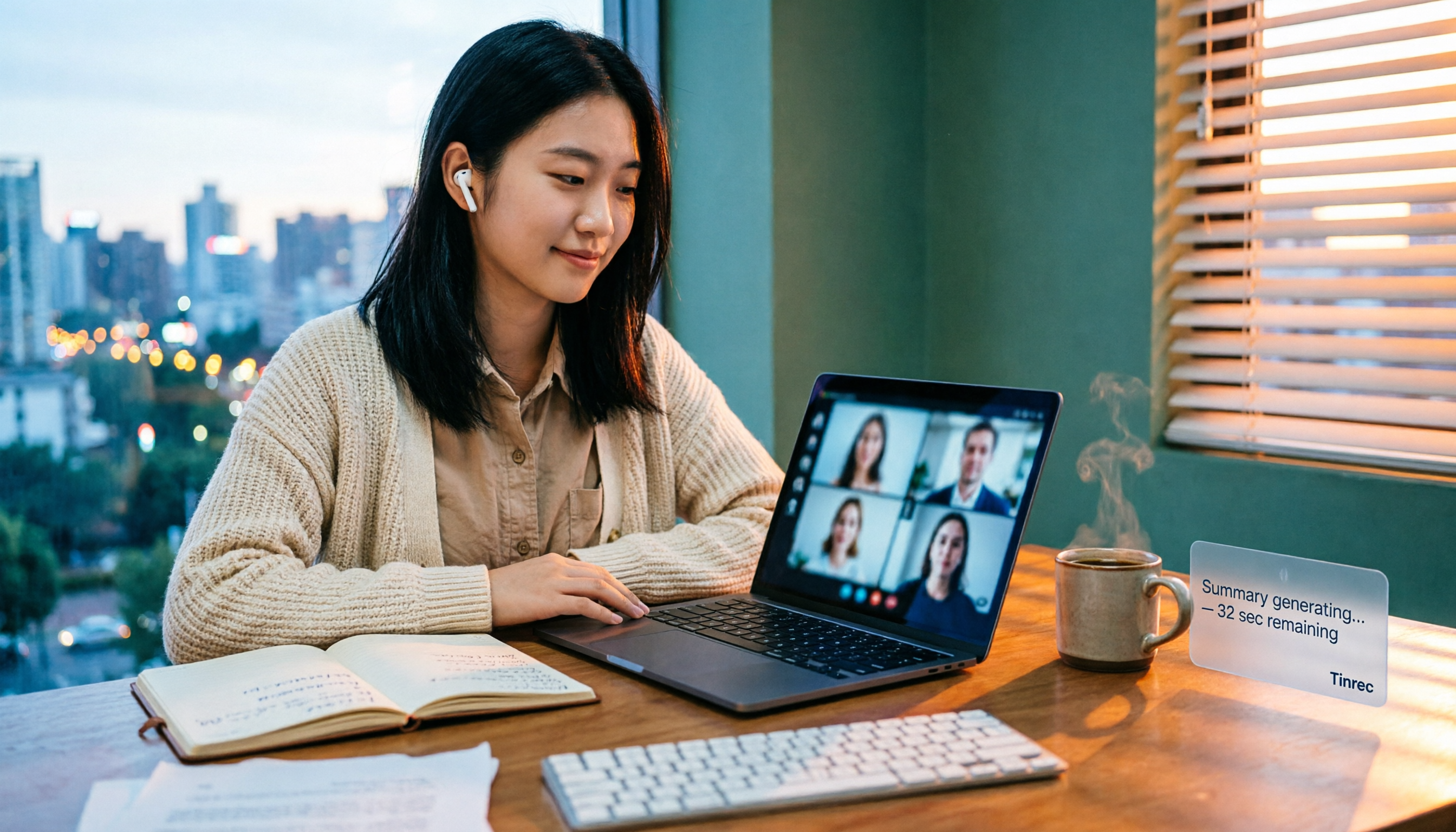
How to Buy Google Meet Recording in 2026: 4 Steps to the Best Deal
Does Google Meet recording cost money? Why can't free users find the record button? Starting from a student budget, this guide uses 4 steps to help you decide whether to upgrade to Workspace, use built-in recording, or switch to a bot-free AI meeting notes tool like Tinrec, with buying criteria and pitfalls to avoid.

Tinrec vs Google Meet in 2026: 4 Key Differences to Know Before You Pay
People searching for Google Meet purchase price usually want to know: Do I need to pay for meetings, and where should the money go? This article breaks down Google Meet's pricing logic using real scenarios for students and small teams, and explains how Tinrec fills the gap in meeting notes, transcripts, and action items so you can decide before paying.
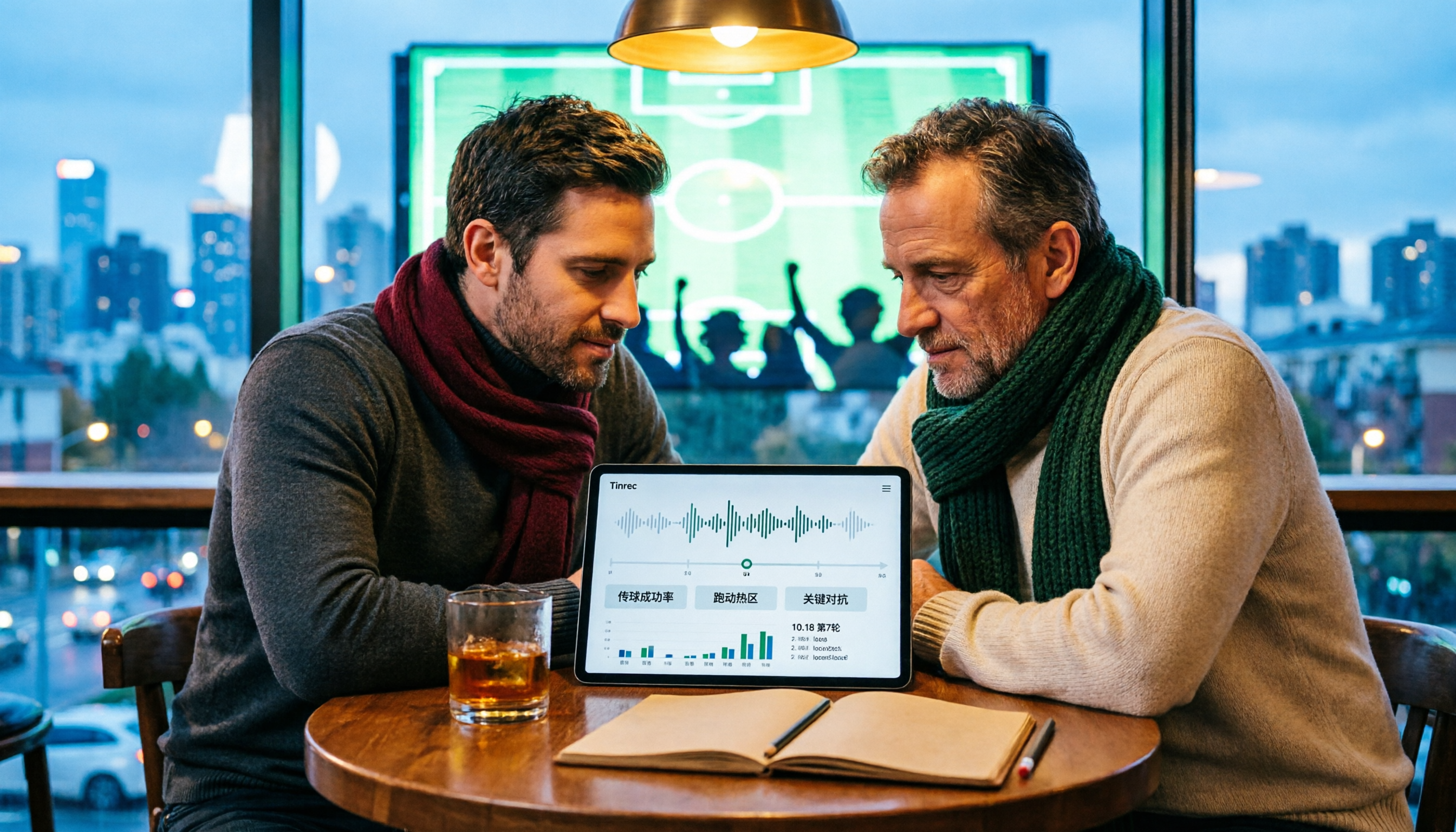
Arsenal vs Nottingham Forest Preview 2026: 3 Key Storylines and H2H Data
On October 18, 2026, Nottingham Forest host Arsenal in Premier League Matchday 7. This preview covers kickoff time, both teams' recent form, head-to-head record, and injury lists to help you get up to speed before the match.
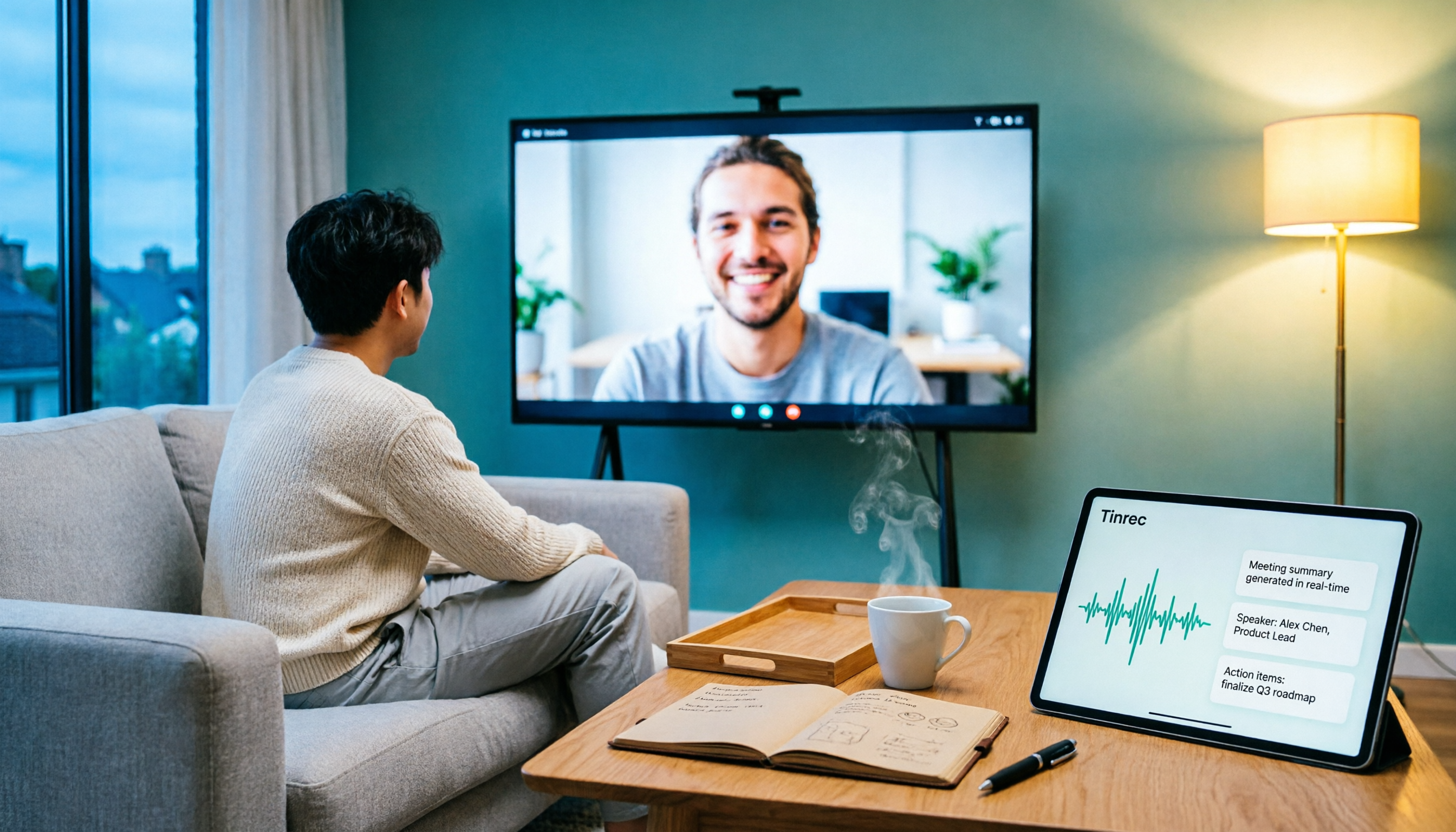
5 Ways to Put Google Meet on TV in 2026: Real-World Comparison and How to Capture Meetings on the Big Screen
To get Google Meet on your TV, you need to solve two problems: how to get the picture on the big screen, and where the meeting content goes after it ends. This guide covers 5 methods, from bot-free recording to Chromecast casting, Android TV calling, and browser-based options, explaining when each one makes sense.