
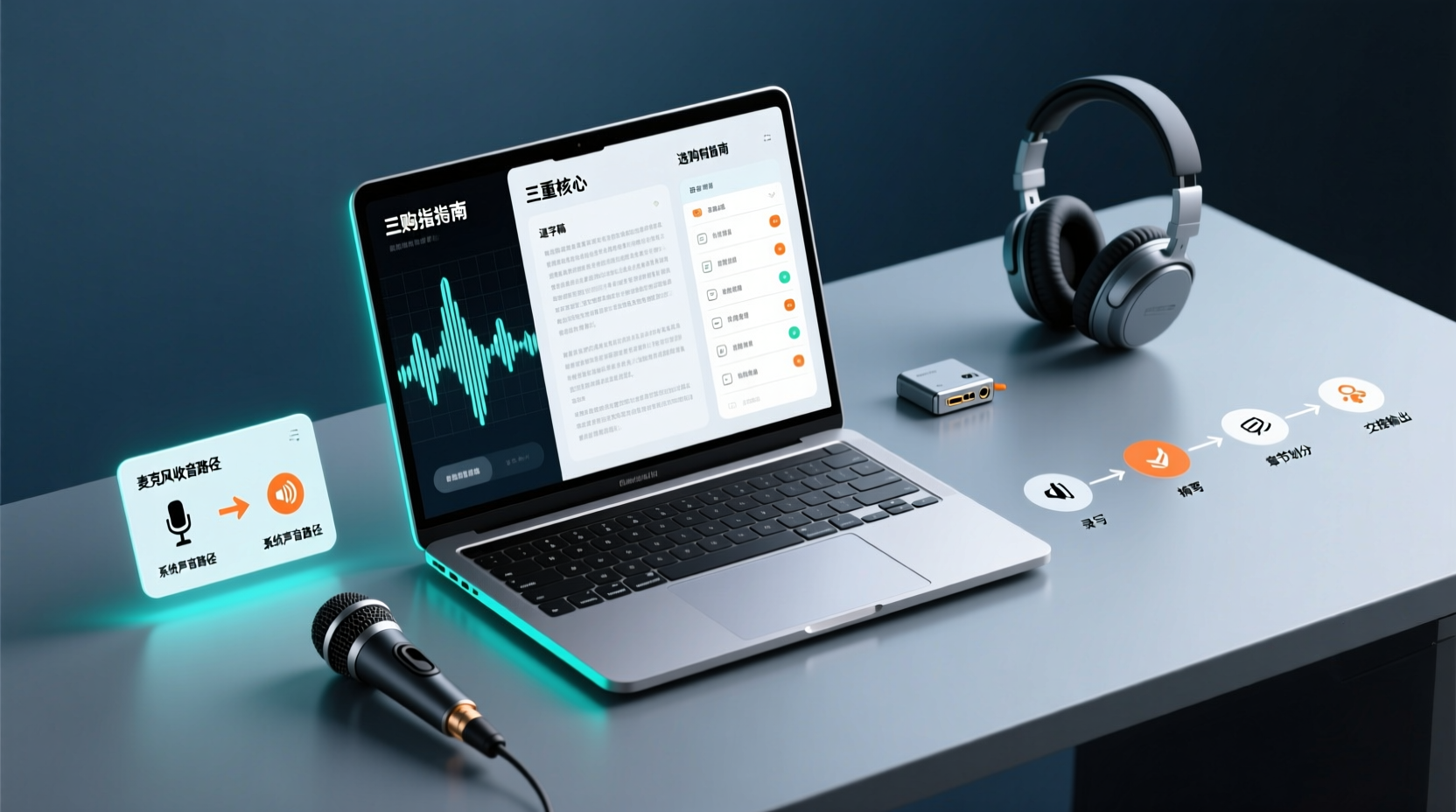
Turn recordings into transcripts and summaries in minutes
Upload audio or video for multilingual transcription, AI notes, and action items
Picking up your phone and tapping once is nearly effortless. But if what you really need to keep is an online meeting held on your computer, a call made from your computer, or an audio file that already exists on your computer, things are different: the sound won't make its way into the recording on its own—you have to decide first where it comes in from.
If you've run into this gap too—your phone records fine, but your computer only captures your own voice and you can't hear the other person—then the thing to deal with isn't really "which app is better," but rather determining the sound source first: is this someone speaking into a microphone, or sound the computer is playing? Below we break it down in the order you'd decide: first the paths, then the scenarios and checkpoints, and finally the transcript, summary, and action items after recording.
What Is Computer Recording Actually Recording? First Tell Apart the Two Paths: Microphone Capture and System Audio
The phrase "computer recording" is treated as a single thing in most situations, but it actually covers at least two different paths. Pick the wrong one and the usual result is "you clearly pressed record, but when you open the file there's only your own voice."
| Path | What actually gets recorded | Typical scenarios | Common snags |
|---|---|---|---|
| Microphone capture | What you and the people around you say in the room | In-person meetings, face-to-face interviews, dictating your own notes | The other person's voice coming through your headphones won't be picked up |
| System audio (sound your computer plays) | The audio your computer is currently outputting | The other party's speech in an online meeting, online courses, videos, streaming content | If the input source isn't set correctly, you record nothing but silence |
There's another case that requires both paths at once: in an online meeting you're speaking through a microphone, and you also need to keep the sound your computer plays from the other party. Here you need to confirm whether the tool can capture the microphone and system audio at the same time, rather than just one of them.
Settle this first, and only then talk about tools. If you haven't even clarified where the sound comes in from, switching software won't solve the problem.
Three Common Computer Recording Scenarios: Online Meetings, Calls, and Existing Audio Files
Scenario 1: Online meetings. The meeting takes place on Zoom, Google Meet, Microsoft Teams, or Webex, and what you need to keep is the back-and-forth discussion between both sides. In this kind of scenario the main sound source is system audio, while your own speech goes through the microphone, so the tool has to handle both at once. The real difficulty in a meeting usually isn't "can it record," but whether an extra account has to appear on the participant list when the other party is an outside client.
Scenario 2: Calls on your computer. Phone calls, VoIP calls, or voice chats in messaging apps made from a computer tend to be more fragmented than meetings, yet they often contain things you must keep—quotes, timelines, verbal commitments. These calls usually have no meeting link to invite a tool into, so you can only capture the audio on your own computer.
Scenario 3: Audio or video files that already exist. A recording a colleague hands you, a previously recorded meeting file, an online course video. Strictly speaking, this path doesn't need "recording"—it needs "transcription and organization." The audio file is already there; the question is how to turn it into searchable, quotable text.
Four Checkpoints Before Choosing a Computer Recording Tool: Platform, Sound Source, Output, Language
| Checkpoint | What you need to confirm first | What happens if you don't confirm it |
|---|---|---|
| Platform | Whether your operating system is Windows or macOS, and which meeting platform it is | You only discover after installing that system audio can't be captured, or that the meeting platform isn't supported |
| Sound source | Whether you need only the microphone, only system audio, or both at the same time | You only find out after recording that one side is missing and the meeting can't be reconstructed |
| Output | Whether what you ultimately need is an audio file, a transcript, a summary, action items, or an exportable document | You end up with only the audio file and still have to re-listen and type it up yourself after the meeting |
| Language | Whether the meeting is entirely in Chinese, mixes Chinese and English, or is multilingual; and whether it contains a lot of technical jargon | The transcript is full of recognition errors, and proofreading ends up taking even longer |
Check these four in order; don't start by comparing prices or the length of a feature list. The first two determine "can it record," and the last two determine "is the recording usable."
Recording Online Meetings on Your Computer: Capturing System Audio Without Inviting a Bot
To keep the audio of an online meeting, there are two different approaches in practice, and the difference lies not only in the technology but also in how it feels during the meeting itself.
| Approach | How it works | Practical differences |
|---|---|---|
| Meeting bot joins | Enters the online meeting as an extra participant | An extra account shows up on the meeting roster; outside clients may ask who that is, and some platforms or plans also require host authorization |
| Desktop app captures system audio | The user starts the recording on their own computer and captures the sound the computer plays | The meeting roster stays the same; the user has to start and stop it themselves, and it does not automatically join every meeting on the calendar |
The Tinrec desktop app takes the latter approach: the user starts the recording, and it handles online meetings on Zoom, Google Meet, Microsoft Teams, Webex, and similar platforms by capturing the device's system audio, so no meeting bot has to join as a participant. Keep in mind that this is not the same as "automatically joining every calendar meeting," nor does it mean there is any official partnership between Tinrec and these meeting platforms.
Before you start for real, it's a good idea to do a few things first:
- Confirm whether the meeting audio is coming out of your speakers or headphones, and select the correct system audio source in the tool.
- Record a short test first—say a sentence yourself and ask the other person to say one—to confirm that both the microphone and the system audio are being picked up.
- Turn off app notifications that make alert sounds so notification tones don't bleed into the recording.
- Decide where the recording file is expected to be stored, and where this meeting's output will go afterward.
Stop organizing recordings by hand
Upload audio or video and automatically get a transcript, summary, and action items
The real work starts after you finish recording: how to produce transcripts, summaries, chapters, and action items
Capturing an audio file only preserves the sound. What most people actually spend time on is the work that follows: listening back, proofreading, turning it into a record, and then pulling out who needs to do what from that record.
| Stage | What you get | What this step involves |
|---|---|---|
| Capturing the audio | An audio or video file | Confirm that both the microphone and the system audio were captured |
| Convert to text | Transcript | Proofread names, proper nouns, and numbers |
| Pull out the structure | Summary, chapters, key points | Confirm that decisions weren't written up as mere discussion |
| Extract action items | Action item list | Add owners and deadlines |
| Keep processing | Action plans, follow-up materials, reports, tables, documents | External commitments and important decisions are confirmed by a person |
| Export and archive | Files you can bring into existing workflows | Decide where to put them and who can view them |
Along this workflow, Tinrec provides real-time recording to text, audio and video file transcription, AI summaries and chapters, action item extraction, AI Q&A around meeting content, multi-format export, and real-time translation with bilingual viewing during recording; exports can be brought into tools such as Notion, Google Docs, OneNote, and Dropbox for continued use. That said, keep in mind that transcripts and summaries are supporting materials, and recognition accuracy is affected by recording quality, ambient noise, accents, overlapping speech from multiple people, and specialized terminology, so important numbers and names should still be checked against the original text and the recording.
What truly turns "action items" into "something you can hand off" is the part handled by the Agent (think of it as an AI assistant for after the meeting). It doesn't summarize a second time; instead, based on the meeting minutes and context, it helps keep processing the action items into action plans, follow-up materials, reports, tables, and documents.
Fictional teaching example: after a 45-minute project weekly meeting ends, the transcript and action items contain three actions—update the spec document, reply to the client's question about the timeline, and confirm the test environment before next week. The AI assistant can organize these three items into an action plan based on the meeting context, organize the client-related content into follow-up materials, or output a progress report and table according to the manager's needs. These outputs are drafts in nature: anything sent externally, timeline commitments, and technical conclusions should still be confirmed by the responsible person before use; the Agent also won't make final decisions for people or automatically operate external systems without confirmation.
How to share and follow up on post-meeting materials: team space and shared meeting data
What we've covered so far is "what you end up with yourself." But the post-meeting work for a project meeting usually involves more than one person: the person handling it has to submit the record, the PM has to chase action items, and the manager wants to see whether last time's decisions were carried out. If transcripts, summaries, and action items stay only in the account of the person who did the recording, anyone else who wants to see them has to wait for a forward; and once someone leaves or switches projects, the data can easily scatter along with them.
Tinrec's team edition handles this part. It isn't several people sharing one personal account, but an independent team collaboration space, and in practice there are two concrete steps.
The first step is centralizing meeting assets in the team space. The team edition keeps meeting data such as Audio, Folder, and TODO together in the team space, so transcripts, summaries, and action items are no longer just files on someone's computer. In practice, members record or import using their own accounts, then place that meeting in the corresponding location in the team space; afterward, members who join later can also look back at past meetings, rather than having records only starting from the day they joined.
The second step is sharing meeting materials so that the action items have someone to take them over. Team members can view, play, and read the meeting materials in the team space, and hand off action items and post-meeting deliverables to the colleagues who will actually follow up. Three things need to be kept clear here: membership determines whether you are part of the team, role determines who can manage the team, members, and related settings, and seat determines whether you can actually record, upload, edit, import, and export. Currently, the Team edition focuses on team-level sharing rather than file-level or member-level granular permission control, so the sharing scope for sensitive meetings is still best confirmed separately. In addition, when a member leaves, is removed, or loses their seat, team resources do not go with the individual; they are handed over to the active members still on the team.
A common use case: after the project weekly meeting ends, the person responsible puts the transcript and action items into the team space, the PM takes over follow-up tracking from the action items list, and another colleague turns the summary into materials for external communication.
If your post-meeting records are currently scattered across individual accounts and chat rooms, you can first create a team space and put the transcript, summary, and action items from a recent project into it, so the colleague responsible for follow-up can take over directly from the same place.
Conditional selection advice: when built-in system recording is enough
- If you just want to keep a voice memo, a solo explanation, or read-aloud content of your own, built-in system recording is usually enough. On Windows, for example, the built-in Sound Recorder app allows each recording file to be up to 3 hours (per Microsoft Support documentation).
- If the meeting takes place on a computer and you need to capture an entire back-and-forth discussion, you need a route that captures both system sound and microphone; relying only on built-in recording tends to record only yourself.
- If after recording you also need to deliver a record, decisions, or action items, then “recording” is only the first stage — transcription and organization capabilities are the key to post-meeting work time.
- If your need is to “automatically join every meeting on the calendar,” that's the meeting bot route, which is a different approach from capturing system sound on desktop; when choosing, distinguish the two and don't conflate them.
- If all you have is an existing audio or video file, the focus is on file transcription and organization, and you don't need to handle live recording.
Consent, sensitive data, and manual verification checklist before recording
Before recording, take care of these items first — it's much less trouble than fixing things afterward:
- Inform participants and obtain consent in accordance with local regulations and company policies, especially for external meetings and client calls.
- For content involving medical, legal, financial, or customer personal data, minimize the recording scope as much as possible and confirm where the data will be stored.
- Transcripts and summaries are supporting materials; important decisions, amounts, timelines, and external commitments should be verified against the original text and the recording.
- Transcription results are affected by recording quality, noise, accents, overlapping speech, and specialized terminology; performance can vary widely from meeting to meeting, so don't assume it can be used as-is.
- Before sharing with the team, first confirm which meetings are suitable for the team space and which content needs separate handling; when membership changes, also arrange for resource handover.
Data and sources for verification
- The 4 Best Ways to Record Audio on a Computer [Best Recording Program Tools Recommended for 2026]
- 4 Computer Recording Tricks Revealed! Simple and Easy — Record Computer Sound with Ease [Latest 2026]
- Sound recording programs for Windows: FAQ | Microsoft Support
- Record computer sound (computer recording) | Microsoft Q&A
- Bandicam Best Audio Recording Software | Free recording tool supports system sound and microphone (Windows)
Turn every recording into actionable outcomes
Get 60 free transcription minutes when you sign in. No credit card required.
Related Reading
You might also like

5 Best Notta Alternatives in 2026: Real-World Comparison for Chinese Meeting Notes and Team Knowledge
Notta's free plan only records 3 minutes per session. Before switching, what should you consider? This article compares Notta alternatives like Tinrec, Otter.ai, Fireflies.ai, and Granola from four angles: Chinese meeting transcription, bot-free recording, post-meeting AI Q&A, and team knowledge retention. We also highlight the three most common pitfalls to help you find the right meeting tool.

4 Best Good Tape Alternatives in 2026: Hands-On Comparison for Chinese Meeting Notes and Team Knowledge Sharing
Good Tape is free, secure, and easy to use—great for journalists and individual users. But it may not meet the needs of Chinese-language meetings, online meeting recording, and team data sharing. This article compares four alternatives—Tinrec, TurboScribe, Notta, and Granola—covering Chinese recognition, meeting recording methods, post-meeting output, audio file storage, team governance, and pricing, to provide a practical guide for US users.

2026 Tinrec vs Notta, Otter, Fireflies: Multilingual Transcription + Team Collaboration in One Place
Notta, Otter, and Fireflies each have their strengths, but mixed-language meetings, avoiding an extra bot participant, and post-transcription organization and team knowledge retention are often where users get stuck. This article focuses on Tinrec, covering language support, meeting recording methods, post-meeting outputs, team collaboration, and pricing, to help you choose.

2026 Notta Free Alternative Guide: How Tinrec Handles Chinese Meeting Notes and Team Collaboration
Looking for a free Notta alternative? This guide compares Tinrec and Notta for Chinese meetings, bot-free recording, post-meeting organization, and team collaboration. It covers Tinrec's features, use cases, buying tips, and free version testing advice.
2026 AI Meeting Notes Comparison: Notta vs Otter vs Tinrec — Which Should You Choose?
What's the difference between nada and notta? If you're actually looking for an AI meeting notes tool, the real choice is between a 'meeting bot' and 'bot-free desktop recording.' This hands-on comparison of Notta, Otter.ai, TurboScribe, and Tinrec covers how meetings are captured, post-transcription processing, Chinese-language experience, and team data ownership to help you decide which fits your meeting scenario best.
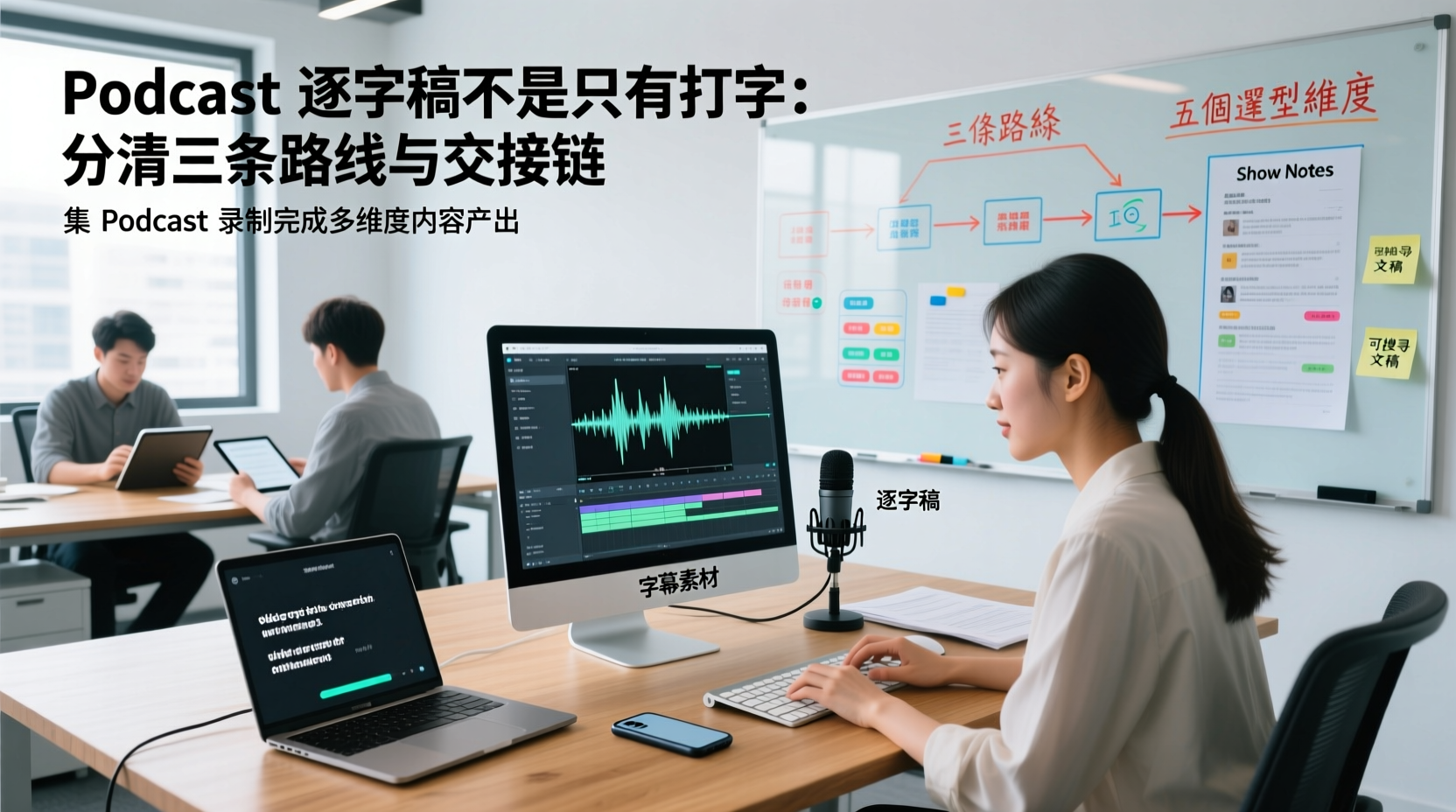
A Podcast Transcript Isn't Just Typing: Separate the Three Paths and Handoff Chain to Connect Audio to Captions, Show Notes, and Searchable Text
A finished podcast episode doesn't just need a transcript—it also needs caption assets, Show Notes, and searchable text, each with different people taking over. This article breaks down three common paths and five selection dimensions, explaining the handoff chain from audio file to each output, which fields must be filled in first, which steps still require human proofreading, and how assets are centralized, shared, and handed off in multi-person production.
How Should You Choose a Podcast Transcription App? Run 5 Criteria First, Then Compare Four Types of Solutions: The Workflow from Audio File to Show Notes
Between finishing a recording and publishing an episode, transcripts, segmentation, and show notes are the stages most likely to stall the production line. This article lays out 5 checkable criteria, compares four common approaches, and shows how to use Tinrec to go from an audio file to a transcript, key points, and deliverable assets — while explaining which steps require human confirmation and how a show team shares and hands off the work.
Notta vs Fireflies: How to Choose — From Meeting Capture Architecture and Chinese Bilingual Limits to Team Data Ownership, a Selection Conclusion for 5–20 Person Teams
The difference between Notta and Fireflies isn't just price and minutes — it's how a meeting actually gets recorded. This article compares the two in order: their meeting capture methods, the limits of their Chinese and bilingual experience, what you get after the transcript, and team data ownership and member handover. It then narrows the conclusion into three team selection scenarios, explaining under what conditions you should evaluate a bot-free approach like Tinrec.

How to Choose a Budget Voice Recorder: Check 4 Specs, Avoid 3 Pitfalls, and Calculate the Real Transcription Cost After Recording
Shopping for a voice recorder on a budget of a few hundred to NT$2,000? First understand where cheaper models cut corners, how to evaluate 4 key specs, how 3 common setups compare, and the practical workflow for turning recordings into transcripts, key points, and action items using free quotas.