

Turn recordings into transcripts and summaries in minutes
Upload audio or video for multilingual transcription, AI notes, and action items
Where Do Most People Get Stuck with Cantonese Input on Windows 11?
Many people start by searching online for "Cantonese input method download," then spend an entire evening following forum instructions to install third-party software—only to find it doesn't work and doesn't appear in the input method list.
This is a common misconception. You define the problem as "I need to find an input method," but what you really want to solve is "I want to turn the Cantonese in my head into usable text on the screen."
And Windows 11 is a special case. Currently, the system does not have a native Jyutping input method. The built-in voice input (Win + H) can understand Cantonese, but its purpose is "speak a sentence, type a sentence"—it doesn't keep a record after you speak, and it's hard to use for organizing a meeting.
So a more reasonable approach is to separate "input" from "recording." For short phrases, the built-in system is enough. But once content exceeds a few minutes and you need to find key points later, you should hand it over to an AI speech-to-text tool like Tinrec.
What Can Tinrec Do to Turn Cantonese into Text?
Scenario 1: After a meeting, the transcript is already there Previously, after a two-hour meeting, you might spend another hour organizing notes. With Tinrec, as the meeting ends, the transcript, summary, and action items are already generated—who is responsible for what and when it's due is clear at a glance.
Scenario 2: Interviews and research, key points surface automatically When conducting user interviews or expert interviews, the most troublesome part is extracting those three key quotes from an hour of recording afterward. Tinrec can transcribe while speaking, and later you can directly ask it "What was the interviewee's reaction to the price?" without listening from start to finish yourself.
Scenario 3: Classes and online courses Using Tinrec to record during class or while watching online courses automatically produces structured notes. When reviewing, you don't need to re-listen—just look at the chapters and key points.
Scenario 4: Quick notes, speak as you think If you think of a project idea on your commute, just speak a segment into your phone. Tinrec has a mobile version, and after recording, it becomes a searchable text note, no longer scattered in voice memos where you can't find it.
What Are Tinrec's Core Capabilities?
Real-time recording to text: Words appear as you speak, not processed after recording. You can use it directly for offline meetings and on-site interviews.
Bot-free online meeting recording: This is a unique feature of Tinrec. The desktop version directly captures the computer's system audio, handling online meetings on Zoom, Google Meet, Microsoft Teams, Webex, etc., without inviting a meeting bot into the room. Note that this is still "you actively start recording," not automatically joining all events.
Chinese-English mixed and multilingual transcription: Tinrec focuses on Chinese and multilingual meeting scenarios. It can handle sentences mixing Chinese and English, and supports viewing the original text, translation, or bilingual content during recording.
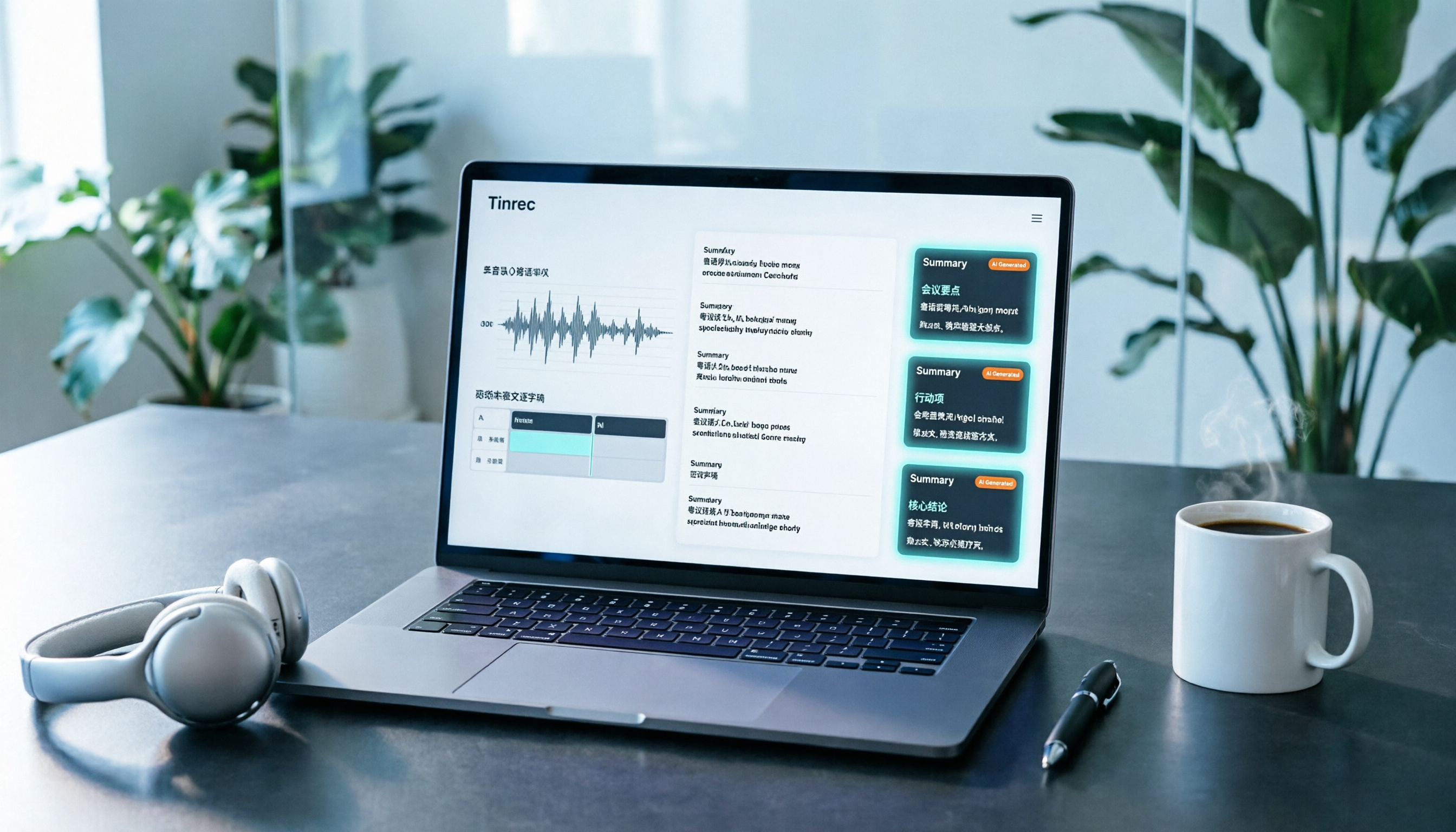
AI summary, chapters, and action items: It doesn't just condense the transcript into a paragraph; it structures the information—meeting topic, discussion conclusions, and action items are listed separately.
AI Q&A: After transcription, you can directly ask Tinrec: "Who mentioned the budget in this meeting?" "What were the client's concerns?" It answers based on semantics.
Multi-format export and further processing: Results can be taken to Notion, Google Docs, OneNote, Dropbox, etc., for continued use, and can also generate reports, tables, and meeting minutes.
Stop organizing recordings by hand
Upload audio or video and automatically get a transcript, summary, and action items
Practical Application Scenarios
Workplace meetings: Weekly meetings, review meetings, cross-departmental meetings—use Tinrec to keep transcripts and action items, so you don't have to rely on memory to fill in notes afterward.
Client communication and sales: Client interviews, requirement discussions—organize commitments and objections, so follow-ups have evidence.
Research and interviews: Researchers can quickly obtain transcripts and viewpoint materials, spending time on analysis rather than typing.
Team knowledge retention: The team plan provides an independent team space, and meeting data belongs to the team. When a member leaves or loses their seat, resources can be transferred to other active members and won't disappear with the individual account.
5 Things to Note When Choosing a Tool
1. Always test Cantonese content first. Not every tool handles Cantonese well. It's best to test with your own Cantonese recording, not just rely on official marketing. Tinrec focuses on Chinese and multilingual meeting transcription, but actual performance is affected by recording quality, accent, ambient noise, and multiple people talking over each other.
2. Can you organize after transcription? The transcript is just the first step. Tinrec's value lies in summaries, chapters, action items, and AI Q&A—these are what truly save time.
3. Will audio files be retained? Some tools only keep text, not audio. Tinrec retains recordings, making it easier to verify original words later.
4. Cross-platform. Confirm the tool supports your commonly used devices. Tinrec has web, desktop, and mobile versions.
5. For team use, look at seats. When a group shares, note that "role" and "seat" are two different things—role determines who can manage the team, seat determines who can record, upload, and edit. Active members of the Tinrec team plan can still view, play, and read team data even without a seat, but cannot upload or edit.
Frequently Asked Questions
Q1: Does Windows 11 have a built-in Cantonese input method? Currently, Windows 11 does not have a native Jyutping input method, but the built-in voice input supports Cantonese and is suitable for short phrases. If you need long transcripts or meeting notes, you'll need a tool like Tinrec to fill the gap.
Q2: Is the Tinrec free plan enough? The free plan provides basic quota, suitable for experiencing the full process of recording, importing, summarizing, and transcribing. If you have regular weekly meetings, consider Pro; for short-term intensive use, a weekly pass is suitable.
Q3: Do I need to invite a bot to record online meetings with Tinrec? No. The desktop version directly captures system audio, so no extra account appears in the participant list. But remember to get participants' consent before recording and pay attention to local regulations.
Q4: Can transcription accuracy be guaranteed? It's not advisable to look at fixed numbers. Actual performance depends on recording quality, ambient noise, accent, overlapping speech, and technical terminology. Tinrec can greatly reduce manual organization costs, but for important content, it's recommended to verify with recording playback.
Q5: What's the difference between the team plan and the individual plan? Individual plan data is managed by the individual; the team plan provides an independent team space and adds capabilities such as members, roles, seats, usage analytics, audit logs, and audio recycle bin. Team monthly payment is USD 29.80 per paid seat per month, annual payment is USD 199 per paid seat per year (about USD 16.58 per month). Each paid seat provides 2,000 minutes of team shared import quota per month. Real-time recording is currently not deducted by minutes under an active subscription. Prices and benefits are subject to the official purchase page.
Q6: Where can transcription results be exported? They can be exported to common file formats and taken to tools like Notion, Google Docs, OneNote, Dropbox for continued use.
Conclusion
Cantonese input on Windows 11 isn't just about "finding an input method." For short phrases, the built-in voice input is fine, but for meetings, interviews, and classes—content you need to look back on—handing the entire speech to Tinrec to turn into searchable, organizable data is much more practical.
Overall, Tinrec takes "input" a step further—not just typing words, but directly producing usable records. If you don't want to spend another whole evening struggling with input methods, start with the free plan, run a test with your own Cantonese recording, and see if the results meet your needs.
References
- Seeking Windows 11 Cantonese Pinyin Input Method Recommendations | LIHKG
- Please release a native Windows Cantonese Pinyin / Jyutping input method. - Microsoft Q&A
- So Windows 11 finally has built-in Cantonese voice input | LIHKG
- Yu's Chinese Input Method - eywin98
- Installation Method - CPIME Cantonese Pinyin Input Method
Turn every recording into actionable outcomes
Get 60 free transcription minutes when you sign in. No credit card required.
Related Reading
You might also like
2026 YouTube Cantonese Subtitles: Tinrec Transcription + AI Summary in One Go
Want to add Cantonese subtitles to YouTube videos but stuck typing every line? This article compares Tinrec and Subanana across 4 dimensions: Cantonese and mixed Chinese-English transcription, post-transcript content organization, recording and import sources, and team collaboration and data retention. It also outlines each tool's unique strengths and use cases to help you choose the most time-saving approach.

4 Cantonese Input Methods Tested on Windows 10: Which Saves More Time, Jyutping Typing or Speech-to-Text?
Typing Cantonese on Windows 10 isn't easy with built-in tools alone. This guide covers key setup points for Rime Weasel Jyutping, the limitations of Microsoft's built-in input methods, and hands-on testing of Tinrec for turning Cantonese meetings directly into transcripts—helping you decide whether to type or speak.

4 Cantonese Voice Input Tools Tested in 2026: Which One Auto-Generates Action Items from Meetings?
A mid-level manager overseeing a 10-person team and 15 meetings a week tested 4 Cantonese voice input tools. From browser extensions and web dictation notepads to AI meeting note-takers, this comparison covers Cantonese support, post-meeting organization, cross-platform availability, and team data ownership. It also highlights the 3 most common buying pitfalls to help you decide whether you need faster typing or a tool that eliminates post-meeting cleanup.

2026 Mac Cantonese Voice Input Showdown: Tinrec vs Otter.ai for Cantonese Meetings
Mac's built-in dictation only supports real-time input and can't transcribe audio files. How should Cantonese speakers choose a tool? This article compares Tinrec and Otter.ai across five dimensions: Cantonese and mixed Chinese-English recognition, bot-free recording, post-meeting organization, input sources, and pricing. It also includes key setup tips and FAQs for Mac's built-in Cantonese input.

Google Voice Typing for Cantonese: Which Is Better? 2026 Hands-On Test of 2 Tools, Tinrec Wins for Meeting Notes
Compare Google Voice Typing (using the VoiceIn extension as an example) and Tinrec for Cantonese meeting notes. Analyze Cantonese recognition, post-meeting organization, cross-platform recording, team collaboration, and pricing to help you choose the best voice typing tool.

4 Cantonese Speech-to-Text Tools Tested for 2026: Gboard Settings and Alternatives
Gboard Cantonese voice input keeps giving you Mandarin characters? This guide breaks down the key Gboard Cantonese voice input settings and common limitations, then compares Tinrec, Notta, and TurboScribe for meeting notes, transcripts, and post-meeting organization to help you choose the right tool.

4 Cantonese Voice Input Tools Tested for 2026: Which One Should You Choose for Meeting Notes and Long-Form Typing?
How do you choose a Cantonese voice input tool? This article breaks down two key needs—real-time dictation and meeting recording organization—and outlines 4 key buying factors. It compares Tinrec, VoiceIn, Speechnotes Cantonese, and built-in dictation on iPhone/Google Docs to help you find the Cantonese voice input solution that fits your workflow.

2026 YouTube Cantonese Subtitle Tools Compared: Tinrec vs Otter.ai vs Notta — Which One Should You Choose?
We tested Tinrec, Otter.ai, and Notta to compare Cantonese recognition, video source support, post-meeting organization, and team collaboration—helping YouTube creators find the best workflow for Chinese content.

5 Cantonese Input Methods Compared in 2026: Jyutping, Rime, Online, and Speech-to-Text
Starting with common misconceptions, this guide explains how to choose among 5 Cantonese input methods (online, Jyutping Rime series, iOS built-in, Sogou Cantonese mode, CantoKey/CPIME), then compares the 'typing' and 'speech-to-text' approaches, and highlights how Tinrec differs for meeting notes, post-meeting organization, and team knowledge retention.