

Turn recordings into transcripts and summaries in minutes
Upload audio or video for multilingual transcription, AI notes, and action items
How to Choose a Cantonese Voice Input Tool: Ask Yourself One Question First
The most important factor when choosing a Cantonese voice input tool isn't "which one has the highest accuracy"—it's "what do you mainly need it for?"
If you just occasionally reply to messages in a browser, a Chrome extension is more than enough. But if you're dealing with Cantonese meetings, interviews, or long recordings, the real time sink isn't typing—it's having to re-listen, organize, and extract key points after you're done.
That's why the same phrase "Cantonese voice input" leads to two completely different needs: one is "turning speech into text," and the other is "turning meetings into usable data."
Figure out which category you fall into first, then look at the buying factors and tool comparisons below—it'll save you a lot of wasted time.
4 Key Points to Understand Before Choosing a Cantonese Voice Input Tool
1. Where does your audio come from: live speech or meeting recordings?
Real-time dictation is great for writing drafts, replying to messages, and taking notes; meeting recordings need to handle multi-person conversations, background noise, and even sentences that mix Cantonese and English. The technical requirements are very different—don't judge all tools by the same standard.
2. Does it clean up punctuation and Cantonese characters for you?
The most common problems with Cantonese speech-to-text are mixed half-width and full-width punctuation, extra spaces between Chinese characters, and colloquial Cantonese characters being split into strange combinations. Some tools offer cleanup options after transcription—this affects readability more than you'd think.
3. How much time do you still spend after the text is generated?
If a tool only gives you a transcript, after a two-hour meeting you still have to spend time re-listening, extracting key points, and listing action items. Conversely, a tool that automatically turns transcripts into summaries, chapters, and to-do lists saves you that entire second phase of work.
4. Is the free tier enough to test real performance?
Claimed accuracy rates have limited reference value—actual results depend on audio quality, accent, and environmental noise. Test with your own recordings, and pay attention to whether the free version has minute limits or feature restrictions.
Tinrec — The Top Choice for Meetings and Long Recordings
Tinrec is an AI meeting notes and collaboration tool for individuals and teams, available on web, desktop, and mobile. It doesn't just convert audio to text—it turns meetings into searchable, queryable, and further processable data.
Live transcription without inviting a meeting bot
Tinrec's desktop version directly captures your computer's system audio, so when handling online meetings on Zoom, Google Meet, Microsoft Teams, Webex, etc., you don't need to invite an extra bot as a participant. This is especially practical for external client meetings—no mysterious account suddenly appears in the meeting room. For in-person meetings or interviews, you can record directly on your phone or computer with real-time transcription.
The transcript is just the starting point—post-meeting organization is the main event
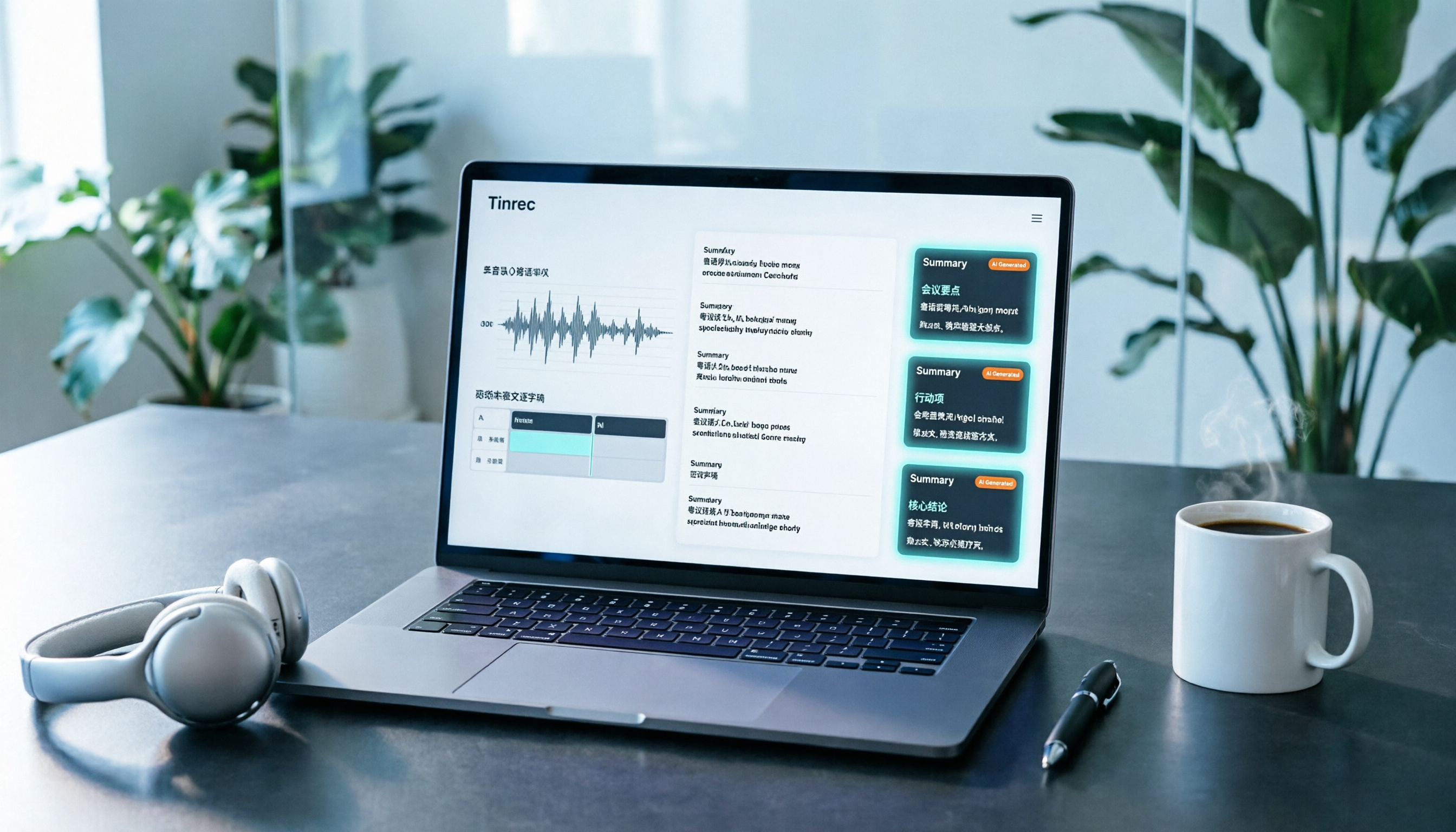
After the meeting ends, Tinrec automatically generates summaries, chapters, and action items. Long meetings can be split into sections for browsing, so who's responsible for what and what's next are less likely to be missed. It also supports AI Q&A about meeting content—for example, you can directly ask "What was the budget figure mentioned in the last meeting?" and it answers based on semantics, not just throwing keywords at you. It can also generate mind maps, reports, tables, and documents, and export to Notion, Google Docs, OneNote, Dropbox, and other common tools for further use.
Chinese and cross-language meeting scenarios
Tinrec covers Chinese, Traditional Chinese, and multilingual meeting scenarios, supports real-time translation during recording, and lets you view in original, translated, or bilingual mode. For accented content like Cantonese, actual recognition performance is affected by recording quality, noise, accent, and overlapping speakers; the team plan's "team hotwords" feature lets you maintain commonly used team terminology for more consistent recognition of professional vocabulary. We recommend testing with a real recording of your own before deciding on long-term use.
Stop organizing recordings by hand
Upload audio or video and automatically get a transcript, summary, and action items
If an entire team is using it
The team plan isn't multiple people sharing one account—it's an independent team workspace. Meeting recordings, transcripts, summaries, and action items belong to the team, so when members leave, data isn't taken with them and can be handed over to other active members. Admins can manage roles, seats, sharing permissions, usage analytics, and audit logs. The first eligible team trial is 7 days, 1 free seat, and 300 minutes of team shared import quota; paid seats provide 2,000 minutes of team shared import quota per month, and real-time recording under active seats is currently not deducted by minutes. Actual pricing and benefits are subject to the official purchase page.
Limitations to note
The personal plan has a free tier to try, but heavy users need a paid plan. Also, Tinrec's strength is meeting notes and post-meeting organization; if what you want is real-time "speak a sentence, get a sentence" in a web input box, a lightweight Chrome extension will feel more responsive.
Who it's for
If you frequently handle Cantonese or mixed Cantonese-English meetings, want to use AI to find key points right after recording, or need to turn meeting data into team-shareable assets, Tinrec is currently the most hassle-free approach.
Besides Tinrec, What Other Cantonese Voice Input Options Are There?
VoiceIn: A Chrome browser extension by the Dictanote team, powered by Google's speech recognition API. It can switch to "Cantonese (Hong Kong)" and handle mixed Cantonese-English sentences, making it suitable for direct dictation in input boxes on any website. The free version only lets you adjust language options; advanced features require payment. Note that its default shortcut Ctrl + Shift + 9 isn't friendly for Cangjie or Quick input method users—customizing it is recommended. Its positioning is as a real-time typing replacement; it has no meeting summaries, action items, or team workspace.
Speechnotes Cantonese version: An online speech-to-text notepad focused on cleaning up Cantonese input—it can fix punctuation and Cantonese characters, remove extra spaces between Chinese characters, and convert half-width punctuation to full-width. If you just need a clean text transcript, it's very lightweight; but it has no meeting recording, AI Q&A, or post-meeting output.
iPhone built-in dictation and Google Docs voice input: On iPhone, you can add a Traditional Cantonese keyboard in Settings > General > Keyboard, and set the dictation language to "Cantonese - Hong Kong"; Google Docs also has voice input. The advantage of both is that they're completely free and require no extra installation, but they typically only let you speak in segments and have no summaries, action items, or team collaboration capabilities.
Pitfall Guide: The 3 Most Common Mistakes When Choosing Cantonese Voice Input
Pitfall 1: Only looking at claimed accuracy rates. Numbers measured in a quiet environment are completely different from real meeting rooms with air conditioning hum, keyboard clatter, and people talking over each other. Testing with your own recordings is more reliable than reading ads.
Pitfall 2: Ignoring punctuation and Cantonese character post-processing. A transcript full of half-width punctuation, spaces between Chinese characters, and split Cantonese characters—just fixing these cancels out the time saved by voice input. When choosing a tool, first check whether it offers cleanup options.
Pitfall 3: Treating the tool as just a typing replacement. If you only use a voice tool to generate transcripts, you're only using part of its capabilities. Asking it "What was the conclusion of this meeting?" right after recording is much faster than manually scrolling through a 30-minute transcript—this is the biggest difference between meeting tools like Tinrec and pure dictation extensions.
Summary: Which One Should You Actually Choose?
- Need to record Cantonese or mixed Cantonese-English meetings and want post-meeting organization done in one go → Tinrec (transcript, summary, action items, AI Q&A, and export all in one)
- Need to keep meeting data for team sharing without losing it when members change → Tinrec team plan (team workspace, seat and usage management)
- Just want to type quickly in input boxes on any website → VoiceIn
- Just want to turn a Cantonese recording into a clean transcript → Speechnotes Cantonese version
- Don't want to install anything and only use it occasionally → iPhone built-in dictation or Google Docs voice input
We recommend starting with the free tier. Run a test with your own Cantonese meeting recording, see whether the transcript quality, organization speed, and post-meeting output fit your workflow, then decide whether to upgrade.
References
Turn every recording into actionable outcomes
Get 60 free transcription minutes when you sign in. No credit card required.
Related Reading
You might also like
2026 YouTube Cantonese Subtitles: Tinrec Transcription + AI Summary in One Go
Want to add Cantonese subtitles to YouTube videos but stuck typing every line? This article compares Tinrec and Subanana across 4 dimensions: Cantonese and mixed Chinese-English transcription, post-transcript content organization, recording and import sources, and team collaboration and data retention. It also outlines each tool's unique strengths and use cases to help you choose the most time-saving approach.

4 Cantonese Input Methods Tested on Windows 10: Which Saves More Time, Jyutping Typing or Speech-to-Text?
Typing Cantonese on Windows 10 isn't easy with built-in tools alone. This guide covers key setup points for Rime Weasel Jyutping, the limitations of Microsoft's built-in input methods, and hands-on testing of Tinrec for turning Cantonese meetings directly into transcripts—helping you decide whether to type or speak.

4 Cantonese Voice Input Tools Tested in 2026: Which One Auto-Generates Action Items from Meetings?
A mid-level manager overseeing a 10-person team and 15 meetings a week tested 4 Cantonese voice input tools. From browser extensions and web dictation notepads to AI meeting note-takers, this comparison covers Cantonese support, post-meeting organization, cross-platform availability, and team data ownership. It also highlights the 3 most common buying pitfalls to help you decide whether you need faster typing or a tool that eliminates post-meeting cleanup.

2026 Mac Cantonese Voice Input Showdown: Tinrec vs Otter.ai for Cantonese Meetings
Mac's built-in dictation only supports real-time input and can't transcribe audio files. How should Cantonese speakers choose a tool? This article compares Tinrec and Otter.ai across five dimensions: Cantonese and mixed Chinese-English recognition, bot-free recording, post-meeting organization, input sources, and pricing. It also includes key setup tips and FAQs for Mac's built-in Cantonese input.

Google Voice Typing for Cantonese: Which Is Better? 2026 Hands-On Test of 2 Tools, Tinrec Wins for Meeting Notes
Compare Google Voice Typing (using the VoiceIn extension as an example) and Tinrec for Cantonese meeting notes. Analyze Cantonese recognition, post-meeting organization, cross-platform recording, team collaboration, and pricing to help you choose the best voice typing tool.

4 Cantonese Speech-to-Text Tools Tested for 2026: Gboard Settings and Alternatives
Gboard Cantonese voice input keeps giving you Mandarin characters? This guide breaks down the key Gboard Cantonese voice input settings and common limitations, then compares Tinrec, Notta, and TurboScribe for meeting notes, transcripts, and post-meeting organization to help you choose the right tool.

How to Use Cantonese Voice Input on Windows 11 in 2026: Typing and Meeting Notes with Tinrec
Typing Cantonese on Windows 11 often starts with searching for an input method, but many users get stuck during installation or face compatibility issues. This guide addresses common misconceptions, explains the differences between three input approaches, and uses Tinrec as an example to show how to turn Cantonese speech directly into transcripts, summaries, and action items. It also compares the free and team plans.

2026 YouTube Cantonese Subtitle Tools Compared: Tinrec vs Otter.ai vs Notta — Which One Should You Choose?
We tested Tinrec, Otter.ai, and Notta to compare Cantonese recognition, video source support, post-meeting organization, and team collaboration—helping YouTube creators find the best workflow for Chinese content.

5 Cantonese Input Methods Compared in 2026: Jyutping, Rime, Online, and Speech-to-Text
Starting with common misconceptions, this guide explains how to choose among 5 Cantonese input methods (online, Jyutping Rime series, iOS built-in, Sogou Cantonese mode, CantoKey/CPIME), then compares the 'typing' and 'speech-to-text' approaches, and highlights how Tinrec differs for meeting notes, post-meeting organization, and team knowledge retention.