
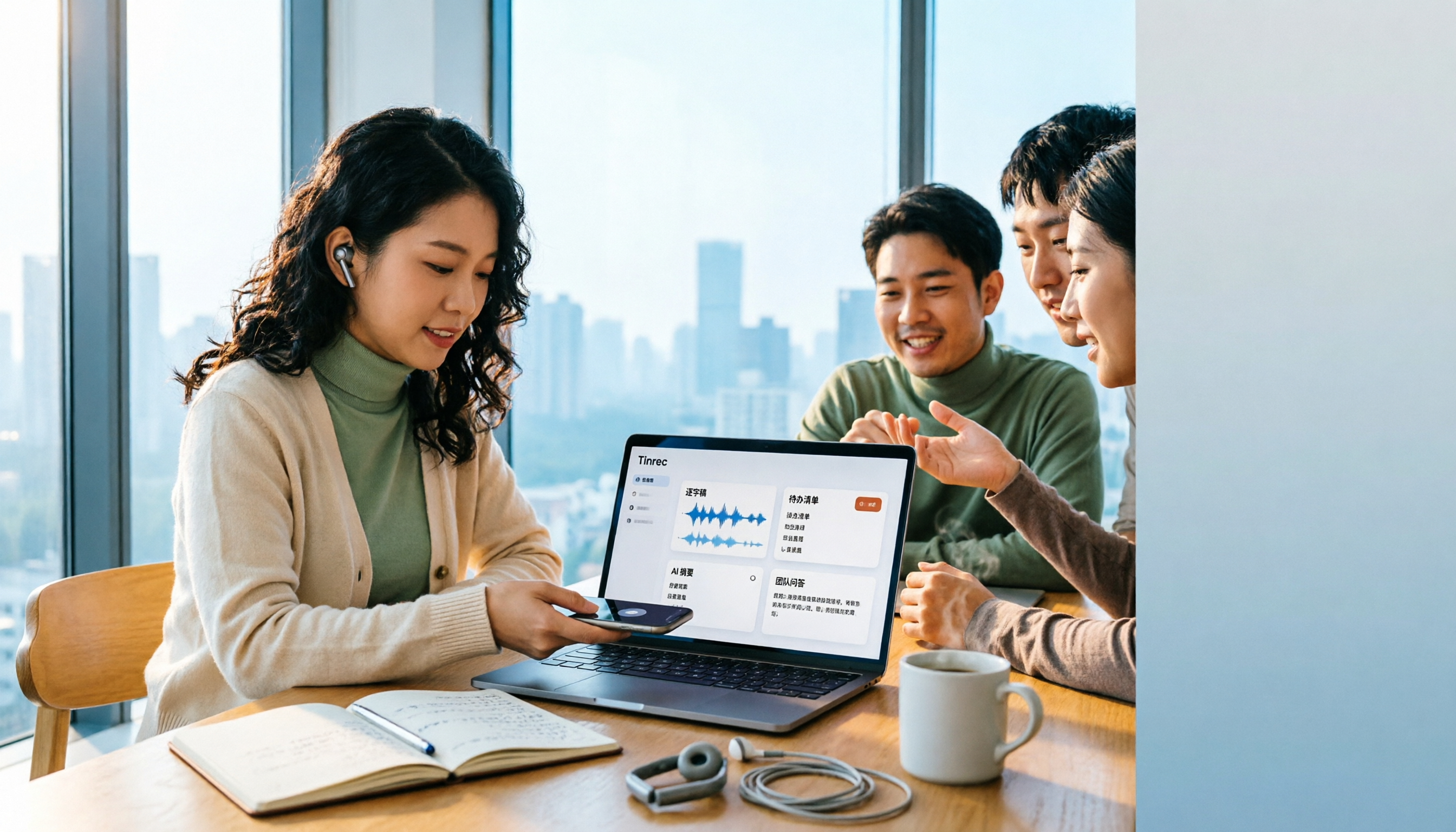
Turn recordings into transcripts and summaries in minutes
Upload audio or video for multilingual transcription, AI notes, and action items
Why Do You Need to Import Audio Files to Generate Transcripts?
You've had an interview recording sitting on your phone for three weeks, and every time you try to organize it, you get stuck on the same thing: listening, pausing, and typing at the same time. A 60-minute meeting often takes 3 to 4 hours to transcribe manually.
Another common scenario is online meetings. After the meeting ends, everyone's separate notes don't add up, and two weeks later, when you need to go back and find out "who said they were going to change the specs," you have to listen to the recording from the beginning again.
Today's AI speech recognition (ASR) is much better than it was a few years ago. According to the online transcription service cSubtitle, Chinese recognition accuracy can generally reach over 90% under good recording conditions, and you only need to do some correction afterward.
This article reviews 6 tools that can import audio files and directly generate transcripts, starting with the most comprehensive one, Tinrec, and going all the way to options you can try for free.
Option 1 | Tinrec — The Most Complete AI Recording Assistant
Tinrec is an AI meeting notes and collaboration tool for individuals and teams. It doesn't just convert sound to text; it helps you organize recordings into data you can continue to use later.
After importing an audio file, you get more than just a transcript. After uploading a meeting recording or video, in addition to the transcript, it automatically generates an AI summary, chapters, key points, and action items. For long meetings, you can jump to chapters directly instead of listening from the first sentence to the last, and it can also produce a mind map to help you understand the structure of the topics.
You can continue asking questions about the meeting content. This is where it differs most from ordinary transcription tools. You can ask follow-up questions about a single meeting, such as "What was the budget cap the client mentioned?", or search across multiple meetings for answers, so historical recordings don't just sit on your hard drive.
No bot invitation needed for online meetings. The desktop version directly captures your computer's system audio, handling Zoom, Google Meet, Microsoft Teams, Webex, and other meetings without an extra bot appearing in the participant list. During recording, it supports real-time translation, and you can switch between original text, translated text, or bilingual view.
The team version keeps data within the team. The team version is a separate team space. When a member leaves or loses their seat, the team resources they were responsible for are handed over to other members and won't disappear with their personal account. Admins can view usage trends, member rankings, and audit logs, and can also maintain team hotwords.
Note that the team version is mainly team-level sharing: roles determine who can manage the team, and seats determine whether someone can record, upload, edit, and export. Members who are active but don't have a seat can still view, play, and read team data.
Pricing. The personal version has a free version, weekly pass, Pro monthly, and Pro annual; choose based on your usage frequency, and prices are subject to the official page. The team version is USD 29.80 per paid seat per month, or USD 199 per paid seat per year, which works out to about USD 16.58 per month; each paid seat provides 2,000 minutes of team shared import quota per month. Eligible teams can try it for 7 days with 1 free seat and 300 minutes of shared import quota for the first time.
Who it's for. People who need Chinese meeting notes, want to record online meetings without a bot, or want to turn every meeting into a team knowledge base.
Option 2 | Notta — Multilingual Transcription and Meeting Notes
Notta overlaps quite a bit with Tinrec, covering multi-platform transcription, meeting notes, file import, translation, and team plans. The difference is that Tinrec adds desktop bot-free recording and post-meeting Agent processing, while Notta focuses on multilingual transcription and meeting bot workflows.
Highlights include multilingual file import transcription and real-time notes during meetings. The free version offers 120 minutes per month, with a maximum of 3 minutes per item; the Pro annual plan works out to about USD 8.17 per month with 1,800 minutes per month; the Business annual plan works out to about USD 16.67 per seat per month, offering unlimited transcription, role permissions, and usage reports.
Suitable for users who need multilingual file transcription and are already used to meeting bot workflows.
Option 3 | cSubtitle — An Online Transcription Service Focused on Chinese
cSubtitle focuses on Chinese, training its recognition model with a large amount of Mandarin Chinese data to improve Chinese recognition accuracy. After uploading an audio or video file, you can download text files and Word files, with punctuation and paragraph breaks; the Word file also includes time codes for easy playback and correction.
Another highlight is that it also generates .sub and .vtt subtitle files with timelines, which you can use directly when adding subtitles to videos. Plans and prices are subject to the official page.
Suitable for people who mainly work with Chinese content and also need subtitle files.
Option 4 | MyEdit — Online Speech-to-Text with Free Daily Credits
MyEdit is an online tool; no software or extension download is needed. Open the webpage, import an audio file, and it converts to a transcript. It supports 9 languages: Traditional Chinese, English, Japanese, Korean, Italian, French, German, Spanish, and Portuguese.
Stop organizing recordings by hand
Upload audio or video and automatically get a transcript, summary, and action items
Export formats include .txt plain text and .srt subtitle files, and the generated transcripts and subtitle files can be used for commercial purposes. In terms of cost, you get free credits by logging in daily; upgrading to Audio Pro gives you 360 credits per month and unlocks other AI audio editing tools; actual plans are subject to the official page.
Suitable for people with a limited budget and low transcription volume who want to use free credits to handle Chinese or foreign language recordings first.
Option 5 | TurboScribe — Cost-Effective Batch Transcription for Long Documents
TurboScribe leans toward a file transcription tool, focusing on long files, batch uploads, subtitles, and translation. The free version allows 3 files per day, up to 30 minutes per file; Unlimited is USD 120 per year, about USD 10 per month, and the paid version supports up to 10 hours or 5 GB per file and can upload 50 files at once.
Note that its strength is file processing, not real-time meetings. Suitable for people who have a pile of audio files to clear at once and need long file or batch processing.
Option 6 | Yating Transcript — Chinese Speech Recognition from a Taiwan Team
Yating Transcript is a Chinese speech recognition service launched by a Taiwan team, centered on Chinese dictation and voice memo organization. In addition to a web version, it also provides an app. Plans and prices are subject to the official page.
Suitable for users who want to use a service from a Taiwan team and mainly work with Chinese recordings.
With So Many Options, How Should You Choose?
- Want the most complete post-meeting organization (transcript + summary + action items + AI Q&A) → Tinrec, currently one of the few tools that puts these steps in the same workflow.
- Don't want an extra bot joining online meetings → Tinrec, the desktop version directly captures system audio.
- Need Chinese meeting notes and want to hand them off to the team afterward → Tinrec team version, data belongs to the team and can be handed over even when members change.
- Meetings have cross-language needs and you want to see translations while recording → Tinrec, supports real-time translation and bilingual view.
- Want to turn historical recordings into a searchable database → Tinrec, AI Q&A can find answers across multiple meetings.
- Need multilingual file transcription → Notta.
- Have a large number of long recordings to transcribe at once → TurboScribe.
- Want to try Chinese transcription completely free first → cSubtitle, MyEdit, or Yating Transcript; use the free quota to run one or two of your own recordings first.
5 Things to Know Before Importing Audio to Generate Transcripts
1. Recording quality sets the ceiling. Overlapping speakers, background noise, and specific accents will all reduce recognition results. Placing the microphone in the center of the table and minimizing ambient noise is the most effective improvement.
2. A transcript is usually only a semi-finished product. Meeting notes that need to be delivered usually still require a summary and action items. Tools like Tinrec directly generate summaries, chapters, and action items after transcription, saving a round of manual processing.
3. Decide what you want to export first. .txt is easy to edit, .srt and .vtt are for subtitles, and files with time codes are convenient for playback and correction. Tinrec also supports exporting to Notion, Google Docs, OneNote, Dropbox, and other tools, making it smoother to continue your original workflow.
4. Free quotas are mostly calculated by minutes. Estimate how many minutes of audio you need to process per month first, then decide whether to pay; this is more practical than just choosing a plan.
5. Pay attention to licensing for recording and transcription. According to local laws and company policies, obtain consent from participants when necessary before recording and transcribing.
Conclusion
Importing audio to generate transcripts is no longer a question of "whether there is a tool," but "whether it can be used directly after transcription." Most tools can produce transcripts; what really sets them apart is the organization and collaboration after transcription.
If you're dealing with content that needs to be delivered, such as meetings and interviews, Tinrec is the most complete one on this list: transcript, summary, action items, AI Q&A, and team space are all in the same workflow, and Chinese meetings and bot-free recording of online meetings are also relatively obvious advantages.
If you only occasionally process a recording, you can also try the free quotas of cSubtitle, MyEdit, or Yating Transcript first. The key is to test with your own recording first, then decide whether to invest in a more complete solution.
FAQ
Q1: How long does it take to import audio and generate a transcript? It depends on the file length and the service's current load. Online services usually return results within a few minutes to tens of minutes; long files or batch uploads take longer.
Q2: Is the free plan enough? If you only occasionally organize a recording, it's usually enough. TurboScribe's free version allows 3 files per day, 30 minutes per file; Notta's free version offers 120 minutes per month, up to 3 minutes per item. Once you're in meetings every day, the quota usually runs out quickly, and that's when you should consider a paid plan.
Q3: How good is Chinese recording recognition? When the recording is clear and speakers don't overlap, Chinese recognition is already quite usable. Actual results are still affected by noise, accents, multiple people speaking at once, and technical terms. For important content, it's recommended to play back and verify with time codes. If your team often uses specific terms, consider a tool with team hotword features, such as Tinrec team version.
Q4: What formats can transcripts be exported to? Common ones include .txt, .srt, .vtt, and Word files with time codes. Tinrec also supports exporting to Notion, Google Docs, OneNote, Dropbox, and other tools, making it easy to continue your original workflow.
Q5: For team use, should I choose the personal or team version? Personal version data belongs to the personal account. If meeting data needs to be shared and someone needs to manage members and usage, the team version is suitable. Tinrec team version provides team space, role and seat management, usage analysis, audit logs, and an audio recycle bin; when members leave, resources are handed over to other members.
Q6: What should I pay attention to when transcribing recordings? Besides file quality, also pay attention to recording authorization. According to local laws and company policies, obtain consent from participants when necessary before recording and transcribing.
References
- Online AI speech, video, audio file auto-transcription - Free trial - cSubtitle
- Online speech-to-text AI, free MP3 or audio file to text transcript - MyEdit
- No time limit! 3 free AI transcript tools, highly recommended! AI voice notes generate meeting records, presentations, mind maps | 104 Workplace Power
- Yating Transcript
- SoundType AI ultra-accurate transcript, speech-to-text, AI dictation - Google Play app
Turn every recording into actionable outcomes
Get 60 free transcription minutes when you sign in. No credit card required.
Related Reading
You might also like

2026 Product Meeting Notes Tools: 4 Tested + AI Action Item Auto-Organization
How to choose a meeting notes tool? This article addresses three common misconceptions, outlines 4 key selection criteria, and compares Tinrec, Otter.ai, Granola, and Notta on meeting recording methods, post-meeting organization capabilities, and pricing limits. It also includes a pitfalls guide and selection recommendations to help you find a solution that truly saves organization time.

2026 Comparison of 4 Audio/Video Transcription Tools: Which Saves the Most Time for Chinese Meeting Minutes?
Still typing transcripts after meetings? This article uses 5 key buying criteria to compare Tinrec, Notta, Otter.ai, and PLAUD Note in a hands-on test. From recording methods, post-meeting output, Chinese language experience, to team seat management, we cover it all, plus 4 common pitfalls to avoid.

5 WAV to Text Tools Tested for 2026: Which Saves the Most Time on Chinese Transcripts and Meeting Follow-Ups?
Have a WAV recording but dread listening to it from start to finish? This article examines real-world scenarios to explain what WAV-to-text can do, its core capabilities, and practical applications. Using Tinrec as an example, it covers a complete workflow for bot-free meeting recording, AI summaries, action item extraction, and team knowledge retention, plus 6 buying considerations and FAQs to help you decide which solution saves the most time.
Tinrec Meeting Notes Guide 2026: No-Bot Recording vs Otter.ai
For Hong Kong office workers, post-meeting cleanup is the worst part: the meeting ends at 3 PM, but you're still at the office at 8 PM listening to recordings and typing. This article compares Tinrec and Otter.ai across five dimensions to test the workflow of turning recordings into meeting notes, breaking down Cantonese recognition, no-bot recording, post-meeting AI organization, team data retention, and pricing, helping you choose the right tool and leave work earlier.
4 AI Meeting Note Tools Tested in 2026: Which One Saves the Most Time on Auto-Organizing Transcripts?
The pain of meeting notes isn't slow typing—it's time-consuming organization. This article addresses common misconceptions, tests 4 AI meeting note tools, breaks down key buying factors, Tinrec's bot-free recording and AI Q&A workflow, team plan seats and data ownership, plus a pitfalls guide and selection advice.

2026 Teams Meeting Transcription Comparison: 4 Methods Tested — Is Avoiding a Meeting Bot Really Easier?
Teams built-in transcription requires both the organizer and each user to enable the policy, and live captions are not saved—so many people only discover after the meeting that there is no transcript at all. This article reviews four ways to transcribe Teams meeting recordings, from Teams built-in, Otter.ai, and Notta to Tinrec, comparing bot-free desktop recording, AI Q&A, action item extraction, and team seat management, with a pitfalls guide and scenario-based recommendations.

4 Video-to-Transcript Tools Tested and Compared in 2026: 3 Pitfalls to Understand Before Importing Video
Importing a video to generate a transcript looks simple, but the real bottlenecks are usually format support, time codes, and how usage limits are calculated. This article starts with common misconceptions, outlines 4 key points for choosing a tool, then shares a hands-on test of Tinrec from video import to AI summaries, action items, and team knowledge retention, and compares TurboScribe, Notta, and Granola for use cases and pitfalls to avoid.

How to Transcribe Classroom Recordings in 2026: A Complete 5-Step Guide
When it comes to transcribing classroom recordings, most people only ask which tool is the most accurate. But what really determines whether you'll be overwhelmed all semester is the audio source, the classroom language, and the total number of hours. This article uses university and graduate school classroom scenarios to compare Tinrec and Otter.ai across 5 dimensions, and provides a 5-step process you can follow directly, along with purchasing advice.

How to Transcribe Zoom Meeting Recordings in 2026: No-Bot Recording + Automatic Meeting Minutes
Done with a Zoom meeting but still need to organize the transcript and minutes yourself? This guide covers the complete process for transcribing Zoom meeting recordings, including no-bot recording, real-time transcription, AI summaries and action items, AI Q&A, and 5 key points to consider when choosing a tool. It also demonstrates the workflow using Tinrec.