
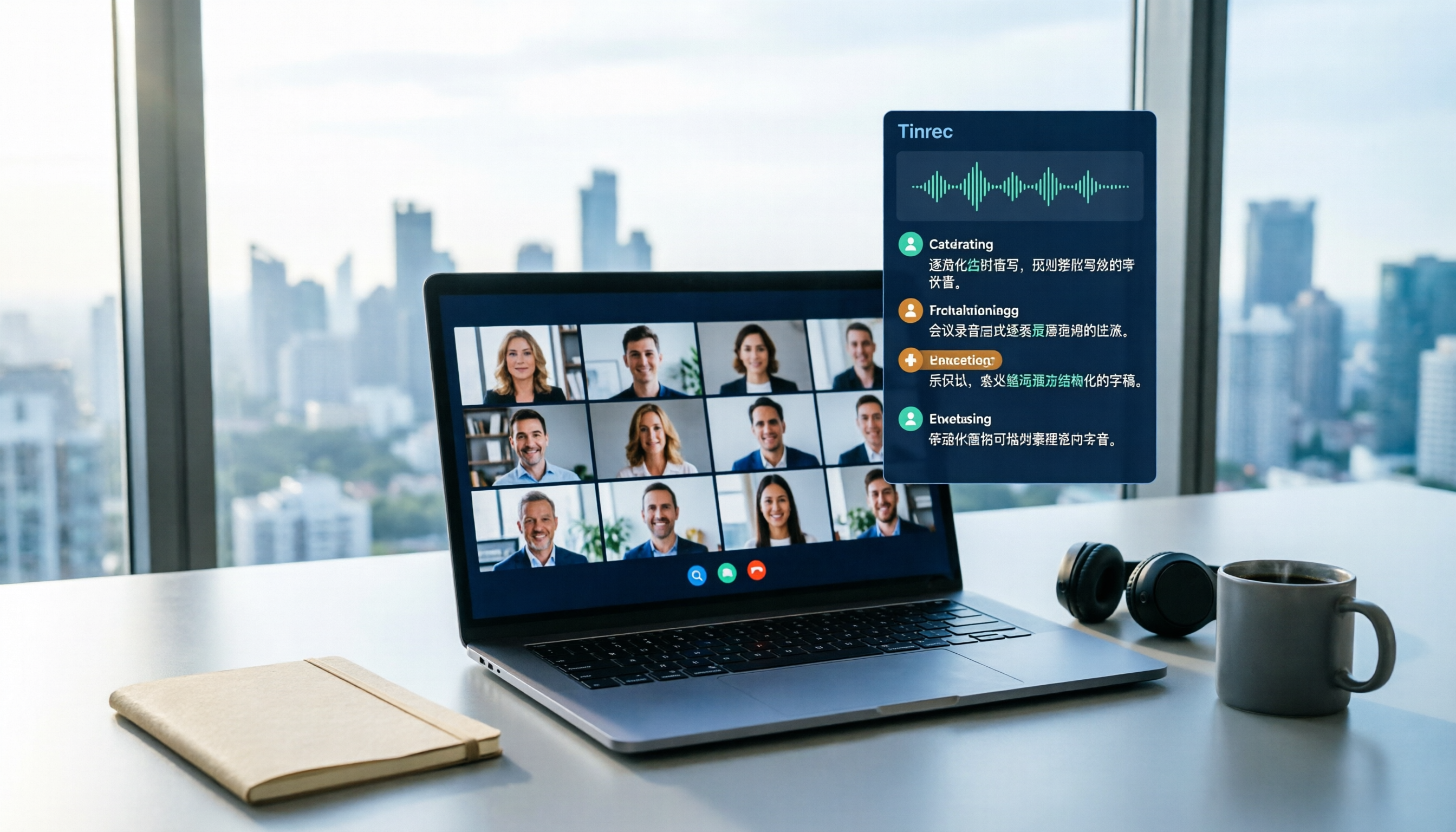
Turn recordings into transcripts and summaries in minutes
Upload audio or video for multilingual transcription, AI notes, and action items
Still Re-listening to a 90-Minute Meeting? The Real Pain of Laptop Recording Isn't the Recording
Your online meeting ends, and a 90-minute recording file sits on your laptop. You still have to listen from the beginning just to write up notes—this is probably the most real frustration most people have with "laptop recording." Recording itself isn't hard; Windows built-in Sound Recorder lets you record with one click. The hard part is the work after recording.
Below, using the same scenario, we compare Tinrec and Windows built-in Sound Recorder side by side, so you can see which laptop recording method you should use.
Tinrec vs Windows Sound Recorder | Quick Overview
Windows Sound Recorder is a recording app included with the system—no installation needed, ready out of the box, and each recording can be up to 3 hours long. Tinrec is an AI meeting notes and collaboration tool for individuals and teams, focusing on what happens after recording: transcription, summaries, Q&A, and team knowledge retention.
| Item | Tinrec | Windows Sound Recorder |
|---|---|---|
| Core positioning | AI meeting notes and team collaboration | Built-in system recording tool |
| Recording methods | Live recording, desktop system audio capture, audio and video file import | Mainly microphone and computer playback audio |
| After recording | Transcript, summary, chapters, to-dos, AI Q&A, export | Save, rename, basic trimming, share |
| Team capabilities | Team spaces, roles and seats, usage analytics, audit logs | None |
The 5 dimensions compared in this article: recording sources, transcription and Chinese recognition, post-meeting organization, cross-device and team collaboration, and cost and quotas.
Dimension 1 | Recording Sources: Microphone Only, or Meeting Audio Too?
Windows Sound Recorder's advantage is simplicity—no extra software needed, and it can also record audio playing on your computer. You can pause during recording and press a marker to flag key segments for easy finding later. But it's essentially just a "recorder"; after recording, you still have to listen to the file yourself.
Tinrec desktop takes a different path: it directly captures the device's system audio, handling Zoom, Google Meet, Microsoft Teams, Webex, and other online meetings without sending a meeting bot to join as an extra participant. Besides live recording, it can also import existing audio and video files, organizing past meetings and interview recordings together.
→ This dimension: Tie. For simply "capturing audio," the built-in tool is enough; but if you need to handle online meetings plus existing audio files, Tinrec covers more sources.
Dimension 2 | Transcription and Chinese Recognition
Windows Sound Recorder doesn't provide transcription—after recording, you just have an audio file. To turn it into text, you need another tool, which is the source of overtime for most people after meetings.
Tinrec treats transcription as a baseline: it transcribes while recording, and when finished you get a searchable, reviewable transcript. It supports Chinese, Traditional Chinese, and multilingual meeting scenarios, and can be viewed in original text, translation, or bilingual mode. Mixed Chinese-English content can also be organized. Actual recognition accuracy is affected by recording quality, background noise, accents, overlapping speakers, and technical terminology—we recommend testing with your own recordings.
→ This dimension: Tinrec wins. Provided you want "text," not just "audio."
Dimension 3 | Post-Meeting Organization: Summaries, To-Dos, and AI Q&A
The built-in recorder's post-processing only offers basic trimming. Source material also mentions its editing features are fairly basic—you can cut out bad segments, but it can't help you digest the content.
Tinrec's value is concentrated here: it automatically generates summaries and chapters, breaking long meetings into readable structure, then extracts to-dos from discussions. You can also continue asking follow-up questions with AI Q&A around the meeting content, and even further produce reports, tables, and documents, then export to Notion, Google Docs, OneNote, Dropbox, and other existing workflows. Important information should still be verified against transcript timestamps and recording playback.
Stop organizing recordings by hand
Upload audio or video and automatically get a transcript, summary, and action items
→ This dimension: Tinrec wins. The difference isn't "did you record it," but "can you use it right after recording."
Dimension 4 | Cross-Device Use and Team Collaboration
Windows Sound Recorder is a standalone tool—files are stored on your own laptop. Sharing usually means emailing the file, and data ownership follows the individual.
Tinrec offers web, desktop, and mobile access. Personal plan recordings, summaries, and transcripts are all stored under your own account. If the scenario involves team collaboration, the team plan is a separate team space where meeting data belongs to the team. You can create multiple teams, invite members via join links, and distinguish owners, admins, and regular members. It's important to distinguish "roles" from "seats": roles determine who can manage the team, members, and audits; seats determine whether a member can record, upload, edit, import/export, and use team resources. Valid members without seats can still view, play, and read team data. When a member leaves or loses their seat, their team resources need to be handed over to other valid members—data won't be taken away by individuals.
→ This dimension: Tinrec wins. For solo use it's unnoticeable; the gap only appears when multiple people share meeting data.
Dimension 5 | Cost and Quotas: Is Free Enough?
Windows Sound Recorder comes with the system at no extra cost—this is its most practical advantage.
Tinrec's personal plan has a free version with basic quota to experience recording, import, summaries, and transcription. For short-term intensive use (e.g., project sprints, courses, or interviews), consider a weekly pass. For steady weekly needs, a Pro monthly pass fits. For long-term recording data retention, an annual pass is more cost-effective. The team plan is currently USD 29.80 per paid seat per month, or USD 199 per paid seat per year (about USD 16.58 per month). Each seat provides 2,000 minutes of team shared import quota per month. The first eligible team trial is 7 days, 1 free seat, and 300 minutes of team shared import quota. Under an active team plan and active seats, live recording currently doesn't deduct by minutes; file and web imports use the team shared quota. Prices, currencies, and promotions are subject to the official purchase page.
→ This dimension: Each has its strengths. If you just want free recording, the built-in tool is enough; only if you want to turn recordings into reusable data do you need to evaluate Tinrec's quota plans.
What Unique Advantages Does Each Have?
Tinrec's unique advantages:
- Desktop version records online meetings without a bot—no extra bot participant needed to join the meeting.
- After recording, it doesn't just give you a transcript—it also produces summaries, chapters, to-dos, mind maps, and follow-up AI Q&A.
- Supports live translation and bilingual viewing—no need to open another tool for cross-language meetings.
- Team spaces centralize meeting data storage, with governance capabilities including roles, seats, usage analytics, audit logs, and audio recycle bin.
Windows Sound Recorder's unique advantages:
- No installation, zero cost, ready to use on startup, up to 3 hours per file.
- Can pause and mark key points during recording, and continue working on other laptop tasks while recording.
Conclusion: Which Should You Choose?
- If you just want to save ambient sound, voice memos, or classroom audio, and don't need transcription → Windows Sound Recorder is enough.
- If you have online meetings every week and need to write notes → Tinrec, with transcription and summaries that directly save re-listening time.
- If you want to use AI to ask follow-up questions about meeting content and quickly extract to-dos → Tinrec; the built-in recorder has no such post-processing capabilities.
- If meeting data needs to be shared and handed over among multiple people → Tinrec team plan, managing via roles and seats, with data owned by the team.
- If you just want free, standalone, no-upload recording → Windows Sound Recorder, the simplest and most hassle-free.
In one sentence: the built-in recorder solves "recording it," while Tinrec solves "what to do after recording." We recommend first using the free version to test with one of your own meeting recordings, see if transcription and summaries meet your expectations, then decide whether to upgrade. Finally, a reminder: before recording and transcribing, please comply with local regulations and obtain participant consent when needed.
References
- Sound Recorder app for Windows: FAQ | Microsoft Support
- Windows 10 Hidden Tips! Built-in Recorder Usage: Free Voice Recording, Memos, Tutorial Narration Made Easy! _【優比拔小資居家修理工頭】EP209 - YouTube
- 5 Laptop Recording Tools Tested: Language Support, Live Transcription, AI Summary at a Glance - Tinrec Blog
- Can't Keep Up with Video Classes or Meetings? Windows Built-in Sound Recorder Helps You Record Content, Steps at a Glance | BusinessNext
- 4 Best Ways to Record Computer Audio 【2026 Best Recording Software Tools Recommendation】
Turn every recording into actionable outcomes
Get 60 free transcription minutes when you sign in. No credit card required.
Related Reading
You might also like

6 Ways to Launch Google Gemini in 2026: Phone, Computer, and Voice Compared
How do you launch Google Gemini? This guide covers 6 practical ways to wake it up, from Android's "Ok Google" voice command and long-pressing the power button to asking about screen content, Gemini Live, the iPhone app, and the desktop web version. It includes setup paths and common troubleshooting reasons so you can figure out which method to use on your device.

2026 Audio-to-Text Solutions Compared: Beyond ChatGPT, Why Tinrec Is Better for Meeting Notes
Can ChatGPT actually transcribe audio files? The answer depends on your plan, version, and usage limits. This article compares ChatGPT and Tinrec in real meeting scenarios, covering audio sources, Chinese recognition, transcript post-processing, team collaboration, and pricing. It also includes 7 FAQs to help you decide which approach fits your workflow.

5 Best Audio-to-Transcript Tools in 2026: Which One Handles Chinese Meetings and Post-Meeting Workflows Best?
Audio-to-transcript tools do more than just convert sound to text. This article examines real-world use cases, covering core capabilities like real-time transcription, AI summaries, action item extraction, Q&A, and team collaboration. It also outlines 5 key buying criteria and answers common questions to help you choose a transcript tool that truly saves time.

2026 Comparison of 3 Transcription Tools: Which AI Auto-Summarizer Saves the Most Time?
What does a transcript mean? This article starts with common misconceptions, explains the difference between a transcript and meeting minutes, and uses Tinrec to demonstrate real-time transcription, AI summaries, action item extraction, and AI Q&A. It also covers 5 key points to consider when choosing a transcription tool, along with recording compliance and FAQs.
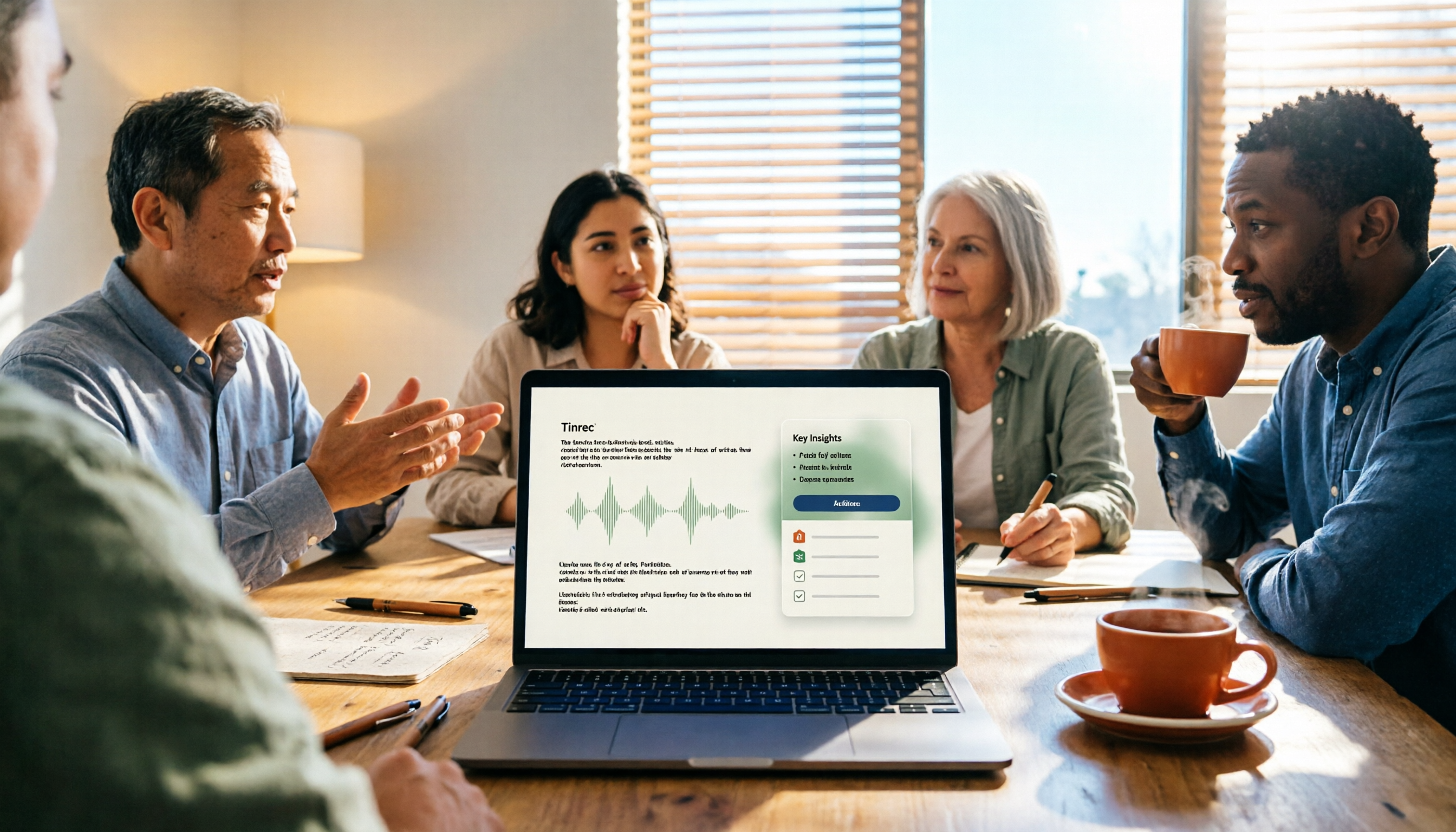
How to Take Meeting Minutes in 2026 with Tinrec: 3 Steps to Transcripts + Action Items
Many people struggle with meeting minutes not because they type slowly, but because they use the wrong approach. This article breaks down the three most common mistakes and demonstrates a 3-step workflow with Tinrec: 'write the skeleton during the meeting, fill in details after.' It covers real-time transcription, AI summaries, action item extraction, and AI Q&A, plus 5 checkpoints for choosing a meeting notes tool.
4 Transcription Tools Tested in 2026: Can Gemini Do Transcriptions? Which Is More Reliable for Chinese Meetings?
Can Gemini do transcriptions? Yes, free accounts can upload audio files to generate transcripts, but there's a 100MB per-file limit, up to 10 files per session, and the mobile version is more prone to failure. This article tests four common methods and compares Tinrec, Gemini, Notta, and Otter.ai in Chinese meetings, post-meeting organization, and team collaboration to help you choose the best transcription tool.
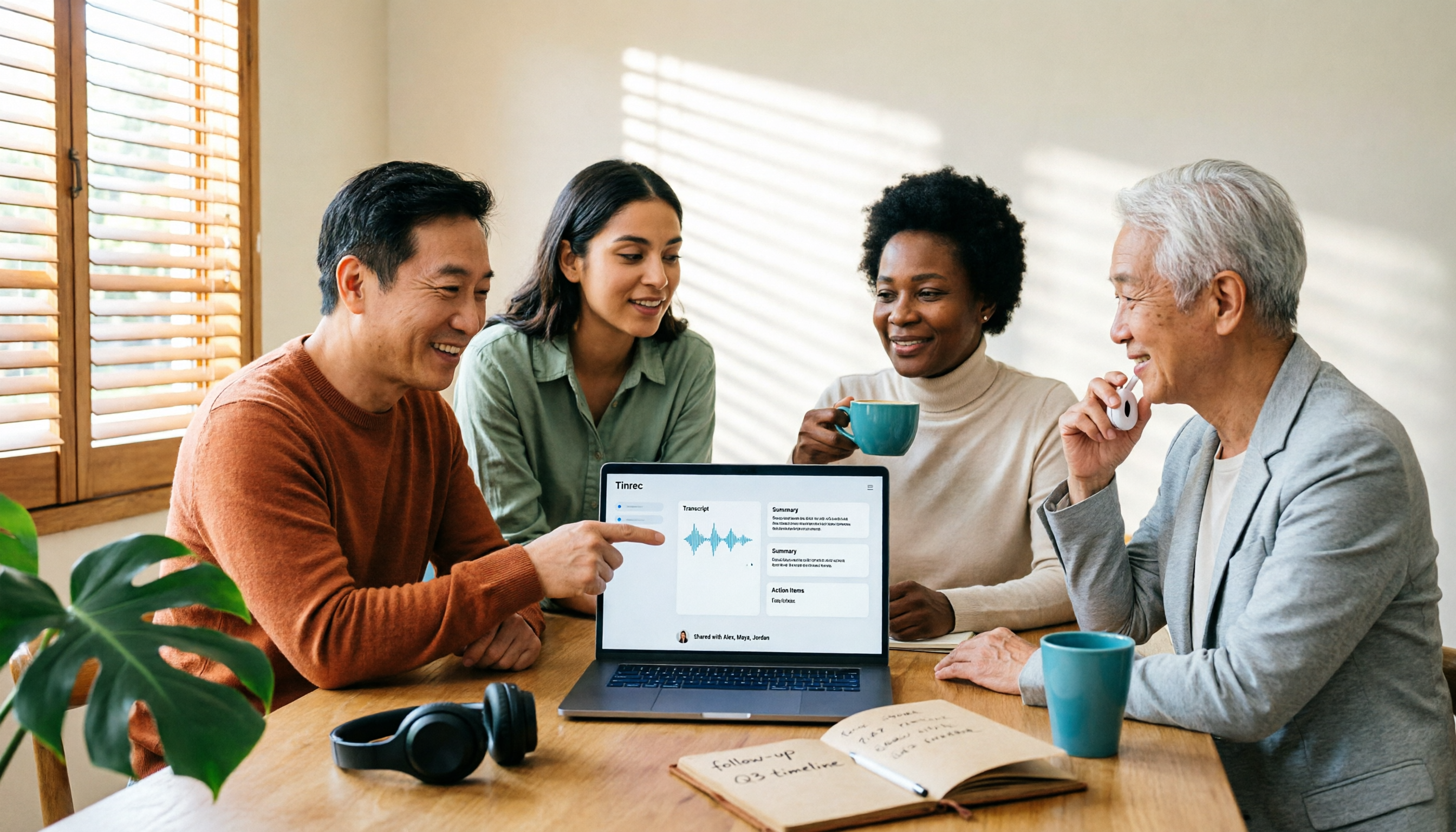
4 AI Meeting Tools Free Plans Compared in 2026: Is Gemini's Free Version Enough?
Gemini has a free version, but not all features are free. This article first clarifies the boundaries between Gemini's free and paid options, then starts from the real need for 'meeting notes' to test and compare four free AI tool approaches. It uses Tinrec to demonstrate the complete workflow from recording, transcription, summarization, action items to team sharing, helping you determine if the free quota is sufficient.
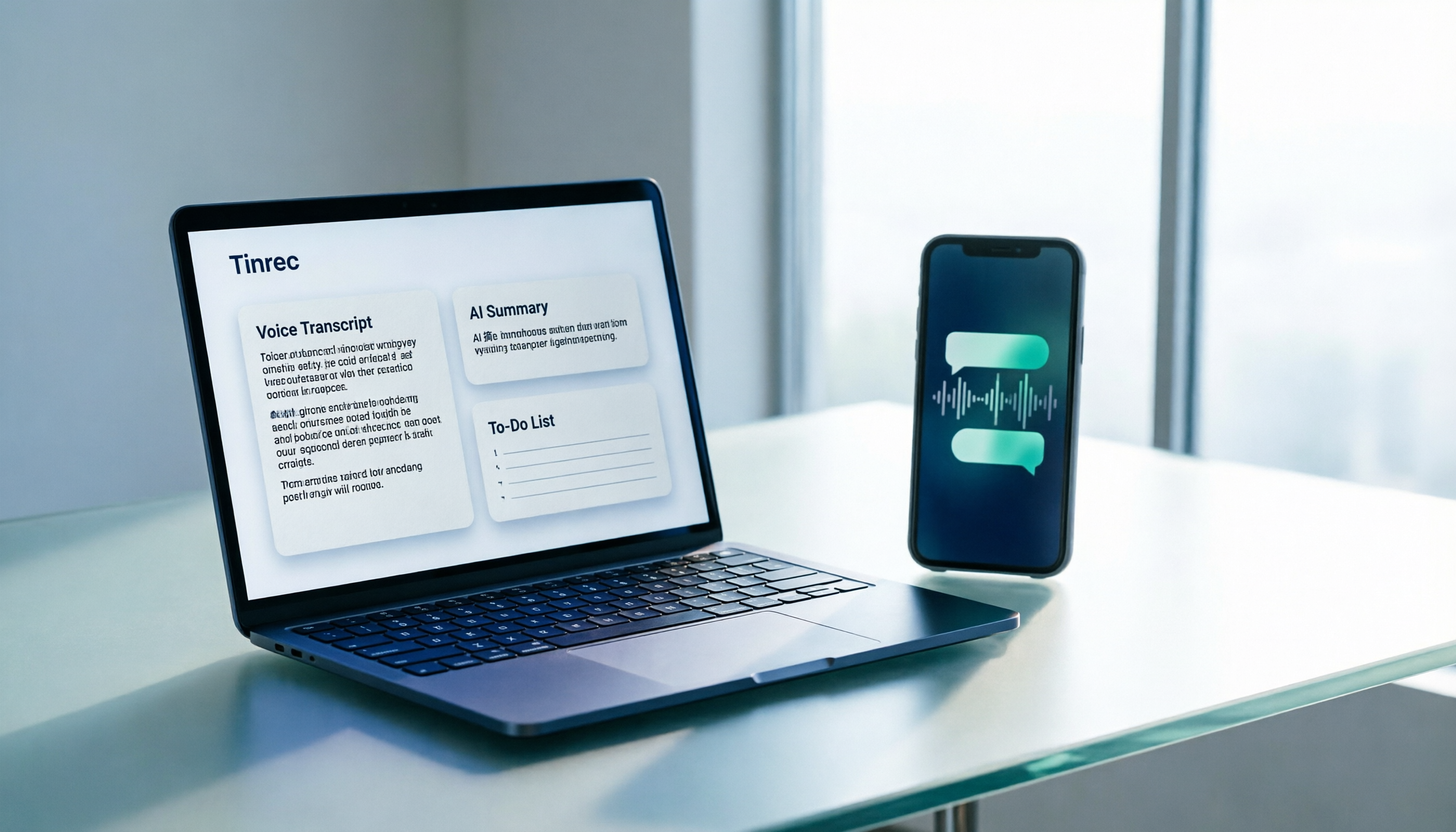
How to Transcribe WhatsApp Voice Messages in 2026: A 3-Step Guide
WhatsApp voice messages are inconvenient to listen to in meetings or on the subway. This guide tackles real-world frustrations and shows you how to turn WhatsApp recordings into transcripts, AI summaries, and to-do lists in 3 steps, plus 5 key factors for choosing a tool and FAQs.

2026 Comparison of 3 Transcription Tools: Who Made Yating Transcription and Which One Should You Choose?
Who made Yating Transcription? Public information points to Taiwan AI Labs and local Taiwanese teams. This article compares Yating Transcription, Tinrec, and Otter.ai across four aspects: post-transcription processing, online meeting audio capture, Chinese and mixed Chinese-English recognition, and team data ownership. It also summarizes key points to avoid pitfalls and offers scenario-based selection advice.