

Turn recordings into transcripts and summaries in minutes
Upload audio or video for multilingual transcription, AI notes, and action items
5 iPhone Text-to-Speech Methods Compared in 2026: Built-in Speak Screen, Live Speech, or Transcription Tools?
Half of the People Searching for 'iPhone Text-to-Speech' Are Asking the Wrong Question
Many people open their phone and search for this keyword only after a meeting or recording session.
Others genuinely want their iPhone to read text aloud—for example, when their eyes are tired from staring at the screen, or to check if a passage sounds smooth when spoken.
These two things are completely opposite. One is 'text to speech,' the other is 'speech to text.'
The three most common misunderstandings I see in reader comments are:
- Thinking iPhone doesn't have built-in text-to-speech, so they rush to find an app.
- Confusing 'read aloud' with 'transcription,' ending up with a tool that doesn't help at all.
- Believing built-in read-aloud only works in English.
Bottom line: iPhone can read text aloud out of the box, including Chinese, and it's free. But if you need to turn meeting recordings into searchable, shareable text, you're not looking for read-aloud—you need a transcription tool.
Before You Start, Clarify These 3 Things
First, which direction do you need? Text-to-speech reads written words aloud; speech-to-text turns spoken words into text. If you go the wrong direction, even the best tool won't help. First confirm whether you have 'a piece of text' or 'a recording.'
Second, is this one-time or recurring? For a one-off reading, built-in features are enough. But if it's a weekly meeting, client interview, or class recording that you'll need to revisit, quote, or share with colleagues, you need a solution that can save, search, and organize.
Third, what will you do with the result? Just getting a transcript isn't enough. Most people actually need summaries, action items, and content they can query further. That's why recent AI meeting tools emphasize 'post-meeting output,' not just 'turning voice into text.'
How to Use iPhone's Built-in Text-to-Speech: 3 Methods
Method 1: Speak Selection – Read Selected Text Aloud
Go to Settings > Accessibility > Spoken Content, and turn on 'Speak Selection.'
Then, in any app, select text and tap the speak button that appears—iPhone will read it to you. On the same page, you can adjust speaking rate and voice, and Chinese is supported.
(Screenshot location: Settings > Accessibility > Spoken Content)
Method 2: Speak Screen – Read the Entire Page
Also under Settings > Accessibility > Spoken Content, turn on 'Speak Screen.'
To use, swipe down from the top of the screen with two fingers, and iPhone will start reading from the top of the page. It's especially handy for long articles, news, or documents.
(Screenshot location: Settings > Accessibility > Spoken Content > Speak Screen)
Method 3: Live Speech – Type and Let iPhone Speak for You
Go to Settings > Accessibility > Live Speech, and turn it on. A 'Live Speech' window will appear on the screen.
Type what you want to say in the window, and iPhone will speak it. You can also paste already-copied text. Save frequently used phrases: tap 'Phrases,' create a category (e.g., school, work, games), and save sentences. Then just tap to read them aloud.
If you need audio from other apps to play during a call, go to Settings > Accessibility > Audio & Visual and turn on 'Allow Apps to Add Audio to Calls.'
(Screenshot location: Settings > Accessibility > Live Speech)
Note that all three methods are 'reading text aloud' and won't turn content into searchable data. If you need the opposite direction, read on.
Tinrec – When You Actually Need the Opposite Direction
If your situation is 'the meeting is over and the recording is sitting on your phone,' you need a transcription tool. Tinrec is the one I found to have the smoothest workflow in this roundup.
Tinrec is an AI meeting notes and collaboration tool for individuals and teams, available on mobile app, desktop, and web.
During meetings: No need to invite a meeting bot. Tinrec's desktop version captures system audio directly, so it works with Zoom, Google Meet, Microsoft Teams, Webex, and other online meetings without adding a bot to the participant list. It generates a live transcript during the meeting, so you don't have to listen again afterward. For cross-language meetings, you can enable real-time translation and view original, translated, or bilingual text side by side.
Stop organizing recordings by hand
Upload audio or video and automatically get a transcript, summary, and action items
After meetings: You get more than just a transcript. After the meeting, Tinrec automatically generates summaries, chapters, key points, and action items. My personal favorite is AI Q&A—just ask 'What was the conclusion of this meeting?' or 'Who mentioned the budget?' and it answers based on the meeting content, rather than dumping keywords for you to search. When you need to submit a report, you can further generate documents, reports, and tables, and export to Notion, Google Docs, OneNote, Dropbox, etc., for further editing.
For teams: Meeting data doesn't leave with people. The team version provides a separate team space where meeting recordings, folders, to-dos, and related documents belong to the team. Admins can manage members, roles, and seats, view usage analytics and audit logs; when a member leaves or is removed, their data can be transferred to other members, so nothing disappears when one person leaves. There's also a team glossary where you can add internal product names and acronyms to improve recognition of specialized terms.
Plans and limitations. The personal version has a free plan, weekly pass, Pro monthly, and Pro annual. For occasional recording organization, the free plan is enough. The team version is currently USD 29.80 per paid seat per month, or USD 199 per paid seat per year (about USD 16.58 per month); eligible teams get a 7-day trial, 1 free seat, and 300 minutes of shared team import quota. Paid seats provide 2,000 minutes of shared team import quota per month. Real-time recording currently does not deduct minutes under an active plan. Actual prices and benefits are subject to the official purchase page.
To be honest, Tinrec won't read text aloud for you—it handles the opposite direction. Also, transcription quality can be affected by recording quality, background noise, accents, multiple people speaking at once, and specialized terminology. For important content, it's best to cross-check with the original recording and not expect zero errors.
Who it's for. If you have weekly meetings, interviews, or class recordings to organize, or your team needs a unified meeting database, Tinrec is currently the most suitable choice.
Besides Tinrec, What Other Options Are There?
Otter.ai A mature English meeting assistant. Free plan includes 300 minutes per month; Pro annual is about USD 8.49 per user per month. It's great for business scenarios where meetings are primarily in English. Note that if your meetings are in Chinese or mixed Chinese-English, you'll need team glossary to handle internal proper nouns and terminology—Tinrec is more seamless in that regard.
Notta A multi-platform transcription tool with significant overlap with Tinrec. Free plan: 120 minutes per month, max 3 minutes per file; Pro annual is about USD 8.17 per month. Strengths include file transcription, subtitles, and translation. But if you want to record online meetings without adding a bot and manage meeting data centrally in a team space, Tinrec is more complete.
PLAUD Note / NotePin AI recording hardware. NotePin is USD 159, Note Pro is USD 189. The advantage is portability and long battery life. However, you need to carry an extra device, and online meetings still require hardware for audio capture. Tinrec requires no extra device—it works on phone, computer, and web, making it more direct for online meetings and existing audio files.
Pitfall Guide: 4 Most Common Mistakes When Choosing a Tool
Pitfall 1: Confusing the two directions. This is where most people get stuck. They want their phone to read text but install a transcription app; they want to organize meetings but research read-aloud settings. First confirm whether you have text or audio, then start looking for tools.
Pitfall 2: Thinking built-in read-aloud only works in English. In 'Spoken Content,' you can change voice and language, and Chinese works too. Spending five minutes adjusting speed and voice is much faster than installing another app.
Pitfall 3: Only using transcription, not post-meeting features. If you only convert recordings to text, you're using only one-third of the tool's capability. Summaries, action items, and AI Q&A are where the real time savings are, especially for meetings over an hour.
Pitfall 4: Ignoring cross-device support. Many people record on phone and organize on computer, resulting in files being passed back and forth. When choosing a tool, first confirm whether it can share the same data across phone, computer, and web.
One final reminder: recording and transcription involve other people's conversations. Remember to comply with local laws and obtain consent from participants when necessary.
Conclusion: Which One Should You Use?
- Just want iPhone to read text aloud → Use built-in 'Speak Selection' or 'Speak Screen.' Free, no app needed.
- Need to type instead of speak for real-time communication → Use built-in 'Live Speech' and save frequently used phrases.
- Want to turn meeting, interview, or class recordings into usable text → Use Tinrec for transcription, summaries, action items, and AI Q&A in one go.
- Team needs a unified meeting data repository, member and usage management → Use Tinrec team version, with roles, seats, and audit logs.
- Zero budget, English-only meetings → Otter.ai free plan is one of the few exceptions recommended in this article.
Overall, iPhone's built-in features already meet 'text-to-speech' needs, so no need to rush to find an app. What really takes time to choose is the opposite direction—transcription tools. I suggest starting with Tinrec's free plan or applying for the 7-day team trial, run it through two or three meetings, and then decide whether to upgrade.
References
- View Voice Memos transcripts on iPhone - Apple Support (Taiwan)
- Use Live Speech to type to speak on iPhone - Apple Support (Taiwan)
- iPhone voice-to-text setup tips: 5 methods to achieve recording-to-text - Mr. Mad
- A practical guide to speech-to-text on iPhone
- iPhone Voice Memos to text tutorial: built-in transcription without third-party apps - Mr. Mad
Turn every recording into actionable outcomes
Get 60 free transcription minutes when you sign in. No credit card required.
Related Reading
You might also like

Can You Record Your Own Police Interview in 2026? 5 Key Differences Between Self-Recording and Mandatory Recording
Can you secretly record your own police interrogation for protection? Most practical legal opinions say no. This article explains Article 100-1 and Article 100-2 of the Criminal Procedure Code and the principle of non-disclosure of investigations, helping you understand the differences between defendants, complainants, and witnesses, the legal effect when recordings and transcripts don't match, and how to use legally obtained recordings with tools to create transcripts.

Tinrec vs Yating Transcription in 2026: 5-Dimension Comparison, Which One Should You Choose for Meeting Transcripts?
When asking 'which AI can generate transcripts,' transcription alone is no longer enough. This article compares Tinrec (Miao Ting Lu Yin) and Yating Transcription across 5 dimensions: transcript readability, post-meeting AI organization, meeting recording methods, team collaboration, and pricing structure, and provides clear recommendations.

iPhone Notes Download Tested in 2026: Which of 3 Export Methods Works Best?
Can you download iPhone Notes? First clarify whether you want to download the app itself, note attachments, or the entire content, then decide which method to use. This article covers App Store downloads, iCloud.com attachment downloads, and locked note limitations, and explains how Tinrec fills the gap when needs escalate to meeting recordings, transcripts, and team sharing with bot-free recording, AI summaries, and multi-format export.
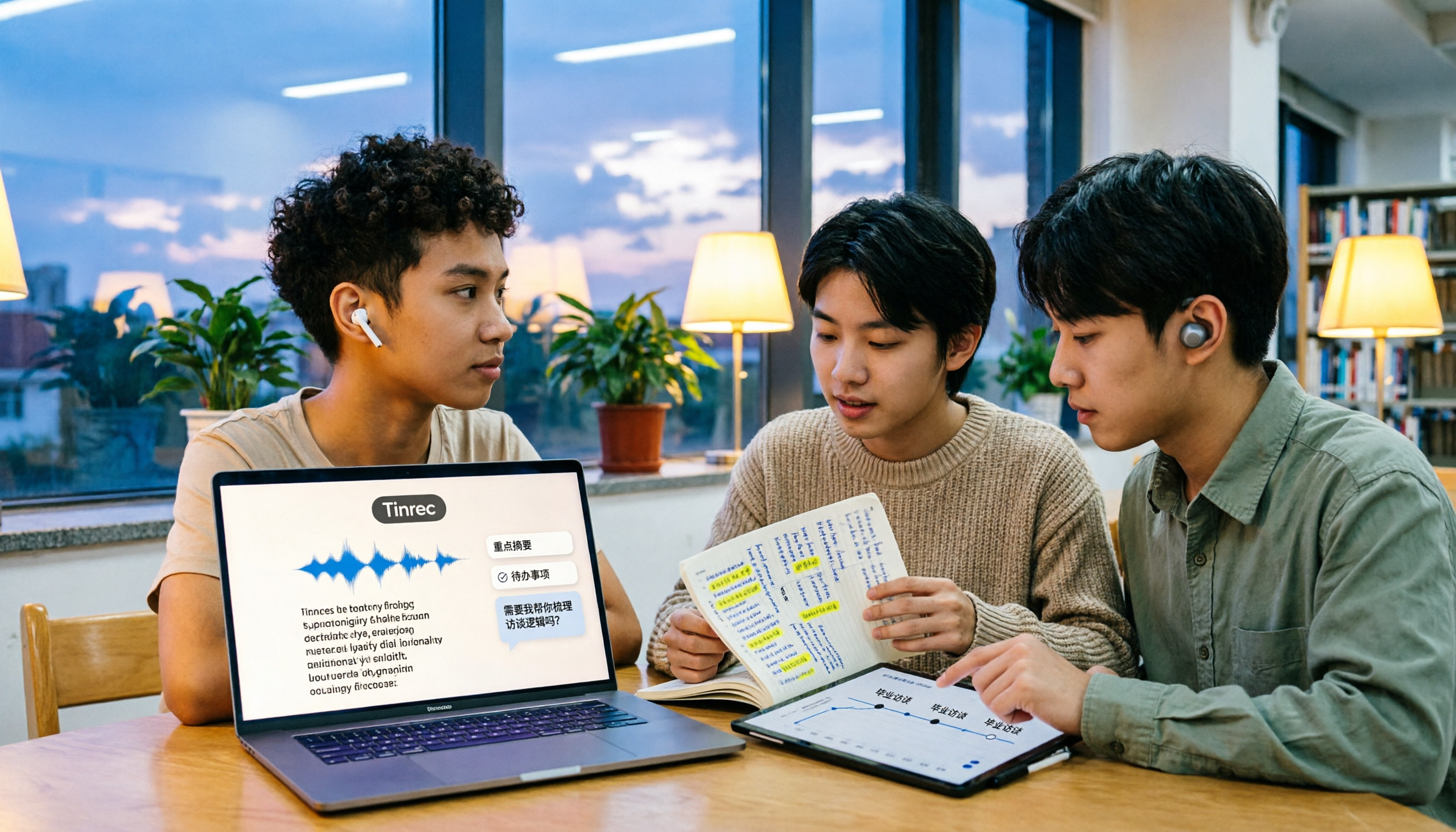
What Is Speech to Text in 2026? 5 Steps to Understand Voice-to-Text
People searching "what is speech to text" face a choice: memorize the definition or figure out if it can save their semester. This article walks you through 5 steps from concept to practice, covering real-time transcription, bot-free online meeting recording, AI summaries and action items, AI Q&A, and export features. Using real student scenarios (class notes, group projects, graduation interviews), it shows how to use Tinrec to turn recordings into reviewable, submittable transcripts.
3 Ways to Add Text to iPhone Photos in 2026: Is the Built-in Markup Tool Enough?
You don't necessarily need to download an app to write on iPhone photos. This article tests three common methods: the built-in Markup tool, editing apps like CapCut, and annotating directly in Messages or Mail. We also cover key decision points and common mistakes to help you choose the right method for your needs.
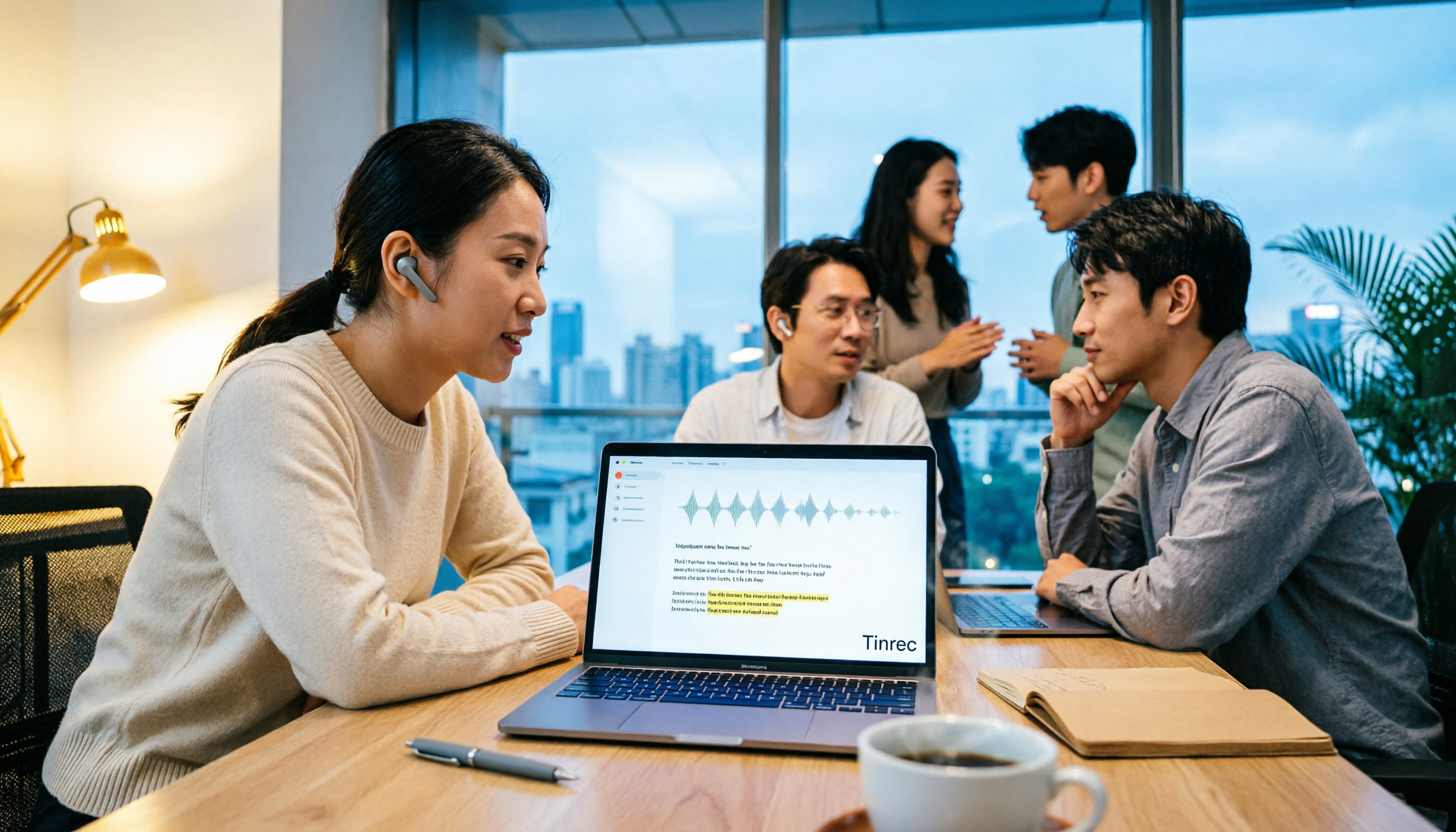
CapCut Desktop Recording 2026: Voiceover Test & Meeting Notes Alternative
Can CapCut desktop record audio? Yes, but it captures your microphone voiceover, not a full meeting. This hands-on test walks through the voiceover workflow and compares CapCut vs Tinrec across 5 dimensions—meeting notes, transcripts, AI Q&A, and team collaboration—so you know which tool to use.
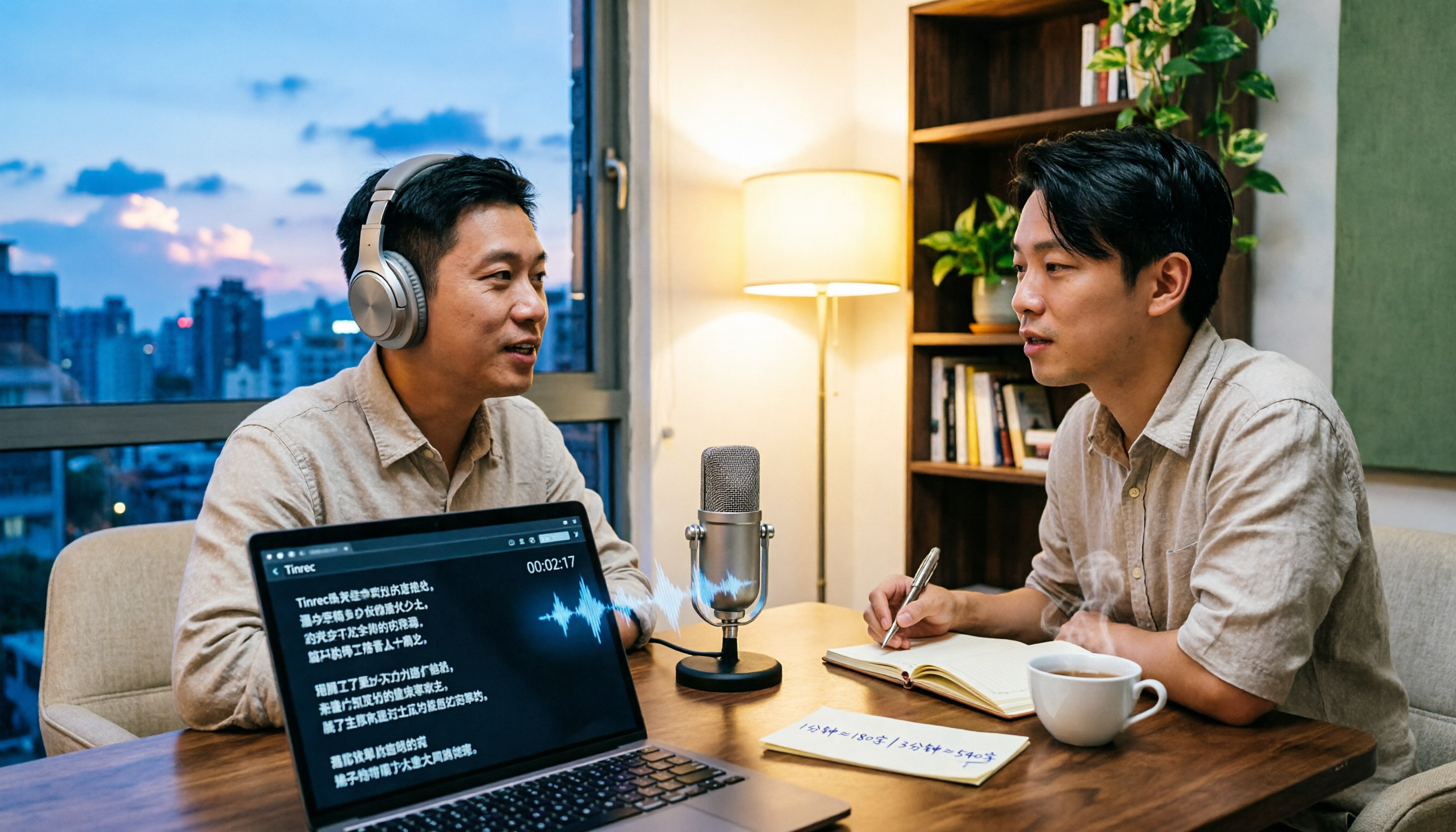
2026 Comparison of 4 Transcription Tools: Cost Per Word and Pricing Explained
Is transcription really priced per word? This article compiles actual 2026 rates for human transcription and typing in Taiwan, clarifies the difference between per-minute and per-word pricing, and compares tools like Tinrec, Notta, TurboScribe, and PLAUD to help you calculate your true monthly cost.
Tinrec vs Otter.ai 2026: 5-Dimension Comparison — How Long Does It Take to Speak 1,000 Words? Which Is Better for Chinese Meetings?
There's no single answer to how long 1,000 words takes to speak: a formal speech is about 6–7 minutes, while a business report is about 4.5–5 minutes. This article uses a 5-dimension comparison of Tinrec vs Otter.ai in 2026 to help you calculate your own speaking rate and compare Chinese meeting transcription, bot-free recording, AI summaries, and team collaboration to find the best tool for you.

2026 Comparison of 4 Transcription Tools: Is Yating Transcription Free? Which Is More Cost-Effective Long-Term?
Is Yating Transcription really free? This article answers that question directly, then compares Yating Transcription, Tinrec, Notta, and Otter.ai across four key aspects: free quota calculation, Chinese and mixed Chinese-English recognition, post-meeting organization, and cross-platform and team collaboration. It also outlines four common pitfalls when choosing a transcription tool.