
Turn recordings into transcripts and summaries in minutes
Upload audio or video for multilingual transcription, AI notes, and action items
What Is Speech to Text in 2026? 5 Steps to Understand Voice-to-Text
If you're searching this question, you're probably not thinking about the same thing as everyone else. Some people need to write a report and want to know how STT differs from TTS. Others have a two-hour lecture with a professor who talks incredibly fast and just want to know if this thing can generate a transcript for them.
My take is straightforward: the definition takes 30 seconds to explain. What really determines whether you'll keep using it is whether it solves the pile of recordings you're dealing with. So this article won't just throw out "it turns sound into text." I'll break it down into 5 steps, taking you from "what is this" to "I can use it today."
First, Get the Direction Right: STT and TTS Differ by One Input
The two most commonly confused terms are these: Text-to-Speech (TTS) takes text as input and outputs sound; Speech-to-Text (STT) takes sound as input and outputs text, also known as "automatic speech recognition" (ASR). The way to tell them apart is simple—look at what the input is. If you want to identify who said what in a meeting recording, that's STT. If you want to read a piece of text out loud, that's TTS.
Once you've got the direction straight, you also need to understand why it's not "press a button and get a perfect transcript." The speech-to-text process roughly goes like this: first capture the audio, then the model determines which words those sounds correspond to, and finally outputs editable text. If the microphone is too far away, the classroom has too much echo, or classmates are talking over each other, accuracy drops. That's why when choosing a tool, "your actual recording environment" is more worth considering than official promotional numbers.
What Can Speech to Text Do for You? Three Scenarios That Resonate Most with Students
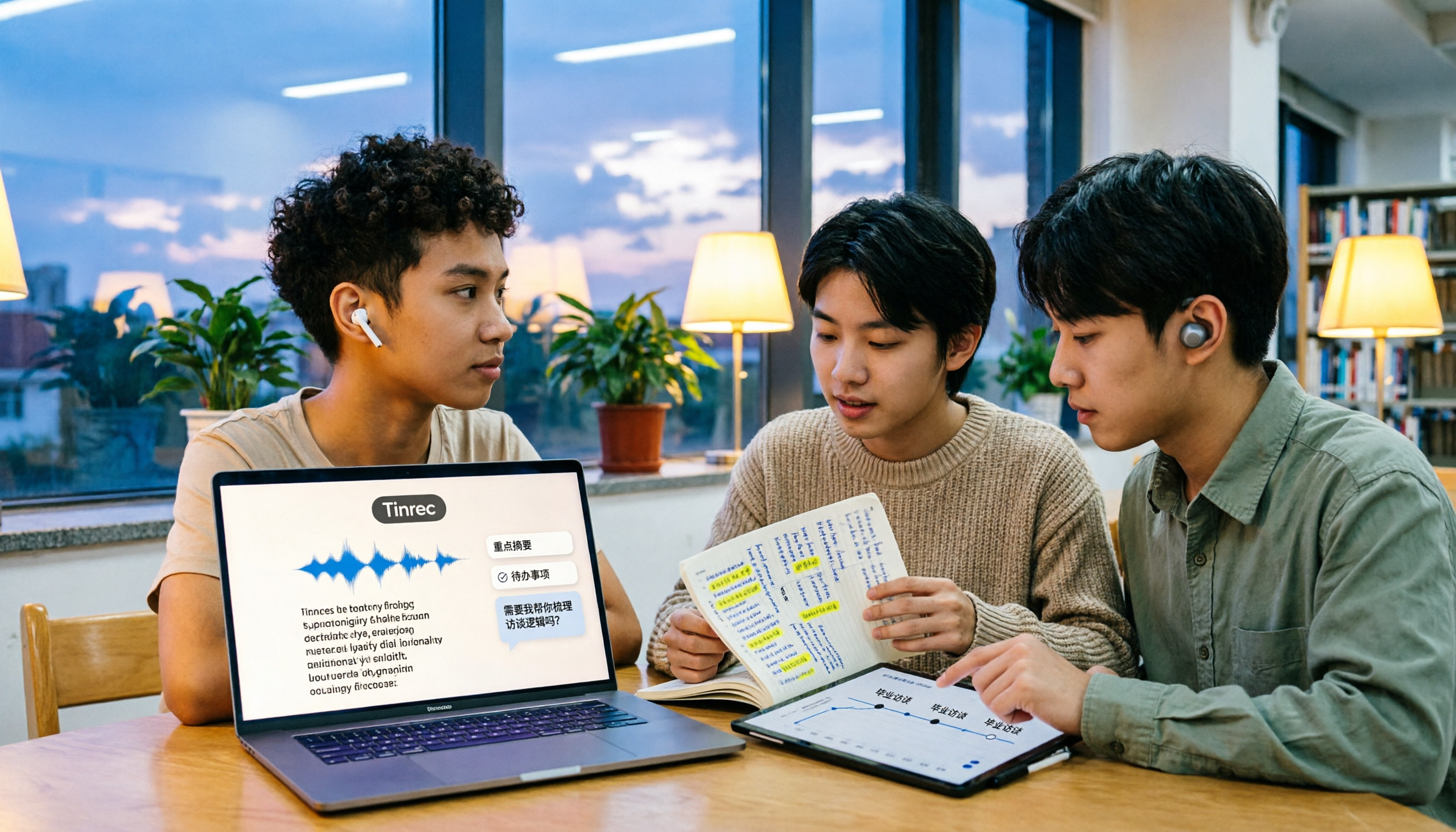
Scenario 1: A two-hour class becomes key points you can read in ten minutes I used to frantically take notes in class, and by the end I couldn't even read my own handwriting. Now I turn on Tinrec's real-time recording-to-text during class, watch the text appear as the lecture goes on, and afterward let it generate summaries and chapters. I just read the summary and add my own understanding. I still take handwritten notes, but only for "things I don't understand."
Scenario 2: Group discussions where someone still remembers the conclusions after the meeting For our graduation project, we meet at least once a week, and every time we argue about "didn't we agree last time that so-and-so would do this?" Now we just record the meeting, and after it ends Tinrec organizes action items—who's responsible and when it's due, all clear at a glance. I drop the results into the group chat, and half the disputes disappear.
Scenario 3: Online classes and interviews without constant pausing For recorded remote classes or project interviews, I used to listen from start to finish to find key points. Now I import the file into Tinrec to transcribe it, then use AI Q&A to directly ask "what did the interviewee think about pricing?"—way faster than scrubbing through the timeline.
What Are the Core Capabilities of Speech to Text? Five Key Features Using Tinrec as an Example
Real-time transcription: Text appears as you record, not after you finish. During meetings you can confirm in real time whether you missed key points, and if someone speaks too fast you can add a note immediately.
Bot-free online meeting recording: This one really resonates with me. Many meeting note tools I've heard of require inviting a "meeting bot" into Zoom or Google Meet, adding a stranger's account to the screen—a bit awkward when presenting to a professor or client. Tinrec's desktop version directly captures your computer's system audio, so when handling meetings on Zoom, Google Meet, Microsoft Teams, or Webex, no extra participant needs to join.
AI summaries and chapters: It doesn't just condense the transcript into a paragraph—it breaks long meetings into structured topics, conclusions, and key points so you can skim.
Action item extraction and AI Q&A: Transcription is just the first step. Tinrec pulls action items from discussions; you can also ask questions directly about the content, like "who brought up the budget section?" or "what homework did the professor assign?" It answers based on the meeting content.
Export and further processing: Organized results can be exported to tools I already use like Notion, Google Docs, OneNote, and Dropbox, and can further generate reports, tables, and meeting minutes without copy-pasting.
Stop organizing recordings by hand
Upload audio or video and automatically get a transcript, summary, and action items
5 Steps to Get Started: From a Recording to a Submittable Transcript
- Choose the right input method: Use real-time recording for in-person classes, desktop recording for online meetings, or import audio/video files if you already have them.
- Confirm as you record: The real-time transcript appears synchronously. If you notice a proper noun was misheard, you can add it to the team glossary on the spot.
- Let AI do the first round of organization: After recording, generate summaries and chapters to capture the skeleton of the class or meeting.
- Dig out action items: Review the action items AI flagged, and add owners and deadlines.
- Export to your workflow: Drop it into Notion or Google Docs to continue writing your report, or keep it as review material.
Real-World Applications: How I Actually Used It This Semester
Class notes: For required courses with fast-talking professors, I use real-time transcription plus summaries. When reviewing for finals, I read the summary first, then click back to the transcript at the corresponding timestamps for parts I don't understand—way more efficient than re-listening to a two-hour recording from the start.
Group project meetings: Our team uses Tinrec's team space to centralize all meeting materials. New members can directly view past meetings without us having to explain everything verbally. If someone switches groups or takes a leave of absence, the materials don't disappear with them.
Graduation project interviews: After transcribing interview recordings, I use AI Q&A to quickly pull out key statements from interviewees, then go back to verify the original text when citing in my thesis.
Clubs and social media: For club event records or occasional video subtitles, importing audio files to convert to text is much faster than typing by hand.
Five Things to Consider When Choosing a Speech-to-Text Tool
1. Are you handling real-time meetings or existing files? These two needs are different. Tinrec supports both—real-time recording, online meetings, and audio/video import all in one workflow.
2. Chinese and mixed Chinese-English recognition experience: Many tools are strong in English but struggle with the kind of "this framework's implementation..." that Taiwanese students encounter in class. Tinrec covers Chinese, Traditional Chinese, and multilingual meeting scenarios, and has a team glossary to maintain your group's proper nouns.
3. Can you use it directly after transcription? The transcript is just raw material. Whether it can generate summaries, chapters, action items, and whether you can ask follow-up questions about the content—that's the key to saving time. Tinrec does this after transcription.
4. Does the online meeting need an extra "participant"? If you're showing meeting notes to a professor or client, having a bot account on screen can look unprofessional. Tinrec's desktop version directly captures system audio without needing an extra member to join.
5. Where is the data stored, and can it be shared and handed over? For personal use, choose the personal version. For project groups or internship teams, Tinrec's team version stores data in a team space and distinguishes roles and seats—members without a seat can still view, play, and read materials, but recording, uploading, and editing require a seat. Teams also have usage analytics, audit logs, and an audio recycle bin. When a member leaves, the data belongs to the team and can be handed over to others.
Frequently Asked Questions
Q1: Is speech to text the same as "speech recognition"? Yes. STT, speech-to-text, and automatic speech recognition (ASR) all refer to the same type of technology: sound in, text out.
Q2: Is the free version enough for students? Tinrec's free version has a basic quota to try. If you only record key lectures, one or two segments a week, it's usually enough to run through a complete workflow. If you plan to record every class, then consider a paid plan. My advice is to try the free version first to confirm it really saves you time before deciding whether to pay—that's more useful than reading others' recommendations.
Q3: Can accuracy be guaranteed? It's not advisable to look at fixed numbers. Actual performance is affected by recording quality, noise, accents, and overlapping speakers. Tinrec performs consistently with clear audio, but for important content I still go back and verify by listening to the timestamps in the transcript.
Q4: Do I need to announce before recording a class or meeting? Yes. When recording and transcribing, please follow local regulations and obtain consent from teachers, classmates, or meeting participants when necessary.
Q5: Do online meetings require installing a meeting bot? No. Tinrec's desktop version records online meetings by capturing your computer's system audio, without adding an extra bot to the meeting. Note that it requires you to actively start recording—it doesn't automatically join every meeting on your calendar.
Conclusion
Back to the original question: what is speech to text? In one sentence, it's technology that "turns sound into editable text." But for students, the real value is what comes after—turning transcripts into summaries, action items, and reviewable materials.
If you currently have a pile of unlistenable lecture and meeting recordings, I'd suggest starting with the free version to try a complete workflow: record a class, generate a summary, and export it to where you normally take notes. After one run, you'll probably know whether this thing is worth adding to your toolbox this semester.
References
Turn every recording into actionable outcomes
Get 60 free transcription minutes when you sign in. No credit card required.
Related Reading
You might also like

Where Are iPhone Voice Memos Stored in 2026? 4 Audio-to-Text Tools Tested: Which Saves the Most Time
iPhone Voice Memos are actually stored in four places: the app itself (in the Utilities folder), iCloud, Recently Deleted, and the Files app after export. This article first walks you through each location, then compares four audio-to-text tools in real-world tests to see which one truly solves the time sink of having to re-listen and organize recordings after the fact.

5 Computer Recording Solutions Compared: Built-in Tools vs. AI Meeting Assistants
Can a computer record audio directly? Both Windows and Mac have built-in recording tools, but most people struggle with system sound recording and post-meeting organization. This article compares 5 computer recording solutions: built-in recorders, Tinrec, Otter.ai, Granola, and Notta, covering recording sources, transcription and organization, cross-platform support, and team collaboration to help you find the option that truly turns meeting recordings into usable data.

Built-in Screen Recording vs Tinrec: 5-Factor Comparison for Meeting Notes in 2026
Does your computer have built-in screen recording? Windows 10/11 has Xbox Game Bar (Win+G), and macOS has built-in screen recording. This article compares built-in screen recording with Tinrec across 5 factors to help you decide between pure screen recording, online meeting notes, and team collaboration.

3 iPhone Recording Methods Compared for 2026: Notes, Voice Memos, or AI Tools?
Recording on an iPhone is easy; the hard part is organizing what you've recorded. This comparison examines the built-in Notes app, the built-in Voice Memos app, and the AI meeting notes tool Tinrec. We break down transcript usability, online meeting recording, team data management, and practical limitations to help you choose the most time-saving recording method.
2026 Comparison of 4 Transcription Tools: How Long Does Yating Take? Speed and Cost at a Glance
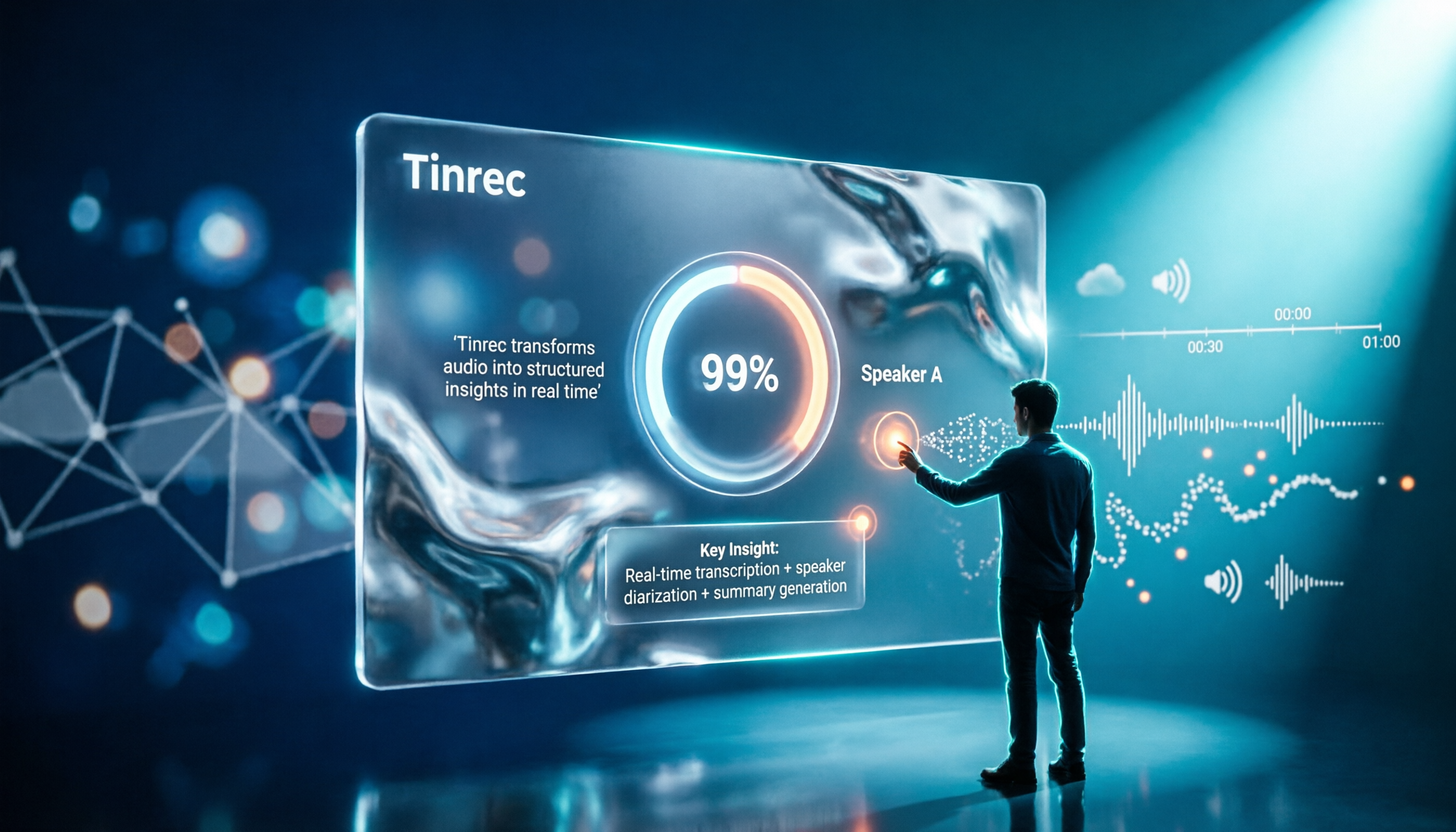
How long does Yating take? The official site doesn't specify a fixed time; the progress bar stuck at 99% is actually the system performing speaker segmentation and summarization. This article compares the wait times, costs, and output of four Chinese transcription tools: Yating, Tinrec, Notta, and Otter.ai, and summarizes key purchasing factors and common misconceptions to help you decide which one truly saves time.

Can You Record Your Own Police Interview in 2026? 5 Key Differences Between Self-Recording and Mandatory Recording
Can you secretly record your own police interrogation for protection? Most practical legal opinions say no. This article explains Article 100-1 and Article 100-2 of the Criminal Procedure Code and the principle of non-disclosure of investigations, helping you understand the differences between defendants, complainants, and witnesses, the legal effect when recordings and transcripts don't match, and how to use legally obtained recordings with tools to create transcripts.

Tinrec vs Yating Transcription in 2026: 5-Dimension Comparison, Which One Should You Choose for Meeting Transcripts?
When asking 'which AI can generate transcripts,' transcription alone is no longer enough. This article compares Tinrec (Miao Ting Lu Yin) and Yating Transcription across 5 dimensions: transcript readability, post-meeting AI organization, meeting recording methods, team collaboration, and pricing structure, and provides clear recommendations.

iPhone Notes Download Tested in 2026: Which of 3 Export Methods Works Best?
Can you download iPhone Notes? First clarify whether you want to download the app itself, note attachments, or the entire content, then decide which method to use. This article covers App Store downloads, iCloud.com attachment downloads, and locked note limitations, and explains how Tinrec fills the gap when needs escalate to meeting recordings, transcripts, and team sharing with bot-free recording, AI summaries, and multi-format export.
3 Ways to Add Text to iPhone Photos in 2026: Is the Built-in Markup Tool Enough?
You don't necessarily need to download an app to write on iPhone photos. This article tests three common methods: the built-in Markup tool, editing apps like CapCut, and annotating directly in Messages or Mail. We also cover key decision points and common mistakes to help you choose the right method for your needs.