

Turn recordings into transcripts and summaries in minutes
Upload audio or video for multilingual transcription, AI notes, and action items
Want to Add Text to iPhone Photos? First Ask Yourself: Do You Need "Annotation" or "Design"?
"Writing a few words on a photo" sounds simple, but most people get stuck on the same question before they even start: should I use the built-in iPhone features, or just download a photo editing app?
The answer depends on what kind of "adding text" you need. If you just want to write a date, location, price, or a quick reminder on a photo, the built-in Markup tool can do it in seconds without requiring an account. But if you want the kind of social media story effect with outlines, shadows, and constantly changing fonts, the built-in features will feel limiting.
This article walks through three common methods: Apple's built-in Markup, editing apps like CapCut, and annotating directly in Messages or Mail. After reading, you'll know which one fits your needs.
Before Choosing a Method, Understand These 4 Key Points
1. Can you edit it afterward? This is the most easily overlooked point. Some methods "burn" the text into the output file, so if you want to change it, you have to redo the whole thing. Others keep the editing layer, so you can go back and adjust or delete later. First decide whether this photo is "one-time use" or "might need changes later."
2. Font and layout flexibility Writing a single line of text and creating a design-worthy image require completely different tools. Built-in features offer fewer font choices and take a "good enough" approach; editing apps provide a large number of typefaces, styles, and effects. The more flexibility, the higher the learning curve.
3. Will it add a watermark or compress image quality? Common limitations of free tools include watermarks or secretly reducing quality on export. Before adding text, check the output rules so you don't waste time editing only to find you can't use it.
4. Will the photo leave your phone? If you're adding text to ID documents, contracts, or photos of children, whether the tool requires uploading to the cloud matters. Built-in features work on-device, which is simpler; for third-party apps, pay attention to their privacy policies.
Built-in Markup — The Most Recommended Choice After Testing
Bottom line: if you just want to write text on a photo, iPhone's built-in Markup can handle about 90% of everyday needs, and it's completely free with nothing to download.
Here are the actual steps:
- Open the Photos app, find the photo you want to add text to, and tap "Edit" in the top right corner.
- Tap the Markup icon (pen tip style) in the top right corner to enter the Markup toolbar.
- Tap the "+" plus sign in the bottom right corner and select "Add Text."
- A text box appears in the center of the photo. Double-tap to delete the default text and type what you want — Chinese, English, even Emoji all work.
- Tap the "Size" button in the bottom left corner to change font style, size, color, and alignment. You can also drag the text box to where you want it.
- When done, tap "Done" and the text is saved into the photo.
It's worth noting that the same Markup tool works not only on photos but also on screenshots, PDFs, and supported apps like Notes and Mail. That means circling key points on screenshots, signing PDFs, adding shapes or stickers — all follow the same path. Learn it once and use it everywhere.
What I found especially helpful in practice:
Stop organizing recordings by hand
Upload audio or video and automatically get a transcript, summary, and action items
- Free, no download, no login, works without internet.
- No watermarks, no extra export step.
- If you want to edit or delete text later, just go back to "Edit" — no need to redo the whole image.
- Photo processing happens on-device, which is reassuring for privacy-conscious users.
Limitations to keep in mind:
Font choices are limited, and there are no effects like outlines, shadows, or gradients — layout flexibility isn't high. Also, text is added directly onto the photo. If you want to keep a completely clean original, first tap the "..." in the top right corner > "Duplicate" and add text to the copy so the original stays untouched.
**Who it's for:** People who want to quickly annotate a date, location, price, or a quick reminder without downloading an app just to add a few words.
Besides Built-in Markup, What Other Options Are There?
CapCut A downloadable editing tool. The process: open the app → All Tools → Photo Editing → select photo → Edit → find "Text" in the bottom menu → enter content → adjust font, color, style, and effects → export. The advantage is a rich font library, ready-made templates and effects, and no watermark on export. The difference is you go through an export process and the result is a new file. If you just need to add one line of text, this tool is overkill.
Annotating directly in Messages or Mail If you just want to send it to someone, you don't need to edit the photo first. After attaching a photo in Mail or Messages, tap the arrow next to the attachment and select "Markup" to add text, shapes, and signatures, then send. It's convenient for quickly explaining something to a colleague, but the downside is the annotation only exists in that message — it doesn't become a standalone image file.
Pitfall Guide: The 3 Most Common Mistakes When Adding Text to iPhone Photos
Pitfall 1: Editing without backing up the original first Built-in edits can be adjusted later, but if you're used to overwriting with a third-party app, the original is gone. Before adding text, "..." > "Duplicate" is the lowest-cost way to protect yourself.
Pitfall 2: Text color too close to the background, unreadable when thumbnailed Many people pick a beautiful white font, only to have it disappear on snow or a white wall. A simple test: shrink the photo to thumbnail size in your phone's album and see if it's still readable.
Pitfall 3: Uploading private photos to unknown apps for effects Editing apps often require uploading photos to provide cloud computing or assets. Adding text can be done with built-in features; when you really need effects, choose tools with clear reviews and clear licensing, and avoid apps that request a bunch of unrelated permissions.
Summary: Which One Should You Actually Use?
Breaking down your needs, the choice is clear:
- Just want to quickly write a date, location, or a sentence on a photo → Built-in Markup, free and easy.
- Want social-media-style fonts and effects → Editing apps like CapCut, more flexible but takes time to learn.
- Just need to explain something in a message or email → Annotate directly in Messages or Mail, no need to save a new image first.
- Need to sign or circle key points on screenshots or PDFs → Also built-in Markup, supported in apps, Notes, and Mail.
Honestly, most people's needs fall into the first category. I suggest opening the Photos app now, picking any image, and walking through the six steps above. You'll get the hang of it in about a minute, and you won't need to download a new app just to add a line of text.
References
- How to Add Text to a Picture on iPhone: 4 Ways to Enhance Photos
- Use Markup to add text, shapes, stickers, and more to documents on iPhone - Apple Support (Taiwan)
- [Phone Tips] How to Add Text to iPhone Photos? iOS Album Image Text Tutorial! | Jyes Communication ~ Challenging the Lowest Phone Prices
- Use Markup on iPhone, iPad, or iPod touch - Apple Support (Taiwan)
- iPhone Photo Text Tutorial: Using Built-in iPhone Photo Editing Text Feature (No App Download) - Tech Girlz
Turn every recording into actionable outcomes
Get 60 free transcription minutes when you sign in. No credit card required.
Related Reading
You might also like

Where Are iPhone Voice Memos Stored in 2026? 4 Audio-to-Text Tools Tested: Which Saves the Most Time
iPhone Voice Memos are actually stored in four places: the app itself (in the Utilities folder), iCloud, Recently Deleted, and the Files app after export. This article first walks you through each location, then compares four audio-to-text tools in real-world tests to see which one truly solves the time sink of having to re-listen and organize recordings after the fact.

5 Computer Recording Solutions Compared: Built-in Tools vs. AI Meeting Assistants
Can a computer record audio directly? Both Windows and Mac have built-in recording tools, but most people struggle with system sound recording and post-meeting organization. This article compares 5 computer recording solutions: built-in recorders, Tinrec, Otter.ai, Granola, and Notta, covering recording sources, transcription and organization, cross-platform support, and team collaboration to help you find the option that truly turns meeting recordings into usable data.

Built-in Screen Recording vs Tinrec: 5-Factor Comparison for Meeting Notes in 2026
Does your computer have built-in screen recording? Windows 10/11 has Xbox Game Bar (Win+G), and macOS has built-in screen recording. This article compares built-in screen recording with Tinrec across 5 factors to help you decide between pure screen recording, online meeting notes, and team collaboration.

3 iPhone Recording Methods Compared for 2026: Notes, Voice Memos, or AI Tools?
Recording on an iPhone is easy; the hard part is organizing what you've recorded. This comparison examines the built-in Notes app, the built-in Voice Memos app, and the AI meeting notes tool Tinrec. We break down transcript usability, online meeting recording, team data management, and practical limitations to help you choose the most time-saving recording method.

2026 Comparison of 4 Transcription Tools: How Long Does Yating Take? Speed and Cost at a Glance
How long does Yating take? The official site doesn't specify a fixed time; the progress bar stuck at 99% is actually the system performing speaker segmentation and summarization. This article compares the wait times, costs, and output of four Chinese transcription tools: Yating, Tinrec, Notta, and Otter.ai, and summarizes key purchasing factors and common misconceptions to help you decide which one truly saves time.

Can You Record Your Own Police Interview in 2026? 5 Key Differences Between Self-Recording and Mandatory Recording
Can you secretly record your own police interrogation for protection? Most practical legal opinions say no. This article explains Article 100-1 and Article 100-2 of the Criminal Procedure Code and the principle of non-disclosure of investigations, helping you understand the differences between defendants, complainants, and witnesses, the legal effect when recordings and transcripts don't match, and how to use legally obtained recordings with tools to create transcripts.

Tinrec vs Yating Transcription in 2026: 5-Dimension Comparison, Which One Should You Choose for Meeting Transcripts?
When asking 'which AI can generate transcripts,' transcription alone is no longer enough. This article compares Tinrec (Miao Ting Lu Yin) and Yating Transcription across 5 dimensions: transcript readability, post-meeting AI organization, meeting recording methods, team collaboration, and pricing structure, and provides clear recommendations.

iPhone Notes Download Tested in 2026: Which of 3 Export Methods Works Best?
Can you download iPhone Notes? First clarify whether you want to download the app itself, note attachments, or the entire content, then decide which method to use. This article covers App Store downloads, iCloud.com attachment downloads, and locked note limitations, and explains how Tinrec fills the gap when needs escalate to meeting recordings, transcripts, and team sharing with bot-free recording, AI summaries, and multi-format export.
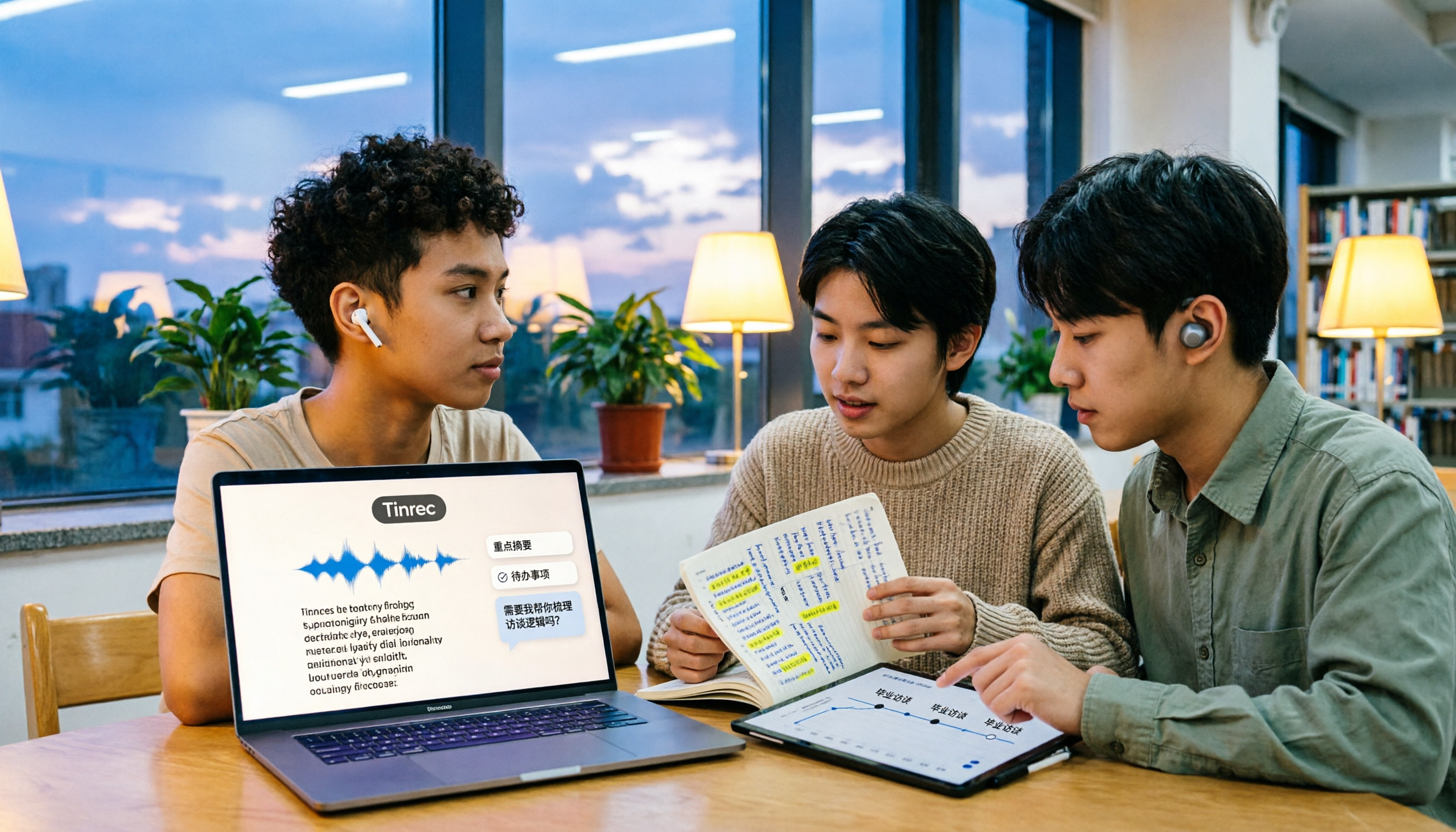
What Is Speech to Text in 2026? 5 Steps to Understand Voice-to-Text
People searching "what is speech to text" face a choice: memorize the definition or figure out if it can save their semester. This article walks you through 5 steps from concept to practice, covering real-time transcription, bot-free online meeting recording, AI summaries and action items, AI Q&A, and export features. Using real student scenarios (class notes, group projects, graduation interviews), it shows how to use Tinrec to turn recordings into reviewable, submittable transcripts.