

Turn recordings into transcripts and summaries in minutes
Upload audio or video for multilingual transcription, AI notes, and action items
Your online meeting just ended, and your manager says, "Send me the meeting notes by tomorrow." You open CapCut desktop and think—doesn't this video editing tool record audio? You'll just record it first and figure out the rest later.
The answer is yes. But once you finish recording, you'll realize the real trouble is just beginning.
CapCut Desktop vs Tinrec | Quick Overview
Both tools can "record audio," but they're designed for completely different purposes.
| Item | CapCut Desktop | Tinrec |
|---|---|---|
| Core purpose | Video editing tool | AI meeting notes and team collaboration tool |
| Recording method | Microphone voiceover (dubbing for video) | Desktop system audio + microphone, audio file import |
| After recording | Audio goes to timeline; you edit and type it yourself | Automatic transcript, summary, chapters, action items |
| Best for | Short-form video creators | People who need meetings turned into searchable, deliverable data |
Here's a comparison across 5 dimensions.
Dimension 1 | Audio Source: CapCut Records Your Voice, Tinrec Records the Whole Meeting
CapCut desktop has four audio sources: Sound, Effects, "Extract" (pulling audio tracks from video), and "Voiceover." Voiceover is microphone recording—drag the playhead to where you want it, click "Voiceover," hold the record icon while speaking, release to stop, then click the checkmark in the bottom right. It can indeed record directly within the platform without external recording software, and you can adjust decibels after recording. But the entire workflow is designed for "dubbing narration onto video"—what you capture is only your own voice.
Tinrec desktop captures your computer's system audio directly. Meeting audio playing on your computer from Zoom, Google Meet, Microsoft Teams, or Webex can all be recorded—no need to send a meeting bot into the call, and no extra authorization needed from the meeting host.
→ This dimension: Tinrec wins clearly. CapCut records narration; Tinrec records a meeting.
Dimension 2 | After Recording: CapCut Requires Manual Editing, Tinrec Delivers Transcripts and Summaries Instantly
Audio recorded in CapCut lands on the timeline—you drag it into position, trim the length yourself, and sync subtitles manually. It has solid audio editing capabilities including noise reduction, beat detection, voice changing, speed and pitch adjustment, but these are "editing" tools, not "organizing" tools. Two hours after your meeting ends, you still have to listen through it once and type it up yourself.
Tinrec generates a transcript immediately after recording, and automatically produces summaries, chapters, key points, and action items. When needed, it can generate reports, tables, or documents, and export to Notion, Google Docs, OneNote, Dropbox, and other tools for further processing.
→ This dimension: Tinrec wins. For the same one-hour meeting, one gives you raw material, the other gives you usable data.
Dimension 3 | When You Need to Find "That Conclusion from Minute Three"
CapCut audio sits on the timeline—you can only drag the playhead back and forth, piecing things together from memory. It does have AI features like text-to-speech, AI voice enhancement, and AI video templates, but the direction is making videos look better and get done faster—not helping you search meeting content.
Tinrec supports AI Q&A directly across single or multiple meetings. For example, you can ask "What was the client's final conclusion on the pricing?" without listening from the beginning. It also supports real-time translation during recording, with options to switch between original text, translated text, or bilingual view—cross-language meetings don't require waiting until afterward to compare.
Stop organizing recordings by hand
Upload audio or video and automatically get a transcript, summary, and action items
→ This dimension: Tinrec wins.
Dimension 4 | When the Team Needs to Use Meeting Data Together
CapCut is essentially a personal editing tool—projects follow individual accounts, with no concept of a team meeting database. When a colleague leaves, no one can usually say clearly which computer or which account holds the project.
Tinrec's team plan is a separate team collaboration space. You can create and switch between multiple teams, invite members via join links, and set roles as Owner, Admin, or regular Member. Two things need to be distinguished here: roles determine who can manage the team, members, audit logs, and settings; seats determine whether a member can record, upload, edit, import, and export. Members who are active but have no seat can still view, play, and read team data. Team resources belong to the team—when a member leaves or is removed, their assigned resources must be handed over to other active members. Admins can view usage trends, member rankings, and details, as well as search, filter, and export audit logs. Accidentally deleted audio goes to the recycle bin first (currently retained for 30 days).
On pricing, the team monthly plan is USD 29.80 per paid seat per month, and the annual plan is USD 199 per paid seat per year (about USD 16.58 per month). Eligible teams get a first-time trial of 7 days, 1 free seat, and 300 minutes of shared team import quota. Paid seats provide 2,000 minutes of shared team import quota per month. Under an active team plan and active seats, real-time recording currently does not deduct minutes. Actual prices and benefits are subject to the official purchase page.
→ This dimension: As long as meeting data is ultimately meant for the team, Tinrec wins.
Dimension 5 | Platforms and Ease of Entry
CapCut supports Windows, macOS, web, and mobile. The free version is enough for editing, while Pro and Ultra offer advanced assets and AI features (Ultra includes 6,160 points per month). New users also get a 7-day free trial.
Tinrec offers a free version, plus a weekly pass, Pro monthly, and Pro annual. For occasionally organizing a recording, start with the free version. For short bursts of frequent meetings, the weekly pass works. For steady weekly needs, choose Pro. For long-term accumulation of recording data, the annual plan fits best.
→ This dimension: Tie. For pure video editing, CapCut's free version is more than enough. For meeting notes, Tinrec's free quota can hold you over.
What Unique Advantages Does Each Have?
Tinrec's unique advantages:
- Bot-free online meeting recording: The desktop version captures system audio, so no "Tinrec" participant appears in the meeting.
- Post-transcription workflow: Transcript, summary, chapters, action items, AI Q&A, translation, multi-format export, plus Agent-generated reports and tables.
- Team governance: Team space, roles and seats, usage analytics, audit logs, audio recycle bin, and team hotwords—data stays with the team when members change.
- Chinese and multilingual meetings: Covers Chinese, Traditional Chinese, and multilingual meeting scenarios, with support for maintaining team terminology.
CapCut's unique advantages:
- All-in-one editing: Templates, effects, subtitles, voice changing, and audio tools are all available—short-form video output is fast.
- Low barrier with free version: Daily life records and social media clips can be done with the free version.
Summary: Which One Should You Choose?
- You just need to dub narration onto video or make short-form content → CapCut desktop's voiceover is enough
- You need to record online meetings with transcripts and summaries → Tinrec
- You want to ask AI for key points right after recording without listening again → Tinrec
- You need to keep meeting data for the team, resilient to personnel changes → Tinrec team plan
- You only occasionally edit life records → CapCut free version
In one sentence: CapCut desktop can record audio, but what it records is "your narration." If what you need is "an entire meeting," Tinrec is the right tool. Before choosing, try testing both with a real meeting recording of your own to see which output is closer to the meeting notes you need to deliver.
Final reminder: Before recording and transcribing, please comply with local regulations and obtain participant consent when necessary.
References
- CapCut Tutorial: Learn CapCut Editing in 10 Minutes (Mobile & Desktop) - Editor Master
- CapCut AI Video Editor: Smart Online Video Editing Platform with Advanced AI Tools
- Audio Cutter Online: Unlock the Power of Audio Editing with CapCut
- How to Professionally Edit Voice Recordings in 4 Steps
- [2026 CapCut Tutorial] Essential Free Editing Software for Beginners: Features, Pricing, Desktop Tutorial, and AI Subtitles All in One! — Leading Era
Turn every recording into actionable outcomes
Get 60 free transcription minutes when you sign in. No credit card required.
Related Reading
You might also like

Can You Record Your Own Police Interview in 2026? 5 Key Differences Between Self-Recording and Mandatory Recording
Can you secretly record your own police interrogation for protection? Most practical legal opinions say no. This article explains Article 100-1 and Article 100-2 of the Criminal Procedure Code and the principle of non-disclosure of investigations, helping you understand the differences between defendants, complainants, and witnesses, the legal effect when recordings and transcripts don't match, and how to use legally obtained recordings with tools to create transcripts.

Tinrec vs Yating Transcription in 2026: 5-Dimension Comparison, Which One Should You Choose for Meeting Transcripts?
When asking 'which AI can generate transcripts,' transcription alone is no longer enough. This article compares Tinrec (Miao Ting Lu Yin) and Yating Transcription across 5 dimensions: transcript readability, post-meeting AI organization, meeting recording methods, team collaboration, and pricing structure, and provides clear recommendations.

iPhone Notes Download Tested in 2026: Which of 3 Export Methods Works Best?
Can you download iPhone Notes? First clarify whether you want to download the app itself, note attachments, or the entire content, then decide which method to use. This article covers App Store downloads, iCloud.com attachment downloads, and locked note limitations, and explains how Tinrec fills the gap when needs escalate to meeting recordings, transcripts, and team sharing with bot-free recording, AI summaries, and multi-format export.
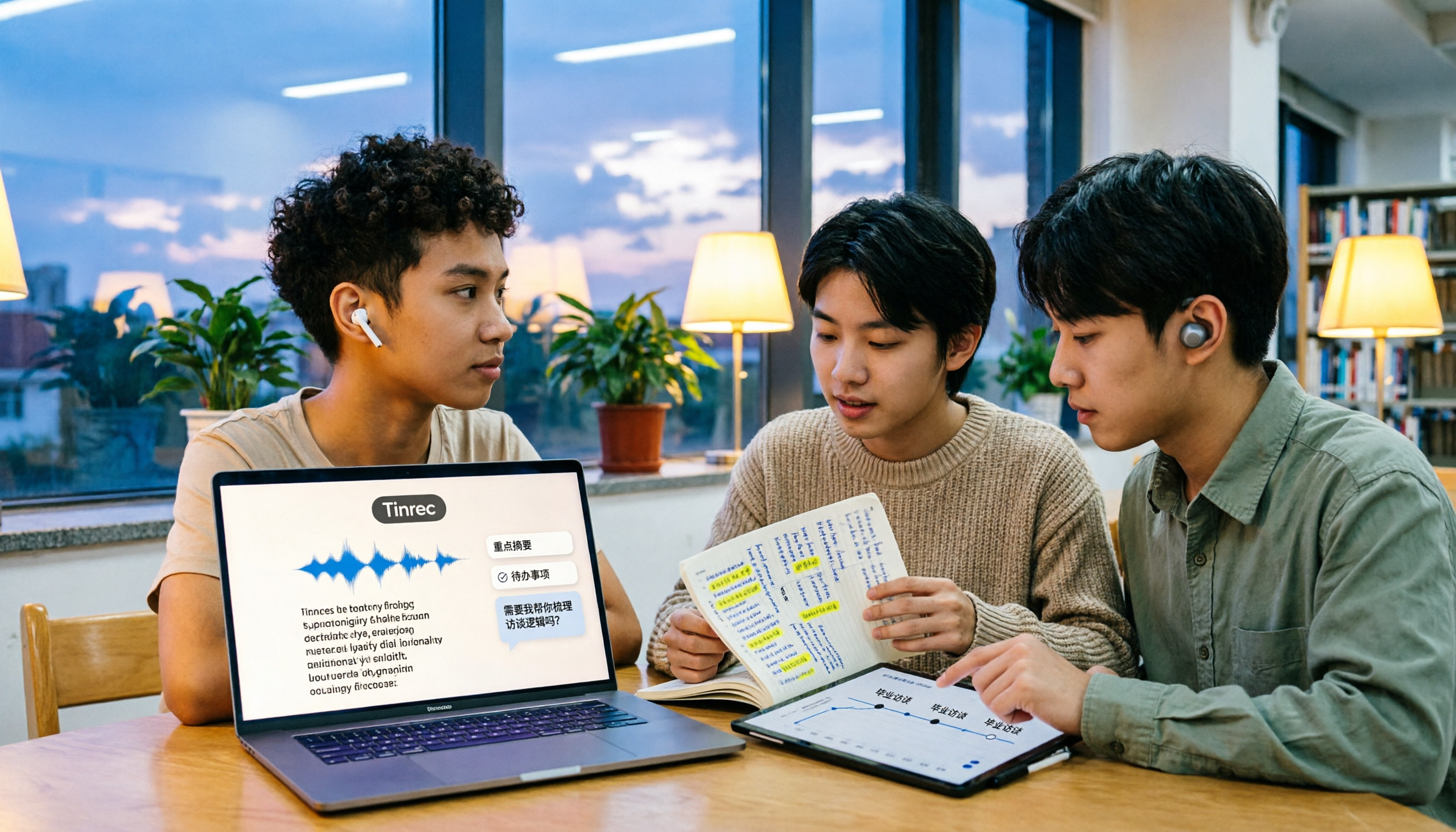
What Is Speech to Text in 2026? 5 Steps to Understand Voice-to-Text
People searching "what is speech to text" face a choice: memorize the definition or figure out if it can save their semester. This article walks you through 5 steps from concept to practice, covering real-time transcription, bot-free online meeting recording, AI summaries and action items, AI Q&A, and export features. Using real student scenarios (class notes, group projects, graduation interviews), it shows how to use Tinrec to turn recordings into reviewable, submittable transcripts.

3 Ways to Add Text to iPhone Photos in 2026: Is the Built-in Markup Tool Enough?
You don't necessarily need to download an app to write on iPhone photos. This article tests three common methods: the built-in Markup tool, editing apps like CapCut, and annotating directly in Messages or Mail. We also cover key decision points and common mistakes to help you choose the right method for your needs.

2026 Comparison of 4 Transcription Tools: Cost Per Word and Pricing Explained
Is transcription really priced per word? This article compiles actual 2026 rates for human transcription and typing in Taiwan, clarifies the difference between per-minute and per-word pricing, and compares tools like Tinrec, Notta, TurboScribe, and PLAUD to help you calculate your true monthly cost.

Tinrec vs Otter.ai 2026: 5-Dimension Comparison — How Long Does It Take to Speak 1,000 Words? Which Is Better for Chinese Meetings?
There's no single answer to how long 1,000 words takes to speak: a formal speech is about 6–7 minutes, while a business report is about 4.5–5 minutes. This article uses a 5-dimension comparison of Tinrec vs Otter.ai in 2026 to help you calculate your own speaking rate and compare Chinese meeting transcription, bot-free recording, AI summaries, and team collaboration to find the best tool for you.

5 iPhone Text-to-Speech Methods Compared in 2026: Built-in Speak Screen, Live Speech, or Transcription Tools?
Many people searching for 'how to make iPhone read text aloud' actually confuse two opposite directions. This article starts with common misconceptions, then provides a complete guide to setting up iPhone's built-in Speak Selection, Speak Screen, and Live Speech. It also explains the positioning and limitations of Tinrec, Otter.ai, Notta, and PLAUD if what you really need is to turn meeting recordings into usable text, helping you decide which one to use.

2026 Comparison of 4 Transcription Tools: Is Yating Transcription Free? Which Is More Cost-Effective Long-Term?
Is Yating Transcription really free? This article answers that question directly, then compares Yating Transcription, Tinrec, Notta, and Otter.ai across four key aspects: free quota calculation, Chinese and mixed Chinese-English recognition, post-meeting organization, and cross-platform and team collaboration. It also outlines four common pitfalls when choosing a transcription tool.