
Turn recordings into transcripts and summaries in minutes
Upload audio or video for multilingual transcription, AI notes, and action items
The built-in microphone on a laptop often picks up ambient noise. Whether you're in a remote meeting (Teams/Meet), recording an online course, or producing a podcast, you may spend hours replaying audio and manually typing transcripts—tedious and time-consuming.
To solve this pain point, this article reviews 6 popular laptop recording software and AI voice tools for 2026, with a detailed tool comparison table and step-by-step guides. It also includes a FAQ section on hardware limitations and free tiers.
Quick Navigation Suggestions:
- For professional audio editing and powerful noise reduction → choose AudioDirector or Adobe Audition.
- For Mac users looking for a free audio editing starter → GarageBand is the top pick.
- If you value "quick meeting summaries, action items, and transcripts after recording" → prioritize Tinrec (Second Listening Recorder) with AI summarization capabilities.
How to Choose Laptop Recording Software? 4 Key Evaluation Dimensions
Before downloading recording software, evaluate your needs across these four core dimensions:
1. System Support & Hardware Compatibility
Some professional recording software (e.g., Logic Pro and GarageBand) is exclusive to the Apple ecosystem, supporting only Mac. Windows users can consider AudioDirector or cross-platform cloud AI tools.
2. Multi-Track Recording & Editing Needs
If you're recording a multi-person podcast or interview, you'll need multi-track recording to adjust each speaker's volume and effects separately. For simple personal notes or lectures, a single-track tool suffices.
3. Audio Repair & Noise Reduction Capabilities
Laptop recordings often pick up AC noise or keyboard clicks. A good recording program should offer AI background noise reduction, wind removal, and de-reverberation to ensure clear audio.
4. Post-Processing Efficiency (Transcription & Summarization)
Traditional recordings have low information density and high replay costs. Modern workers increasingly value tools that convert speech into scannable, searchable, actionable text.
2026's 6 Popular Laptop Recording Software Recommendations
Based on the latest market feedback and features, here are 6 tools tailored for different users.
1. AudioDirector: Powerful Recording & Repair Program
- Supported Systems: Windows
- Features: Intuitive recording and editing tools with built-in AI audio repair to easily remove AC noise, ambient noise, and reverb. Supports multi-track recording and punch-in recording, ideal for podcast creators.
- Price: Approximately NTD 1,980/year.
2. GarageBand: Free Entry-Level Choice for Mac Users
- Supported Systems: Mac
- Features: Apple's free professional recording software with basic audio effects and multi-track recording. Supports iCloud backup for cross-Apple device editing.
- Drawbacks: Lacks advanced audio repair and noise reduction; file sizes are large.
3. Logic Pro: Mac-Exclusive Advanced Professional Recording
- Supported Systems: Mac
- Features: A more advanced audio workstation than GarageBand, with rich post-production effects and over 1,000 track options. Suitable for users who need professional-grade music and recording projects.
- Price: NTD 6,590 (one-time purchase).
4. Adobe Audition: For Professional Video & Audio Creators
- Supported Systems: Windows / Mac
- Features: Professional single-track and multi-track recording with meticulous background noise reduction and volume controls. Best for professionals already subscribing to Adobe Creative Cloud with some technical expertise.
- Price: Approximately NTD 7,686/year.
5. Hindenburg Journalist Pro: Designed for Broadcast & Interviews
- Supported Systems: Windows / Mac
- Features: Specifically designed for experienced podcasters and interviewers. Stably combines audio from different sources (phone, Zoom, Skype) and features auto-leveling volume.
- Price: Approximately NTD 3,576/year.
6. Tinrec (Second Listening Recorder): AI Recording Assistant Focused on "Understanding & Action"
- Supported Systems: Web (cross-platform), iOS, Android
- Features: Unlike traditional software that only "saves sound," Tinrec focuses on post-recording processing. Supports automatic recognition of Chinese, English, Japanese, Korean, and more. Converts recordings to text in real time and auto-generates meeting minutes, conclusions, and action items.
- Use Cases: Remote meeting records, online course notes, video script extraction.
Stop organizing recordings by hand
Upload audio or video and automatically get a transcript, summary, and action items
Laptop Recording Software Comparison Table
Use these six evaluation dimensions to quickly compare the tools:
| Software | Supported Systems | Multi-Track / Pro Editing | AI Noise Reduction / Audio Repair | Transcription / Summarization | Price / Free Tier |
|---|---|---|---|---|---|
| AudioDirector | Windows | Yes (multi-track/punch-in) | Strong (AI denoise/wind removal) | Yes (voice to text) | NTD 1,980/year |
| GarageBand | Mac | Yes (basic multi-track) | Weak (no advanced repair) | No | Free |
| Logic Pro | Mac | Yes (advanced multi-track) | Medium (requires plugins) | No | NTD 6,590 (one-time) |
| Adobe Audition | Win / Mac | Yes (professional) | Strong (spectrum editing/noise reduction) | No | Approx. NTD 7,686/year |
| Hindenburg | Win / Mac | Yes (broadcast-grade) | Medium (auto leveling) | No | Approx. NTD 3,576/year |
| Tinrec Second Listening Recorder | Web / iOS / Android | No pro editing | Yes | Strong (speaker diarization/action items) | Free up to 100 mins/month |
Step-by-Step: How to Efficiently Record on Laptop and Convert to Transcript & Summary
If your main goal is "producing text records and meeting summaries," traditional editing software often requires additional services. Below, we use a capable AI solution (taking Tinrec as an example) to break down 4 common workflows:
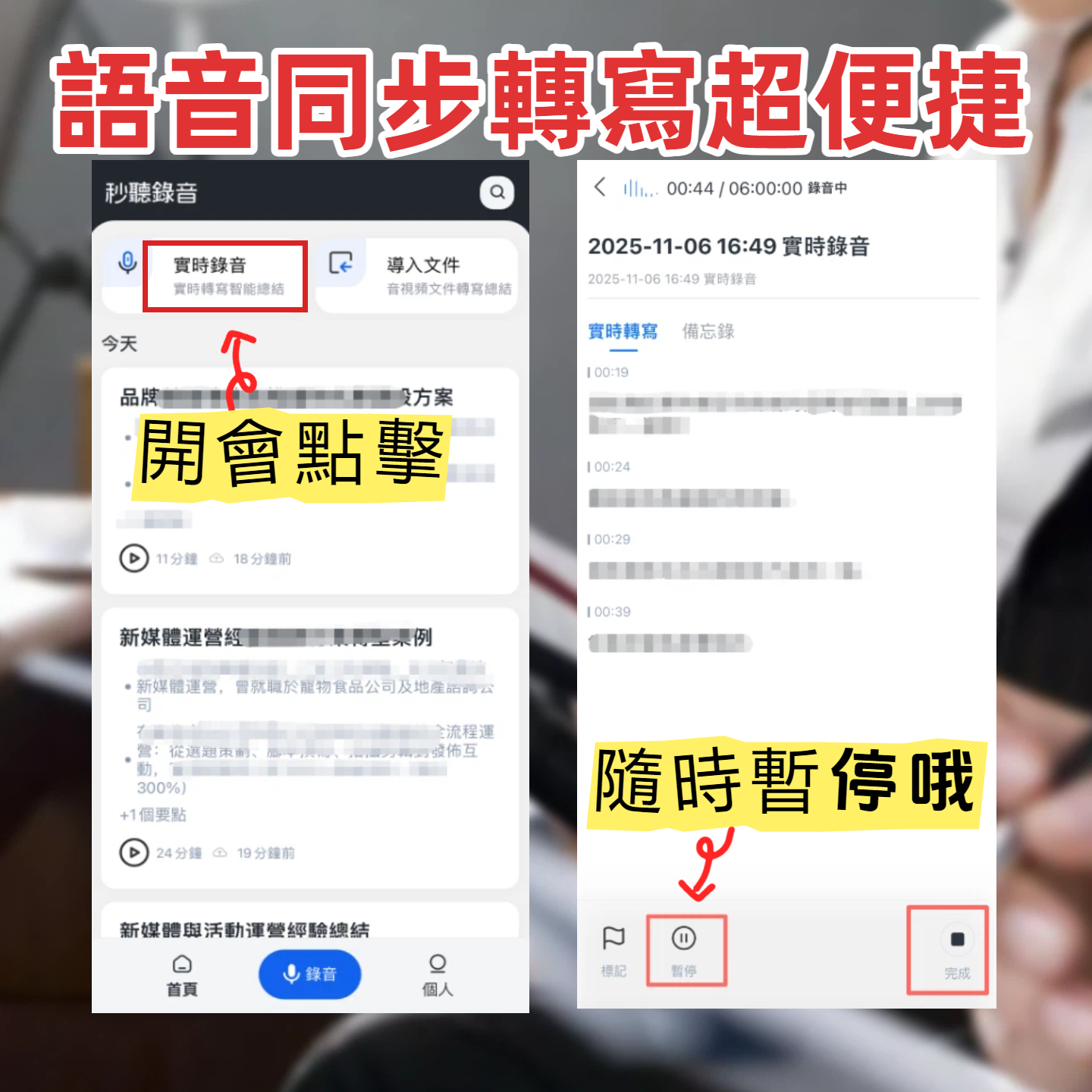
1. Real-Time Transcription While Recording on Laptop
Ideal for in-person meetings or lectures, using your laptop to record and see text simultaneously.
- Step 1: Open the web workspace (no bulky installation). Click "Start Recording."
- Step 2: During recording, text appears in real time—no waiting for conversion.
- Step 3: Pause or bookmark key points anytime. After recording, the system auto-generates a summary and action item list.
2. Importing Existing Audio Files
For files already recorded with an iPhone or other recorder that need organizing on your laptop.
- Step 1: Transfer the audio file to your computer. In the tool, select "Import Audio/Video."
- Step 2: Supports multiple audio formats. AI automatically detects the language (supports 10 languages, including mixed Chinese/English).
- Step 3: Within minutes, you get a transcript and AI meeting minutes.
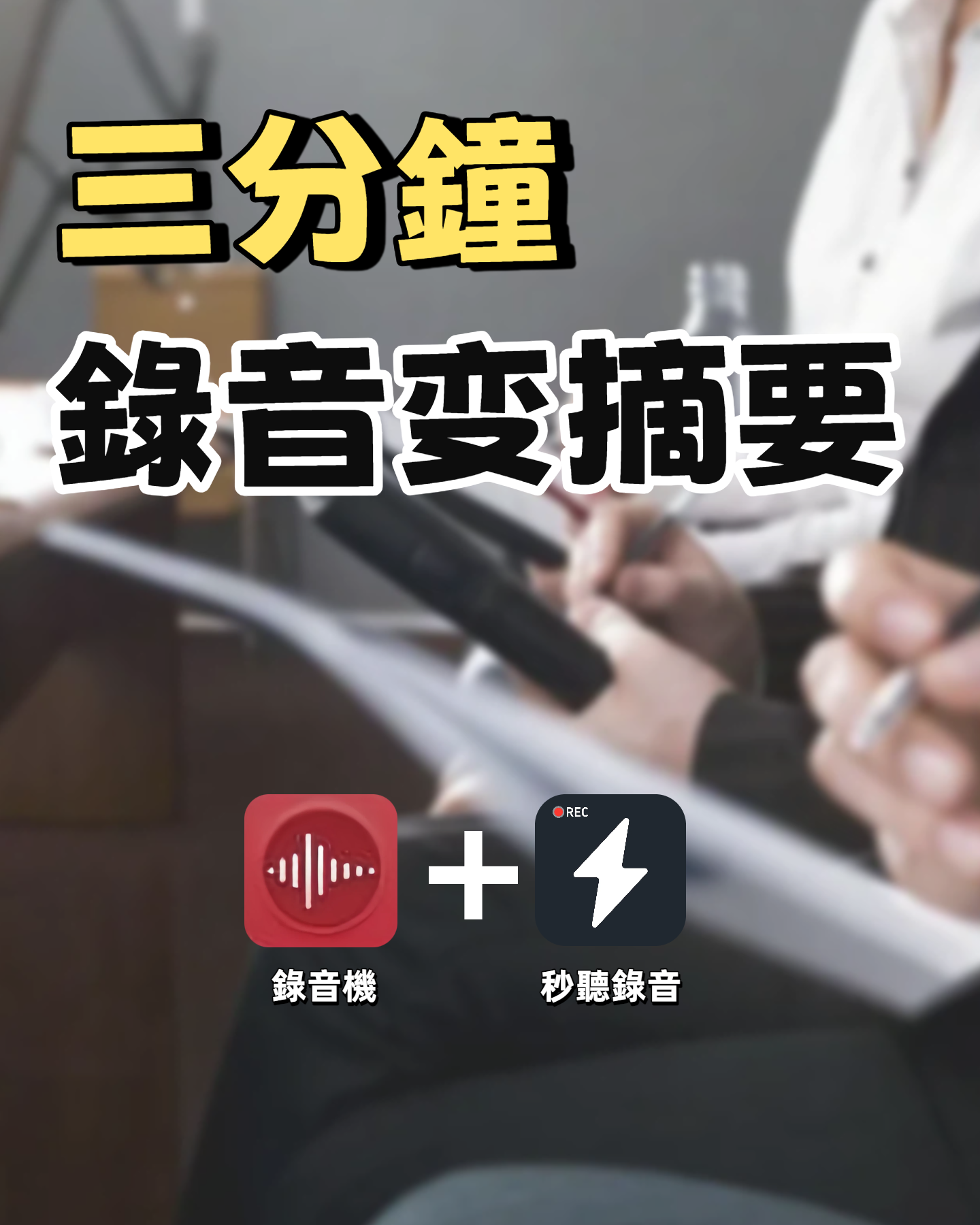
3. Converting Podcast or Online Video Links to Text
Ideal for self-study online courses or gathering competitor video material.
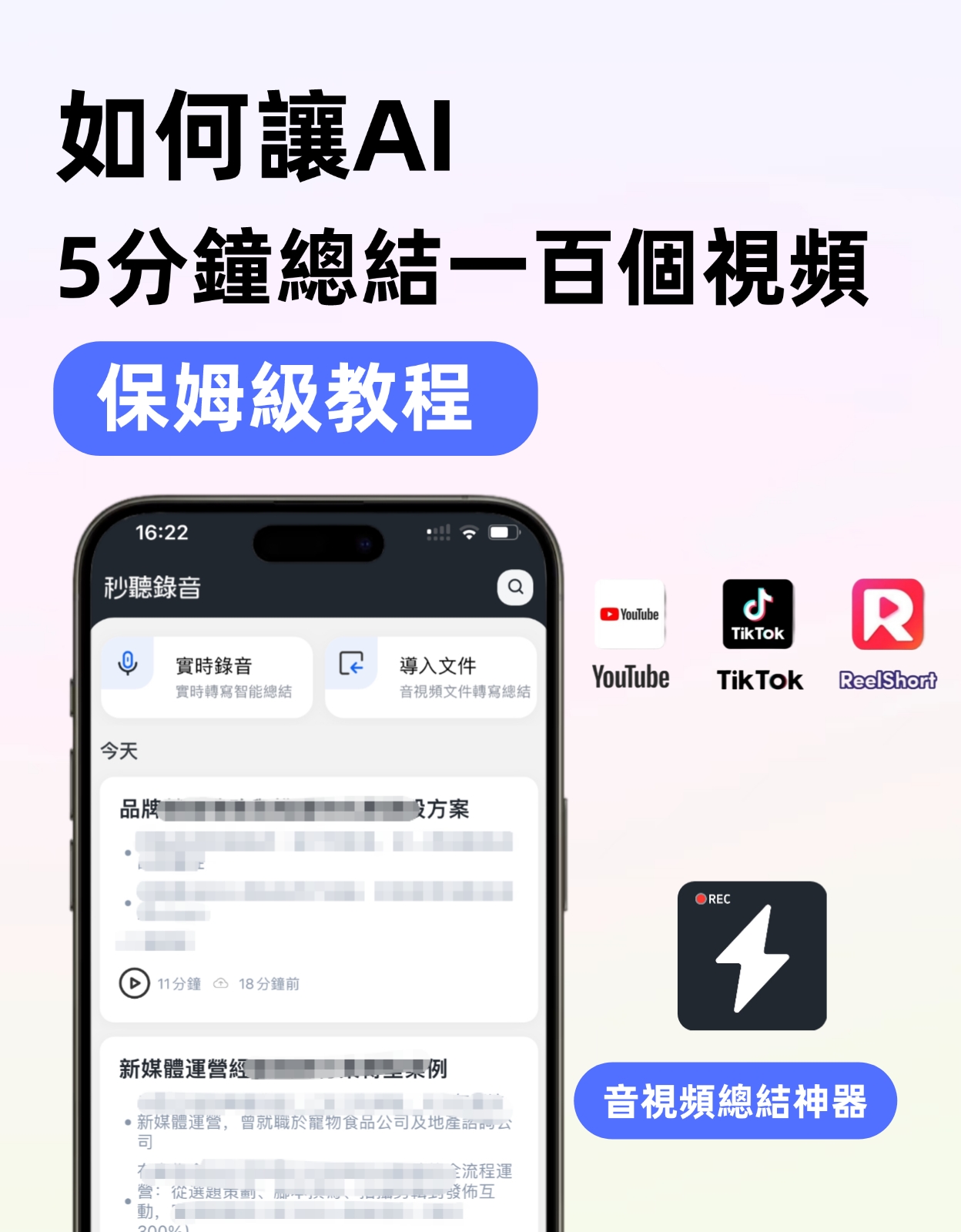
- Step 1: Copy the URL of the YouTube or web podcast video you want to organize.
- Step 2: Choose "Online Video to Text," paste the link.
- Step 3: The system automatically extracts the audio track and generates a transcript for easy article compilation or study notes.
4. Using AI Query to Quickly Find Key Content
Traditional transcripts only allow Ctrl+F search for exact keywords, which fails if you forget the exact wording.
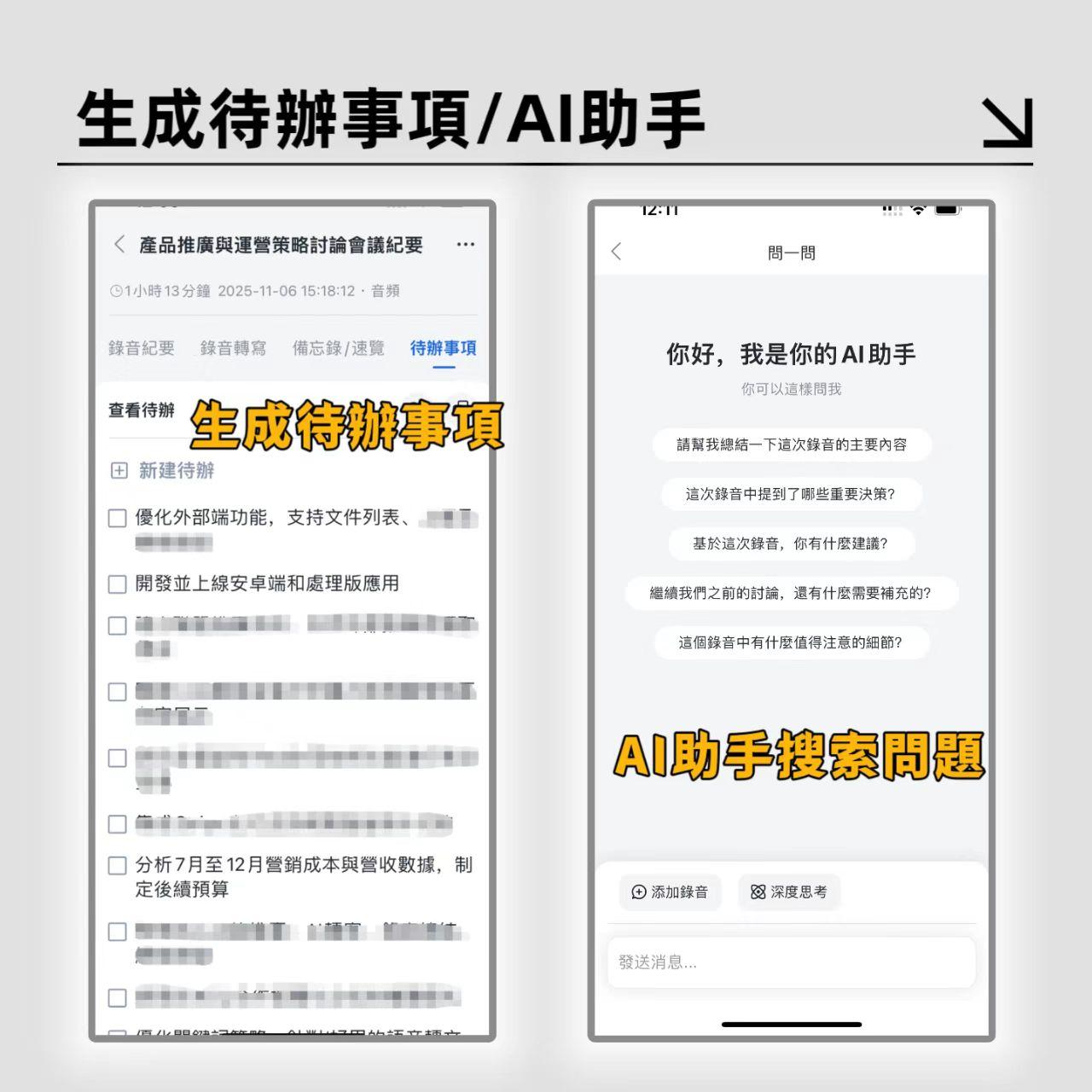
- Step 1: After generating the transcript, open "AI Query."
- Step 2: Ask a question like a real assistant (e.g., "What was the marketing budget the boss mentioned for next month?").
- Step 3: AI interprets the semantics and directly provides a summarized answer with timestamps, saving hours of replay.
Laptop Recording FAQ
Q1: Are there any free tools for laptop recording with transcription? If you only need recording without transcription, Mac users can use the completely free GarageBand. If your goal is to convert recordings into transcripts and summaries, Tinrec offers a free tier of up to 100 minutes per month, suitable for light-use students or office workers.
Q2: Can I simultaneously record and transcribe during a Teams or Google Meet meeting? Yes. You can typically capture internal computer audio via Stereo Mix settings. After recording, upload the audio file to an AI voice-to-text tool for speaker diarization and meeting summarization.
Q3: Can I transfer iPhone recordings to my laptop for transcription? Absolutely. Transfer iPhone Voice Memos via AirDrop or cloud storage to your laptop, then import them into an audio processing tool. If using a cross-platform AI tool, you can also upload directly from your phone and later view auto-generated notes on your laptop's web interface.
Q4: What should I do if my laptop recording has heavy background noise or wind? If the environment is noisy, try to record in a quiet space or use an external microphone. For already recorded files, use professional software like AudioDirector's AI background noise reduction, or rely on built-in voice enhancement in AI dictation tools to improve recognition accuracy.
Q5: What built-in or free laptop recording options are available for Mac? Mac comes with QuickTime Player (can record audio) and Voice Memos, suitable for basic needs. For editing, you can free-download GarageBand for multi-track editing.
Q6: Will transcripts be accurate when recordings contain mixed languages (e.g., Chinese and English)? Traditional pure Chinese recognition engines often garble proper nouns. Modern AI tools (like the candidate mentioned in this article) typically have multilingual models that automatically recognize Chinese, English, Japanese, Korean, and 10 other languages, significantly reducing error correction costs in international meetings or foreign language courses.
Turn every recording into actionable outcomes
Get 60 free transcription minutes when you sign in. No credit card required.
Related Reading
You might also like

2025 AI Voice Recorder Comparison: Tinrec vs. Plaud – Which Turns Meetings into Actionable Data?
In 2025, Plaud recorders are generating buzz, but if most of your meetings happen on a computer, hardware recording is only the first step. This article tests Plaud Note Pro, NotePin, and Tinrec in a real-world scenario of a mid-level manager with 15 meetings per week. We compare five dimensions: meeting capture method, post-meeting output, Chinese language experience, and team collaboration, to help you decide whether to buy a device or a workflow that turns meetings into action items.

2026 AI Voice Recorder Comparison: Is the PLAUD Recorder Worth Buying?
Hands-on review of the PLAUD recorder: hardware call recording works well, but subscription costs and post-meeting workflow are key. This guide covers buying criteria, PLAUD pros and cons, and alternatives to help you decide if you need hardware or if software like Tinrec is more cost-effective.

2026 AI Recording Tools Comparison: Plaud Pricing, Transcription Performance, and Free Tiers Students Care About Most
Based on a real student scenario of accumulating over 30 hours of recordings in a semester, this hands-on comparison tests the transcription performance and cost structures of Plaud Note series, Notta, Otter.ai, and Tinrec. It breaks down Plaud's two-tier hardware-plus-subscription costs, whether free tiers can last a semester, and lists 3 common pitfalls before buying, ending with clear recommendations for students.
2026 Two Recording Tools Tested: PLAUD Note Pro vs Tinrec — Which Transcribes Faster?
We examine third-party test data on PLAUD Note Pro's recording-to-text speed and compare it with Tinrec across five dimensions: input sources, post-meeting organization, Chinese-language experience, team collaboration, and cost. This helps you decide whether to buy a recording device or adopt a meeting-organization workflow.

2026 AI Recording Tools Compared: PLAUD vs. Tinrec for Meeting Notes
How to choose a recording tool in 2026? From PLAUD's hardware tutorial to Tinrec's AI meeting notes workflow, we break down the 5-step recording guide, core capabilities, real-world use cases, and 5 key buying considerations to help you decide whether to buy hardware or switch to software that generates minutes and action items right after the meeting.

How to Choose a Plaud Voice Recorder in 2026: 5-Step Hands-On Test and a Hardware-Free Alternative
After hands-on testing of AI recording hardware like the Plaud voice recorder, most people realize the real challenge is organizing what was recorded. This article starts from actual usage scenarios to break down what AI recording tools can do for you, what core capabilities to look for, and 5 things to consider when purchasing. Using Tinrec as an example, it explains how to complete transcription, summaries, action items, and team sharing without additional hardware.

2026 PLAUD Recorder Free Plan Guide: 5 AI Transcription Tools Compared
The PTT discussion about PLAUD recorders really comes down to one question: should you buy an extra piece of hardware? This guide compares five recording-to-text options in 2026, covering free quotas, Chinese recognition, post-meeting organization, and team data ownership, and explains why Tinrec is better suited for most office workers when it comes to bot-free online meeting recording and post-meeting AI Q&A.

Beaver vs Otter: 3 Key Differences + 1 Note-Taking Workflow (2026 Guide)
The Chinese names for beaver and otter are often confused: 河狸 (beaver), 水獺 (otter), 海獺 (sea otter), and 海狸鼠 (coypu) sound like they belong to the same family. This guide uses four criteria—tail, teeth, feet, and behavior—plus three field-tested steps to help you tell a beaver from an otter in 30 seconds at a zoo or in a video. It also includes a workflow for turning English ecology videos and lectures into organized Chinese notes.
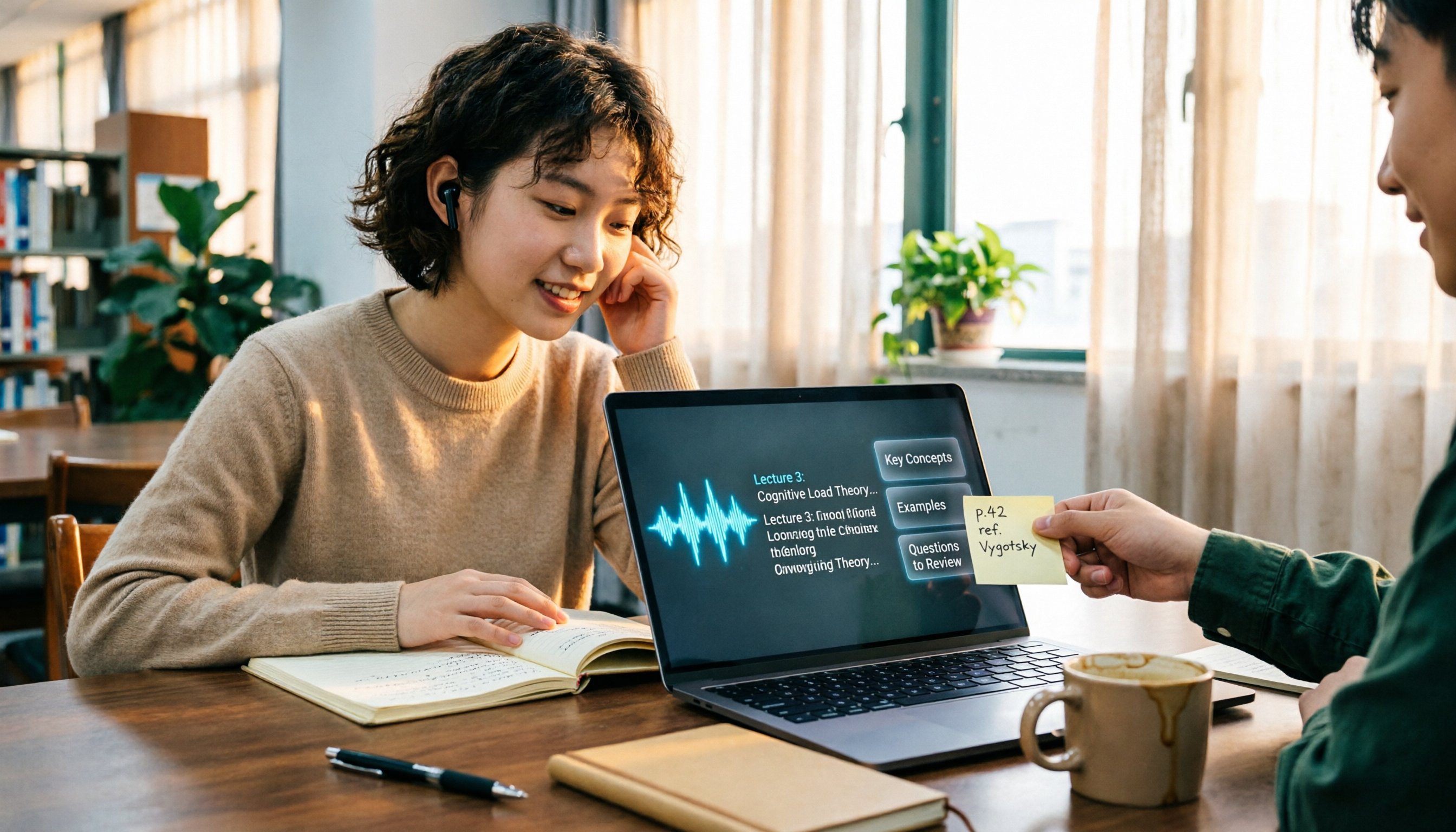
The Complete Guide to Class Recording Apps in 2026: Moving from NotebookLM to Tinrec for Your Classroom Note Workflow
Starting from the pain point of students opening recordings before finals and finding no key points, this guide covers common misconceptions about class recording apps, the shortcomings of NotebookLM and ordinary recording tools, and explains how Tinrec uses real-time transcription, AI summaries, Q&A, and team spaces to turn class recordings into searchable, reviewable notes.