

Turn recordings into transcripts and summaries in minutes
Upload audio or video for multilingual transcription, AI notes, and action items
Tinrec vs TurboScribe 2026: 5-Dimension Comparison — Which Video-to-Text Workflow Is Easier?
Online course videos sit on your hard drive, and after a two-hour lecture you only remember three key points. You have a Zoom recording of a client interview, but to find a specific sentence you have to drag the timeline from the beginning.
Extracting the audio from a video and converting it to text is the fastest way to solve this. This article uses Tinrec as an example to walk you through the complete workflow, from extracting audio and transcribing to exporting and sharing, in 5 steps.
Before You Start | What You Need to Prepare
- A computer or phone: Tinrec has a web version, desktop version, and mobile app, all three platforms work.
- A Tinrec account: Sign in with Google or Apple ID. The free version provides basic transcription credits, so you can try a video first without any problem.
- The video or audio file you want to process: Common formats like MP4, MOV, MP3 are all supported, and online meeting recordings work too.
- A stable internet connection: Uploading and transcription are done in the cloud.
- Content you have the right to transcribe: If it's someone else's video or meeting recording, make sure you have permission first, and get participant consent if necessary.
Step 1 | Extract the Audio from the Video
The goal of this step is to get a clean audio source first, because the accuracy of everything that follows depends on it.
If you have a video file like MP4 or MOV, you don't necessarily need to convert it to MP3 with editing software first. Tinrec supports uploading video files directly, and the system will handle the audio track inside, reducing the chance of errors from an extra conversion.
If the video is very long, it's best to cut out the segment you need first. For example, if you only want to organize the Q&A portion of a two-hour lecture, cut it to 20 minutes before uploading — transcription time is proportional to length, and it will be much easier for you to proofread.
After completion, you will see the file in your Tinrec workspace, with its length and processing status displayed next to it. The operation screen looks something like this: you drag the client interview MP4 into Tinrec, the file name and length appear on the screen, and then you let it handle the rest.
Step 2 | Let AI Convert the Audio to a Transcript
The goal of this step is to turn sound into text that can be searched and copied.
After uploading, select the content language — Chinese, mixed Chinese-English, or foreign language meetings are all fine. Tinrec supports Chinese and multilingual meeting transcription. If the video is in a foreign language or mixed Chinese-English, you can enable the translation feature to view in original text, translation, or bilingual mode, which is especially useful for interview videos with international teams.
Why should you set the language correctly first? Because if content with mixed languages is processed with only a single language model, errors easily occur at the points where Chinese and English switch. Setting it correctly first can save a lot of proofreading time.
After completion, you will get a full transcript, with each paragraph corresponding to the seconds in the video.
Step 3 | Quickly Proofread the Transcript
AI transcription always needs proofreading, and the key is to "proofread quickly."
Tinrec's transcript retains timestamps, so you can click on the text to jump back to the corresponding video position and verify uncertain parts directly. The search bar at the top lets you find keywords directly, so you don't have to watch a two-hour video from beginning to end.
There is also a very practical approach: if your content has a lot of technical terms, you can maintain "team hotwords" in the team version, adding product names and technical terms, so that the proper nouns transcribed by the same team will be much more consistent later.
After completion, you have a transcript ready to use, and all that's left is minor formatting adjustments.
Step 4 | Let AI Generate Summaries, Chapters, and To-Dos
Getting the transcript is only the first step; the real time-saver is the organization that follows.
Tinrec automatically generates summaries, chapters, and key points, so you can quickly grasp the structure of long videos. Follow-up actions from meetings or interviews can be organized with to-do extraction. For anything unclear, you can directly ask AI questions about this record (or multiple records together), for example, "What are the three concerns the client mentioned?"
Stop organizing recordings by hand
Upload audio or video and automatically get a transcript, summary, and action items
If needed, you can further generate reports, tables, and documents, suitable for post-meeting delivery or content rewriting.
After completion, what you get is not just a text file, but material you can directly use for meetings, writing, or replying to clients.
Step 5 | Export and Share
The last step is to bring the results back into your original workflow.
Tinrec supports export in multiple formats, and you can also bring content to Notion, Google Docs, OneNote, Dropbox, and other tools for further editing.
If it's for team use, keeping data in the team space is more reasonable than putting it on a personal cloud drive — new members can look back at historical meetings, and data won't disappear if someone leaves.
Common Questions and Troubleshooting
Q: The text converted from the video has many typos. What should I do? First look at the audio itself. Background noise, multiple people talking over each other, and microphones being too far away all affect the results. When extracting audio, try to use the original audio track, not an externally recorded version. For Chinese or mixed Chinese-English content, remember to choose the correct language setting. For technical terms that frequently appear in the team, you can use team hotwords to enhance them. Note that no tool can guarantee zero errors. For important content, it's still recommended to verify by replaying with timestamps. Tinrec's transcript retains timestamps, making verification quick.
Q: Do I have to transcribe a two-hour video in full? No. It's recommended to cut out the segment you need before uploading. Transcription time is proportional to file length, and you won't have to proofread through a lot of irrelevant content.
Q: Can Zoom and Google Meet online meeting recordings be processed directly? Recording files can be uploaded directly for transcription. If the meeting hasn't happened yet, the Tinrec desktop version can directly capture the computer's system sound without needing a meeting bot to join the meeting. It works with Zoom, Google Meet, Microsoft Teams, and Webex.
Q: Is the free version enough? The Tinrec free version provides basic credits, so you can try one or two videos first. If you have meetings or interviews to organize every week, you can consider Pro. If you need long-term data accumulation, the annual plan has a lower monthly equivalent.
Q: Can the transcript be used by the team together? Personal version data belongs to the individual account. The team version is an independent team space, where meeting data belongs to the team. You can invite members, assign seats, and there are usage analytics and audit logs. Currently, the team monthly payment is USD 29.80 per paid seat per month, and annual payment is USD 199 per paid seat per year (about USD 16.58 per month). Eligible teams can try it for 7 days for the first time, with 1 free seat and 300 minutes of shared onboarding credits. Note that members without seats can only view and play, not upload or edit.
Advanced Tips | 3 Ways to Double Tinrec's Efficiency
Use AI Q&A to dig out key points without rewatching the video For a two-hour interview, directly ask "What are the interviewee's views on pricing?" and AI will find the answer from the meeting content. Pure transcript tools can't do this — after you get the text, you still have to read it yourself.
Desktop version bot-free recording plus real-time translation No need to open another translation app for international meetings. The Tinrec desktop version directly captures system sound and displays original text, translation, or bilingual mode while recording, so you don't have to wait for another round of translation after the meeting. Most meeting tools "record first, process later," missing this real-time layer.
Keep data in the team space, not on a personal hard drive The team version allows you to create multiple team spaces, invite members via links, manage roles and seats, and has usage analytics and audit logs. When a member leaves or loses their seat, resources can be handed over to other active members — this is a governance capability that personal accounts cannot achieve.
If You Don't Use Tinrec, There Are These Alternatives
TurboScribe: Paste a YouTube link to transcribe, free, no registration required, supports over 98 languages, and can download DOCX, PDF, TXT, SRT, VTT. Suitable for those who mainly need subtitles and batch files.
VEED: An online video editing tool that can convert video speech to text, automatically generate subtitles and translate them, supports multiple file formats, suitable for those who also need to make subtitles and edit.
If we compare across five dimensions — Chinese meeting experience, online meeting recording method, post-meeting organization depth, team collaboration capability, and file batch processing — TurboScribe has its advantages in the last one. If what you need is post-meeting summaries, to-dos, AI Q&A, and team data accumulation, Tinrec puts these in the same workflow.
Conclusion
Once you learn these 5 steps, you can now turn any video into a transcript, automatically generate summaries and to-dos, and use AI Q&A to directly find key points.
The next step is simple: take a recording of one of your own meetings and run it once with the basic credits of Tinrec's free version. It's more useful than reading ten tutorials.
References
- Transcribe Video to Text - Real-time, 99.9% Accurate - VEED.IO
- Transcribe YouTube Videos to Text | TurboScribe
- Video to Text - Free Online AI Video Transcriber, Unlimited and No Registration | Video Transcriber AI
- Online AI Speech, Video, Audio File Auto Transcription - Free Trial - cSubtitle
- Convert Video to Text | Transcribe App & Online Editor
Turn every recording into actionable outcomes
Get 60 free transcription minutes when you sign in. No credit card required.
Related Reading
You might also like

2026 Online Meeting Transcription Tools Buying Guide: 4 Hands-On Reviews and Recommendations
How to choose an online meeting recording-to-text tool? This article examines four key aspects: how audio is captured, what you get after the meeting, mixed Chinese-English recognition, and data ownership. It compares Tinrec, Otter.ai, Notta, and PLAUD through hands-on testing, and summarizes common pitfalls and selection advice.

2026 Comparison of 5 Professional Video Summarization Tools: Why Tinrec Is the Top Notta Alternative?
A senior information management student shares real experience from 'throwing subtitles into ChatGPT' to testing Tinrec. This article compares Summarize.tech, WayinVideo, Notta, and Tinrec on Chinese content, videos without subtitles, post-meeting organization, and group collaboration, and summarizes free quotas, single-session length, and plan selection advice that students care about most.

4 Best Audio-to-Text Tools in 2026: Which One Can Generate Meeting Minutes Automatically?
How can you save time with audio-to-text transcription? This article compares Tinrec, Yating Transcription, cSubtitle, and PLAUD Note across three key scenarios: Chinese meetings, online meetings, and post-meeting organization. It also covers purchasing tips, pitfalls to avoid, and scenario-based recommendations.

5 Free Speech-to-Text Options for PC in 2026: A Complete Guide
PC speech-to-text falls into two categories: real-time dictation and post-meeting organization. This guide covers 5 free or free-to-try options in 2026, including Windows built-in voice input, Speechnotes, VoiceIn, Voice Finger, and the free version of Tinrec, with step-by-step instructions, pricing, and FAQs to help you choose the right tool for your needs.

4 iPad Meeting Transcription Tools Tested for 2026: Which Free Version Is Enough?
Using an iPad for meeting notes—should you rely on built-in features or a third-party app for speech-to-text? Based on a student's real-world experience, this comparison covers Tinrec, Apple's built-in Voice Memos, Notta, and PLAUD Note, examining recording sources, post-meeting outputs, Chinese language performance, and free tier limits. It also includes 5 key buying factors and 4 common pitfalls to help you find the most time-saving option.

Free Legal Document Summarization Tools in 2026: 4 Options Compared
Summarizing legal documents isn't as simple as pasting a contract into an AI for a one-click summary. This article addresses common misconceptions, explains 4 key factors to consider when choosing a tool, and reviews the free plans and use cases of Tinrec, Notta, TurboScribe, and Otter.ai to help you find a workflow that handles meetings, interviews, and specialized terminology.

How to Transcribe iPhone Voice Memos in 2026: Built-in Transcripts + Tinrec AI Summary
Starting with iOS 18, iPhone 12 and later can display transcripts directly in Voice Memos. This guide walks you through enabling the built-in feature in 3 steps, explains device and language limitations, and compares Tinrec, Otter.ai, Notta, and PLAUD from a hands-on perspective. It also covers 4 key buying factors and 3 common pitfalls to help you find the fastest way to turn iPhone recordings into meeting notes.
4 YouTube Video-to-Text Tools Tested for 2026: Which Is Most Useful After the Transcript?
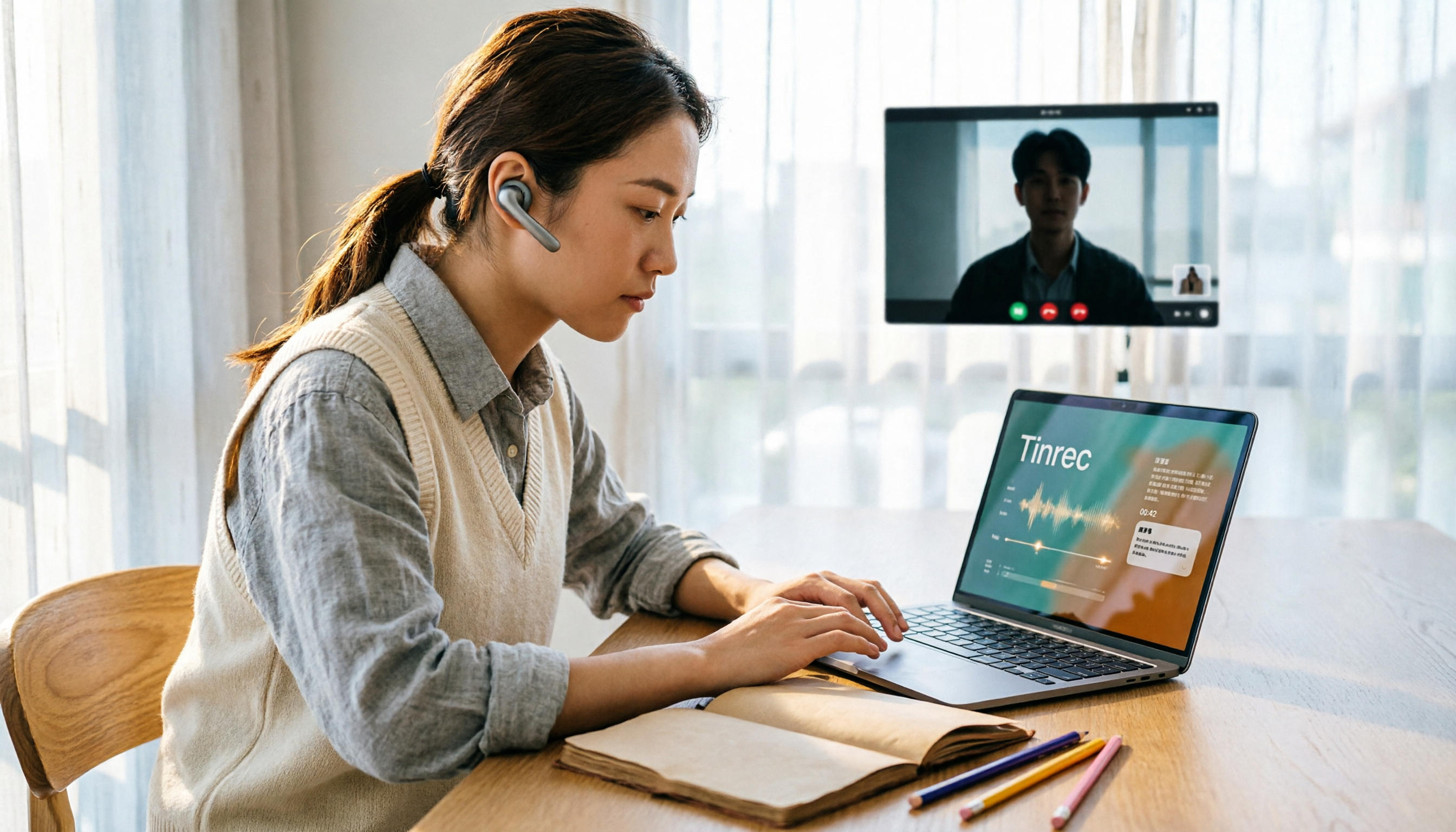
Want to turn your YouTube videos into searchable, quotable transcripts? This article tests and compares four YouTube video-to-text tools—Tinrec, TurboScribe, Notta, and WayinVideo—covering whether they rely on existing captions, AI summaries and Q&A after transcription, timestamps, team sharing, and pricing plans, so you can find the smoothest video-to-text workflow.

4 Tencent Meeting AI Meeting Minutes Tools Tested: Is Built-in Yuanbao Summary Enough?
Tencent Meeting's built-in Yuanbao Summary is convenient but only works within Tencent Meeting. This article addresses mid-level managers' pain points, breaks down 4 key factors for choosing an AI meeting minutes tool, tests Tinrec's bot-free recording and AI Q&A, and compares Yuanbao Summary, tl;dv, and Notta for different scenarios.