

Turn recordings into transcripts and summaries in minutes
Upload audio or video for multilingual transcription, AI notes, and action items
PC Speech-to-Text: First Decide If You Need Real-Time Dictation or Post-Meeting Organization
The question "how do I convert speech to text on a PC" actually involves two completely different approaches.
The first is real-time dictation: you speak and text appears on screen, replacing your keyboard for filling out forms or writing messages. The second is post-meeting organization: converting recorded meetings, interviews, or videos into transcripts, then turning them into summaries, action items, and searchable data.
The logic for choosing tools is very different. Real-time dictation cares about low latency and universal typing positions; post-meeting organization cares about file formats, language support, and whether you can ask follow-up questions and export.
Figure out which type you are first, then look at the options below, so you don't end up installing five tools and using none of them.
5 Free Speech-to-Text Options for PC in 2026: A Complete Guide
Here are 5 options for handling speech-to-text on a PC, starting with completely free built-in features, then moving to tools that require organizing your workflow.
1. Windows Built-in Voice Input (Free, No Installation)
Windows 10 has a built-in dictation feature that uses speech recognition. It's a system built-in feature that requires no download or installation. Starting September 2024, Windows 11 22H2 and later versions replaced Windows Speech Recognition (WSR) with Voice Access; WSR is still available on older versions of Windows.
Note that voice input uses online speech recognition, a technology provided by Azure Speech Services, so an internet connection is required.
2. Tinrec (Free Version Available)
Tinrec is an AI meeting notes and collaboration tool for individuals and teams. The free version provides basic credits so you can experience recording, importing, summarizing, and transcribing before deciding whether to upgrade.
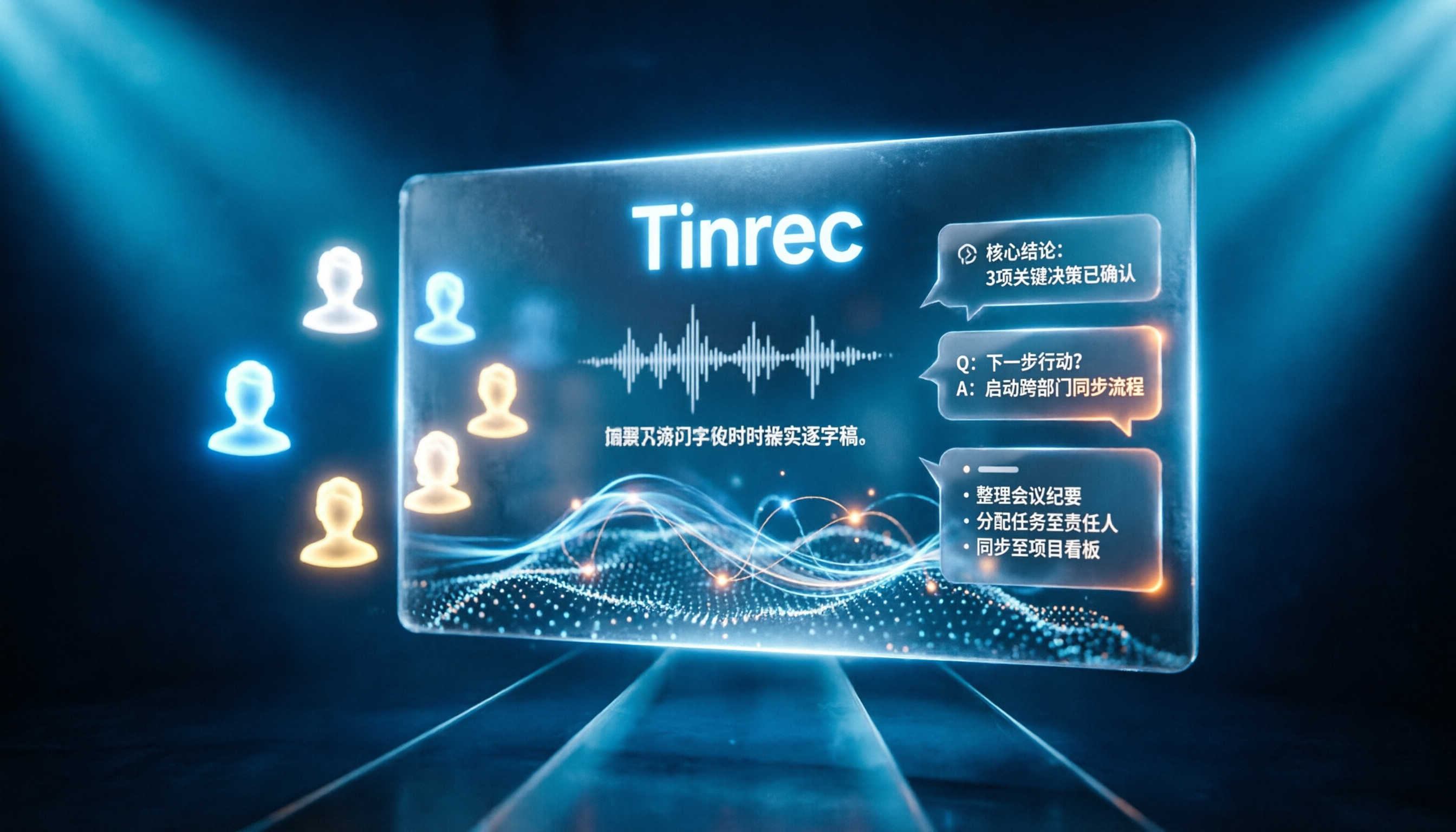
Its biggest difference from simple dictation tools is that after converting to text, there's a next step: summaries, chapters, action items, AI Q&A, and export.
3. Speechnotes (Online via Chrome)
Speechnotes requires no download, registration, or subscription. Open the online link in Chrome, click the microphone icon, and start dictating. Common commands and shortcuts are on the right side of the screen, and it automatically capitalizes the first letter and saves documents.
When finished, text can be saved locally or exported to Google Drive. It's great for when you need to type a long passage without installing software.
4. VoiceIn (Chrome Extension)
VoiceIn is a Chrome extension that supports Mandarin, Cantonese, Japanese, English, Spanish, and other languages. It works in most website input fields, including Gmail, Google Search, and online notepads.
To use it, right-click on the page and select "Start recording," or press Ctrl+Shift+9. Unfortunately, it currently doesn't work in Google Docs.
5. Voice Finger (Free Version Available)
Voice Finger takes a different approach: it lets you operate your computer without using your hands. You can move the mouse, click, hold special keys, and also type documents. It's great for people who don't want to constantly touch the mouse, and the official free version lets you try it out.
There are also virtual assistant tools like Braina Pro that support over 90 languages. They require an internet connection, and you need to click the microphone icon and say "start dictation mode" to begin. Their features go beyond just transcription.
Tinrec: From Transcript to Action Items, It Goes One Step Further
If you want more than just "turning speech into text" but turning meetings into usable data, Tinrec's design philosophy is worth a look.
Real-time recording to text: When you open Tinrec to record, text is generated simultaneously. Great for in-person meetings, interviews, and on-site notes.
Bot-free online meeting recording: The desktop version directly captures your computer's system audio, handling online meetings on Zoom, Google Meet, Microsoft Teams, Webex, and more without inviting a meeting bot. Note that this is not "automatically joining all meetings" but rather the user actively starting the recording.
Audio and video file transcription: If you already have recordings or videos, upload them and they'll be organized into text data. Great for past meetings and interviews.
AI summaries, chapters, and action items: Long meetings are broken into easily browsable structures, and action items are extracted from discussions.
AI Q&A: This is the part I use most. After recording a one-hour meeting, just ask "What was the conclusion?" or "Who's responsible for what?" without manually going through the entire transcript.
Real-time translation and bilingual view: For cross-language meetings, you can view the original text, translation, or bilingual content.
Multi-format export and further processing: Transcripts can be taken to Notion, Google Docs, OneNote, Dropbox, and other tools for continued use, and can also generate reports, tables, and documents.
Team workspace: Meeting data is stored centrally. Members can view and reuse past meetings, while administrators can manage members, seats, usage, and audits.
Stop organizing recordings by hand
Upload audio or video and automatically get a transcript, summary, and action items
Tinrec Pricing: From Free to Team Plans
Tinrec's personal plans include Free, Weekly Pass, Pro Monthly, and Pro Annual. The free version is good for occasional recording organization; if you have a short period of concentrated meetings or interviews, consider the weekly pass; for steady weekly needs, Pro Monthly is more suitable; for long-term accumulation of recording data, the annual plan has a lower monthly equivalent.
The team plan is not "multiple people sharing one personal account" but an independent team collaboration space. The first eligible team trial is 7 days, 1 free seat, and 300 minutes of shared team import credits; team monthly is USD 29.80 per paid seat per month, and annual is USD 199 per paid seat per year, which comes to about USD 16.58 per month.
Each paid seat provides 2,000 minutes of shared team import credits per month. Under an active team plan and seat, real-time recording currently does not deduct minutes; file and web imports consume shared team import minutes.
Please refer to the official purchase page for prices, currencies, and promotional details.
How to Use Windows Built-in Voice Input
Windows dictation is where many people first encounter speech-to-text, and setup is actually not complicated.
First, confirm your Windows version. Windows 10 has built-in dictation that works out of the box; for Windows 11 22H2 and later, use Voice Access instead; older versions of Windows can still use Windows Speech Recognition.
Next, set up and test your microphone so the system gets familiar with your voice, which will make recognition more stable.
Once you start dictating, you can use voice commands like "delete that" or "select the previous word" to make corrections.
If you're using a version that supports fluid voice input, it will automatically correct grammar, punctuation, and spelling errors; to keep the original sentence or undo corrections, just say "undo" or press Ctrl+Z to return to the original version.
Additionally, echo cancellation automatically suppresses sound from your speakers, such as narration or app audio, keeping your dictation clean.
Note that online speech recognition requires an internet connection, so this feature won't work offline.
How to Use Tinrec to Turn a Meeting into Usable Data
Tinrec's workflow can be divided into two parts: "recording in" and "organizing out."
Step 1: Open the Tinrec desktop app and log in. For in-person meetings, choose real-time recording; for online meetings, use the desktop version to capture system audio directly without inviting a bot.
Step 2: If the meeting is already over, upload the audio or video file and let Tinrec transcribe it.
Step 3: After the meeting, review the transcript first, then use summaries and chapters to quickly grasp the structure and key points, saving time on re-listening.
Step 4: Use AI Q&A to ask about details you want to confirm, such as the context of a decision or who's responsible for a task.
Step 5: Export action items and notes to your daily workflow, and generate reports, tables, or documents when needed.
For team use, there's an extra step: create a team space, invite members via a join link, assign seats, and then team meeting data will be stored centrally, with administrators able to view usage trends and audit logs.
Things to Consider When Choosing a PC Speech-to-Text Tool
Do you need real-time dictation or file organization? If you just want to replace typing, built-in features or browser extensions are enough; if you need to handle meetings and interviews, you need a tool that can produce summaries and action items.
Language and accent. Support varies greatly for Chinese, mixed Chinese-English, or multilingual meetings. Confirm your primary language before choosing.
Platform and device. If you only use a Windows PC, built-in tools are the easiest; if you need to switch between web, desktop, and mobile, choose a cross-platform service.
Free credits and limitations. Free plans usually have quota or feature limits. Check clearly before deciding whether to pay.
Recording and privacy. Follow local laws before recording, and get participant consent when necessary; it's also worth understanding data storage methods and permission settings.
Team governance needs. If multiple people share meeting data, pay attention to member, role, and seat design. For example, with Tinrec's team plan, active members can view, play, and read data even without a seat, but need a seat to record, upload, edit, and export.
Don't judge accuracy by a single number. Actual performance is affected by recording quality, noise, accents, overlapping speakers, and technical terminology. Test with your own recordings.
Frequently Asked Questions
Does Windows built-in voice input cost money? No. Windows 10 has built-in dictation that requires no download or installation. However, voice input uses online speech recognition (provided by Azure Speech Services), so an internet connection is required.
Why can't I find "Windows Speech Recognition" in Windows 11? Starting September 2024, Windows 11 22H2 and later versions replaced Windows Speech Recognition (WSR) with Voice Access. WSR is still available on older versions of Windows.
Is free speech-to-text enough? It depends on usage. For occasional typing, built-in features or browser tools are enough; if you have weekly meetings to organize, you'll usually need more credits and post-processing features. Tinrec's free version provides basic credits so you can try before deciding.
Does Tinrec require a meeting bot to join meetings? No. The Tinrec desktop version directly captures computer system audio and can handle online meetings on Zoom, Google Meet, Microsoft Teams, Webex, and more. The user just needs to start recording.
What's the difference between Tinrec's team plan and personal plan? Personal plan data is managed by an individual account; the team plan provides an independent team space where meeting data belongs to the team, plus capabilities like members, roles, seats, shared benefits, usage analytics, audit logs, and audio recycle bin.
What accuracy can speech-to-text achieve? It's not recommended to judge by a single number. Results are affected by recording quality, background noise, accents, overlapping speakers, and technical terminology. A more practical approach is to test with your own recordings and verify important content against the transcript and recording.
References
- Dictate text using speech recognition | Microsoft Support
- Use voice input to talk instead of typing on your PC | Microsoft Support
- Transcribe - Convert speech to text - Download and install on Windows | Microsoft Store
- 10 Windows Speech-to-Text Software/Tools Recommended by Wondershare Filmora
- No typing on PC! VoiceIn speech-to-text, speech recognition, automatic text input by speaking. (Chrome)
Turn every recording into actionable outcomes
Get 60 free transcription minutes when you sign in. No credit card required.
Related Reading
You might also like

How to Transcribe Meeting Recordings in 2026: 5 Steps from Free Transcription to AI Meeting Notes
Is the real work just starting after the meeting ends? This article addresses the pain points of mid-level managers, covering 4 key factors for choosing a free meeting recording transcription tool, a hands-on test of Tinrec's 5-step process from recording to AI meeting notes, and a comparison of Notta, Otter.ai, and Yating Transcription for different scenarios and pitfalls to avoid—helping you find a way to skip manual transcription after meetings.

2026 Comparison of 4 Meeting Transcription Apps: Which One Actually Saves You Time?
How to choose a meeting transcription app? This article examines three decision scenarios—online meetings, in-person meetings, and mixed Chinese-English conversations—and outlines 4 key purchasing factors. It compares Tinrec, Notta, Otter.ai, and PLAUD Note, with a guide to avoid pitfalls and scenario-based recommendations to help you decide if a free version is enough or if you should pay.

4 Meeting Transcription Software Compared: Which Handles Chinese Meetings and AI Q&A Best?
The meeting ends, but the real work begins. We tested 4 meeting transcription tools, comparing Chinese recognition, recording methods, post-meeting outputs, free tiers, and team collaboration. Plus, 5 key buying factors and 4 common pitfalls to help you find the tool that truly saves you time.
Tinrec vs Notta 2026: 5-Dimension Comparison for Chinese Online Meeting Transcription
Choosing a meeting transcription tool can be tricky. This article compares Tinrec and Notta across 5 dimensions, covering bot-free online meeting recording, real-time transcription, AI summaries and Q&A, action item extraction, and team data retention. It also provides honest pricing and free tier details for Tinrec's personal and team plans to help you decide which fits your meeting rhythm.

4 Meeting Transcription Tools Tested in 2026: Which Online Converter Actually Saves You Cleanup Time?
How do you choose a meeting transcription and online conversion tool? I ran real meeting and interview recordings through four tools' transcription and post-meeting workflows, comparing input sources, AI summaries and Q&A, team collaboration, and pricing, and identified the four most common pitfalls to avoid.

2026 Online Meeting Transcription Tools Buying Guide: 4 Hands-On Reviews and Recommendations
How to choose an online meeting recording-to-text tool? This article examines four key aspects: how audio is captured, what you get after the meeting, mixed Chinese-English recognition, and data ownership. It compares Tinrec, Otter.ai, Notta, and PLAUD through hands-on testing, and summarizes common pitfalls and selection advice.

2026 Comparison of 5 Professional Video Summarization Tools: Why Tinrec Is the Top Notta Alternative?
A senior information management student shares real experience from 'throwing subtitles into ChatGPT' to testing Tinrec. This article compares Summarize.tech, WayinVideo, Notta, and Tinrec on Chinese content, videos without subtitles, post-meeting organization, and group collaboration, and summarizes free quotas, single-session length, and plan selection advice that students care about most.

4 Best Audio-to-Text Tools in 2026: Which One Can Generate Meeting Minutes Automatically?
How can you save time with audio-to-text transcription? This article compares Tinrec, Yating Transcription, cSubtitle, and PLAUD Note across three key scenarios: Chinese meetings, online meetings, and post-meeting organization. It also covers purchasing tips, pitfalls to avoid, and scenario-based recommendations.

4 iPad Meeting Transcription Tools Tested for 2026: Which Free Version Is Enough?
Using an iPad for meeting notes—should you rely on built-in features or a third-party app for speech-to-text? Based on a student's real-world experience, this comparison covers Tinrec, Apple's built-in Voice Memos, Notta, and PLAUD Note, examining recording sources, post-meeting outputs, Chinese language performance, and free tier limits. It also includes 5 key buying factors and 4 common pitfalls to help you find the most time-saving option.