
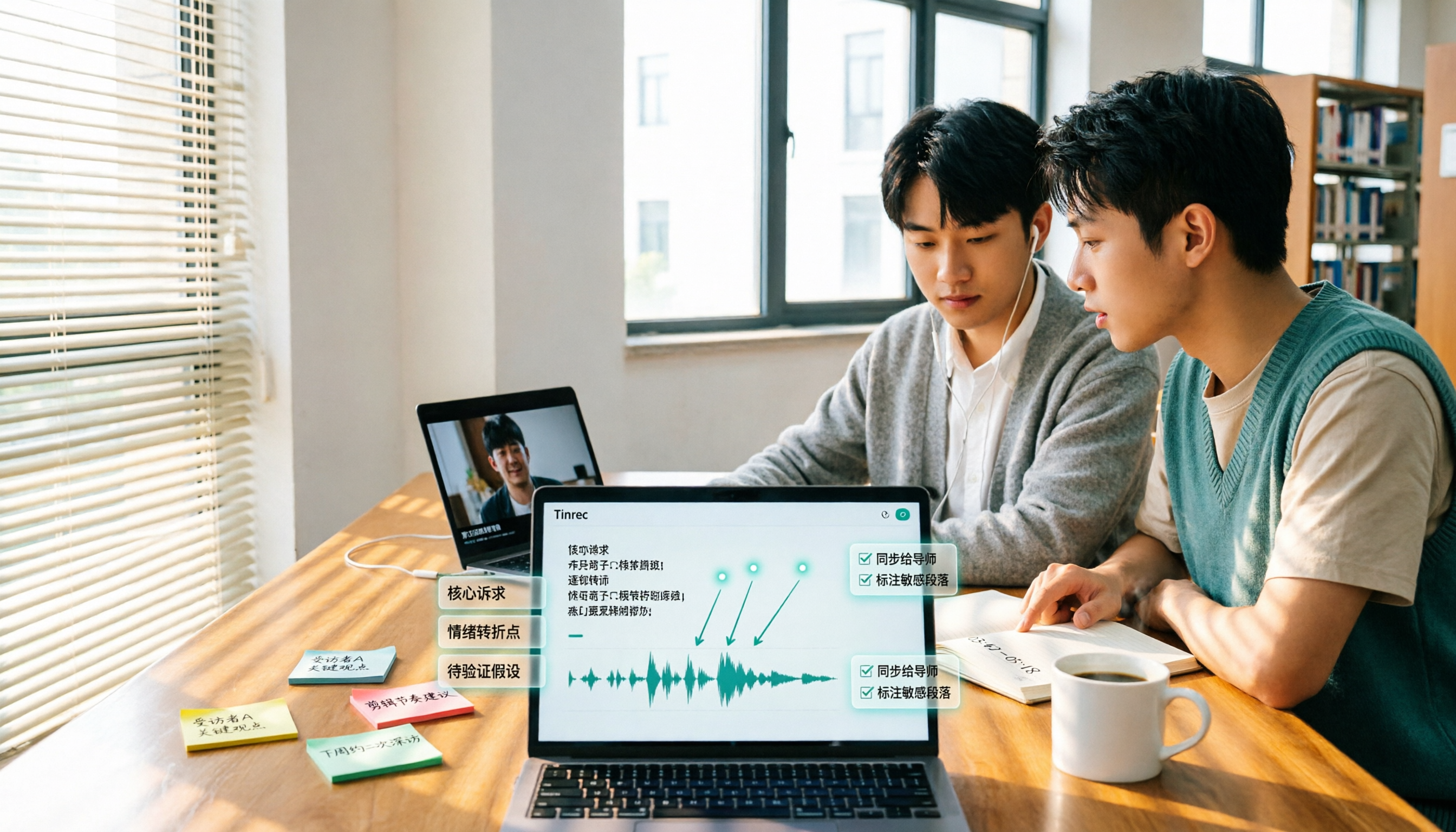
Turn recordings into transcripts and summaries in minutes
Upload audio or video for multilingual transcription, AI notes, and action items
5 Best Video to Text Tools in 2026: Free Tiers, Chinese Recognition, and Team Collaboration Compared
"Video to text? Upload, convert, copy and paste—done in ten minutes, right?"
That's what I thought too. At the start of my senior year, I began working on my graduation project. I had 12 in-depth interview videos, each averaging 50 minutes. I used a free online tool to transcribe the first one, and what I got was a wall of text with no punctuation, no paragraphs, and all three interviewees jumbled together. Just to turn it into quotable excerpts for my thesis, I spent two nights—slower than if I had typed it out myself.
That's when I realized: "converting video content to text" actually has two levels. The first is turning audio into words. The second is turning those words into data you can directly use. Most people fall into the trap of completing only the first level and thinking they're done.
Currently, there are roughly 5 common approaches: free online conversion tools, built-in platform captions, meeting bots, AI recording hardware, and AI meeting note tools like Tinrec that connect transcription with summarization, Q&A, and team collaboration. The difference isn't whether they can produce text—it's how much effort you still have to put in afterward. In this article, I'll compare these 5 approaches and use Tinrec, which I've been using this semester, as the main example to explain which methods suit students and which just waste your time.
What Can Video to Text Do for You?
Scenario 1: Turn a 50-minute interview video into a citable transcript In the past, organizing interviews meant constantly pausing, rewinding, and typing. A one-hour video took three hours. With Tinrec, for example, after importing the video file, it outputs a punctuated, segmented, searchable transcript and automatically splits it into chapters. I can jump straight to the section where "the interviewee talks about their motivation for the project" and quote it directly.
Scenario 2: Can't take notes fast enough in online classes Professors talk fast, and slides flip even faster. Tinrec's desktop version captures your computer's system audio directly, so it can handle Zoom, Google Meet, Microsoft Teams, and Webex meetings without inviting a separate meeting bot. I see the text appear while I'm in class, and by the end, I have a full record of the lecture.
Scenario 3: Two-hour group meeting, but no one remembers the conclusions Our group's usual pattern: lively discussion, then silence in the group chat afterward. Now we run Tinrec during meetings, and afterward, summaries, key points, and action items are listed directly—who's responsible for what and when it's due, no need to rely on the most responsible member to recall.
Scenario 4: Club videos need captions and social posts I help the department student association with event recap videos. The same transcript can serve as a caption draft and also be used to generate social media text with Tinrec, so I don't have to start from scratch.
What Are the Core Capabilities of Video to Text?
1. Real-time transcription, not transcribing after recording Tinrec supports live transcription while recording, ideal for in-person meetings, interviews, and classes. The benefit is you can check the text on the spot to see if you missed anything important, rather than discovering later that the entire session wasn't recorded.
2. Bot-free online meeting recording This is the biggest difference from the meeting bot approach. Tinrec's desktop version captures your device's system audio directly, so no extra account needs to join your meeting. Note: it requires you to manually start recording—it doesn't automatically join every meeting on your calendar.
3. AI summaries, chapters, and action items Transcription is just the first step. Tinrec breaks long meetings or interviews into chapters, extracts key points, and pulls action items from discussions into a to-do list. For a graduation project, this means compressing a 50-minute video into a scannable structure.
4. AI Q&A: find key points by asking directly This is my most-used feature. After the transcript is ready, I ask Tinrec directly: "How many times did the interviewee mention insufficient resources?" "What are their suggestions for the current system?" It answers based on semantic content, rather than giving me a list of keyword search results.
5. Real-time translation, multi-format export, and post-processing For English interviews, Tinrec supports real-time translation, letting you view the original, translation, or bilingual side-by-side. The organized results can be exported to Notion, Google Docs, and other tools for further writing, and you can use Agent post-processing to generate reports, tables, or documents, directly fitting into my thesis writing workflow.
Practical Use Cases
Organizing interviews for a graduation project My workflow: interview recording → import to Tinrec → get transcript and chapters → use AI Q&A to extract each interviewee's core viewpoints → export to Notion and mark citable passages. I finished organizing 12 videos in about three nights, and the actual "organizing" time was shorter than typing out just one interview before.
Stop organizing recordings by hand
Upload audio or video and automatically get a transcript, summary, and action items
Online course and lecture notes For remote classes, I run Tinrec's desktop version to process the course audio playing on my computer. After class, I review with the summary, and before exams, I ask it directly: "What are the three theories the professor covered in this lecture?" It's much faster than rewatching a two-hour video.
Group meetings and project collaboration Our graduation project is a four-person group, meeting once a week. We switched to Tinrec's team space, where all meeting materials are stored. Those who miss a meeting can review the transcript and summary themselves. The team version also lets you manage members, roles, and seats, and view usage and activity logs—very practical for projects that need long-term handovers.
Content creation and video repurposing For club or department event videos, I import them into Tinrec to get a caption draft, then extend the transcript into social posts and planning documents—one piece of material, multiple uses.
5 Things to Consider When Choosing a Video to Text Tool
1. Chinese and mixed Chinese-English recognition performance Many tools perform well in English but produce strange sentence breaks with Chinese or mixed Chinese-English. Test with your own recordings. Tinrec covers Chinese, Traditional Chinese, and multilingual meeting scenarios, and offers team hotwords so you can add proper nouns commonly used in your department or project. Actual accuracy depends on recording quality, noise, accents, and overlapping speakers, so don't trust any fixed accuracy claims—test it yourself.
2. Does it keep the original audio? This is easily overlooked. Transcripts always have errors, and if the tool doesn't keep the audio, you can't go back and verify. Tinrec keeps the audio so you can listen back with timestamps; the team version also has an audio recycle bin, so accidentally deleted files can be recovered before permanent deletion.
3. Can it help you organize after transcription? A tool that only gives you a transcript is essentially handing the hardest work back to you. Tinrec's difference is what happens after transcription: summaries, chapters, action items, AI Q&A, translation, export, and Agent post-processing—all designed so you don't have to read through everything again.
4. Free tier and pricing This is what students care about most. Tinrec's personal plan has a free version with basic quota to try out. For short-term intensive use, there's a weekly pass; for long-term regular use, there's a Pro monthly and annual plan, with the annual plan costing less per month. If you only occasionally organize a video, the free version is enough to test if it suits you; if you have a fixed amount of classes or meetings every week, consider a paid plan. The team version has separate pricing: eligible teams get a 7-day trial, 1 free seat, and 300 minutes of shared team import quota. After that, it's billed per paid seat, with each paid seat providing 2,000 minutes of shared team import quota per month. Actual prices and benefits are subject to the official purchase page.
5. Cross-platform and export compatibility with your workflow I often record on my phone and organize on the web or desktop version back in my dorm, so cross-platform is important. Tinrec has iOS, Android, and web versions; the desktop version handles online meeting recording; and exports support Notion, Google Docs, OneNote, Dropbox, and other common tools. Also a reminder: recording and transcription involve others' privacy, so inform and get consent before recording.
Frequently Asked Questions
Q1: What's the difference between video to text and captions? A transcript is a complete text record, while captions are short phrases synchronized with video timecodes. In practice, both can share the same material: first generate a transcript and timecodes with Tinrec, then use it as a caption draft, saving retyping time.
Q2: Is the free version enough for students? It depends on how many videos you process per month. If you only occasionally organize one or two short videos or a class recording, the free version's basic quota is enough to test the waters. If, like me, you have classes, group meetings, and project interviews every week, you'll need to consider a weekly pass or Pro.
Q3: Can online meetings be recorded automatically? Tinrec's desktop version can capture system audio to record Zoom, Google Meet, Microsoft Teams, Webex, and other meetings without a meeting bot joining, but you need to manually start recording—it doesn't automatically join all meetings on your calendar.
Q4: What accuracy can it achieve? Don't ask for a fixed number, because it depends on recording quality, background noise, accents, overlapping speakers, and technical terms. A more practical approach: after transcribing with Tinrec, quickly proofread against the audio, and always listen back to the original segment for important quotes.
Q5: What's the difference between the team version and personal version? Personal version data is managed under your individual account; the team version is a separate team space where meeting data belongs to the team, with additional features like members, roles, seats, shared benefits, usage analytics, audit logs, and audio recycle bin. Note that roles and seats are two different things: active members can view and read team data even without a seat, but need a seat to record, upload, edit, and export.
Conclusion
The real value of video to text isn't turning audio into words—it's turning videos into data you can search, cite, and continue to process. If you're a student like me, the most practical approach is to first figure out how many videos you process per month, then decide whether to use the free tier or a paid version.
My main tool this semester is Tinrec: the desktop version for online classes and group meetings, file import for graduation project interviews, AI Q&A to extract key points after transcription, and finally export to Notion for thesis writing. You can start with Tinrec's free version's basic quota, test it with the video that gives you the most trouble, and see if the time it saves you is worth it.
References
- Convert Video to Text | Transcribe App & Online Editor
- Online AI Speech, Video, Audio Auto Transcription - Free Trial - cSubtitle
- Video to Text - Free Online AI Video Transcriber, Unlimited and No Registration | Video Transcriber AI
- Transcribe Video to Text - Instant, 99.9% Accurate - VEED.IO
- Video to Text | Convert Video to Text Online — Clideo
Turn every recording into actionable outcomes
Get 60 free transcription minutes when you sign in. No credit card required.
Related Reading
You might also like
How to Transcribe Audio to Text in 2026: 3-Step Upload + AI Summary & Action Items
Want to turn recordings into transcripts fast? This guide uses Tinrec to explain key buying factors, practical features, and competitor differences for audio-to-text tools, plus pitfalls and selection tips to help you find the best Chinese transcription solution.

Tinrec vs Notta 2026: 5-Dimension Comparison of AI Recording Summary Tools for Chinese Meetings
Starting from common organization pitfalls, this article compares Tinrec and Notta across 5 dimensions for AI recording summaries, covering key purchasing factors, pitfalls to avoid, and team plan options to help you find the right recording organization workflow for Chinese meetings.

2026 Comparison of 3 Meeting Video Summary Tools: Which Is Better for Chinese Meetings and Bot-Free Recording?
How do you choose a meeting video summary tool? This article compares Tinrec and Otter.ai across 5 dimensions—Chinese meeting transcription, bot-free recording, audio retention, post-meeting outputs, and team collaboration—to help you decide which one better fits your meeting needs.

2026 Video Summarization Software: AI Summaries + Transcript Q&A
Videos too long to finish? This hands-on review of video summarization software covers buying criteria, Tinrec features, and competitor comparisons to help you find the right AI summarization tool for Chinese videos and meeting recordings, plus a guide to common pitfalls and selection tips.

How to Convert Video to Text in 2026: Bot-Free Meeting Recording + AI Q&A Highlights
Video-to-text isn't just about typing out audio. This article starts from real interview and meeting video scenarios, first covering 4 key points to understand before choosing a tool, then breaks down how Tinrec connects transcripts to summaries, to-dos, AI Q&A, and team spaces, compares cSubtitle, TurboScribe, and Vidnoz's different approaches, and finally provides a pitfall guide and a ready-to-follow starter checklist.

2026 Comparison of 4 Audio Transcription Tools: Which Saves the Most Time for Chinese Transcripts and Post-Meeting Organization?
Turning meeting recordings into transcripts is just the first step. This hands-on comparison of Tinrec, Notta, TurboScribe, and Otter.ai evaluates Chinese recognition, meeting recording methods, post-meeting organization, and team collaboration to help you find the most time-saving option.

Tinrec Review 2026: AI Recording Tool That Auto-Generates Meeting Minutes and Action Items
How do you choose an AI recording tool? A mid-level manager who holds 15 meetings a week shares common mistakes in meeting documentation, tests Tinrec's bot-free online meeting recording, Chinese transcription, AI summaries, and action item extraction, compares it with Granola, Notta, and PLAUD Note, and offers scenario-based selection advice.
2026 Video Summarization Software Comparison: 4 Tools From Free to Paid
How do you choose a video summarization tool? This article breaks down two needs—"viewing" and "working"—outlines 4 key buying factors, and compares Tinrec, WayinVideo, Felo AI, and Monica across features, use cases, and plan limits to help you decide which one truly fits your workflow.
6 Best AI Video Summary Tools for Teachers in 2026: Which Saves the Most Prep Time?
How do you choose an educational video summarization tool? This guide compares 6 options—from Tinrec's audio/video transcription and AI summaries to YouTube Summary with GPT, Notta, TurboScribe, Otter.ai, and completely free resources like the NAER Academy and PTS Kids. We break down pricing, limits, and ideal users to help you pick the one that saves the most prep time based on your budget and use case.