

Turn recordings into transcripts and summaries in minutes
Upload audio or video for multilingual transcription, AI notes, and action items
How to Convert Video to Text in 2026: Bot-Free Meeting Recording + AI Q&A Highlights
A 90-minute interview video made me rethink "video-to-text"
Last month I was organizing a set of interview materials.
Three videos, totaling about four and a half hours.
I used to be familiar with this kind of work: open the player, listen and type at the same time, rewind and listen again if I couldn't hear clearly. Just typing out one transcript would take an entire afternoon.
But the real trouble was actually the part after that.
Converting video to text is only the first hurdle.
You still need to pick out key points from tens of thousands of words, mark timestamps, and organize it into something others can understand and use.
So I later split "video-to-text" into two layers.
The first layer is turning sound into text.
The second layer is turning text into data you can continue working with.
Most people only do the first layer, and then get stuck.
If the videos you have are course recordings, interview records, or online meeting recordings, this feeling of being "stuck" will be especially obvious—because what you need isn't just a transcript, but something you can look back on, quote, and hand over.
This article isn't about which tool is the strongest.
It's about how to make video-to-text work smoothly in 2026.
Before choosing a video-to-text tool, understand these 4 key points
1. Can it handle the files you have?
First, check the format.
Most tools support common formats like MP4, MOV, MP3, and WAV, but the real difference is in "single file length" and "batch processing."
If you often handle full-length speeches or marathon interviews, the single-file limit will directly determine whether you can use it.
If you have a dozen course videos at once, whether you can upload them all at once is also crucial.
Before choosing, test with your longest and most troublesome file.
2. Does it give you a transcript or usable data?
This is the dividing line.
A tool that only gives a transcript is essentially returning the most time-consuming organizing work to you unchanged.
A better tool will go one step further: automatically segment, add headings, extract to-dos, and generate summaries.
My criterion is simple: after transcription, do I still need to spend an hour manually organizing?
If yes, then it only did half the job.
3. Can it record online meetings directly?
If the video source you're transcribing is from online meetings like Zoom, Google Meet, Microsoft Teams, or Webex, then you need to look beyond "uploading files."
Some tools require a meeting bot to join the meeting as a participant.
Others capture system audio directly from your computer, without an extra bot appearing in the participant list.
The latter is much less disruptive for interviewees and clients.
4. Where does the data end up?
The last question most people overlook: who ultimately owns these transcripts and recordings?
If they're stored in a personal account, when the person leaves or changes devices, the data scatters.
If this is material for team use, whether it can go into a shared space and whether there's management of members and permissions is more important than transcription speed.
Once you think through these four points, then compare tools, you'll find the options are much fewer.
Tinrec—my current main approach
Tinrec is an AI meeting notes and collaboration tool for individuals and teams, supporting iOS, Android, and web.
I initially used it as a "video-to-text tool," but what really made me keep it was that it also connects the part after transcription.
Upload video or audio files, and you get more than a transcript
Throw in your interview videos or course recordings, and it produces a transcript, automatically segments, adds headings, and generates a summary.
What's the difference?
Previously, after transcribing a 90-minute interview, I still had to read through it myself, highlighting as I went.
Now I first look at its summary and chapters, and jump directly to the section I need to verify against the transcript.
What's saved isn't typing time, but the time to "read through tens of thousands of words."
It can also extract to-dos from discussions, which is especially useful for project meetings and client meetings—who needs to do what won't just stay in someone's notes.
Online meetings: no need to invite a bot
For online meeting recordings, my current approach is to open the Tinrec desktop version and directly capture the computer's system audio.
No bot account will appear in the meeting list.
For client interviews, this matters more than you'd think—having one less "participant" makes the conversation atmosphere much more natural.
Afterwards, I can also directly ask it: "In the last interview, what was the budget limit the other party mentioned?"
It doesn't give me a list of keyword search results, but answers directly.
This is something I've seen less often in other similar tools.
Stop organizing recordings by hand
Upload audio or video and automatically get a transcript, summary, and action items
Cross-language and bilingual comparison
If the video has mixed Chinese and English, or is entirely in a foreign language, it supports multilingual transcription, and you can view the original, translation, or bilingual comparison during recording.
Team-specific terminology can be added to team hotwords to reduce the chance of proper nouns being misheard.
Three advantages I see
First, the workflow after transcription is complete. Summary, chapters, to-dos, Q&A, export—all connected in one go, no need to switch between three tools.
Second, no bot for online meetings. The desktop version directly handles system audio, minimizing disruption for external communication.
Third, data can settle into team spaces. Transcripts, recordings, and to-dos are centrally managed, so data won't disappear when members leave.
Things to know first
Tinrec's free version offers a basic quota, suitable for trying out one of your videos first; if you have steady organizing needs every week, upgrading makes more sense.
Also, actual transcription quality is affected by recording quality, background noise, accents, overlapping speakers, and technical terminology. For important content, I still verify against the recording.
It's also not a tool for massive batch transcription. If you have dozens of long videos to process at once, that's a different type of tool that's better suited.
Who it's for
People who frequently handle Chinese meeting and interview videos, want to use AI to find key points right after transcription, need to switch between phone and computer, or want to keep meeting data in a team rather than a personal account.
For team use, the team version is an independent team space, not multiple people sharing one personal account. Currently offers a 7-day trial (1 free seat, 300 minutes of team shared import quota), paid seats at USD 29.80 per month, USD 199 per year (about USD 16.58 per month), each paid seat has 2,000 minutes of team shared import quota per month; real-time recording within the team is currently not deducted by minutes. Actual prices and benefits are subject to the official purchase page.
Besides Tinrec, what other video-to-text options are there?
cSubtitle: An online transcription service focused on Chinese, no account registration required, supports MP4, MOV, MP3, WAV and other formats, single file up to 4GB and 5 hours, automatically adds punctuation, segments, and produces Word files with time codes and subtitle files, also supports batch processing. Its output is mainly transcripts and subtitles, suitable for those who simply need text and subtitles. If your need is to continue asking questions and organizing to-dos after transcription, that's a segment it doesn't cover.
TurboScribe: A cost-effective document transcription tool, free version allows 3 files per day, single file up to 30 minutes; after payment, single file up to 10 hours or 5GB, can upload 50 files at once. In terms of "processing many long files at once," it's indeed strong. But it doesn't handle real-time meetings, nor does it have bot-free meeting recording and team data settling.
Vidnoz: Paste a YouTube link and export TXT, JSON, or SRT in seconds, supports over 30 languages, free to use. It's convenient for "turning public videos into subtitles or notes." But it mainly handles public videos that are already online. If you need to record an online meeting happening on your own computer and be able to ask questions afterwards, that's not its scope.
Pitfall guide: 3 most common mistakes in video-to-text
Pitfall 1: Only looking at advertised accuracy numbers.
Many tools boast high accuracy, but that's usually measured in quiet environments, single speaker, standard accent conditions.
Real interview scenes have air conditioning noise, keyboard sounds, two people talking over each other, and accuracy will definitely drop.
A more practical approach: test with your own most troublesome recording and see how it performs in your scenario.
Pitfall 2: Stopping once you get the transcript.
The transcript is just raw material.
If your process stops at "download a text file," then the time for picking key points, writing summaries, and listing to-dos afterwards hasn't been saved at all.
Being able to directly ask, directly grab key points, and directly export as a report after transcription is where real time savings happen.
Pitfall 3: Putting team material in personal accounts.
This doesn't hurt at first, but it hurts when someone leaves, changes devices, or the account is deactivated.
If the video material is shared by the team, prioritize options with independent team spaces and the ability to manage members and seats.
Personal and team versions are two different things when it comes to data ownership.
Summary: Your video-to-text workflow can start like this
Need Chinese interview and meeting video transcription, and want to use AI to find key points right after → Tinrec. It connects transcripts, summaries, to-dos, Q&A, and team spaces in one workflow.
Need to record online meetings without a bot joining the list → Tinrec. The desktop version directly captures system audio.
Need to use on both phone and computer, and keep data in the team → Tinrec. Personal and team versions can be chosen as needed.
Have dozens of long videos for batch processing → TurboScribe and similar tools are more suitable, then import into your usual workflow after transcription.
Just need to turn public videos into subtitle files → cSubtitle or Vidnoz are lightweight enough.
Quick starter checklist:
- First pick your most troublesome video, not the easiest one.
- Run a full transcription with the free quota.
- See if its segmentation and summary are close to how you would organize it yourself.
- Try asking it a question, like "What difficulties were mentioned in this interview?"
- Export the results to where you usually work (documents, notes, reports).
- Once the workflow feels smooth, consider upgrading or opening a team space.
Tools will keep changing, but the goal of "turning videos into data you can continue using" won't change.
Start with one video, test gradually, and you can slowly build your own video-to-text workflow.
References
- Online AI voice, video, audio file automatic transcription - free trial - cSubtitle
- Transcribe video to text - instant, 99.9% accurate - VEED.IO
- Video to text - free online AI video transcription tool, unlimited and no registration | Video Transcriber AI
- Free video to text tool | AI automatic transcription with high accuracy subtitles
- Convert video to text | Transcribe App & online editor
Turn every recording into actionable outcomes
Get 60 free transcription minutes when you sign in. No credit card required.
Related Reading
You might also like
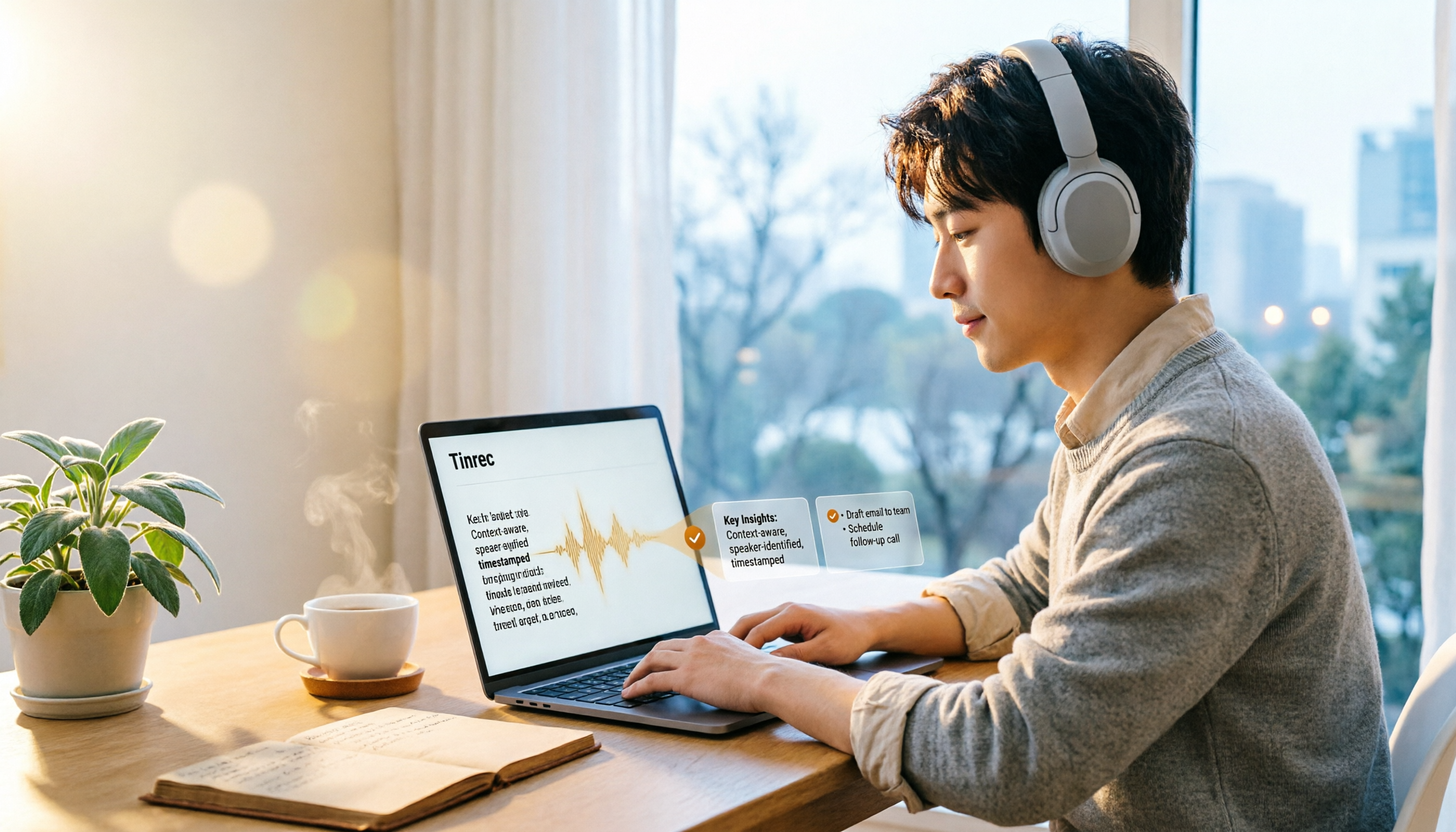
How to Transcribe Audio to Text in 2026: 3-Step Upload + AI Summary & Action Items
Want to turn recordings into transcripts fast? This guide uses Tinrec to explain key buying factors, practical features, and competitor differences for audio-to-text tools, plus pitfalls and selection tips to help you find the best Chinese transcription solution.

Tinrec vs Notta 2026: 5-Dimension Comparison of AI Recording Summary Tools for Chinese Meetings
Starting from common organization pitfalls, this article compares Tinrec and Notta across 5 dimensions for AI recording summaries, covering key purchasing factors, pitfalls to avoid, and team plan options to help you find the right recording organization workflow for Chinese meetings.

2026 Comparison of 3 Meeting Video Summary Tools: Which Is Better for Chinese Meetings and Bot-Free Recording?
How do you choose a meeting video summary tool? This article compares Tinrec and Otter.ai across 5 dimensions—Chinese meeting transcription, bot-free recording, audio retention, post-meeting outputs, and team collaboration—to help you decide which one better fits your meeting needs.
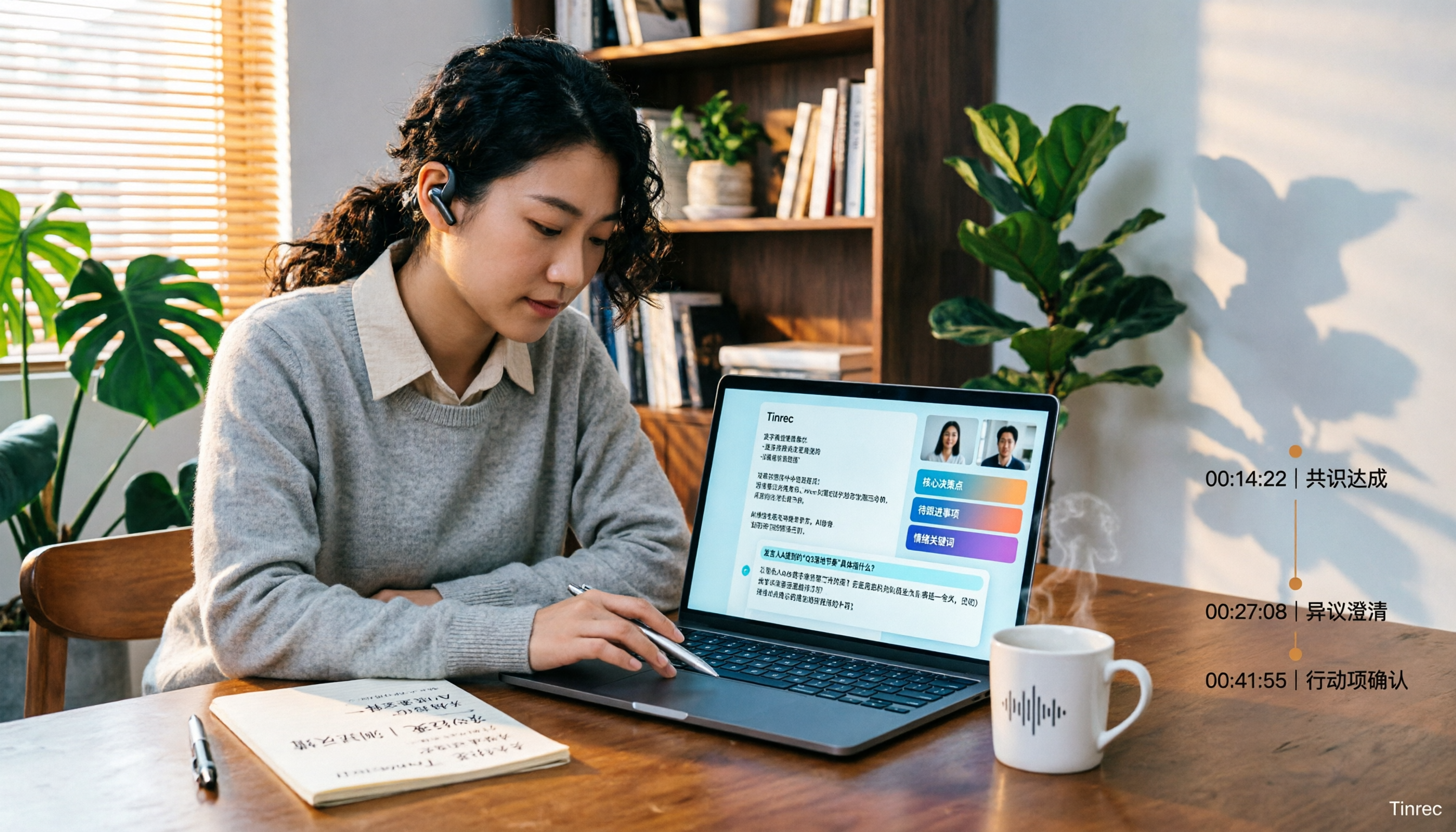
2026 Video Summarization Software: AI Summaries + Transcript Q&A
Videos too long to finish? This hands-on review of video summarization software covers buying criteria, Tinrec features, and competitor comparisons to help you find the right AI summarization tool for Chinese videos and meeting recordings, plus a guide to common pitfalls and selection tips.

2026 Comparison of 4 Audio Transcription Tools: Which Saves the Most Time for Chinese Transcripts and Post-Meeting Organization?
Turning meeting recordings into transcripts is just the first step. This hands-on comparison of Tinrec, Notta, TurboScribe, and Otter.ai evaluates Chinese recognition, meeting recording methods, post-meeting organization, and team collaboration to help you find the most time-saving option.

Tinrec Review 2026: AI Recording Tool That Auto-Generates Meeting Minutes and Action Items
How do you choose an AI recording tool? A mid-level manager who holds 15 meetings a week shares common mistakes in meeting documentation, tests Tinrec's bot-free online meeting recording, Chinese transcription, AI summaries, and action item extraction, compares it with Granola, Notta, and PLAUD Note, and offers scenario-based selection advice.
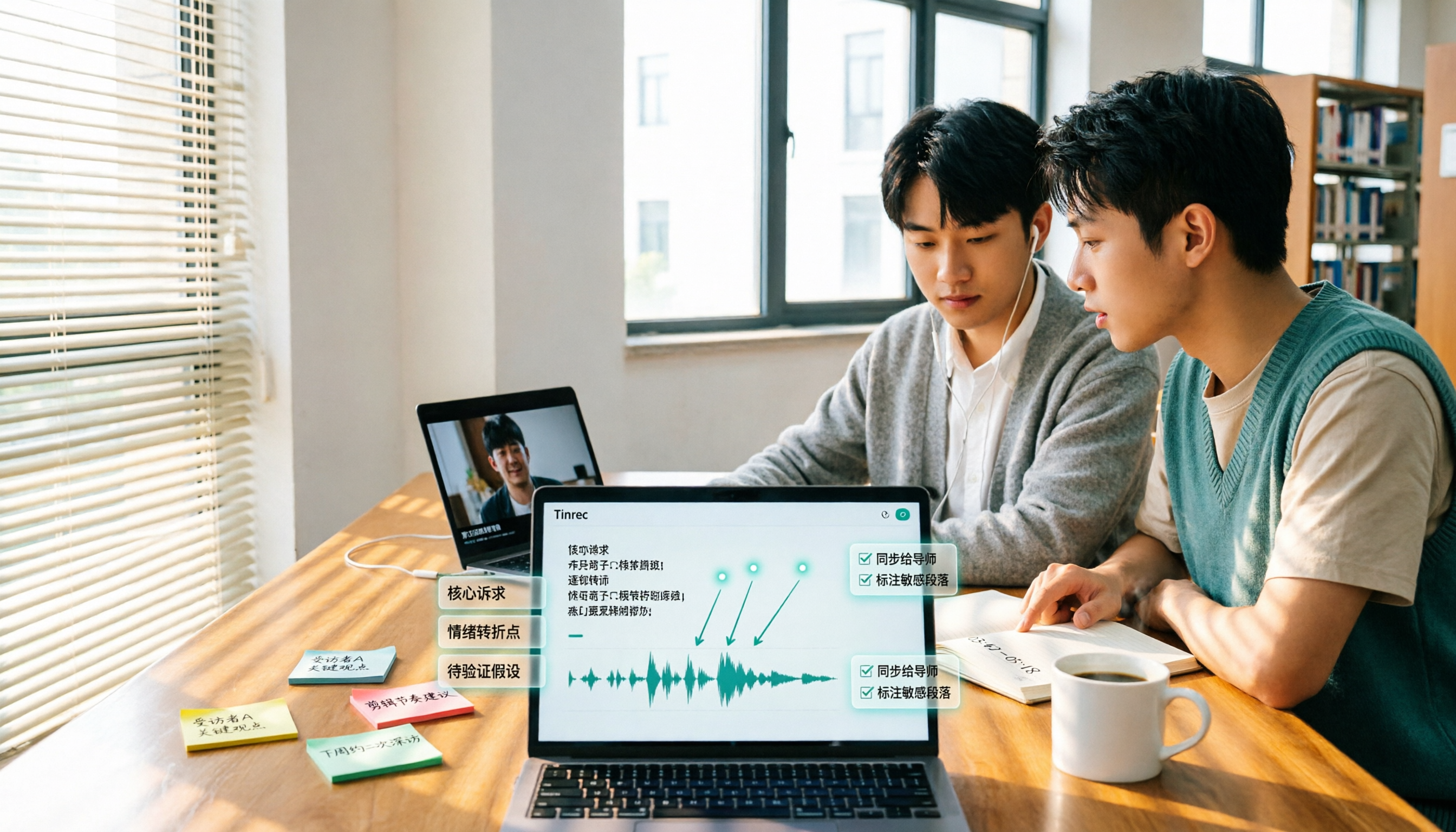
5 Best Video to Text Tools in 2026: Free Tiers, Chinese Recognition, and Team Collaboration Compared
Based on real experience transcribing 12 interview videos for a graduation project, this guide breaks down common pitfalls in converting video content to text, compares 5 common approaches, and explains how Tinrec handles real-time transcription, bot-free online meeting recording, AI summary Q&A, action item extraction, and team collaboration. It also covers how students should evaluate free tiers and paid plans.
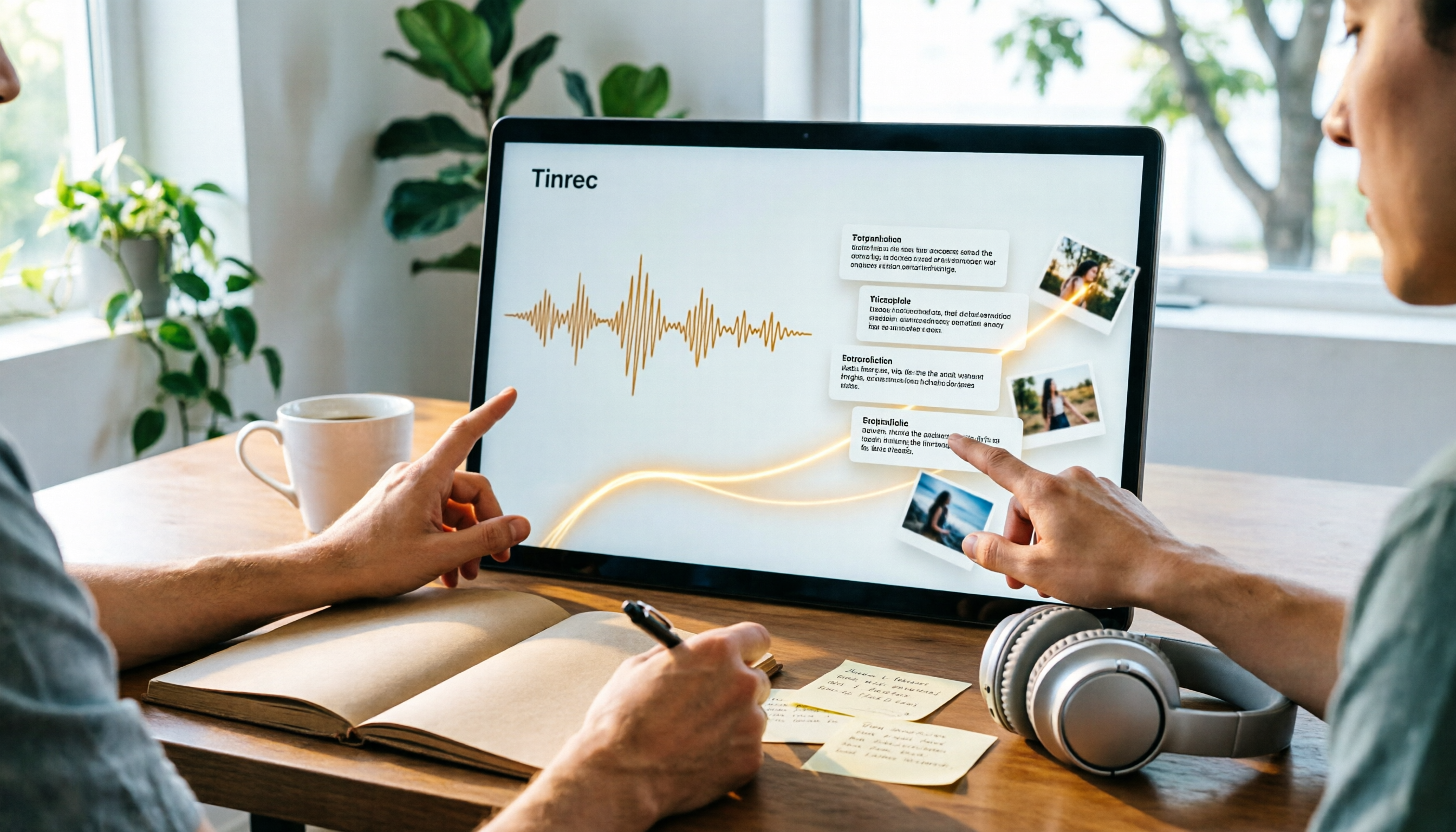
2026 Video Summarization Software Comparison: 4 Tools From Free to Paid
How do you choose a video summarization tool? This article breaks down two needs—"viewing" and "working"—outlines 4 key buying factors, and compares Tinrec, WayinVideo, Felo AI, and Monica across features, use cases, and plan limits to help you decide which one truly fits your workflow.
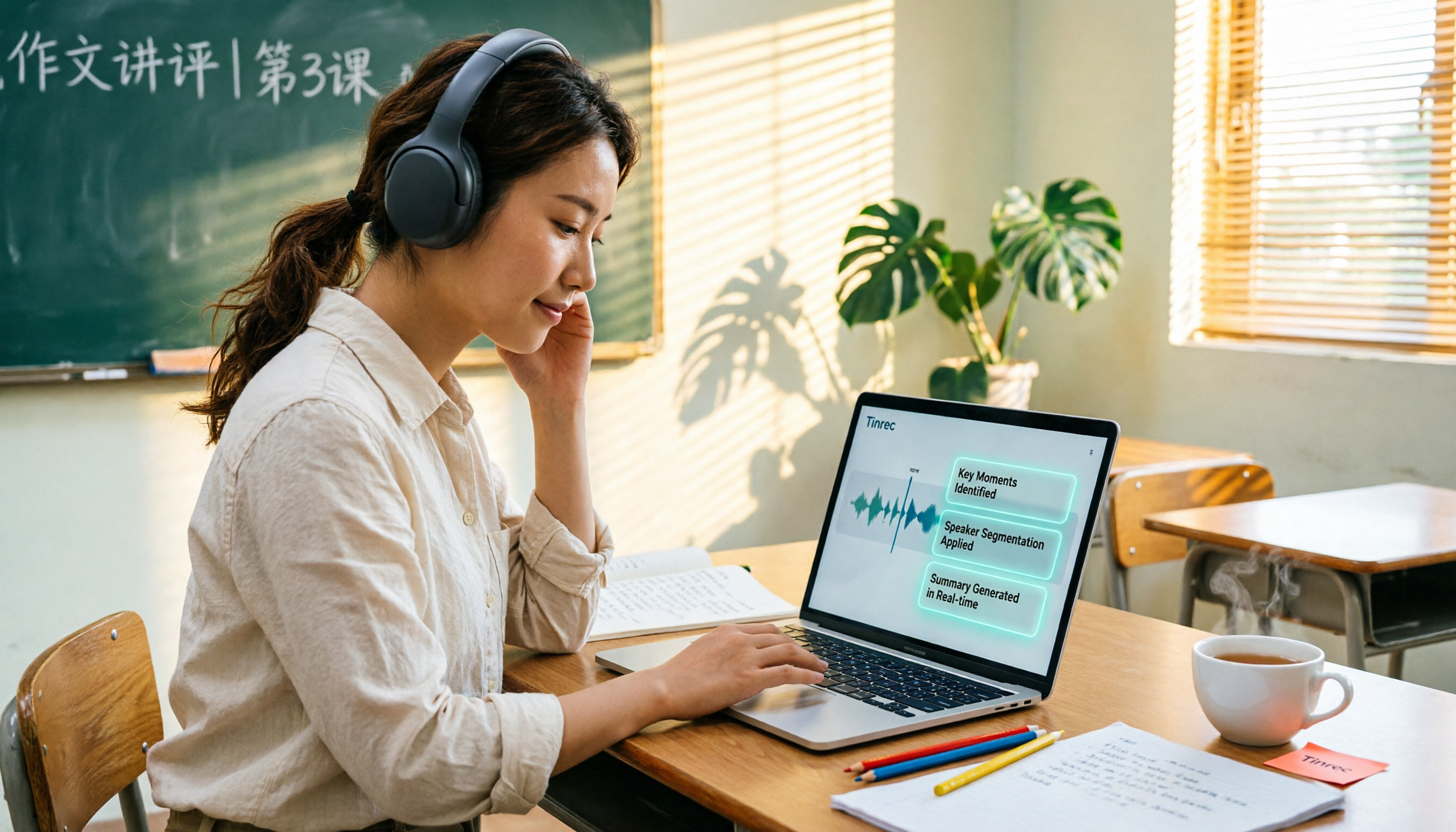
6 Best AI Video Summary Tools for Teachers in 2026: Which Saves the Most Prep Time?
How do you choose an educational video summarization tool? This guide compares 6 options—from Tinrec's audio/video transcription and AI summaries to YouTube Summary with GPT, Notta, TurboScribe, Otter.ai, and completely free resources like the NAER Academy and PTS Kids. We break down pricing, limits, and ideal users to help you pick the one that saves the most prep time based on your budget and use case.