
Turn recordings into transcripts and summaries in minutes
Upload audio or video for multilingual transcription, AI notes, and action items
Upgraded your iOS and found that the voice-to-text feature on your iPhone isn't working, or the microphone icon on the keyboard has disappeared? This is a common issue many iPhone users face, especially when replying to messages during commutes or taking notes in meetings—the built-in voice input fails, causing panic. This article will walk you through 7 quick fixes for system settings and provide a comparison table and practical tutorial for 3 alternative tools on the market.
If you just need a quick fix for short message replies, you can jump directly to the system settings repair steps below. However, if you value high-accuracy meeting transcripts, foreign language recognition, or want to automatically extract meeting conclusions and to-do items, we recommend prioritizing professional tools with AI summarization features like Tinrec.
Why Is iPhone Voice-to-Text Not Working? Common Causes
If your iPhone's dictation feature isn't working, it can usually be attributed to one of the following core reasons. Identifying the root cause is key to finding the right fix:
- Settings accidentally changed or disabled: You may have turned off "Enable Dictation" in keyboard settings or disabled Siri permissions.
- iOS version bug: Many users have reported that upgrading to iOS 16/17/18/26 can cause system conflicts leading to voice input not responding or the microphone icon disappearing.
- Hardware or connection interference: The microphone port may be damaged, or Bluetooth might be connected to an external headset, preventing the device from receiving audio properly.
- Unstable network connection: iPhone's built-in dictation relies heavily on a stable internet connection; it may fail to recognize speech in areas with weak signals.
7 Fixes to Resolve iPhone Dictation Not Responding
If you want to try fixing the built-in dictation issue through general methods, follow these 7 steps in order:
1. Check and Re-enable Dictation
Go to "Settings" > "General" > "Keyboard" and make sure "Enable Dictation" is turned on. If it's already on, try turning it off and on again to restart the service.
2. Check Siri Settings
Go to "Settings" > "Siri & Search" and ensure "Listen for 'Hey Siri'" is enabled. Often, Siri's microphone permissions are linked to keyboard dictation.
3. Add and Confirm Dictation Languages
Go to "Settings" > "General" > "Keyboard" > "Keyboards" and make sure the language you want to use (e.g., English, Spanish) is added. Then, under "Dictation Languages," check the corresponding option.
4. Force Restart Your iPhone
Software conflicts can cause voice input to disappear. For iPhone X and later, press and hold both the volume button and the side button, then slide to power off. Wait a few minutes before restarting to refresh background processes.
5. Ensure Stable Network Connection
Connect your iPhone to a stable, fast Wi-Fi network, as dictation often spins without response when the network is poor.
6. Reset Network Settings
Go to "Settings" > "General" > "Transfer or Reset iPhone" > "Reset" > "Reset Network Settings." This action won't delete your data; it only clears Wi-Fi passwords and Bluetooth connections, effectively resolving network module glitches.
7. Use Professional Repair Software or iTunes Restore
If none of the above works, there may be a deep bug caused by the iOS update. You can use iTunes to connect your phone to a computer and perform a "Restore iPhone" (back up first), or consider third-party iOS repair tools like iMyFone Fixppo for system troubleshooting.
Built-in Feature Not Enough? Compare 3 Voice-to-Text Alternatives
Even after fixing the built-in dictation, many professionals and students find that the native feature is only suitable for "speak one sentence, transcribe one sentence" short messages. For long meetings or lecture recordings, they still face the dilemma of "tedious transcription, time-consuming review, and no follow-up actions."
To help you quickly find the best alternative when system issues arise or you have advanced needs, we've compiled a comparison of mainstream voice-to-text solutions:
Stop organizing recordings by hand
Upload audio or video and automatically get a transcript, summary, and action items
| Aspect | iPhone Built-in Dictation | General Voice Recorder App | Tinrec (Instant Voice Recorder) |
|---|---|---|---|
| Core Purpose | Quick message replies, everyday typing | Simply convert recordings to text | Workflow: Record → Understand → Act |
| Language Support | Manual switching between single languages | Mostly only Chinese & English | Auto-detects 10 languages including Chinese, Japanese, English, Korean, German, Taiwanese Hokkien, Cantonese, etc. |
| Real-time | Transcribes as you speak | Most require upload after recording | Real-time transcription during recording |
| Summary & Action Items | None | None; must read full document | Auto-generates meeting summaries, conclusions, and to-do lists |
| AI Query Interaction | None | None; only Ctrl+F search | Supports semantic AI chat; can ask questions directly |
| Export & Integration | None; manual copy/paste | TXT / basic format export | Multi-format file export |
| Price / Free Tier | Completely free | Varies per app; usually paid unlock | 100 minutes free per month; Pro $8.25/month |
Tinrec In-Depth Review: Complete Workflow from Recording to Action
Among the many alternatives, Tinrec is more than just a "dictation tool." Its differentiation lies in solving the core pain point of very low information density in traditional recordings and extremely high cost of review.
Most tools simply output a long transcript, forcing users to spend significant time finding key points. Tinrec directly transforms time-based audio content into scannable, searchable, actionable text.
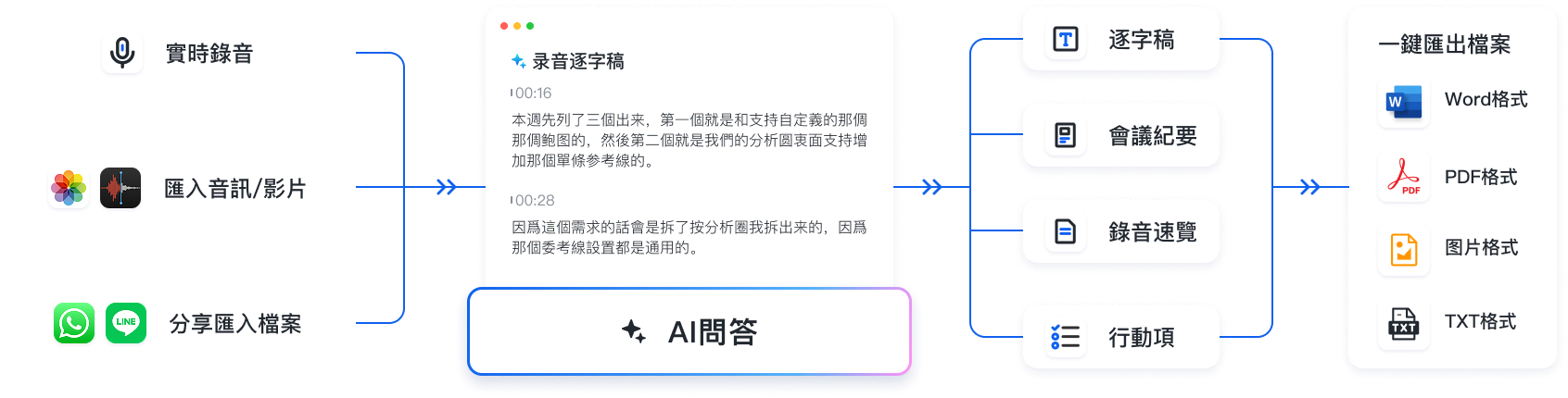
- Ideal Use Cases: Perfect for office workers handling remote meeting notes, enterprise team project decisions, student lecture notes, or content creators organizing online videos and podcasts.
- Multilingual Test: For cross-language meetings or foreign language courses, it automatically recognizes 10 languages (including Taiwanese Hokkien and Cantonese), significantly reducing the cost of cross-border communication and subsequent organization.
- Limitations: As a cloud AI product, it requires an internet connection for long recordings and smart summarization. In completely offline environments, we recommend using the phone's native recorder first and importing the file later.
Hands-On Tutorial: 4 Steps to Perfectly Replace iPhone's Built-in Dictation with AI Tools
If you decide to use an AI tool for meetings or study, here's a 4-step practical tutorial using Tinrec as an example:
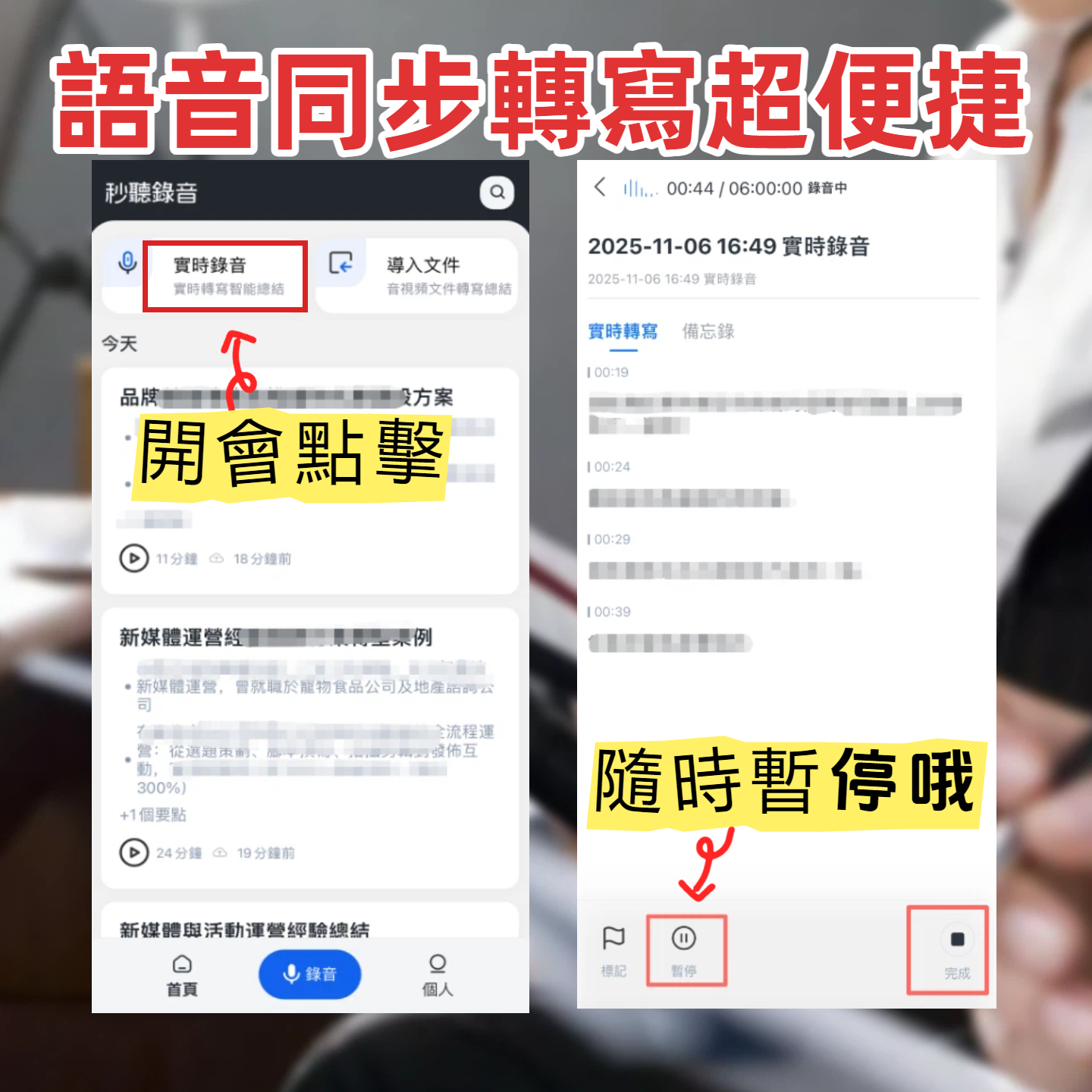
Step 1: Enable "Real-Time Transcription" During Meetings
In physical meetings or classrooms, you don't need to wait for the recording to end. Just turn on the feature to see text appear in real time. This is extremely useful for keeping track of the discussion.
👉 Real-time recording reference
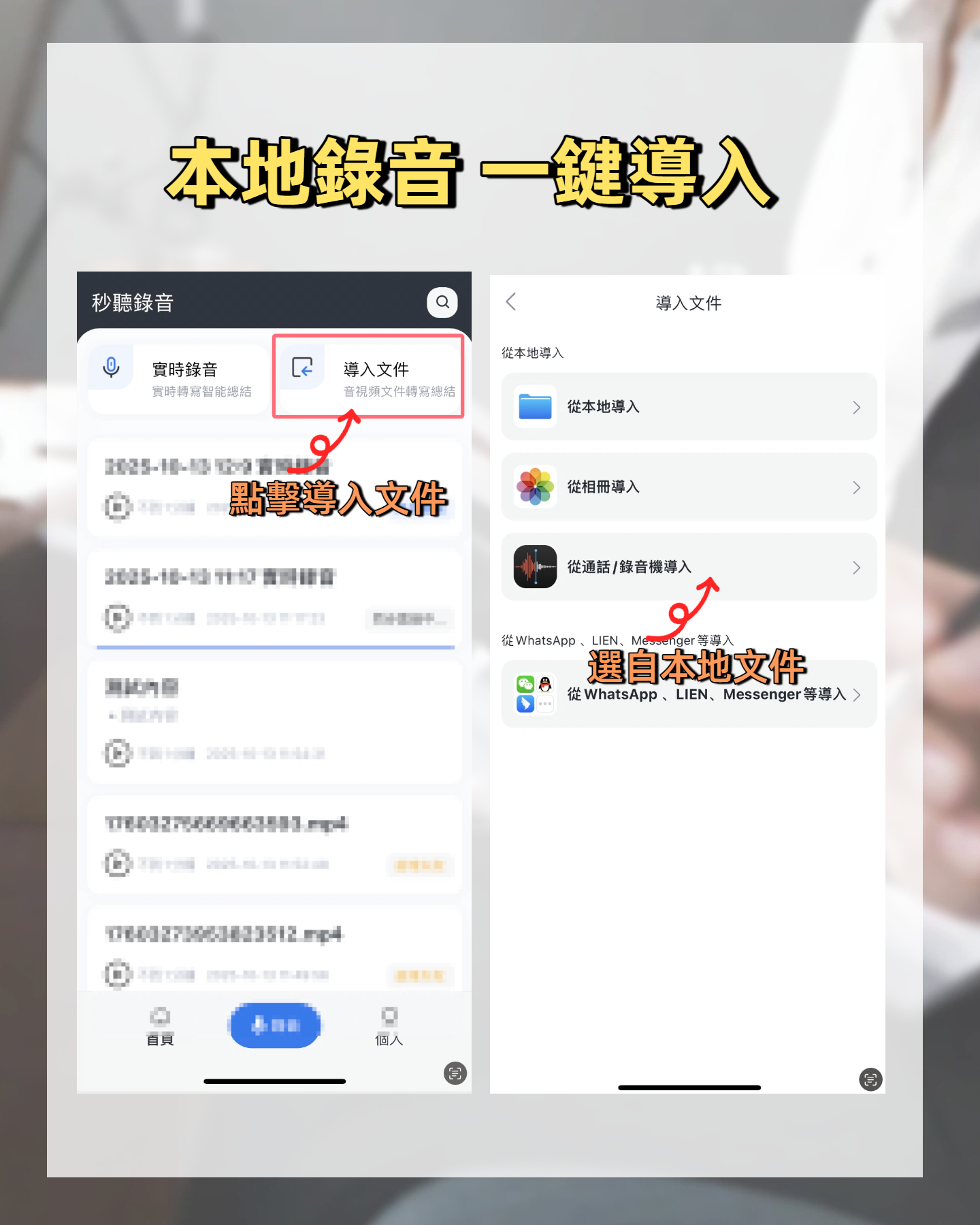
Step 2: Upload Audio Files for Transcription After Meetings
If you've already recorded an interview using iPhone's Voice Memos, export the file and upload it. The system supports multiple formats. After uploading, it not only generates a transcript but also automatically extracts key summaries.
👉 Audio file processing reference

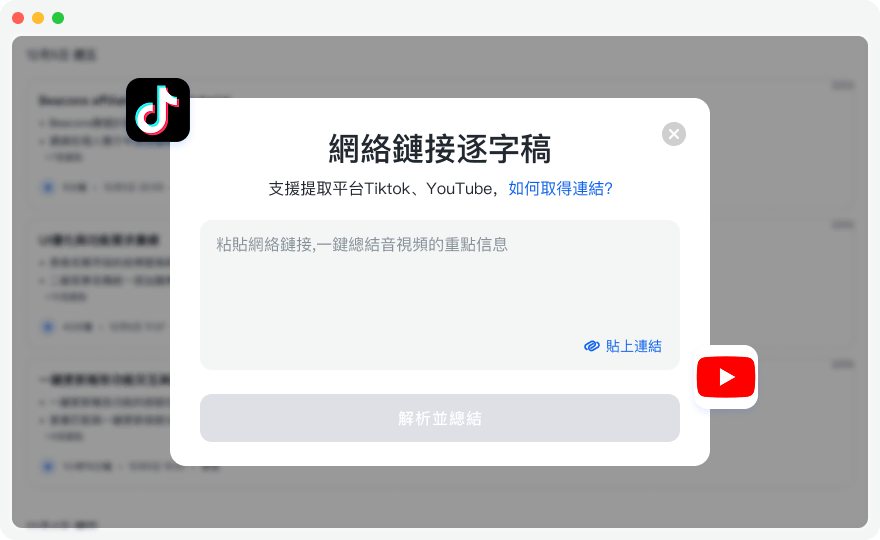
Step 3: Self-Study with "Online Video Link to Text"
See a tutorial on YouTube or a podcast you don't have an hour to watch? Just paste the URL into the tool to quickly get a transcript and AI summary. A great asset for students and content creators.
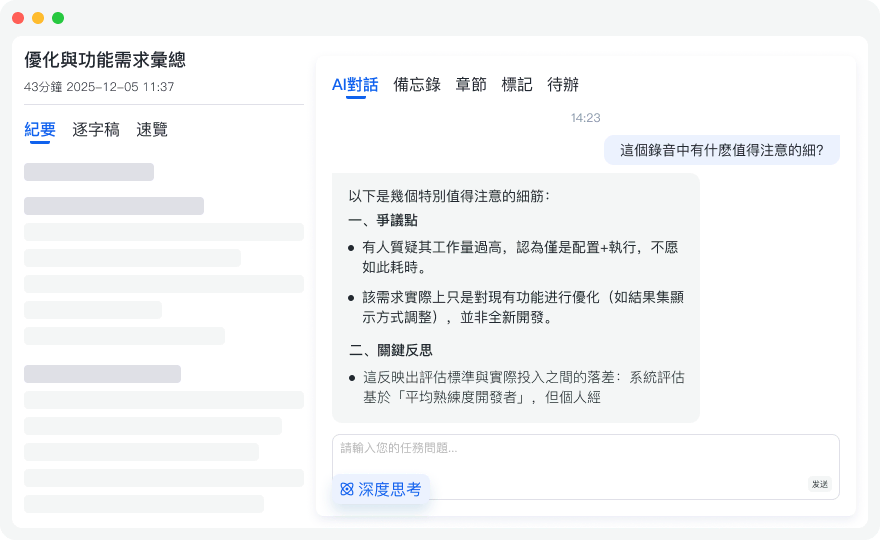
Step 4: Find Key Points with "AI Chat Query"
In the past, transcripts could only be searched by keywords; if you forgot the exact words used, you were out of luck. Now you can ask questions directly based on the transcript, such as: "What were the tasks assigned to the marketing department by the manager?" The AI will give a precise answer based on context.
FAQ: iPhone and Meeting Recording Voice-to-Text
Q1: Does the built-in iPhone voice-to-text have time or length limits?
In newer iOS versions, built-in dictation supports longer continuous input, but it can easily be interrupted by network instability or insufficient system resources. For meetings longer than 10 minutes, it's safer to use a professional recording-to-text tool.
Q2: After upgrading to iOS 26, voice input completely disappeared. Is my hardware broken?
Not necessarily. This is often a system bug after an update. Try "Reset Network Settings" or restarting your phone as mentioned in this article first. If the problem persists, then consider whether the microphone cable is damaged.
Q3: Are there free tools to replace iPhone's built-in dictation?
If you need real-time transcription and subsequent summary, Tinrec offers up to 100 minutes free per month, making it a great alternative for short to medium-length meetings.
Q4: Can I use iPhone recording for transcription during Teams or Google Meet meetings?
Yes. You can place your iPhone next to your computer to record audio, or download the meeting recording file (MP4/MP3) and import it into a third-party AI tool to automatically generate meeting minutes.
Q5: What are the format limitations for importing audio files for transcription?
Most mainstream AI transcription tools (like Tinrec) support common formats such as MP3, WAV, M4A. Files from iPhone Voice Memos can be seamlessly imported.
Q6: How can I use voice-to-text without an internet connection?
iPhone's built-in dictation works offline for supported languages (e.g., English and some Chinese packs), but accuracy may decrease. For advanced AI generation and summarization tools, a network connection is required to fully leverage their computing power.
Summary and Recommendation
When you encounter iPhone voice-to-text not working, take 3 minutes to check system settings and network status. But if your goal is to improve work and study efficiency, and you don't want to settle for unformatted transcripts that require repeated listening, then choosing an AI assistant that can automatically generate meeting conclusions and to-do lists will save you a lot of organization time.
We recommend taking a 10-minute daily meeting recording, using the free trial to run through the process once. Experience the convenience of going from recording to automatically generated action items, then decide whether to include it in your long-term essential toolkit.
Turn every recording into actionable outcomes
Get 60 free transcription minutes when you sign in. No credit card required.
Related Reading
You might also like

The Complete 2026 iPhone Recording Guide: 3 Accessibility Settings That Turn Recordings into Searchable Meeting Notes
Start with three iPhone accessibility settings—Shortcuts, Back Tap, and the Action button—to reduce 'start recording' to a single action. Then tackle the real pain point: how to turn recorded audio into meeting notes that are searchable, queryable, and easy to hand off. We break down the differences between built-in Voice Memos, PLAUD, Notta, and Tinrec, with buying advice.

2026 Comparison of 4 iPhone Transcription Apps: Built-in Transcripts vs. AI Tools—Which Saves More Time?
Many people think iPhone transcription requires third-party apps or that the built-in Voice Memos is sufficient. This article debunks common myths, compares iPhone's built-in transcription, Granola, PLAUD Note, and Tinrec, and provides buying criteria, pitfalls to avoid, and practical workflows to help you decide which solution fits meetings, interviews, and team collaboration.

Voice Recorder vs iPhone: 5 Key Comparisons for Meeting Notes in 2026
Voice recorder or iPhone? This guide compares them across 5 dimensions—audio quality, long-recording stability, transcription efficiency, post-meeting workflow, and cost—and explains how AI tools like Tinrec fill the gaps, helping you choose the right setup for your meeting style.

2026 Recording Solutions Compared: Voice Recorder vs iPhone — The Real Difference Isn't Hardware, It's Post-Meeting Organization
Should you buy a voice recorder? Is iPhone recording good enough? Based on my own hands-on testing, this article breaks down 4 key buying factors and compares iPhone Voice Memos, dedicated voice recorders, PLAUD Note, Notta, and Tinrec (秒聽錄音) in terms of audio capture, transcription, post-meeting organization, and team collaboration. It also includes a pitfalls guide and a ready-to-use starter checklist.

2026 Comparison of 3 iPhone Voice Memo Download Methods: Tinrec vs. Manual Voice Memos Export for Organization Efficiency
Starting from the practical decision point of downloading iPhone voice memos, this comparison examines three approaches: manual export from Voice Memos, download via iCloud Drive, and cloud-based organization with Tinrec. It explains how Tinrec turns meeting recordings into searchable, summarizable, and collaborative data.

iPhone Voice Memos Stuck on 'Downloading' in 2026: 6 Steps to Fix + Alternatives
Voice Memos stuck on 'Downloading'? This guide breaks down common causes of iCloud sync issues, offers 6 practical troubleshooting steps and backup tips, and compares transcription tools like Tinrec, Notta, and Otter.ai to help you find a recording workflow that doesn't wait for sync.

3 iPhone Recording Download Tools Tested: Export, Transcription, and Organization Compared (2026)
After recording a voice memo on iPhone, the real hassle begins: how to download it to a computer and turn it into usable transcripts and meeting notes. This hands-on comparison of Tinrec, Notta, and TurboScribe covers their differences in exporting, transcription, and post-meeting organization, plus the three most common mistakes to avoid.

Voice Memos vs Tinrec in 2026: 5-Dimension Comparison — Which Is Better After Downloading iPhone Recordings?
iPhone recordings stuck on "Downloading," files you can't find, and an hour of listening before you can write notes — this article first explains where Voice Memos recordings are stored and why they get stuck downloading, then compares Apple's built-in Voice Memos with Tinrec across 5 dimensions. It also covers how Notta and PLAUD differ, key pitfalls to avoid, and recommendations for choosing the right tool.

3 iPhone Recording Shortcuts Tested for 2026: After One-Tap Recording, Which One Actually Saves You Time?
Many people search for iPhone recording shortcuts to download, but even more get stuck—scripts won't install, they can't find the recording afterward, let alone turn it into a transcript. This article walks through three common iPhone recording shortcut approaches, comparing launch speed, file location, and post-recording organization capabilities. It also explains why 'recording it' is just the first step, and why tools like Tinrec are key to turning recordings into usable data.