
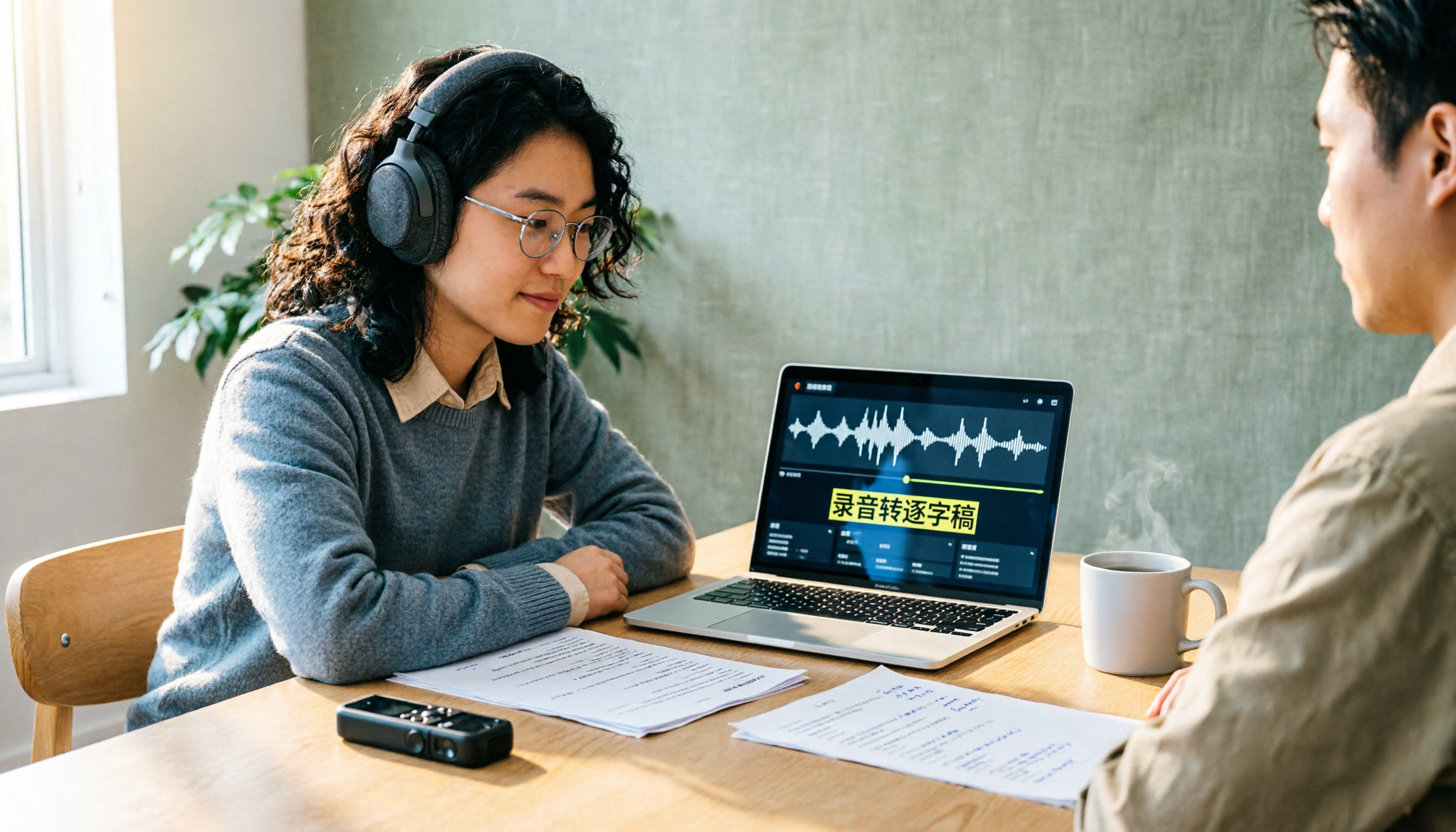
Turn recordings into transcripts and summaries in minutes
Upload audio or video for multilingual transcription, AI notes, and action items
How to Create a Transcript in 2026: 5 Steps from Recording to Quotable Text
"Isn't a transcript just typing what you hear?" That question is probably why I wanted to write this article.
Most people making their first transcript open a player and type sentence by sentence. A two-hour interview turns into ten hours of typing, and halfway through you start questioning your life choices.
The second, even more common scenario: you throw an auto-caption tool at it and end up with a pile of time-stamped, punctuation-free fragments that you have to reassemble later—basically doing the work twice.
The order is actually backwards. The sensible approach is to first confirm what the transcript is for, then let AI handle 90% of the grunt work, leaving you only the final proofreading pass. Below I've broken the process into 5 steps and shared the method I've actually used that works best for me right now.
Why "Typing What You Hear" Costs You Multiples of the Time
Let's define terms first. A transcript is also called verbatim transcription or stenography. Common uses include academic interviews, qualitative research, speeches, meeting minutes, litigation transcripts, and subtitles. The principle is to faithfully present the conversation sentence by sentence. In practice, you can lightly clean up stutters, repetitions, and excessive filler words, but you shouldn't polish or simplify the meaning—otherwise it's just a "clean copy," not a transcript.
Problems usually come from three things.
First, pure manual transcription is the most time-consuming approach of all. There are indeed individual contractors, transcription studios, and translation agencies that do this, with varying rates, but the common factor is that it's paid for in time.
Second, choosing the wrong tool mode. Interviews need "transcription mode," which gives you complete sentences with punctuation and paragraphs. If you use "subtitle mode," you get time-stamped, one-line fragments that are actually harder to quote from.
Third, assuming AI output is ready to use. AI handles most of the grunt work, but you still need to check names, terminology, numbers, and places where multiple people talk over each other.
Simply put, transcript quality isn't about how fast you type—it's about whether you've clearly separated the four stages: recording, transcription, proofreading, and export.
How to Create a Transcript: 5 Steps from Recording to Quotable Text
Step 1: Define What the Transcript Is For
Different purposes produce completely different outputs:
- Qualitative research, academic citations: sentence-by-sentence, speaker labels, ideally with time codes for easy audio lookup.
- Meeting minutes: what you really need is a summary, decisions, and action items—the transcript is just an attachment.
- Subtitles: need formats like .srt, with short sentences and precise timing.
Think it through first so you don't finish a whole pass only to find the format won't work.
Step 2: Get the Recording Quality Right from the Start
This step is most easily overlooked, but it determines how long proofreading will take later.
Keep the microphone close to the speaker, avoid air conditioners, fans, and keyboard noise. For video meetings, remind everyone to say their name before speaking and to speak one at a time. Before interviews, get consent and inform participants that the session will be recorded and transcribed—regulations vary by location, so don't skip this step.
Have everyone introduce themselves at the start; this significantly improves AI speaker identification later.
Step 3: Choose the Right Mode and Let AI Do the First Pass
There are two paths to convert recordings to text: upload an existing audio file, or record live with real-time transcription.
The key point is just one: make sure you select "transcription/verbatim" and not "subtitles." That single option determines whether you'll have to redo everything later.
Step 4: Proofread Against the Audio
After AI delivers the first version, I typically check four things consistently: technical terminology, names of people and companies, numbers and dates, and places where multiple speakers overlap.
Transcripts with time codes are especially useful here—when you hear a suspicious sentence, just jump back to that segment to confirm. If your team has common terminology, you can also maintain a hotword list to reduce manual corrections each time.
Step 5: Label Speakers, Add Paragraphs, and Export
Finally, label the speakers, break into paragraphs, and export in the format you need. Whether it's for further editing in Notion or Google Docs, or saving as plain text for archiving, it's all fine.
For interview research, remember to keep the time codes—you'll thank yourself later when citing in your paper.
After Testing, My Go-To: Tinrec
Tinrec is an AI meeting notes and collaboration tool for individuals and teams, available on web, desktop, and mobile.
It doesn't just convert audio to text—it bundles in "what to do after transcription."
No bot needed for online meetings. The desktop version directly captures computer system audio. For Zoom, Google Meet, Microsoft Teams, Webex, and similar meetings, you don't need to invite an extra meeting bot as a participant—just open Tinrec and start recording. For teams that don't want another account in their meetings, this is very practical.
Stop organizing recordings by hand
Upload audio or video and automatically get a transcript, summary, and action items
You can keep asking it questions after recording. After a meeting or interview, transcripts, summaries, chapters, and action items are automatically organized. Even better is the AI Q&A—you can directly ask "What was the budget ceiling the client mentioned?" or "What were the comments about packaging in this interview?" and it will search the content for answers rather than just returning keyword search results.
Output is portable. Supports export to Notion, Google Docs, OneNote, Dropbox, and other tools, and can use Agent post-processing to generate reports, tables, and meeting minutes. For cross-language meetings, real-time translation lets you view in original, translated, or bilingual mode.
Three Reasons I Find It Worthwhile After Actual Use
- Both live recording and file upload work. Record offline interviews on your phone, online meetings on desktop, and upload historical audio files—no need to switch between three tools for different scenarios.
- There's still something usable after transcription. Summaries, action items, and Q&A save me the time of "re-listening to find key points," which is usually the most painful part of the whole process.
- Team data doesn't leave with people. Team edition meeting data belongs to the team; when members leave or are removed, they need to hand over their responsible resources to other active members.
Things to Note
The free version provides a basic quota to try recording, importing, summaries, and transcription. Heavy users need to pay (weekly cards and Pro monthly/annual cards available; actual prices and benefits subject to the official website).
The team edition is a separate team space, not multiple people sharing one personal account: monthly USD 29.80 per paid seat per month, annual USD 199 per paid seat per year (equivalent to about USD 16.58/month). Eligible teams get a 7-day trial, 1 free seat, and 300 minutes of team shared import quota on first signup; paid seats provide 2,000 minutes of team shared import quota per seat per month, and live recording under an active plan is currently not deducted by minutes.
Also note that "roles" and "seats" in the team edition are two different things: roles determine who can manage the team, members, and auditing; seats determine whether members can record, upload, edit, and import/export. Members without seats can still view, play, and read team data. Currently it's team-level sharing, not file-level granular permissions.
Also, I won't tell you it's 100% accurate. Transcription quality is affected by recording quality, noise, accents, overlapping speakers, and technical terminology. For important content, I recommend cross-checking with transcript time codes and audio playback.
Who It's For
Office workers who frequently hold online meetings and need Chinese transcripts and post-meeting summaries; students and researchers organizing interviews and research recordings; teams wanting to centralize meeting data with member and usage management.
Besides Tinrec, What Other Options Are There?
Notta: A multi-platform transcription and meeting notes tool with good multilingual support. Free version: 120 minutes per month, 3 minutes per single item; Pro annual billing equivalent to about USD 8.17/month, 1,800 minutes per month; Business annual billing equivalent to about USD 16.67/seat/month. If you need large minute volumes and multilingual transcription, it's a good value; but if you value real-time Chinese meeting transcription plus post-meeting Q&A and team knowledge retention, Tinrec's workflow is more complete.
TurboScribe: A near-high-value file transcription tool focused on long documents, batch uploads, subtitles, and translation. Free version: 3 files per day, 30 minutes per file; Unlimited annual USD 120 (about USD 10/month), paid version supports up to 10 hours or 5 GB per file, 50 files per upload. Choose it to clear out large volumes of audio files at once; but it's not designed for real-time meetings and post-meeting collaboration.
Yating Transcript: A Taiwan-based Chinese speech recognition service, primarily app-based, quick to learn for Chinese audio-to-text, and relatively friendly for those used to Taiwan terminology. If you just occasionally convert a Chinese recording to text, give it a try; but post-meeting summaries, action items, Q&A, and team sharing require additional tools.
Pitfall Guide: The 4 Most Common Mistakes in Transcript Creation
Pitfall 1: Using subtitle mode for interviews. You'll get a pile of fragmented, unpunctuated short sentences that you'll have to reassemble later. For interviews and meetings, make sure to use "transcription" mode.
Pitfall 2: Only looking at advertised accuracy rates. That number is usually measured in a quiet environment. Real meeting rooms have air conditioning noise, keyboard sounds, and people talking over each other. Test with your own recordings—that's more reliable than spec sheets.
Pitfall 3: Treating AI transcripts as citation-ready material. Names, numbers, and technical terms are most error-prone. Citing without checking against the audio is high risk.
Pitfall 4: Stopping once you have the transcript. If you only use the tool for "audio to text," you're only using part of its capability. With Tinrec's AI Q&A, you can directly ask "What were the conclusions of this meeting?"—much faster than manually scanning a 30-minute transcript.
Summary: How to Choose for Your Situation
- Academic interviews, sentence-by-sentence coding and citation → Tinrec, transcript with time codes, export directly to document tools for organization
- Online meetings needing summaries and action items → Tinrec, desktop bot-free recording, automatic summaries and action items after meetings
- Cross-language meetings → Tinrec, real-time translation with original, translated, or bilingual view
- Teams sharing meeting data → Tinrec team edition, with spaces, roles, seats, usage, and auditing
- Clearing large volumes of long audio files at once → TurboScribe, batch and long-document processing are its strengths
- Already comfortable with English interface, mainly English meetings → Otter.ai is also worth comparing
If you haven't decided yet, I'd suggest trying Tinrec's free version basic quota with one recording. After one transcription you'll know how it performs under your recording conditions—if it works for you, then consider upgrading. No need to pay upfront.
One final reminder: recording and transcription involve others' privacy. Remember to obtain consent according to local regulations—this is also basic courtesy in transcript creation.
References
- Yating Transcript
- How to Create an Interview Transcript? Complete Guide to Converting Interview Recordings to Text | Subanana
- EP10 | Boss Wants Meeting Minutes: How to Choose AI Transcription Tools? – Knowledge Nomad Studio
- Transcription and Subtitles: Find Professional Team at SpeedType - How to Transcribe
- Transcript - Wikipedia, the free encyclopedia
Turn every recording into actionable outcomes
Get 60 free transcription minutes when you sign in. No credit card required.
Related Reading
You might also like
2026 Comparison of 4 Transcription Tools: Which Offers the Best Free Tier and Post-Meeting Organization?
Starting from common pitfalls, this comparison examines Tinrec, Granola, TurboScribe, and PLAUD in terms of transcription generation, post-meeting organization, free tiers, and team collaboration to help professionals choose the right transcription tool.

2026 Zoom Meeting Tools Comparison: From Joining to Meeting Minutes, Which Saves the Most Time?
We'll walk you through joining a Zoom meeting and basic setup, then compare four meeting note methods—Zoom built-in transcription, Otter.ai, Granola, and Tinrec—covering cost, Chinese and mixed Chinese-English performance, post-meeting organization, and team data ownership, to help you decide which best fits your meeting style.
4 Podcast Transcript Tools Tested for 2026: Which One Is Best for Chinese Transcription and Post-Interview Organization?
When creating podcast transcripts, how do you choose between built-in platform features, online transcription tools, and AI meeting note tools? This article compares Apple Podcast, Spotify, WayinVideo, and Tinrec from four angles: export capabilities, Chinese support, post-interview organization, and team collaboration, to help you find the transcript solution that best fits your show's workflow.

4 Zoom Meeting Recording Tools Tested for 2026: Get Transcripts and Action Items Without a Meeting Bot
Zoom's built-in recording requires the host to grant permission, and you're left with a two-hour video file that you still have to organize yourself. This article compares four Zoom meeting recording tools—Tinrec, Otter.ai, Notta, and Granola—from the perspective of a mid-level manager's real-world usage, covering recording methods, Chinese transcription, post-meeting summaries, and team data retention. It includes selection criteria, pitfalls to avoid, and scenario-based recommendations.
4 Meeting Transcription Tools Tested for 2026: Which One Has the Best Free Tier, AI Organization, and Team Collaboration?
Still working overtime after the meeting ends? This article uses a real meeting workflow to compare Tinrec, Notta, Otter.ai, and Granola on transcription, AI summaries, action items, team collaboration, and pricing, so you can pick the right tool for Chinese-language meetings and team knowledge retention.

2026 Zoom AI Meeting Summary Tools Compared: Is Built-in Enough?
How to enable Zoom AI meeting summaries, where to find them, and whether the free version is sufficient? This article starts from real meeting scenarios and compares Zoom's built-in Meeting summary, Tinrec, Otter.ai, and Notta. It covers 4 key selection points, 3 common pitfalls, and scenario-based recommendations to help you decide whether to use the built-in feature or switch tools.
2026 Zoom Transcription Comparison: Built-in, Transcribe, Tactiq, and Tinrec
How do you get a transcript after a Zoom meeting? This comparison covers Zoom's built-in transcription, Transcribe, Tactiq, and Tinrec, breaking down recording methods, Chinese recognition, post-meeting organization, cross-platform support, team collaboration, and pricing to help you choose the approach that best fits your meeting habits.

Tinrec vs Granola 2026: 5-Dimension Comparison — Which Is Better for Chinese Interview Transcripts?
The biggest pitfalls in interview transcription are choosing the wrong mode and only comparing text conversion. This article compares Tinrec and Granola across 5 dimensions, from importing existing audio files, punctuation and paragraphing, post-meeting follow-up questions, to team data retention, explaining how to choose the most time-saving workflow for Chinese interview scenarios.
5 Interview Transcription Tools Tested: Which Saves the Most Proofreading Time in 2026?
After a 90-minute interview, the real work begins. This guide compares five interview transcription tools—covering speaker labeling, time codes, export formats, and free tiers—and offers scenario-based recommendations to turn your recordings into citable, codeable transcripts you can hand off to colleagues.