

Turn recordings into transcripts and summaries in minutes
Upload audio or video for multilingual transcription, AI notes, and action items
How to Transcribe Good Tape Videos in 2026: 3 Steps to Transcripts + AI Meeting Notes
Upload a 40-minute interview video to a transcription tool, and minutes later you have a 10,000-word transcript—many people think the job is done. But the real time sink comes next: who said what, what was decided, and who's responsible for the next step. Video-to-text is just the starting point, not the finish line. Below, we use the actual Good Tape video-to-text workflow as an entry point, then demonstrate how to turn transcripts into meeting materials you can hand off directly.
Before You Start | What You'll Need
• A video file to process (common formats like MP4, MOV, MKV are all fine) • A Good Tape account (free plan available to try, no credit card required; actual limits and restrictions subject to the official website) • A Tinrec account (desktop version for online meetings, app for in-person recording and quick notes) • A stable internet connection (required for uploading videos and real-time transcription) • Confirmation of recording authorization (please comply with local regulations before recording and transcribing, and obtain participant consent when necessary)
Three Common Pitfalls First: Why "Transcribed Text" Doesn't Equal "Task Complete"
Pitfall 1: Treating the transcript as the final deliverable. A transcript preserves all the filler and chit-chat. An unstructured transcript means dumping the entire organization cost right back on yourself.
Pitfall 2: Chasing only text, ignoring timestamps and speakers. The most valuable part of video-to-text is actually the timestamps—without them, you'll be dragging back and forth through a 40-minute video to find that one sentence.
Pitfall 3: Using a one-off conversion process for meetings that repeat every week. Uploading, downloading, and renaming every time, with data scattered across different folders—three months later, no one can find anything.
A more sensible approach: split "conversion" and "organization" into two separate tasks. The former is handled by a handy transcription tool, and the latter is handled by a meeting workflow with summarization, Q&A, and team knowledge retention capabilities.
Step 1 | Use Good Tape to Convert Video Files into Transcripts
The goal of this step is to obtain a raw text material with timestamps.
After logging into Good Tape, upload your video file. Supported formats include MP4, MOV, AVI, MKV, WEBM, as well as pure audio formats MP3, M4A, WAV, AAC, OGG, FLAC. The system processes using Whisper technology, producing transcripts and timestamps within minutes. If you need subtitles, you can export .srt files. It supports over 100 languages, including Chinese.
Why do this step first? Good Tape was developed by Danish media company Zetland and later spun off into an independent company. Its positioning is clear: file transcription. The official site also emphasizes that customer recordings and files are not used to train AI models. For needs like "I just have a video, give me the text first," it's very straightforward.
When done, you'll get a searchable transcript and an .srt file usable for editing or subtitling.
Note that the free plan has usage limits—check the official website for actual numbers. Also, this is a one-way process: file in, text out. The subsequent summarization, action items, and team sharing rely on the following steps.
(Illustrative scenario: A person sits at a desk, dragging an interview video file into a browser window, with timestamped text paragraphs appearing on the right)
Step 2 | Use Tinrec to Build a Repeatable Meeting Workflow
The goal of this step is to turn the "start from scratch every time" conversion action into a fixed process that's the same for every meeting.
If the video content is actually an online meeting recording, the key is to stop using the "invite a bot to join the meeting" approach. Tinrec's desktop version directly captures your computer's system audio, handling meetings on Zoom, Google Meet, Microsoft Teams, Webex, etc., without inviting an extra bot as a participant. The user actively starts recording before the meeting begins, and the transcript is generated in real time as recording proceeds.
If you already have recorded videos or audio files, upload them to Tinrec for transcription—the output goes into the same database. On-site recordings and ad-hoc interviews from the mobile app also return to the same place.
Why do this? Because only by converging content from different sources into one space can past meetings be searched, queried, and reused. Transcripts scattered across five folders will never become team knowledge.
When done, your meeting content will be centralized, rather than scattered across your desktop, downloads folder, and messaging app conversations.
(Illustrative scenario: A laptop shows an online meeting screen, the desktop tool captures system audio in the background, and the transcript scrolls out simultaneously on the other side)
Step 3 | Quick Proofreading: Save Time for the Truly Important Sections
The goal of this step is not to achieve zero typos, but to ensure key information hasn't been misheard.
When proofreading, first look at timestamps and divide the transcript into sections like "opening, discussion, decisions," focusing only on the decision and number-related paragraphs. If names, product names, or technical terms are repeatedly misheard, the team version allows maintaining team hotwords so these terms have more stable recognition in subsequent transcriptions.
Why not recommend editing word-by-word from start to finish? Because the cost-benefit isn't worth it. The first third of most meetings is small talk and background explanation; what really needs precision are commitments, amounts, deadlines, and responsible parties.
Actual result: A 40-minute meeting transcript can typically have its key sections verified within ten-plus minutes.
A reminder: AI transcription is affected by recording quality, noise, accents, overlapping speakers, and technical terminology. For important numbers and external commitments, it's advisable to cross-check against the recording and timestamps.
Stop organizing recordings by hand
Upload audio or video and automatically get a transcript, summary, and action items
(Illustrative scenario: Several timestamped segments are marked on the transcript screen, with the recording playback button paused at the same time point)
Step 4 | Let AI Generate Summaries, Chapters, and Action Items
The goal of this step is to compress "10,000 words" into "something you can read in three minutes."
Tinrec can automatically generate summaries, chapters, and key points, extract action items from discussions, and organize them into mind maps to help understand relationships between topics. After this, you no longer have just a transcript but structured meeting material: first read the summary for the big picture, then click into chapters for details.
Why is this step important? Because the value of meeting notes isn't in "what was recorded" but in "whether it's still usable three months later." Chaptered material can be navigated, summarized material can be reviewed, and action-item material can be tracked.
When done, you'll have a post-meeting summary you can send directly to participants, and action items you can add to your project list.
(Illustrative scenario: On the meeting summary page, the left side shows a chapter list, the right side shows key points and an action item list, each linked back to the original speech timestamp)
Step 5 | AI Q&A, Export, and Team Knowledge Retention
The goal of this step is to truly integrate meeting content into your workflow.
When faced with questions like "What exactly was committed in that meeting last time?" you can ask directly about a single meeting or across meetings without re-reading the entire transcript. When you need to deliver, use Agent post-processing to organize meeting content into reports, tables, or documents, then export to Notion, Google Docs, OneNote, Dropbox, and other common tools for further processing.
For team scenarios, it's recommended to put data directly into the team space rather than leaving it in individual accounts. The team version is an independent collaboration space: you can create multiple teams, invite members via join links, set owners, admins, and regular members, and distinguish between "roles" and "seats"—roles determine who can manage the team and audit, seats determine whether members can record, upload, edit, and export. Valid members without seats can still view, play, and read team data but cannot upload or edit.
On the management side, there are usage trends, member rankings, usage details, and audit logs available; accidentally deleted audio goes to the team recycle bin, currently retained for 30 days, and can be restored before permanent cleanup.
Let's also clarify the pricing: The team's first eligible trial is 7 days, 1 free seat, and 300 minutes of team shared import quota; monthly billing is USD 29.80 per paid seat per month, annual billing is USD 199 per paid seat per year (equivalent to about USD 16.58 per month), with each paid seat providing 2,000 minutes of team shared import quota per month. Under an active team plan and active seats, real-time recording currently does not deduct by minutes; file and web imports use the team shared quota. Actual prices and benefits are subject to the official purchase page.
(Illustrative scenario: Team workspace screen, with team and member list on the left, meeting list in the center, and monthly usage trends on the right)
FAQ and Troubleshooting
Q: Is the Good Tape free version enough? The free plan is available to try but has usage limits—check the official website for actual quotas. If your need is a fixed number of meetings every week, what really needs solving isn't "is the free quota enough" but whether you have a repeatable process—Tinrec puts recording, transcription, summarization, and export on the same assembly line, so you don't start from zero every time.
Q: Will long videos get stuck on quota during transcription? That depends on your plan structure. Tinrec's file and web imports consume team shared import quota, while real-time recording under an active plan and seats currently does not deduct by minutes. If most of your content is "record directly during meetings" versus "upload large files afterward," the cost structures are different—think clearly about your usage pattern before choosing a plan.
Q: What if Chinese transcription has many typos? First check the source audio quality: too far away, noisy environment, multiple people talking over each other—no tool can fully fix that. Second, organize commonly misheard names and terms into hotwords. Tinrec's team version allows maintaining team hotwords, which practically helps with recognition stability for product names, abbreviations, and industry terminology.
Q: If a team member leaves, will their meeting data disappear too? It won't automatically follow the individual. Team resources belong to the team. When a member exits, is removed, or loses their seat, their responsible team resources need to be handed over to other valid members. This is also the biggest difference between the team version and "multiple people sharing one personal account."
Q: Can 100% accuracy be guaranteed? It's not recommended to expect that. A more practical statement: AI can significantly reduce the cost of manual note-taking and organization, but important content should still be verified against transcript timestamps and recording playback.
Advanced Tips | 3 Methods to Double Your Efficiency
1. Use the desktop version for bot-free online meeting recording. No need to invite a meeting bot as a participant, so there's no awkwardness of "participants seeing an unknown account join," and no risk of the entire meeting going unrecorded if the bot fails to join.
2. Enable real-time translation for cross-language meetings. During recording, you can switch between original text, translated text, or bilingual view—no need to wait until after the meeting to find someone to translate for international meetings.
3. Use AI Q&A for cross-meeting follow-ups. If a project has been discussed five times, you can directly ask "Where is this project stuck now, and what was the deadline committed last time?" turning historical meetings into a conversational database.
If You Don't Use Tinrec, Here Are Other Options
Good Tape's strengths are clear: developed by a Danish team, upload MP4/MOV and other video files and get timestamped transcripts within minutes, export .srt, support over 100 languages, free to try without a credit card, and the official site emphasizes files are not used for model training. It's suitable for one-off, single-file quick transcription needs. But if you want post-meeting summaries, action item tracking, and team sharing, the workflow still needs to extend further—that's exactly the part Tinrec fills in.
Conclusion
With these 5 steps, you can now turn a video into a transcript, turn the transcript into summaries and action items, and then use AI Q&A to turn it into queryable data. The key isn't which tool transcribes faster, but whether you've connected "conversion" and "organization" into one assembly line. Try it once with one of your own videos: upload, check timestamps, generate a summary, and you'll realize the time you used to spend re-listening to recordings can actually be saved.
Before recording and transcribing, please remember to comply with local regulations and obtain participant consent when necessary.
References
- Good Tape - Automated Transcription | Secure AI Automatic Transcript Tool
- How to Use Good Tape for Free in 2026? 5-Step Guide to Convert Audio to Text - Official Tinrec Blog
- Good Tape AI Transcription Tool for Audio and Video
- Is Good Tape Worth It? 2026 Test of 3 Video-to-Transcript Tools: Tinrec for Chinese Meetings & Team Collaboration - Official Tinrec Blog
- Getting started in Good Tape - YouTube
Turn every recording into actionable outcomes
Get 60 free transcription minutes when you sign in. No credit card required.
Related Reading
You might also like

2026 AI Meeting Transcription Tools Compared: Is Notta's Free Plan Enough? Which Free Tier Is Most Generous?
People searching "Notta AI free" usually want to know: what the free plan can actually do, whether the 3-minute per-recording limit is real, and when to upgrade. This article breaks down Notta's free plan limits from a buying perspective and compares the free and entry-level plans of Tinrec, Otter.ai, and Granola, with buying tips and pitfalls to avoid, to help you decide which tool to use.

Good Tape Free? 2026 Comparison of 3 Free Transcription Models: Which One Is Enough?
Is Good Tape free? Yes, the free plan allows 3 transcripts per month, each up to 30 minutes, plus a one-time 1-hour trial. This article breaks down three free models—limited count, limited minutes, and limited trial—and compares them with Tinrec's free plan. Learn how to evaluate free quotas, use them for meeting notes and interview organization, and understand team roles and seats to choose the one that truly fits your needs.

in nottata Meaning Explained: 3 Key Uses, Examples, and Similar Words
What does in nottata mean? Starting from the meaning of nottata, this article breaks down the key uses of the time expression in nottata, organizes common collocations like fare nottata and nottata bianca with practical examples, compares notte, di notte, and nottetempo, and clarifies the 3 most common misunderstandings.

Is Harleen Nottay Married? What Public Records Reveal and What They Don't
Is Harleen Nottay married? This article compiles information from public sources like IMDb, BBC, Facebook, Instagram, and LinkedIn to explain why there is no reliable answer about her marital status and highlights common verification pitfalls.

2026 Hockey Stick Tape Guide: 4 Blade Taping Styles, Grip & Shaft Tips, and How to Choose
From four common blade taping styles and grip/shaft techniques to choosing based on position and surface, learn how to tape a hockey stick. Plus, a practical method for recording your test results so you can find your feel without relying on memory.

The Complete 2026 Guide to Finding the Right Taper Barber: 3 Steps from Selection to Communication to Follow-Up Records
When you search for 'good taper barbers near me,' you're really trying to answer three questions: Who can actually do a taper? How can I verify their skill? Can I get the same result next time? This guide breaks down a repeatable process—from judging a barber's portfolio and pre-cut consultation to keeping records for your next visit—and shows how Tinrec turns each consultation into a searchable, reviewable record.

How to Cancel Your Good Tape Subscription in 2026: Step-by-Step Guide and a Better Meeting Notes Alternative
Canceling takes five minutes—the real hassle is your meeting data living in someone else's account. This guide first explains how to cancel the Good Tape transcription service and magazine subscription, then looks at the workflow: after canceling, how do you keep using transcripts, summaries, and action items, and what role Tinrec plays.
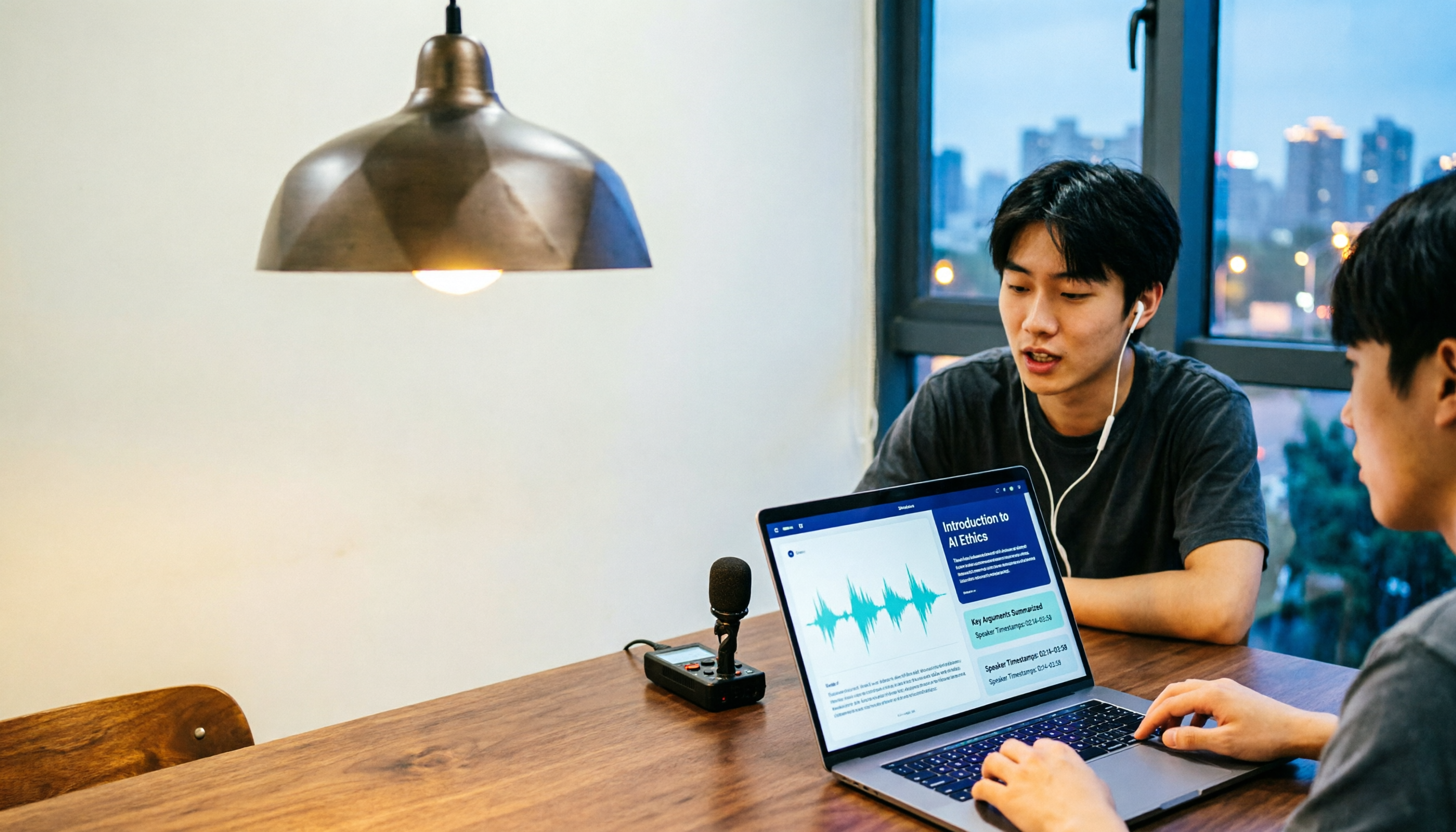
Notta in 2026: Hug Atelier Pendant Lamp vs. Audio-to-Text Tool – Differences, Features, and Practical Uses
Searching for 'notta' and getting a Turkish design brand's pendant lamp? This guide first clarifies that Hug Atelier's Notta pendant lamp and the audio-to-text tool are two different things, then breaks down from a student's perspective how audio-to-text can help: in classes, group discussions, project interviews, and online lectures. Using Tinrec as a hands-on example, it explains core capabilities, the 5 most common pitfalls when choosing a tool, and FAQs.

Good Tape vs Tinrec 2026: 5-Dimension Comparison — Which Is Better for Chinese-Speaking Teams?
Good Tape reviews are everywhere, but is it really right for your meeting scenarios? This article breaks down Good Tape and Tinrec across 5 dimensions—Chinese transcription, meeting capture, post-meeting organization, team governance, and data privacy—and offers clear recommendations based on budget and needs.