

Turn recordings into transcripts and summaries in minutes
Upload audio or video for multilingual transcription, AI notes, and action items
Where Are Google Meet Recordings Saved in 2026? 5 Steps to Find and Organize Your Meeting Notes
Can't Find the Recording After the Meeting? First, Check Whose Google Drive You're Looking In
"I definitely hit record—so why isn't it in my Google Drive?" This is a common question many professionals have after an online meeting. What's more frustrating is when three people attend the same meeting, but only one can find the file, and the other two can't even see the folder.
Google Meet's recording storage rules are counterintuitive: recordings are not saved in the account of the person who clicked the record button. If you get this wrong, you'll waste half an hour scouring your own Google Drive, only to have to ask a colleague, "Is that file on your end?"
This article will first help you find the recording in 5 steps, then discuss how to turn that one-hour video into a truly usable meeting summary.
5 Steps to Find Your Google Meet Recording
Step 1: Confirm who the "meeting host" is
Google Meet recordings are always saved in the Google Drive of the person who organized the Google Calendar event (the meeting host), regardless of who clicked the record button. So the first step is not to open your own Google Drive, but to open the calendar invitation for that meeting and check who is listed as the host.
Step 2: Go to the host's Google Drive and find the "Meet Recordings" folder
Go to drive.google.com, select "My Drive" or "Shared with me" on the left, and find the "Meet Recordings" folder. This folder is automatically created when the first recording is saved. If you're looking for older meetings, Google recently renamed the old folder to "Legacy Meet Recordings" and moved it under the "Google Meet" folder. Older recordings can be found there.
Step 3: Search Gmail for the recording notification email
After the recording is processed, Google sends a notification email with the subject "Meet Recording Available" to the meeting host and the person who clicked record. The email includes a direct link to open the recording. Searching Gmail for "Meet Recording" is usually the fastest way.
Step 4: Find the link from the Google Calendar event
Open the calendar event for that meeting. The recording link and transcript record are attached to the event details. This is also a common way to share the recording with others.
Step 5: If you still can't find it, check the trash and recording conditions
Deleted recordings first go to the Google Drive trash and can still be recovered. If it's not in the trash either, the problem is usually that "it was never recorded": native recording requires a paid Google Workspace plan, the administrator must enable recording, and the recorder must have recording permissions in that meeting. Breakout rooms and Google Meet on iPhone cannot record. Also, Google needs time to process the video—it doesn't appear immediately after you press stop, and Google doesn't guarantee a fixed processing time.
One more note: if your company uses Google Vault, the retention period for recordings may be adjusted according to organizational policies. This is also a common reason for "I recorded it but can't find it." Asking IT or your administrator is much faster than rummaging through your Google Drive yourself.
You've Got the Recording—Now What? 3 Key Factors for Choosing a Meeting Organization Tool
Most people get stuck after finding the MP4. A recording is just a video; to turn it into meeting notes, you need the right tool. Here are the three things you should confirm first in practice.
Key Factor 1: Can it directly process audio/video files downloaded from Google Meet?
Some tools only handle "live meetings" or only "file uploads." Missing either one adds an extra step. Ideally, the same tool can both record live and accept video files you download from Google Drive.
Key Factor 2: Chinese and multilingual transcription quality
Official accuracy claims don't mean much because they're usually tested in quiet environments. Real meetings have air conditioning noise, keyboard sounds, and people talking over each other. When choosing a tool, look at its actual performance with Chinese, mixed Chinese-English, and multi-person conversations. It's best to test it with a short recording of your own.
Key Factor 3: Does it offer "post-processing" after transcription?
A tool that only provides a transcript just hands the organization work back to you. Look for whether it can automatically generate summaries, chapters, action items, and whether you can ask questions directly about the meeting content. The difference here is often bigger than the transcription itself.
Tinrec — Our Top Pick After Testing
Tinrec is an AI meeting notes and collaboration tool for individuals and teams. It supports iOS, Android, and web, and the desktop version can directly capture your computer's system audio.
Stop organizing recordings by hand
Upload audio or video and automatically get a transcript, summary, and action items
In practice, what saves the most time is how it connects the workflow after you find the recording. You upload the Google Meet video you downloaded from Google Drive directly, and it transcribes it while organizing summaries, chapters, and action items—who is responsible for what and by when. No need to re-listen to a two-hour meeting afterward. If you don't even want to download, the desktop version can capture audio playing on your computer for Zoom, Google Meet, Microsoft Teams, Webex, and similar meetings, recording and transcribing in real time without inviting a meeting bot. The screen stays clean, and you don't have to explain "who that extra person is" to attendees.
Another differentiator is AI Q&A. After recording, you can directly ask it "Who mentioned the budget in the last meeting?" or "What objections did the client raise about the delivery date?" It gives answers based on semantic understanding, not just a list of keyword search results. Most tools in the same price range don't have this layer yet. For cross-language meetings, you can enable real-time translation and view in original, translated, or bilingual mode—no more guessing while listening in mixed Chinese-English settings. Outputs can also be exported to Notion, Google Docs, OneNote, Dropbox, etc., for further processing, or directly generate reports, tables, and meeting minutes.
In our testing, we used one clear indoor recording and one meeting recording with background noise, both in Chinese. With clear audio, the transcript was consistently usable; with overlapping speakers, heavy accents, or dense technical terms, errors still occurred and required playback verification against timestamps. Tinrec doesn't promise a fixed accuracy rate, which is actually honest.
Three advantages: first, a complete Chinese meeting experience—summaries, chapters, action items, and Q&A all in one; second, bot-free recording on the desktop version, so external meetings don't require adding another account; third, the team version keeps meeting data in the team space, so members leaving don't take data with them.
Limitations to note: the free version has a usage cap, and heavy users need to pay; the desktop version requires you to actively start recording, it doesn't automatically join all calendar meetings; transcription quality is still affected by audio quality and overlapping speech.
Who is it for? People who frequently record Chinese or mixed Chinese-English meetings, want to use AI to grab key points right after the meeting, and switch between phone and computer will notice the biggest difference.
Besides Tinrec, What Other Options Are There?
Otter.ai: A mature choice for English meetings. Basic is free for 300 minutes per month; Pro is about USD 8.49 per user per month billed annually, including 1,200 minutes of in-app recording and 10 file imports per month. If 80% of your meetings are in English, it's more than enough. But Chinese meeting experience isn't its strength, whereas Tinrec can directly ask questions and produce action items and reports around Chinese meetings.
Notta: Good multilingual transcription. Free is 120 minutes per month with a 3-minute limit per recording; Pro is about USD 8.17 per month billed annually, 1,800 minutes per month; Business is about USD 16.67 per seat per month billed annually. It overlaps most with Tinrec; the difference is Tinrec also emphasizes bot-free desktop recording, team space, and post-meeting Agent processing.
Granola: A bot-free AI meeting notes tool that transcribes in real time via system audio and microphone. Business is USD 14 per user per month. It supports live transcription but cannot upload pre-recorded audio/video files and does not retain meeting audio. If you want to drop in a Google Meet MP4 for organization and keep the original recording, that's something Tinrec can do and it cannot.
Pitfall Guide: 3 Most Common Mistakes When Finding Recordings and Organizing Notes
Mistake 1: Assuming the recording is in your own Google Drive. Recordings follow the "Calendar event host," not the recorder. Check who the host is before the meeting, and you'll save a lot of conversation afterward.
Mistake 2: Assuming pressing record guarantees a file. Paid plan, admin toggle, in-meeting recording permissions, breakout rooms, iPhone—if any one of these isn't in place, there will be no file. For important meetings, assign someone beforehand to confirm the recording status.
Mistake 3: Stopping once you have the transcript. A transcript is just raw material. What really saves time is summaries, action items, and uses like "just ask it for the meeting conclusions." Otherwise, you're just replacing re-listening with re-reading.
Mistake 4: Forgetting to inform attendees in advance. Recording involves local regulations and company policy. Saying "this meeting will be recorded" at the start is the most basic practice.
Summary: Recording Found—Which One Should You Choose Next?
- Need Chinese meeting transcripts + summaries + action items + AI Q&A → Tinrec, the most complete combination.
- Need to centrally store team historical meetings, manage seats and usage → Tinrec Team version, USD 29.80 per paid seat per month, or USD 199 per paid seat per year (about USD 16.58 per month), each paid seat provides 2,000 minutes of team shared import quota per month, plus member roles, seat management, usage analytics, audit logs, and audio recycle bin.
- Meetings are almost all in English and the team is used to existing workflows → Otter.ai, keeping the status quo is reasonable.
- Main need is bulk transcription of long files and subtitles → There are specialized tools for that; no need to force a meeting tool to do it.
- Only use Apple ecosystem and don't need to upload existing files → Granola is worth considering, but be prepared for "meeting audio not retained."
We recommend running a round of your own meeting recordings on the free version first to confirm that Chinese transcription and summaries meet your expectations before deciding whether to upgrade. The tool is for your own use—no need to pay upfront.
References
- Where Do Google Meet Recordings Go: Complete Guide | Noota
- Where Do Google Meet Recordings Go? (And Why Yours Is Missing) · Scribbl
- Where Do Google Meet Recordings Go: How to Find and Download Them
- Where do I find my meeting recording - Google Meet Community
- Where Are Google Meet Recordings Saved? | RecordMeeting Blog
Turn every recording into actionable outcomes
Get 60 free transcription minutes when you sign in. No credit card required.
Related Reading
You might also like

Where to Find Google Meet on Android in 2026: 5-Step Guide
Can't find Google Meet on your Android phone? This guide walks you through 5 steps to locate Google Meet, join meetings quickly from Gmail and Calendar, and after the meeting use Tinrec to turn speech into transcripts, summaries, and action items.

Google Meet Chat Location in 2026: 3 Steps to Find It on Desktop and Mobile
Can't find the Google Meet chat during a meeting? This practical guide walks you through the chat locations on desktop, mobile, and after the meeting, plus fixes for when the icon disappears and how to keep the discussion for later.

Google Meet Link Guide 2026: Find Your Link and Auto-Organize Meeting Notes
Can't find a Google Meet link? It's usually not missing—you're just looking in the wrong place. This guide shows you how to quickly locate meeting links from three entry points: Calendar, Gmail, and meet.google.com. It also explains how, once you've found the link, you can use Tinrec to automatically turn meeting content into transcripts, summaries, and action items.

Google Meet Recording Guide 2026: Where to Find Recordings, Why They're Missing, and How to Organize Meeting Notes
Can't find your Google Meet recording after a meeting? This guide explains where recordings are saved by default and why you might not find them, then shows how Tinrec can turn meeting audio into transcripts, summaries, and action items—no more digging through Drive.
Where Are Google Meet Recordings Stored in 2026? 5-Step Guide
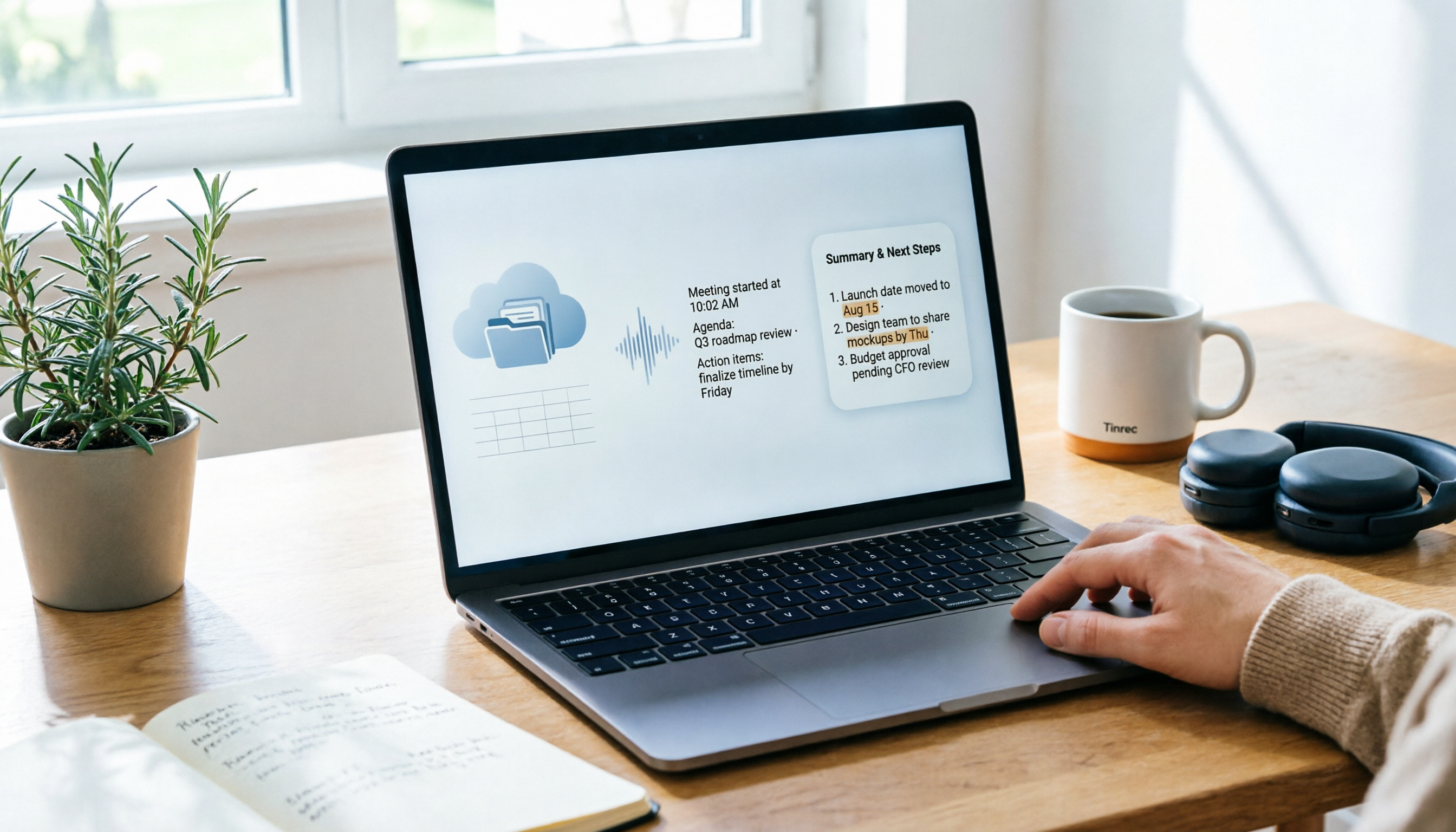
Can't find your Google Meet recording after the meeting? The problem usually isn't whether you recorded it—it's that you're looking in the wrong place. This 5-step guide explains whose cloud the recording is saved to, how to quickly retrieve it from Drive and Calendar, how to download a backup, and finally how to turn the recording into a searchable transcript and meeting notes.

What Is Google Meet in 2026: Core Features Explained + How to Organize Meeting Notes
Google Meet is Google's video conferencing service, formerly Hangouts Meet, merged with Duo in 2022. This article explains from a mid-level manager's practical perspective what Google Meet is, who uses it, free vs. paid differences, privacy rules, and demonstrates how to use Tinrec to turn Meet meeting content into transcripts, summaries, and action items, so you don't have to rely on memory after the meeting.

Google Meet vs Tinrec in 2026: 5-Dimension Comparison — Which Is More Cost-Effective for Meetings?
Google Meet pricing actually has three answers: free at $0, Workspace paid plans starting around US$6.30 to US$7, and the hidden cost of upgrading to Standard for recording and AI notes. This article walks you through 5 steps to convert monthly fees into annual per-person expenses, using the Tinrec team plan as a second reference point to help you clearly explain why you chose a particular plan in meetings.

3 Google Meet Note-Taking Tools Tested for 2026: How to Record Online Classes and Group Discussions Most Efficiently
What is Google Meet used for? Starting from real student scenarios, this article first clarifies Google Meet's purpose and what it doesn't solve, then tests and compares 3 note-taking tools, summarizing key buying factors, pitfalls to avoid, and budget-friendly recommendations for students.

Google Meet vs Tinrec: 2 Meeting Note Methods Compared (2026)
Google Meet is Google's video conferencing service launched in 2017. You can hold meetings in a browser, and free accounts generally support 100 participants for 60 minutes. This article first explains what Google Meet is, then compares its built-in transcription with Tinrec across five dimensions: recording method, post-meeting output, input sources, team data management, and cost, to help you decide which meeting note method suits you better.