

Turn recordings into transcripts and summaries in minutes
Upload audio or video for multilingual transcription, AI notes, and action items
What Is Google Meet? One Sentence to Clarify
Last Wednesday at 9 AM, I opened my inbox and saw a Google Meet link; the meeting started in ten minutes. While fumbling for my headset, I thought about two things: Will this meeting be automatically recorded? How will I note down those decisions after the meeting?
If you're also searching for "what is Google Meet," this article clarifies it all: what it is, who uses it, what limitations it has, and how I've actually preserved meeting content from Meet over the years.
Google Meet is Google's video conferencing service, formerly called Google Hangouts Meet. In 2022, Google merged the consumer Duo into Meet, and the mobile app was directly renamed to Meet. It offers Android, iOS, and web versions, and also supports Android TV since 2022.
Let's list a few objective facts first:
- Participants: A meeting can have at least 2 and up to 100 participants, with options to speak, text chat, and video.
- Positioning: Google primarily designs it for enterprises and organizations, but individuals can use it too; it's integrated into the Google Workspace ecosystem, connecting with Gmail, Google Calendar, Docs, Slides, and also integrates with Google Classroom.
- Encryption: Individual users can use end-to-end encryption.
- Meeting features: AI noise cancellation, live captions, in-meeting chat, recording, screen sharing, live streaming, etc. Some features depend on your plan level.
In other words, it's not "another Zoom," but a meeting entry point built into the Google ecosystem. If your company already uses Gmail and Calendar, you usually don't need to install anything on meeting day—just click the link to join.
Who Uses Google Meet
Based on my experience leading a 10-person team, Meet most commonly appears in three scenarios:
- External meetings: Clients or suppliers using Workspace naturally send you Meet links.
- Cross-department communication: Calendar invites include meeting rooms directly, join with one click.
- Online courses and distance learning: If schools use Google Classroom, they typically pair it with Meet.
A Commonly Misunderstood Point: It Won't Keep Records for You
This is where I stumbled initially. Google Meet can record, but what's recorded is a video file, not a transcript or a to-do list. And according to public privacy policy analysis, consumer calls are not recorded or stored, and data isn't used for ad targeting, but Google reserves the right to collect call duration, participants, and IP addresses.
That is: the responsibility for organizing meeting content still falls on you. Here's my current practical approach.
Before You Start | What You Need to Prepare
- A Google account: Necessary to join meetings; company account or personal Gmail both work.
- Meeting link or calendar invite: Meet meetings are usually created via Google Calendar, with URLs starting with meet.google.com.
- Stable internet and headset: For multi-person meetings, use a headset to avoid echo.
- A post-meeting organization tool: This article uses Tinrec as an example. It supports desktop version to directly capture computer system audio, without needing a meeting bot to join your Meet meeting; the mobile app is available for free on the App Store and Google Play.
- A reminder: Before recording and transcribing, obtain consent from participants according to local regulations—this is basic courtesy and a legal requirement.
Step 1 | Start or Join a Google Meet Meeting
Purpose: First gather people together; this is the prerequisite for all subsequent organization.
Creating an event from Google Calendar and clicking "Add Google Meet meeting" is the fastest way; if just finding someone ad hoc, you can also open a meeting room and paste the link to them. When joining, the browser will ask for microphone and camera permissions; allow them before the meeting to save time fumbling for buttons at the start.
Why start from Calendar: Because the invite itself carries time, agenda, and participant list. This list is very useful later when organizing meeting notes and confirming who should claim action items—I've learned the hard way, only after the meeting recalling "which department was that person talking about the budget from?"
After completion: You'll enter the meeting room, see the participant list and meeting link, and can start the call.
Step 2 | When the Meeting Starts, Simultaneously Start Recording and Live Transcription
Purpose: While the meeting is ongoing, turn content into searchable text, rather than reconstructing from memory afterward.
My approach: After the Meet meeting starts, open Tinrec desktop version on the computer and let it capture system audio. Because the sound is captured directly from the computer, there's no need to invite an extra bot account into the meeting room—this is especially important for external client meetings; you don't want an extra "AI assistant" participant in front of clients.
Why transcribe while meeting: Because what I most often miss is "that middle discussion." The beginning of meetings is usually clear, and conclusions are memorable, but what really determines the direction are often the back-and-forth in the middle. Recording and transcribing simultaneously is like having AI as that undistracted note-taker.
Stop organizing recordings by hand
Upload audio or video and automatically get a transcript, summary, and action items
After completion: When the meeting ends, you already have a timestamped transcript, no need to listen to the recording from the beginning.
Step 3 | Spend 3 Minutes Proofreading the Transcript, Not Re-listening for an Hour
Purpose: Correct technical terms and names so the subsequent summary isn't skewed.
Automatic transcription is affected by recording quality, accents, and overlapping speech—this is the same for any tool; I won't tell you it's "zero errors." In practice, I only do two things: quickly scan for proper nouns and names, then mark key decision paragraphs.
Why only 3 minutes: Because the value of a transcript is "searchability," not "perfection." You don't need a publishable document; you need to be able to type two keywords and jump back to that segment when your boss asks three days later "how was that budget decided last time?"
After completion: A searchable meeting transcript with matching timestamps.
Step 4 | Let AI Generate Summaries, Chapters, and Action Items
Purpose: Compress an hour of conversation into key points readable in five minutes, and extract "who does what."
Tinrec automatically generates summaries, chapters, and action items, and for long meetings, breaks them into easily browsable paragraph structures. I usually run it immediately after the meeting, then manually confirm whether the action item owners are correct—AI is very accurate at capturing action items, but "who claims" occasionally needs your supplement.
Why this step can't be replaced by recording: Recording can only be replayed, not queried. Summaries and action items can be directly pasted into weekly reports and project groups—these are the truly used outputs after meetings.
After completion: A draft meeting minutes ready to forward, plus an action item list.
Step 5 | Export and Share, Let the Meeting Enter the Team's Workflow
Purpose: Meeting notes shouldn't die on someone's hard drive.
Tinrec supports multi-format export and can bring results to common tools like Notion, Google Docs, OneNote, Dropbox. My habit: minutes go into team documents, action items into project boards, transcripts stay in place as verification basis.
If it's a team version, meeting data is uniformly saved in the team space, new members can directly browse historical meetings; when members change, data still belongs to the team and won't leave with individuals.
After completion: A meeting transforms from "conversation" to "searchable, trackable, transferable" team data.
FAQ and Troubleshooting
Q: Is Google Meet free? Personal Google accounts can use basic features for free. If you need more complete enterprise features (e.g., longer meetings, recording, advanced management), it depends on the Google Workspace plan level. Public reports have mentioned Workspace has personal plans at about $9.99 per month, or about $8.33 per month billed annually, but prices and benefits may change; refer to Google's official page for actual details.
Q: Does Google Meet automatically record? No. Recording requires someone to actively press record, and availability depends on your plan. This is why I additionally use Tinrec for recording and transcription—making "recording" a fixed action, not an afterthought.
Q: If someone uses Meet's built-in captions during the meeting, do I still need a transcript? Live captions are for viewing in the moment; they disappear when turned off. Transcripts are for post-meeting reference. They don't conflict, but their purposes are completely different.
Q: What if the 100-person limit isn't enough? This is a current plan limitation of Google Meet; large events usually switch to live streaming features. This isn't the focus of this article, but if your meeting nature is "one-to-many announcement," live streaming is more stable than a hundred-person video call.
Q: What if there are typos in the transcribed text? Usually it's a recording environment issue. During recording, keep the microphone close to the main speaker and select the corresponding language setting in the tool; if it's a commonly used technical term in the team, Tinrec's team hotword feature allows you to maintain a glossary in advance to improve recognition experience.
Advanced Tips | Cut Post-Meeting Organization Time in Half Again
1. Use AI Q&A to Follow Up on Historical Meetings Tinrec supports asking questions around meeting content. I often directly ask "What were the three main objections clients mentioned this quarter," and let it organize from multiple meetings. This can't be done with video files, and manually searching transcripts takes a long time.
2. Enable Live Translation and Bilingual View For international meetings, you can view original text, translation, or bilingual comparison while recording. For those with average English listening but need to grasp details (like me), this is much more practical than translating after the meeting.
3. Use Agent Post-Processing to Directly Generate Post-Meeting Outputs Besides summaries, you can generate reports, tables, and documents based on meeting content. My current approach is to fix templates and directly produce weekly report format paragraphs after meetings, leaving only minor number adjustments.
If You Don't Use Tinrec, There Are These Alternatives
Google Meet built-in recording and captions: Completely free, no installation needed; the downside is only video files, still requiring manual organization afterward.
AI meeting assistants like Otter.ai: More experienced with English business meetings; if your team meetings are mainly in English, you can evaluate it; Chinese meetings and post-meeting team data accumulation are other judgment points.
No matter which you choose, the key is the same: turn "post-meeting organization" from an ad hoc action into a fixed process.
Summary
What is Google Meet? It's the video conferencing entry point in the Google ecosystem: click a link to start a meeting, integrated with Calendar and Docs, individual users have end-to-end encryption, and a meeting can accommodate 2 to 100 people. It solves "gathering people together," but doesn't solve "leaving a searchable record after the meeting."
My current approach is very fixed: Meet for meetings, Tinrec for recording and transcribing simultaneously, produce minutes and action items within 10 minutes after the meeting, and drop them into team documents the same day. Rather than starting to headache after the meeting ends, it's better to let recording happen automatically during the meeting.
If you also have a dozen meetings per week, I suggest starting with the free quota, run a real meeting recording through the entire process, see if the transcript quality and summaries meet your needs, then decide whether to upgrade.
References
Turn every recording into actionable outcomes
Get 60 free transcription minutes when you sign in. No credit card required.
Related Reading
You might also like

Where to Find Google Meet on Android in 2026: 5-Step Guide
Can't find Google Meet on your Android phone? This guide walks you through 5 steps to locate Google Meet, join meetings quickly from Gmail and Calendar, and after the meeting use Tinrec to turn speech into transcripts, summaries, and action items.

Google Meet Chat Location in 2026: 3 Steps to Find It on Desktop and Mobile
Can't find the Google Meet chat during a meeting? This practical guide walks you through the chat locations on desktop, mobile, and after the meeting, plus fixes for when the icon disappears and how to keep the discussion for later.

Google Meet Link Guide 2026: Find Your Link and Auto-Organize Meeting Notes
Can't find a Google Meet link? It's usually not missing—you're just looking in the wrong place. This guide shows you how to quickly locate meeting links from three entry points: Calendar, Gmail, and meet.google.com. It also explains how, once you've found the link, you can use Tinrec to automatically turn meeting content into transcripts, summaries, and action items.

Google Meet Recording Guide 2026: Where to Find Recordings, Why They're Missing, and How to Organize Meeting Notes
Can't find your Google Meet recording after a meeting? This guide explains where recordings are saved by default and why you might not find them, then shows how Tinrec can turn meeting audio into transcripts, summaries, and action items—no more digging through Drive.
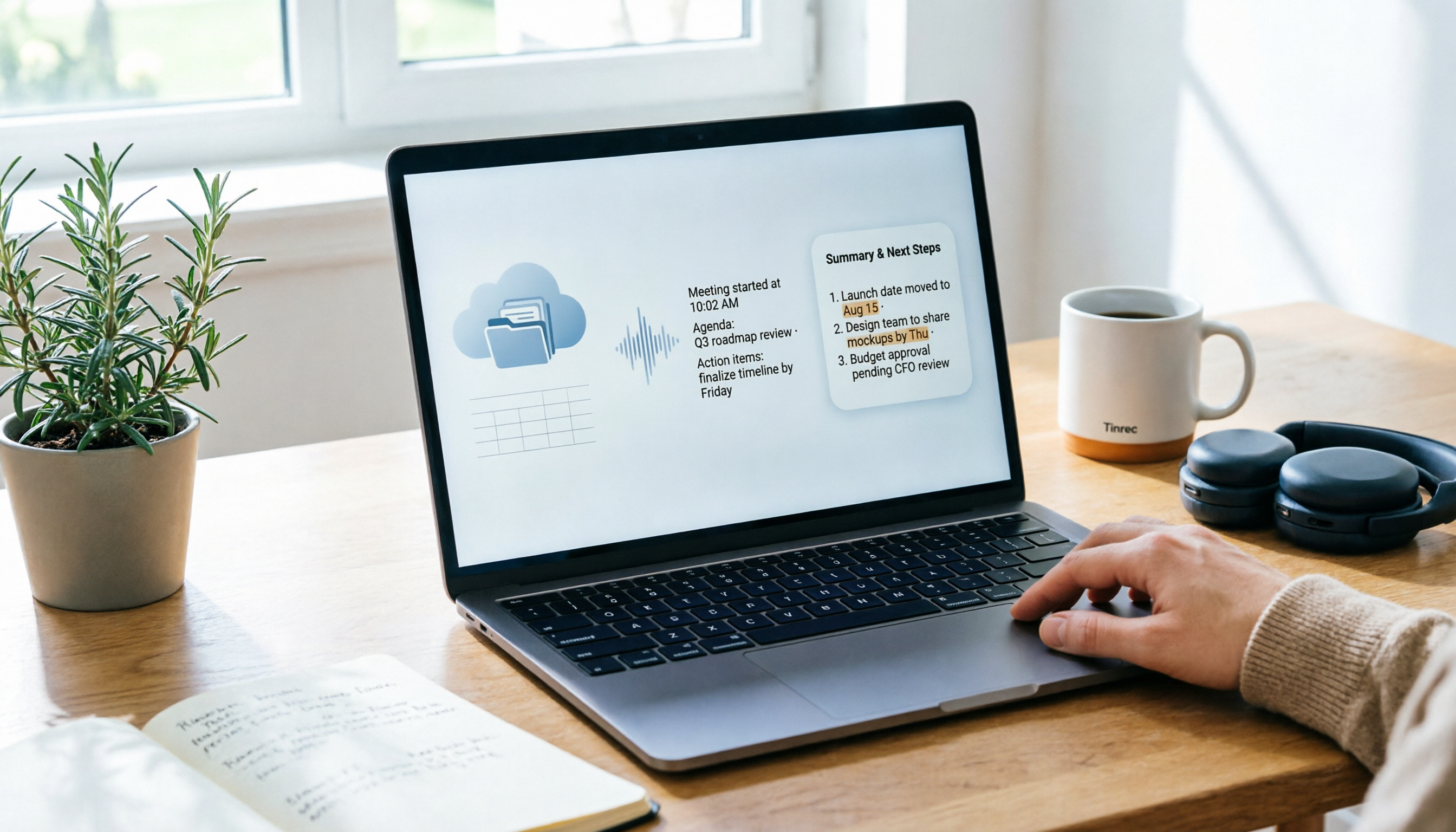
Where Are Google Meet Recordings Stored in 2026? 5-Step Guide
Can't find your Google Meet recording after the meeting? The problem usually isn't whether you recorded it—it's that you're looking in the wrong place. This 5-step guide explains whose cloud the recording is saved to, how to quickly retrieve it from Drive and Calendar, how to download a backup, and finally how to turn the recording into a searchable transcript and meeting notes.

Google Meet vs Tinrec in 2026: 5-Dimension Comparison — Which Is More Cost-Effective for Meetings?
Google Meet pricing actually has three answers: free at $0, Workspace paid plans starting around US$6.30 to US$7, and the hidden cost of upgrading to Standard for recording and AI notes. This article walks you through 5 steps to convert monthly fees into annual per-person expenses, using the Tinrec team plan as a second reference point to help you clearly explain why you chose a particular plan in meetings.

3 Google Meet Note-Taking Tools Tested for 2026: How to Record Online Classes and Group Discussions Most Efficiently
What is Google Meet used for? Starting from real student scenarios, this article first clarifies Google Meet's purpose and what it doesn't solve, then tests and compares 3 note-taking tools, summarizing key buying factors, pitfalls to avoid, and budget-friendly recommendations for students.

Google Meet vs Tinrec: 2 Meeting Note Methods Compared (2026)
Google Meet is Google's video conferencing service launched in 2017. You can hold meetings in a browser, and free accounts generally support 100 participants for 60 minutes. This article first explains what Google Meet is, then compares its built-in transcription with Tinrec across five dimensions: recording method, post-meeting output, input sources, team data management, and cost, to help you decide which meeting note method suits you better.
3 Google Meet Call Recording Tools Compared for 2026: From Audio to Transcripts
Google Meet's free version has a 60-minute and 100-participant limit, but the platform offers little help with post-call documentation. This article addresses real pain points, comparing manual note-taking, built-in transcription, and desktop AI tools, using Tinrec as an example to explain bot-free recording, real-time transcripts, AI summaries, and team spaces.